
Excel’s ATAN function returns the arctangent of a number as an angle in radians.
It converts a tangent ratio, such as rise divided by run, back into an angle. You can then convert the result to degrees for a slope measurement.
When separate x- and y-coordinates determine the quadrant, ATAN2 is the more suitable function.
In this article, I’ll show you how to convert slope ratios into angles, calculate roof pitch, and compare quadrant handling with ATAN2.
ATAN Function Syntax in Excel
The ATAN function takes a tangent value, usually a rise-over-run ratio, and returns the corresponding angle in radians.
=ATAN(number)
- number (required) is the tangent of the angle you want to find. It can be a number, cell reference, or calculated ratio.
When to Use ATAN Function
- Convert a rise-over-run ratio into an angle.
- Calculate roof pitch, incline, or tilt angles from measured sides.
- Find viewing angles from screen dimensions and viewing distance.
- Check whether a tangent ratio converts back to the expected angle.
- Calculate angles from coordinates when the quadrant is already known.
Example 1: Convert Slope Ratios to Angles with ATAN
Each conveyor section starts with a measured incline ratio.
Below is the dataset. Column A identifies each conveyor section, and column B contains its measured rise-over-run ratio.
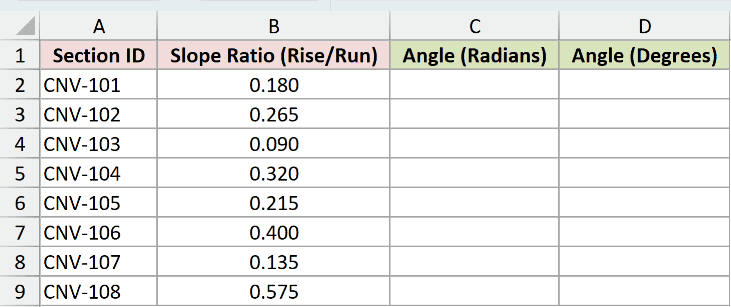
We want to return every angle in radians first, then show the same angles in degrees.
Here is the ATAN formula for the radian values:
=ATAN(B2:B9)
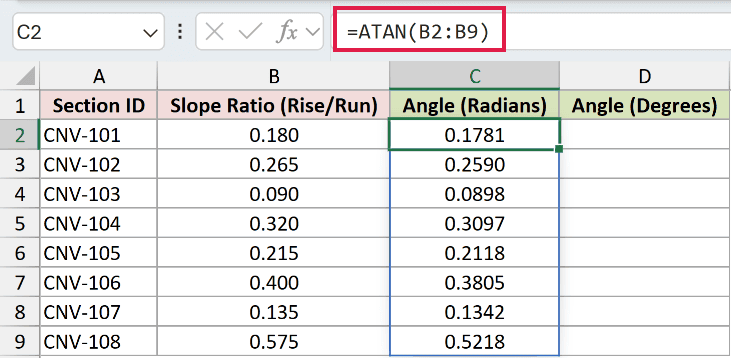
This single formula spills from C2 through C9. For example, the 0.180 ratio for CNV-101 returns 0.1781 radians.
Here is the formula that converts those angles to degrees:
=DEGREES(ATAN(B2:B9))
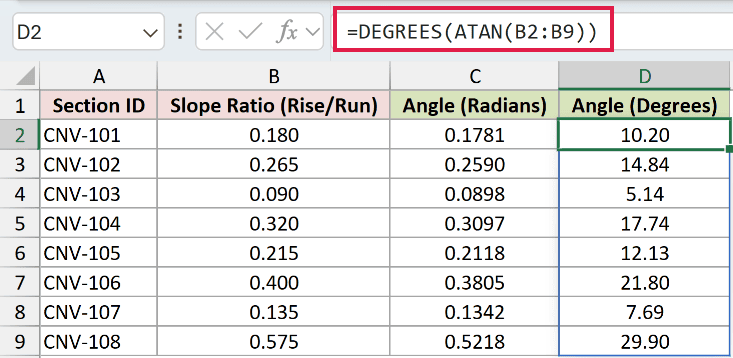
DEGREES makes the result easier to read. CNV-101 returns 10.20 degrees, while CNV-108 returns 29.90 degrees.
You may also see formulas that multiply the radian result by 180 and divide by PI. DEGREES is shorter and makes the conversion clearer.
Pro Tip: The displayed decimals come from cell formatting. ATAN keeps the underlying angle at full precision.
Example 2: Calculate Roof Pitch from Rise and Run
Here’s a more typical setup where rise and run sit in separate columns.
Below is the dataset. Column A lists roof sections, column B contains each rise, and column C contains each run, all measured in inches.
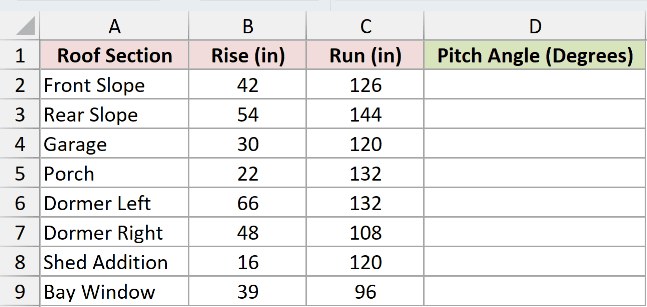
We want to calculate the rise-over-run ratio inside the formula and return each pitch angle in degrees.
Here is the formula:
=DEGREES(ATAN(B2:B9/C2:C9))
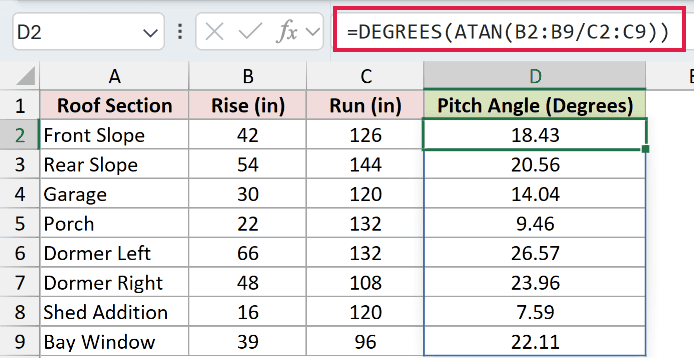
Excel divides every rise in column B by its matching run in column C. ATAN converts each ratio to radians, and DEGREES converts the results.
The Front Slope returns 18.43 degrees. The Shed Addition has a much smaller rise relative to its run, so it returns 7.59 degrees.
ATAN2 would return the same numbers here, but it needs both rise and run where ATAN needs only their ratio.
This example needs the acute angle of a right triangle, not an angle around a full coordinate plane.
Example 3: Calculate a TV Viewing Angle
A wall-mounted TV needs both horizontal and vertical viewing angles.
Below is the dataset. The measurement card contains a 57-inch screen width, a 32-inch screen height, and a 96-inch viewing distance.

We want the horizontal half-angle, the full horizontal viewing angle, and the full vertical viewing angle.
Here is the horizontal half-angle formula:
=DEGREES(ATAN((B1/2)/B2))

The formula divides half the screen width by the viewing distance. ATAN converts that ratio to an angle in radians, and DEGREES turns it into 16.53 degrees.
Here is the full horizontal viewing-angle formula:
=2*DEGREES(ATAN((B1/2)/B2))

Multiplying the half-angle by 2 covers both sides of the screen. The full horizontal viewing angle is 33.07 degrees.
Here is the vertical viewing-angle formula:
=2*DEGREES(ATAN((B3/2)/B2))
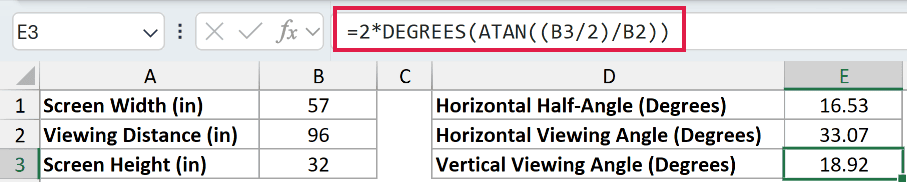
This version uses half the screen height instead of half the width. The full vertical viewing angle is 18.92 degrees.
These are separate scalar formulas because the sheet is a measurement card, not a row-based dataset that needs to spill.
Example 4: Compare ATAN and ATAN2 Quadrants
ATAN loses the quadrant, and coordinate data is where that limitation shows up.
Below is the dataset. Column A identifies each delivery stop, while columns B and C give its east and north position relative to the depot.
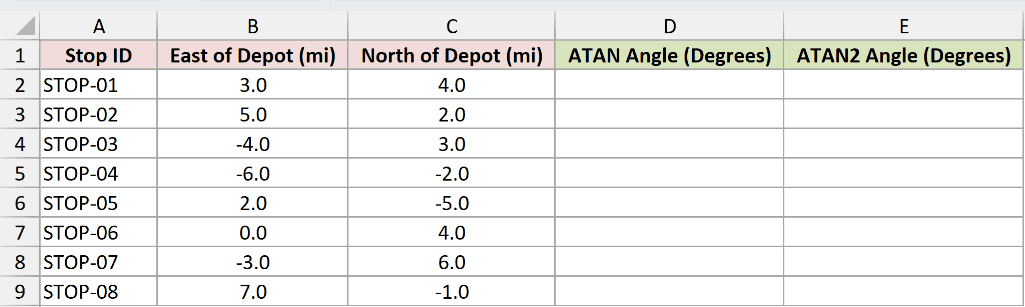
We want to compare the angle from a rise-over-run ratio with an angle that preserves the point’s quadrant.
Here is the ATAN formula:
=DEGREES(ATAN(C2:C9/B2:B9))
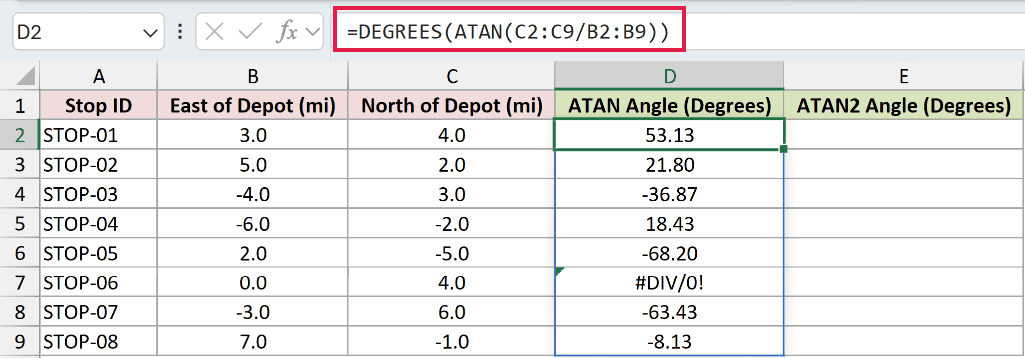
ATAN sees only the north-to-east ratio. When both coordinates are negative, their signs cancel during division, so ATAN receives the same positive ratio as it would from two positive coordinates.
For STOP-03, ATAN returns -36.87 degrees even though the point belongs in the second quadrant.
STOP-06 sits due north, so its east value is zero. Dividing north by east returns the #DIV/0! error before ATAN receives a ratio.
Here is the ATAN2 formula:
=DEGREES(ATAN2(B2:B9,C2:C9))
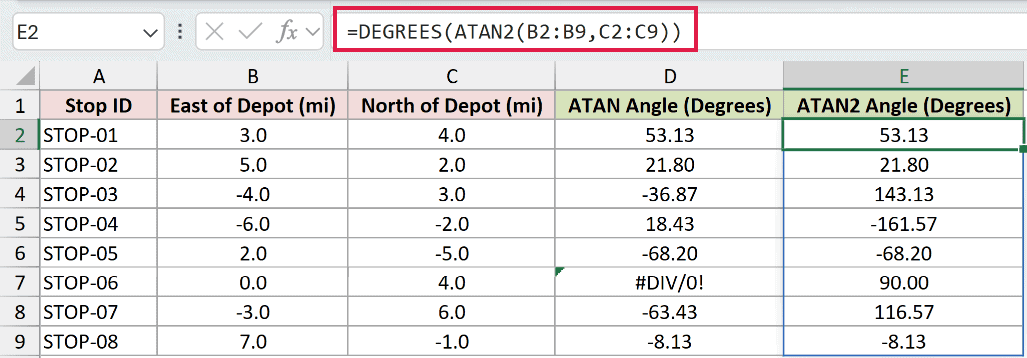
Excel’s ATAN2 takes the x value first and the y value second. That order is reversed in many programming languages, so it is easy to swap.
ATAN2 returns 143.13 degrees for STOP-03 and 90.00 degrees for STOP-06. It can use a zero x value without dividing by it.
A positive result runs counterclockwise from the east axis, while a negative result runs clockwise. It is a mathematical angle, not a compass bearing or heading.
Pro Tip: Use ATAN when one ratio is enough. Use ATAN2 when the original x and y values must determine the correct quadrant.
Example 5: Convert Angles Back to Slope Ratios
Each solar-array bank has a target tilt that we can convert to a ratio and back.
Below is the dataset. Column A identifies each array bank, and column B contains its target tilt in degrees.
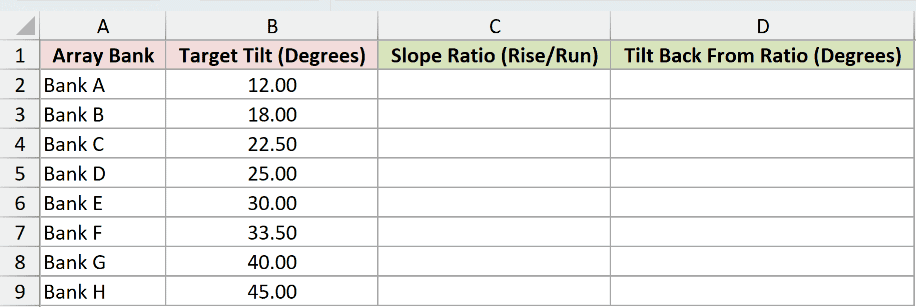
We want to calculate each rise-over-run ratio, then convert that ratio back to the original tilt angle.
Here is the formula that returns the slope ratios:
=TAN(RADIANS(B2:B9))
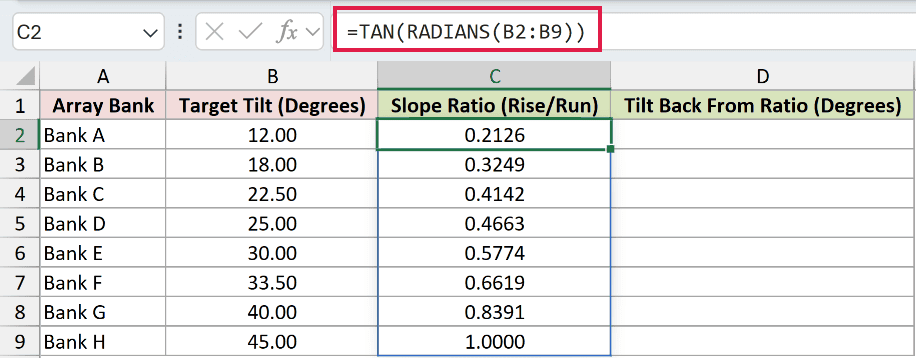
RADIANS converts the target degrees because TAN expects radians. The spilled results range from 0.2126 for Bank A to 1.0000 for Bank H.
Here is the formula that converts each ratio back to degrees:
=DEGREES(ATAN(C2:C9))
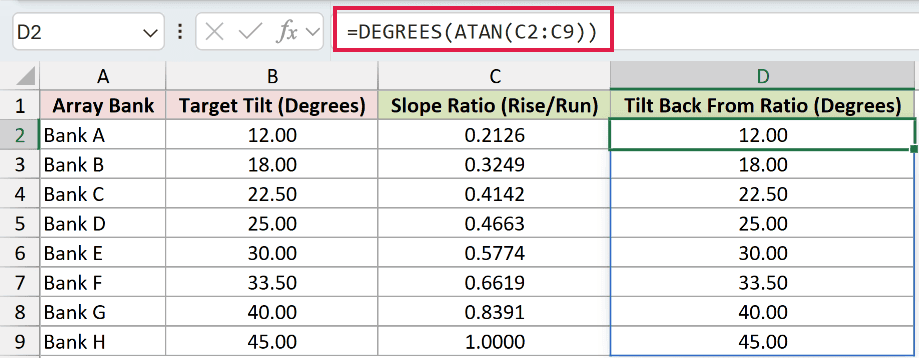
ATAN reverses TAN and returns the angles in radians. DEGREES converts them, so column D reproduces every target in column B.
Bank C returns 22.50 degrees, and Bank H returns 45.00 degrees. The matching values show that each stored ratio maps back to its target tilt.
Pro Tip: ATAN returns radians, and TAN expects radians. A direct TAN check of an ATAN result needs no degree conversion. Remember that =TAN(45) treats 45 as radians, not degrees.
Tips & Common Mistakes
- ATAN always returns radians. Use DEGREES when you want an angle most people will recognize, or multiply by 180 and divide by PI.
- ATAN’s answer never goes beyond the equivalent of negative 90 to positive 90 degrees. Use ATAN2 when the angle may sit in another quadrant.
- Excel’s ATAN2 argument order is x first, then y. This is the reverse of the order used by most programming languages.
- Clear any occupied cells in a spill range if Excel returns #SPILL!. Adding the implicit-intersection operator, the @ symbol, forces one result instead of the full spill.
- In Excel 2019 and earlier, enter a per-row formula and fill it down because those versions do not support dynamic-array spills. A spill formula saved in a newer version may open there as a legacy array formula in braces and still calculate every row.
- A blank referenced cell is treated as zero, which can quietly look like a flat slope. Non-numeric text returns #VALUE!.
- The SLOPE function fits a line through paired data and returns a ratio. ATAN does the different job of turning a ratio into an angle.
Use DEGREES when you want ATAN’s radian result in a familiar format.
The round-trip check in Example 5 is a quick way to confirm that a stored ratio maps back to the angle you expected.
Related Excel Functions / Articles:
Other Excel articles you may also like:
