
The ATAN2 function in Excel returns an angle in radians from a point’s x- and y-coordinates, accounting for its quadrant.
It is useful when both horizontal and vertical offsets determine direction. Excel takes the x-coordinate first, unlike the argument order used in many programming languages.
You can convert the result to degrees when that is the unit your worksheet needs.
In this article, I’ll show you how to calculate angles from coordinates, convert them into compass bearings, and handle zero-coordinate errors.
ATAN2 Function Syntax in Excel
The ATAN2 function needs both coordinates and returns the angle in radians.
=ATAN2(x_num, y_num)
- x_num (required) is the X coordinate of the point.
- y_num (required) is the Y coordinate of the point.
When to Use ATAN2 Function
- Find the angle of a point or movement from its X and Y offsets.
- Distinguish directions across all four quadrants without dividing Y by X.
- Convert negative angles into a consistent 0 to 360 degree scale.
- Convert an east-based ATAN2 angle into a compass bearing with an additional formula.
- Flag records where both coordinates are zero and no direction exists.
Example 1: Get Angles From X and Y Offsets
Let’s start with a set of robot movements.
Below is the dataset. Column A lists each move, while columns B and C contain its X and Y offsets in millimeters.
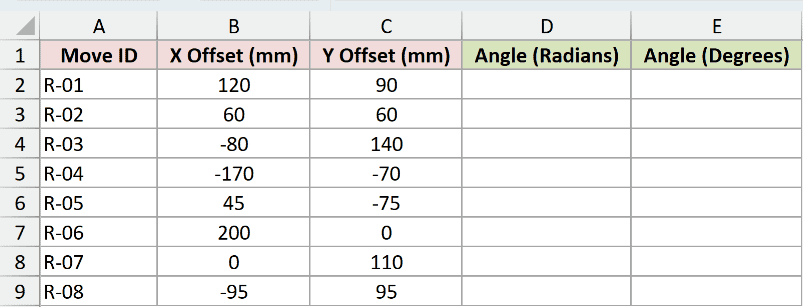
We want to calculate the angle of every movement in radians.
Here is the formula:
=ATAN2(B2:B9,C2:C9)
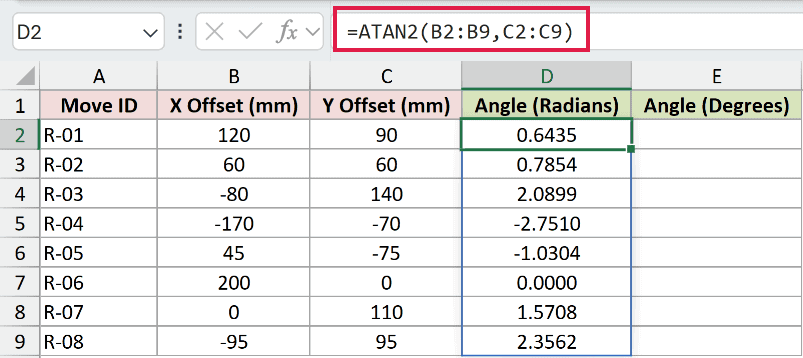
ATAN2 reads the X offsets from column B first and the Y offsets from column C second.
The results spill from D2 to D9.
At one end, R-04 shows -2.7510 radians. R-01 is 0.6435 radians, while R-07 lands at 1.5708 radians.
Radians are useful for further calculations, but degrees are usually easier to read.
Here is the formula with DEGREES:
=DEGREES(ATAN2(B2:B9,C2:C9))
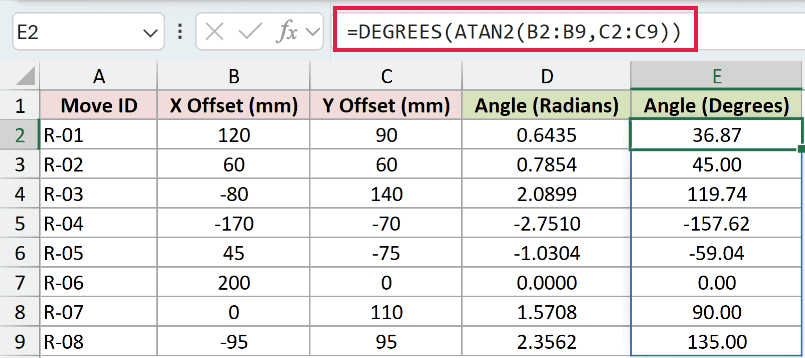
The second formula converts the same results to degrees.
R-01 becomes 36.87 degrees and R-04 becomes -157.62 degrees. The straight upward movement of R-07 reads 90.00 degrees.
Positive angles run counterclockwise from the positive X axis. Negative angles run clockwise. Results can equal 180 degrees but are always greater than -180 degrees.
Pro Tip: ATAN2 itself always returns radians. Use DEGREES or multiply by 180/PI() when you need degrees.
Example 2: See Why X Must Come First
This example shows how quietly a swapped formula can go wrong.
Below is the dataset. Column A identifies each load case, while columns B and C contain its X and Y force components in pounds.
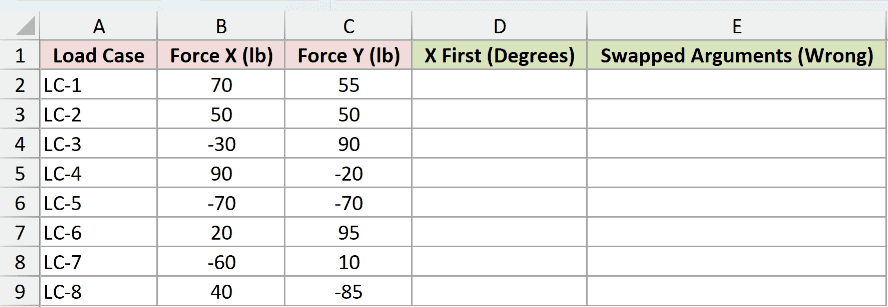
We want the correct angle for each load case, with the X force supplied first.
Here is the correct formula:
=DEGREES(ATAN2(B2:B9,C2:C9))
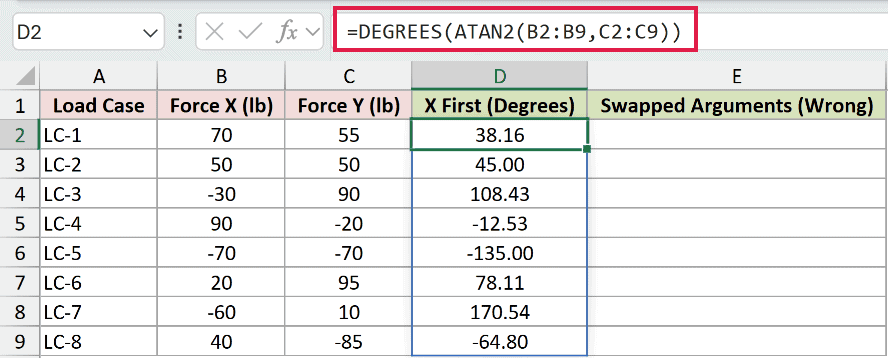
The formula returns 38.16 degrees for LC-1 and 170.54 degrees for LC-7.
The next formula shows what not to do. It feeds Y first into the Swapped Arguments (Wrong) column.
=DEGREES(ATAN2(C2:C9,B2:B9))
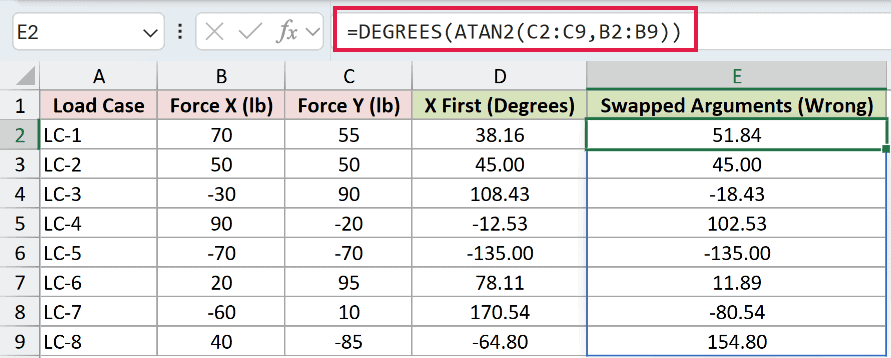
The Swapped Arguments (Wrong) formula returns 51.84 degrees for LC-1 and -80.54 degrees for LC-7. Those are not valid alternatives to the X-first results.
LC-2 returns 45.00 degrees in the X First and Swapped Arguments (Wrong) columns.
LC-5 returns -135.00 degrees in the X First and Swapped Arguments (Wrong) columns. Equal X and Y values hide the mistake.
Although the Swapped Arguments (Wrong) column has the same green result styling, it shows an error in method, not a second valid option.
Pro Tip: Excel uses ATAN2(x_num, y_num). Most programming languages use atan2(y, x), so check the order before copying a calculation from code.
Example 3: Convert Angles to 0 Through 360
Let’s convert every angle to one positive scale.
Below is the dataset. Column A lists products, while columns B and C show their growth and margin differences from the category average.
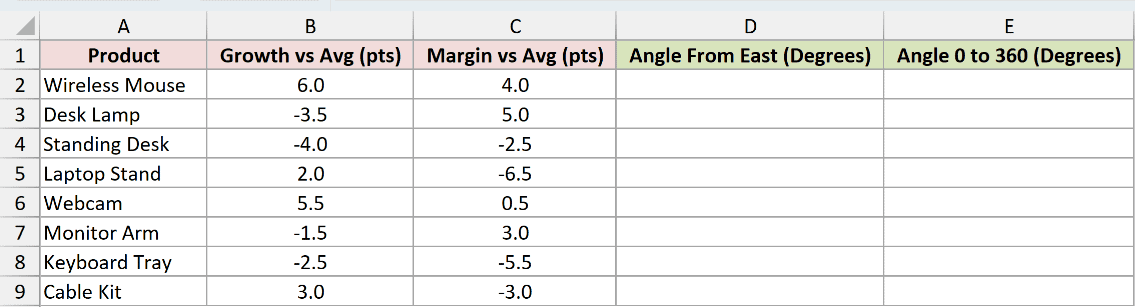
We first want the standard ATAN2 angle measured counterclockwise from east.
Here is the formula:
=DEGREES(ATAN2(B2:B9,C2:C9))
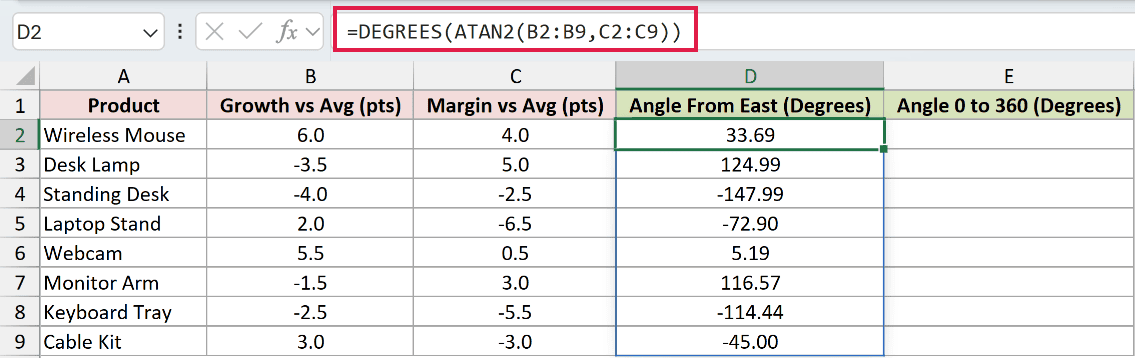
Wireless Mouse shows 33.69 degrees.
The negative readings are -147.99 degrees for Standing Desk, -72.90 degrees for Laptop Stand, and -114.44 degrees for Keyboard Tray.
To remove negative readings without changing their directions, wrap the angle in MOD.
Here is the normalized formula:
=MOD(DEGREES(ATAN2(B2:B9,C2:C9)),360)
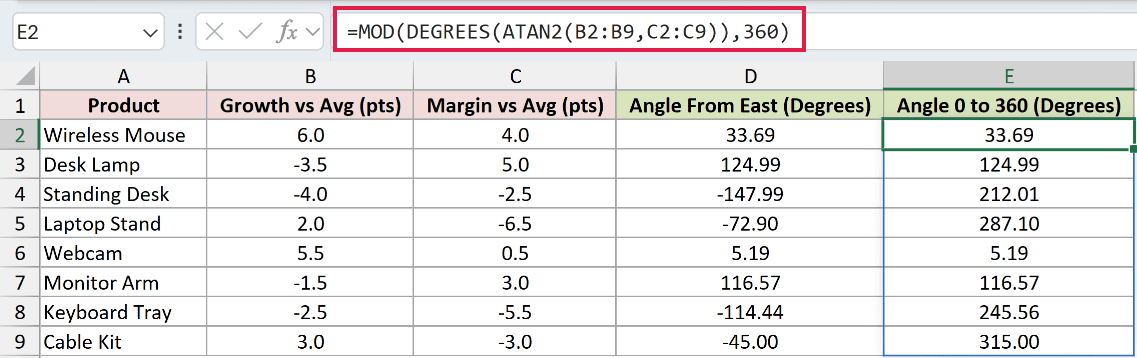
MOD leaves Wireless Mouse at 33.69 degrees. It converts the three negative readings to 212.01, 287.10, and 245.56 degrees.
Cable Kit changes from -45.00 degrees to 315.00 degrees. The point still faces the same direction, but the label now uses a 0 to 360 scale.
Example 4: Convert an Angle Into a Compass Bearing
Here’s where the reference direction matters.
Below is the dataset. Column A lists each hole, while columns B and C show how far its pin sits east and north of the tee.
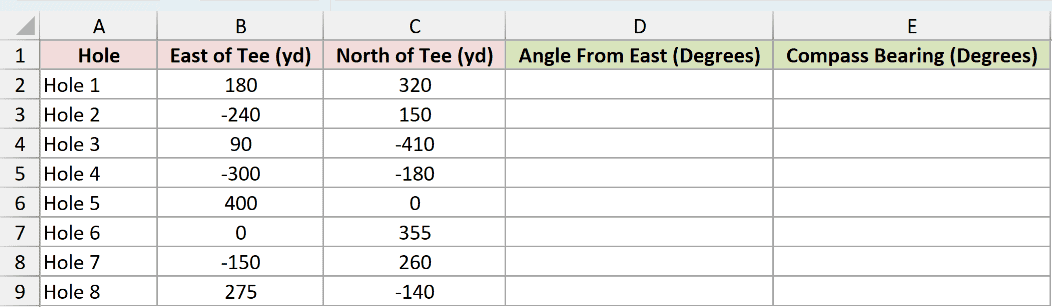
We first want ATAN2’s angle, measured counterclockwise from east.
Here is the formula:
=DEGREES(ATAN2(B2:B9,C2:C9))
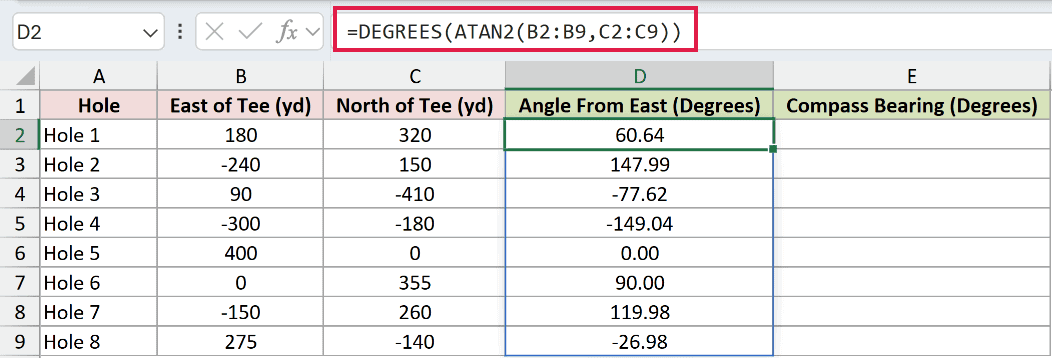
Hole 1 comes out at 60.64 degrees. Hole 2 reaches 147.99 degrees, while Hole 6 sits at 90.00 degrees.
Those values are angles from east, not compass bearings. The next formula performs the required conversion to clockwise readings from north.
Here is the bearing formula:
=MOD(90-DEGREES(ATAN2(B2:B9,C2:C9)),360)
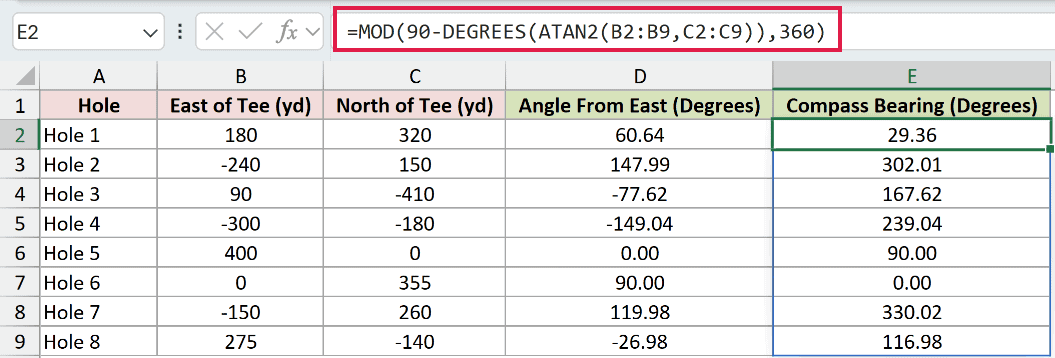
After conversion, Hole 6 reads 0.00 degrees. Hole 1 becomes 29.36 degrees, and Hole 2 becomes 302.01 degrees.
Subtracting from 90 changes the reference from east to north and reverses the rotation. MOD then keeps the bearing between 0 and 360 degrees.
ATAN2 does not return a compass bearing by itself. The conversion is a separate step you add when your worksheet needs compass notation.
Example 5: Handle Zero Coordinates With IFERROR
Finally, let’s handle a record with no movement.
Below is the dataset. Column A identifies each swipe, while columns B and C contain its horizontal and vertical travel in pixels.
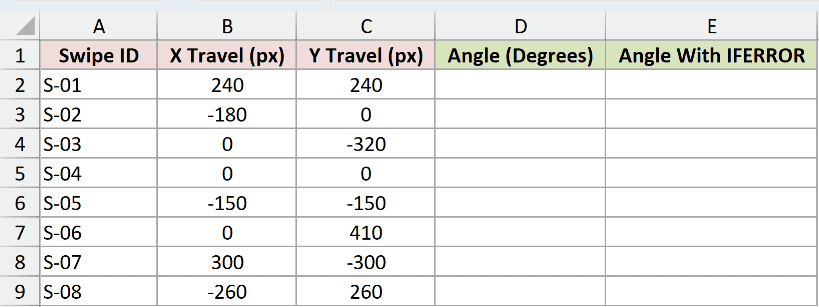
We want the angle for every swipe, including the row where both travel values are zero.
Here is the unguarded formula:
=DEGREES(ATAN2(B2:B9,C2:C9))
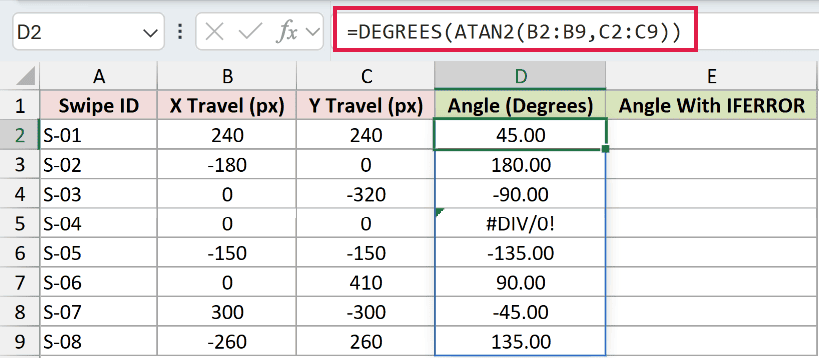
S-04 has zero travel on both axes, so #DIV/0! is the expected result, not a worksheet mistake.
There is no direction to calculate for a point at the origin.
A zero on one axis is fine. S-02 returns 180.00 degrees, S-03 returns -90.00 degrees, and S-06 returns 90.00 degrees.
The IFERROR version replaces errors with a useful label. This dataset contains one error, at S-04.
Here is the formula:
=IFERROR(DEGREES(ATAN2(B2:B9,C2:C9)),"No movement")
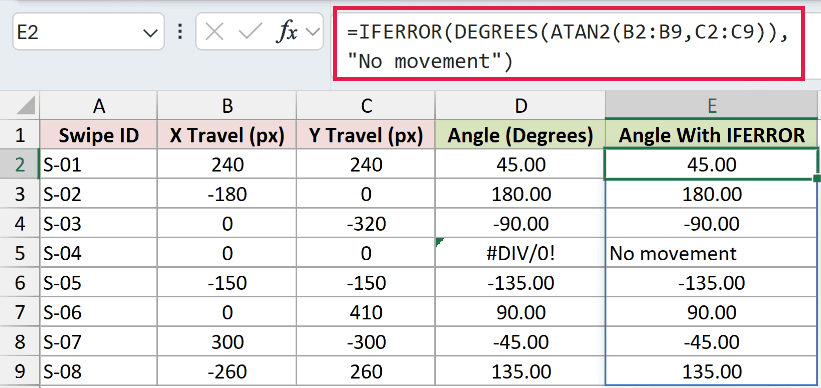
The formula returns No movement for S-04. The other seven angles remain unchanged, including 45.00 degrees for S-01 and 135.00 degrees for S-08.
Pro Tip: IFERROR also hides unrelated problems such as nonnumeric text. If dirty data is possible, test whether both coordinates equal zero before replacing the error.
Tips & Common Mistakes
- Keep the X coordinate first. Reversing the arguments often returns a believable number instead of an error.
- ATAN2 returns radians. Wrap it in DEGREES when readers need a degree value.
- The point (0,0) returns #DIV/0!, but a zero in only one coordinate is valid.
- Blank coordinate cells count as zero. A partly blank row can look like a point on an axis rather than missing data.
- In Excel 2021, Excel 2024, and Microsoft 365, range formulas spill automatically. Clear occupied cells if Excel returns #SPILL!.
- An implicit intersection operator before ATAN2 collapses a range formula to one result instead of spilling the full column.
- In Excel 2019 and earlier, enter a single-row formula in the first result cell and fill it down.
- Scaling both coordinates by the same positive number leaves the angle unchanged because only the ratio and quadrant matter. A negative factor reverses the vector and shifts the angle by 180 degrees.
The examples moved from coordinate offsets to radians, degrees, and a consistent 0 to 360 scale.
They also showed why argument order matters, how bearing conversion works, and why the origin needs an explicit label.
Related Excel Functions / Articles:
Other Excel articles you may also like:
