
Excel’s LOWER function converts letters in text to lowercase while leaving numbers, spaces, and punctuation unchanged.
It helps standardize labels and text keys for reports or exports. Combine it with TRIM or SUBSTITUTE when the source also needs spaces or other characters cleaned up.
In this article, I’ll show you how to clean email addresses, create lowercase URL keys, and format lowercase date labels.
LOWER Function Syntax in Excel
LOWER converts the letters in text to lowercase.
=LOWER(text)
textis the text, cell reference, or formula result you want to convert.
When to Use LOWER Function
- Standardize labels before grouping or comparing them.
- Clean the capitalization of imported text.
- Build consistent web keys from titles.
- Turn formatted date text into lowercase labels.
Example 1: Lowercase Campaign Labels
Let’s start with a simple spill formula.
Below is a list of campaign labels in different styles, including hyphens, underscores, numbers, and spaces.
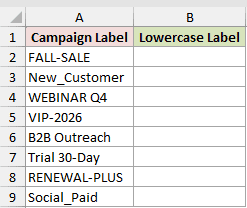
I want to create a lowercase version of every label in one step.
Here is the formula:
=LOWER(A2:A9)
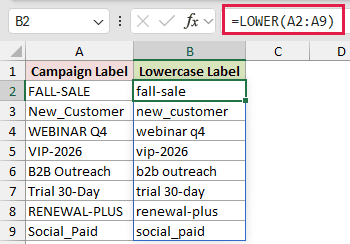
The formula starts in B2 and spills down to B9. FALL-SALE becomes fall-sale, while the hyphen stays in place.
Numbers, spaces, underscores, and punctuation are unchanged because LOWER only changes letters.
Pro Tip: In Excel 2019 and earlier, enter =LOWER(A2) in the first result cell and fill it down.
Example 2: Clean Imported Email Addresses
Here is a useful cleanup task for imported data.
Below is a list of portal users and their email addresses. Some addresses have inconsistent capitalization or extra spaces.
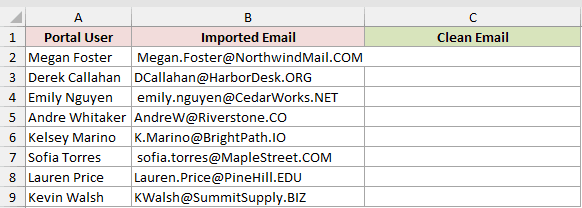
I want to remove extra spaces and return every email address in lowercase.
Here is the formula:
=LOWER(TRIM(B2:B9))
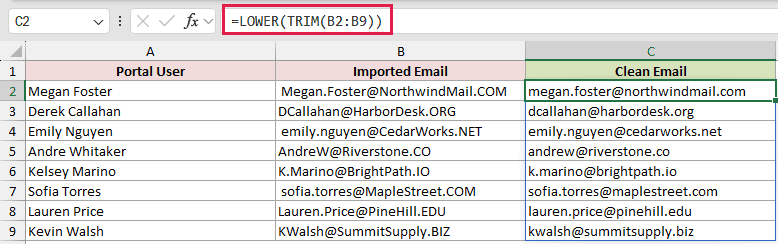
TRIM removes leading and trailing spaces first. LOWER then converts the remaining letters to lowercase.
The formula spills into the Clean Email column. The first result is megan.foster@northwindmail.com.
Keep the original addresses. The part before @ can be case-sensitive, so confirm your system’s rules before using lowercase copies for sending mail.
Example 3: Create Lowercase URL Keys
LOWER also works well inside another text formula.
Below are help-center topics that need URL-friendly keys.
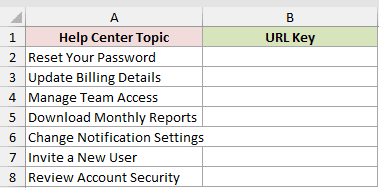
I want to turn each topic into lowercase text with hyphens instead of spaces.
Here is the formula:
=LOWER(SUBSTITUTE(A2:A8," ","-"))
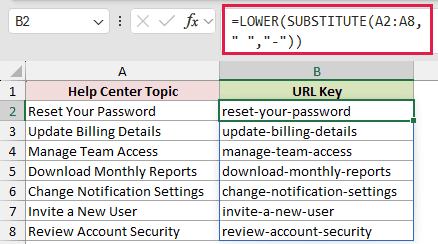
SUBSTITUTE changes each space to a hyphen. LOWER then gives the result consistent capitalization.
For example, Reset Your Password becomes reset-your-password.
Example 4: Make Lowercase Date Labels
Dates need one extra step because a date is stored as a number, even when it looks like text.
Below are event dates that need readable, lowercase labels.
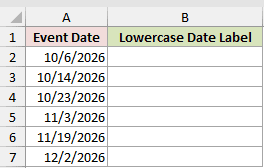
I want to display each date as a lowercase weekday and month label.
Here is the formula:
=LOWER(TEXT(A2:A7,"dddd, mmmm d"))
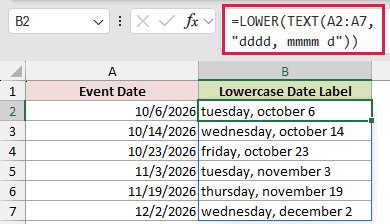
TEXT turns the date into a readable string first. LOWER can then change the weekday and month letters.
The first result is tuesday, october 6. The exact date wording can vary with your Excel language settings.
Tips & Common Mistakes
- LOWER does not convert text numerals to numbers. It only changes letter case.
- Use UPPER for all caps or PROPER when you need title-style capitalization.
- Use TRIM with LOWER when imported values may contain stray spaces.
- A spilled result needs empty cells below the formula. Clear anything blocking the spill range if Excel shows
#SPILL!.
LOWER is a simple way to standardize text without changing its non-letter characters. I hope you found this article helpful.
