
Excel’s SUBSTITUTE function replaces specified text within a text string.
Use it to remove dashes from codes or change a repeated word. It matches text rather than character positions, and you can replace every occurrence or just one.
In this article, I’ll show you how to remove unwanted characters, replace a particular occurrence, and count how often a character appears.
SUBSTITUTE Function Syntax in Excel
Here is how the SUBSTITUTE function is structured:
=SUBSTITUTE(text,old_text,new_text,[instance_num])
- text – the original text or the cell that contains it.
- old_text – the text you want to find and replace.
- new_text – the text you want to put in its place.
- instance_num – optional. Which occurrence of old_text to replace. Leave it out to replace every occurrence.
When to Use SUBSTITUTE Function
Here are some common situations where SUBSTITUTE comes in handy:
- Cleaning up data by removing a specific character from a string like dashes, slashes, or extra symbols.
- Replacing a word or code with an updated version across a list of entries.
- Standardizing text, such as expanding abbreviations into full words.
- Making several swaps at once by nesting one SUBSTITUTE inside another.
- Counting how many times a specific character shows up in a cell.
Example 1: Strip Dashes Out of Phone Numbers
Let’s start with a simple cleanup task.
Below is the dataset with phone numbers in column A. Each number has dashes between the groups of digits.
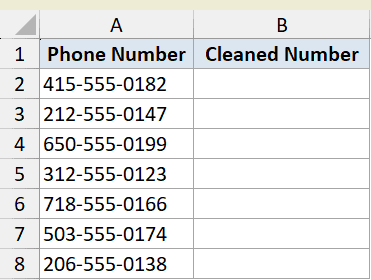
I want to remove every dash so I’m left with a clean string of digits.
Here is the formula:
=SUBSTITUTE(A2:A8,"-","")
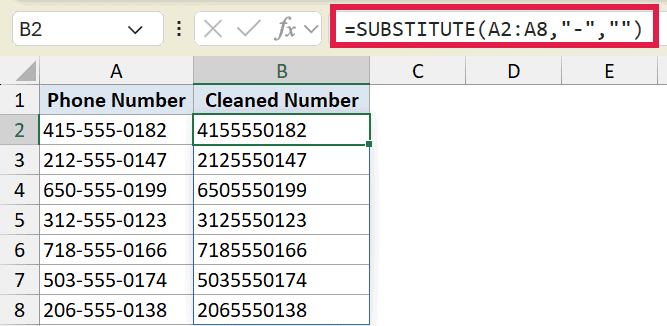
The formula looks for every dash in the text and replaces it with an empty string "", which is the same as deleting it.
Notice that I fed the whole range A2:A8 into a single formula. In Excel 365, the result spills down automatically, so I get a cleaned number for every row without copying anything.
Pro Tip: If you’re on an older version of Excel without spill support, write the formula for the first cell as =SUBSTITUTE(A2,”-“,””) and copy it down the column.
Example 2: Replace Only One Occurrence
Here’s a scenario where the same text appears more than once in a cell.
Below is the dataset with order references in column A. Each reference reads INV-2024-2024, where the year shows up twice.
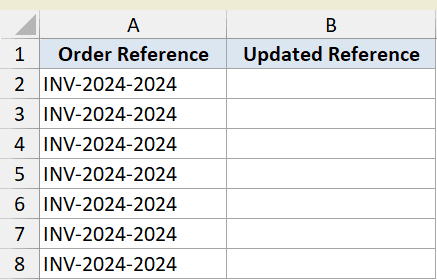
I want to update only the second “2024” to “2025” and leave the first one alone.
Here is the formula:
=SUBSTITUTE(A2:A8,"2024","2025",2)
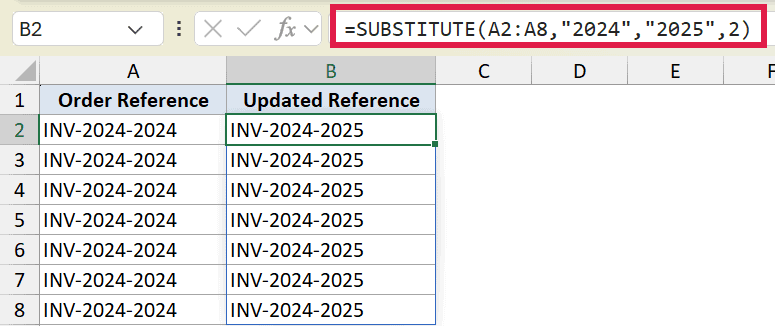
The fourth argument, 2, is the instance number. It tells SUBSTITUTE to change only the second time “2024” appears, so the result is INV-2024-2025.
Without that last argument, SUBSTITUTE would replace both occurrences and you’d get INV-2025-2025.
Example 3: Make Several Replacements with Nested SUBSTITUTE
Let’s step it up with multiple swaps in one go.
Below is the dataset with raw addresses in column A. They use short forms like St., Apt., Rd., and Ste.
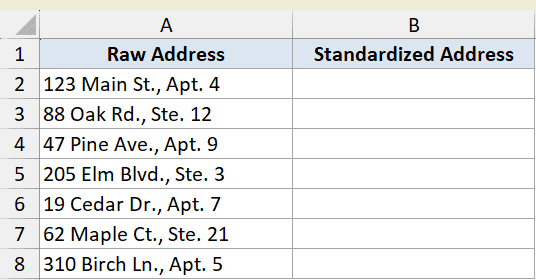
I want to expand “St.” to “Street” and “Apt.” to “Apartment” in the same formula.
Here is the formula:
=SUBSTITUTE(SUBSTITUTE(A2:A8,"St.","Street"),"Apt.","Apartment")
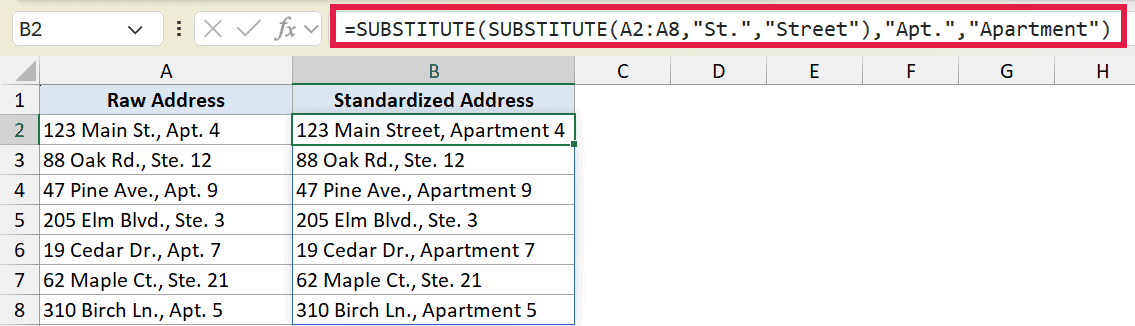
Here is how this formula works:
- The inner SUBSTITUTE swaps “St.” for “Street” first.
- The outer SUBSTITUTE takes that result and swaps “Apt.” for “Apartment”.
So “123 Main St., Apt. 4” becomes “123 Main Street, Apartment 4”.
Only St. and Apt. get expanded here. The other abbreviations like Rd., Ave., and Ste. stay as they are, since we didn’t write a SUBSTITUTE for them.
Pro Tip: You can keep nesting SUBSTITUTE for as many swaps as you need. Each one wraps around the previous result, though the formula gets harder to read after a few levels.
Example 4: Count How Many Times a Character Appears
Here’s a neat use of SUBSTITUTE to count how many times a word appears in a cell.
Below is the dataset with comma-separated tag lists in column A. Each cell holds one or more tags split by commas.
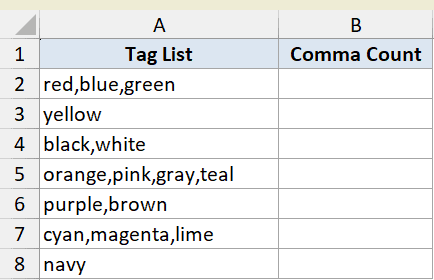
I want to count how many commas are in each cell, which tells me how many tags there are.
Here is the formula:
=LEN(A2)-LEN(SUBSTITUTE(A2,",",""))
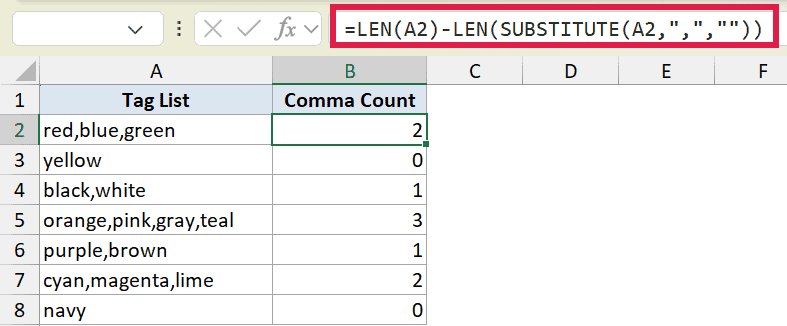
Here is how this formula works:
- LEN(A2) gives the length of the original text, commas included.
- SUBSTITUTE(A2,”,”,””) removes all the commas, and the second LEN measures that shorter text.
- Subtracting one from the other gives the number of commas removed.
For “red,blue,green” there are 2 commas, so the formula returns 2.
Pro Tip: SUBSTITUTE is case-sensitive, so counting letters this way distinguishes “a” from “A”. Wrap the text in UPPER if you want a count that ignores case.
Example 5: SUBSTITUTE vs REPLACE on the Same Text
This last example shows how SUBSTITUTE differs from its close cousin, REPLACE.
Below is a small layout with one product code, PRD-A-100, in cell A2. We’ll change the “A” in the middle to a “B” two different ways.

First, let’s do it with SUBSTITUTE, which matches by the actual text.
Here is the formula:
=SUBSTITUTE(A2,"A","B")
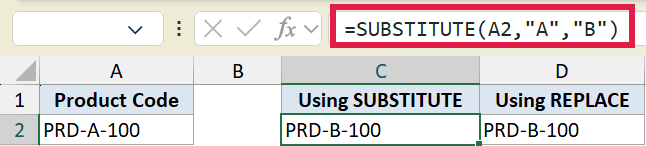
SUBSTITUTE finds the letter “A” and turns it into “B”, giving PRD-B-100. It matches by text, so if the code had more than one “A”, it would change all of them.
Now here is the same result using REPLACE for comparison:
=REPLACE(A2,5,1,"B")
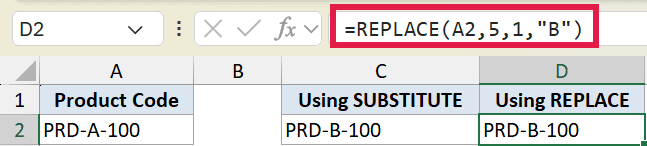
REPLACE works by position instead. It starts at character 5, replaces 1 character, and puts “B” there, also giving PRD-B-100.
Both return the same text, but the logic is different. SUBSTITUTE matches the text you give it, while REPLACE targets a fixed position no matter what character sits there.
Tips & Common Mistakes
- SUBSTITUTE is case-sensitive. It treats “a” and “A” as different text, so “Apple” won’t be matched if you search for “apple”. Wrap the text in UPPER or LOWER first if you need a case-insensitive match.
- SUBSTITUTE does not support wildcards. Characters like
*and?are treated as literal text, not as wildcards, which is actually handy when you need to replace asterisks as plain characters. - Use SUBSTITUTE to match text, REPLACE to match position. Reach for SUBSTITUTE when you know the exact text to swap, and REPLACE when you know the location in the string.
- For a one-off edit, the Find & Replace dialog is faster. If you just need to fix a few cells once and don’t need a formula, Ctrl + H does the job without leaving a formula behind. For larger jobs, see bulk find and replace.
- For pulling text around a delimiter, newer functions are cleaner. In Excel 365, TEXTBEFORE and TEXTAFTER grab the text on either side of a character, and TEXTSPLIT breaks delimited text into separate cells. These are more direct than older SUBSTITUTE and FIND combinations for parsing.
SUBSTITUTE is one of those text functions you’ll reach for constantly once you know it. It handles quick cleanups, multiple swaps in one formula, and even counting characters.
The key thing to remember is that it matches by text and is case-sensitive, which is exactly what sets it apart from REPLACE.
Related Excel Functions / Articles:
- REPLACE Function in Excel
- How to Remove Question Marks from Text in Excel?
- How to Extract Part of Text in a Cell in Excel
- SEARCH vs FIND Function in Excel
- How to Remove Text after a Specific Character in Excel?
- Remove the Last 4 Characters in Excel
- SEARCH Function in Excel
- FIND Function in Excel
- Text.Replace Function (Power Query M)
- Table.ReplaceValue Function (Power Query M)
