
Excel’s DDB function returns an asset’s depreciation for a specified period. By default, it uses the double-declining balance method, which records more depreciation early in the asset’s life.
You can also change the declining factor. DDB never switches to straight-line depreciation, so VDB may be a better fit when that switch is part of your model.
In this article, I’ll show you how to build annual and monthly depreciation schedules, compare declining factors, and check DDB against VDB.
DDB Function Syntax in Excel
The DDB function uses the following syntax:
=DDB(cost, salvage, life, period, [factor])
- cost: The asset’s original purchase cost.
- salvage: The asset’s value at the end of its useful life. This can be zero.
- life: The number of periods over which the asset is depreciated.
- period: The period for which you want the depreciation amount. It must use the same unit as life.
- factor: An optional rate at which the balance declines. Excel uses 2 when you omit it.
When to Use DDB Function
- Build an accelerated depreciation schedule for an asset.
- Calculate the depreciation expense for a specific year or month.
- Compare how different declining factors affect first-period depreciation.
- Calculate the same depreciation period across an asset register.
- Compare DDB with VDB when deciding whether to switch to straight-line depreciation.
Example 1: Create an Annual DDB Schedule
Let’s start with a complete annual depreciation schedule.
Below is the dataset with six years and the asset’s cost, salvage value, and useful life.
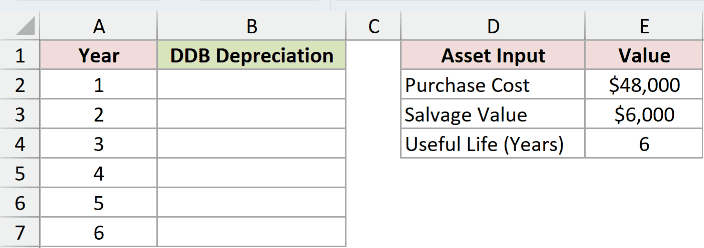
I want to calculate the depreciation expense for each year in one step.
Here is the formula:
=DDB($E$2,$E$3,$E$4,A2:A7)
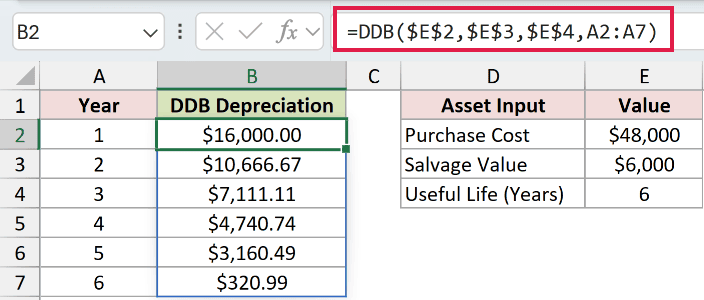
The first three arguments point to the fixed asset inputs. The range A2:A7 supplies all six periods, so the formula spills six depreciation amounts down column B.
Year 1 returns $16,000.00. Each later amount falls as the remaining book value decreases, and Year 6 returns $320.99.
DDB limits the last amount so total depreciation does not push the asset below its $6,000 salvage value.
Pro Tip: This spilling formula works in Microsoft 365, Excel 2024, and Excel 2021. In Excel 2019 and earlier, use =DDB($E$2,$E$3,$E$4,A2) and fill it down.
Example 2: Compare DDB Factor Values
Here’s a quick way to see what the optional factor changes.
Below is the dataset with four factors and one shared set of asset inputs.
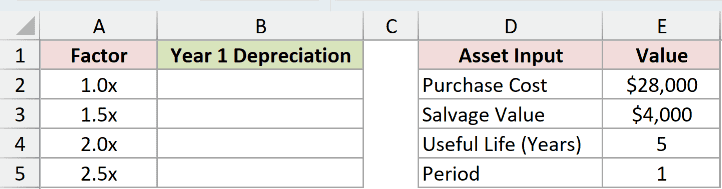
I want to calculate Year 1 depreciation for every factor in column A.
Here is the formula:
=DDB($E$2,$E$3,$E$4,$E$5,A2:A5)
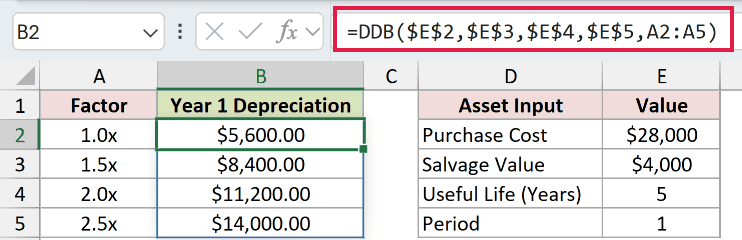
The period stays fixed at 1, while A2:A5 supplies the four factors. The results spill from B2 through B5.
A factor of 1 returns $5,600.00. Raising it to 1.5, 2, and 2.5 increases Year 1 depreciation to $8,400.00, $11,200.00, and $14,000.00.
Pro Tip: Omitting factor is the same as using 2. If you choose another factor, the calculation is still declining balance, but it is no longer double-declining balance.
Example 3: Calculate Monthly DDB Depreciation
You can use months instead of years when your reporting needs more detail.
Below is the dataset with months 1 through 12 and an asset with a four-year useful life.
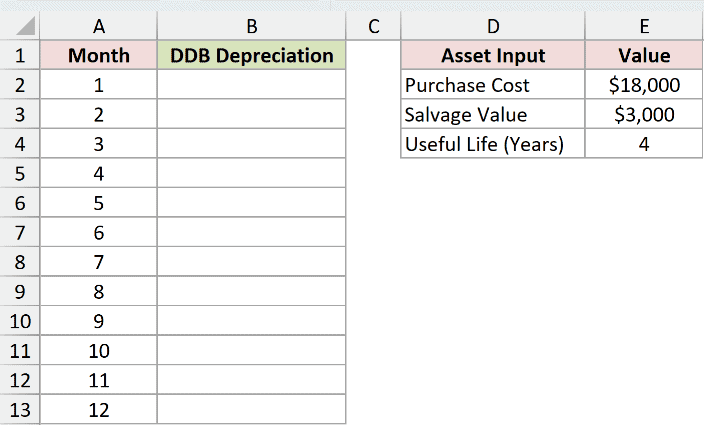
I want to calculate each monthly depreciation amount for the first year.
Here is the formula:
=DDB($E$2,$E$3,$E$4*12,A2:A13)
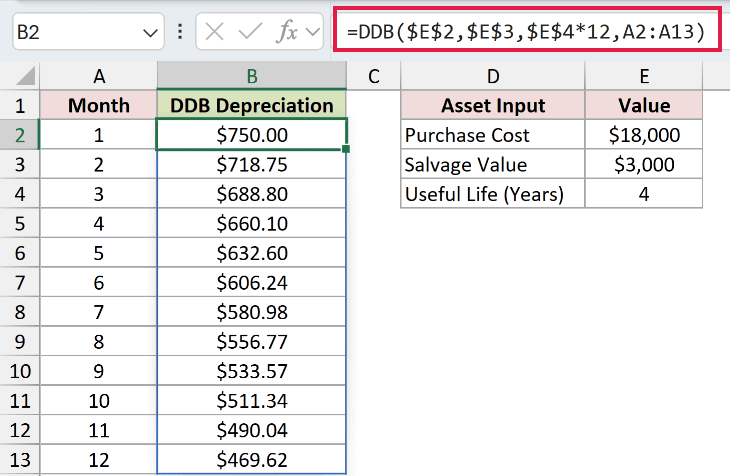
DDB requires life and period to use the same unit. Because column A contains months, $E$4*12 converts the four-year life to 48 months.
The first month’s depreciation is $750.00. By month 12, the declining balance lowers the monthly expense to $469.62.
Pro Tip: Convert life to months before using monthly periods. Mixing a life in years with a period in months produces the wrong schedule.
Example 4: Calculate DDB Across Multiple Assets
Here’s a practical example for an asset register.
Below is the dataset with eight media-studio assets, their costs, salvage values, and useful lives.
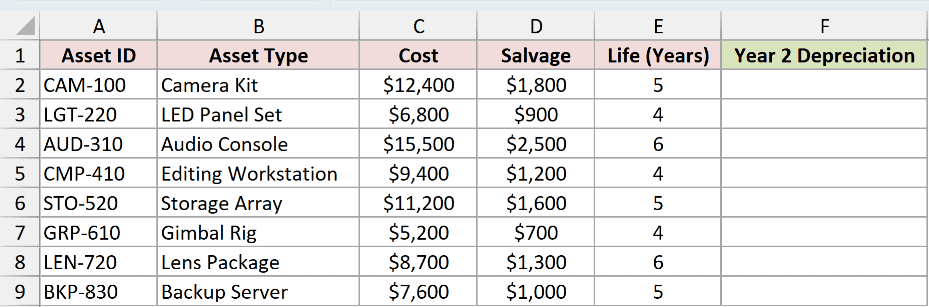
I want to calculate Year 2 depreciation for every asset with one formula.
Here is the formula:
=DDB(C2:C9,D2:D9,E2:E9,2)
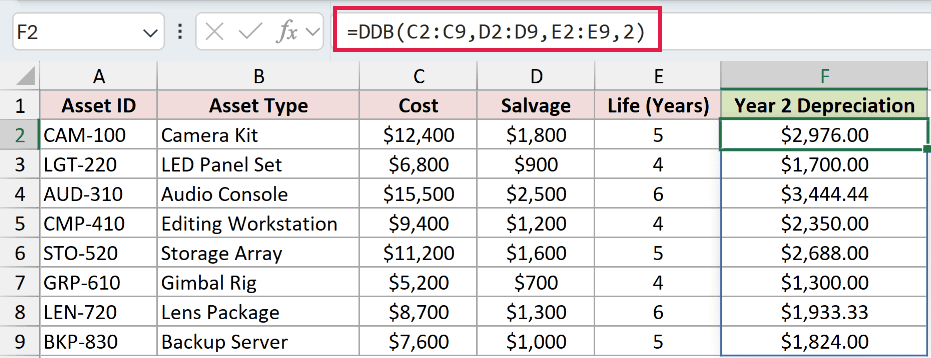
Each of the first three arguments is a matching eight-cell range. Excel pairs the values row by row and spills the results into F2:F9.
The camera kit returns $2,976.00 for Year 2. The remaining results reflect each asset’s own cost, salvage value, and useful life.
Pro Tip: Keep the cost, salvage, and life ranges the same size. Mismatched range dimensions can produce an error or results that do not line up with the asset rows.
Example 5: Compare DDB and VDB
Let’s finish with an important difference between two declining-balance functions.
Below is the dataset with a ten-year schedule and matching DDB and VDB result columns.
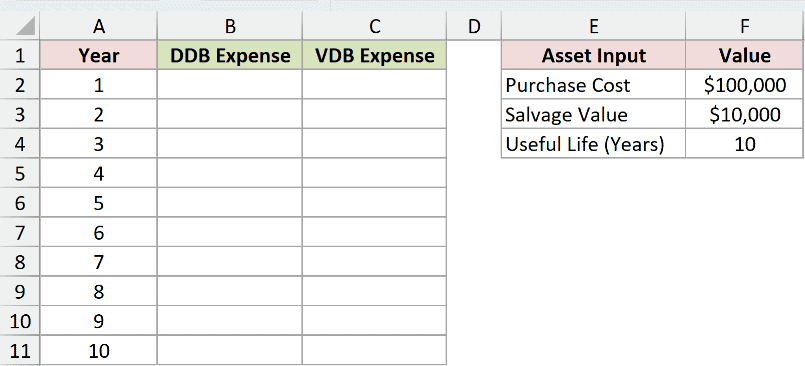
I want to compare DDB with a method that can switch to straight-line depreciation.
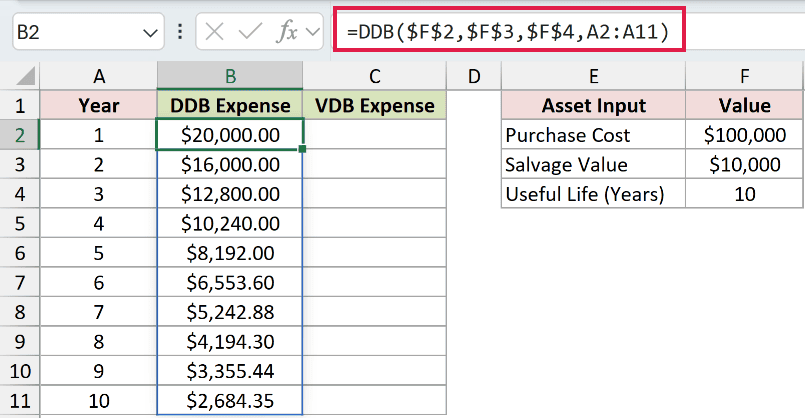
Here is the DDB formula:
=DDB($F$2,$F$3,$F$4,A2:A11)
And here is the VDB formula:
=VDB($F$2,$F$3,$F$4,A2:A11-1,A2:A11)
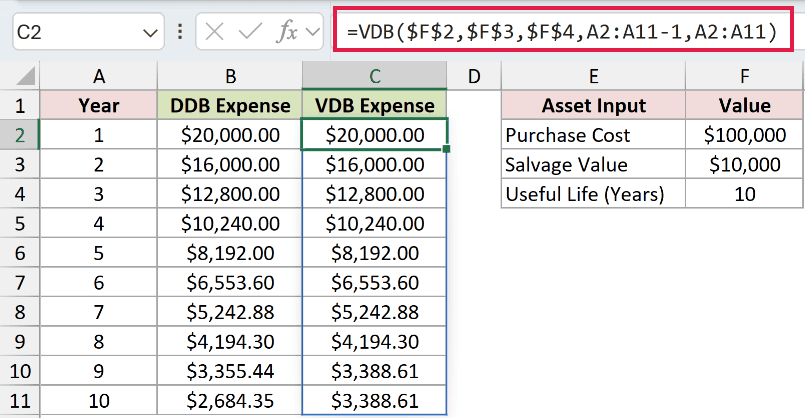
The formulas return the same amounts through Year 8. In Year 9, DDB returns $3,355.44, while VDB switches methods and returns $3,388.61.
VDB also returns $3,388.61 in Year 10, bringing the asset to its $10,000 salvage value. DDB returns $2,684.35 and leaves a slightly higher ending book value.
Pro Tip: Use VDB when you want Excel to switch to straight-line depreciation once that method produces the larger expense. DDB keeps the declining-balance calculation throughout.
Tips & Common Mistakes
- Keep life and period in the same unit. If period is monthly, convert life to months too.
- Keep cost, life, period, and factor positive. Microsoft permits a salvage value of zero.
- Leave factor blank when you want the standard double-declining rate of 2.
- Clear any cells blocking a spill range if Excel returns a
#SPILL!error. - Enter spilling formulas in the worksheet grid. Spilled array formulas cannot calculate inside an Excel Table.
- Use VDB when the schedule should switch to straight-line depreciation. DDB does not make that switch automatically.
I covered annual and monthly schedules, custom factors, multi-asset calculations, and the difference between DDB and VDB.
I hope you found this article helpful.
Related Excel Functions / Articles:
