
Excel’s DMAX function returns the largest numeric value from a database field after applying conditions from a separate criteria range.
The criteria range uses the same headers as the database. Its layout lets you build AND and OR conditions without packing every test into the formula.
In this article, I’ll show you how to find maximum values using multiple conditions, date ranges, and wildcard criteria with DMAX.
DMAX Function Syntax in Excel
The DMAX function has three required arguments.
=DMAX(database,field,criteria)
databaseis the complete list, including its header row.fieldis the column to evaluate. Use its quoted header or its one-based column number.criteriais a separate range containing at least one matching header and a cell below it for the condition.
When to Use DMAX Function
- Return the highest number for one category selected in a criteria cell.
- Apply two or more AND conditions without rewriting the formula.
- Test alternative OR conditions by placing them on separate criteria rows.
- Use comparison operators, date limits, or text patterns in a visible criteria grid.
- Reuse the same criteria range with other Excel database functions.
Example 1: Find the Highest Repair Cost
Let’s start with one condition.
Below is a work-order database, a Building criteria block, and a result cell for the highest matching repair cost.
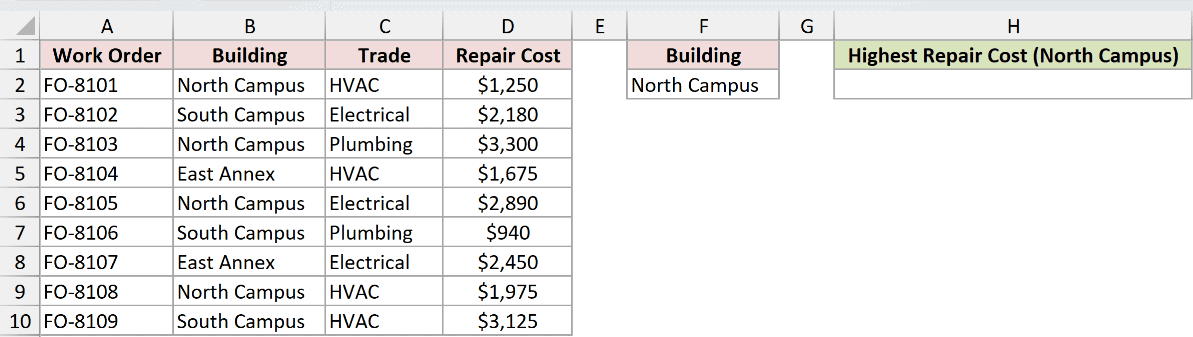
I want to find the highest repair cost for North Campus.
Here is the formula:
=DMAX(A1:D10,"Repair Cost",F1:F2)
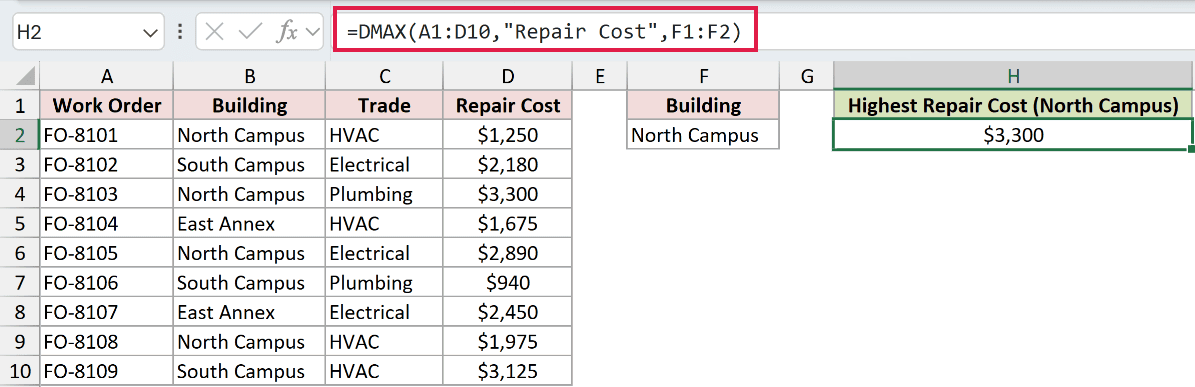
A1:D10 is the database, including its headers. "Repair Cost" tells DMAX which numeric field to check.
The criteria range F1:F2 pairs the Building header with North Campus. DMAX checks those matching rows and returns the largest repair cost, $3,300.
For a single fixed condition, MAXIFS is more direct. DMAX becomes more useful when the visible criteria grid handles several conditions.
Pro Tip: The criteria header must match the database header. A misspelling such as Buildings instead of Building will break the criteria setup.
Example 2: Use Multiple AND Conditions
Here’s a two-condition equipment check.
Below is an equipment database with Location and Status conditions on the same criteria row.
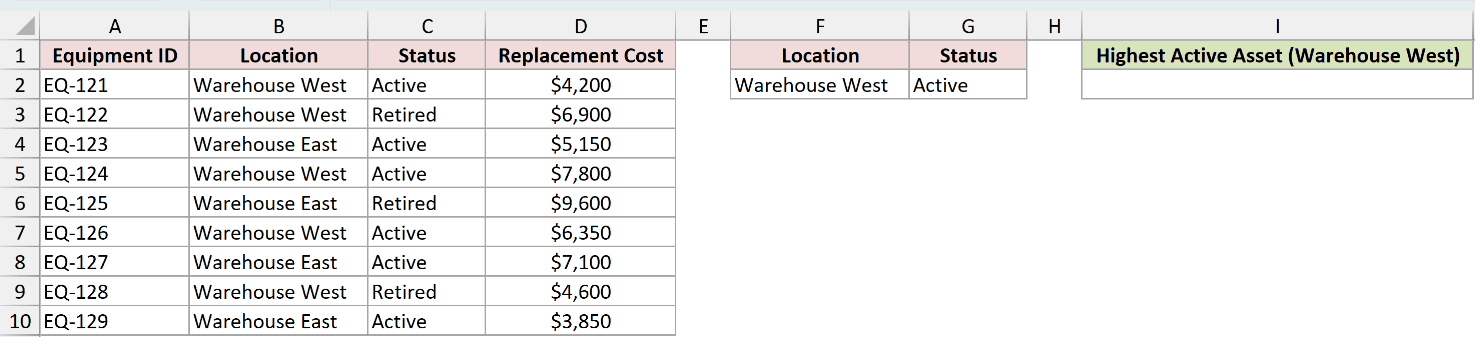
I want the highest replacement cost for an active asset at Warehouse West.
Here is the formula:
=DMAX(A1:D10,"Replacement Cost",F1:G2)
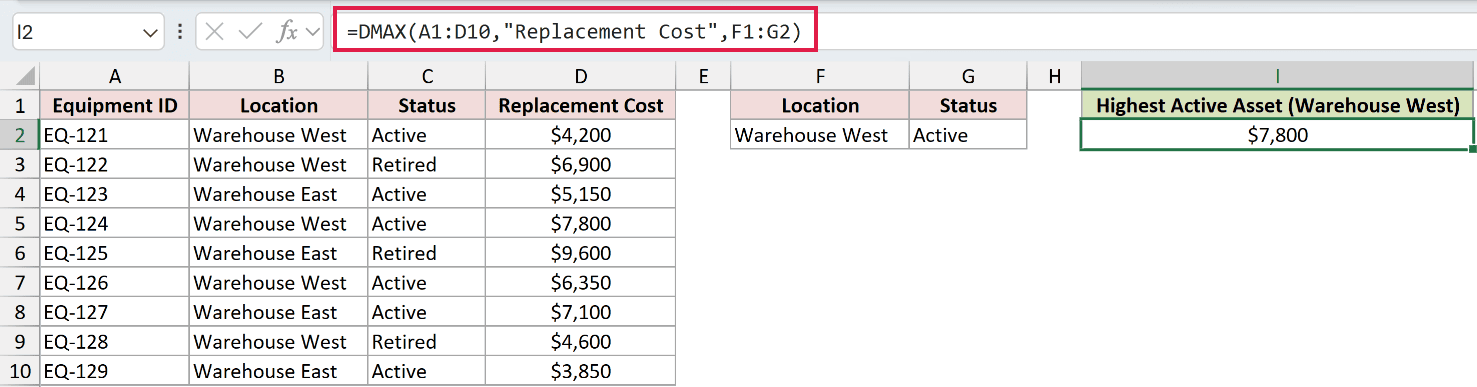
Conditions on the same criteria row use AND logic. A record must have Warehouse West in Location and Active in Status.
The qualifying replacement costs are $4,200, $7,800, and $6,350. DMAX returns $7,800.
Pro Tip: Keep the criteria range separate from the database. Microsoft also recommends placing it beside or above the list, rather than directly below it.
Example 3: Apply OR Criteria in DMAX
Separate criteria rows handle alternatives neatly.
Below is a supplier-quote database with East and West entered on two rows under the Service Zone header.
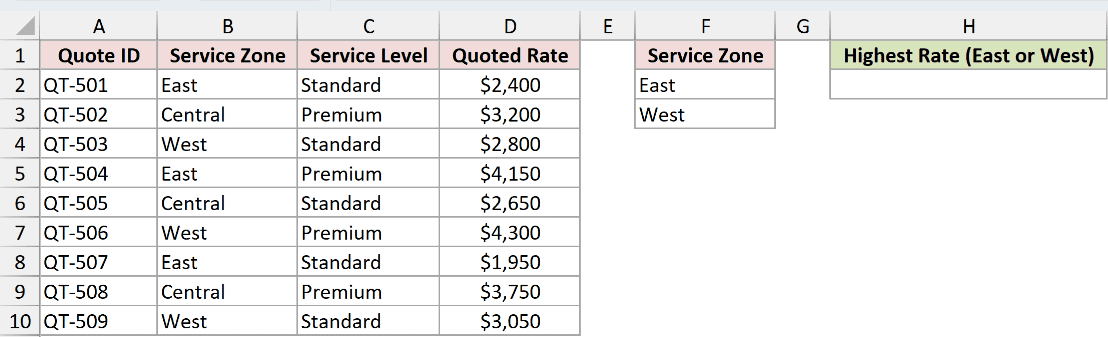
I want the highest quoted rate from either the East or West service zone.
Here is the formula:
=DMAX(A1:D10,"Quoted Rate",F1:F3)
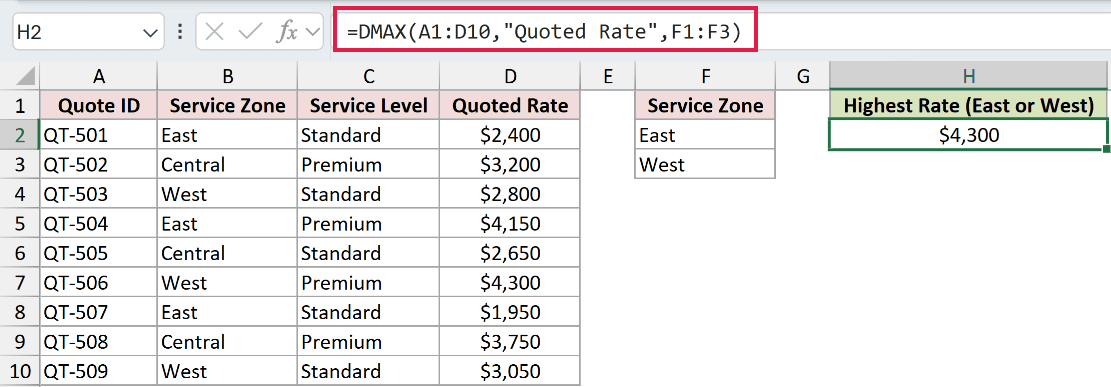
Conditions on separate rows use OR logic. A quote qualifies when Service Zone is East or West.
The largest qualifying rate is the $4,300 West quote. Central quotes are ignored, even when their rates are higher than some qualifying records.
Pro Tip: Add another row under the criteria header when you need another OR option. Expand the formula’s criteria range to include that row.
Example 4: Find a Maximum Between Dates
Comparison criteria can define a date window.
Below is a project database with the Launch Date header repeated across two criteria columns.
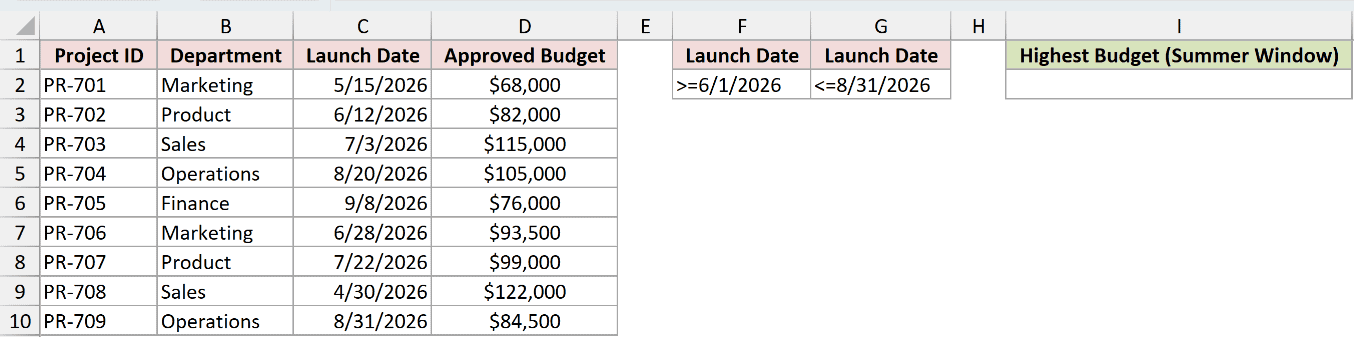
I want the highest approved budget for projects launching from June 1 through August 31, 2026.
Here is the formula:
=DMAX(A1:D10,"Approved Budget",F1:G2)
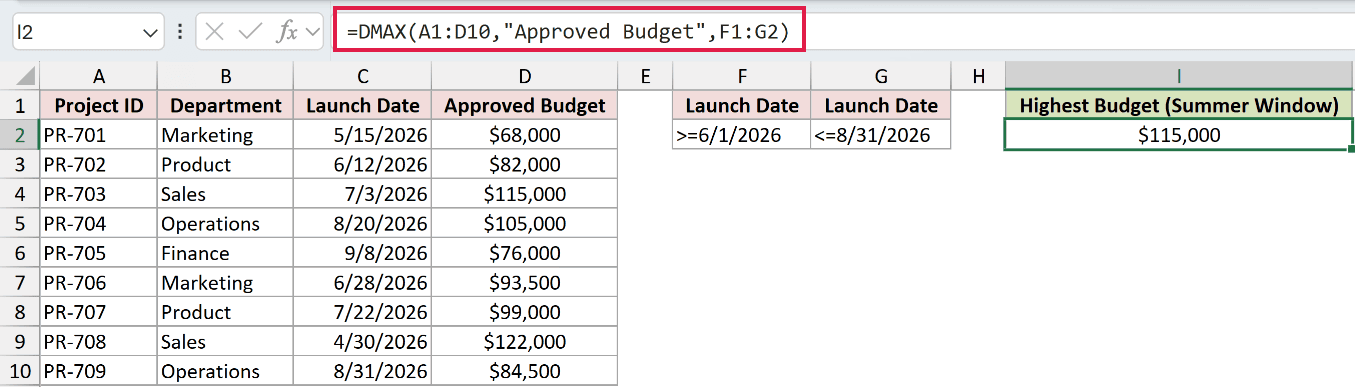
The repeated headers let both conditions apply to Launch Date. >=6/1/2026 sets the lower limit, and <=8/31/2026 sets the upper limit.
Because both tests share one row, they use AND logic. DMAX returns the largest budget inside that window, $115,000.
Pro Tip: Typed date criteria depend on Excel recognizing your regional date format. For portable workbooks, build the criterion from a real date value instead of ambiguous date text.
Example 5: Use Wildcards in DMAX Criteria
Text criteria can also match part of a field.
Below is a renewal database with *Clinic* entered under the Account Name criteria header.
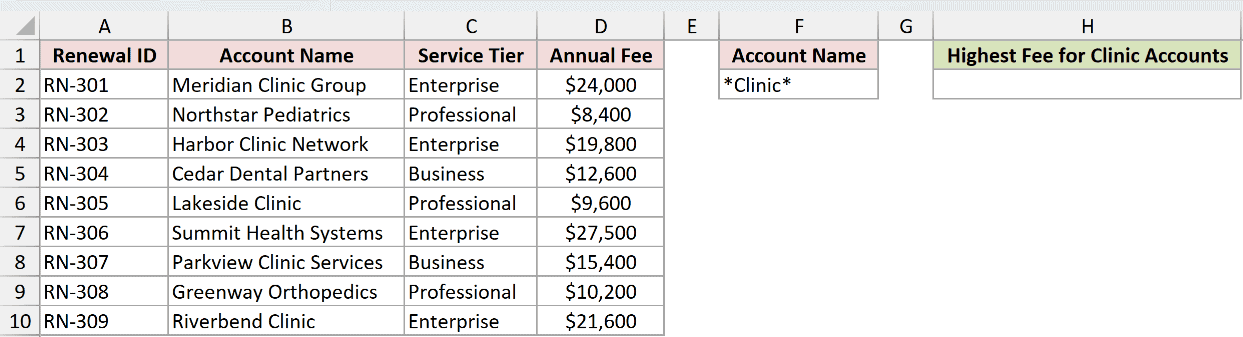
I want the highest annual fee for an account name containing the word Clinic.
Here is the formula:
=DMAX(A1:D10,"Annual Fee",F1:F2)
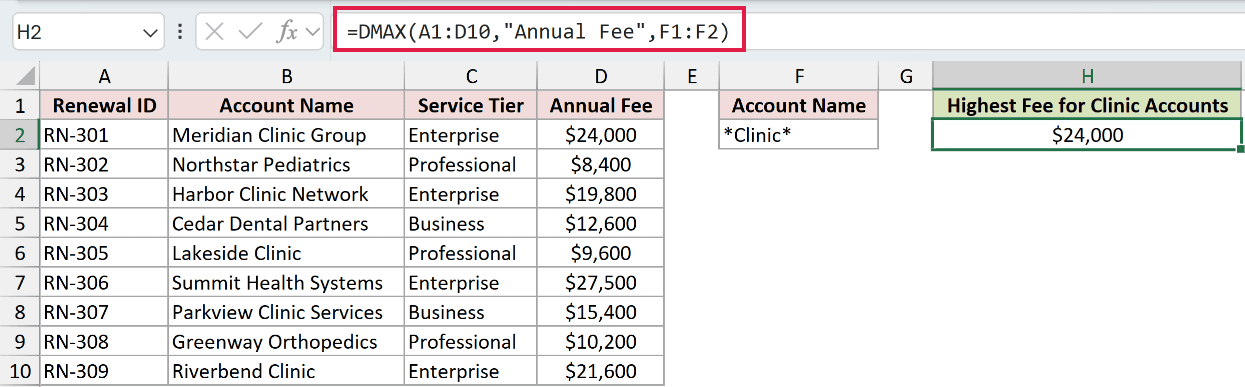
The asterisks allow text before and after Clinic. DMAX evaluates Annual Fee for the matching account names and returns $24,000.
Pro Tip: An asterisk matches any sequence of characters, while a question mark matches one character. Use a tilde before either character when you need a literal symbol.
Example 6: Use DMAX With a Spill Range
DMAX returns one value, but its database can be a complete dynamic spill range.
Below is an asset database, a blank helper area, an Asset Class criterion, and a result cell.

I first want to create a headed database containing only active assets.
Here is the helper formula:
=VSTACK(A1:D1,FILTER(A2:D9,B2:B9="Active"))
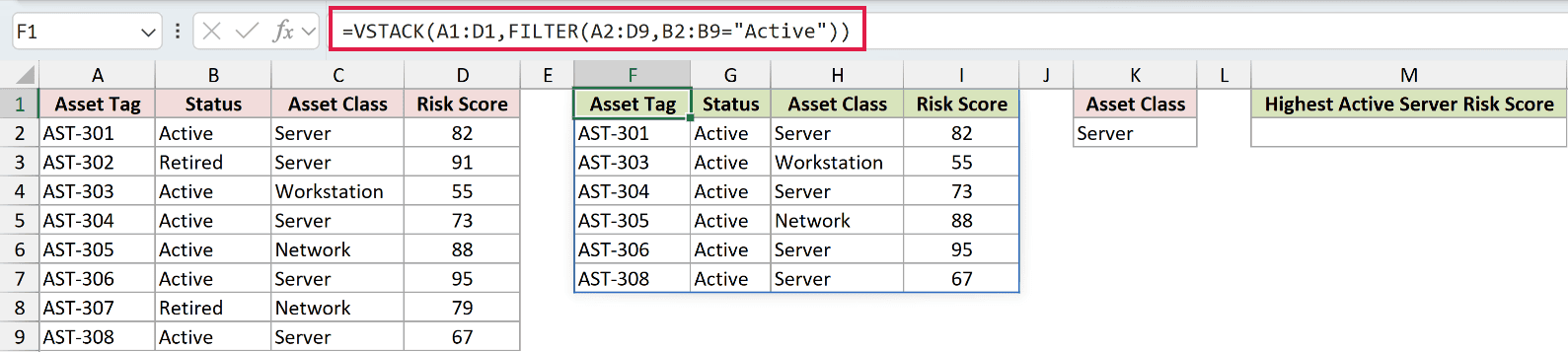
FILTER returns the active records. VSTACK places the original headers above them, so the spill from F1 is a valid headed database.
I can now evaluate that spilled database for active servers.
Here is the DMAX formula:
=DMAX(F1#,"Risk Score",K1:K2)
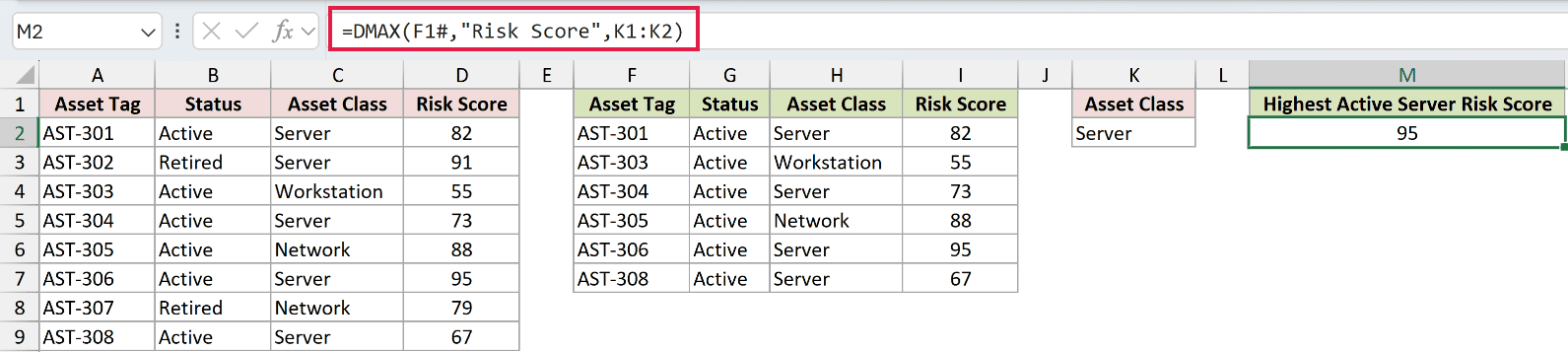
F1# refers to the entire helper spill, including its headers. K1:K2 keeps only Server records, and DMAX returns the highest active server risk score, 95.
The VSTACK and FILTER helper requires Microsoft 365 or Excel 2024. DMAX itself also works in older supported Excel versions when you give it a regular headed range.
Pro Tip: A headerless filtered array is not a valid DMAX database. Include the header row, and keep the cells in the spill area empty.
Tips & Common Mistakes
- Keep the database header row inside the
databaserange, and use identical headers in the criteria range. - Use a quoted field label such as
"Repair Cost"when possible. A numeric field index can silently point to the wrong column after the database structure changes. - Put AND conditions on the same criteria row. Put OR alternatives on separate rows.
- Leave the row under the criteria headers blank to evaluate the full field. In that case,
MAXis usually clearer because no filtering is needed. - A zero result can mean no qualifying numeric value or a genuine maximum of zero. Check the matching record count when that distinction matters.
- DMAX is a reducer and returns one value. It does not spill one result for every database row.
I covered single criteria, AND and OR layouts, date windows, wildcards, and a headed spill-range database.
I hope you found this article helpful.
Related Excel Functions / Articles:
Other Excel articles you may also like:
