
Excel’s DCOUNTA function counts nonblank values in one database field for records that meet specified criteria.
Unlike a standard count over one range, DCOUNTA reads a header-based database and a separate criteria range. That layout lets worksheet criteria control which records are counted.
In this article, I’ll show you how to count matching records with multiple conditions and wildcards, and check how DCOUNTA handles formulas returning empty text.
DCOUNTA Function Syntax in Excel
The DCOUNTA function uses the following syntax:
=DCOUNTA(database, field, criteria)
databaseis the full list or table, including its header row.fieldidentifies the column to count. Use a quoted header, a header cell reference, or its 1-based position. This argument is optional.criteriais a range containing at least one database header and the condition or conditions placed below it.
When to Use DCOUNTA Function
- Count matching records whose selected field contains text, numbers, or logical values.
- Keep filter conditions visible in worksheet cells.
- Apply AND or OR logic through a criteria range.
- Count records matching wildcard text.
- Use a spilled range as dynamic criteria for a scalar count.
Example 1: Count Nonblank Assignments by Status
Let’s start with one condition and one field to count.
Below is a customer-request dataset in A1:D9, with request ID, channel, status, and assigned-to fields. The Status criterion appears in F1:F2.
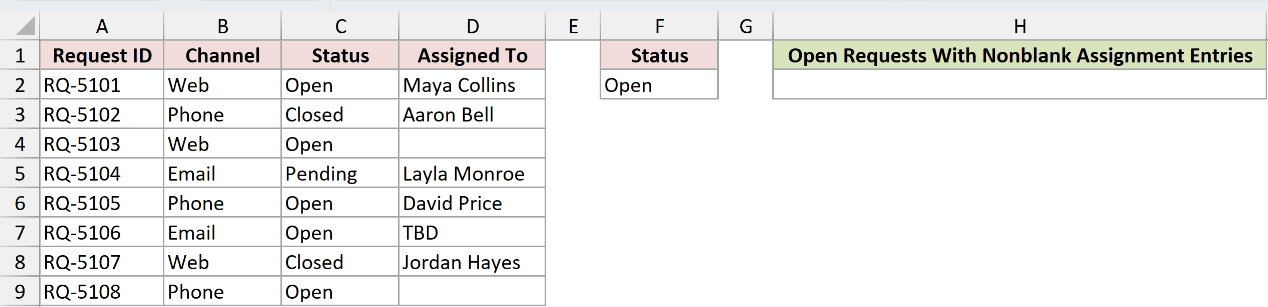
The task is to count Open requests whose Assigned To field is not blank.
Here is the formula:
=DCOUNTA(A1:D9,"Assigned To",F1:F2)
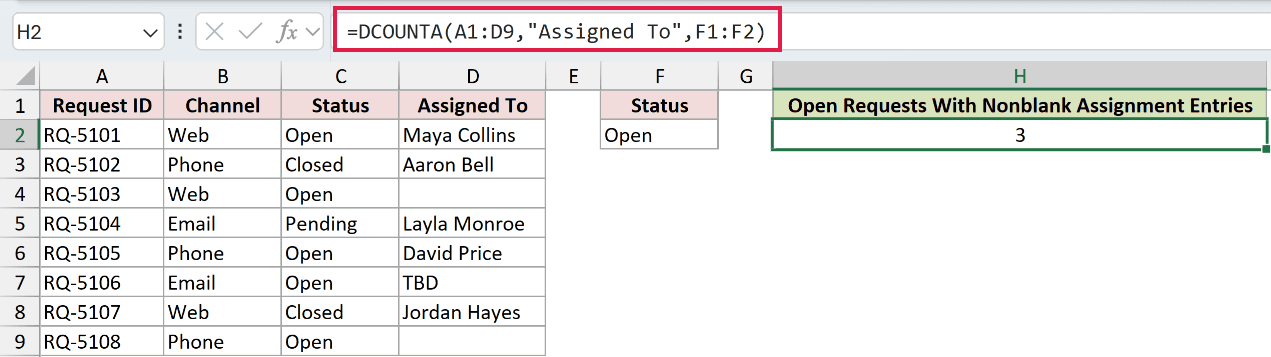
The database argument includes the headers in row 1. The field argument tells DCOUNTA to inspect Assigned To after applying the Open criterion.
Five requests are Open, but two have blank assignment cells. DCOUNTA returns 3 for Maya Collins, David Price, and the TBD entry.
Pro Tip: DCOUNTA checks whether a cell is nonblank. A placeholder such as TBD still counts, even though it is not a named assignee.
Example 2: Compare DCOUNTA With DCOUNT
The difference between DCOUNTA and the DCOUNT function matters when a field contains both numbers and text.
Below is a training-session dataset in A1:D9. The Completion % field includes percentages, the text “Deferred,” and a blank cell for Safety sessions.
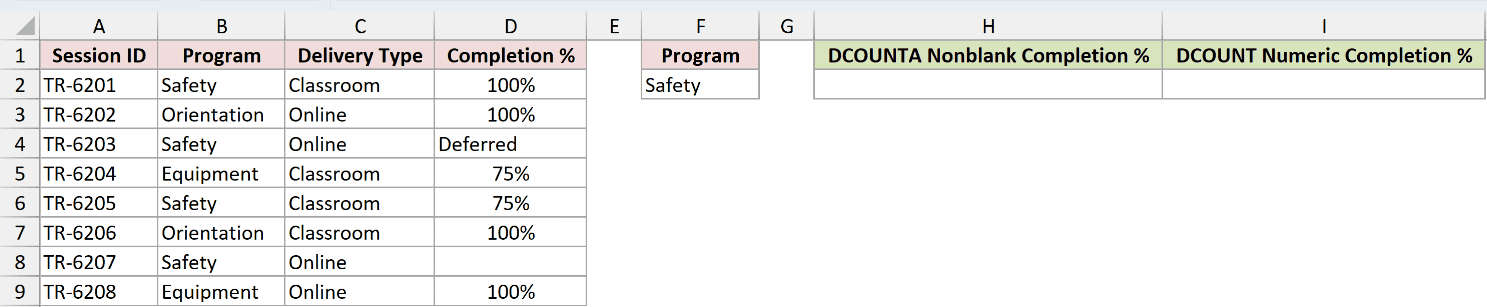
First, count every nonblank Completion % entry for the Safety program.
Here is the DCOUNTA formula:
=DCOUNTA(A1:D9,"Completion %",F1:F2)
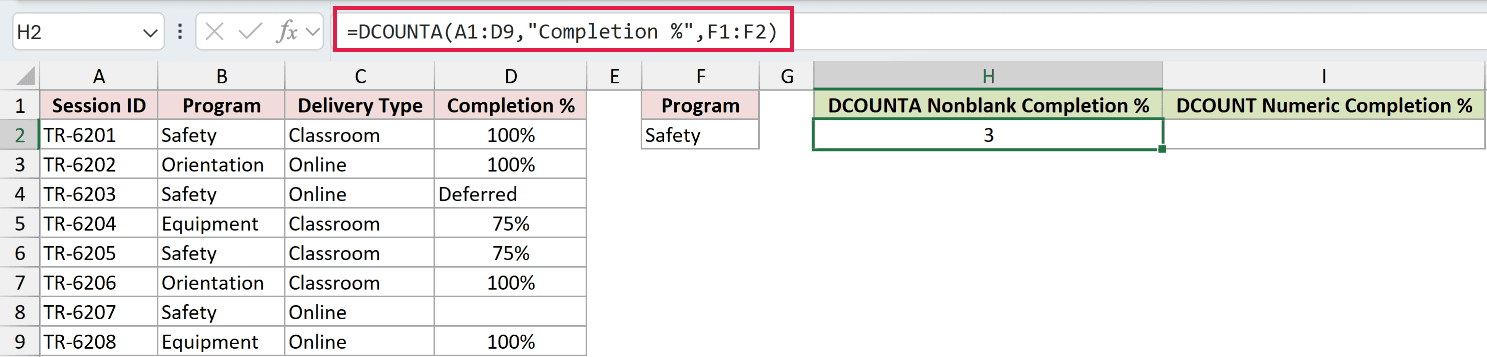
DCOUNTA returns 3. It counts the two numeric percentages and the text value “Deferred,” while ignoring the blank cell.
For comparison, count only the numeric completion entries under the same criterion.
Here is the DCOUNT formula:
=DCOUNT(A1:D9,"Completion %",F1:F2)
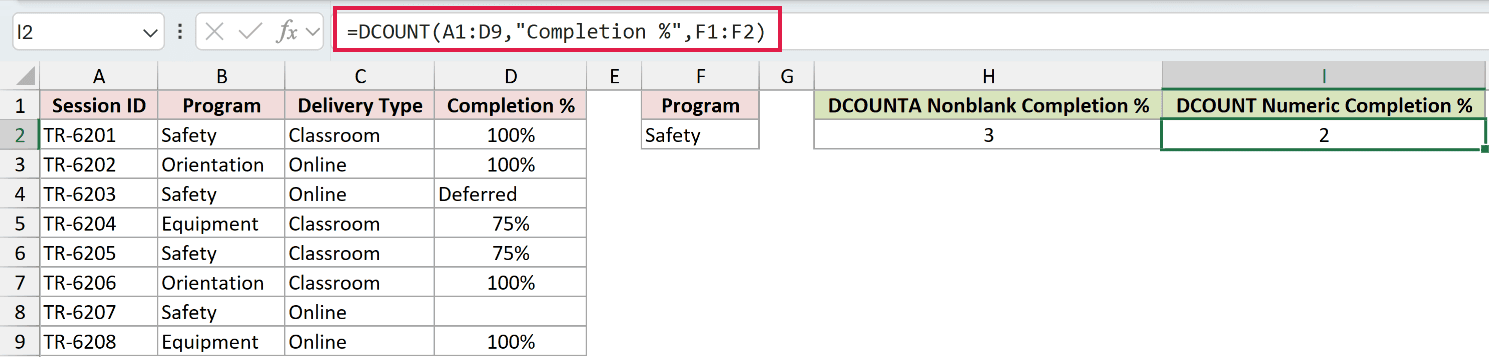
DCOUNT returns 2 because it ignores both text and blank cells. Use DCOUNTA when any populated value should count, and DCOUNT when only numbers should count.
Example 3: Apply AND Criteria With DCOUNTA
Place conditions on the same criteria row when every condition must be true.
Below is an asset-inspection dataset in A1:D9. The criteria range F1:G2 specifies East in the Location column and Open in the Status column.
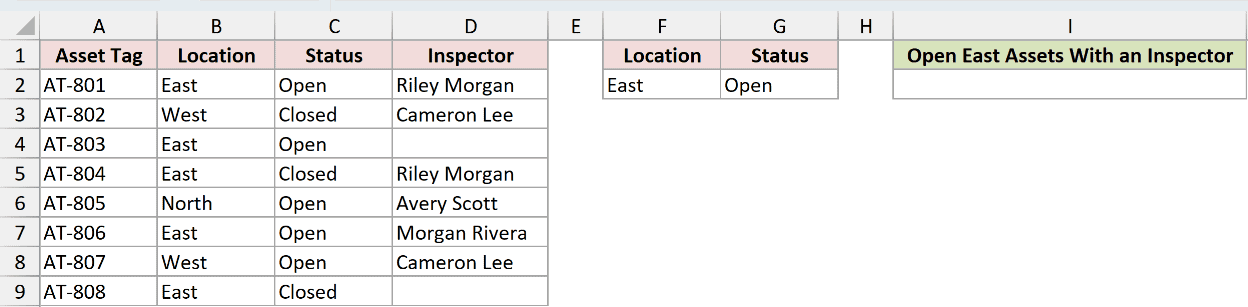
This count should include East assets that are Open and have a nonblank Inspector entry.
Here is the formula:
=DCOUNTA(A1:D9,"Inspector",F1:G2)
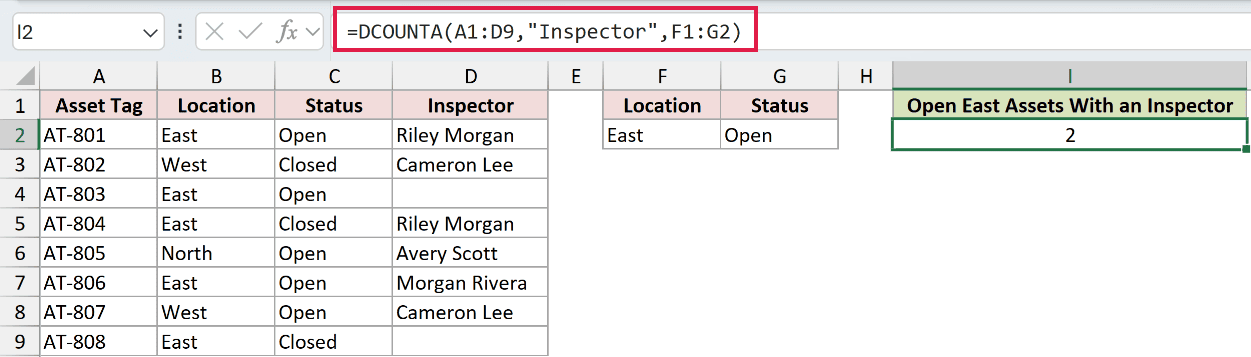
Both conditions sit on row 2 of the criteria range, so Excel treats them as AND logic.
Three records have East and Open, but AT-803 has no inspector. DCOUNTA returns 2 for the remaining records.
Pro Tip: The COUNTIFS function is often shorter when conditions can live inside the formula. DCOUNTA is useful when people should be able to edit visible criteria cells.
Example 4: Apply OR Criteria With DCOUNTA
Put alternatives on separate criteria rows when either condition can match.
Below is a support-case dataset in A1:D9. Billing and Access appear on separate rows under the Issue Type header in F1:F3.
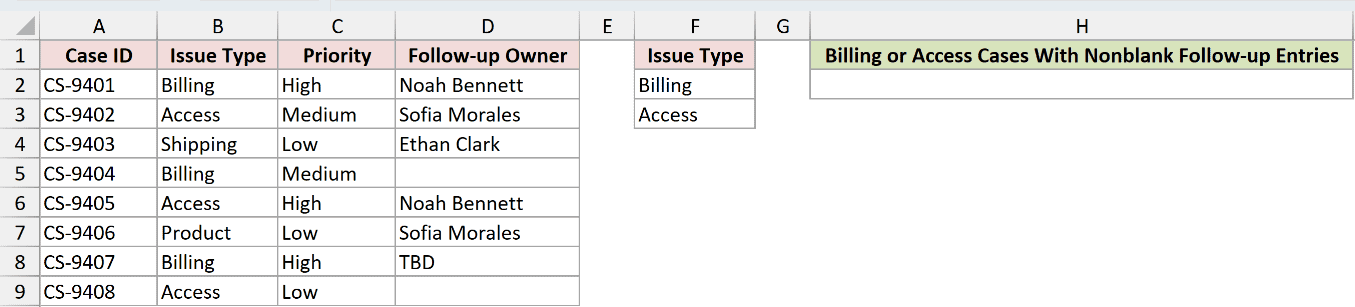
Here, I need the Billing or Access cases with a nonblank Follow-up Owner entry.
Here is the formula:
=DCOUNTA(A1:D9,"Follow-up Owner",F1:F3)
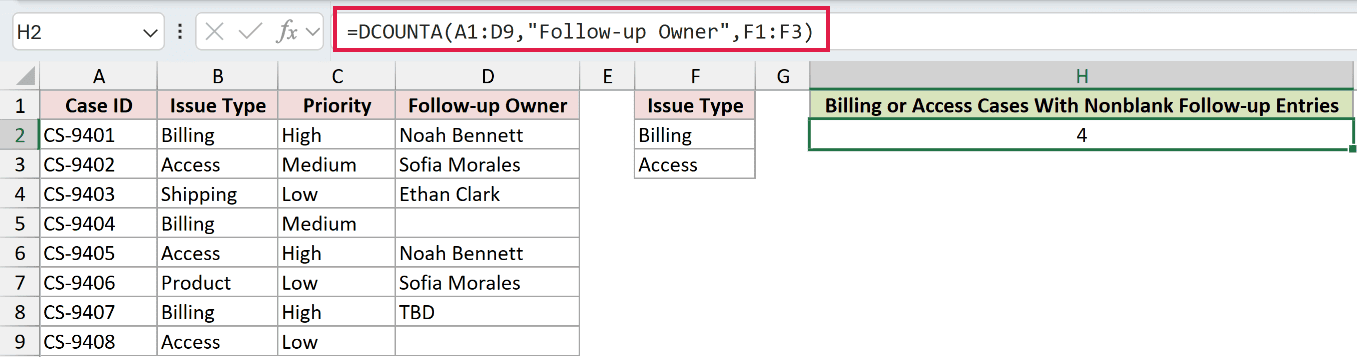
The two criteria rows create OR logic. DCOUNTA checks Follow-up Owner for every record whose Issue Type is Billing or Access.
Two Billing records and two Access records contain nonblank follow-up entries, so the formula returns 4. The TBD placeholder counts as nonblank.
Example 5: Count Records With a Wildcard
Wildcards let one visible criterion match a family of text labels.
Below is a replenishment-order dataset in A1:D9. Cell F2 contains Kit* under the Product Line header.
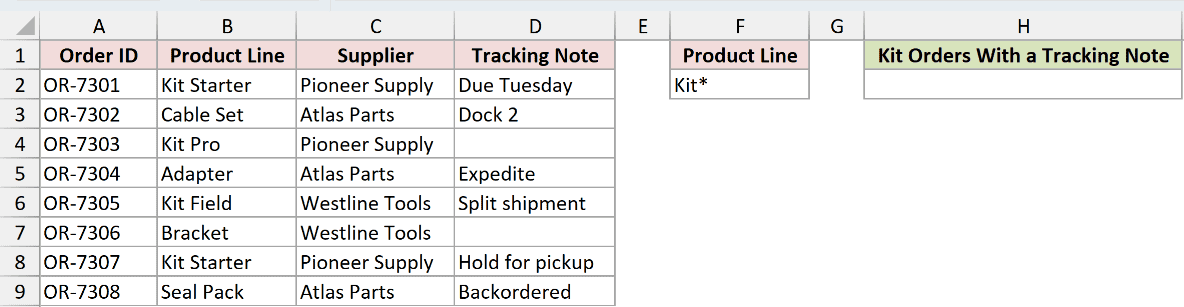
For this order list, count product lines beginning with “Kit” when the Tracking Note field is not blank.
Here is the formula:
=DCOUNTA(A1:D9,"Tracking Note",F1:F2)
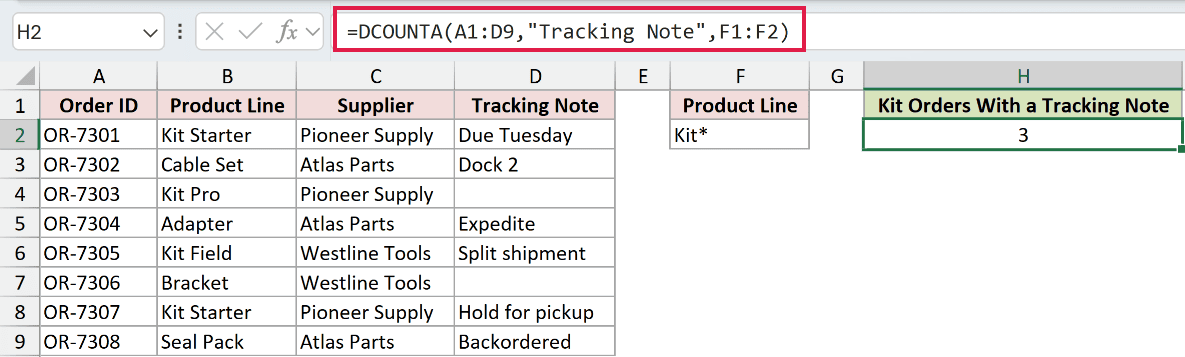
The asterisk matches any sequence of characters after Kit. The criterion therefore includes Kit Starter, Kit Pro, and Kit Field records.
One Kit Pro record has a blank Tracking Note. The other three matching records contain notes, so DCOUNTA returns 3.
Pro Tip: Database criteria are case-insensitive. The pattern Kit* also matches a value beginning with kit.
Example 6: Count Formulas Returning Empty Text
A cell can look empty and still count as nonblank.
Below is an event-registration dataset in A1:D8. The Follow-up column contains formulas that display “Reminder sent” for Confirmed records and empty text for Open records.
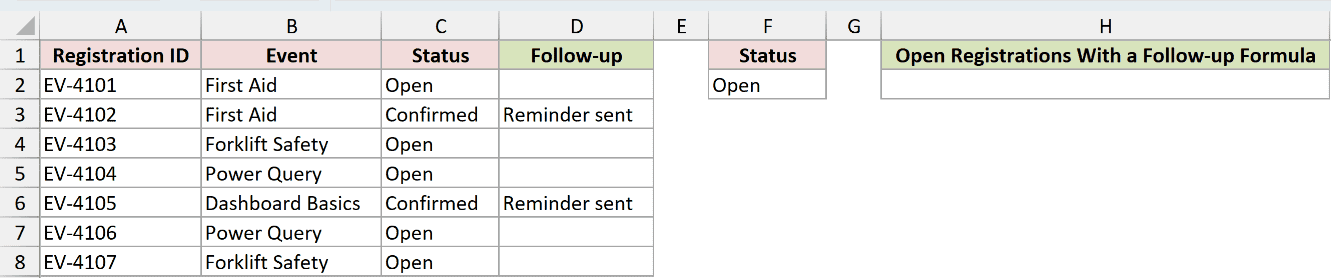
The expected count includes Follow-up formula cells for records whose Status is Open.
Here is the formula:
=DCOUNTA(A1:D8,"Follow-up",F1:F2)
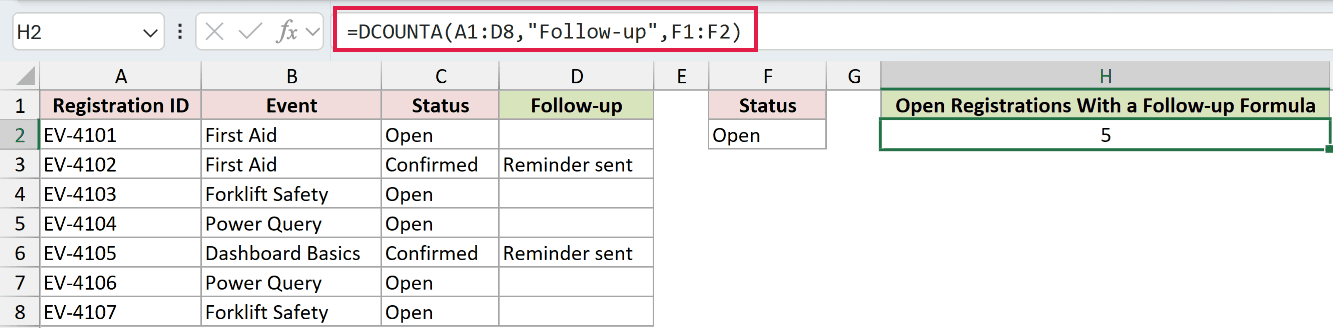
The Open criterion matches five records. Their Follow-up formulas display nothing, but DCOUNTA still returns 5 because each cell contains a formula returning empty text.
The helper formula in D2 is =IF(C2="Confirmed","Reminder sent",""), filled down through D8.
Pro Tip: A formula result of "" is not truly blank to DCOUNTA. Test the source cells when a count is higher than the visible values suggest.
Example 7: Use a Spilled Criteria Range
DCOUNTA returns one number, but its criteria can come from a dynamic array.
Below is a maintenance-work-order dataset in A1:E9. The fields include Work Type, Inspector, and Parts Used.
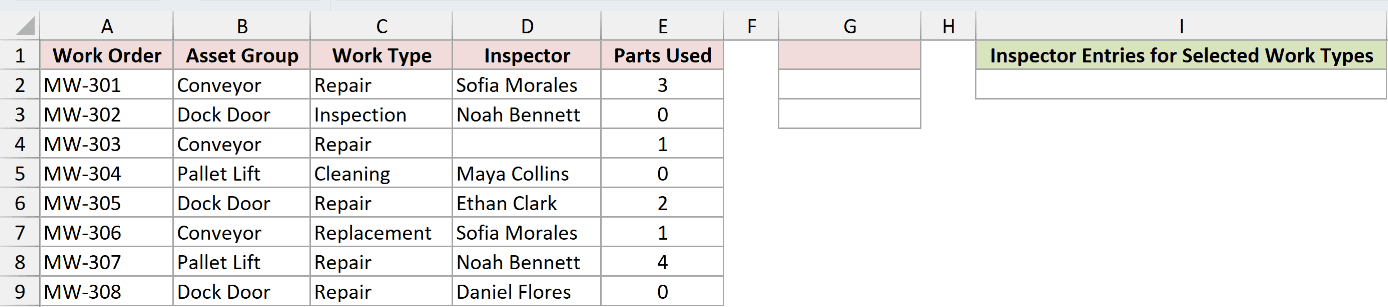
Start by building a criteria range from the work types used on records with more than zero parts.
Here is the formula:
=VSTACK("Work Type",UNIQUE(FILTER(C2:C9,E2:E9>0)))
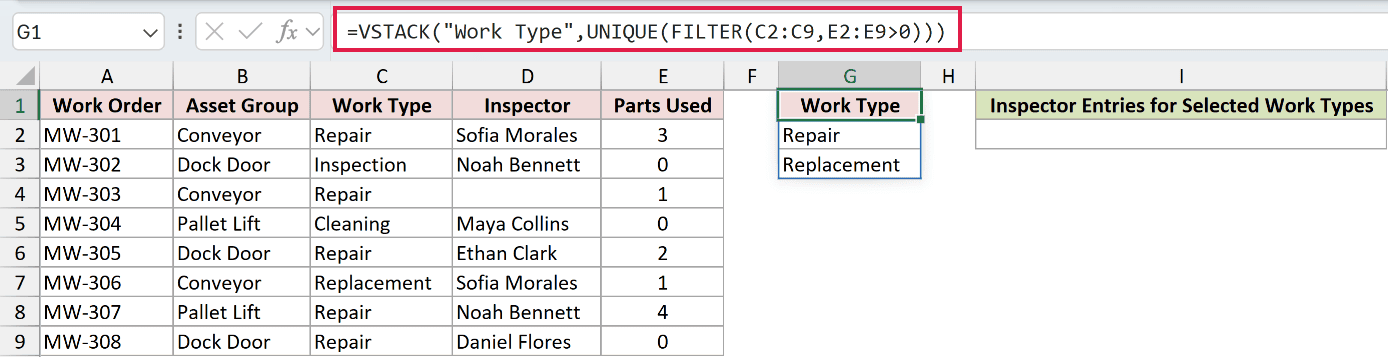
The FILTER function keeps Work Type values from rows where Parts Used is greater than zero. UNIQUE reduces them to Repair and Replacement.
The VSTACK function adds the required Work Type header. The complete criteria range spills from G1 through G3.
This criteria-building formula requires Microsoft 365 or Excel 2024 because it uses VSTACK.
Then count nonblank Inspector entries for those selected work types.
Here is the DCOUNTA formula:
=DCOUNTA(A1:E9,"Inspector",G1#)
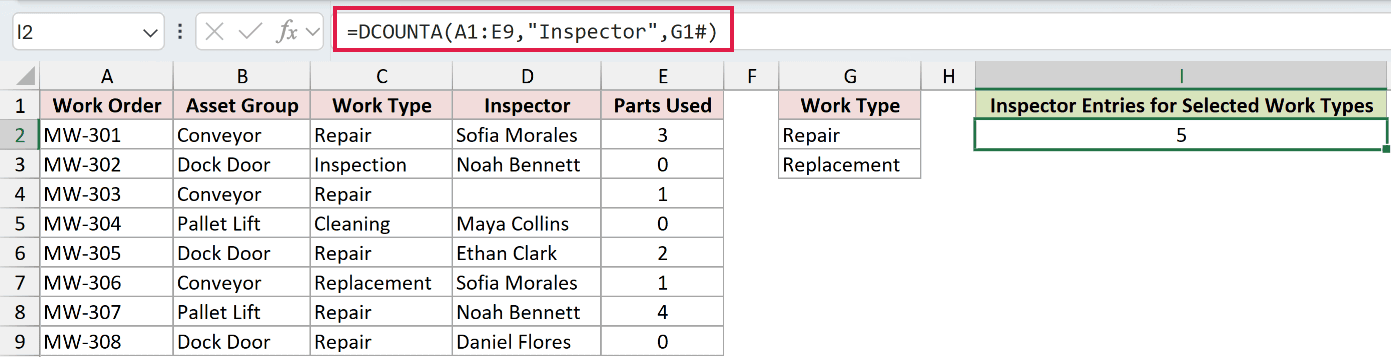
The spill operator passes the full G1:G3 criteria range into DCOUNTA. The function checks every Repair or Replacement record and returns 5 nonblank inspector entries.
MW-308 is included even though Parts Used is zero. The spilled range supplies Work Type criteria, so it does not preserve the original row-level parts condition.
Pro Tip: The database argument must remain a worksheet range with headers. DCOUNTA can use a spilled criteria reference, but it does not accept a calculated array as its database.
Tips & Common Mistakes
- Include the database’s header row in the
databaseargument. - Match every criteria header to the corresponding database header exactly. A spelling difference prevents the intended filter from working.
- Conditions on one criteria row use AND logic. Conditions on separate rows use OR logic.
- Use
*for any sequence of characters and?for one character in text criteria. - If you omit
field, DCOUNTA counts matching database records rather than nonblank values in one selected field. - DCOUNTA counts text, numbers, logical values, and formula-empty text. DCOUNT counts only numeric values in the chosen field.
- DCOUNTA is a reducer and always returns one count. A dynamic array can supply its criteria without making the result spill.
- Formula-based criteria need a calculated criteria column with a blank or nonmatching header and a formula that evaluates each database row.
I covered named fields, DCOUNT comparison, AND and OR criteria, wildcards, formula-empty text, and a spilled criteria range.
I hope you found this article helpful.
Related Excel Functions / Articles:
