
Excel’s ENCODEURL function returns a URL-encoded string by replacing spaces and certain characters other than letters and numbers with codes such as %20.
It leaves letters, digits, hyphens, underscores, and periods unchanged. A space becomes %20, while characters such as &, /, and ? are encoded.
In this article, I’ll show you how to inspect encoded output, build safe search and campaign URLs, and create clickable search and email links.
ENCODEURL Function Syntax in Excel
The ENCODEURL function uses the following syntax:
=ENCODEURL(text)
textis the required text string or cell reference you want to URL-encode.
When to Use ENCODEURL Function
- Encode search terms before appending them to a search page address.
- Prepare separate query parameter values containing spaces or reserved characters.
- Build campaign links with encoded source, medium, and campaign values.
- Create clickable email links with encoded subject and body text.
Example 1: Encode Text with ENCODEURL
Let’s start by seeing how common characters are encoded.
Below is the dataset with source text in Text to Encode and an empty Encoded Text column waiting for the results.
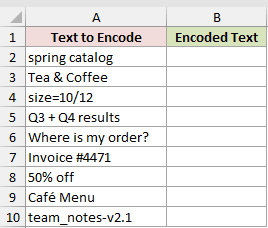
We want to encode every entry with one spilling formula.
Here is the formula:
=ENCODEURL(A2:A10)
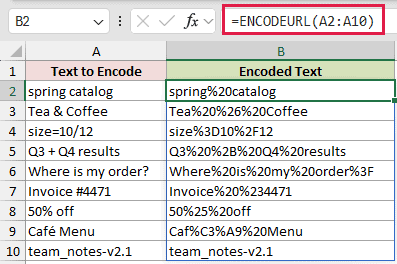
The formula passes A2:A10 to ENCODEURL. Excel returns nine encoded values in B2:B10, starting with spring%20catalog.
Tea & Coffee becomes Tea%20%26%20Coffee, while Café Menu becomes Caf%C3%A9%20Menu using UTF-8 encoding.
The other entries confirm that = becomes %3D, / becomes %2F, ? becomes %3F, # becomes %23, and % becomes %25.
The last row shows team_notes-v2.1 returned exactly as entered.
Pro Tip: In Excel 2021, Excel 2024, and Microsoft 365 for Windows, =ENCODEURL(A2:A10) spills automatically. In Excel 2013 through 2019, enter one formula per row or use Ctrl+Shift+Enter.
Example 2: Encode Query Values, Not URLs
This example shows why you should encode the search value instead of the entire URL.
Below is the dataset with Search Page and Search Value inputs, plus empty Search URL and Whole URL Encoded columns waiting for both results.
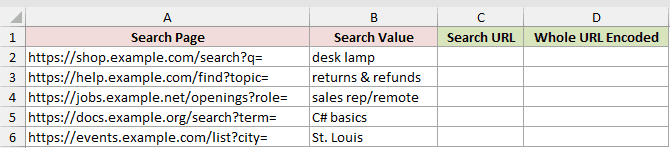
We want to append each encoded search value while preserving the URL structure, then compare that result with encoding the entire address.
Here is the formula:
=A2:A6&ENCODEURL(B2:B6)

For comparison, here is the formula that encodes the whole URL:
=ENCODEURL(A2:A6&B2:B6)

How this formula works:
- The first formula joins each Search Page value in
A2:A6with its encoded Search Value fromB2:B6. - Its first result is
https://shop.example.com/search?q=desk%20lamp, which keeps the URL structure intact. - The comparison formula encodes the full combined address, turning
://,?, and=into%3A%2F%2F,%3F, and%3D. - Its first result begins
https%3A%2F%2Fshop.example.com%2Fsearch%3Fq%3D, so the result won’t open the search page.
Pro Tip: Encode a whole URL only when that URL is itself a parameter value, such as a destination passed to a redirect or sharing address.
Example 3: Create Clickable Search Links
Now let’s turn encoded product searches into clickable links.
Below is the dataset with Product values and an empty Search Link column waiting for a working link in each row.
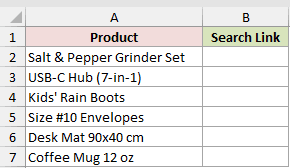
We want each result cell to open a product search and display a friendly label.
Here is the formula:
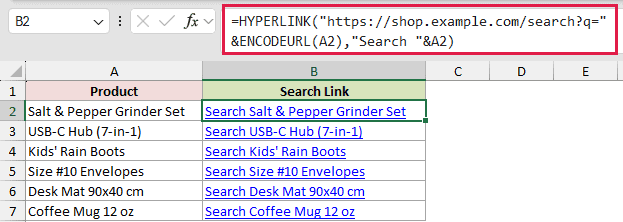
=HYPERLINK("https://shop.example.com/search?q="&ENCODEURL(A2),"Search "&A2)
How this formula works:
ENCODEURL(A2)encodes the product name without changing the search page address.- The first
&joins that encoded value to the search page, while HYPERLINK makes the completed address clickable. "Search "&A2creates the friendly label. The first result displaysSearch Salt & Pepper Grinder Set.- The formula fills from
B2throughB7. A spilled HYPERLINK formula does not give every cell its own working link.
Example 4: Build UTM Campaign URLs
Here’s a practical way to encode several parameters at once.
Below is the dataset with Landing Page, Source, Medium, and Campaign inputs, plus an empty Tagged URL column waiting for the completed addresses.
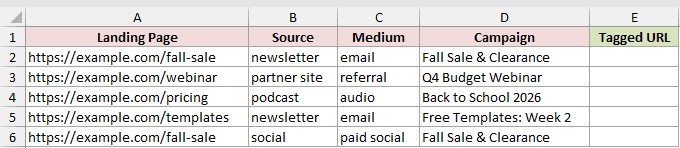
We want to build one tagged URL per row while encoding each changing campaign value separately.
Here is the formula:
=A2:A6&"?utm_source="&ENCODEURL(B2:B6)&"&utm_medium="&ENCODEURL(C2:C6)&"&utm_campaign="&ENCODEURL(D2:D6)

How this formula works:
A2:A6provides each Landing Page value as the unchanged start of the URL.- The formula keeps
?utm_source=,&utm_medium=, and&utm_campaign=literal because those characters define the query structure. - ENCODEURL processes the Source, Medium, and Campaign ranges separately before
&joins all the pieces. - The first result ends with
utm_source=newsletter&utm_medium=email&utm_campaign=Fall%20Sale%20%26%20Clearance.
Example 5: Create Encoded Email Links
Finally, let’s build personalized email links for shipped orders.
Below is the dataset with First Name, Email, and Order # inputs, plus an empty Email Link column waiting for each personalized link.
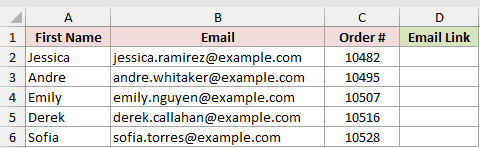
We want each link to open a new email with an encoded subject and body.
Here is the formula:
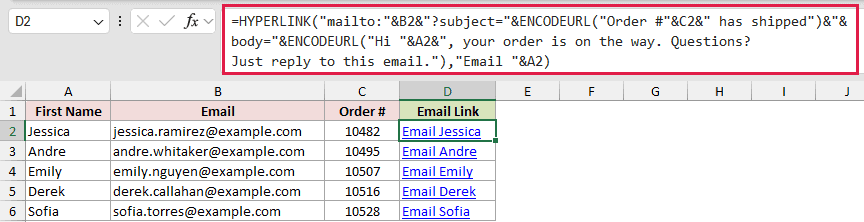
=HYPERLINK("mailto:"&B2&"?subject="&ENCODEURL("Order #"&C2&" has shipped")&"&body="&ENCODEURL("Hi "&A2&", your order is on the way. Questions? Just reply to this email."),"Email "&A2)
How this formula works:
"mailto:"&B2starts the link with the recipient’s email address.- The first ENCODEURL call encodes a subject built from
Order #, the order number inC2, andhas shipped. - The second ENCODEURL call encodes a personalized body using the first name in
A2. - HYPERLINK displays
Email Jessicain the first result. The formula fills fromD2throughD6so every cell gets its own working link. - Each completed link is 185 characters or shorter, below HYPERLINK’s 255-character limit.
Tips & Common Mistakes
- ENCODEURL is available in Excel 2013 and later on Windows only. It is not available in Excel for Mac or Excel for the web.
- Leave the spill range empty. Existing content in any destination cell causes a
#SPILL!error. - If Excel inserts an implicit-intersection
@, the range formula returns only one row instead of spilling. - Do not encode text that is already encoded. Encoding
%20again changes the percent sign to%25, producing%2520. - Use TRIM before ENCODEURL when pasted values may contain stray spaces.
- Excel has no DECODEURL function. Use SUBSTITUTE for a few known codes, a LET and REDUCE mapping in Excel 365, or a VBA UDF for custom decoding.
- ENCODEURL can prepare parameter values before WEBSERVICE sends a request.
- A single
ébecomes%C3%A9, expanding from one character to six. Check long text before wrapping the completed address in HYPERLINK.
I covered how to encode changing values while keeping URL structure intact, including spilled columns and filled-down HYPERLINK formulas.
I hope you found this article helpful.
Related Excel Functions / Articles:
