
The CHAR function in Excel returns the character associated with a numeric code in the computer’s character set.
You can use it to insert a line break or build text containing special characters. For Unicode code points, use UNICHAR instead.
In this article, I’ll show you how to add line breaks and quotation marks, create a bulleted list, and build a character-code lookup table.
CHAR Function Syntax in Excel
The CHAR function returns the character represented by a number from 1 to 255.
=CHAR(number)
- number (required) is a number from 1 to 255 that identifies the character you want Excel to return.
When to Use CHAR Function
- Generate letters from their numeric character codes.
- Add line breaks while combining names, addresses, or other text.
- Insert symbols such as bullets, quotation marks, and degree signs into formulas.
- Build a lookup table that shows which character belongs to each code.
- Find or replace hidden characters such as line breaks inside imported text.
Example 1: Generate the Alphabet With CHAR
Let’s start by generating the full alphabet without typing each letter.
We want one formula to spill A through Z, then another to spill a through z.
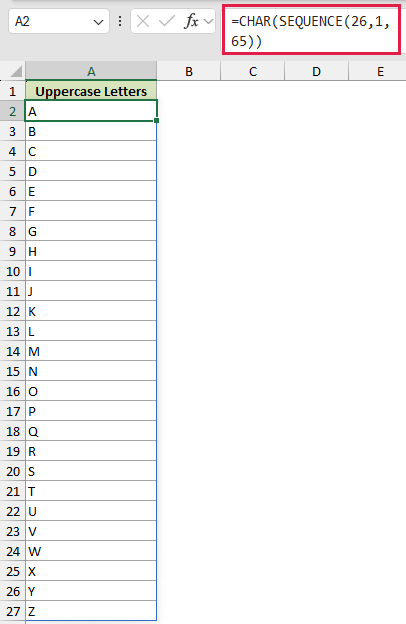
Here is the uppercase formula:
=CHAR(SEQUENCE(26,1,65))
And here is the lowercase formula:
=CHAR(SEQUENCE(26,1,97))
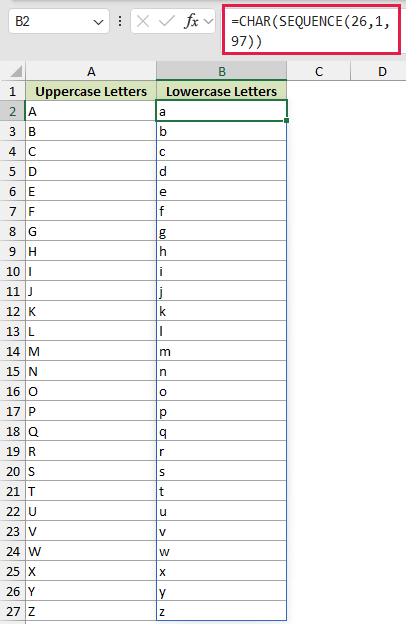
The SEQUENCE function creates the codes 65 through 90. CHAR converts those codes into the uppercase letters A through Z.
The second formula starts at 97, so it returns the lowercase letters a through z. Each formula spills 26 results down its column.
Pro Tip: The formula occupies the first cell and spills into the 25 cells beneath it. Keep those 25 cells empty. A blocked output range causes Excel to return a #SPILL! error.
Example 2: Add Line Breaks to Addresses
Mailing labels are a good example because the result needs several lines.
Below is the dataset. Columns A through E contain each customer’s name, street, city, state, and ZIP code.
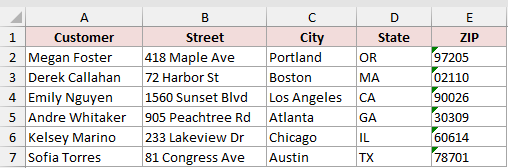
We want each mailing label to show the name, street, and city details on separate lines.
Here is the formula:
=A2:A7&CHAR(10)&B2:B7&CHAR(10)&C2:C7&", "&D2:D7&" "&E2:E7
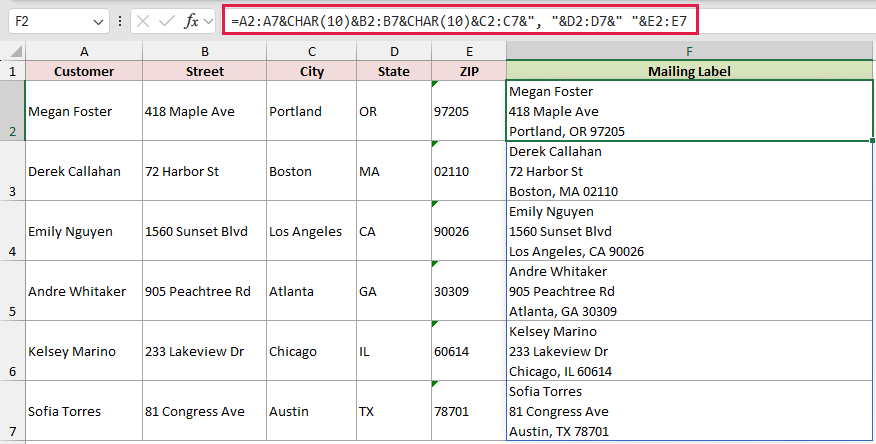
CHAR(10) inserts a line break after the customer name and street address. The remaining pieces add the city, comma, state, and ZIP code.
Because every source column uses rows 2 through 7, the formula spills six complete labels into column F.
Pro Tip: Turn on Wrap Text for column F. The CHAR(10) breaks are present even when Excel displays the label on one line.
Example 3: Create a Bulleted List With CHAR
Now let’s format a short meeting agenda with bullet points.
Below is the dataset. Column A contains five agenda items.
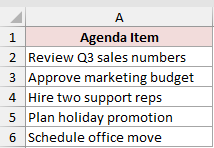
We want to create a bulleted version of every item before stacking the five results into one cell.
Here is the formula that adds the bullets:
=CHAR(149)&" "&A2:A6
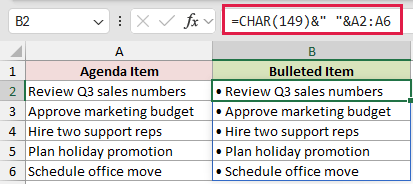
CHAR(149) returns a bullet in Windows Excel. The formula adds a space, joins each agenda item, and spills the results through B2:B6.
Then we can combine those bulleted items into one cell with TEXTJOIN:
=TEXTJOIN(CHAR(10),TRUE,B2:B6)
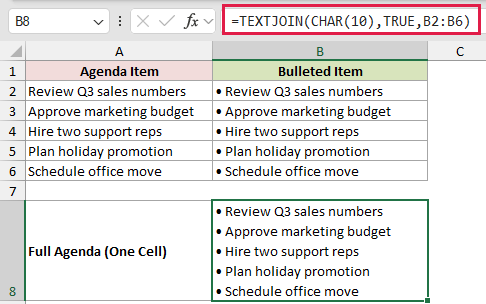
TEXTJOIN uses CHAR(10) as its delimiter, so every item starts on a new line. The TRUE argument tells Excel to ignore empty cells.
TEXTJOIN is available in Excel 2019 and later, including Microsoft 365. Excel 2016 users will not have this function.
Pro Tip: CHAR(149) relies on the Windows character set and may differ on a Mac. Use =UNICHAR(8226)&" "&A2:A6 for a more consistent bullet.
Example 4: Insert Double Quotes With CHAR
Product titles often need quotation marks after measurements.
Below is the dataset. Column A lists monitor models, and column B contains their screen sizes.
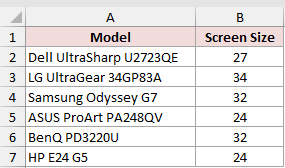
We want each title to place a double quote after the screen size.
Here is the formula:
=A2:A7&" "&B2:B7&CHAR(34)&" Monitor"
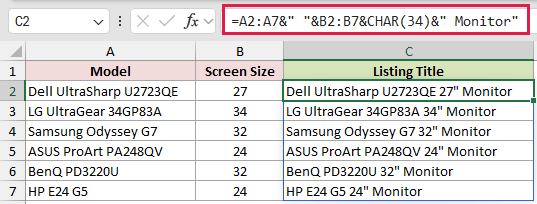
CHAR(34) returns the double-quote character. It sits directly after each size, so the first result becomes Dell UltraSharp U2723QE 27″ Monitor.
Inside an existing text string, type a double quote as two consecutive quotation marks where you want it to appear. CHAR(34) is often easier to read.
Example 5: Build a CHAR Code Lookup Table
A lookup table makes it easier to see what each code returns.
Below is the dataset. Column A contains ten character codes, and column C describes each one.
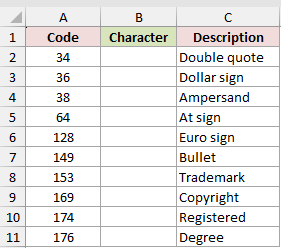
We want one formula to convert every code in A2:A11.
Here is the formula:
=CHAR(A2:A11)
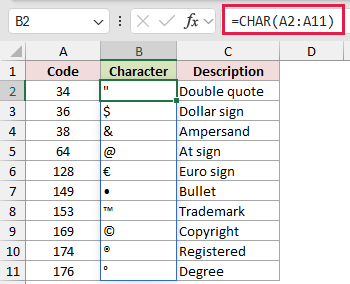
The formula spills the matching characters into B2:B11. Codes 34, 36, 38, and 64 return a double quote, dollar sign, ampersand, and at sign.
In Windows Excel, the remaining codes return the euro sign, bullet, trademark, copyright, registered trademark, and degree sign.
Pro Tip: Codes 128 through 255 can return different characters on Windows and Mac. Use UNICHAR when you need a Unicode character or a code above 255.
Example 6: Remove Line Breaks With CHAR
Finally, let’s clean up addresses that were entered across several lines.
Below is the dataset. Column A contains multi-line shipping addresses.
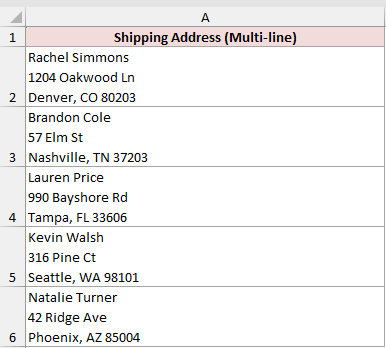
We want to replace every line break with a comma and space, then compare that result with CLEAN.
Here is the SUBSTITUTE formula:
=SUBSTITUTE(A2:A6,CHAR(10),", ")
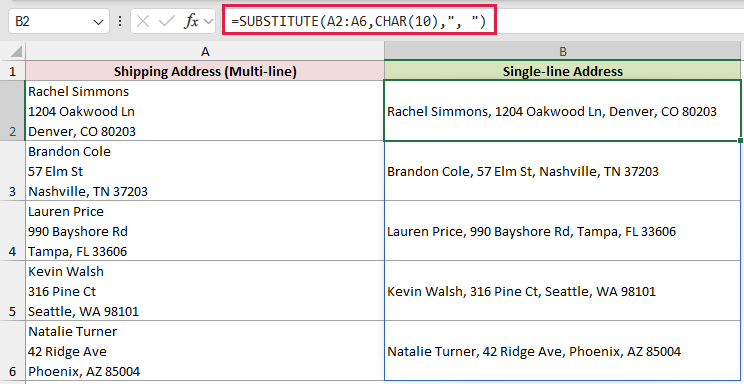
SUBSTITUTE searches for each CHAR(10) line break and replaces it with , . The first address becomes Rachel Simmons, 1204 Oakwood Ln, Denver, CO 80203.
For comparison, CLEAN shows why SUBSTITUTE is better when readable separators matter:
=CLEAN(A2:A6)
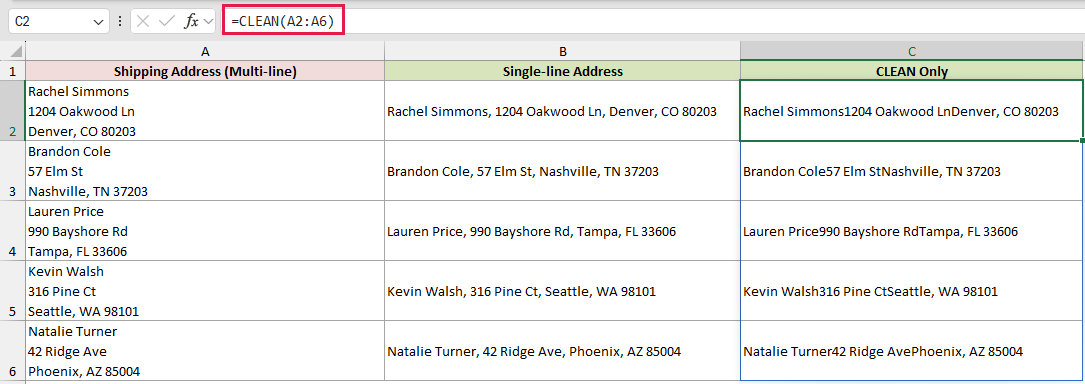
CLEAN removes the line-break characters but inserts nothing in their place. That makes the words run together, so SUBSTITUTE is better when readability matters.
In Excel 365, TEXTSPLIT can separate each line into its own column. SUBSTITUTE remains useful when you need one clean, single-line address.
Tips & Common Mistakes
- CHAR accepts numbers from 1 through 255. A number outside that range returns #VALUE!.
- Codes 32 through 126 are generally consistent across platforms. Higher codes can differ because Windows and Mac use different character sets.
- Excel for the web supports CHAR(9), CHAR(10), CHAR(13), and codes 32 or higher. Other control-character codes are not supported.
- Use UNICHAR when you need Unicode symbols beyond CHAR’s 255-code limit. CODE and UNICODE perform the reverse job by returning a character’s numeric code.
- Range-based CHAR formulas spill in Excel 365. Blocked destination cells cause #SPILL!, while the
@operator reduces a range calculation to one result. - CHAR(10) adds a line break on Windows. Turn on Wrap Text whenever the break is present but not visible.
CHAR is most useful when a formula needs a character that is awkward or impossible to type directly.
Keep the common codes close at hand, especially 10 for line breaks and 34 for double quotes.
Related Excel Functions / Articles:
