
The ISOWEEKNUM function in Excel returns the ISO week number for a date. ISO weeks run from Monday through Sunday, and the first week contains the year’s first Thursday.
This matters around New Year, when a calendar date can belong to the ISO week-year on the other side of the boundary.
In this article, I’ll show you how to compare week systems, build reliable year-week labels, and summarize or filter records by ISO week.
ISOWEEKNUM Function Syntax in Excel
The function uses a single required argument:
=ISOWEEKNUM(date)
- date (required) is a valid Excel date or a reference to a cell containing one.
When to Use ISOWEEKNUM Function
- Assign deliveries, jobs, or transactions to Monday-based reporting weeks.
- Compare ISO week numbering with Excel’s default WEEKNUM system.
- Create year-week labels that remain correct around New Year.
- Find years with an extra ISO week.
- Total or filter records for a selected ISO week.
Example 1: Return ISO Weeks for Dates
Let’s start with a column of purchase-order delivery dates.
Below is the dataset. It lists purchase-order numbers and delivery dates, with an empty ISO Week column ready for the spilled results.
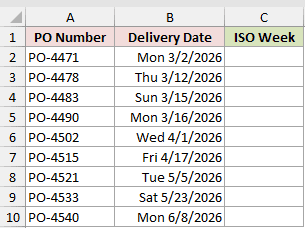
We want one formula to return the ISO week for every delivery date.
Here is the formula:
=ISOWEEKNUM(B2:B10)
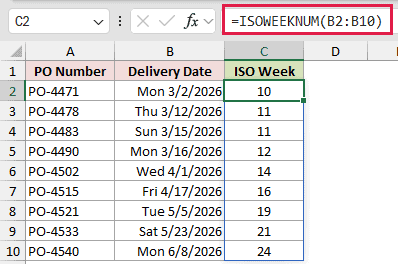
In Excel 2021, Excel 2024, and Microsoft 365, this formula spills one week number for every date in B2:B10.
The Sunday delivery on 3/15/2026 remains in week 11, while Monday 3/16/2026 starts week 12. That shows the Monday-based boundary.
Pro Tip: Keep the cells below C2 empty. Any content in the intended output range blocks the formula and causes a #SPILL! error.
Example 2: Compare ISOWEEKNUM and WEEKNUM
Now let’s compare three week-number calculations around New Year.
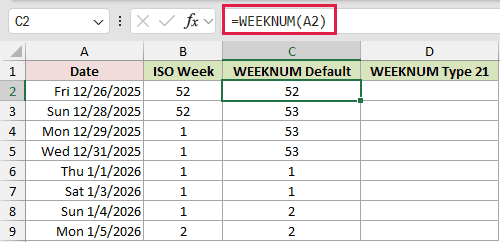
Below is the dataset. Column A holds dates, while columns B through D are ready for the ISO week, default WEEKNUM, and WEEKNUM type 21 results.
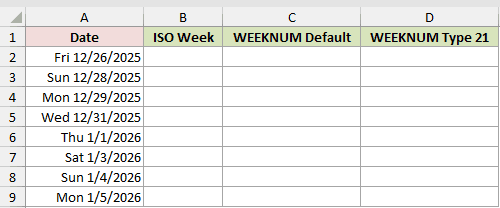
We want to compare ISOWEEKNUM with WEEKNUM‘s default system and its ISO-compatible setting.
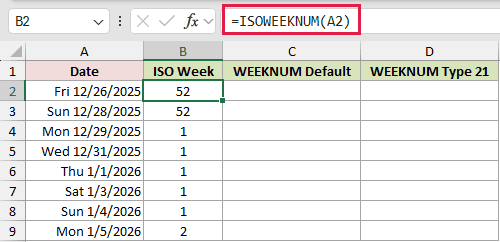
Here is the ISOWEEKNUM formula entered in B2:
=ISOWEEKNUM(A2)
Here is the default WEEKNUM formula entered in C2:
=WEEKNUM(A2)
And here is WEEKNUM with type 21, entered in D2:
=WEEKNUM(A2,21)
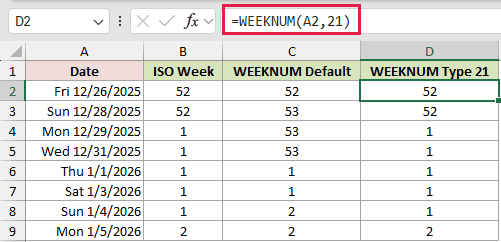
A bare range passed to WEEKNUM returns a single #VALUE!, so use per-row formulas in all three columns and copy them through row 9.
For Sunday 12/28/2025, ISOWEEKNUM and WEEKNUM type 21 return 52, while default WEEKNUM returns 53.
On Monday 12/29/2025, the ISO calculations return week 1, but default WEEKNUM remains at 53. Type 21 agrees with ISOWEEKNUM throughout the table.
Example 3: Build the Correct ISO Year-Week
Here’s the boundary problem that catches plenty of otherwise tidy reports.
Below is the dataset. It lists batch IDs and production dates, with two empty label columns. The YEAR-Based Label column is deliberately the wrong approach.
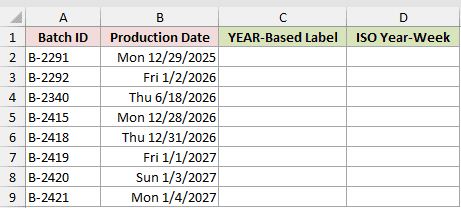
We want to see why a YEAR-based label fails, then create the correct ISO year-week label.
Here is the formula that creates the wrong YEAR-based label:
=YEAR(B2:B9)&"-W"&TEXT(ISOWEEKNUM(B2:B9),"00")
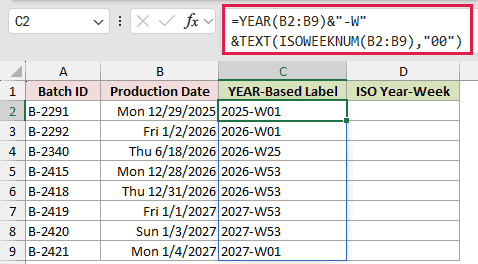
That formula is the mistake. It combines the calendar year with the ISO week, even when those parts belong to different week-years.
Here is the corrected formula:
=YEAR(B2:B9-WEEKDAY(B2:B9,2)+4)&"-W"&TEXT(ISOWEEKNUM(B2:B9),"00")
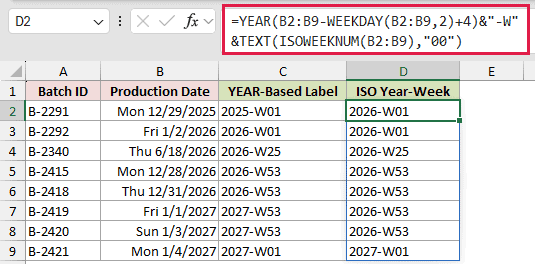
The corrected formula shifts each date to its ISO week’s Thursday before taking YEAR, so the year and week stay aligned.
For 12/29/2025, the wrong column shows 2025-W01, while the corrected column shows 2026-W01.
For 1/1/2027, the wrong label is 2027-W53. The corrected label is 2026-W53 because that Friday belongs to the preceding ISO week-year.
Example 4: Find Years With 53 ISO Weeks
Next, let’s identify which years contain an extra ISO week.
Below is the dataset. Column A lists years, and the empty result column will show the number of ISO weeks in each year.
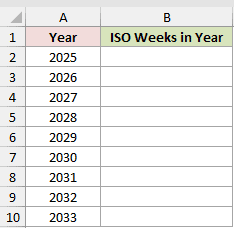
We want one spilling formula to count the ISO weeks for every listed year.
Here is the formula:
=ISOWEEKNUM(DATE(A2:A10,12,28))
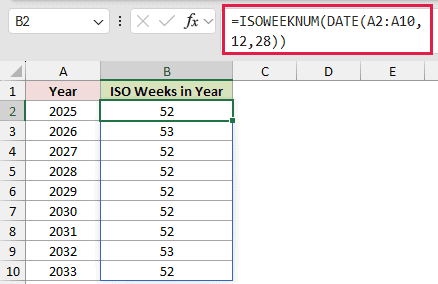
The formula checks a late-December date that always falls in the final ISO week, then spills one count for each year.
Among the listed years, 2026 and 2032 return 53. Every other row returns 52.
Example 5: Total Activity by ISO Week
Now let’s total help-desk work without adding a helper column to the source data.
Below is the dataset. Columns A and B hold dates and ticket counts. The card in D:E lists ISO weeks with empty cells for weekly totals.
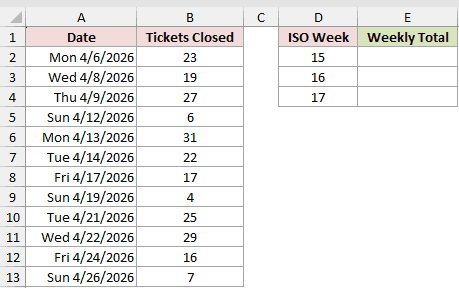
We want to total the tickets closed during each ISO week listed in column D.
Here is the formula entered in E2:
=SUMPRODUCT((ISOWEEKNUM($A$2:$A$13)=D2)*$B$2:$B$13)
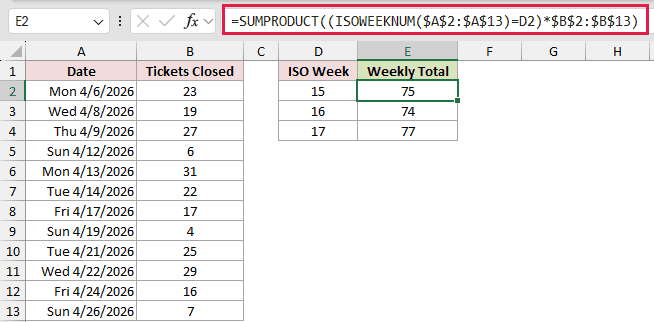
Copy the formula through E4. ISOWEEKNUM creates the week test, and SUMPRODUCT adds ticket counts where that test is TRUE.
The absolute references keep the date and ticket ranges fixed while D2 changes for each summary row.
Week 15 totals 75, week 16 totals 74, and week 17 totals 77.
Example 6: Filter Records by ISO Week
Finally, let’s pull every maintenance job scheduled within a chosen ISO week.
Below is the dataset. Columns A:C hold jobs, technicians, and dates. The ISO Week card is in E1:E2, while G:I provides the filtered-result headers.
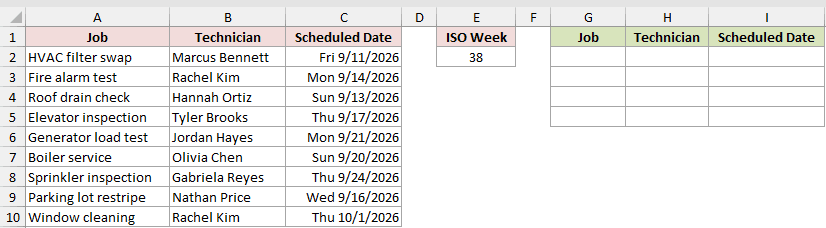
We want to return only the maintenance jobs assigned to the ISO week entered in E2.
Here is the formula:
=FILTER(A2:C10,ISOWEEKNUM(C2:C10)=E2)
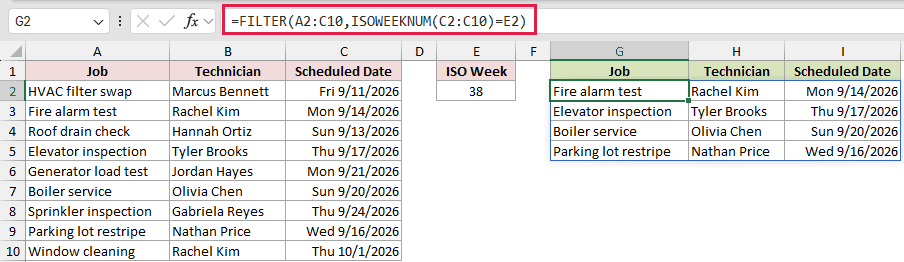
FILTER evaluates each scheduled date with ISOWEEKNUM and keeps rows matching E2. The result spills beneath the headers in G:I.
FILTER is available in Excel 2021, Excel 2024, and Microsoft 365.
For week 38, the list returns Fire alarm test, Elevator inspection, Boiler service, and Parking lot restripe.
Boiler service falls on Sunday 9/20/2026 and remains included because the ISO week runs through Sunday.
Tips & Common Mistakes
- ISOWEEKNUM never returns a week after 53. December 31, 2026 belongs to week 53.
- The text date
3/15/2026works and returns 11 because it matches the system’s month-first date order. The same text may not be read as a date under a day-first regional setting. Text that is not a date returns #VALUE!, while a negative number returns #NUM!. - Keep the entire spill area empty. Existing values or merged cells can stop a range-based ISOWEEKNUM formula with #SPILL!.
- Remove an accidental
@before ISOWEEKNUM when you want all range results. That operator reduces the calculation to one value. - Do not subtract ISO week numbers to measure elapsed weeks. Week numbers restart around New Year, so the subtraction can be misleading.
- Format week results as General or Number. A date format can make a valid week number look like an unrelated calendar date.
We compared ISOWEEKNUM with WEEKNUM, built correct ISO year-week labels, and found the years that contain week 53.
We also used ISOWEEKNUM with SUMPRODUCT and FILTER to total or return records for a chosen ISO week.
Related Excel Functions / Articles:
