
If you track anything by week, you’ll often need the week start date for each date in your data.
That’s the date a Wednesday entry and a Friday entry from the same week share, so both land in the same weekly bucket.
In the UK this is usually called the week commencing date, or “w/c” for short.
Excel doesn’t have a function that returns it directly. You work it out by stepping back from each date by the right number of days.
That number depends on whether your weeks start on Monday or Sunday.
The week ending date is the same idea, stepping forward instead of back.
In this article, I’ll show you four ways to get the week start date, using the WEEKDAY function, the MOD function, Power Query, and a Pivot Table.
I’ll also cover the week ending date and how to get the start date from a week number.
Method #1: Using the WEEKDAY Function
This is the method I recommend for most people. The formula is short, and you can switch the week start day by changing one number.
Below I have a dataset on the WEEKDAY Formula sheet. It’s a job log, with each job’s date in column B and the hours billed in column C.
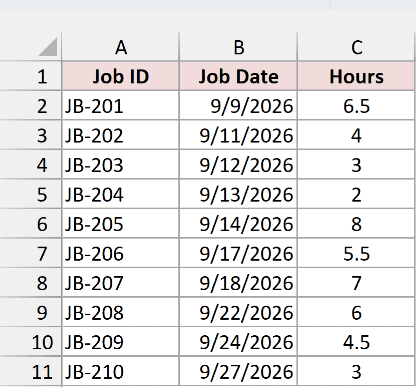
I want the Monday that each job’s week starts on in column D.
Here is the formula:
=B2:B11-WEEKDAY(B2:B11,3)
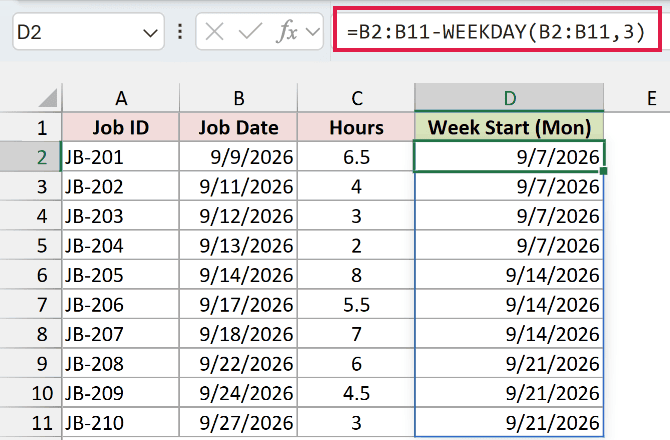
Enter it in D2, and it spills down the column automatically. Job JB-201 is on Wednesday 9/9/2026, so its week starts on Monday 9/7/2026.
How does this formula work?
The WEEKDAY function returns a number for the day of the week. With 3 as the second argument, it returns 0 for Monday through 6 for Sunday.
That number is exactly how many days you need to go back to reach Monday. A Wednesday returns 2, and 9/9/2026 minus 2 days is 9/7/2026.
Since Excel stores dates as numbers, subtracting a number from a date gives you another date. A Monday returns 0, so JB-205 on 9/14/2026 stays as 9/14/2026.
If your weeks start on Sunday instead, use this formula in column E:
=B2:B11-WEEKDAY(B2:B11)+1
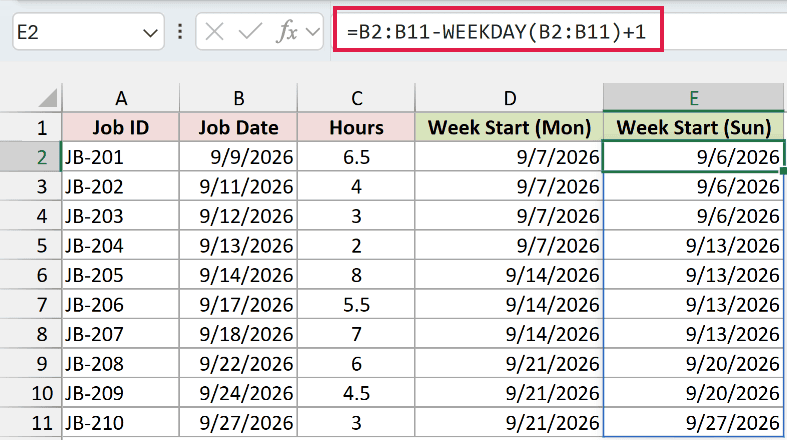
Without a second argument, WEEKDAY returns 1 for Sunday through 7 for Saturday. Subtracting it and adding 1 takes you back to the Sunday.
Look at JB-204 on Sunday 9/13/2026. Its Monday-start week began on 9/7, but its Sunday-start week begins that same day.
You can start the week on any day by using return types 11 to 17 with the formula =B2-WEEKDAY(B2,type)+1. Here is the full list:
| Week Starts On | Formula |
|---|---|
| Monday | =B2-WEEKDAY(B2,11)+1 |
| Tuesday | =B2-WEEKDAY(B2,12)+1 |
| Wednesday | =B2-WEEKDAY(B2,13)+1 |
| Thursday | =B2-WEEKDAY(B2,14)+1 |
| Friday | =B2-WEEKDAY(B2,15)+1 |
| Saturday | =B2-WEEKDAY(B2,16)+1 |
| Sunday | =B2-WEEKDAY(B2,17)+1 |
The Monday row gives the same result as the formula above.
Note: Spilling formulas need Excel 365 or Excel 2021 and later. In older versions, enter =B2-WEEKDAY(B2,3) in D2 and copy it down the column.
Method #2: Using the MOD Function
If you’d rather not remember WEEKDAY’s return type codes, this formula gets the same result. It works on the date’s serial number directly.
Below I have the same job log on the MOD Formula sheet, with the job dates in column B.
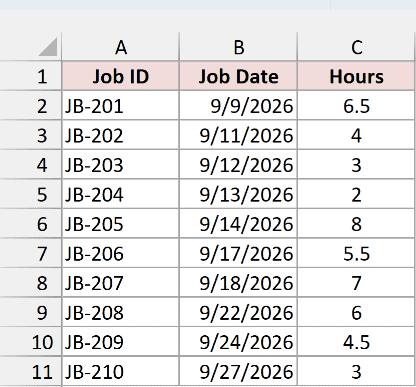
I want the Monday each week starts on in column D.
Here is the formula:
=B2:B11-MOD(B2:B11-2,7)
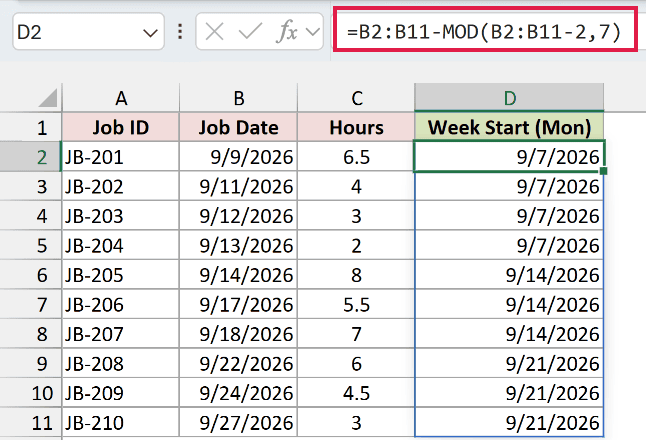
The results match Method #1. Every job from 9/9 to 9/13/2026 gets Monday 9/7/2026.
How does this formula work?
Excel stores each date as a number, and the days of the week repeat every 7 numbers.
Every date number that leaves a remainder of 2 when divided by 7 is a Monday.
The MOD function returns the remainder of a division. So MOD(B2-2,7) returns how many days the date is past the last Monday, from 0 to 6.
Subtracting that from the date takes you back to Monday.
For a Sunday start, change the 2 to a 1:
=B2:B11-MOD(B2:B11-1,7)
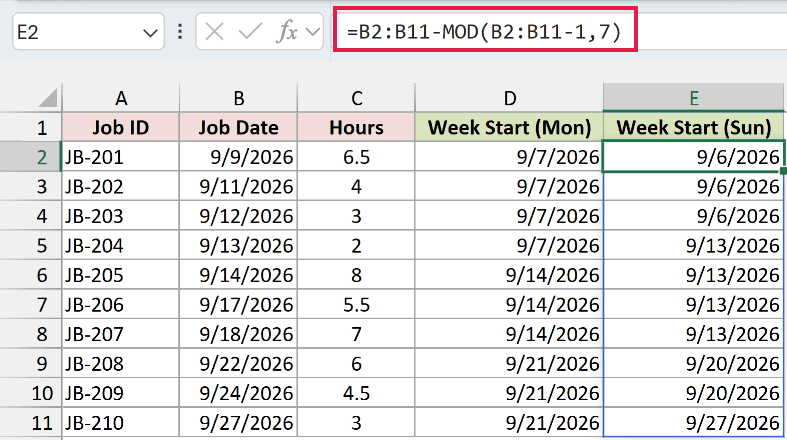
Date numbers that leave a remainder of 1 are Sundays, so this steps back to the last Sunday instead.
Note: The MOD formula assumes the standard 1900 date system. If a workbook uses the 1904 date system (on Windows, an option in File > Options > Advanced), it returns the Sunday instead of the Monday. The WEEKDAY formula works in both.
Method #3: Using Power Query
If your data comes from an import you refresh often, Power Query can add the week start column for you. It has a built-in Start of Week transformation.
Below I have the job log on the Power Query Source sheet. It needs to be an Excel Table for Power Query to pick it up.
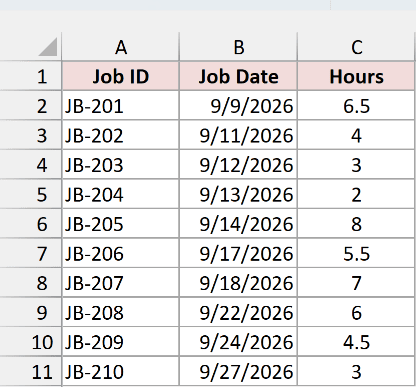
Here are the steps to add a week start column with Power Query:
- If your data isn’t a table yet, select any cell in it and press Ctrl + T (Cmd + T on a Mac). Make sure My table has headers is checked, then click OK.
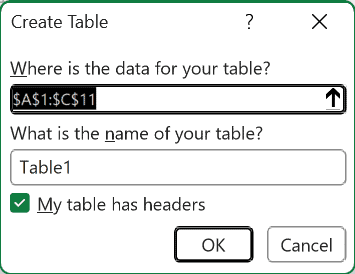
- Go to the Data tab and click From Table/Range. The Power Query Editor opens with your table.
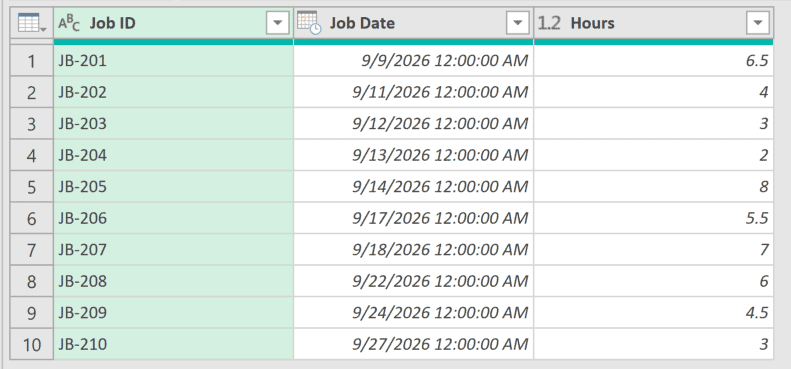
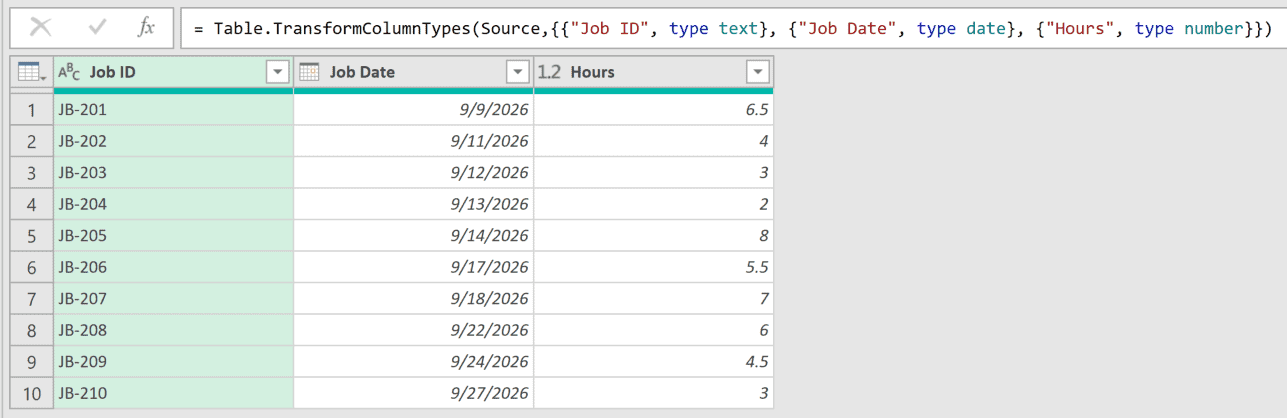
- If the Job Date header shows a date-and-time icon, click that icon and choose Date. When Power Query asks, click Replace current.
- Select the Job Date column. Go to the Add Column tab, click Date, then Week, then Start of Week.
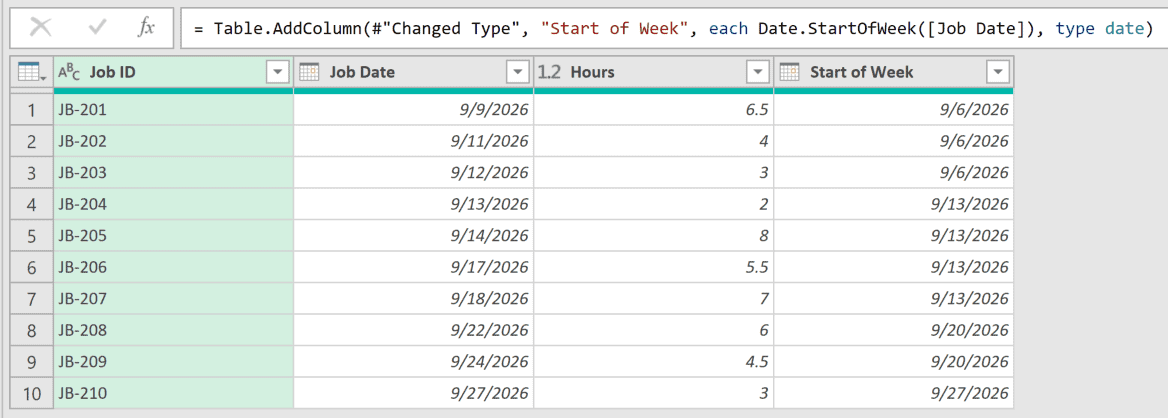
Power Query adds a new Start of Week column at the end. Your Job Date column stays as it is.
- In the formula bar, add Day.Monday after [Job Date] so the step reads like this, then press Enter:
= Table.AddColumn(#"Changed Type", "Start of Week", each Date.StartOfWeek([Job Date], Day.Monday), type date)
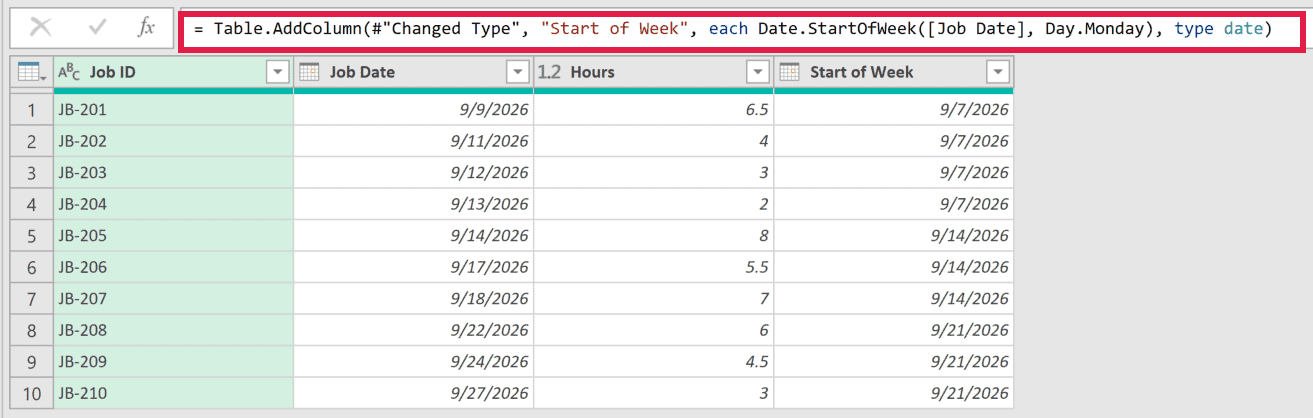
Don’t skip this. Without Day.Monday, the Date.StartOfWeek function uses a default that depends on your locale settings. On a US setup, that’s Sunday.
- On the Home tab, click Close & Load.
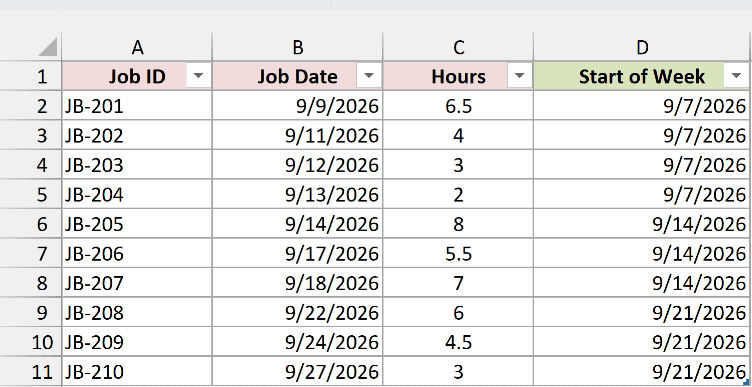
Power Query loads the result as a new table on a new sheet, with the Monday of each week in the Start of Week column.
For a Sunday start, use Day.Sunday instead. Every other day works the same way, from Day.Tuesday to Day.Saturday.
Note: The loaded table doesn’t update by itself. When you add or change jobs in the source table, go to the Data tab and click Refresh All.
Method #4: Using a Pivot Table
If you’re after weekly totals rather than a week start date on every row, use a Pivot Table.
It groups your dates into weeks and adds up the hours in one go.
Below I have the job log on the Pivot Table sheet, with job dates from 9/9/2026 to 9/27/2026.
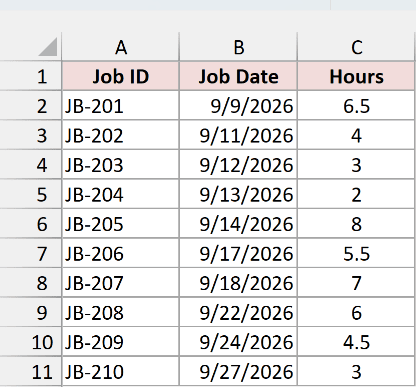
Here are the steps to total the hours by week:
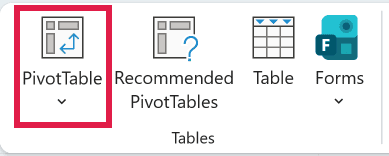
- Select any cell in the data, go to the Insert tab, and click PivotTable.
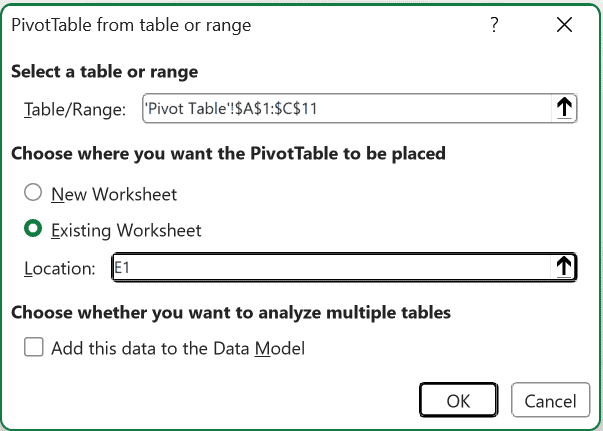
- In the dialog box, choose Existing Worksheet, enter E1 as the Location, and click OK.
- In the PivotTable Fields pane, drag Job Date to the Rows area and Hours to the Values area.
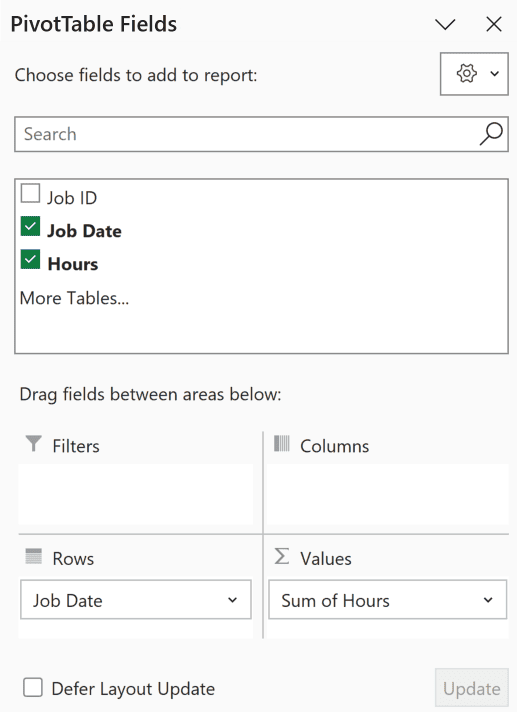
Excel may group the dates by month on its own. That’s fine, since the next step replaces it.
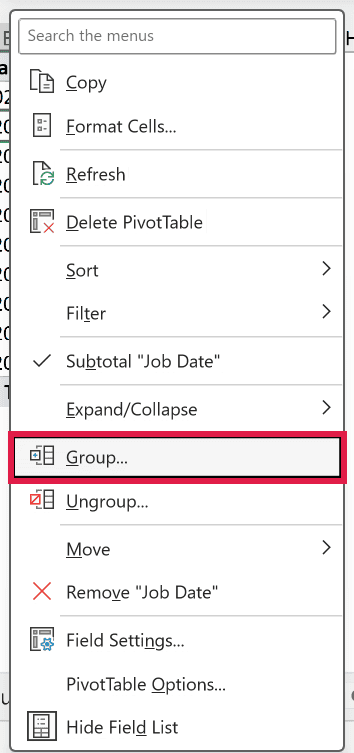
- Right-click any date (or month) in the Pivot Table and choose Group.
- In the Grouping dialog box, change Starting at to 9/7/2026. Under By, deselect Months and anything else that’s selected, and select Days. Set Number of days to 7, then click OK.
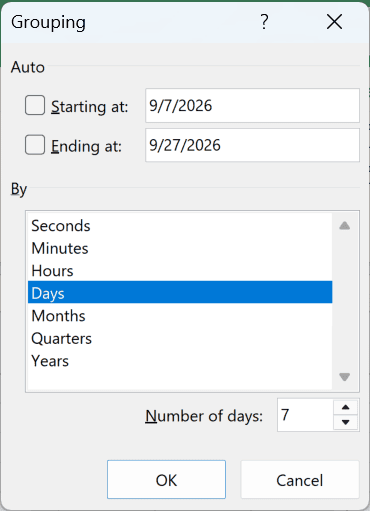
The Starting at date is the important part. Excel fills in the earliest date in your data, which is Wednesday 9/9/2026 here.
If you leave it, your weeks run Wednesday to Tuesday.
Changing it to Monday 9/7/2026 makes every group run Monday to Sunday. If your computer uses a different date format, type the date that way.
- Click the Row Labels cell above the dates, type Week Commencing, and press Enter.
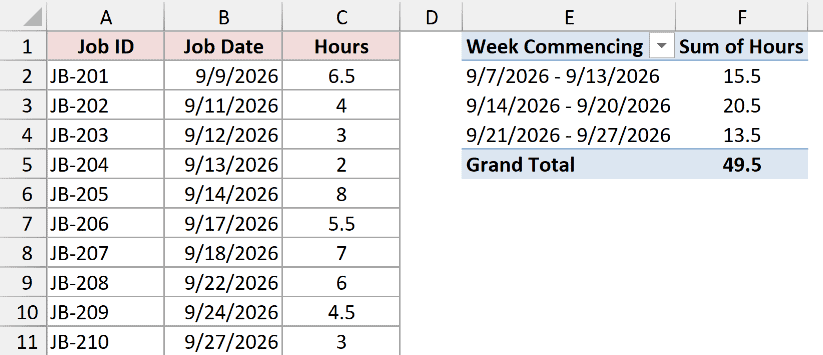
Each row is now one week, labeled with its start and end date. The week of 9/7/2026 to 9/13/2026 has 15.5 hours, and the Grand Total is 49.5.
Note: The Pivot Table doesn’t pick up changes by itself. After you edit the job log, right-click the Pivot Table and choose Refresh.
How to Get the Week Ending Date in Excel
The week ending date uses the same WEEKDAY idea, but it steps forward to the last day of the week instead of back to the first.
Below I have the job log on the Week Ending sheet, with the job dates in column B.
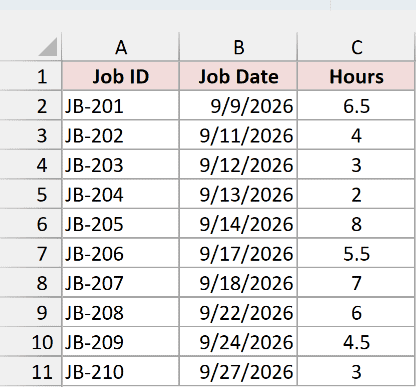
I want the Sunday each job’s week ends on in column D.
Here is the formula:
=B2:B11-WEEKDAY(B2:B11,2)+7
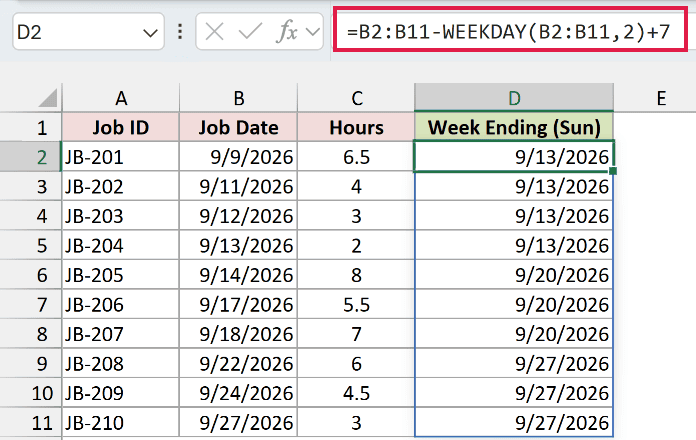
With 2 as the second argument, WEEKDAY returns 1 for Monday through 7 for Sunday. Subtracting it and adding 7 lands on the Sunday of the same week.
A Sunday date, like JB-204 on 9/13/2026, stays as it is.
If your weeks run Sunday to Saturday, use this formula for a Saturday week ending:
=B2:B11-WEEKDAY(B2:B11)+7
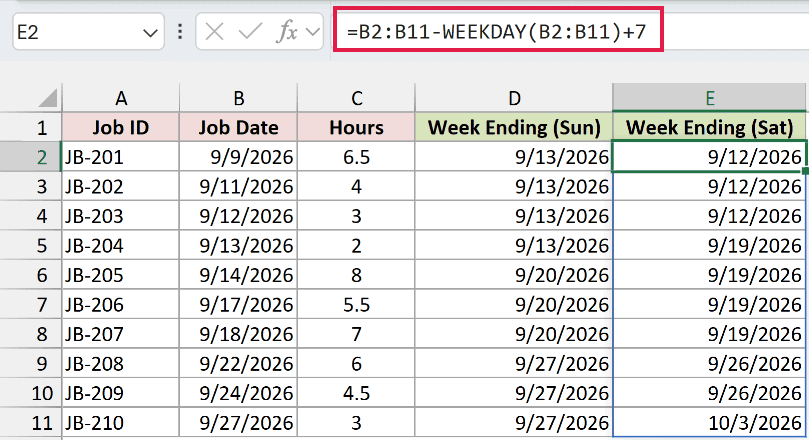
This one uses WEEKDAY’s default numbering, where Sunday is 1 and Saturday is 7. JB-210 on Sunday 9/27/2026 starts a new Sunday-to-Saturday week, so its week ends on 10/3/2026.
For a week that ends on Friday, like a Saturday-to-Friday pay week, use =B2-WEEKDAY(B2,16)+7.
You can also add 6 to any week start date. For example, =D2+6 turns a Monday in D2 into the Sunday that ends its week.
How to Get the Week Start Date From a Week Number
Sometimes you only have a year and a week number, like week 38 of 2026, and you need the date that week starts on.
Below I have a list on the From Week Number sheet, with the year in column A and the week number in column B.
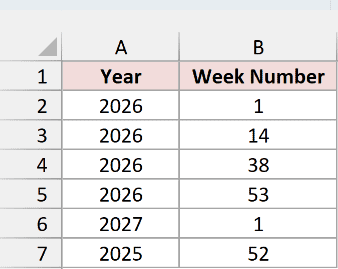
These are ISO week numbers, the kind the ISOWEEKNUM function returns. ISO weeks start on Monday, and week 1 is the week that contains the first Thursday of the year.
Here is the formula:
=DATE(A2:A7,1,4)-WEEKDAY(DATE(A2:A7,1,4),3)+(B2:B7-1)*7
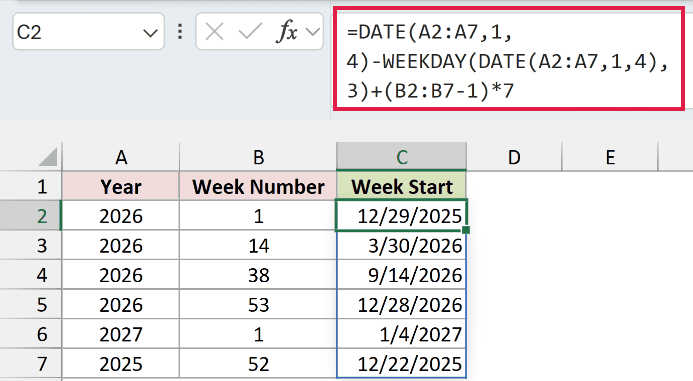
Week 38 of 2026 starts on Monday 9/14/2026. Notice that week 1 of 2026 starts on 12/29/2025, and 2026 has a week 53.
How does this formula work?
January 4 is always in ISO week 1, so DATE(A2,1,4) gives a date inside week 1 of each year.
Subtracting WEEKDAY(DATE(A2,1,4),3) steps back to the Monday of that week, the same way Method #1 does. That’s the start of week 1.
Then (B2-1)*7 adds a week for every week after week 1. For week 38, that’s 37 weeks, or 259 days.
To get the week ending date as well, enter this in D2:
=C2#+6
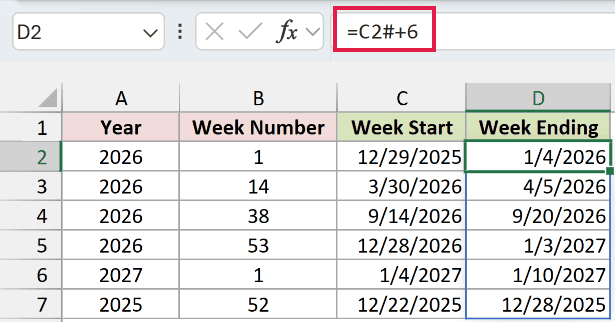
The # after C2 refers to the whole spilled range, so the formula adds 6 days to every week start date at once.
Note: If your week numbers come from the WEEKNUM function with its default setting, weeks start on Sunday and week 1 is the week that contains January 1. For those, use =DATE(A2,1,1)-WEEKDAY(DATE(A2,1,1))+1+(B2-1)*7 instead.
Additional Notes About Getting the Week Start Date in Excel
- Dates with times keep the time. If a cell holds 9/9/2026 2:30 PM, the formulas return 9/7/2026 2:30 PM. It looks right in a date format, but it won’t match 9/7/2026 in a lookup or COUNTIFS. Use =INT(B2)-WEEKDAY(B2,3) to drop the time.
- Text that Excel can’t read as a date returns #VALUE! Text like 9/9/2026 still works, but something like 2026.09.09 doesn’t. Convert text to dates first.
- Keep the result as a real date. A real date sorts, filters, and groups correctly. If you want it to look different, change the number format rather than wrapping it in TEXT.
- The formulas update on their own; Power Query and Pivot Tables don’t. Change a date and Methods #1 and #2 recalculate right away. The other two need a refresh.
Frequently Asked Questions
Here are answers to a few questions people often ask about week start dates in Excel.
How do I get the Monday of the current week?
Use =TODAY()-WEEKDAY(TODAY(),3). The TODAY function returns the current date, so the result moves to the new Monday each week.
Add 7 to get next Monday, or subtract 7 for last Monday.
Why does my formula show a number like 46272 instead of a date?
That’s the date’s serial number. The formula is fine, but the cell has the General format.
Select the cells, go to the Home tab, and pick Short Date from the Number Format drop-down.
How do I show the week start as “w/c 7-Sep”?
Use a custom number format. Press Ctrl + 1 (Cmd + 1 on a Mac), choose Custom, and type “w/c “d-mmm in the Type box.
The cell shows w/c 7-Sep but still holds a real date.
Is the week commencing date the same as the week start date?
Yes. “Week commencing” is the British term for the first day of the week, usually a Monday.
Conclusion
In this article, I showed you four ways to get the week start date in Excel, using the WEEKDAY function, the MOD function, Power Query, and a Pivot Table.
I also covered the week ending date and how to get the week start from a week number. For most people, the WEEKDAY formula is the one to reach for.
I hope you found this article helpful.
Other Excel articles you may also like:
