
Excel’s YEAR function returns the year as a number from an Excel date.
You can use it to group transactions by year or check whether a date belongs to a reporting period. The source should be a valid date, not ambiguous text.
In this article, I’ll show you how to extract calendar years, calculate fiscal years, and build a sorted list of unique years.
YEAR Function Syntax in Excel
Here is the syntax of the YEAR function:
=YEAR(serial_number)
serial_numberis the Excel date whose year you want to return. This argument is required.
Excel stores dates as serial numbers, even when cells display them in a familiar date format. YEAR returns an integer from 1900 through 9999.
Use a proper Excel date, a cell reference, or a formula that returns a date. Typing date text directly into YEAR can cause problems because Excel may interpret it differently under another regional setting.
YEAR returns a number. If you only want a date to look different, changing its date format may be the better choice because it leaves the underlying date intact.
When to Use YEAR Function
Use YEAR when you need to:
- Extract the calendar year from one date or a range of dates.
- Assign dates to a fiscal year.
- Check whether dates belong to the same year as a reference date.
- Create a sorted list of distinct years.
- Extract years after converting imported date text.
Example 1: Extract the Calendar Year from Dates
YEAR is most useful when a complete date needs to become a numeric year.
The policy list below contains eight effective dates from 2024 through 2027.
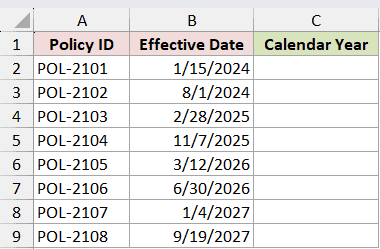
I want to return the calendar year for every effective date.
Here is the formula:
=YEAR(B2:B9)
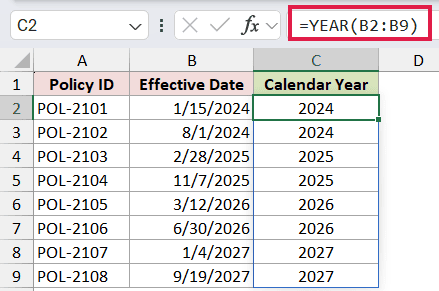
YEAR reads each date in B2:B9 and spills eight numeric years into C2:C9.
The first two policies return 2024, the next two return 2025, and the final four dates produce two 2026 values followed by two 2027 values.
Changing how column B displays its dates does not change these results. YEAR uses each date’s stored serial number, not the text shown in the cell.
Example 2: Calculate a July-to-June Fiscal Year
A fiscal year can end in a different calendar year from the date that starts it.
This grant list uses a July-to-June fiscal year. Cell E2 stores 7, the number for July.
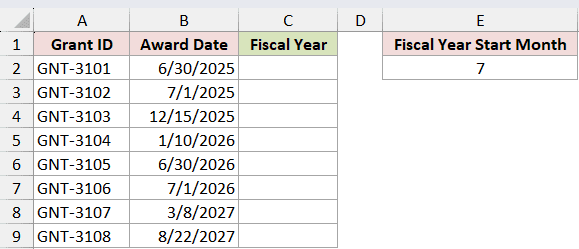
I want July through December dates assigned to the following fiscal year.
Here is the formula:
=YEAR(B2:B9)+(MONTH(B2:B9)>=$E$2)
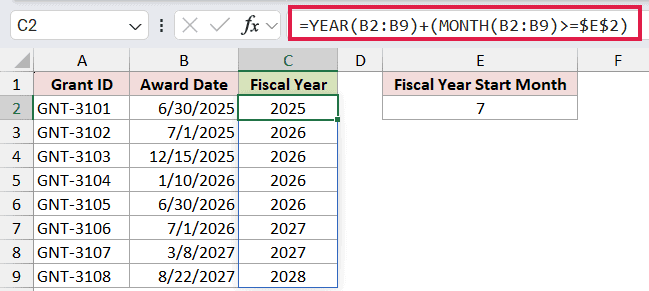
YEAR returns each date’s calendar year. MONTH then checks whether the month number is 7 or higher.
Excel treats TRUE as 1 and FALSE as 0 in the addition. June 30, 2025 stays in fiscal year 2025, while July 1, 2025 becomes fiscal year 2026.
The absolute reference $E$2 keeps the start month fixed. Changing E2 lets you reuse the setup for another fiscal calendar without editing the formula.
Pro Tip: Decide whether your organization names a fiscal year for its starting year or ending year. This formula uses the ending year, so July 2025 through June 2026 is fiscal year 2026.
Example 3: Check Dates Against a Reference Year
YEAR makes it easy to compare dates while ignoring their month and day.
The review log below has an as-of date of September 2, 2026 in E2.
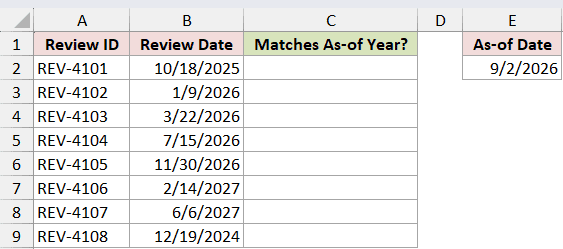
I want to mark every review date that belongs to the as-of year.
Here is the formula:
=IF(YEAR(B2:B9)=YEAR($E$2),"Yes","No")
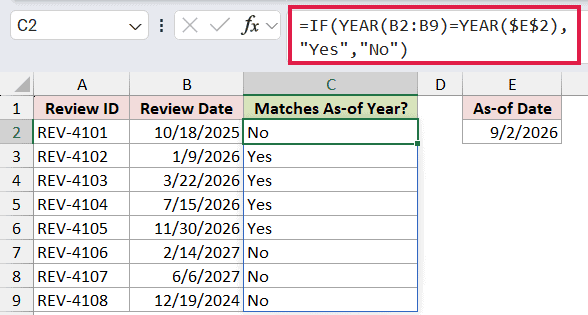
YEAR converts the eight review dates and the as-of date into year numbers. The comparison is TRUE only when those numbers match.
The IF function turns each TRUE or FALSE result into Yes or No. All four 2026 reviews return Yes, while the 2024, 2025, and 2027 dates return No.
Because E2 is a fixed worksheet input rather than TODAY, the check remains auditable. You can see exactly which as-of date produced the results.
Example 4: Build a Sorted List of Unique Years
YEAR can feed a modern dynamic-array formula when you need a compact reporting list.
This license register has ten renewal dates with repeated years from 2022 through 2026.
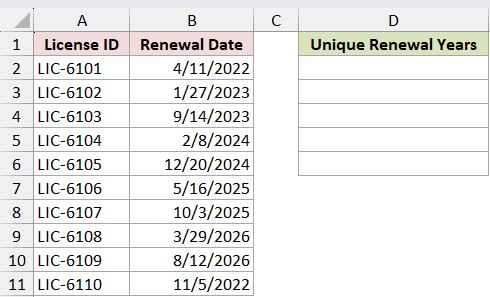
I want one ascending list that contains each renewal year once.
Here is the formula:
=SORT(UNIQUE(YEAR(B2:B11)))
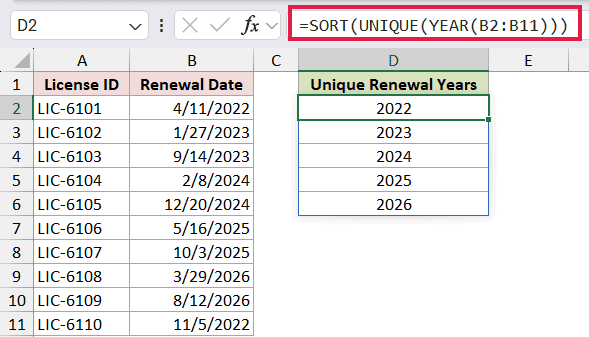
YEAR first returns ten year numbers. The UNIQUE function removes duplicates from that array.
The SORT function then arranges the remaining values in ascending order. The final list spills into D2:D6 as 2022, 2023, 2024, 2025, and 2026.
Keep the cells below D2 empty so the five-year list has room to spill.
Example 5: Extract Years from Imported Date Text
YEAR expects a date serial number, so imported text may need conversion first.
The import table below contains US English date text such as January 6, 2022 and December 31, 2025.
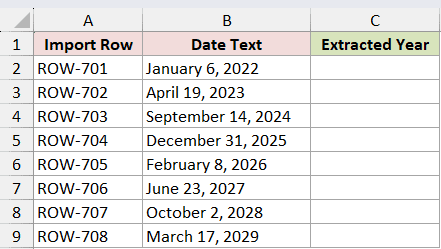
I want to convert each text entry to a date and return its year.
Here is the formula:
=YEAR(DATEVALUE(B2:B9))
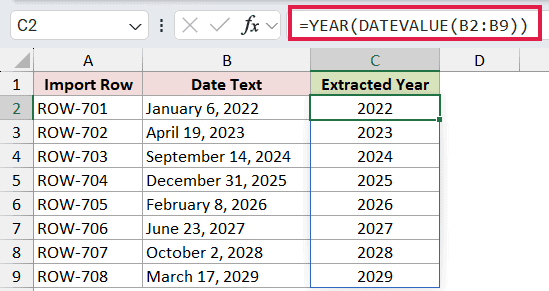
DATEVALUE converts each recognized text string into an Excel date serial number. YEAR then returns the numeric year, and the results spill from 2022 through 2029.
DATEVALUE follows the date settings on the computer. Month-name text is clear in this US example, but ambiguous values such as 3/4/2026 can be interpreted differently under another regional setting.
For a larger cleanup job, use one of the methods for converting text to dates before applying YEAR.
Tips & Common Mistakes
- Use real Excel dates rather than typing date text directly inside YEAR.
- YEAR returns a numeric year, not a formatted date or text string.
- A cell that looks like a date may still contain text. Test the source or convert it before using YEAR.
- Remember that Excel date formats change appearance only. YEAR reads the stored serial number.
- YEAR, MONTH, and DAY return Gregorian date parts even when the supplied date uses another display calendar.
- DATEVALUE can be locale-sensitive. Prefer unambiguous imported text or normalize the data before conversion.
- Keep the spill range clear when YEAR processes a range in current Excel.
I covered calendar years, fiscal years, reference-year checks, unique year lists, and imported date text. I hope you found this article helpful.
Related Excel Functions / Articles:
