
Excel’s NOMINAL function returns the nominal annual interest rate that corresponds to an effective annual rate and a chosen compounding frequency.
This is useful when a savings product advertises an APY, but your worksheet needs a stated rate that can be divided into periodic rates.
Use it with APY-style inputs. A lender’s quoted APR is already nominal, so NOMINAL would treat it as an effective rate and return a rate below the quoted APR.
In this article, I’ll show you how to convert APYs, calculate a monthly savings deposit, and put quoted rates on the same compounding basis.
NOMINAL Function Syntax in Excel
The NOMINAL function needs an effective annual rate and the number of compounding periods per year.
=NOMINAL(effect_rate, npery)
- effect_rate (required) is the effective annual interest rate, such as an advertised APY.
- npery (required) is the number of compounding periods per year. Excel truncates a decimal value to a whole number.
When to Use NOMINAL Function
- Convert an advertised APY into a nominal annual rate.
- Compare savings products that compound at different frequencies.
- Calculate a periodic rate for payment or savings formulas.
- Express quoted rates on the same compounding basis.
- Diagnose percentage-entry and compounding-frequency mistakes.
Example 1: Convert APYs to Nominal Rates
Let’s start with several savings products that advertise effective annual rates.
Below is the dataset. It lists each account, advertised APY, compounding frequency, periods per year, and an empty Nominal Rate column for the results.
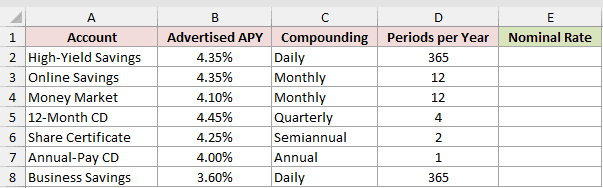
We want to convert each advertised APY into the corresponding nominal annual rate.
Here is the formula entered in E2 and copied down:
=NOMINAL(B2,D2)
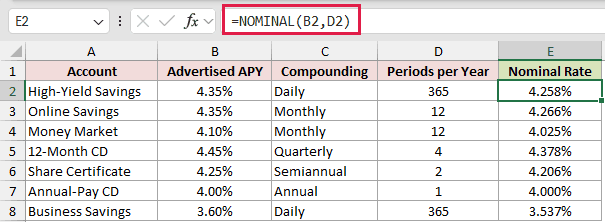
Each row uses its APY from column B and its compounding periods from column D. Copying the formula down lets every account use its own frequency.
The two accounts advertising 4.35% APY return different nominal rates. Daily compounding returns 4.258%, while monthly compounding returns 4.266%.
More frequent compounding needs a slightly lower nominal rate to reach the same APY. With annual compounding, 4.00% APY returns a 4.000% nominal rate.
Example 2: Spill a NOMINAL Rate Column
Here’s a faster way to calculate a whole CD rate sheet with one formula.
Below is the dataset. Column A lists each CD term, column B holds its APY, and the empty Interest Rate column provides space for the results.
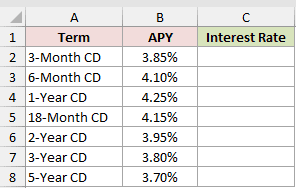
We want one formula in C2 to return the nominal rates for every APY in B2:B8.
Here is the formula:
=NOMINAL(+B2:B8,365)
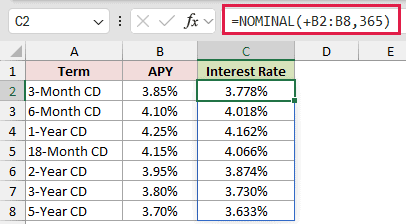
The unary plus before B2:B8 coerces the range into an array. NOMINAL then returns a spilled result for each CD term.
The 365 applies daily compounding to every CD on the sheet.
Passing the bare range without the plus sign returns one #VALUE! instead. The plus sign changes how Excel hands the range to this older function.
The first CD returns 3.778%, and the last returns 3.633%. The remaining rates spill between them without copying the formula.
Pro Tip: The unary-plus spill works in Excel 2021, Excel 2024, and Microsoft 365. In Excel 2019 and earlier, enter =NOMINAL(B2,365) in C2 and fill it down to C8.
Example 3: Calculate a Monthly Savings Deposit
Now let’s use NOMINAL inside a savings-goal calculation.
Below is a parameter card with the advertised APY, compounding periods, savings goal, and years. Empty labeled cells are ready for the monthly rate and deposit.
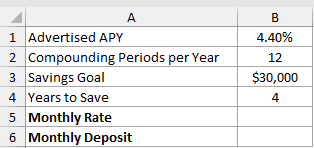
We first need the monthly rate that is equivalent to the advertised APY.
Here is the formula:
=NOMINAL(B1,B2)/B2
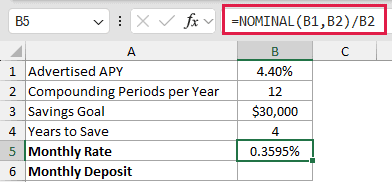
NOMINAL converts the 4.40% APY to a nominal annual rate. Dividing by the compounding periods returns the 0.3595% monthly rate used by PMT.
We can now calculate the monthly deposit needed for the savings goal.
Here is the PMT formula:
=PMT(B5,B4*B2,0,-B3)
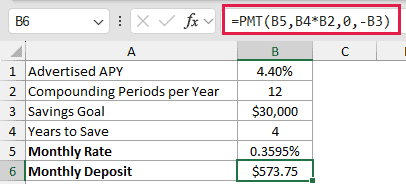
PMT uses the monthly rate in B5 and the total deposit periods. The negative savings-goal argument makes the required deposit return as a positive $573.75.
Using the APY divided directly by the compounding periods produces $572.75 instead. At the correct monthly rate, that deposit finishes $51.98 short of the $30,000 goal.
Pro Tip: Match the compounding periods used by NOMINAL to the deposit frequency expected by the next formula. This card uses monthly compounding and monthly deposits.
Example 4: Convert Compounding Bases
Here’s how to compare investments quoted with different compounding frequencies.
Below is the dataset. It lists each investment, quoted rate, periods per year, and an empty column for the monthly-compounding equivalent.
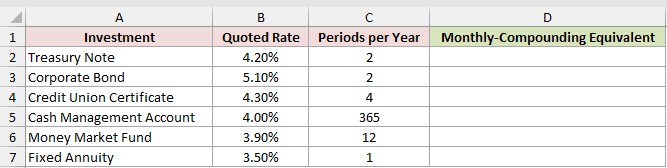
We want to express every quoted rate on a monthly-compounding basis.
Here is the formula entered in D2 and copied down:
=NOMINAL(EFFECT(B2,C2),12)
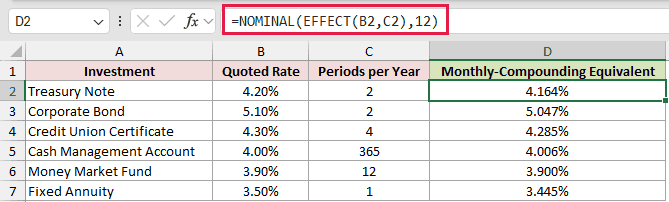
EFFECT first converts each quoted nominal rate into an effective annual rate. NOMINAL then converts that effective rate to a monthly-compounding equivalent.
The Treasury Note’s 4.20% semiannual quote becomes 4.164% on the monthly basis. The Money Market Fund already compounds monthly, so its result stays 3.900%.
This puts unlike quotes on the same basis without changing their effective annual return.
Pro Tip: EFFECT performs the reverse conversion. Using the two functions together lets you move a stated rate from one compounding basis to another.
Example 5: Diagnose NOMINAL Input Errors
Finally, let’s look at several inputs that can produce misleading results or errors.
Below is the dataset. It pairs each input problem with a rate and npery entry, while the empty NOMINAL Result column holds the outcomes.
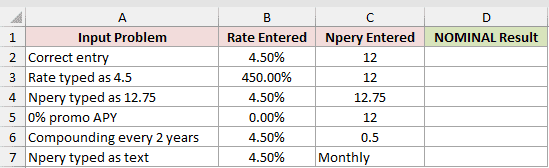
We want to apply the same NOMINAL formula and see how Excel handles each entry.
Here is the formula entered in D2 and copied down:
=NOMINAL(B2,C2)
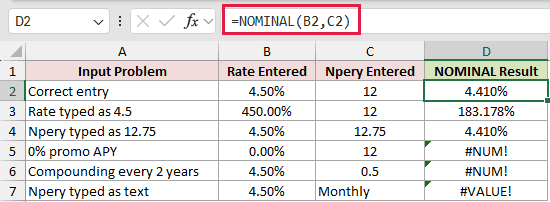
The correct 4.50% entry returns 4.410%. B3 stores the rate as the plain number 4.5 instead of 4.5%.
The column’s percent format displays 450.00%, and NOMINAL returns 183.178% without an error.
The 12.75 npery entry also returns 4.410% because Excel truncates it to 12 before calculating.
The remaining rows show deliberate errors:
- A 0.00% effective rate returns #NUM!.
- An npery entry of 0.5 returns #NUM!.
- The text entry Monthly returns #VALUE!.
Fix the inputs instead of hiding these errors. Rates should be positive percentages, and npery should be a numeric compounding frequency of at least one.
Tips & Common Mistakes
- NOMINAL expects an effective annual rate, such as APY. A lender’s quoted APR is already nominal and should not be converted again.
- Format both the rate input and result as percentages. A rate stored as a plain number instead of a percentage, such as
4.5instead of4.5%, makes NOMINAL return a wrong result with no error. - A bare range does not spill through NOMINAL. Coerce the range with unary plus in Excel 2021, Excel 2024, or Microsoft 365, and keep the spill area empty to avoid
#SPILL!. - The manual compound-rate equation can reproduce NOMINAL when you need to show the underlying math. NOMINAL is usually easier to audit in a worksheet.
- NOMINAL does not account for loan fees or payment timing. Use a cash-flow-based rate calculation when those items matter.
We converted APYs to nominal rates and used one of those rates in a monthly savings calculation.
You also saw how to rebase quoted rates and catch bad inputs that return wrong results without an error.
Related Excel Functions / Articles:
