
Excel’s ISOMITTED function returns TRUE when a LAMBDA call leaves out the parameter being tested, and FALSE when the caller supplies it.
It lets a custom LAMBDA choose a default value or skip a step without confusing omission with supplied values such as zero or empty text.
In this article, I’ll show you how to set numeric and text defaults, handle multiple optional parameters, and avoid the blank-cell trap.
ISOMITTED Function Syntax in Excel
The ISOMITTED function tests one argument.
=ISOMITTED(argument)
- argument (required) is the LAMBDA parameter you want to test for omission.
Declare an optional LAMBDA parameter with square brackets, such as [pct]. ISOMITTED returns TRUE only when the caller skips that parameter.
When to Use ISOMITTED Function
- Give an optional numeric parameter a default value.
- Supply default text when a caller leaves out a label or prefix.
- Skip part of a custom calculation unless the caller requests it.
- Handle several optional parameters independently.
- Tell a skipped argument apart from empty text, zero, FALSE, or a blank cell.
Example 1: Check Whether an Argument Was Omitted
Let’s start by checking the result directly.
Below is the dataset. It shows a bill amount, a custom tip percentage, two result labels, and empty bordered cells where the answers will appear.
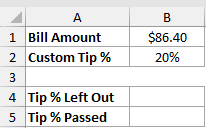
We want to compare the same LAMBDA call with the optional tip percentage omitted and supplied.
Here is the formula that leaves pct out:
=LAMBDA(bill,[pct],ISOMITTED(pct))(B1)
![=LAMBDA(bill,[pct],ISOMITTED(pct))(B1) in B4](https://spreadsheetplanet.com/wp-content/uploads/2026/09/isomitted-example-1-omitted.png)
And here is the formula that passes the percentage from B2:
=LAMBDA(bill,[pct],ISOMITTED(pct))(B1,B2)
![=LAMBDA(bill,[pct],ISOMITTED(pct))(B1,B2) in B5](https://spreadsheetplanet.com/wp-content/uploads/2026/09/isomitted-example-1-supplied.png)
The first formula returns TRUE because the call supplies only the required bill argument in B1.
The second returns FALSE because the call also supplies B2 for the optional pct argument.
These formulas require Excel 2024 or Microsoft 365. Excel 2021 doesn’t include ISOMITTED or the LAMBDA family used here.
Example 2: Use a Default Tip Percentage
Now let’s use that TRUE or FALSE result inside a calculation.
Below is the dataset. It lists eight restaurant tables and their bills. Two green headers and empty result columns show where the default and custom tips will appear.
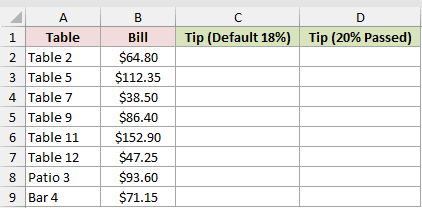
We want one spilled calculation to use an 18% default and another to use a supplied 20% tip.
Here is the formula that leaves the optional percentage out:
=LET(Tip,LAMBDA(bill,[pct],bill*IF(ISOMITTED(pct),18%,pct)),Tip(B2:B9))
![=LET(Tip,LAMBDA(bill,[pct],bill*IF(ISOMITTED(pct),18%,pct)),Tip(B2:B9)) in C2](https://spreadsheetplanet.com/wp-content/uploads/2026/09/isomitted-example-2-default-tip.png)
And here is the formula that passes 20%:
=LET(Tip,LAMBDA(bill,[pct],bill*IF(ISOMITTED(pct),18%,pct)),Tip(B2:B9,20%))
![=LET(Tip,LAMBDA(bill,[pct],bill*IF(ISOMITTED(pct),18%,pct)),Tip(B2:B9,20%)) in D2](https://spreadsheetplanet.com/wp-content/uploads/2026/09/isomitted-example-2-custom-tip.png)
LET names the custom function Tip. Inside it, IF chooses 18% when pct is omitted and uses pct when it is supplied.
For Table 2, the two formulas return $11.66 and $12.96. Each formula spills eight tip amounts from one cell.
Pro Tip: Save the LAMBDA as Tip in Name Manager when you want to reuse it across the workbook.
Example 3: Add a Default Text Prefix
Optional arguments can hold text as well as numbers.
Below is the dataset. Column A lists eight job numbers. The green Invoice ID and Estimate ID headers sit above empty cells waiting for the generated IDs.
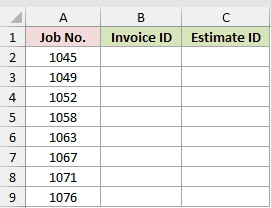
We want invoice IDs to use INV by default and estimate IDs to use the supplied EST prefix.
Here is the formula that omits the prefix:
=LET(DocID,LAMBDA(num,[prefix],IF(ISOMITTED(prefix),"INV",prefix)&"-"&TEXT(num,"00000")),DocID(A2:A9))
![=LET(DocID,LAMBDA(num,[prefix],IF(ISOMITTED(prefix),"INV",prefix)&"-"&TEXT(num,"00000")),DocID(A2:A9)) in B2](https://spreadsheetplanet.com/wp-content/uploads/2026/09/isomitted-example-3-default-prefix.png)
And here is the formula that passes EST:
=LET(DocID,LAMBDA(num,[prefix],IF(ISOMITTED(prefix),"INV",prefix)&"-"&TEXT(num,"00000")),DocID(A2:A9,"EST"))
![=LET(DocID,LAMBDA(num,[prefix],IF(ISOMITTED(prefix),"INV",prefix)&"-"&TEXT(num,"00000")),DocID(A2:A9,"EST")) in C2](https://spreadsheetplanet.com/wp-content/uploads/2026/09/isomitted-example-3-est-prefix.png)
The first call leaves prefix out, so job 1045 becomes INV-01045. The second supplies EST, producing EST-01045.
TEXT pads every job number to five digits. The prefix and padded number are then joined with a hyphen.
Example 4: Skip Rounding When Digits Are Omitted
An omitted argument can also tell a custom function to skip a step.
Below is the dataset. It lists gym equipment and weights in kilograms. Two green headers and empty columns reserve the unrounded and one-decimal pound results.
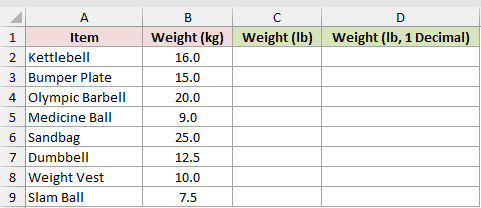
We want the first result to keep full precision and the second to round each converted weight to one decimal place.
Here is the formula that omits the number of digits:
=LET(ToLbs,LAMBDA(weight,[digits],IF(ISOMITTED(digits),weight*2.20462,ROUND(weight*2.20462,digits))),ToLbs(B2:B9))
![=LET(ToLbs,LAMBDA(weight,[digits],IF(ISOMITTED(digits),weight*2.20462,ROUND(weight*2.20462,digits))),ToLbs(B2:B9)) in C2](https://spreadsheetplanet.com/wp-content/uploads/2026/09/isomitted-example-4-full-precision.png)
And here is the formula that passes 1 for digits:
=LET(ToLbs,LAMBDA(weight,[digits],IF(ISOMITTED(digits),weight*2.20462,ROUND(weight*2.20462,digits))),ToLbs(B2:B9,1))
![=LET(ToLbs,LAMBDA(weight,[digits],IF(ISOMITTED(digits),weight*2.20462,ROUND(weight*2.20462,digits))),ToLbs(B2:B9,1)) in D2](https://spreadsheetplanet.com/wp-content/uploads/2026/09/isomitted-example-4-one-decimal.png)
When digits is omitted, the formula multiplies by 2.20462 without calling ROUND. The 16 kg kettlebell returns 35.27392 lb.
Passing 1 sends the conversion through ROUND, so the same kettlebell returns 35.3 lb.
Example 5: Handle Two Optional Arguments
Here’s a custom function with two independent defaults.
Below is the dataset. It lists parking tickets and hours parked. Two green headers and empty columns reserve the standard and event-night fees.
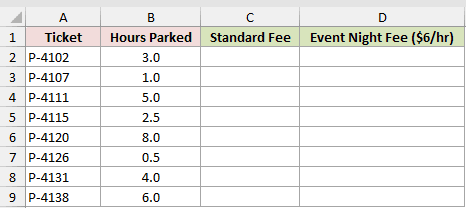
We want the standard fee to use both defaults, then an event-night fee to keep the free hour but change the rate.
Here is the formula that omits both optional arguments:
=LET(ParkFee,LAMBDA(hours,[free],[rate],LET(free,IF(ISOMITTED(free),1,free),rate,IF(ISOMITTED(rate),4,rate),(hours>free)*(hours-free)*rate)),ParkFee(B2:B9))
![=LET(ParkFee,LAMBDA(hours,[free],[rate],LET(free,IF(ISOMITTED(free),1,free),rate,IF(ISOMITTED(rate),4,rate),(hours>free)*(hours-free)*rate)),ParkFee(B2:B9)) in C2](https://spreadsheetplanet.com/wp-content/uploads/2026/09/isomitted-example-5-standard-fee.png)
And here is the formula that skips free but passes a $6 rate:
=LET(ParkFee,LAMBDA(hours,[free],[rate],LET(free,IF(ISOMITTED(free),1,free),rate,IF(ISOMITTED(rate),4,rate),(hours>free)*(hours-free)*rate)),ParkFee(B2:B9,,6))
![=LET(ParkFee,LAMBDA(hours,[free],[rate],LET(free,IF(ISOMITTED(free),1,free),rate,IF(ISOMITTED(rate),4,rate),(hours>free)*(hours-free)*rate)),ParkFee(B2:B9,,6)) in D2](https://spreadsheetplanet.com/wp-content/uploads/2026/09/isomitted-example-5-event-fee.png)
The inner LET sets missing defaults. (hours>free) returns 0 within the free hour, so P-4107 (1 hour) and P-4126 (0.5 hours) stay $0.00 in both columns.
In the second call, the empty middle slot keeps the one-hour default while 6 replaces the hourly rate.
Ticket P-4102 was parked for three hours. Its standard fee is $8.00, while its event-night fee is $12.00.
Example 6: Understand What Counts as Omitted
This example puts the easily confused cases side by side.
Below is the dataset. Column A, How the Argument Is Passed, describes each case. Column B, Example Call, shows calls from Check(1) to Check(1,5).
The green ISOMITTED Result header sits above empty bordered result cells.
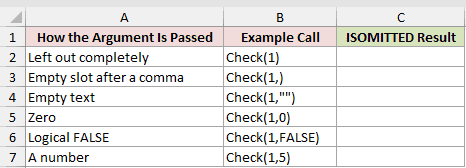
We want one spilled result column showing which calls truly omit the optional argument.
Here is the formula:
=LET(Check,LAMBDA(x,[y],ISOMITTED(y)),VSTACK(Check(1),Check(1,),Check(1,""),Check(1,0),Check(1,FALSE),Check(1,5)))
![=LET(Check,LAMBDA(x,[y],ISOMITTED(y)),VSTACK(Check(1),Check(1,),Check(1,""),Check(1,0),Check(1,FALSE),Check(1,5))) in C2](https://spreadsheetplanet.com/wp-content/uploads/2026/09/isomitted-example-6-omission-tests.png)
TRUE appears for a completely omitted argument and an empty slot after a comma. Both calls leave y unsupplied.
Empty text, zero, logical FALSE, and 5 all return FALSE. Those values may look empty or false, but the caller still supplied an argument.
Pro Tip: Use ISOMITTED to test whether the caller skipped an argument. Don’t use it as a blank-cell test.
Example 7: Handle Blank Override Cells
The difference between omitted and blank matters when a whole range is passed to a custom function.
Below is the dataset. It lists items, prices, and tax overrides containing blanks, zeroes, and 8.25%.
The green Tax (Blank Becomes 0%) and Tax (Blank Uses 6.5%) headers sit above empty bordered cells.
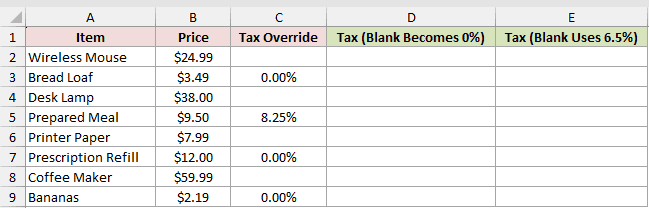
We want to compare a direct override calculation with one that treats blank override cells as the 6.5% default.
Here is the formula that passes the override range directly:
=LET(Tax,LAMBDA(price,[rate],price*IF(ISOMITTED(rate),6.5%,rate)),Tax(B2:B9,C2:C9))
![=LET(Tax,LAMBDA(price,[rate],price*IF(ISOMITTED(rate),6.5%,rate)),Tax(B2:B9,C2:C9)) in D2](https://spreadsheetplanet.com/wp-content/uploads/2026/09/isomitted-example-7-direct-override.png)
And here is the formula that checks for blank cells separately:
=LET(Tax,LAMBDA(price,[rate],price*IF(ISOMITTED(rate),6.5%,IF(rate="",6.5%,rate))),Tax(B2:B9,C2:C9))
![=LET(Tax,LAMBDA(price,[rate],price*IF(ISOMITTED(rate),6.5%,IF(rate="",6.5%,rate))),Tax(B2:B9,C2:C9)) in E2](https://spreadsheetplanet.com/wp-content/uploads/2026/09/isomitted-example-7-blank-default.png)
The first formula receives the entire override range, so rate is supplied. Its blank cells behave as zero and produce $0.00 tax.
The second formula checks rate="" separately. Blanks use 6.5%, while genuine zero overrides remain tax-free.
The Wireless Mouse therefore changes from $0.00 to $1.62. Bread Loaf keeps its real 0% override and remains $0.00.
Tips & Common Mistakes
- ISOMITTED is meaningful only when its argument is a LAMBDA parameter.
ISOMITTED(A1)andLET(x,5,ISOMITTED(x))both return FALSE. - Put square brackets around a LAMBDA parameter to make it optional. Dropping a required argument entirely, as in
(1)for two required parameters, returns#VALUE!. An empty slot such as(1,)is accepted, and ISOMITTED returns TRUE. - Check an omitted optional parameter before using it. Otherwise, Excel can treat it as zero in arithmetic or empty text during concatenation.
- A completely skipped argument and an empty argument slot count as omitted. Empty text, zero, FALSE, and a passed blank cell do not.
- Put required LAMBDA parameters before optional ones.
- MAP passes only as many arguments as it has input arrays. An extra optional parameter remains omitted unless you supply another array.
- ISOMITTED is available in Excel 2024 and Microsoft 365 for Windows and Mac, but not Excel 2021.
- Keep the output area clear when a custom LAMBDA returns several results, or the spilled formula can’t fill the range.
ISOMITTED makes optional LAMBDA arguments predictable because it separates a missing input from a value that only looks empty.
The key is to test the optional parameter before Excel treats a missing value as zero or empty text.
Related Excel Functions / Articles:
