
Excel’s DMIN function returns the smallest number from a database column among records that meet specified criteria.
Unlike MINIFS, DMIN reads conditions from a worksheet criteria range. That layout makes AND, OR, comparison, and dynamically generated criteria easier to inspect.
In this article, I’ll show you how to find conditional minimums, avoid text-matching and no-match traps, and build criteria from an approved-vendor list.
DMIN Function Syntax in Excel
The DMIN function uses a labeled database, a field to evaluate, and a separate criteria range.
=DMIN(database, field, criteria)
- database (required) is the full data range, including its column headers.
- field (required) identifies the column to minimize. Use its header in quotation marks or its column number within the database.
- criteria (required) is a range containing at least one copied database header and a condition below it.
When to Use DMIN Function
- Find the lowest price, cost, rate, or measurement that meets one condition.
- Apply several conditions with an easy-to-read criteria area on the worksheet.
- Use OR logic by stacking alternative criteria on separate rows.
- Apply operators such as
<=,>, or<>without changing the database. - Feed a changing criteria list into one minimum calculation.
Example 1: Lowest Price for One Product
Let’s start with a single product criterion.
Below is the dataset of quote IDs, suppliers, products, and prices per case. The criteria area names Avocados, and the green result header has an empty answer cell.
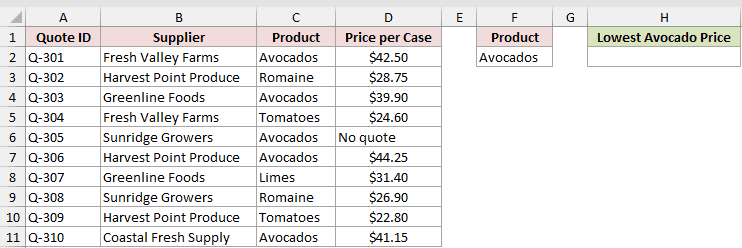
We want the lowest quoted price per case for Avocados.
Here is the formula:
=DMIN(A1:D11,"Price per Case",F1:F2)
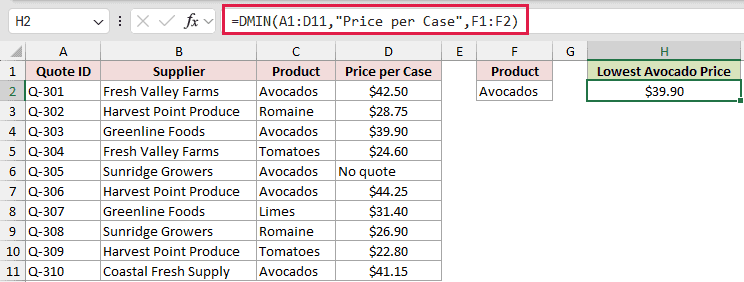
The database is A1:D11, and DMIN checks the Price per Case field. The Product criterion in F1:F2 limits the eligible records to Avocados.
The formula returns $39.90. DMIN skips the text entry “No quote” instead of counting it as 0.
For one or more AND conditions, MINIFS is usually more direct in Excel 2019 and later: =MINIFS(D2:D11,C2:C11,F2).
Example 2: DMIN With Multiple AND Criteria
Here’s a hotel search that needs two conditions at once.
Below is the hotel dataset with hotel names, cities, room types, and nightly rates.
Denver and King share one criteria row. The green Lowest Denver King Rate result cell is empty.
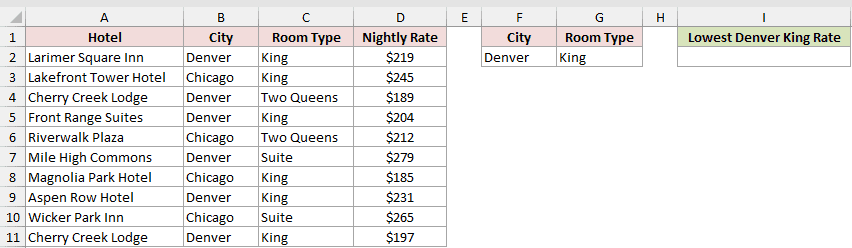
We want the lowest nightly rate for a King room in Denver.
Here is the formula:
=DMIN(A1:D11,"Nightly Rate",F1:G2)
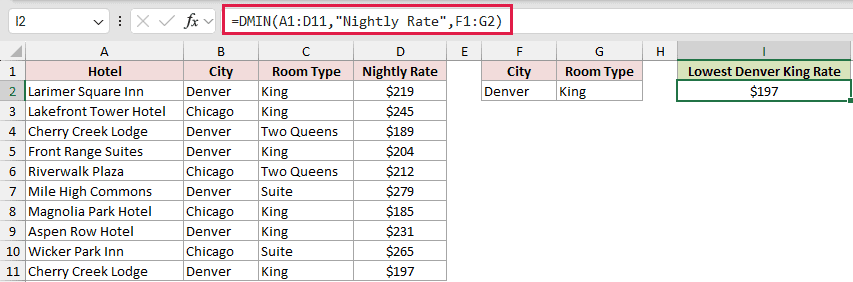
Conditions placed side by side on the same criteria row use AND logic. A record must have both Denver and King to qualify.
The formula returns $197. The lower Denver rate of $189 is for Two Queens, while the $185 King rate belongs to a Chicago hotel.
Example 3: DMIN With OR Criteria
Now let’s use either of two equipment types.
The dataset below has quote IDs, rental companies, equipment, and daily rates. The criteria area stacks two equipment types, with an empty bordered answer cell under a green header.
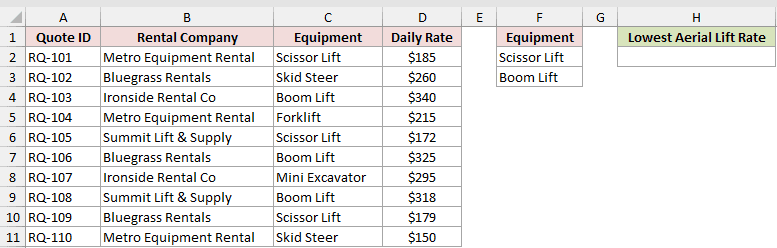
We want the lowest daily rate for a Scissor Lift or Boom Lift.
Here is the formula:
=DMIN(A1:D11,"Daily Rate",F1:F3)
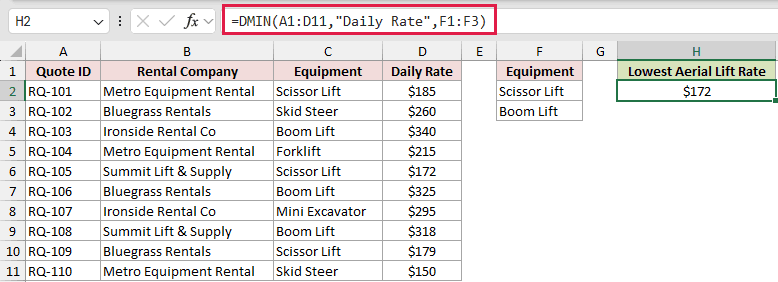
Separate criteria rows use OR logic, so either listed equipment type can qualify. The criteria range extends through F3 to include both choices.
The result is $172. Although a Skid Steer costs only $150, it isn’t one of the eligible equipment types.
Example 4: Minimum With a Comparison Criterion
Comparison operators let you filter numeric records without adding another formula.
Below is the carrier quote dataset with quote IDs, carriers, transit days, and prices.
The criteria cell contains <=3. The green Lowest Price (3 Days or Less) result cell is empty.
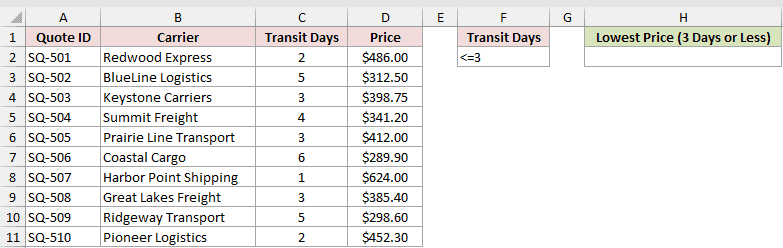
We want the lowest price among quotes taking three days or less.
Here is the formula:
=DMIN(A1:D11,"Price",F1:F2)
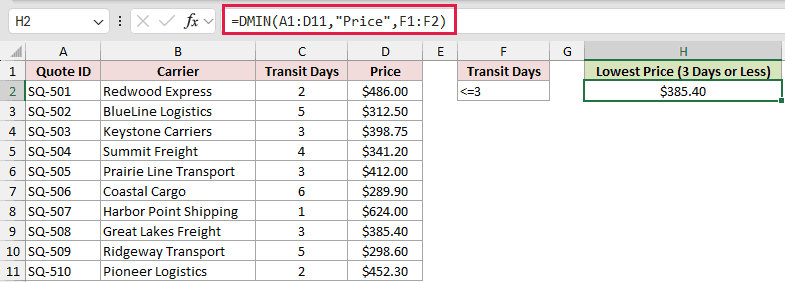
The criteria header matches Transit Days, while <=3 restricts eligible records. DMIN then finds the minimum from the separate Price field.
The formula returns $385.40. At $289.90, the six-day quote is the cheapest overall, yet it doesn’t meet the three-day limit.
Example 5: Exact Text Criteria in DMIN
This example shows a text-matching detail that is easy to miss.
Below is the dataset of log IDs, stores, cooler units, and temperatures. Two Store criteria areas feed separate empty result cells under green headers.
The second criteria area uses ="=Store 1" to store an exact-match criterion.
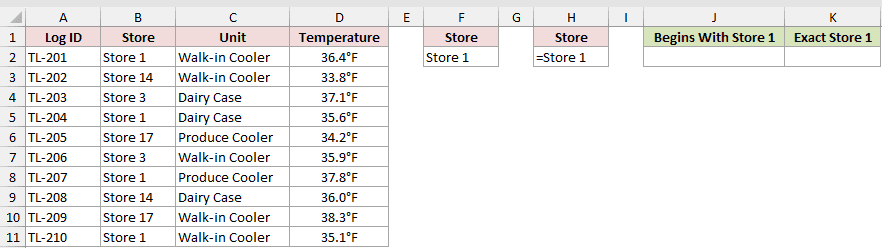
First, we want the lowest temperature returned by the plain Store 1 criterion.
Here is the formula:
=DMIN(A1:D11,"Temperature",F1:F2)
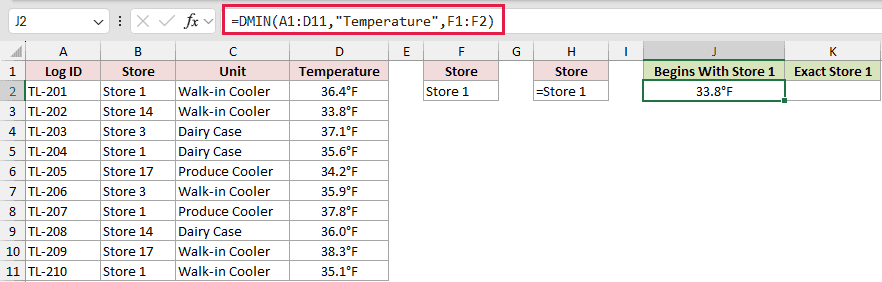
The plain text criterion acts as a begins-with match. It includes Store 1, Store 14, and Store 17, so the formula returns 33.8°F.
Now we want the minimum for Store 1 only.
Here is the exact-match formula:
=DMIN(A1:D11,"Temperature",H1:H2)
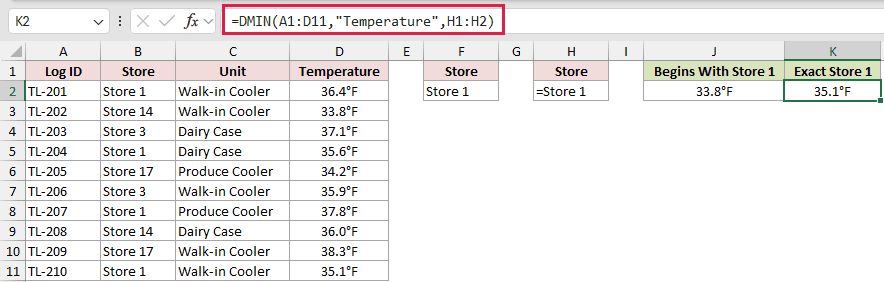
The formula stored in H2 returns the literal criterion =Store 1. That forces an exact match, and DMIN returns 35.1°F.
Pro Tip: Wildcards work in text criteria. Use *text* when you intentionally want a contains match.
Example 6: Handle No Matching Records
Here’s why a missing match needs special care.
Below is the dataset of bid IDs, services, vendors, and annual bids. Snow Removal has no matching record, and two green result headers have empty cells.
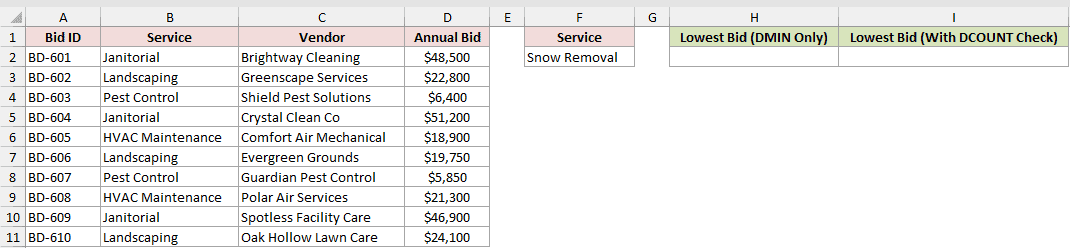
First, we want to see what DMIN returns by itself.
Here is the formula:
=DMIN(A1:D11,"Annual Bid",F1:F2)
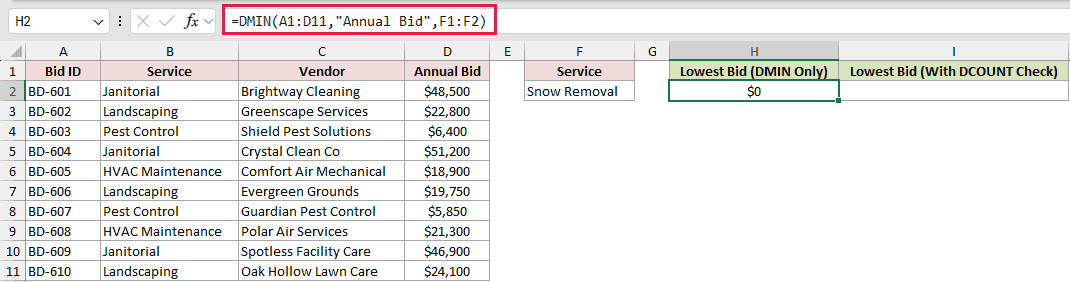
DMIN returns $0 when no records match. That can look like a genuine zero-dollar bid instead of a missing result.
We can check the matching record count before returning the minimum.
Here is the guarded formula:
=IF(DCOUNT(A1:D11,"Annual Bid",F1:F2)=0,"No bids yet",DMIN(A1:D11,"Annual Bid",F1:F2))
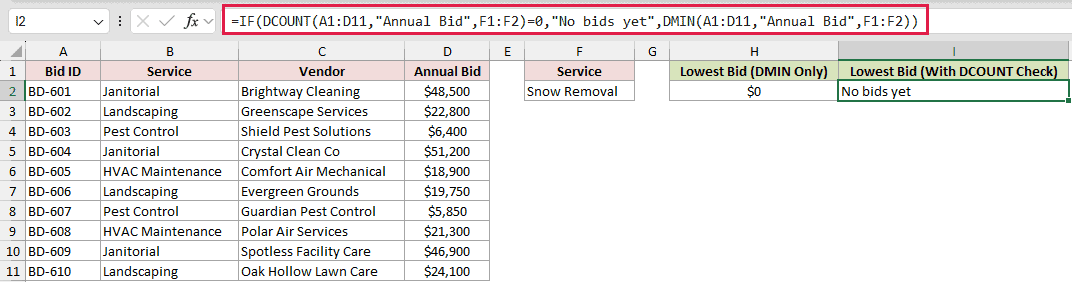
DCOUNT returns zero when the criteria find no numeric bids. IF then returns “No bids yet” instead of allowing DMIN’s zero to appear as a valid amount.
Example 7: Compare DMIN, MINIFS, and FILTER
Let’s compare three ways to solve the same task.
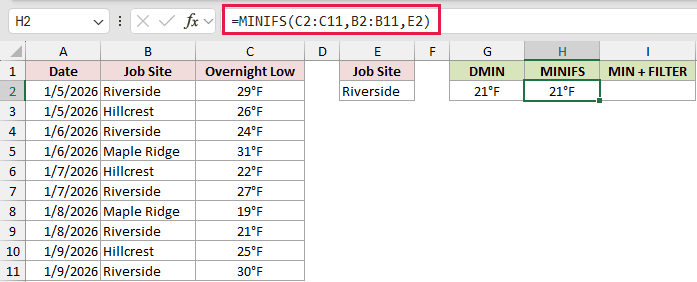
Below is the dataset of dates, job sites, and overnight lows with a Riverside criterion. Three green result headers have empty cells for the comparison formulas.
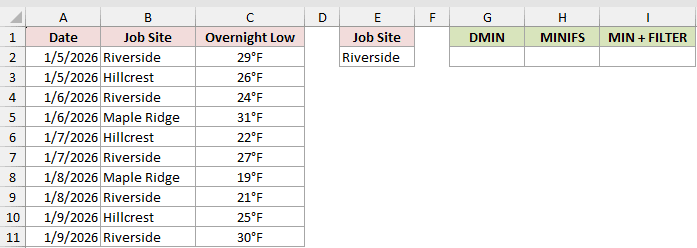
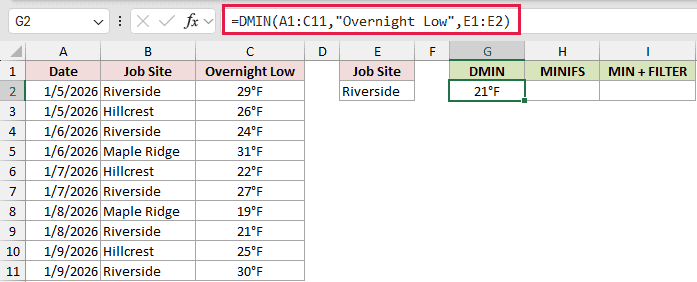
First, we want the lowest Riverside temperature with DMIN.
Here is the formula:
=DMIN(A1:C11,"Overnight Low",E1:E2)
Next, we’ll apply the same condition directly with MINIFS.
Here is the MINIFS formula:
=MINIFS(C2:C11,B2:B11,E2)
Finally, we’ll filter the temperatures before taking their minimum.
Here is the dynamic-array formula:
=MIN(FILTER(C2:C11,B2:B11=E2))
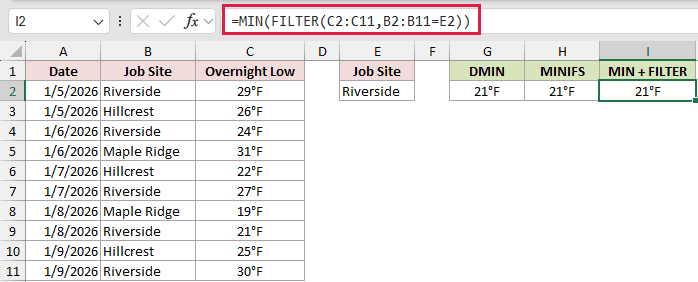
All three formulas return 21°F. DMIN uses a labeled criteria range, MINIFS uses paired ranges, and FILTER creates the matching array before MIN reduces it.
MINIFS is available in Excel 2019 and later. The FILTER approach needs Excel 2021, Excel 2024, or Microsoft 365.
Example 8: DMIN With a Spilled Criteria List
The final example builds DMIN’s criteria from a separate vendor list.
Below is the dataset of bid IDs, suppliers, lead times, and unit costs beside a vendor-status list. Empty cells await the criteria spill and lowest approved bid.
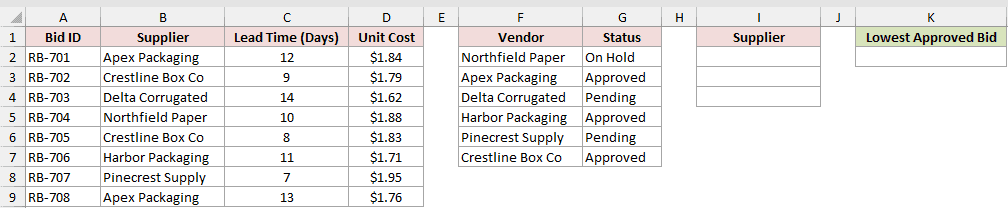
First, we want a criteria range containing the Supplier header and every approved vendor.
Here is the formula entered in I1:
=VSTACK(B1,FILTER(F2:F7,G2:G7="Approved"))
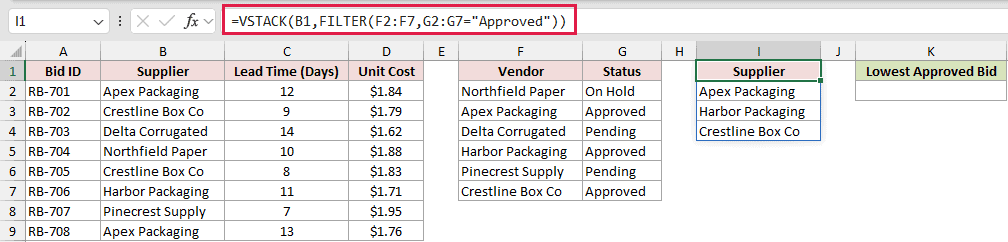
VSTACK places the Supplier header above the approved names returned by FILTER. The four-cell result spills through I1:I4 and forms a valid criteria range.
Now we want the lowest unit cost from those approved suppliers.
Here is the DMIN formula:
=DMIN(A1:D9,"Unit Cost",I1#)
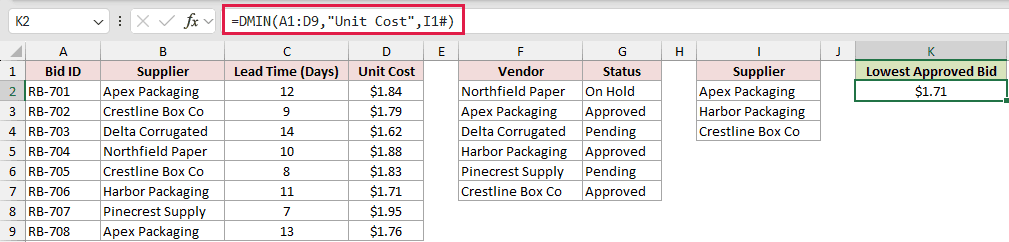
The spill operator makes DMIN read the entire current criteria range. Each supplier below the shared header acts as an OR condition.
The result is $1.71. A Pending supplier submitted the $1.62 overall low bid, so DMIN leaves it out.
This VSTACK formula needs Excel 2024 or Microsoft 365. DMIN still returns one value because it reduces all matching records to a single minimum.
Tips & Common Mistakes
- Copy criteria headers exactly from the database. A misspelled field argument returns
#VALUE!, although capitalization does not matter. - A field can be its quoted header or its column number within the database. Header text is usually easier to read.
- A blank criteria value matches every record, so an accidentally empty condition can return the minimum from the full database.
- DMIN ignores blank and text cells in the field being minimized. If the selected field contains only text, the result is 0.
- Keep the criteria range separate from the database. Do not overlap the list or place the criteria anywhere below it.
- Put AND conditions on one criteria row. Put OR alternatives on separate rows beneath the same header.
DMIN works best when the criteria area needs to stay visible and easy to edit.
Watch for plain text matching by prefix, and don’t mistake a $0 no-match result for a real minimum.
Related Excel Functions / Articles:
