
The COT function in Excel returns the cotangent of an angle supplied in radians.
In a right triangle, cotangent is the adjacent side divided by the opposite side. It is also the reciprocal of tangent.
In this article, I’ll show you how to use degree and radian inputs, find a horizontal distance, and calculate a regular polygon’s area.
COT Function Syntax in Excel
The COT function takes one angle and returns its cotangent.
=COT(number)
- number (required) is the angle in radians. Its absolute value must be less than 2^27.
When to Use COT Function
- Calculate cotangents for angles stored in radians.
- Convert degree inputs inside the formula before calculating cotangent.
- Find the adjacent side of a right triangle when the opposite side and angle are known.
- Use cotangent in geometry formulas, including the area of a regular polygon.
Example 1: Calculate Cotangent from Degrees
Start with the angle unit most worksheets use.
Below is the dataset. Column A contains degree angles from 15 through 90, and the Cotangent column is empty.
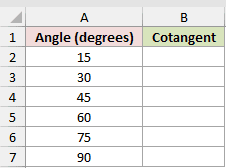
We want cotangent results in B2:B7 after converting every degree value to radians.
Enter this formula in B2 and let it spill through B7:
=COT(RADIANS(A2:A7))
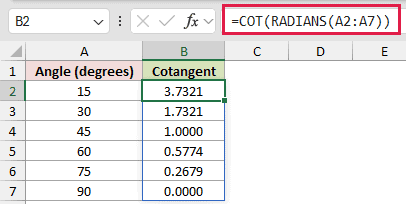
RADIANS converts all six degree values first. COT then evaluates the converted array and spills the results down column B.
The displayed cotangents fall from 3.7321 at 15 degrees to 0.0000 at 90 degrees.
The mathematical cotangent of 90 degrees is zero. Excel’s binary calculation leaves a tiny floating-point remainder, which the four-decimal format rounds to 0.0000.
Pro Tip: COT expects radians. When the source cells contain degrees, wrap the range in RADIANS as shown here.
Example 2: Use Angles Already in Radians
Some engineering and trigonometry sheets already store angles in radians.
Below is the dataset. Column B contains radian values for five labelled angles, while the Cotangent column is empty.
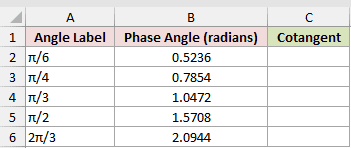
We want cotangent results in C2:C6 without converting the inputs a second time.
Enter this formula in C2 and let it spill through C6:
=COT(B2:B6)
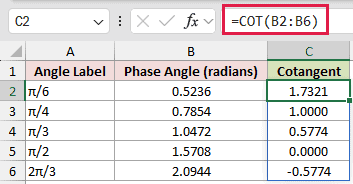
COT uses the radian values directly. Applying RADIANS again would treat those values as degrees and return the wrong cotangents.
Excel calculates with the full stored radian values, even though column B displays four decimals.
The results are 1.7321, 1.0000, 0.5774, 0.0000, and -0.5774 for the five labelled angles.
Example 3: Find Horizontal Distance with COT
Cotangent can turn an angle and vertical height into a horizontal distance.
Below is the dataset. The angle above ground is 35 degrees, the vertical height is 24 feet, and the horizontal-distance cell is empty.
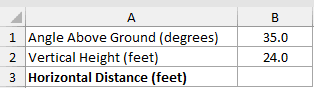
We want to calculate the horizontal distance in B3.
Enter this formula in B3:
=B2*COT(RADIANS(B1))
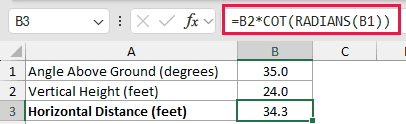
RADIANS converts the 35-degree angle. COT returns the adjacent-to-opposite ratio, and multiplying by the 24-foot opposite side finds the adjacent side.
The horizontal distance is 34.3 feet when displayed to one decimal place.
Pro Tip: Check which side the known length represents. This formula works because the vertical height is opposite the angle and the horizontal distance is adjacent.
Example 4: Calculate Regular Hexagon Area
A regular hexagon splits into six equal triangles, so its area can be written with cotangent.
Below is the dataset. It describes a regular hexagon with 6 sides, each 8 feet long. The area cell is empty.
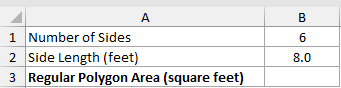
We want the regular hexagon’s area in B3.
Enter this formula in B3:
=B1*B2^2*COT(PI()/B1)/4
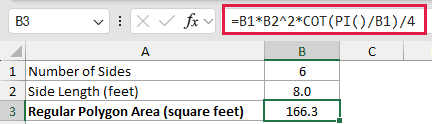
How this formula works:
- The PI function returns π. Dividing it by B1 gives half the central angle in radians.
- COT supplies the cotangent used in the regular-polygon area formula.
B1*B2^2multiplies the number of sides by the square of the side length.- Dividing by 4 completes the formula.
The area is 166.3 square feet when displayed to one decimal place.
Tips & Common Mistakes
- COT requires radians. Use RADIANS for degree inputs, but do not convert values that are already radians.
COT(0)returns#DIV/0!because cotangent is undefined at zero.- A nonnumeric input returns
#VALUE!. - The absolute value of the angle must be less than 2^27. An input outside that limit returns
#NUM!. - Values that should equal zero can retain a tiny floating-point remainder. Format or round the displayed result instead of treating that remainder as meaningful.
- In Excel 2021, Excel 2024, and Microsoft 365, COT can spill results from a range. Excel 2019 and earlier need a filled-down formula.
- COT was introduced in Excel 2013. In Excel 2010 or earlier, use the reciprocal identity
=1/TAN(angle).
I have shown how COT handles degree and radian inputs, right-triangle distance, and regular-polygon area while keeping the angle interpretation clear.
I hope you found this article helpful.
Related Excel Functions / Articles:
