
The IMCOT function in Excel returns the cotangent of a complex number. Cotangent means cosine divided by sine. IMCOT returns it in one step.
Its answer is complex-number text, so you can pass it to other IM functions. Even an answer without an imaginary part remains text.
I’ll show you how to calculate a column of cotangents and check the results for small numerical differences.
IMCOT Function Syntax in Excel
IMCOT takes a single required argument:
=IMCOT(inumber)
- inumber (required): The complex number whose cotangent you want. Supply a cell reference, a real number, or complex-number text using a lowercase
iorjsuffix.
When entering complex text directly in a formula, enclose it in double quotes. Real angles use radians.
IMCOT is available in Excel 2013 and later.
When to Use IMCOT Function
- Calculate cotangents when your inputs include imaginary components.
- Replace a longer complex cosine-divided-by-sine calculation with a direct function.
- Check complex trigonometric calculations while keeping the result in a format other IM functions can read.
Example 1: Calculate Cotangents of Complex Numbers
Let’s start with a column containing complex, real, and pure imaginary inputs.
Below is the dataset. Column A labels each point, column B holds its input, and column C has the header and empty cells for cotangent results.
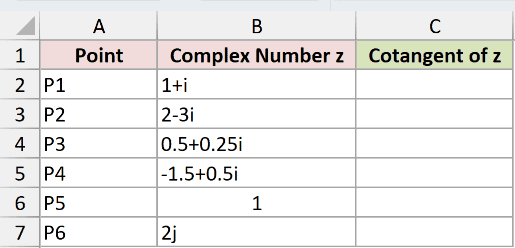
We want to calculate the cotangent of each input in column B.
Enter this formula in C2:
=IMCOT(B2)
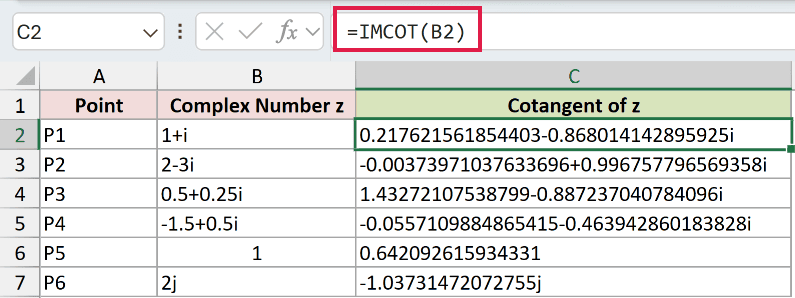
Copy it down through C7. Each row uses the input beside it; these formulas are filled down, not spilled.
For P1, the input 1+i returns 0.217621561854403-0.868014142895925i. Excel keeps the real and imaginary parts together as text.
The real input in B6 returns 0.642092615934331. COT returns the same value as a number for this input, so choose COT when you’re working only with real angles.
The 2j input returns -1.03731472072755j. The answer is purely imaginary, and Excel preserves the lowercase j suffix.
A bare range passed to IMCOT returns a single #VALUE! error. That’s why the examples use a cell reference copied down.
Pro Tip: Changing the number format won’t shorten complex-number text. Use IMREAL or IMAGINARY to extract a numeric component when you need to format or round it.
Example 2: Check Cosine Divided by Sine
Now let’s check what IMCOT calculates, including the tiny differences hidden in its final digits.
Below is the dataset. Column A holds complex inputs; columns B, C, and D provide spaces for IMCOT, the long-hand check, and the check’s difference.
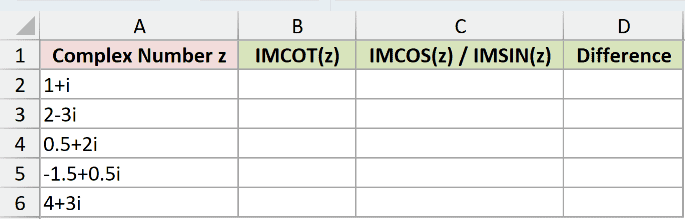
We want to compare IMCOT with complex cosine divided by complex sine, then measure their difference numerically.
Enter the direct calculation in B2 and copy it through B6:
=IMCOT(A2)
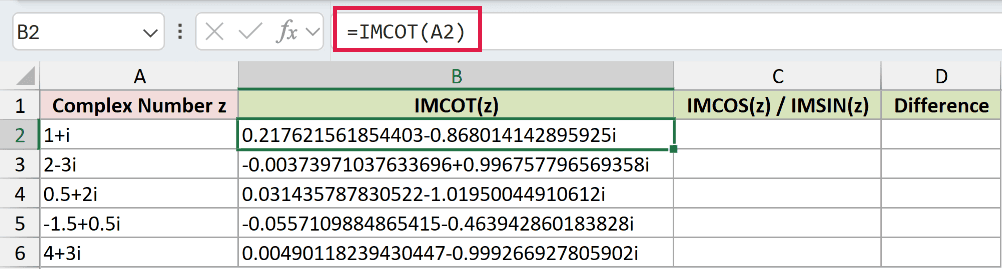
For 1+i, B2 returns 0.217621561854403-0.868014142895925i.
Enter the long-hand comparison in C2 and copy it through C6:
=IMDIV(IMCOS(A2),IMSIN(A2))
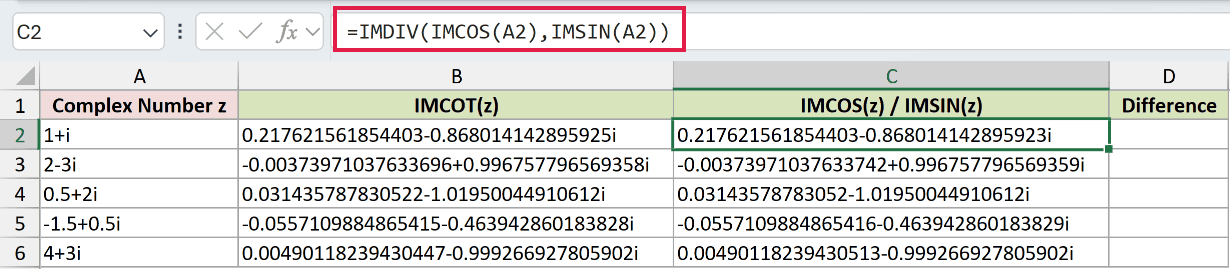
IMCOS calculates the complex cosine, IMSIN calculates the complex sine, and IMDIV divides their text results. Column C is a check on IMCOT.
The comparison in C2 returns 0.217621561854403-0.868014142895923i. The imaginary components end in different digits.
To measure the check’s difference, enter this in D2 and copy it through D6:
=IMABS(IMSUB(B2,C2))
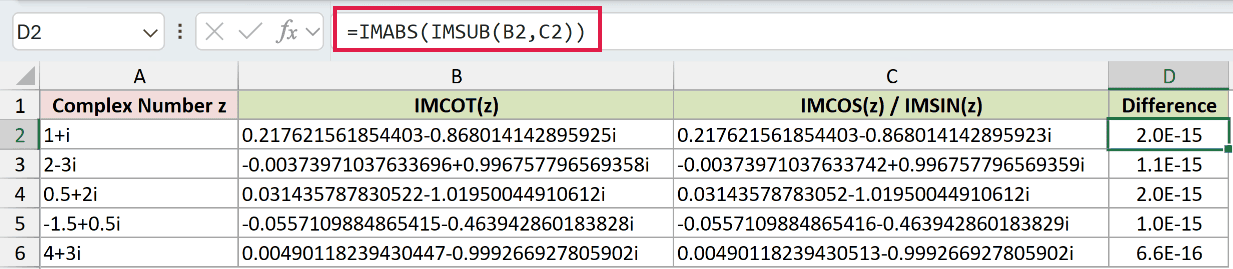
IMSUB subtracts the complex results. IMABS then returns the magnitude of that difference as an ordinary number.
The difference check in D2 displays 2.0E-15. For the 4+3i row, D6 displays 6.6E-16. The scientific format makes these tiny differences visible.
The calculations agree to about 14 digits, but their final digits differ because of numerical precision. An exact text comparison would miss how closely they agree.
Column D measures agreement between the methods; it isn’t another cotangent result.
Example 3: Understand IMCOT Errors and Edge Cases
Let’s test zero, an input near pi, and invalid complex-number text.
Below is the dataset. Column A names each test case, column B holds the input, and column C provides the result header and empty result cells.
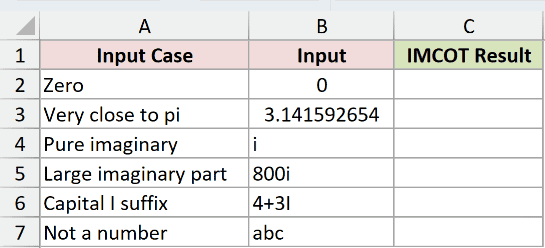
We want to see which inputs fail and which return valid but unusual cotangents.
Enter this formula in C2 and copy it through C7:
=IMCOT(B2)
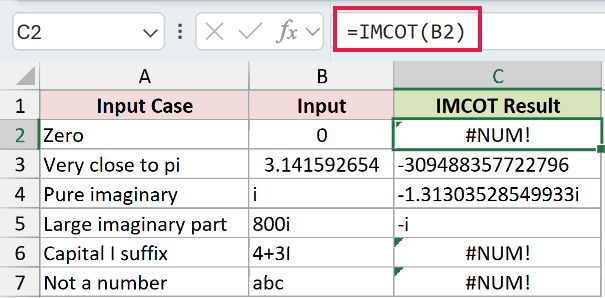
These rows deliberately test errors and edge cases:
- Zero, row 2: The input
0returns#NUM!. Cotangent is undefined at zero because its sine divisor is zero. IMCOT reports#NUM!, not#DIV/0!. - Very close to pi, row 3: B3 contains
3.14159265358979and displays3.141592654. C3 returns-309488357722796. The input is near pi, where the sine divisor becomes extremely small, producing a huge answer. - Pure imaginary, row 4: The input
ireturns-1.31303528549933i. A pure imaginary input is valid. - Large imaginary part, row 5: The input
800ireturns-i. This is a valid limiting result. - Capital I suffix, row 6: The input
4+3Ideliberately returns#NUM!. Change the suffix to lowercaseifor valid complex-number notation. - Not a number, row 7: The input
abcdeliberately returns#NUM!because Excel can’t interpret it as a complex number.
Near pi, the huge result depends on both input precision and Excel’s numerical calculation near the point where cotangent is undefined.
Treat the displayed digits as affected by calculation noise, rather than as an exact mathematical answer.
Tips & Common Mistakes
- Keep complex arithmetic in the IM family. Use functions such as IMDIV and IMSUB to work with IMCOT’s text results.
- Build inputs from separate components with COMPLEX. This helps when your real and imaginary parts already occupy separate cells.
- Check the input before hiding an error. A zero input and an invalid suffix both return
#NUM!, but they need different fixes. - Choose COT for real-number calculations. Use IMCOT when you need complex inputs or complex text for a later calculation.
When checking a complex identity, subtract the results and measure the magnitude of the difference with IMABS. Use that number to judge how closely the calculations agree.
Other Excel articles you may also like:
