
The IMLN function in Excel returns the natural logarithm of a complex number, using base e.
Its result combines the logarithm of the number’s size with its angle. That lets IMLN handle negative numbers, which the ordinary LN function rejects.
Excel returns this complex result as text. To use its real or imaginary part in ordinary calculations, extract that part with IMREAL or IMAGINARY.
I’ll show you how to calculate complex logarithms, interpret their parts, and compare IMLN with LN when your inputs include negative numbers.
IMLN Function Syntax in Excel
IMLN takes a complex number as its argument:
=IMLN(inumber)
- inumber (required): The number whose natural logarithm you want. Use a cell reference, a real number, or complex text such as
3+4i. Complex text typed directly needs quotation marks.
Use lowercase i or j for the imaginary suffix. You can also build complex inputs from separate real and imaginary parts with COMPLEX.
When to Use IMLN Function
- Calculate natural logarithms for complex values already stored in a worksheet.
- Find the logarithm of a negative real number when you need a complex answer.
- Separate a complex logarithm into a size component and an angle component.
- Check a complex logarithm by passing its result to IMEXP.
Example 1: Calculate and Reverse Complex Logarithms
Let’s start with a column of complex numbers and check the results by reversing the calculation.
Below is the dataset. Column A contains complex numbers, while columns B and C have headers for their natural logarithms and the IMEXP check.
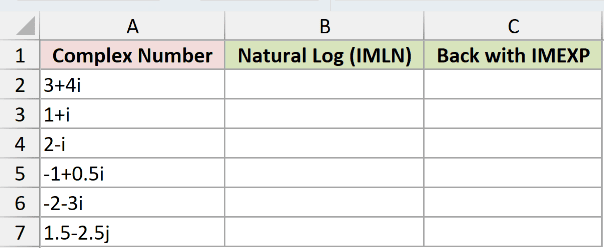
We want to calculate each number’s natural logarithm, then recover the original number with IMEXP.
Enter this formula in B2 and copy it down to B7:
=IMLN(A2)
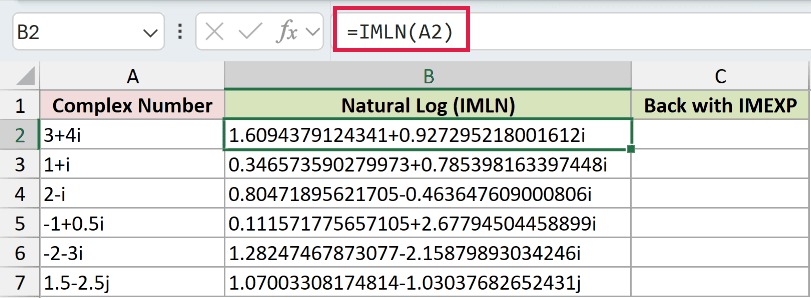
For 3+4i, Excel returns 1.6094379124341+0.927295218001612i. The result contains both a real part and an imaginary part.
The 1.5-2.5j row returns 1.07003308174814-1.03037682652431j, preserving the lowercase j suffix.
Now enter the inverse check in C2 and copy it down to C7:
=IMEXP(B2)
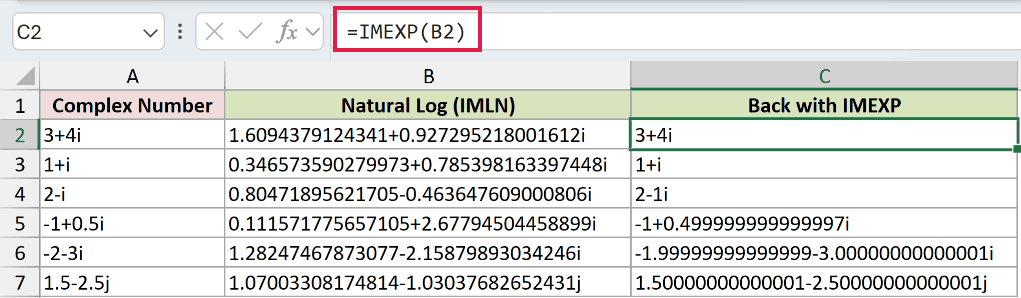
IMEXP reverses the logarithm. The first row returns 3+4i, and the next returns 1+i.
For the input 2-i, Excel writes 2-1i. That’s the same complex number, with the imaginary coefficient written explicitly.
Some rows carry small rounding differences. The input -1+0.5i comes back as -1+0.499999999999997i.
Likewise, -2-3i returns -1.99999999999999-3.00000000000001i, and 1.5-2.5j returns 1.50000000000001-2.50000000000001j. These last-digit differences come from floating-point calculations.
Pro Tip: Passing a bare range to IMLN returns a single #VALUE!. The coerced forms =IMLN(+A2:A7) and =IMLN(A2:A7&"") can spill in Excel 2021, Excel 2024 and Microsoft 365. In Excel 2019 and earlier, use the per-row formula and copy it down.
Example 2: Understand the Real and Imaginary Parts
A complex logarithm’s real part describes size, and its imaginary part gives the angle in radians.
Below is the dataset. Column A lists complex numbers; columns B through F provide spaces for the logarithm, its extracted parts, and independent checks.

We want to connect the logarithm’s real part to size and its imaginary part to angle.
Enter the logarithm formula in B2 and copy it down to B5:
=IMLN(A2)

The inputs have the same magnitude, meaning the same distance from the origin. Their logarithms share a real part, but the imaginary parts differ.
Extract the real part in C2, then copy down to C5:
=IMREAL(B2)

Every row displays 1.6094. IMREAL returns an ordinary number, so the worksheet’s decimal format applies to it.
For an independent identity check, enter this in D2 and copy down to D5:
=LN(IMABS(A2))

IMABS finds the input’s magnitude, and LN takes its natural logarithm. This check also displays 1.6094 throughout, matching the extracted real part.
Next, extract the imaginary part in E2 and copy down to E5:
=IMAGINARY(B2)

The displayed values are 0.9273, 0.6435, 2.2143, and -2.2143. These are the inputs’ angles in radians.
Check those angles independently in F2, then copy down to F5:
=IMARGUMENT(A2)

The angle check displays the same values as column E. Columns D and F independently verify the logarithm’s real and imaginary components.
IMLN uses the principal branch: its angle is greater than negative pi and less than or equal to positive pi.
For -3+4i, the angle displays as 2.2143. For -3-4i, it displays as -2.2143, reflecting the input’s position below the real axis.
Example 3: Compare IMLN and LN on Negatives
LN rejects negative inputs, while IMLN returns their complex logarithms.
Below is the dataset. Column A contains negative values, positive values, and zero; columns B and C are reserved for the LN comparison and IMLN results.
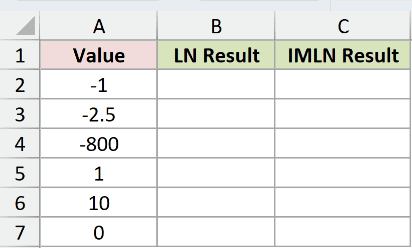
We want to compare the real-number logarithm with the complex logarithm for each input.
Enter the real-number comparison in B2 and copy down to B7:
=LN(A2)
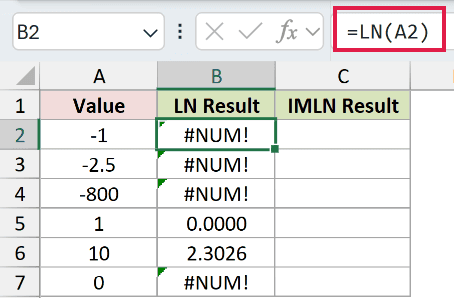
LN returns #NUM! for -1, -2.5, and -800 because it requires positive real inputs. The zero row also deliberately returns #NUM!.
Now enter IMLN in C2 and copy down to C7:
=IMLN(A2)
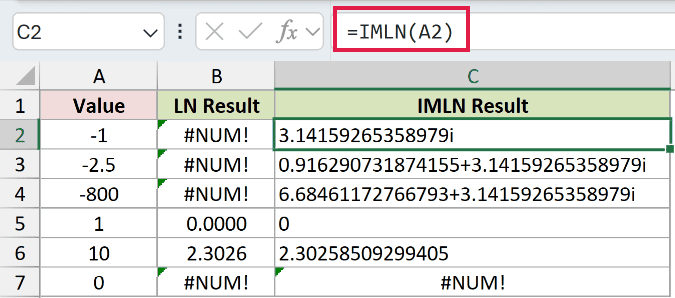
IMLN accepts the negative inputs and returns complex text:
-1returns3.14159265358979i.-2.5returns0.916290731874155+3.14159265358979i.-800returns6.68461172766793+3.14159265358979i.
Each negative input has a principal angle of positive pi. That explains the shared imaginary component; the real component comes from the logarithm of its magnitude.
For 10, the LN comparison displays 2.3026, while IMLN returns the text 2.30258509299405. LN’s shorter display comes from its number format.
For 1, LN displays 0.0000, and IMLN returns text 0. For the zero input, both functions return #NUM! because its logarithm is undefined.
Pro Tip: Use LN for positive real inputs when you need a numeric answer. Choose IMLN when you need the complex logarithm, including the imaginary component of negative inputs.
Example 4: Check Accepted Inputs and Errors
Finally, let’s check the input details that can change the result or cause an error.
Below is the dataset. Column A labels each input type, column B contains the test inputs, and column C is reserved for the natural logarithm.
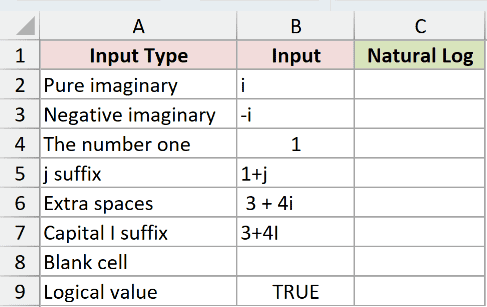
We want to see which inputs IMLN accepts and explain each deliberate error.
Enter this formula in C2 and copy it down to C9:
=IMLN(B2)
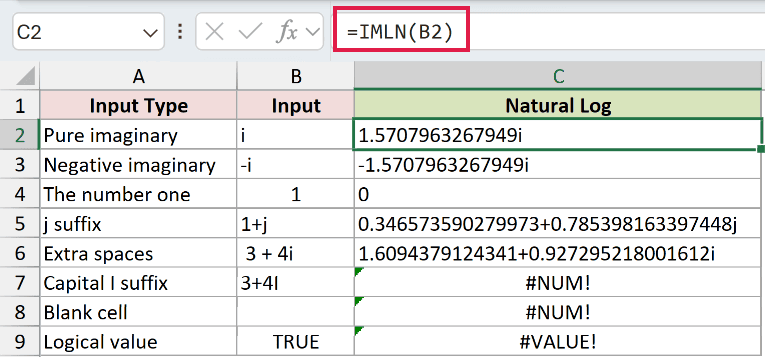
Here’s what each row shows:
- Pure imaginary:
ireturns1.5707963267949i. Its logarithm has no real component. - Negative imaginary:
-ireturns-1.5707963267949i, with the opposite angle. - The number one:
1returns text0. A result without an imaginary suffix is still text. - j suffix:
1+jreturns0.346573590279973+0.785398163397448j. Excel preserves lowercasej. - Extra spaces: The input with leading and internal spaces returns
1.6094379124341+0.927295218001612i. Those spaces are accepted here. - Capital I suffix:
3+4Ideliberately returns#NUM!. Replace the uppercase suffix with lowercasei. - Blank cell: The empty
B8deliberately produces#NUM!. Excel treats the reference as zero, whose logarithm is undefined. - Logical value:
TRUEdeliberately returns#VALUE!. A logical value isn’t a valid complex-number input.
Tips & Common Mistakes
- Number formats won’t shorten IMLN’s text result. Extract the parts with IMREAL and IMAGINARY before rounding or applying numeric formatting.
- Complex results are text, so extract the numeric component you want to total with SUM.
- IMLN uses base e. IMLOG10 and IMLOG2 handle other bases.
- Check empty inputs before calculating. Excel treats a blank reference as zero, so IMLN returns an error because zero’s logarithm is undefined.
- Allow for rounding when reversing calculations. IMEXP can recover the original value with small differences in the last digits, as the check column shows.
In this article, I showed you how to calculate complex logarithms with IMLN, interpret their parts, and handle negative inputs.
I hope you found this article helpful.
Related Excel Functions / Articles:
