
The IMEXP function in Excel returns e raised to a complex number. Its result combines a real part and an imaginary part in a text value.
The input’s real part controls the result’s size, while its imaginary part controls the angle.
I’ll show you how to read the result, check Euler’s formula, and rotate drawing points, including the small rounding leftovers you may see.
IMEXP Function Syntax in Excel
IMEXP takes a single argument:
=IMEXP(inumber)
- inumber (required): The complex number used as the exponent. Supply a cell reference, complex text using lowercase
iorj, or a value built with COMPLEX.
Real numbers also work. For calculations involving only real numbers, EXP returns a numeric result that’s easier to use in ordinary arithmetic.
When to Use IMEXP Function
- Calculate exponentials for complex numbers stored in a worksheet.
- Explore how a pure imaginary exponent relates to cosine and sine.
- Read a complex exponential as a magnitude and an angle.
- Rotate drawing points around the origin using an angle.
Example 1: Calculate and Read Complex Exponentials
Extracting the real and imaginary parts turns IMEXP’s text result into numbers you can round.
Below is the dataset. Column A contains complex inputs, and columns B through D have headers and empty cells for the exponential and its parts.
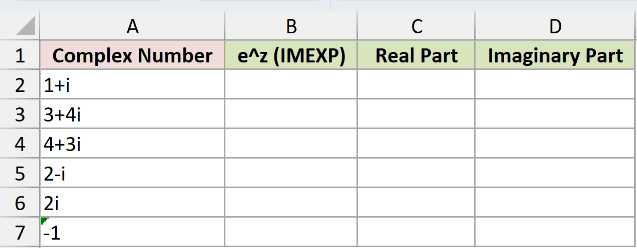
We want to calculate each exponential and read its real and imaginary parts separately.
Enter this formula in B2, then copy it down to B7:
=IMEXP(A2)
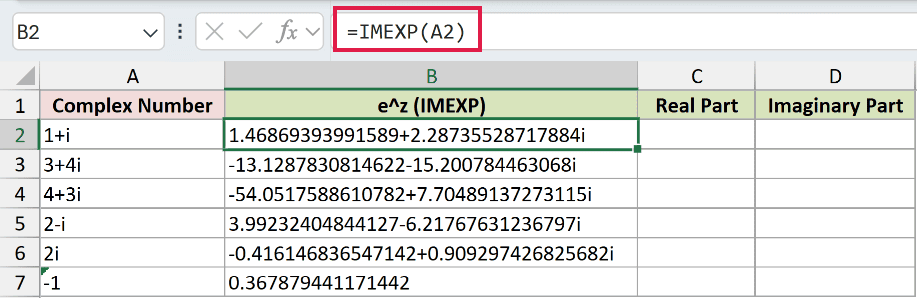
For 1+i, B2 returns 1.46869393991589+2.28735528717884i. The portion before the plus sign is the real part; the coefficient of i is the imaginary part.
That result is text. Changing the cell’s number format won’t shorten it, so extract each part before rounding.
In C2, enter the real-part formula and copy it down to C7:
=ROUND(IMREAL(B2),4)
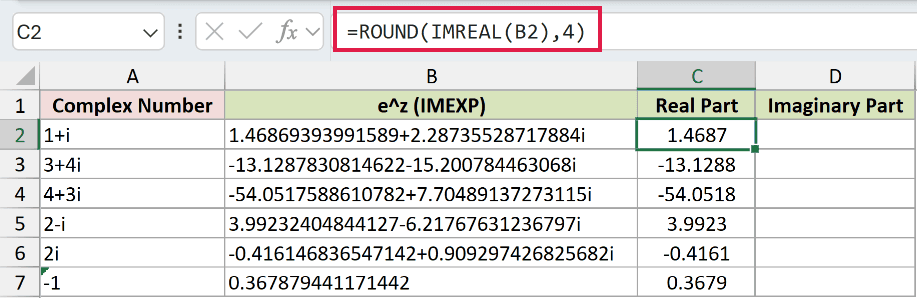
C2 displays 1.4687. IMREAL extracts a number, which ROUND can then round.
In D2, extract the imaginary part and copy down to D7:
=ROUND(IMAGINARY(B2),4)
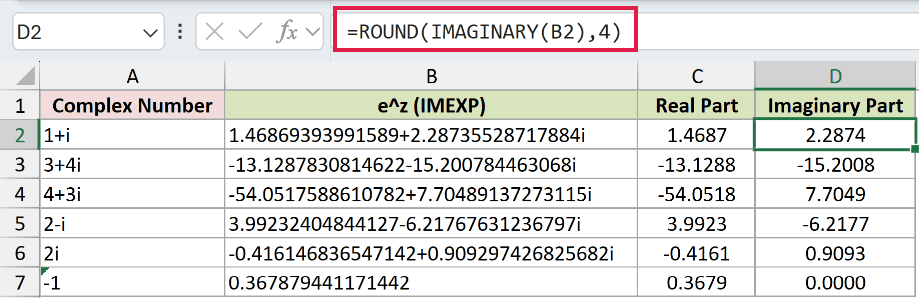
D2 displays 2.2874. For the negative real input in A7, B7 returns 0.367879441171442, and the extracted imaginary part displays 0.0000.
Pro Tip: Bare ranges return #VALUE!. Prefix + or append &"" for spills in Excel 2021/2024/Microsoft 365. In Excel 2019 and earlier, copy per-row formulas down.
Example 2: Check Euler’s Formula
A pure imaginary exponent places the result on the unit circle, with cosine as its real part and sine as its imaginary part.
Below is the dataset. Column A holds angles in degrees; columns B through F provide space for IMEXP, extracted parts, and the COS and SIN checks.
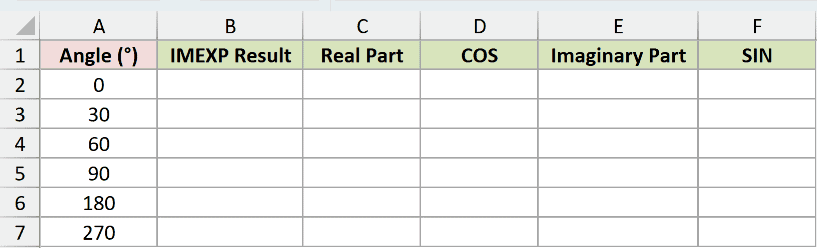
We want to calculate each complex exponential and check its parts against cosine and sine.
Enter this in B2 and copy it down to B7:
=IMEXP(COMPLEX(0,RADIANS(A2)))
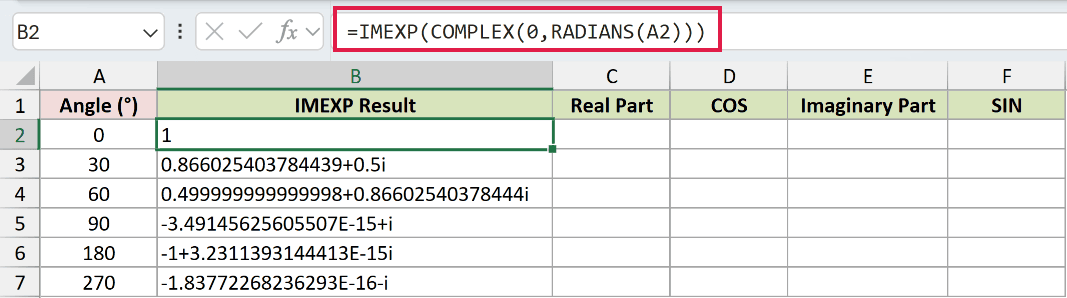
RADIANS converts the degree input. COMPLEX builds an exponent with no real component, and IMEXP calculates the point on the circle.
The 30-degree row returns 0.866025403784439+0.5i.
Extract the real component in C2, then copy down to C7:
=ROUND(IMREAL(B2),4)
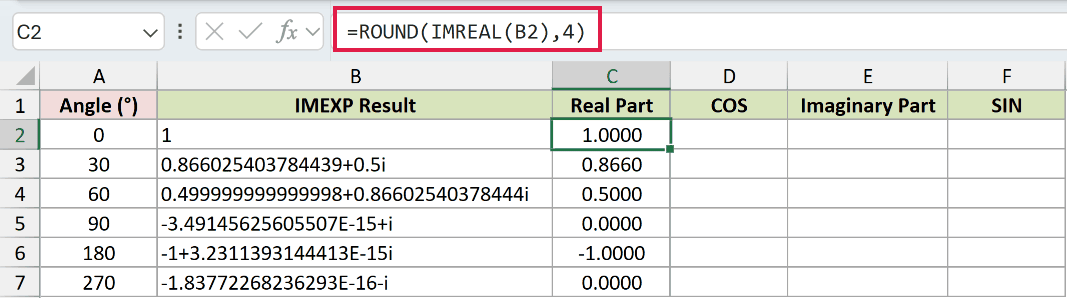
C3 displays 0.8660 for the 30-degree row.
For the cosine identity check, enter this in D2 and copy down to D7:
=ROUND(COS(RADIANS(A2)),4)
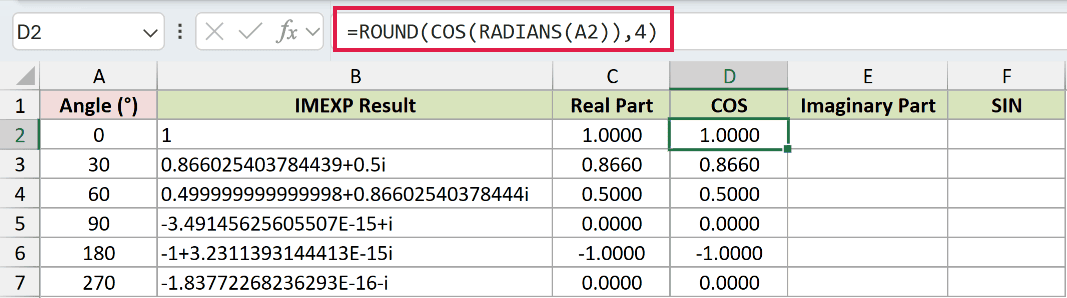
Column D is a check, not a separate complex-exponential answer. D3 also displays 0.8660, matching the extracted real part.
Extract the imaginary component in E2, then copy down to E7:
=ROUND(IMAGINARY(B2),4)
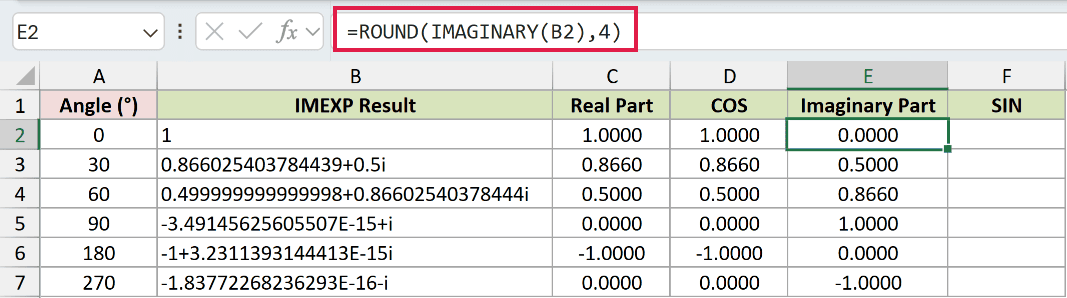
E3 displays 0.5000.
For the sine identity check, enter this in F2 and copy down to F7:
=ROUND(SIN(RADIANS(A2)),4)
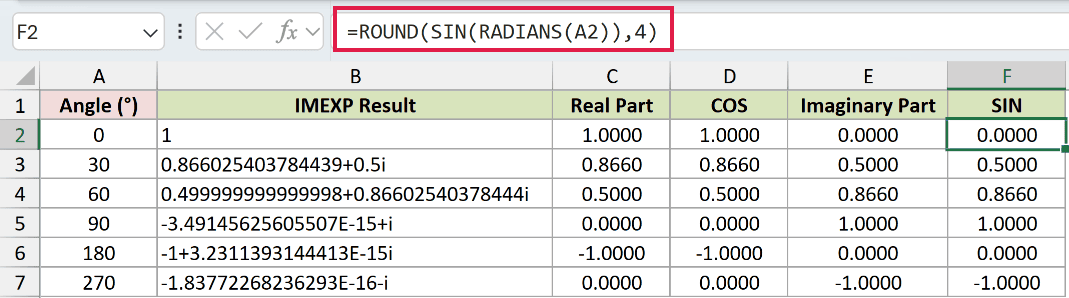
Column F checks the imaginary part. F3 displays 0.5000, and the rounded check columns agree with the extracted parts throughout the table.
At 180 degrees, B6 returns -1+3.2311393144413E-15i. The tiny imaginary tail is floating-point rounding noise, effectively zero.
The rounded parts display -1.0000 and 0.0000. Don’t expect the raw complex text to be exactly -1.
Example 3: Read Magnitude and Angle
A complex exponential has both a magnitude and an angle, each determined by a different part of the input.
Below is the dataset. Column A contains complex inputs; columns B through E will hold the exponential, magnitude, EXP identity check, and angle.
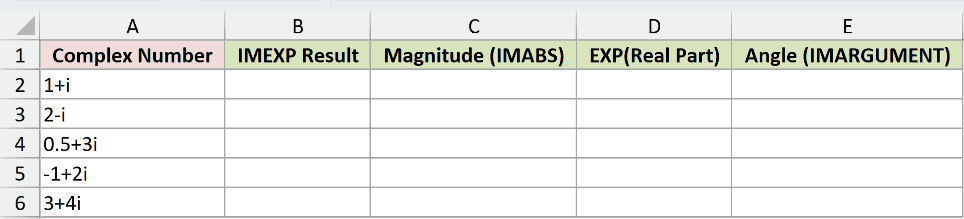
We want to measure each result’s size and direction, then check how they relate to the input.
Enter this in B2 and copy down to B6:
=IMEXP(A2)
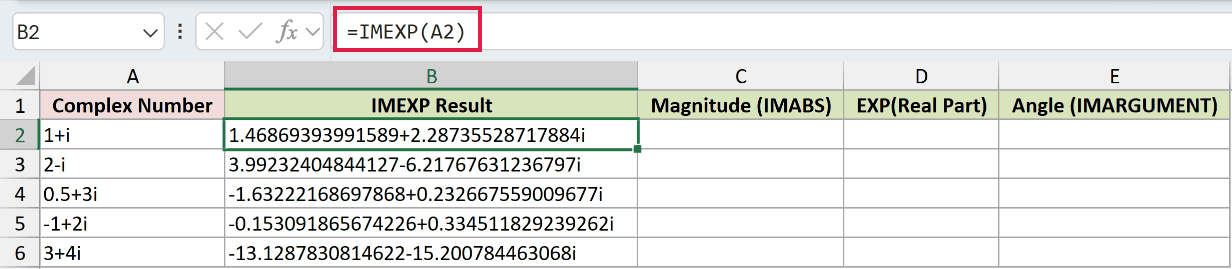
For 2-i, B3 returns 3.99232404844127-6.21767631236797i. Its magnitude measures the distance from the origin.
Calculate that magnitude in C2 and copy down to C6:
=IMABS(B2)
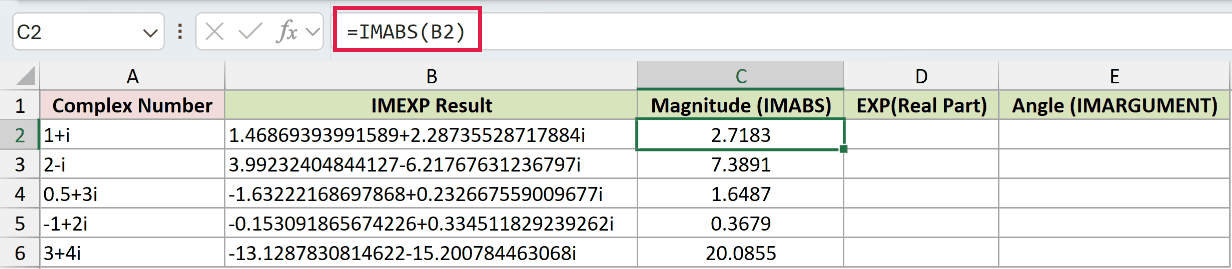
C3 displays 7.3891. Unlike IMEXP’s text output, IMABS returns a number, so the cell’s number format controls its display.
For the magnitude identity check, enter this in D2 and copy down to D6:
=EXP(IMREAL(A2))
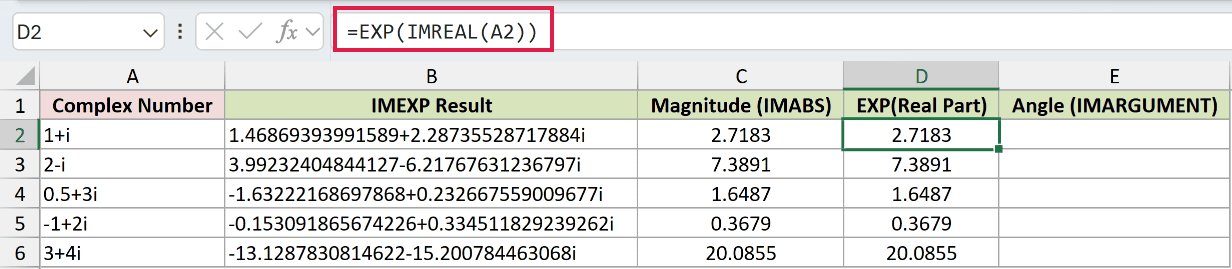
The check in column D applies EXP to the input’s real part. D3 also displays 7.3891, and every displayed magnitude matches its check.
Find the result’s angle in E2 and copy down to E6:
=IMARGUMENT(B2)
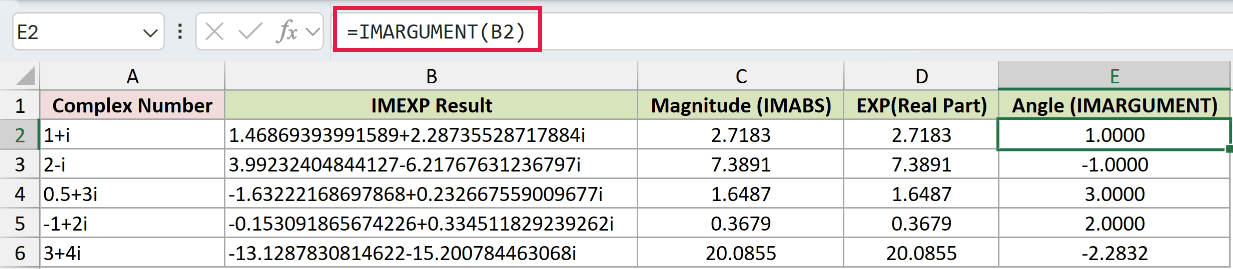
The angle is in radians. E3 displays -1.0000, reflecting the imaginary part of the input 2-i.
IMARGUMENT reports an angle greater than negative pi and no greater than positive pi. Angles outside that interval wrap back into it.
That’s why the 3+4i row displays -2.2832 in E6. It describes the same direction as the original imaginary component after wrapping.
Example 4: Rotate Points Around the Origin
You can use the unit-circle result as a rotation factor for drawing coordinates.
Below is the dataset. Columns A through C list points, complex positions, and rotation angles. Columns D through F will hold rotated positions and new coordinates.
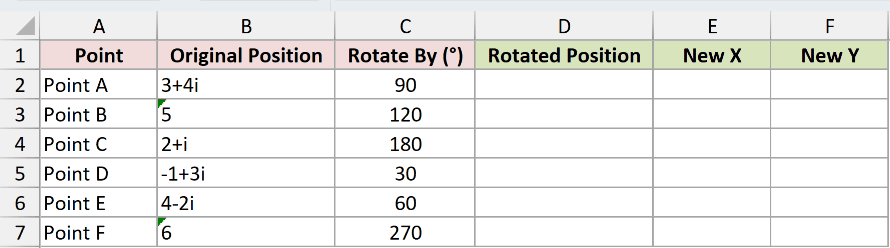
We want to rotate each point counterclockwise around the origin by its listed angle.
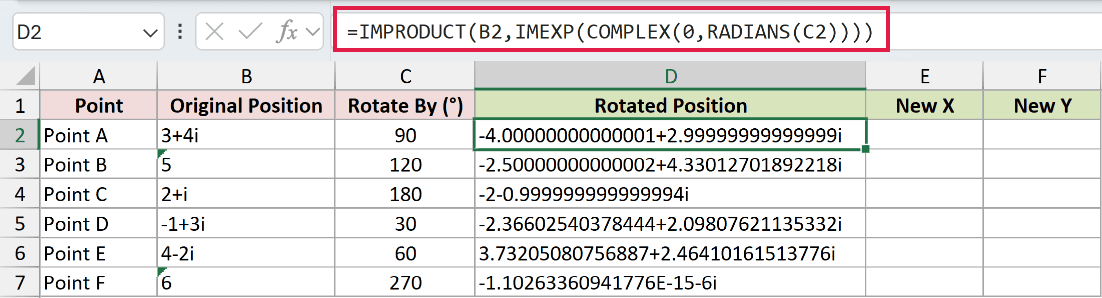
Enter this formula in D2 and copy down to D7:
=IMPRODUCT(B2,IMEXP(COMPLEX(0,RADIANS(C2))))
How this formula works:
- RADIANS converts the rotation angle from degrees.
- COMPLEX makes that angle the imaginary component of an exponent.
- IMEXP returns a unit-circle rotation factor.
- IMPRODUCT multiplies the original position by that factor, rotating it without changing its distance from the origin.
Point A returns -4.00000000000001+2.99999999999999i. The trailing digits are rounding noise, so we’ll extract and round the coordinates.
Enter the new X formula in E2 and copy down to E7:
=ROUND(IMREAL(D2),2)
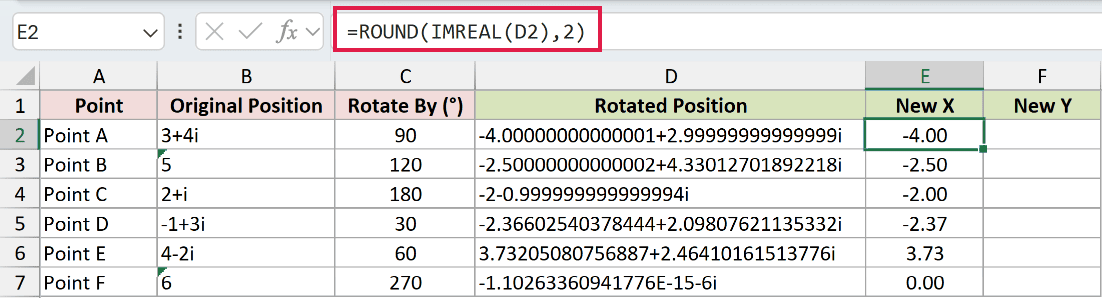
Point A’s new X coordinate displays -4.00.
Enter the new Y formula in F2 and copy down to F7:
=ROUND(IMAGINARY(D2),2)
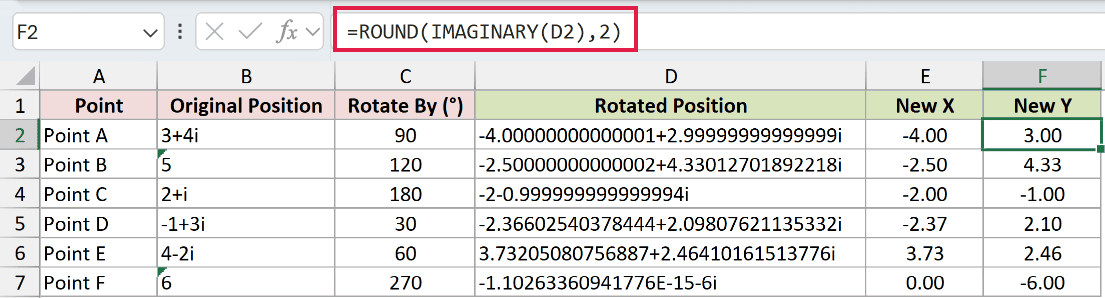
Point A’s new Y coordinate displays 3.00. Point B, which starts on the real axis, finishes at X -2.50 and Y 4.33.
Keep column D for further complex calculations. Use the rounded numeric coordinates when you need readable positions or values for a chart.
Example 5: Check Inputs and Overflow
Some inputs produce errors, while a very small exponential can return zero without warning.
Below is the dataset. Column A labels each input type, column B contains the test inputs, and column C provides the result cells.
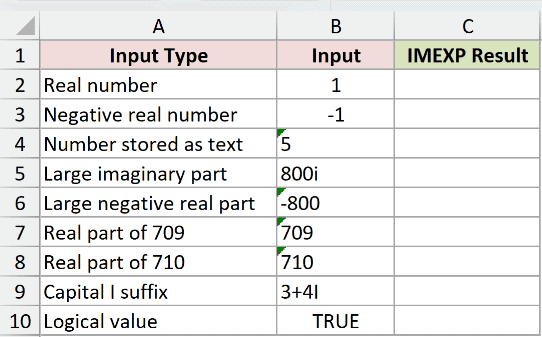
We want to see which inputs IMEXP accepts and why the deliberate error rows fail.
Enter this in C2 and copy down to C10:
=IMEXP(B2)
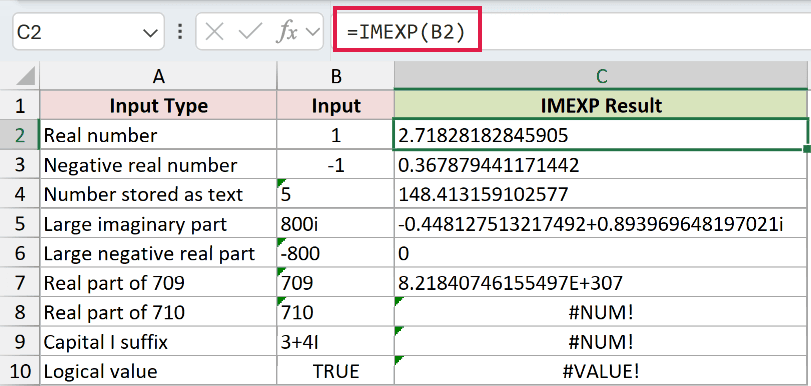
- Real number, row 2: The input
1returns2.71828182845905. IMEXP accepts real numbers, but its output is still text. - Negative real number, row 3: The input
-1returns0.367879441171442. A negative exponent is valid. - Number stored as text, row 4: The text input
5returns148.413159102577. Numeric text is accepted. - Large imaginary part, row 5: The input
800ireturns-0.448127513217492+0.893969648197021i. A large imaginary component changes the angle without causing this overflow. - Large negative real part, row 6: The input
-800returns the text0. Excel rounds the tiny positive result to zero. - Real part of 709, row 7: The input
709returns8.21840746155497E+307, which Excel can still represent. - Real part of 710, row 8: C8 deliberately returns
#NUM!because the exponential overflows. Check the real component when a large input fails. - Capital I suffix, row 9: C9 deliberately returns
#NUM!. Replace uppercaseIwith lowercasei; lowercasejis also accepted. - Logical value, row 10: C10 deliberately returns
#VALUE!because TRUE is a logical value. Supply a numeric or valid complex input instead.
The errors in C8:C10 are intentional demonstrations. C6 returns the text 0 without an error because the exponential is too small for Excel to retain.
Tips & Common Mistakes
- Watch blank inputs. A blank referenced cell is treated as zero, so IMEXP returns the text
1. A missing input can look like a valid answer. - Use complex-aware functions on the output. IMREAL and IMAGINARY extract numeric components; IMABS returns a numeric magnitude. Ordinary SUM won’t directly total a column of complex text.
- Round the parts, not the complex text. Extract with IMREAL or IMAGINARY before using ROUND, as the examples show. Number formatting alone won’t shorten an IMEXP result.
- Keep angle units straight. An imaginary exponent represents an angle in radians. Convert degree inputs with RADIANS before building the exponent with COMPLEX.
- Choose EXP for real-only calculations. It returns a number, while IMEXP returns text even when no imaginary component appears.
- IMLN is the related inverse. IMEXP can undo a complex natural logarithm. Small rounding differences can remain, and the reverse direction is affected by IMLN’s principal angle range.
Other Excel articles you may also like:
