
The RIGHTB function in Excel returns text from the end of a value, using a byte count to decide how much to keep.
It’s useful when the meaningful part sits at the right edge, such as an account ending or a product suffix. The result stays text, so leading zeros survive.
In this article, I’ll show you how to extract account endings, remove fixed prefixes, and use a suffix to label products.
RIGHTB Function Syntax in Excel
RIGHTB takes the source text and an optional count:
=RIGHTB(text, [num_bytes])
- text (required) is the value you want to extract from. You can supply a cell reference or a range.
- num_bytes (optional) tells RIGHTB how much to keep from the end. Omit it to return the final character on the English setup used here.
Microsoft marks RIGHTB as deprecated, but it still works in the examples below.
We checked the examples below in English Excel. They use ordinary letters and digits, so you can follow the extraction without needing double-byte text.
When to Use RIGHTB Function
- Extract the last digits of an account number while keeping the result as text.
- Separate a final letter that identifies a building or category.
- Keep everything after a known prefix or separator.
- Shorten a reference by keeping its ending.
- Check a model-number suffix before assigning a label.
Example 1: Extract the Last Four Account Digits
Let’s start with account endings that need to keep their leading zeros.
Below is the dataset. Column A lists employees, column B holds bank account numbers, and column C will show the last four digits.
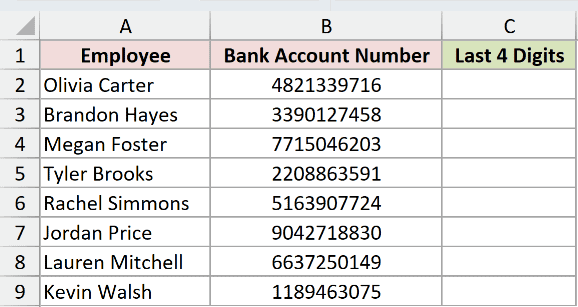
We want to extract each account’s ending into column C without turning it into a number.
Enter this formula in C2:
=RIGHTB(B2:B9,4)
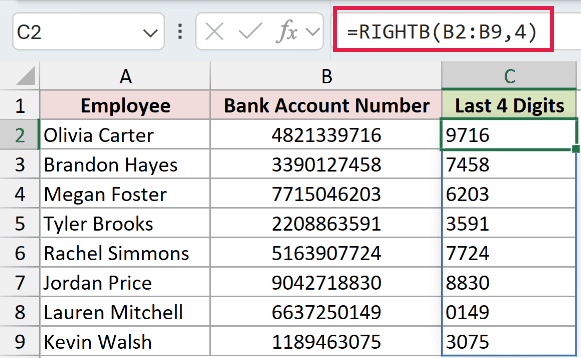
RIGHTB reads each account in B2:B9 and returns its last four digits. The results spill into C2:C9 from the formula in C2.
Olivia Carter’s account returns “9716”. Lauren Mitchell’s returns “0149”, with the leading zero intact because RIGHTB returns text even when its source is numeric.
Range formulas spill in Excel 2021, Excel 2024, and Microsoft 365. In Excel 2019 and earlier, use a single-cell reference and copy the formula down.
Example 2: Extract the Final Building Letter
You can leave out the count when you only need the ending letter.
Below is the dataset. Column A contains tenants, column B contains unit codes, and column C will hold each building letter.
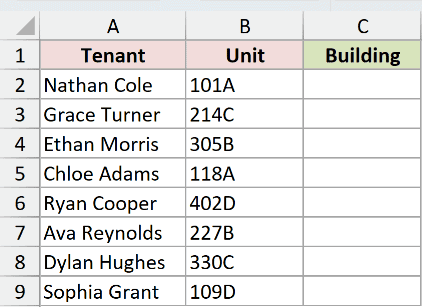
We want the last letter of each unit code to appear in the Building column.
Enter this formula in C2:
=RIGHTB(B2:B9)
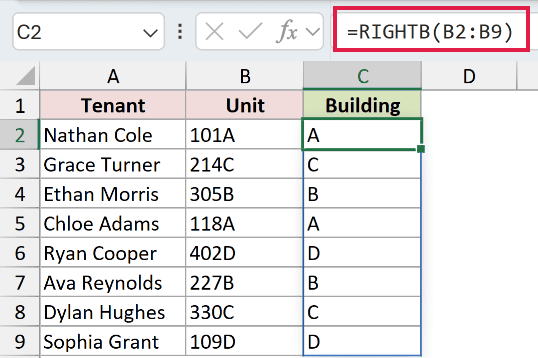
With num_bytes omitted, RIGHTB keeps the final character of these unit codes. The formula spills the building letters into C2:C9.
Nathan Cole’s unit, “101A”, returns “A”. Grace Turner’s “214C” returns “C”, and Sophia Grant’s “109D” returns “D”.
Example 3: Extract an Attachment’s File Extension
File extensions vary in length, so a fixed count won’t suit every attachment.
Below is the dataset. Column A lists attachment names, and column B will hold the file type extracted from each name.
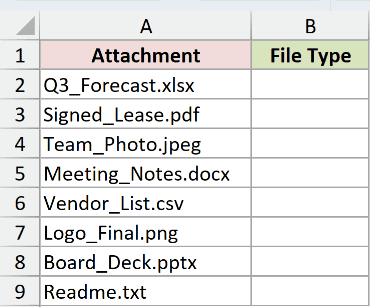
We want RIGHTB to return everything after the dot in each attachment name.
LENB counts the text’s bytes, while FINDB locates the dot by byte position. Subtracting that position from the total tells RIGHTB how much text follows it.
Enter this formula in B2:
=RIGHTB(A2:A9,LENB(A2:A9)-FINDB(".",A2:A9))
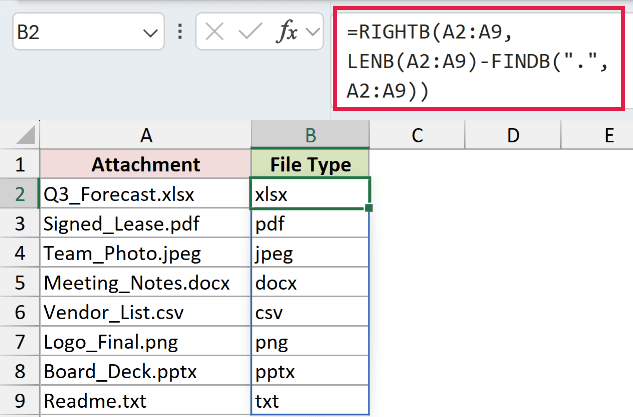
How this formula works:
- LENB measures each attachment name in
A2:A9. - FINDB identifies the first dot’s position in each name.
- The subtraction calculates the remaining length, excluding the dot.
- RIGHTB keeps that ending and spills the file types into
B2:B9.
“Q3_Forecast.xlsx” returns “xlsx”, “Team_Photo.jpeg” returns “jpeg”, and “Readme.txt” returns “txt”. Each row uses its own calculated count.
Pro Tip: This formula starts after the first dot. If a filename contains additional dots, RIGHTB also keeps the text between those dots, so the result won’t be only the extension.
Example 4: Remove a Fixed Warehouse Prefix
Now let’s keep a variable-length product code by removing its fixed prefix.
Below is the dataset. Column A contains warehouse SKUs, and column B will hold the base SKU without the warehouse prefix.
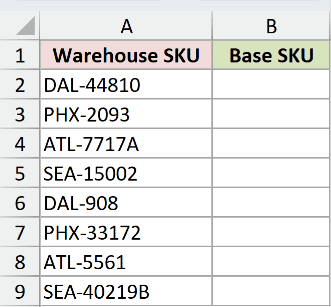
We want to remove the warehouse letters and hyphen while keeping the complete base SKU.
LENB counts each SKU’s bytes. Subtracting the fixed prefix length leaves the count RIGHTB needs to extract the base SKU.
Enter this formula in B2:
=RIGHTB(A2:A9,LENB(A2:A9)-4)
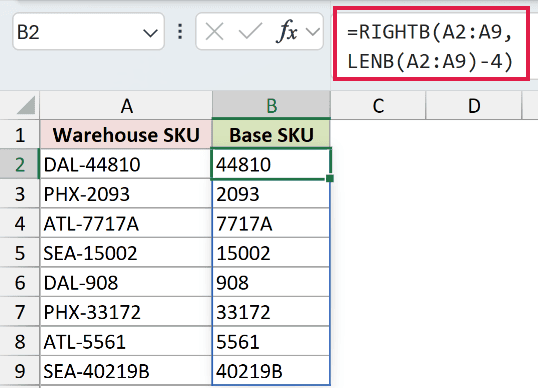
The formula spills into B2:B9. It calculates how much to keep separately for every SKU, so the base codes don’t need matching lengths.
“DAL-908” returns “908”, while “SEA-40219B” returns “40219B”. Both results are text, including the code that contains only digits.
The subtraction assumes every warehouse prefix has the same width. Check that structure before applying this formula to another list.
Example 5: Keep a Reference Within a Memo Limit
A short memo field can keep the end of a longer transfer reference.
Below is the dataset. Column A holds transfer references, and column B will contain bank memos with an eight-character maximum for these letters and digits.
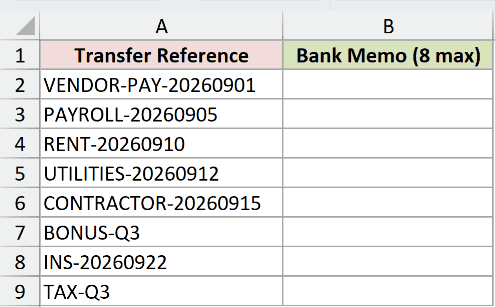
We want to keep each reference’s ending while leaving shorter references intact.
Enter this formula in B2:
=RIGHTB(A2:A9,8)
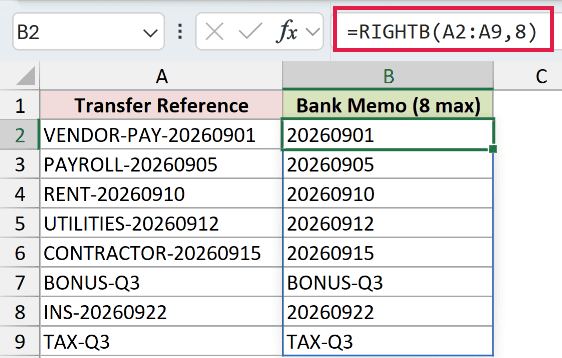
RIGHTB spills the shortened references into B2:B9. “VENDOR-PAY-20260901” returns “20260901”, which remains text rather than becoming a date.
“BONUS-Q3” returns “BONUS-Q3”, and “TAX-Q3” returns “TAX-Q3”. Asking for more text than a reference contains returns the whole reference without padding it.
This works when the part you need is at the end. Check the resulting memos before discarding prefixes that might distinguish similar references.
Example 6: Label Products From a Model Suffix
An extracted suffix can also decide which label a product receives.
Below is the dataset. Column A lists products, column B contains model numbers, and column C will hold each product’s condition.
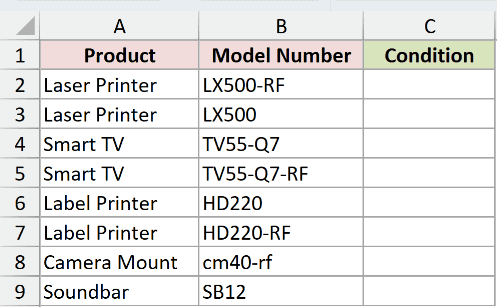
We want to label models ending in “-RF” as refurbished and assign the other models the new condition.
IF chooses between labels based on a test. Here, its test checks whether the ending extracted by RIGHTB matches the refurbishment suffix.
Enter this formula in C2:
=IF(RIGHTB(B2:B9,3)="-RF","Refurbished","New")
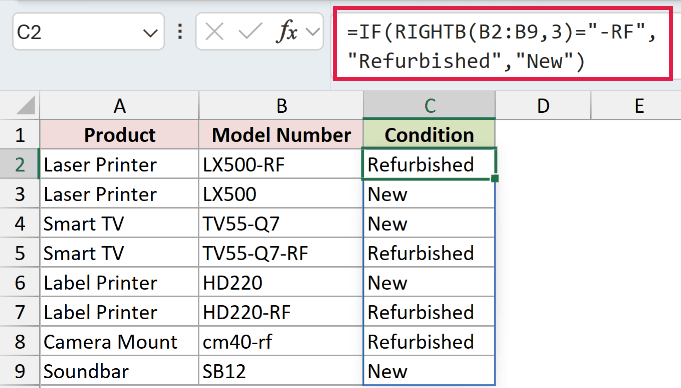
RIGHTB extracts each model’s ending. IF returns “Refurbished” when that ending matches “-RF” and “New” otherwise, spilling the labels into C2:C9.
“LX500-RF” returns “Refurbished”, while “TV55-Q7” returns “New”. The test looks at the end of the model, so other hyphens don’t affect it.
The lowercase model “cm40-rf” also returns “Refurbished”. Excel’s equals comparison ignores letter case, so this test accepts both uppercase and lowercase versions of the suffix.
Tips & Common Mistakes
- RIGHT extracts by character count. RIGHTB behaves identically on this English setup; byte counting differs only when a double-byte language is the default editing language.
- A negative
num_bytesproduces#VALUE!. A zero count returns empty text, and a decimal count is truncated rather than rounded. - RIGHTB preserves leading zeros in its result. Converting that result to a number would discard those zeros.
- When calculating how much RIGHTB should retain, use byte-based lengths and positions, as in the attachment example.
- The condition formula treats every model without the matching suffix as new. That label is appropriate only if your source data follows that convention.
Other Excel articles you may also like:
