
The MIDB function in Excel extracts text from a specified starting position, using a byte count to determine how much to return.
It’s useful for reading fields inside structured codes, such as an issue year or a membership flag. You supply the starting position and the field’s length.
On an English setup, MIDB works like MID.
Microsoft has deprecated MIDB and recommends MID. MIDB still works and returns the results shown here.
I’ll show you how to extract policy years, split fixed-width report codes, and label drawing numbers that don’t include a revision.
MIDB Function Syntax in Excel
MIDB takes the source text, a starting position, and the amount of text to extract:
=MIDB(text, start_num, num_bytes)
- text (required): The text or cell reference containing the field you want.
- start_num (required): The starting byte position. Counting starts at 1, so 0 returns
#VALUE!. - num_bytes (required): How many bytes to extract. MIDB doesn’t supply a default when you leave this argument out.
With Japanese, Chinese, or Korean enabled and set as the default editing language, each double-byte character counts as 2 bytes. Otherwise, MIDB counts characters like MID.
All worked examples below use ordinary letters, digits, and hyphens, with results that hold on an English setup.
When to Use MIDB Function
- Extract a field that always begins at the same position in a code.
- Read a plan letter from an ID before converting it into a descriptive label.
- Split fixed-width records into separate columns while keeping leading zeros.
- Extract an optional suffix and label records where that suffix is absent.
For everyday character-based extraction, MID is the natural choice.
Example 1: Extract the Issue Year
Let’s start with policy numbers whose year occupies a fixed position.
Below is the dataset. Column A contains policy numbers, and column B has an Issue Year header with empty cells for the extracted years.
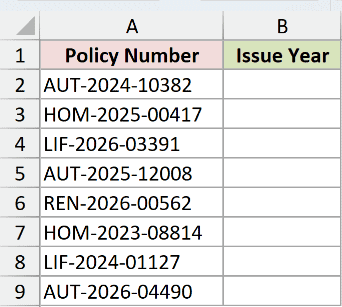
We want to extract the issue year from each policy number into column B.
Enter this formula in B2:
=MIDB(A2:A9,5,4)
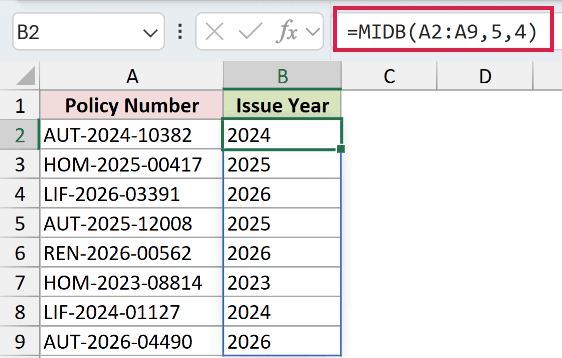
MIDB starts at position 5 and extracts 4 characters from each policy number. The range argument makes the results spill into B2:B9.
For AUT-2024-10382, the result is 2024. For HOM-2025-00417, it’s 2025. These are text results, even though they look like numbers.
This spilling formula works in Excel 2021, Excel 2024, and Microsoft 365. In Excel 2019 and earlier, use a per-row version and fill it down.
Pro Tip: Fixed positions work when every code follows the same layout. If the prefix length varies, FINDB returns the byte position of a separator character inside the text. Use the position just after that separator for MIDB’s start_num to extract the year.
Example 2: Decode a Membership Plan
A letter inside an ID can tell you which plan a member uses.
Below is the dataset. Column A lists gym member IDs; columns B and C provide the Plan Code and Plan Type result headings.
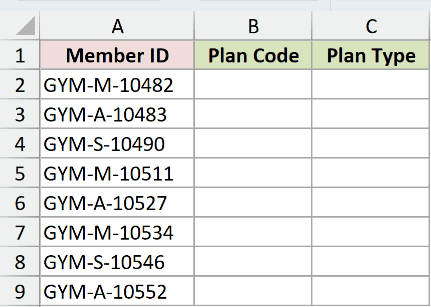
We want to extract each plan letter, then turn it into a readable label.
Enter the MIDB formula in B2:
=MIDB(A2:A9,5,1)
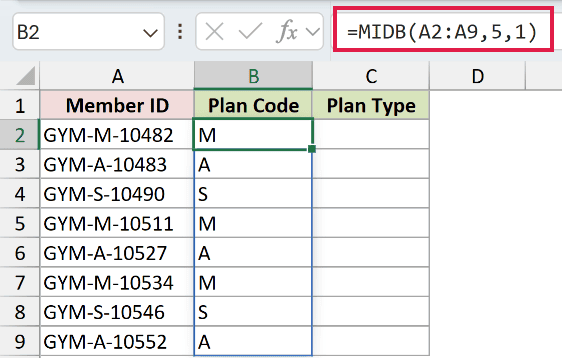
The formula reads the character at position 5 and spills into B2:B9. The first results are M, A, and S.
Now enter this formula in C2 to label the extracted codes:
=SWITCH(B2:B9,"M","Monthly","A","Annual","S","Student","Unknown")
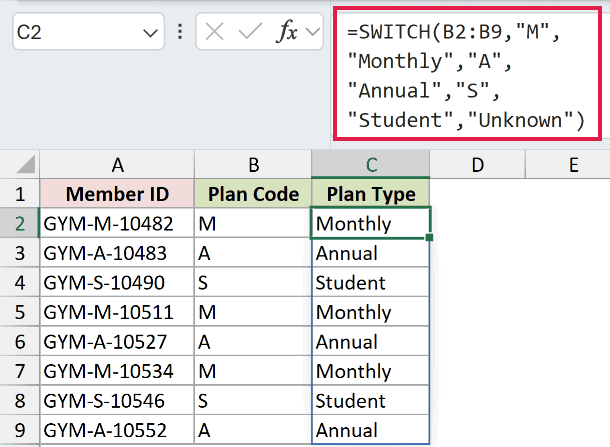
SWITCH checks each code and spills the matching label into C2:C9. The first results are Monthly, Annual, and Student.
The final argument supplies a fallback label for an unrecognized code.
Example 3: Split Fixed-Width Report Codes
Now let’s extract several fields from each record at once.
Below is the dataset. Column A contains store report codes; columns B through D have headings for Store, Date (MMDD), and Till.
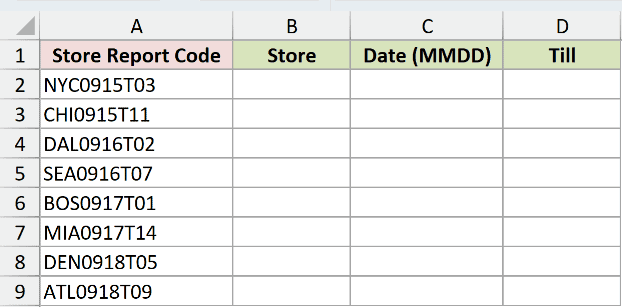
We want to split every report code into its store, date text, and till identifier.
Enter this formula in B2:
=MIDB(A2:A9,{1,4,8},{3,4,3})
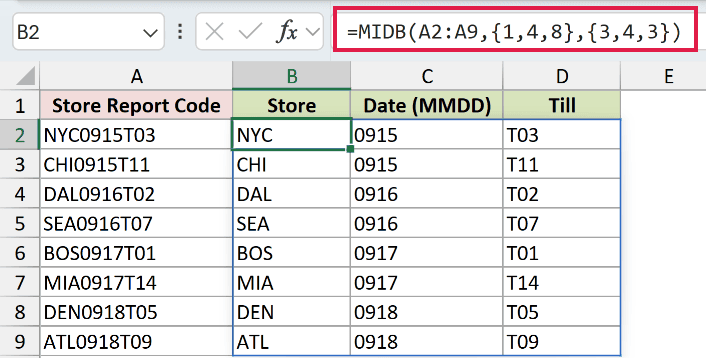
The lists inside braces pair each starting position with a length. Excel applies those pairs across columns and repeats the extraction down the source range.
How this formula works:
- The first pair starts at position 1 and extracts 3 characters for Store.
- The next pair starts at position 4 and extracts 4 characters for Date (MMDD).
- The last pair starts at position 8 and requests 3 characters for Till.
The formula spills into B2:D9. The first record returns NYC, 0915, and T03; the next returns CHI, 0915, and T11.
The date field stays text, so 0915 keeps its leading zero. It holds the month and day from the original code as text.
TEXTSPLIT breaks text apart at a delimiter character, so it can’t separate these fields without separators.
Known field positions make MIDB a good fit here.
Example 4: Label Missing Drawing Revisions
Some drawing numbers include a revision suffix, while original drawings have a shorter code.
Below is the dataset. Column A contains drawing numbers, and columns B and C provide the Revision and Revision Status result headings.
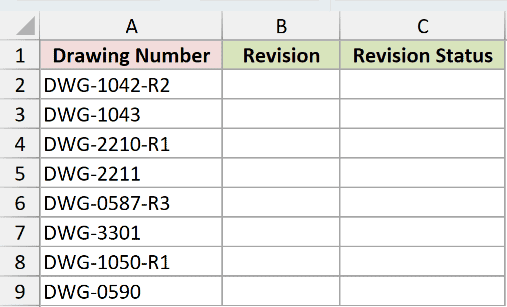
We want to extract any revision suffix and label drawings that don’t have one as original.
Enter this formula in B2:
=MIDB(A2:A9,10,2)
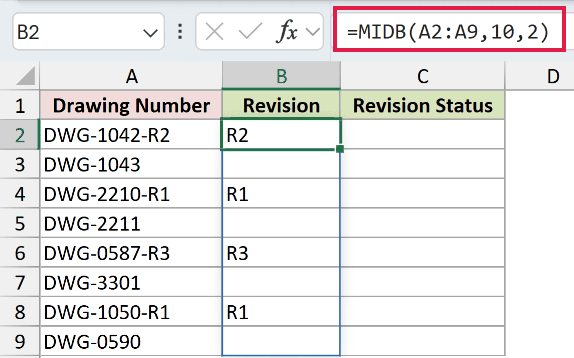
The formula starts at position 10, requests 2 characters, and spills into B2:B9. For DWG-1042-R2, it returns R2.
For the shorter DWG-1043, the starting position is beyond the end. MIDB returns empty text, so B3 looks blank.
Now enter this formula in C2 to label those empty results:
=IF(B2:B9="","Original",B2:B9)
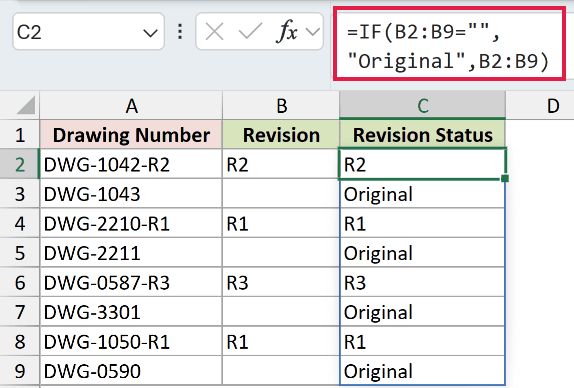
IF tests each extracted revision for empty text and spills into C2:C9. It returns Original for DWG-1043, while retaining R2 for DWG-1042-R2.
There’s no error to catch; the empty-text test handles the result MIDB returns.
Pro Tip: Only use this label when a missing suffix really means an original drawing. An incomplete drawing number could also produce empty text, so this test doesn’t validate the source code.
Tips & Common Mistakes
- Supply every argument. MIDB requires
num_bytes; leaving it out causes Excel to reject the formula at entry. - Check the starting position. A start of 0 returns
#VALUE!. A start beyond the end returns empty text instead. - Check the requested length. Negative
num_bytesreturns#VALUE!; 0 returns empty text. - Use whole-number positions. Excel truncates a decimal starting position, which can quietly extract a different field than you intended.
- Keep byte measurements together. Use FINDB for byte positions and LENB for byte lengths when building a MIDB formula. Mixing character and byte measurements can shift the extraction under DBCS settings.
- Remember the result is text. This preserves leading zeros in identifiers and date fragments. Convert only when you actually need a number.
These examples use MIDB to extract policy years, decode membership plans, and split report codes.
For drawing revisions, an empty-text test labels codes with no suffix.
Other Excel articles you may also like:
