
The LEFT function in Excel returns a specified number of characters from the start of a text string.
Use it to extract fixed-length prefixes from codes. For text before a separator, TEXTBEFORE can avoid calculating how many characters to keep.
In this article, I’ll show you how to extract names and email usernames, remove trailing characters, and separate numbers from coded text.
LEFT Function Syntax in Excel
Here is how the LEFT function is written.
=LEFT(text, [num_chars])
- text – the text string you want to extract characters from. This can be a cell reference or text typed directly in quotes.
- num_chars – optional. How many characters to pull from the left. If you leave it out, LEFT returns just the first character.
When to Use LEFT Function
- Pulling a fixed-length prefix off a code, like the first 3 letters of a product ID.
- Grabbing a first name out of a full name field.
- Extracting the username portion of an email address.
- Stripping a unit label (like “kg”) off the end so you keep the number part.
- Splitting an ID and a status that are joined by a dash or other separator.
Example 1: Extract the First Few Characters
Let’s start with the simplest use of LEFT, pulling a fixed number of characters off the front.
Below is the dataset. Column A has product codes, and column B is where we want the category prefix to land.
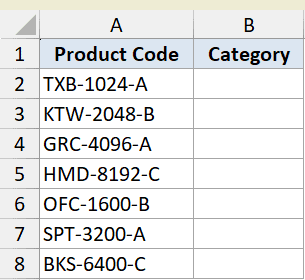
We want the first 3 characters of each code, which is the category prefix.
Here is the formula:
=LEFT(A2:A8,3)
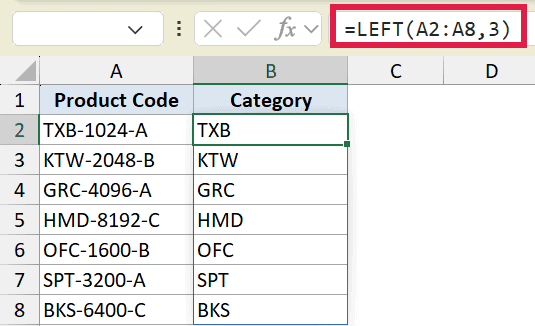
The second argument, 3, tells LEFT to grab three characters starting from the left. So “TXB-1024-A” becomes “TXB”.
Notice we fed the whole range A2:A8 into one formula in cell B2. In Excel 365, the result spills down automatically, so you don’t need to copy the formula to each row.
Pro Tip: If you only need the first character, you can skip the second argument entirely. LEFT defaults to 1 when num_chars is left out.
Example 2: Get the First Character Only
Here’s a case where the default behavior of LEFT does the work for us.
Below is the dataset. Column A has size labels where the first character is the size code, like “S – Small”.
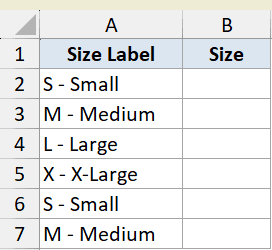
We want just the single-letter size code from each label.
Here is the formula:
=LEFT(A2:A7)
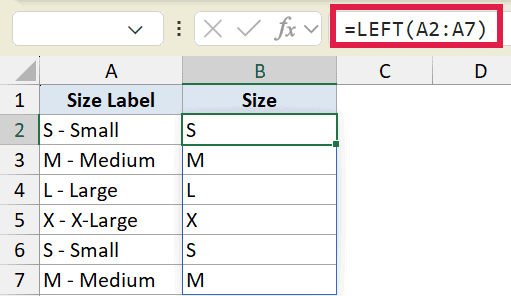
There’s no second argument here. When you skip num_chars, LEFT assumes you want one character. So “S – Small” returns “S”.
This is handy any time the value you need sits in the very first position of the string.
Example 3: Extract the First Name
Now let’s pull a name out of a field, where the number of characters changes from row to row. This is one common way to extract a first name in Excel.
Below is the dataset. Column A has full names with a first name, a space, and a last name.
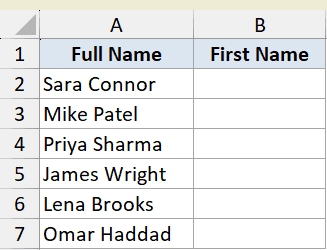
We want everything before the first space, which is the first name.
Here is the formula:
=LEFT(A2:A7,FIND(" ",A2:A7)-1)
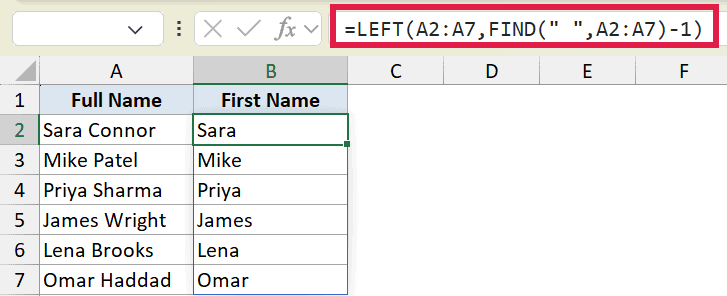
Here is how this formula works.
- FIND(” “, A2:A7) returns the position of the first space in each name.
- We subtract 1 so we stop just before the space.
- LEFT then pulls that many characters from the left.
So for “Sara Connor”, the space is at position 5, we subtract 1 to get 4, and LEFT returns “Sara”.
In Excel 365, you can also do this with TEXTBEFORE: =TEXTBEFORE(A2:A7," "). That’s more direct than the LEFT plus FIND approach. The LEFT version still works, and works in older Excel versions where TEXTBEFORE doesn’t exist, so it’s worth knowing both.
Example 4: Get the Username From an Email
Email addresses are an easy one for LEFT, since the part you want ends at a known character.
Below is the dataset. Column A has email addresses, and we want the username that comes before the @ sign.
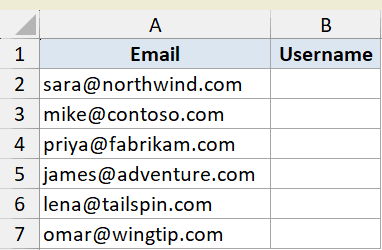
We want everything to the left of the @ in each address.
Here is the formula:
=LEFT(A2:A7,SEARCH("@",A2:A7)-1)
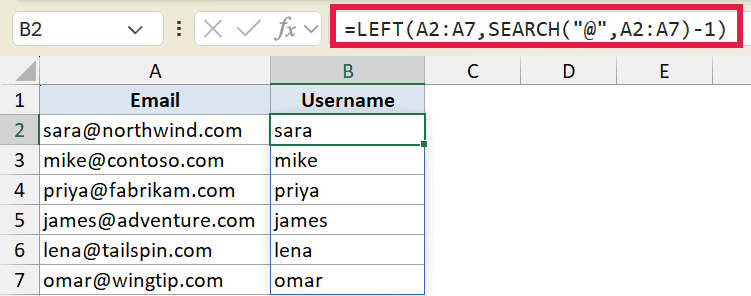
SEARCH finds the position of the @ symbol, we subtract 1, and LEFT grabs that many characters. So “sara@northwind.com” returns “sara”.
You could use FIND here instead of SEARCH and get the same result. The difference is that SEARCH ignores case, while FIND is case-sensitive.
Pro Tip: In Excel 365 you can get the same result with `=TEXTBEFORE(A2:A7,”@”)`, which skips the position math entirely. The SEARCH version still works in older Excel versions.
Example 5: Remove the Last Few Characters
Sometimes you don’t know the prefix length, but you do know how many characters to chop off the end. LEFT pairs with LEN here, the same trick used to remove the last 4 characters in Excel.
Below is the dataset. Column A has weight measurements with a ” kg” unit at the end, like “1500 kg”.
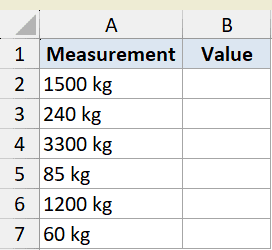
We want to drop the last 3 characters, which is the space and “kg”, and keep the number.
Here is the formula:
=LEFT(A2:A7,LEN(A2:A7)-3)
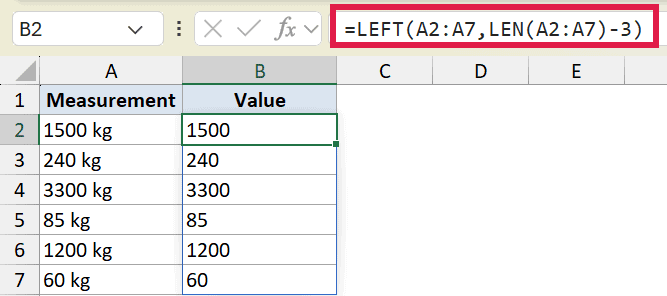
LEN counts the total characters in the string. We subtract 3 to account for the space and the two letters in “kg”. LEFT then keeps everything except those last 3 characters.
So “1500 kg” has 7 characters, minus 3 leaves 4, and LEFT returns “1500”.
Example 6: Split Out a Number Before a Dash
This last example pulls a number out of a tag and converts it into a real number you can do math with.
Below is the dataset. Column A has invoice tags joining an amount and a status with a dash, like “450-PAID”.
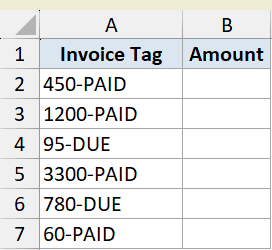
We want the amount before the dash, returned as an actual number rather than text.
Here is the formula:
=VALUE(LEFT(A2:A7,FIND("-",A2:A7)-1))
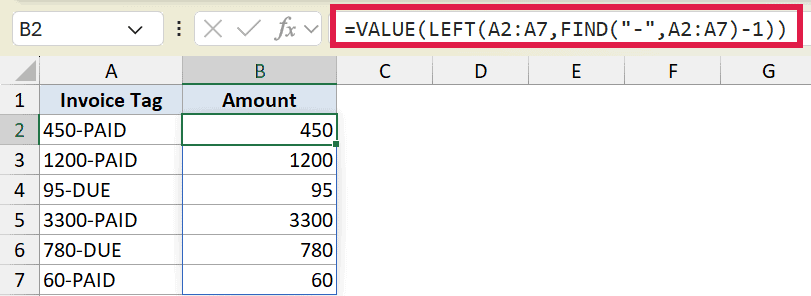
Here is how this formula works.
- FIND locates the dash, and we subtract 1 to stop just before it.
- LEFT pulls the digits ahead of the dash, but they come back as text.
- VALUE wraps the result and turns that text into a real number.
So “450-PAID” gives the text “450”, and VALUE converts it to the number 450 that you can sum or sort.
In Excel 365, you could pull the text part with =TEXTBEFORE(A2:A7,"-") and still wrap it in VALUE. The FIND version works in older versions too, so keep both in your back pocket.
Tips & Common Mistakes
- LEFT always returns text, even when the characters are digits. If you need to add, sort, or compare the result as a number, wrap it in VALUE like in Example 6.
- SEARCH is case-insensitive and supports wildcards, while FIND is case-sensitive. Pick FIND when case matters, SEARCH when it doesn’t.
- If you only want the first character, skip the num_chars argument. LEFT defaults to 1.
- Feeding a range into one LEFT formula in Excel 365 spills the results automatically, so there’s no need to copy the formula down each row.
- To split a string into multiple columns at once instead of just the left piece, look at TEXTSPLIT in Excel 365.
LEFT is one of those small functions you’ll reach for all the time once you know it. On its own it pulls a fixed number of characters off the front. Pair it with FIND, SEARCH, or LEN and it handles names, usernames, and codes of any length.
Related Excel Functions / Articles:
- MID Function in Excel
- REPLACE Function in Excel
- How to Extract Part of Text in a Cell in Excel
- Extract Last Name in Excel
- How to Remove First Character in Excel?
- Find the Position of a Character in a String in Excel
- How to Remove Text after a Specific Character in Excel?
- Extract Last Word in Excel
- Extract ZIP Code from Address in Excel
- SEARCH vs FIND Function in Excel
- Text.Start Function (Power Query M)
- How to Extract Number from Text in Excel (Beginning, End, or Middle)
