
VBA has no built-in Sort command for arrays, so you need a sorting routine or Excel’s SORT function.
You can rearrange values in memory and write the sorted array back to the worksheet.
I’ll show you how to sort a list of names with bubble sort, QuickSort, and Excel’s SORT function, and how to sort a table by its sales column.
Method #1: Using a Bubble Sort
I’d start with bubble sort for a small list. It’s the simplest routine to write and understand, and it works in every Excel version.
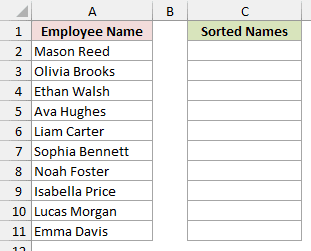
Below I have a dataset of unsorted names in A2:A11 on the Employee Names sheet, under the Employee Name header in A1.
Column B is empty. C1 has the green Sorted Names header, with empty bordered cells in C2:C11 for the sorted list.
I want the names in column C sorted alphabetically, from A to Z.
Here is the VBA code:
Sub SortArrayBubble()
    Dim arr As Variant
    Dim i As Long, j As Long
    Dim temp As Variant

    arr = Application.Transpose(Range("A2:A11").Value)

    For i = UBound(arr) - 1 To LBound(arr) Step -1
        For j = LBound(arr) To i
            If arr(j) > arr(j + 1) Then
                temp = arr(j)
                arr(j) = arr(j + 1)
                arr(j + 1) = temp
            End If
        Next j
    Next i

    Range("C2:C11").Value = Application.Transpose(arr)
End SubHere are the steps to use this macro:
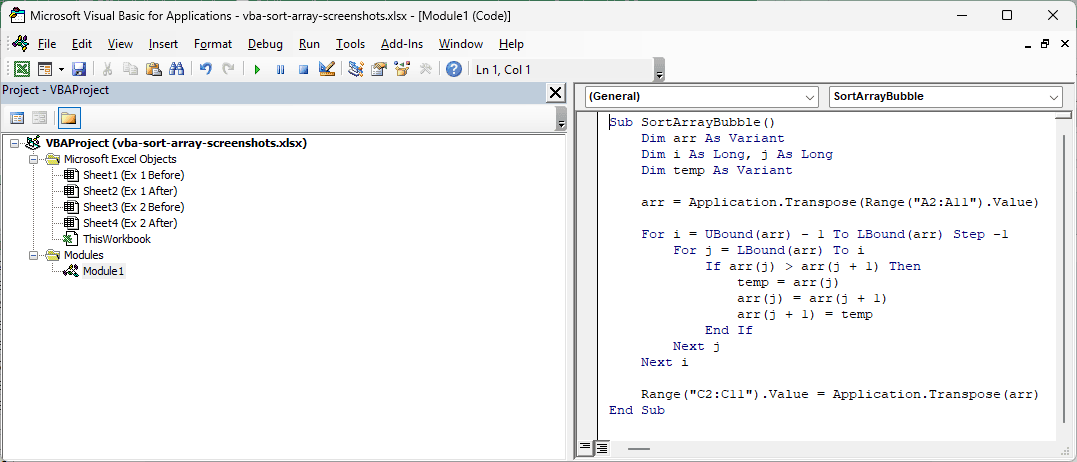
- Press Alt + F11 to open the VB Editor.
- Click Insert > Module.
- Paste the code above into the module.
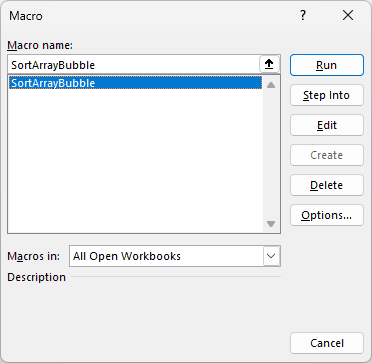
- Go back to Excel, activate the Employee Names sheet, press Alt + F8, select SortArrayBubble, and click Run.
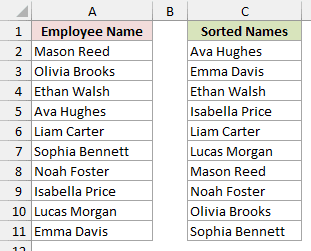
C2:C11 now holds the names from A to Z, starting with Ava Hughes and ending with Sophia Bennett.
Column A keeps its original order.
How does this code work?
First, Range("A2:A11").Value reads the names into a two-dimensional (2D) array with 10 rows and one column.
Range("A2:A11") has no sheet name, so it points to the active sheet. That’s why you activate Employee Names before running the macro.
Application.Transpose turns it into a one-dimensional (1D) list of 10 items, numbered 1 to 10.
The two loops compare neighboring names. If the first name comes after the second alphabetically, the code swaps them.
During each swap, temp holds one name so you don’t lose it when the other name takes its place.
After each full pass, the name that comes last alphabetically has moved to the end. The next pass can stop one item earlier.
That’s why the outer loop counts down from UBound(arr) - 1. UBound gives you the last item number, while LBound gives you the first.
Finally, Application.Transpose(arr) turns the sorted list back into a column, which the macro writes into C2:C11.
Bubble sort is fine for tens or a few hundred items. On very large arrays, comparing almost every pair makes it slow.
Note: To sort from Z to A, change > to < in the If line. That reverses which neighboring names get swapped.
Method #2: Using the QuickSort Algorithm
When your list grows to thousands of items, I’d switch to QuickSort.
You get a much faster sort than bubble sort on large arrays, and it works in every Excel version.
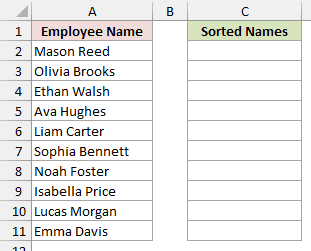
Below I have a dataset on the Employee Names sheet, with unsorted names in A2:A11 and the Employee Name header in A1.
Column B is empty. The Sorted Names column has a green header in C1 and empty bordered cells in C2:C11 for the sorted list.
I want QuickSort to put the names in column C in alphabetical order, from A to Z.
Here is the VBA code:
Sub QuickSort(arr As Variant, ByVal first As Long, ByVal last As Long)
    Dim pivot As Variant, temp As Variant
    Dim i As Long, j As Long

    i = first
    j = last
    pivot = arr((first + last) \ 2)

    Do While i <= j
        Do While arr(i) < pivot
            i = i + 1
        Loop
        Do While arr(j) > pivot
            j = j - 1
        Loop
        If i <= j Then
            temp = arr(i)
            arr(i) = arr(j)
            arr(j) = temp
            i = i + 1
            j = j - 1
        End If
    Loop

    If first < j Then QuickSort arr, first, j
    If i < last Then QuickSort arr, i, last
End Sub

Sub SortArrayQuick()
    Dim arr As Variant
    arr = Application.Transpose(Range("A2:A11").Value)
    QuickSort arr, LBound(arr), UBound(arr)
    Range("C2:C11").Value = Application.Transpose(arr)
End SubPress Alt + F11, choose Insert > Module, and paste both procedures into the same module.
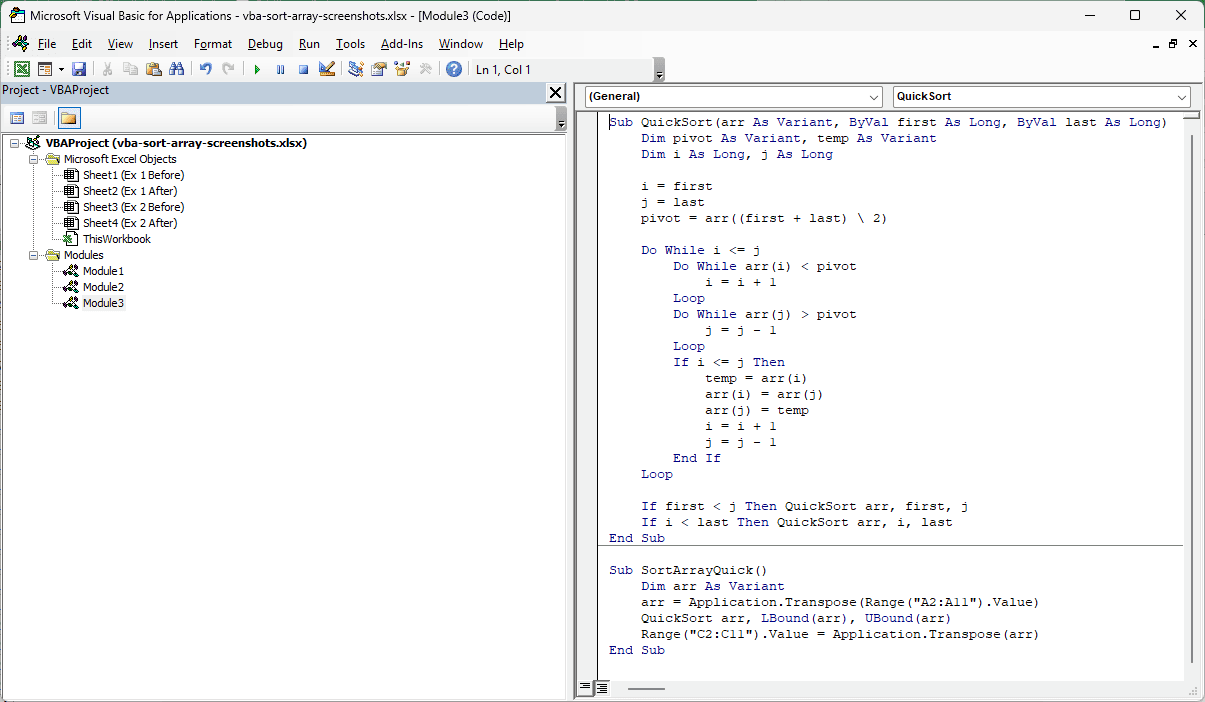
Back in Excel, activate the Employee Names sheet. Press Alt + F8, select SortArrayQuick, and click Run.
QuickSort needs arguments, so it won’t appear in the Macro dialog. SortArrayQuick is the macro you run.
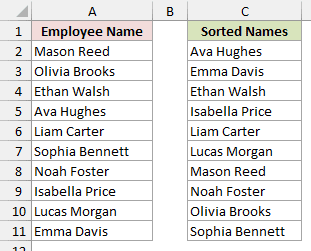
SortArrayQuick writes the names into C2:C11 in A-to-Z order, with Ava Hughes first and Sophia Bennett last.
The names in column A stay in their original order.
How does this code work?
You start with SortArrayQuick, which reads A2:A11 and uses Application.Transpose to turn the range into a 1D list.
It calls QuickSort with LBound(arr) and UBound(arr), telling it the first and last item numbers to sort.
QuickSort takes the middle item as a reference value, called the pivot. It moves smaller items to its left and bigger items to its right.
Then the procedure calls itself on each side until every part is sorted. A procedure calling itself like this is called recursion.
QuickSort works on the same array that SortArrayQuick holds, not a copy, so it doesn’t need to return anything.
That’s called passing by reference, which VBA does by default unless you add ByVal.
Afterward, Application.Transpose turns that sorted list back into a column, and the macro writes it into C2:C11.
Note: Because SortArrayQuick passes LBound(arr) and UBound(arr), QuickSort also works on arrays that start at 0, such as one made with Array(...).
Method #3: Using the WorksheetFunction.Sort Method
You can also let Excel do the sorting instead of writing the comparison loops yourself.
I’d choose this for the shortest code, provided you have Excel for Microsoft 365 or Excel 2021 and later.
You can’t use WorksheetFunction.Sort in Excel 2019 or earlier.
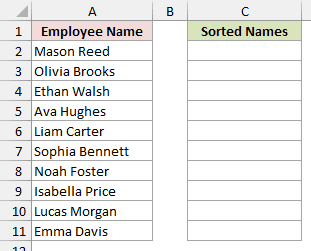
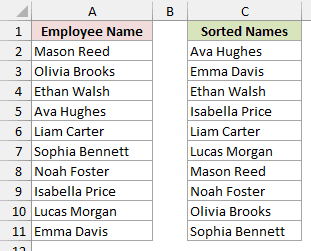
Below I have a dataset with unsorted names in A2:A11 on the Employee Names sheet. A1 contains the Employee Name header.
Column B is empty. In column C, the green Sorted Names header sits above empty bordered cells in C2:C11 for the sorted list.
I want Excel’s SORT function to write the names into column C from A to Z.
Here is the VBA code:
Sub SortArrayWithSortFunction()
    Dim arr As Variant
    arr = Range("A2:A11").Value
    arr = WorksheetFunction.Sort(arr)
    Range("C2:C11").Value = arr
End SubPress Alt + F11, choose Insert > Module, and paste the code.
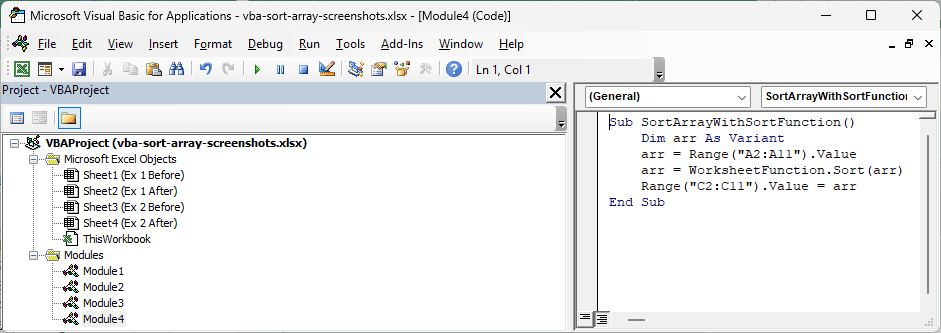
Back in Excel, activate the Employee Names sheet. Press Alt + F8, select SortArrayWithSortFunction, and click Run.
The macro fills C2:C11 with names in alphabetical order, from Ava Hughes at the top to Sophia Bennett at the bottom.
Column A stays unchanged.
How does this code work?
WorksheetFunction.Sort lets you use Excel’s SORT function from VBA. It returns a sorted copy of the array you give it.
Range("A2:A11").Value already returns a 2D array with 10 rows and one column. SORT accepts it directly, so you don’t need Application.Transpose.
The sorted array goes straight back into C2:C11.
You can control the sort with optional arguments: WorksheetFunction.Sort(arr, sort_index, sort_order, by_col).
sort_indexchooses which column or row to sort by. If you leave it out, Excel uses 1, which is the names column here.sort_ordersets the direction: 1 for ascending, or -1 for descending.by_colsets what gets rearranged. False, the default, moves rows, which is what you want for a list in a column. True moves columns, for data laid out across a row.
For names from Z to A, I’d replace the sorting line with arr = WorksheetFunction.Sort(arr, 1, -1).
Note: If your array is 1D, such as one made with Array(...) or Split, SORT treats it as a single row and returns it unchanged. Use WorksheetFunction.Sort(arr, 1, 1, True) to sort it. The result is a 1D array that starts at 1.
Method #4: Using a Bubble Sort on a 2D Array
So far, you’ve sorted one list. When your array holds a table, you sort by one column and move whole rows together.
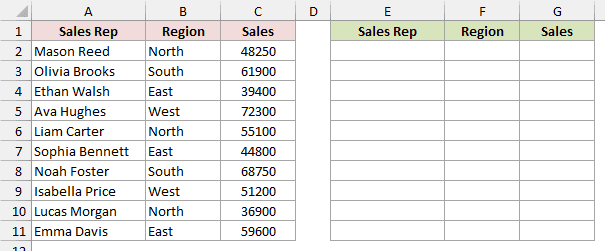
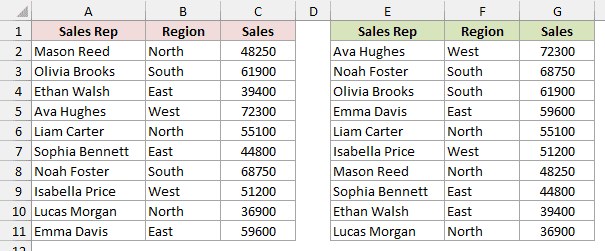
Below I have a dataset on the Sales Data sheet, with Sales Rep, Region, and Sales in A1:C11.
Column D is empty. E1:G1 repeats those three headers in green, with empty bordered cells in E2:G11 for the sorted copy.
I want the copy in E:G sorted by Sales, with the highest sales first.
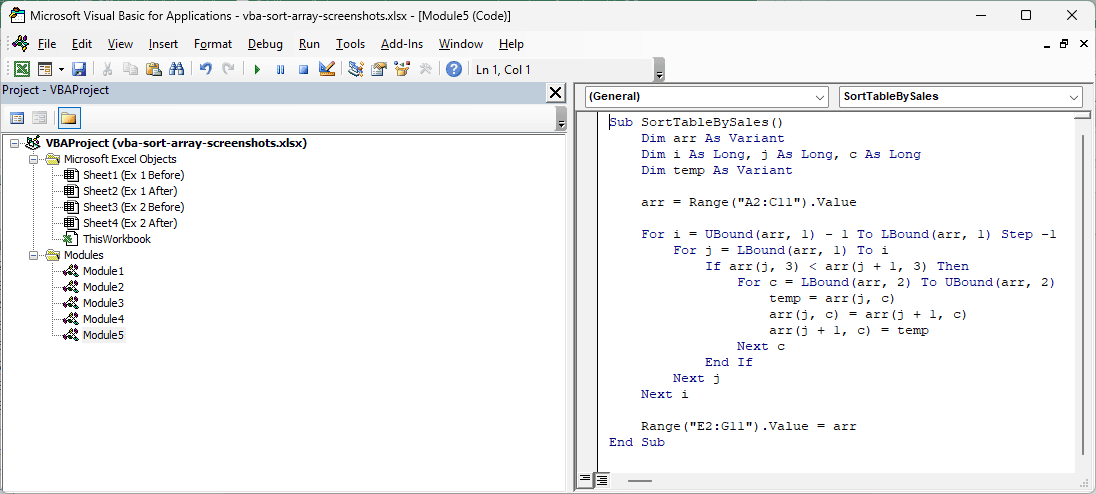
Here is the VBA code:
Sub SortTableBySales()
    Dim arr As Variant
    Dim i As Long, j As Long, c As Long
    Dim temp As Variant

    arr = Range("A2:C11").Value

    For i = UBound(arr, 1) - 1 To LBound(arr, 1) Step -1
        For j = LBound(arr, 1) To i
            If arr(j, 3) < arr(j + 1, 3) Then
                For c = LBound(arr, 2) To UBound(arr, 2)
                    temp = arr(j, c)
                    arr(j, c) = arr(j + 1, c)
                    arr(j + 1, c) = temp
                Next c
            End If
        Next j
    Next i

    Range("E2:G11").Value = arr
End SubPress Alt + F11, choose Insert > Module, and paste the code.
Back in Excel, activate the Sales Data sheet. Press Alt + F8, select SortTableBySales, and click Run.
The sorted copy in E2:G11 starts with Ava Hughes, West, 72300. Lucas Morgan, North, 36900 is at the bottom.
Each sales rep’s name, region, and sales stay together. A2:C11 keeps its original order.
How does this code work?
Range("A2:C11").Value reads the table into a 2D array. Each value has a row number and a column number: arr(row, column).
Column 3 holds Sales. The If line compares the sales values of two neighboring rows.
When the lower sales value is on top, the For c loop swaps every column in those two rows.
That keeps each name attached to its region and sales, rather than sorting only the sales figures.
The < comparison puts the highest sales first. Change it to > for the lowest sales first.
To sort by another column, change the 3 in both arr(j, 3) and arr(j + 1, 3).
Use 1 for Sales Rep or 2 for Region. With <, text sorts from Z to A, so switch to > for A to Z.
The loop still moves all three columns together.
Finally, the macro writes the sorted array into E2:G11.
Note: In Microsoft 365 or Excel 2021 and later, replace the sorting loops with arr = WorksheetFunction.Sort(arr, 3, -1) to sort Sales from largest to smallest.
Additional Notes About Sorting Arrays in VBA
- VBA text comparisons are case-sensitive by default. Uppercase letters come before lowercase letters. Add
Option Compare Textabove the firstSubto ignore case. Excel’s SORT function already ignores case. - Numbers stored as text sort as text. For example, “100” comes before “20”. Make sure your numbers are real numbers before sorting.
- Some online code uses an ArrayList, which can fail. It’s a .NET list object you create with
CreateObject("System.Collections.ArrayList"), and it depends on .NET Framework 3.5 being enabled in Windows. Without it, you get “Run-time error ‘-2146232576 (80131700)’: Automation error”. The four methods above don’t have this dependency. - Save as an Excel Macro-Enabled Workbook (.xlsm). A regular .xlsx file drops the code. The download contains only the data, so add your chosen macro yourself.
Frequently Asked Questions
Here are a few other questions you might have when sorting arrays in VBA.
Does VBA have a built-in function to sort an array?
No. VBA has no built-in array sorting function or statement. WorksheetFunction.Sort borrows Excel’s SORT function, available in Microsoft 365 or Excel 2021 and later.
How do I sort an array but keep the original order too?
Copy it into another Variant variable first:
Dim sortedArr As Variant
sortedArr = arrThat creates a separate copy, so you can sort sortedArr and keep arr unchanged.
Can I sort the cells directly instead of using an array?
Yes. Use Range.Sort when you want to rearrange the cells themselves. For example:
Range("A1:A11").Sort Key1:=Range("A1"), Order1:=xlAscending, Header:=xlYesThat sorts A2:A11 in place from A to Z, keeping the header in A1 at the top.
Conclusion
I’d use bubble sort for a small list when you want code that’s easy to follow and works in every Excel version.
For thousands of items, I’d choose QuickSort.
If you have Microsoft 365 or Excel 2021 and later, WorksheetFunction.Sort gives you the shortest way to sort your array.
For a table, the 2D bubble sort in Method #4 keeps each row together.
Other Excel articles you may also like:
