
InputBox in Excel VBA lets your macro stop and ask you for a name, month, rate, or range instead of keeping that value fixed in the code.
You have two versions to choose from: the VBA InputBox function and Excel’s Application.InputBox method. They accept different kinds of input and return different values when you click Cancel.
I’ll show you how to write your answer into a cell, handle Cancel, and ask for numbers or a range you select with the mouse.
VBA InputBox Function Syntax
The VBA InputBox function opens a dialog with a message and a text box. You type an answer, then click OK to return it to your code.
Here is the syntax:
InputBox(prompt, [title], [default], [xpos], [ypos], [helpfile], [context])Only prompt is required. The square brackets mark arguments you can leave out:
- prompt: The message you see in the dialog. It can contain about 1,024 characters. Use
vbNewLine,Chr(10), orChr(13)to start a new line. - title: The text in the title bar. Leave it out and you see the application name, “Microsoft Excel”.
- default: The text already entered when the dialog opens. Leave it out and you get an empty box.
- xpos and ypos: The dialog’s position in twips, measured from the screen’s left and top edges. Without them, it appears centered horizontally, about a third of the way down.
- helpfile and context: A Help file and topic number. Supply both or neither. You usually won’t need these in everyday macros.
InputBox always returns text, stored as a String, even when you type a number. Its text box accepts up to 255 characters.
Clicking OK or pressing Enter returns the text in the box. Cancel returns an empty string ("").
Example #1: Ask for a Name and Show It in a Message
I’ll start with a name prompt and a greeting. You don’t need any worksheet data for this example.
Here is the VBA code:
Sub GreetUser()
    Dim userName As String
    userName = InputBox("What's your name?")
    MsgBox "Hello, " & userName & "!"
End Sub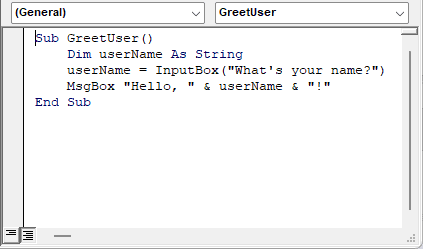
Here are the steps to run it:
- Press Alt + F11 to open the Visual Basic Editor.
- Click Insert > Module.
- Paste the code into the module.
- Click anywhere inside the code and press F5 to run it.
You can also return to Excel, press Alt + F8, select GreetUser, and click Run.
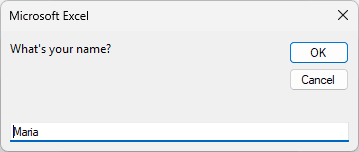
When you run it, you see “What’s your name?”. The title bar says “Microsoft Excel” because I haven’t supplied a title.
Type a name, such as Maria, and click OK.
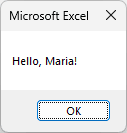
You get a message box saying “Hello, Maria!”. Click OK to close it.
How does this code work?
I use Dim userName As String to create a variable that stores your name as text.
InputBox("What's your name?") displays the prompt and waits for your answer. The text you enter goes into userName.
I then use MsgBox to display your greeting. The & operator joins "Hello, ", your name, and "!".
If you click Cancel here, the greeting is “Hello, !” because InputBox returns an empty string. I’ll handle that in Example #3.
Example #2: Write the Input Into a Cell (With a Title and Default Value)
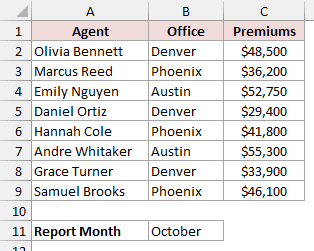
Now I’ll put your answer on the worksheet. Below, you have eight insurance agents in A1:C9, with Agent, Office, and Premiums as the headers.
The Report Month label is in A11, and B11 is empty. You’ll enter a month through InputBox, and the macro writes it into B11.
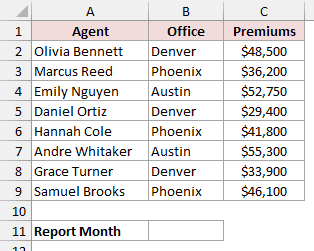
The unqualified Range(...) references in these examples use your active worksheet. Activate the sheet you want to update before running the code.
Here is the VBA code:
Sub EnterReportMonth()
    Dim reportMonth As String
    reportMonth = InputBox("Enter the month for this report", _
        "Report Month", "October")
    Range("B11").Value = reportMonth
End Sub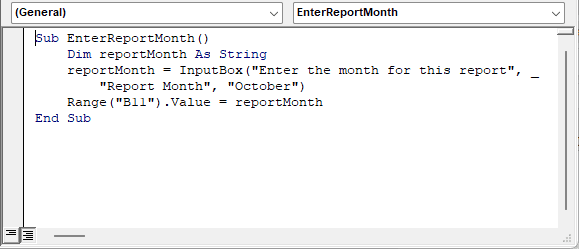
Paste it into a module and run it the same way as in Example #1.
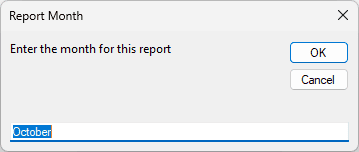
You see “Report Month” in the title bar and “Enter the month for this report” as the prompt. The box already contains “October”.
Click OK to keep October, or replace it with another month first.
If you keep the default and click OK, the macro writes October into B11.
How does this code work?
I store your answer in the reportMonth string variable. The second InputBox argument sets the title, and the third sets the default text.
You separate arguments with commas. An underscore (_) after a space at the end of a line lets you continue a long statement on the next line.
Range("B11").Value = reportMonth writes your answer into B11.
You can also use named arguments, such as InputBox(Prompt:="...", Title:="...", Default:="..."), to specify the options you need and skip others.
Cancel makes the macro write an empty string into B11, erasing any month already there. In the next example, I’ll prevent that.
Example #3: Handle the Cancel Button and Empty Input
I’ll keep the same report-month setup, but check your answer before changing the cell.
You have eight insurance agents in A1:C9 and the Report Month label in A11, with the month in B11.
The macro leaves B11 alone if you cancel or enter nothing.
Here is the VBA code:
Sub EnterReportMonthSafely()
    Dim reportMonth As String
    reportMonth = InputBox("Enter the month for this report", _
        "Report Month", "October")
    If StrPtr(reportMonth) = 0 Then
        MsgBox "You clicked Cancel. The report month was not changed."
        Exit Sub
    End If
    If Trim(reportMonth) = "" Then
        MsgBox "You didn't enter a month. The report month was not changed."
        Exit Sub
    End If
    Range("B11").Value = reportMonth
End Sub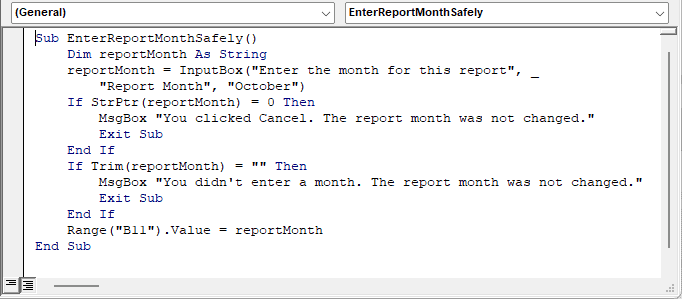
Paste it into a module and run it the same way as in Example #1.
This time, clicking Cancel brings up “You clicked Cancel. The report month was not changed.” B11 keeps its existing value.
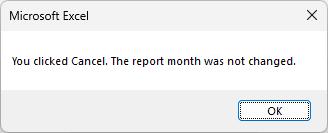
If you clear the box and click OK, the macro shows “You didn’t enter a month. The report month was not changed.”
Enter a month, such as November, and click OK. The macro writes it into B11.
How does this code work?
You get "" from both Cancel and an empty OK. Checking reportMonth = "" alone won’t tell you which button you clicked.
I use StrPtr to get the string’s memory address. Cancel returns a null string with address 0, so StrPtr(reportMonth) = 0 detects it.
An empty OK returns a real, empty string whose address isn’t 0. I check that separately with Trim(reportMonth) = "".
Trim removes spaces from both ends, so the code also catches an answer containing only spaces. Exit Sub stops the code before it changes B11.
Note: StrPtr is an undocumented VBA function commonly used to detect Cancel. It works in 32-bit and 64-bit Excel. If you don’t need to distinguish Cancel from empty input, use If reportMonth = "" Then Exit Sub.
Example #4: Get a Number and Check It
Next, I’ll use your answer in a calculation.
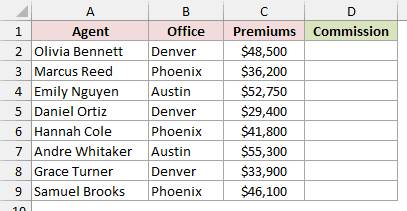
You have eight insurance agents in A1:C9, plus a Commission header in D1 with empty cells in D2:D9.
You’ll enter a percentage rate, and the macro fills D2:D9 with each agent’s premiums multiplied by that rate, divided by 100.
Here is the VBA code:
Sub AddCommission()
    Dim rateText As String
    Dim cell As Range
    Do
        rateText = InputBox("Enter the commission rate as a percentage." & _
            vbNewLine & "For example, type 5 for 5%.", "Commission Rate")
        If StrPtr(rateText) = 0 Then Exit Sub
        If IsNumeric(rateText) Then Exit Do
        MsgBox "Please enter a number, like 5."
    Loop
    For Each cell In Range("C2:C9")
        cell.Offset(0, 1).Value = cell.Value * CDbl(rateText) / 100
    Next cell
End Sub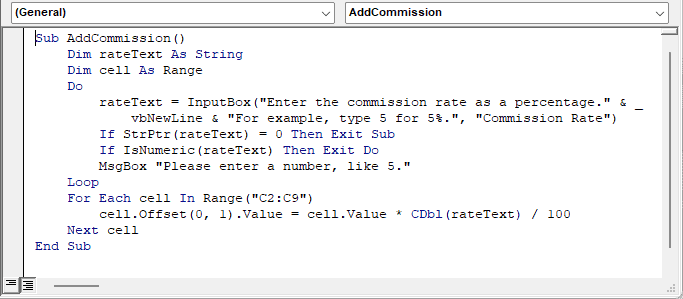
Paste it into a module and run it the same way as in Example #1.
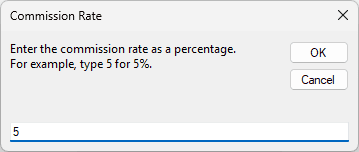
You see the “Commission Rate” dialog with this prompt on two lines:
- “Enter the commission rate as a percentage.”
- “For example, type 5 for 5%.”
Type 5 and click OK to calculate a 5% commission.
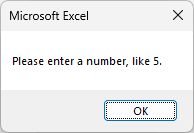
If you enter text, such as “five”, the macro shows “Please enter a number, like 5.” The input box reopens after you close that message.
Click Cancel at any input prompt to stop without changing the worksheet.
With a rate of 5, the macro calculates these commissions in column D:
- Olivia Bennett: $2,425.00
- Marcus Reed: $1,810.00
- Emily Nguyen: $2,637.50
- Daniel Ortiz: $1,470.00
- Hannah Cole: $2,090.00
- Andre Whitaker: $2,765.00
- Grace Turner: $1,695.00
- Samuel Brooks: $2,305.00
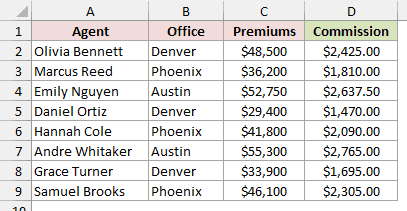
You see dollar amounts because D2:D9 already has a currency number format.
How does this code work?
I use vbNewLine to split the prompt across two lines. Your answer goes into rateText, so even a typed 5 starts as text.
The Do...Loop keeps asking until IsNumeric(rateText) confirms your answer looks like a number. Exit Do then leaves the loop.
I check StrPtr(rateText) = 0 first, so Cancel ends the procedure with Exit Sub instead of asking you again.
CDbl(rateText) converts your text to a number.
You can also enter a decimal rate such as “5.5”, which IsNumeric accepts and CDbl converts (with US-style regional settings).
The For Each loop visits every premiums cell in C2:C9. I multiply its value by your rate, then divide by 100.
Offset(0, 1) moves one column to the right, so the code writes each commission into column D on the same row.
Application.InputBox Method Syntax
Excel has its own input box: the Application.InputBox method. You can ask it to check the input and return a number or cell range instead of text.
Here is the syntax:
Application.InputBox(Prompt, [Title], [Default], [Left], [Top], [HelpFile], [HelpContextID], [Type])You can use these arguments:
- Prompt: The required message, with a maximum of 255 characters.
- Title: The optional title bar text. Leave it out and you see “Input”.
- Default: The optional starting value. You can also supply a Range.
- Left and Top: The optional dialog position, measured in points rather than the VBA function’s twips.
- HelpFile and HelpContextID: An optional Help file and topic number.
- Type: The optional kind of input you’ll accept. Leave it out and you get text.
For Type, you can use these values:
- 0: A formula.
- 1: A number.
- 2: Text.
- 4: A logical value, TRUE or FALSE.
- 8: A cell reference, returned as a Range object.
- 16: An error value, such as #N/A.
- 64: An array of values.
You can add Type values together. For example, Type:=1 + 2 accepts numbers and text.
You get the entered value in the type you requested. On Cancel, the method returns Boolean False, rather than an empty string.
Write Application.InputBox to call Excel’s method. A bare InputBox always calls the VBA function.
Example #5: Accept Only Numbers With Application.InputBox
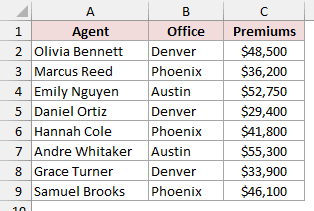
I’ll now let Excel check your number. You have eight insurance agents in A1:C9, with their premiums in column C.
You’ll enter a premium target, and the macro highlights every agent whose premiums meet or exceed it.
You don’t need the Commission column or the Report Month cell here.
Here is the VBA code:
Sub HighlightTopAgents()
    Dim target As Variant
    Dim cell As Range
    target = Application.InputBox("Enter the premium target", _
        "Premium Target", Type:=1)
    If VarType(target) = vbBoolean Then Exit Sub
    For Each cell In Range("C2:C9")
        If cell.Value >= target Then
            cell.Offset(0, -2).Resize(1, 3).Interior.Color = RGB(198, 239, 206)
        End If
    Next cell
End Sub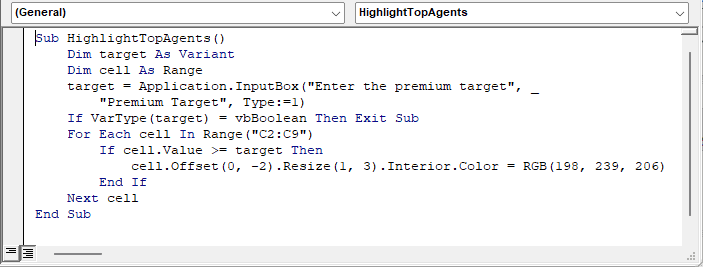
Paste it into a module and run it the same way as in Example #1.
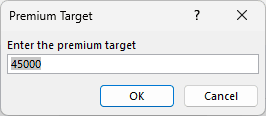
You see “Enter the premium target” in a dialog titled “Premium Target”. It looks slightly different because you’re using Excel’s own input box.
Type 45000 and click OK.
If you type “abc” and click OK, Excel shows “Number is not valid.” Then it returns you to the input box.
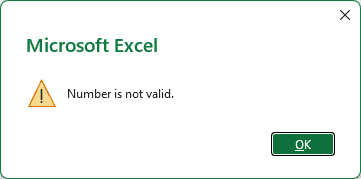
You get that check from Type:=1. You don’t need to write a validation loop to reject text.
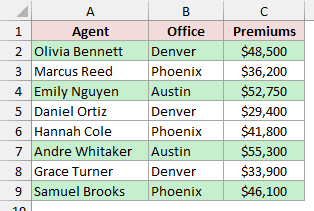
With a target of 45000, the macro applies light green highlighting across A:C for these four agents:
- Olivia Bennett: $48,500
- Emily Nguyen: $52,750
- Andre Whitaker: $55,300
- Samuel Brooks: $46,100
How does this code work?
I declare target as a Variant, because your answer can be a number or Boolean False if you click Cancel.
VarType(target) = vbBoolean checks for that Boolean result. With Type:=1, you only get a Boolean when you cancel, so Exit Sub stops the code.
I loop through C2:C9 and compare each premium with your target. The >= check includes agents whose premiums equal the target.
Offset(0, -2).Resize(1, 3) refers to columns A:C on that agent’s row. I apply light green fill using RGB(198, 239, 206).
Note: Don’t check Cancel with If target = False. In VBA, 0 = False is True, so entering 0 would look like Cancel. VarType avoids that. Enter 0 here and you correctly highlight all eight agents.
Running the macro again with a different target adds highlights without removing the old ones.
For a fresh result, select A2:C9 and choose Home > Fill Color > No Fill before running it again.
Example #6: Let the User Select a Range With Application.InputBox
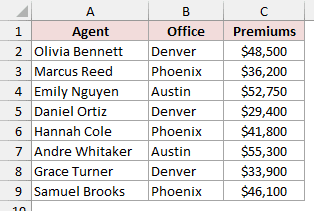
Instead of typing a value, you can select cells while the dialog is open. I’ll total the premiums you select from the eight-agent table in A1:C9.
Your premiums are in C2:C9. You’ll select that range, and the macro displays its total in a message box.
Here is the VBA code:
Sub TotalSelectedPremiums()
    Dim premiumRange As Range
    On Error Resume Next
    Set premiumRange = Application.InputBox("Select the cells you want to total", _
        "Total Premiums", Type:=8)
    On Error GoTo 0
    If premiumRange Is Nothing Then Exit Sub
    MsgBox "Total premiums: " & Format(WorksheetFunction.Sum(premiumRange), "$#,##0")
End Sub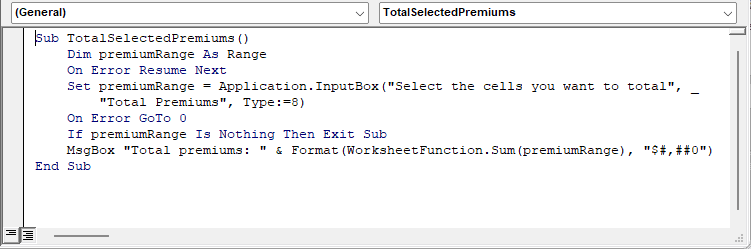
Paste it into a module and run it the same way as in Example #1.
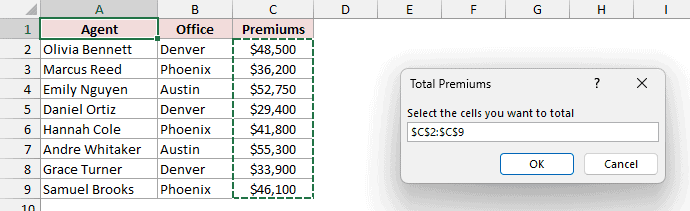
You see “Select the cells you want to total” in the “Total Premiums” dialog. Click and drag across C2:C9 on the worksheet.
Excel fills the box with $C$2:$C$9 and shows a moving dashed border around your selection. You can also type an address, such as C2:C9.
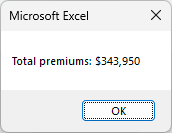
After you click OK, the macro displays “Total premiums: $343,950” in a message box.
How does this code work?
I declare premiumRange as a Range. Type:=8 returns your selected cells as a Range object, so I assign it with Set.
Without Set, VBA tries to assign the cells’ values instead of the Range object. Because premiumRange is declared as a Range, that stops the macro with an error.
On Cancel, Application.InputBox returns False. Trying to assign that with Set raises an “Object required” error.
I put On Error Resume Next immediately before that assignment so execution continues. Your premiumRange variable stays Nothing when you cancel.
On Error GoTo 0 restores normal error handling immediately afterward. If premiumRange Is Nothing Then Exit Sub ends the procedure quietly if you haven’t selected a range.
I use WorksheetFunction.Sum(premiumRange) to add your selected cells. Format(..., "$#,##0") displays the result with a dollar sign and comma separators.
InputBox vs Application.InputBox
You can choose between the two based on the answer you need. Here are the differences that affect your code:
| Feature | InputBox Function | Application.InputBox Method |
|---|---|---|
| How you write it | InputBox(...) | Application.InputBox(...) |
| What it returns | Text (String) | Whatever Type requests: number, text, Boolean, Range, formula, error value, or array |
| When you click Cancel | Empty string "" | Boolean False |
| Checks the input | No. You write the checks. | Yes, with Type. Excel rejects the wrong kind of value. |
| Return the cells you select as a Range | No | Yes, with Type:=8 |
| Default title | Microsoft Excel, the application name | Input |
| Prompt length | About 1,024 characters | 255 characters |
| Position units | Twips for xpos and ypos | Points for Left and Top |
I use the VBA InputBox function for quick text answers. Choose Application.InputBox when you need a number or range and want Excel to check the input.
Additional Notes About Using InputBox in Excel VBA
Keep these details in mind when you add an input box to your own workbook:
- Save as a macro-enabled workbook (.xlsm). Saving in the regular .xlsx format won’t preserve your VBA code.
- Keep text answers short and on one line. The VBA InputBox accepts 255 characters but returns at most 254. Pasted text stops at the first line break.
- Expect your macro to wait. Your code pauses until you click OK or Cancel. The VBA InputBox blocks the worksheet while it’s open. Application.InputBox lets you click cells, and with
Type:=8you get them back as a Range.
Frequently Asked Questions
Here are a few other questions you may have when adding an input box to your VBA code.
How Do I Show an InputBox With a Drop-Down List in Excel VBA?
You can’t add a drop-down list to InputBox. Use a UserForm with a ComboBox when you want to offer a fixed list of choices.
For a worksheet-based choice, you can use a cell with a data validation list and read that cell’s value in your code.
Can an InputBox Hide a Password?
No. You can see every character you type into an InputBox.
Use a UserForm with a TextBox and set its PasswordChar property to * to display asterisks instead of the characters you enter.
How Do I Use InputBox to Get a Date?
Your answer comes back as text. Check it with IsDate before you treat it as a date.
If the check passes, convert your answer with CDate, then write the converted value into the cell. Otherwise, ask for a valid date again.
IsDate and CDate read dates using your Windows regional settings, so 03/04/2026 can mean March 4 or April 3.
How Do I Change Where the InputBox Appears on Screen?
For the VBA function, use xpos and ypos to position your dialog in twips from the screen’s left and top edges. There are 1,440 twips per inch.
For Application.InputBox, use Left and Top, measured in points. There are 72 points per inch, so don’t reuse the same numbers between the two versions.
Conclusion
In this article, I showed you how to use the VBA InputBox function and Application.InputBox to collect text, numbers, and ranges, and handle Cancel safely.
I hope you found this article helpful.
Other Excel articles you may also like:
