
Calculating the area under a curve in Excel turns a series of measurements into a total, such as the volume pumped from flow readings.
The calculation depends on what you have. Measured points need an assumption about the gaps between them. A known equation can sometimes be integrated exactly.
I’ll show you how to use trapezoids with unevenly spaced data, handle a curve that crosses zero, and calculate an exact area from a quadratic equation.
Method #1: Applying the Trapezoidal Rule (Recommended)
I recommend starting with helper columns when you have measured x and y values. They make each interval’s contribution easy to check.
On the Sampled Data sheet, A2:A11 contains elapsed minutes and B2:B11 contains a pump’s flow rate in liters per minute.
The readings run from 0 to 30 minutes. We want the total volume pumped, so the area will be in liters.
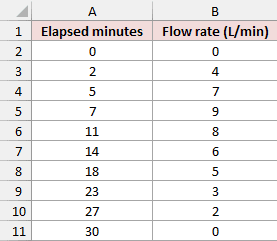
The times are already in ascending order, but the gaps aren’t equal. We’ll calculate each gap separately.
For your own data, sort the complete x/y records together. Check that both columns are numeric, with no missing values or duplicate x values.
Calculate Each Interval’s Width
Add Interval (min) in C1. Enter this formula in C3, then fill it down through C11:
=A3-A2
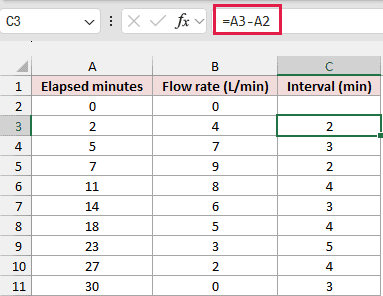
The first interval is 2 minutes. The next is 3 minutes, because the second pair of readings is at 2 and 5 minutes.
Leave C2 blank. The first observation has no preceding interval.
Calculate the Volume in Each Interval
Add Volume (L) in D1. Enter this formula in D3, then fill it down through D11:
=C3*(B2+B3)/2
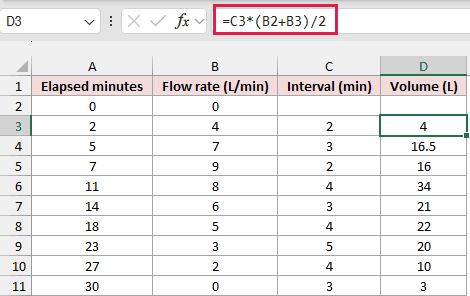
This multiplies the interval’s width by the average of its two endpoint flow rates. The first interval contributes 2 × (0 + 4) ÷ 2 = 4 liters.
Geometrically, that’s a trapezoid. Adding these shapes is the trapezoidal rule.
We’re assuming the flow changes along a straight line between readings. The result is exact for those joined lines, but generally approximate for the actual flow.
These helper formulas stay per row so you can inspect each interval before adding the results.
Add the Interval Volumes
Enter this formula in B14, beside Trapezoid total:
=SUM(D3:D11)
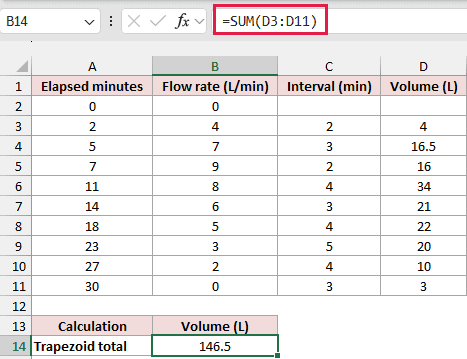
The total is 146.5 liters. The SUM function adds the nine interval volumes in column D.
Use a Single SUMPRODUCT Formula
You can perform the same trapezoid calculation without helper columns. In B15, enter:
=SUMPRODUCT((A3:A11-A2:A10)*(B3:B11+B2:B10)/2)
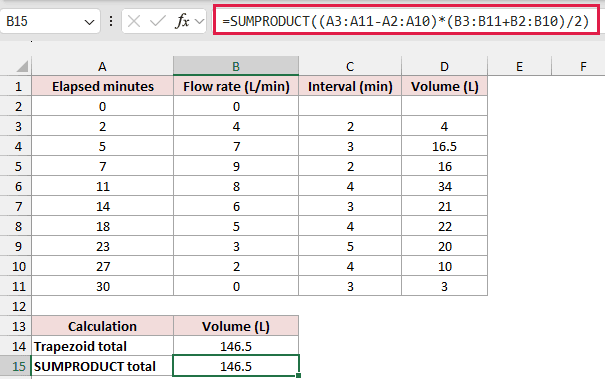
This also returns 146.5 liters. It’s a shorter implementation of the same method, so it doesn’t provide a more accurate estimate.
How does this formula work?
A3:A11-A2:A10calculates the nine interval widths.(B3:B11+B2:B10)/2calculates each pair’s average height.- Multiplying them calculates the interval volumes, which SUMPRODUCT adds into one result.
The paired ranges contain equal numbers of cells, as required by SUMPRODUCT. You don’t need Ctrl+Shift+Enter.
Calculate the Area Between Two Readings
Suppose you only want the volume from 5 to 23 minutes. Both limits are existing readings, so we can add the intervals between them.
Enter this formula in B16:
=SUM(D5:D9)
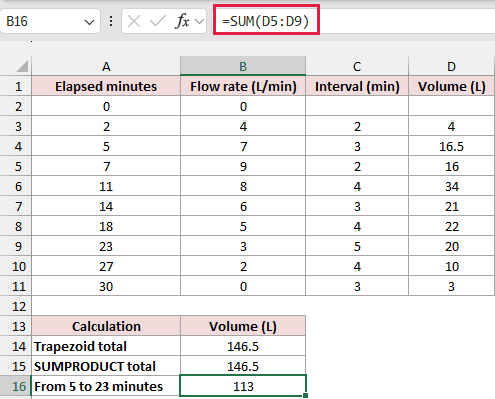
The result is 113 liters. D5 covers 5 to 7 minutes, and D9 covers 18 to 23 minutes.
The interval volume belongs to its ending row. Including D4 would also include the interval from 2 to 5 minutes.
If a limit falls between readings, interpolate a boundary point along that segment first. Then include only the portion inside your limits.
Don’t extend this calculation beyond the observed time range without a separate assumption about what happens outside it.
Handle a Curve That Crosses Zero
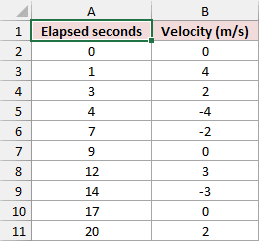
The Crossing Zero sheet contains elapsed seconds in A2:A11 and velocity in meters per second in B2:B11.
Some velocities are negative. We can calculate either net displacement or total distance, but those require different treatment below zero.
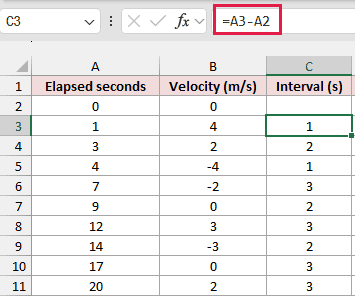
First, add Interval (s) in C1. Enter this formula in C3, then fill it down through C11:
=A3-A2
For signed area, add Signed area (m) in D1. Enter this formula in D3, then fill it down through D11:
=C3*(B2+B3)/2
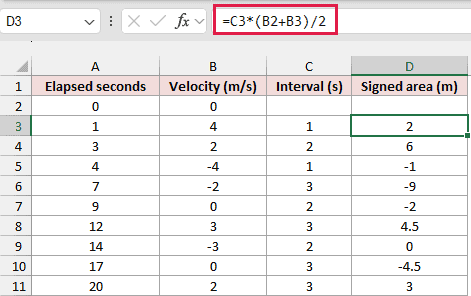
Negative contributions subtract from positive ones. For example, D6 is -9 meters, because velocity stays below zero throughout that interval.
Enter this formula in B14 to calculate net displacement:
=SUM(D3:D11)
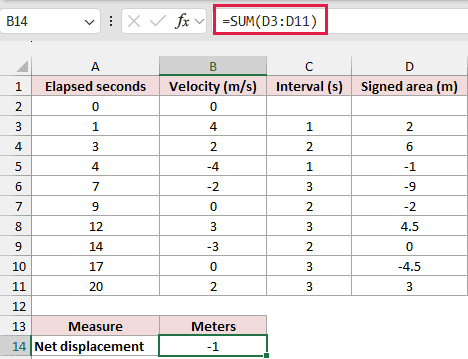
The result is -1 meter. The object finishes one meter in the negative direction from where it started.
For total distance, all contributions must be positive. A segment crossing zero needs to be split into two triangles at its crossing point.
Add Geometric area (m) in E1. Enter this formula in E3, then fill it down through E11:
=IF(B2*B3<0,C3*(B2^2+B3^2)/(2*(ABS(B2)+ABS(B3))),C3*(ABS(B2)+ABS(B3))/2)
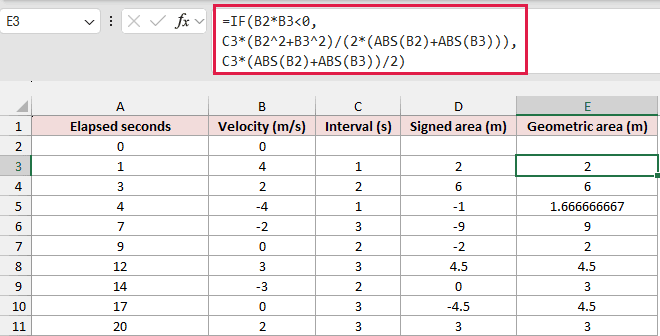
How does this formula work?
The IF function tests whether the endpoint velocities have opposite signs. Their product is negative only when one is positive and the other negative.
When signs differ, the first calculation adds the two triangle areas. It follows from splitting the straight segment where its interpolated velocity is zero.
Otherwise, the second calculation uses the usual trapezoid formula with positive endpoint magnitudes. ABS returns those magnitudes without their signs.
An endpoint already equal to zero follows this second branch, which correctly calculates a triangle.
Enter this formula in B15 to add the geometric areas:
=SUM(E3:E11)
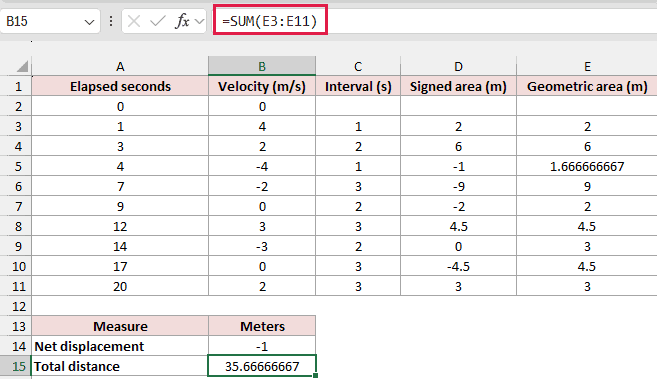
Total distance is approximately 35.6667 meters, compared with the signed displacement of -1 meter.
Don’t take the absolute value of each signed trapezoid instead. Between 12 and 14 seconds, its signed area is zero, but the two triangles total 3 meters.
You can also check the between-reading crossings directly. Enter this formula in B18:
=A4+(A5-A4)*ABS(B4)/(ABS(B4)+ABS(B5))
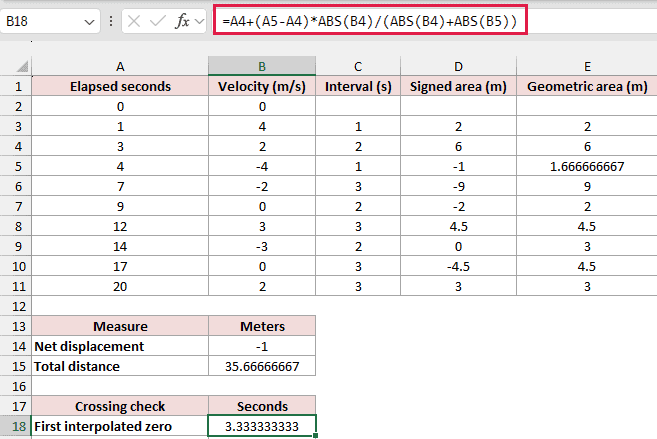
The first interpolated crossing is approximately 3.3333 seconds, between the readings at 3 and 4 seconds.
Enter this formula in B19 for the other crossing:
=A8+(A9-A8)*ABS(B8)/(ABS(B8)+ABS(B9))
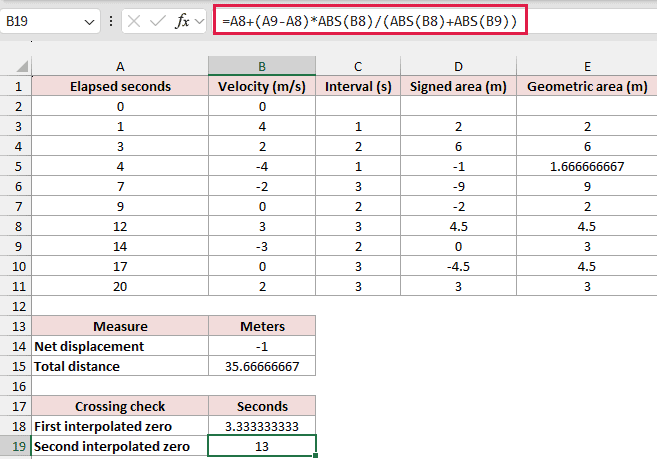
This returns 13 seconds, halfway between velocities of 3 and -3 at 12 and 14 seconds.
Note: Replacing negative velocities with positive ones before applying ordinary trapezoids also overstates distance when a segment crosses zero. Split at the crossing first.
Method #2: Integrating a Known Polynomial
If you know the original equation, you can sometimes calculate its area directly instead of estimating it from samples.
On Known Quadratic, cells B2:B4 contain the coefficients 2, 3, and 1. They describe the equation y = 2x² + 3x + 1.
The lower bound in B5 is 0, and the upper bound in B6 is 4. We want the area over that interval.
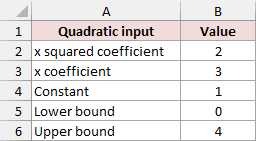
The antiderivative is (2/3)x³ + (3/2)x² + x. We evaluate it at the upper bound and subtract its value at the lower bound.
This is the fundamental theorem of calculus, applied to the known polynomial.
Enter the following formula in B9:
=B2/3*(B6^3-B5^3)+B3/2*(B6^2-B5^2)+B4*(B6-B5)
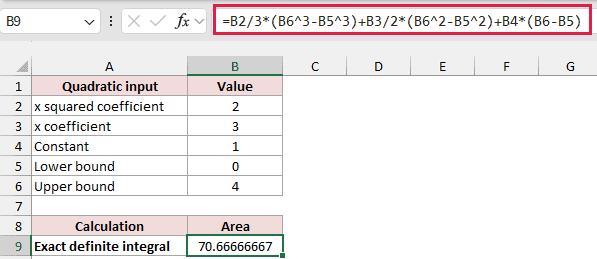
The result is approximately 70.6667 square units. The exact mathematical value is 212/3; Excel displays a decimal approximation.
Each term handles one part of the polynomial. The squared term becomes a cubic term divided by 3, and the linear term becomes squared, divided by 2.
The constant contributes its value multiplied by the interval width. This curve stays positive from 0 to 4, so its signed and geometric areas match.
This formula applies to a quadratic with the coefficient layout shown. Other equations need their own antiderivatives.
Note: Integrating a fitted trendline calculates area under that fitted model. It doesn’t make the area under an unknown measured process exact.
Additional Notes About Area Under a Curve in Excel
Keep these checks in mind when you use your own measurements:
- Match your units. Minutes multiplied by liters per minute returns liters; seconds multiplied by meters per second returns meters.
- Keep full precision in the formulas. Round the displayed result rather than rounding every interval before adding it.
- Missing observations leave the behavior between readings unknown. A longer straight segment may miss changes that occurred inside that gap.
Frequently Asked Questions
These questions come up when you’re adapting the calculations to another dataset.
Do I Need a Chart to Calculate Area Under a Curve?
No. The calculation uses the source numbers. Shading an area chart changes its appearance; it doesn’t calculate the area from your x/y observations.
Can I Use Dates or Times as the x Values?
Yes, if Excel recognizes them as numeric dates or times. Excel time differences are measured in days, so convert the interval to match your y-axis units.
Will More Measurements Always Make the Estimate Exact?
No. More readings can capture changes that sparse readings miss, but accuracy also depends on measurement quality and how the curve behaves between observations.
Conclusion
I’ve shown how to calculate area from sampled points and from a known quadratic. For measured data, I’d start with the visible trapezoid calculations.
I hope you found this article helpful.
Other Excel articles you may also like:
