
To graph an equation in Excel, calculate its y values for a set of x values, then plot those pairs on an XY Scatter chart.
You can start with only an equation. Excel still needs the calculated points to draw the graph, so typing an equation into a chart title won’t create a curve.
I’ll show you how to generate the points with SEQUENCE or the fill handle, then turn a quadratic equation into a graph.
Method #1: Using the SEQUENCE Function
I recommend this approach if you have Microsoft 365, Excel 2024, or Excel 2021. The SEQUENCE function generates the x values automatically.
The example equation is y = x² – 2x – 3. We’ll use x values from -3 to 5, increasing by 1.
Below are the x values I’ve chosen. Each one will have a matching y value after we calculate the equation.
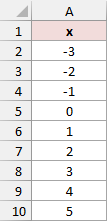
The completed example is on the Dynamic Array sheet in the workbook. To build it yourself, use a blank worksheet and follow these steps:
- Type x in A1. Enter this formula in A2, then press Enter.
=SEQUENCE(9,1,-3,1)
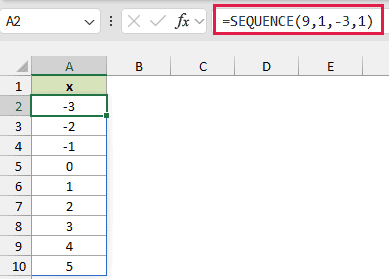
The formula returns nine rows in one column. It starts at -3 and adds 1 each time, filling A2:A10 automatically.
- Type y in B1. Enter this formula in B2, then press Enter.
=A2#^2-2*A2#-3
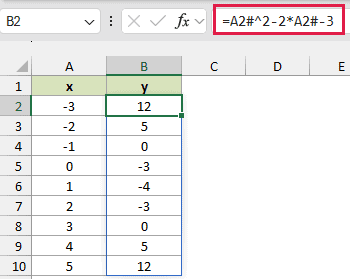
How does this formula work?
The A2# reference means the entire range spilled by the formula in A2. Excel applies the equation to every x value and spills the answers into B2:B10.
The caret ^ raises each x value to a power. The asterisk * multiplies it by 2 before Excel subtracts 3.
For example, when x is -3, the result is 9 + 6 – 3 = 12. When x is 1, the result is -4.
Note: Keep A3:A10 and B3:B10 empty before entering the formulas. A blocked output area can cause a #SPILL! error. Enter these formulas in ordinary worksheet cells, outside an Excel Table.
Here’s how to plot those values:
- Select A1:B10, including both column headers.
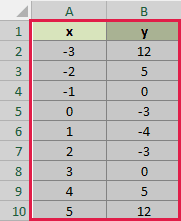
- On the Insert tab, open Insert Scatter (X, Y) or Bubble Chart. Choose Scatter with Straight Lines and Markers.
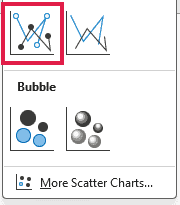
This scatter chart uses column A for the horizontal x values and column B for the vertical y values.
- Click the chart title and replace it with y = x^2 – 2x – 3.
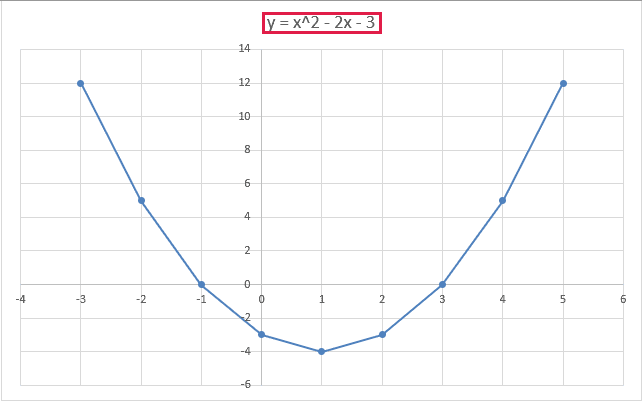
The graph dips to (1, -4) and crosses the horizontal axis at x = -1 and x = 3.
The lines connect the calculated points. With this small dataset, you can see the straight segments between markers rather than an exact continuous parabola.
If you need a closer picture of the curve, generate more x values with a smaller increment. Expand the chart’s source range to include the additional rows.
For example, 33 points spaced 0.25 apart cover the same interval from -3 to 5. Change SEQUENCE’s row count and step together to keep the endpoint you want.
Method #2: Using the Fill Handle
If your Excel version doesn’t have SEQUENCE, the fill handle creates the same plotting points. This also works in current desktop versions.
We’ll graph y = x² – 2x – 3 again, using x values from -3 to 5. The first two x values establish the pattern.
Below I have x in A1, -3 in A2, and -2 in A3. Column B will hold the calculated y values.
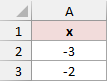
The workbook’s Fill Down sheet contains the finished example. On a blank worksheet, enter the starting values above, then follow these steps:
- Select A2:A3. Drag the small square at the selection’s bottom-right corner down to A10.
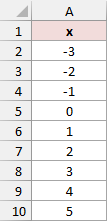
Excel continues the series with -1, 0, 1, 2, 3, 4, and 5. Selecting both starting cells tells it to increase by 1.
- Type y in B1. Enter this formula in B2, then press Enter.
=A2^2-2*A2-3
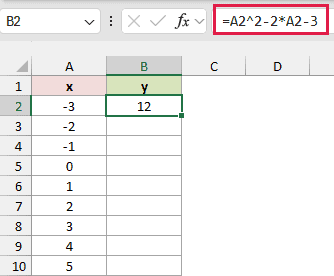
This calculates y for the x value in A2, returning 12. We’re using a per-row formula here so the method works without dynamic arrays.
- Select B2 and drag its fill handle down to B10.
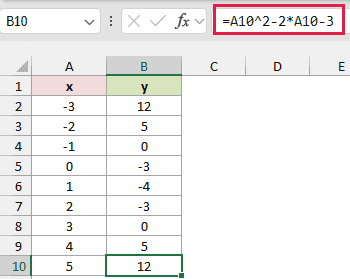
The relative references change as you copy the formula. B3 uses A3, B4 uses A4, and the final formula uses A10.
You should now have these plotting points:
| x | y |
|---|---|
| -3 | 12 |
| -2 | 5 |
| -1 | 0 |
| 0 | -3 |
| 1 | -4 |
| 2 | -3 |
| 3 | 0 |
| 4 | 5 |
| 5 | 12 |
- Select A1:B10, including the x and y headers.
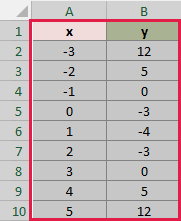
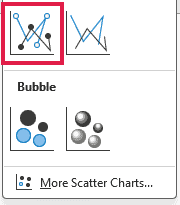
- Choose Insert > Insert Scatter (X, Y) or Bubble Chart > Scatter with Straight Lines and Markers.
Your negative x values should appear along the horizontal axis. If the chart shows row numbers instead, check its data selection.
- Replace the chart title with y = x^2 – 2x – 3.
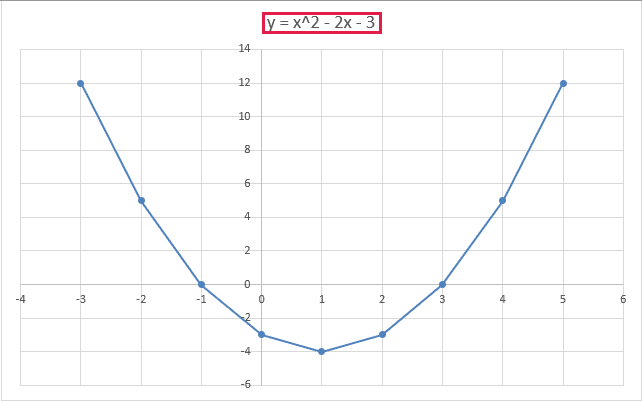
The graph matches Method #1 because both methods calculate the same x/y pairs.
Note: To graph another equation, replace the expression in B2 and fill it down again. For a straight line such as y = 3x + 2, multiply each row’s x value by 3 and add 2.
Additional Notes About Graphing Equations in Excel
If the graph looks wrong, check these points:
- Use XY Scatter for numeric x values. An ordinary Line chart uses a category axis, so unequal gaps between x values may appear equally spaced.
- Keep x values in ascending order. Connecting lines follow the data order. Unsorted x values can make the graph double back.
- Check the equation’s allowed inputs. A denominator can’t be zero, and some functions have restricted inputs. Calculate separate branches or intervals when the graph has a break.
- Match the chart range to the points. A chart created from A1:B10 doesn’t automatically include every extra row you later calculate. Check its source range after adding points.
The ribbon paths above are for Excel on Windows. On Mac, use Insert > X Y Scatter, then choose the matching scatter subtype.
Frequently Asked Questions
Here are a few other questions that come up when graphing equations.
Can I Plot Two Equations on the Same Chart?
Yes. Use one x column and a separate calculated y column for each equation. Select the x column and both y columns when creating the scatter chart.
Does Insert Equation Create a Graph?
No. The Equation editor displays mathematical notation. It doesn’t calculate y values or supply chart data.
Do I Need a Trendline to Plot an Equation?
No. A trendline estimates a relationship from existing points. When you already know the equation, calculate its points directly and graph them.
Conclusion
I’ve shown you how to turn an equation into x/y points and plot them in Excel. I recommend SEQUENCE when your version supports it.
I hope you found this article helpful.
Other Excel articles you may also like:
