
If Show Changes is greyed out in Excel, start by checking where the workbook is saved. Then check your Excel edition and file format.
An empty Changes pane needs a different check from a disabled button. I’ll cover both, along with the distinction between Show Changes and legacy Track Changes.
Open the Review tab and look for Show Changes. This is the modern feature discussed here, and Microsoft documents this route to the Changes pane.
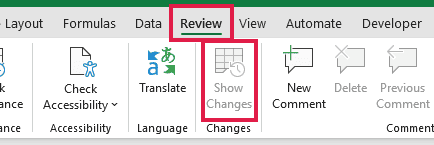
Use this quick checklist to choose your starting point:
| What You Find | What to Check Next |
|---|---|
| The file is on your computer, Dropbox, or a network drive | Workbook location |
| The cloud location is correct | Excel edition and updates |
| The workbook uses an older or unsupported format | File format |
Method #1: Checking the Workbook Location
Start here because the workbook’s storage location determines whether it can use Microsoft’s coauthoring setup.
Follow these steps to inspect the file you currently have open:
- Click File.
- Select Info.
- Inspect the workbook’s location or path. Check the actual folder or service, rather than relying on the filename.
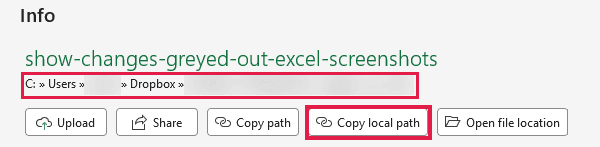
Microsoft lists OneDrive, OneDrive for Business, and SharePoint Online as supported coauthoring locations.
An ordinary local folder, network shared drive, or Dropbox folder is not equivalent to those Microsoft cloud locations.
If your organization permits storing this workbook in an approved Microsoft cloud location, use these steps:
- Choose File > Save As, or Save a Copy if that is the available command.
- Select your approved OneDrive or SharePoint Online destination.
- Save the workbook there.
- Open that cloud workbook and check Review > Show Changes again.
If the original already lives in the cloud, open it from its cloud link. An emailed attachment or downloaded copy may be a separate local file.
You can track your own supported changes. You do not need to invite another person just to use Show Changes.
AutoSave helps keep cloud edits synced. Turning it on does not make an unsupported storage location eligible, and uploading a workbook does not recreate earlier local edits.
Method #2: Checking the Excel Version
Once the location checks out, look at the Excel product opening the workbook.
For desktop recording, Microsoft lists the latest Excel for Microsoft 365. Its supported apps also include Excel for the web and mobile.
Older or one-time-purchase Excel editions do not record modern Show Changes history. Check Microsoft’s supported-app guidance for apps that support it.
On Windows, check your account and installation as follows:
- Click File > Account.
- Confirm you’re signed in to your Microsoft 365 account. Windows desktop coauthoring requires sign-in.
- Read the product name under Product Information.
- Select About Excel to see the version and build.
- If Update Options is available, select Update Options > Update Now.
- After any required restart, reopen the cloud workbook and check the button again.
Microsoft’s Office version instructions explain where to find the product and version details.
If your workplace manages updates, contact IT when update controls are unavailable. Updating a one-time-purchase edition does not add Microsoft 365 subscription features.
On a Mac, use Excel > About Microsoft Excel for version details. Use Help > Check for Updates when available.
If you’re already authorized to access an existing OneDrive or SharePoint Online workbook, compare the same file in Excel for the web:
- Open that same existing workbook in Excel for the web.
- Select Review > Show Changes.
If Show Changes works there but not on desktop, that helps narrow the problem to the desktop client.
Method #3: Checking the File Format
With location and version checked, inspect the workbook’s format before converting anything.
Microsoft’s coauthoring guidance supports .xlsx, .xlsm, and .xlsb. Older .xls files, CSV files, and Strict Open XML Spreadsheet files are not supported coauthoring workbook formats.
Save a backup first, then check the available format:
- Click File > Save As, or Save a Copy.
- Choose an approved destination.
- Inspect Save as type. For an ordinary workbook without VBA, choose Excel Workbook (*.xlsx).
- If the workbook contains VBA, preserve it with Excel Macro-Enabled Workbook (*.xlsm).
- Save, reopen the saved workbook, and check Review > Show Changes.

Microsoft’s file-format reference confirms that .xlsx cannot preserve VBA code. Do not choose it for a macro workbook you need to keep intact.
A supported format addresses compatibility. Conversion does not restore missing history, so keep your backup until you have checked the saved workbook.
The Changes Pane Opens but Is Empty
If the pane opens, the button is working. Now check what history is available and whether the pane’s scope hides it.
Show Changes displays recent supported edits, including changes to values or formulas and moving, sorting, inserting, or deleting ranges.
Formatting, shapes, charts, PivotTable operations, hiding, and filtering are excluded. An empty pane after those actions does not establish that tracking is broken.
Check the display before making another edit:
- Open the pane through Review > Show Changes to view the whole workbook.
- Remove any sheet or range filters limiting the displayed history.
- Select See New Changes if that option appears.
For a practical check, use an existing permitted cloud test workbook. Make a disposable cell edit there, then reopen Show Changes. Avoid changing production cells just to test.
Edits through older or one-time-purchase Excel versions can go untracked and clear the pane. Saving copies, uploading or replacing files, and unsupported coauthoring operations can also clear it.
For an available version-history fallback, choose File > Info > Version History and preview a version. Discuss the effect on other contributors before restoring anything.
Additional Notes About Show Changes in Excel
Modern Show Changes and legacy Track Changes are separate features.
Adding Track Changes (Legacy) to the Quick Access Toolbar does not enable Show Changes. Removing Excel tables is not a repair for the modern feature either.
If your issue concerns the legacy sharing command, see Unshare Workbook Greyed Out in Excel.
Do not use Reset Changes as a repair. It clears the Changes pane for everyone and cannot be undone.
Frequently Asked Questions
These answers cover a few common points of confusion when checking the feature.
Can I Use Show Changes Without Sharing With Someone Else?
Yes. Your own supported edits can appear. You still need a supported app, workbook format, and Microsoft cloud location.
Will Uploading My Local Workbook Show Its Earlier Changes?
Do not expect earlier local edits to appear retrospectively. After saving to an approved cloud location, check new supported edits separately.
Is AutoSave Enough to Enable Show Changes?
No. Check the workbook’s location, Excel edition, and format together. AutoSave alone does not resolve those compatibility requirements.
Conclusion
I’d check the workbook location first, then the Excel version and file format. If the pane opens, I’d check its scope and the type of edits made.
I hope you found this article helpful.
