
Sometimes you may find that the Unshare Workbook button is grayed out, so you cannot stop sharing the workbook in the usual way.
In a current Microsoft 365 build, that usually means the file is not a legacy shared workbook. Check the title bar for “Shared” first.
Cloud sharing works differently. If the file sits on OneDrive or SharePoint, you remove access through the Share button instead.
How Unshare Workbook Normally Works
Before we get into the reasons the button is grayed out, let’s see what it does when it works. Then you’ll know what a shared workbook looks like.
On a legacy shared file, the title bar includes the word Shared, like this:
Budget.xlsx · Shared · Saved to this PC
Look at the Protect group too. Unshare Workbook is live, while Protect Sheet, Protect Workbook, and Allow Edit Ranges are gray.
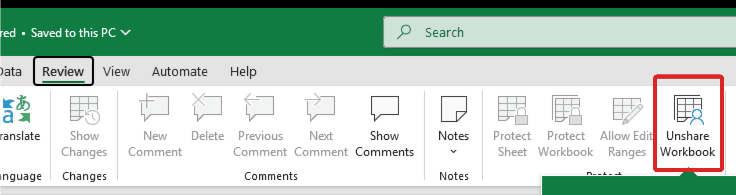
Note: Unsharing removes the legacy change history and can discard another user’s unsaved edits. Ask everyone to save and close the file first.
With the file open, click Unshare Workbook on the Review tab.
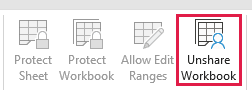
Excel unshares the file straight away. The word Shared disappears from the title bar, and the button turns gray again.
If your button is gray or missing instead, one of the four reasons below explains why.
Reason #1: The Workbook Isn’t Actually Shared
This is the most common case, and the simplest. The file was never shared with the legacy feature, so Excel has nothing to unshare.
You can spot it at a glance. Unshare Workbook is gray, while Protect Sheet, Protect Workbook, and Allow Edit Ranges are all available.
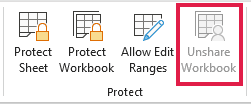
How to Fix It
There is nothing to fix here, because nothing is broken. One quick check confirms it.
- Look at the title bar. If it does not include the word Shared, the file was never legacy-shared.
- Leave the button alone. A gray Unshare Workbook on a normal file is expected, not an error.
If the title bar does say Shared, the button will be live. Use the steps in the section above to unshare it.
Reason #2: The File Is Shared Through OneDrive or SharePoint
If the title bar does not say Shared but other people are editing alongside you, the file is shared through the cloud instead.
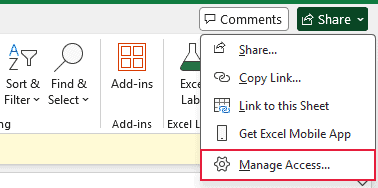
The giveaway is the Share button at the top right, next to Comments. A cloud file shows it, and the title bar never says Shared.
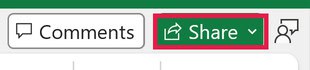
The legacy Unshare Workbook button stays gray because this file was never shared through the legacy feature. Remove access through the cloud controls instead.
How to Fix It
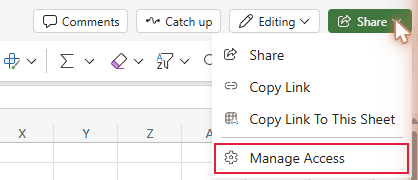
- Click Share in the top-right corner, then click Manage Access…
- Use the People, Groups / family, and Links tabs to remove anyone who should no longer have access, and turn off sharing links you no longer need.
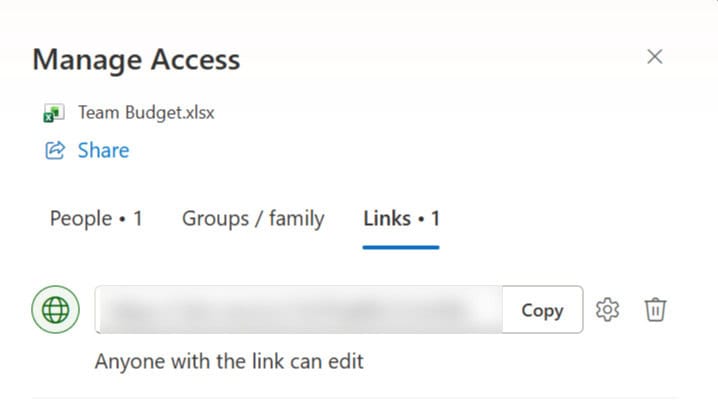
Access to the cloud file is removed for those people and links. The legacy Unshare Workbook button does not change, and it does not need to.
Just want your own copy? Go to File > Save a Copy, choose a local folder, and save the workbook there.
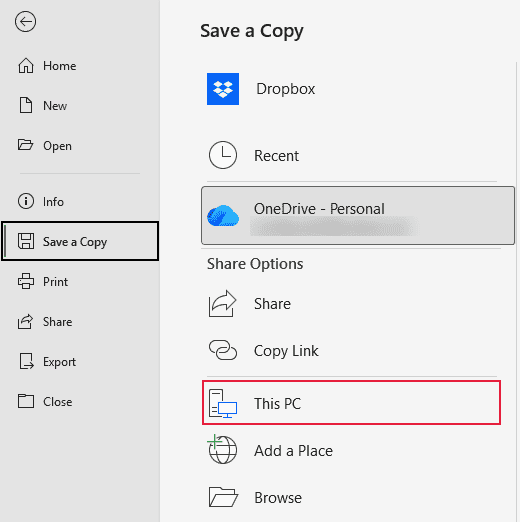
The local copy is separate from the shared cloud file, and AutoSave is off. This does not remove anyone’s access to the original.
Reason #3: Your Excel Version Doesn’t Show the Button
If there is no Unshare Workbook button on the Review tab at all, your Excel build still uses the older legacy command.
Microsoft has moved this feature around over the years. Some builds hide it completely, so there is no button there to click.
The older command opens a dialog with the checkbox that turns legacy sharing on and off.
How to Fix It
- Go to File > Options > Quick Access Toolbar. Under Choose commands from, select All Commands, select Share Workbook (Legacy), click Add, and then click OK.
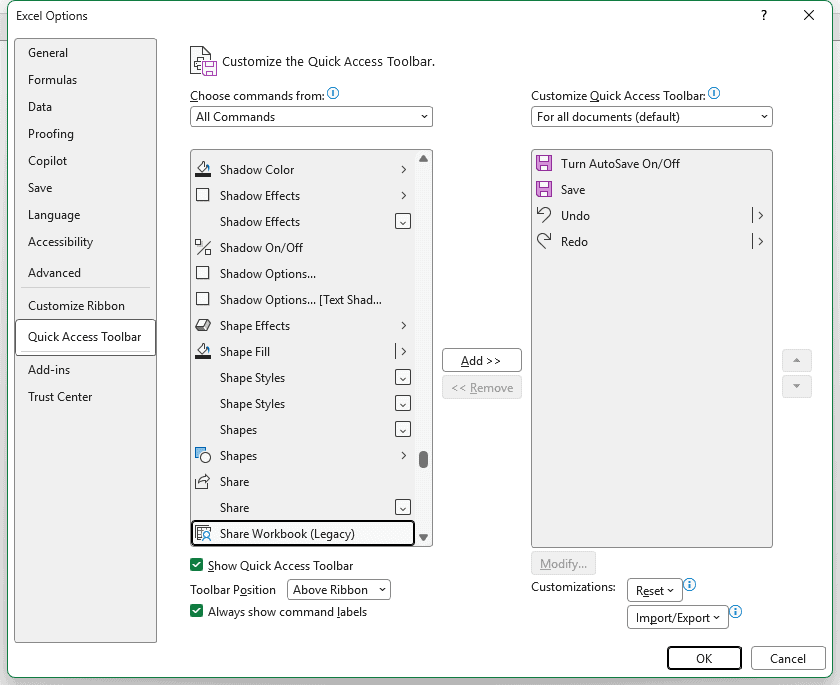
On a Mac, the comparable customization path starts at Excel > Preferences > Ribbon & Toolbar.
- Click Share Workbook (Legacy) on the Quick Access Toolbar. In the Share Workbook dialog, open the Editing tab.
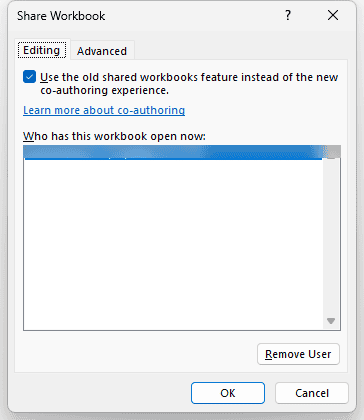
The checkbox at the top is the one that controls legacy sharing. Below it, “Who has this workbook open now:” lists everyone currently in the file.
In some older Excel versions, a grayed-out checkbox means sharing is password-protected, so use Review > Unprotect Shared Workbook with the password first.
- Clear the checkbox labeled “Use the old shared workbooks feature instead of the new co-authoring experience.” Then click OK. Older versions call this “Allow changes by more than one user at the same time. This also allows workbook merging.”
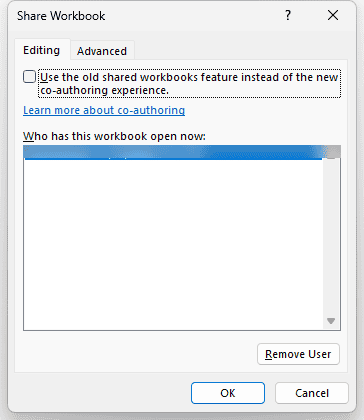
Clicking OK turns off legacy sharing right away and returns the file to a regular workbook.
Reason #4: You’re Using Excel for the Web
Excel for the web does not support legacy shared workbooks.
The desktop Unshare Workbook and Share Workbook (Legacy) controls are not available in a browser.
The browser Review tab has Comment, Changes and History, Spelling, Accessibility, Performance, Protection, and Notes. None of them unshare a legacy file.

How to Fix It
Your route depends on how the file was shared in the first place.
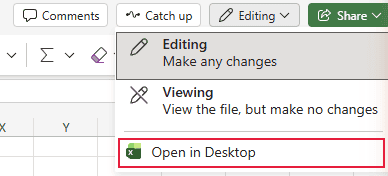
- For a legacy shared file, choose Editing > Open in Desktop, then follow the desktop steps above.
- For a cloud-shared file, open Share > Manage Access in the browser and adjust the people or links that can access it.
A legacy file is handled in desktop Excel, while a co-authored file keeps using its browser-based access controls.
Additional Notes About Unsharing a Workbook in Excel
- In the older Share Workbook dialog, the same checkbox turns legacy sharing on and off. Checked means shared, and unchecked means unshared.
- A workbook containing an Excel Table cannot be legacy-shared in the first place. That causes a “can’t share” problem, not an unshare problem.
- Microsoft has retired legacy sharing in favor of co-authoring. New shared work should normally use OneDrive or SharePoint.
Frequently Asked Questions
How Do I Unshare a Workbook in Excel 365?
If the title bar says Shared, use Review > Unshare Workbook. If it is a OneDrive or SharePoint file, use Share > Manage Access… instead.
Why Is Share Workbook Not Showing in Excel?
Some Excel builds hide the retired legacy command. Add Share Workbook (Legacy) through File > Options > Quick Access Toolbar > All Commands.
Does Unsharing an Excel Workbook Delete Changes?
It deletes the legacy change history and may discard other users’ unsaved changes. Have everyone save and close the workbook before unsharing it.
What’s the Difference Between Share Workbook and Co-Authoring?
Share Workbook is the older legacy feature that tracks merged edits. Co-authoring lets people edit a OneDrive or SharePoint file together in real time.
Quick Reference: Which Fix Do You Need?
Here is the short version, so you can match what you see on screen to the right fix.
| What you see | Why it happens | Go to |
|---|---|---|
| The Unshare Workbook button is there but grayed out, and the title bar does not say Shared | The file is not legacy-shared | Reason #1 |
| A Share button and other people’s initials appear at the top right | The file uses OneDrive or SharePoint co-authoring | Reason #2 |
| There is no Unshare Workbook button on the Review tab | Your Excel build uses the older legacy command | Reason #3 |
| The workbook is open in a browser | Excel for the web does not support legacy shared workbooks | Reason #4 |
Conclusion
Start with the title bar. If it says Shared, the button is live and one click unshares the file.
If it does not say Shared, the gray button is normal. Work out which of the four reasons matches what you see, then use that fix.
Other Excel articles you may also like:
