
Excel’s VBA Format function turns a number, date, or string into text you can use in a report label, message, or export.
For example, you can turn 1234.567 into 1,234.57. The result looks like a number, but it’s text, which matters when you write it to a worksheet.
In this article, I’ll show you how Format compares with NumberFormat, then use it for decimal places, date labels, and formatted text strings.
VBA Format Function Syntax
The Format function syntax has one required argument and three optional arguments:
Format(Expression, [Format], [FirstDayOfWeek], [FirstWeekOfYear])
Expression is the value to format. Format is a named format, such as Currency, or a custom pattern, such as 0.00.
The last two arguments set the first day of the week and the first week of the year. The examples below use the first two arguments.
You write the function inside VBA code. For the examples here, the formatted result is text, even when the input is numeric.
Comparing Format With NumberFormat
NumberFormat is the Excel property that changes how a cell displays its value. The number underneath stays a number.
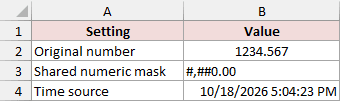
On the Compare sheet, the original number is 1234.567 in B6, and the shared format code is #,##0.00 in B7.
The same sheet has October 18, 2026, at 17:04:23 in B8. I’ll use it to compare time codes as well.
Below is the complete example code. It includes the comparison and the three example groups that follow.
The PutText helper sets the destination cell to Text before writing the result. That keeps outputs such as 000327 as text in Excel.
Option Explicit

'SpreadsheetPlanet / Steve Scott. Paste into a standard module in the example workbook.
'Run RebuildFormatResults to rebuild the saved results on all four sheets.
Public Sub RebuildFormatResults()
    CompareFormatWithNumberFormat
    FormatNumbers
    FormatDatesAndTimes
    FormatStrings
    ThisWorkbook.Worksheets("Compare").Calculate
    ThisWorkbook.Worksheets("Strings").Calculate
End Sub

Private Sub PutText(ByVal target As Range, ByVal value As String)
    target.NumberFormat = "@"
    target.Value2 = value
    target.HorizontalAlignment = xlLeft
End Sub

Public Sub CompareFormatWithNumberFormat()
    Dim ws As Worksheet, sourceNumber As Double, stamp As Date
    Set ws = ThisWorkbook.Worksheets("Compare")
    sourceNumber = CDbl(ws.Range("B6").Value2)
    stamp = CDate(ws.Range("B8").Value2)
    PutText ws.Range("B2"), VBA.Format(sourceNumber, CStr(ws.Range("B7").Value2))
    ws.Range("B3").Value2 = sourceNumber
    ws.Range("B3").NumberFormat = CStr(ws.Range("B7").Value2)
    ws.Range("C2").Formula = "=ISTEXT(B2)"
    ws.Range("C3").Formula = "=ISTEXT(B3)"
    ws.Range("B9").Formula = "=B3"
    ws.Range("B9").NumberFormat = "0.000"
    PutText ws.Range("C12"), VBA.Format(stamp, CStr(ws.Range("B12").Value2))
    ws.Range("C13").Value2 = CDbl(stamp)
    ws.Range("C13").NumberFormat = CStr(ws.Range("B13").Value2)
End Sub

Public Sub FormatNumbers()
    Dim ws As Worksheet, rowNumber As Long
    Set ws = ThisWorkbook.Worksheets("Numbers")
    For rowNumber = 2 To 10
        PutText ws.Cells(rowNumber, 4), VBA.Format(ws.Cells(rowNumber, 2).Value2, CStr(ws.Cells(rowNumber, 3).Value2))
    Next rowNumber
End Sub

Public Sub FormatDatesAndTimes()
    Dim ws As Worksheet, rowNumber As Long, sourceDate As Date
    Set ws = ThisWorkbook.Worksheets("Dates and Times")
    For rowNumber = 2 To 8
        sourceDate = CDate(ws.Cells(rowNumber, 2).Value2)
        PutText ws.Cells(rowNumber, 4), VBA.Format(sourceDate, CStr(ws.Cells(rowNumber, 3).Value2))
    Next rowNumber
End Sub

Public Sub FormatStrings()
    Dim ws As Worksheet, rowNumber As Long
    Set ws = ThisWorkbook.Worksheets("Strings")
    For rowNumber = 2 To 7
        PutText ws.Cells(rowNumber, 4), VBA.Format(CStr(ws.Cells(rowNumber, 2).Value2), CStr(ws.Cells(rowNumber, 3).Value2))
        ws.Cells(rowNumber, 5).Formula = "=LEN(D" & CStr(rowNumber) & ")"
    Next rowNumber
End SubThe download has every result already saved, so you can read the examples straight away. To watch the code rebuild them, paste it into your own copy.
Follow these steps in desktop Excel for Windows:
- Open VBA Format Function – SpreadsheetPlanet.xlsx. If Excel shows a yellow Protected View bar, click Enable Editing.
- Press Alt + F11, then choose Insert > Module.
- Copy the code from the box above and paste it into the module.
- Return to Excel, press Alt + F8, select RebuildFormatResults, and click Run.
Keep the sheet names Compare, Numbers, Dates and Times, and Strings. The code reads them through ThisWorkbook, so paste it into this workbook, not a new one.
Want to keep the macro? Save the file as an Excel Macro-Enabled Workbook (.xlsm).
Running RebuildFormatResults rebuilds all four example groups. You can also run the individual public macros, such as CompareFormatWithNumberFormat, from the Macros dialog.
Here are the completed comparison results:
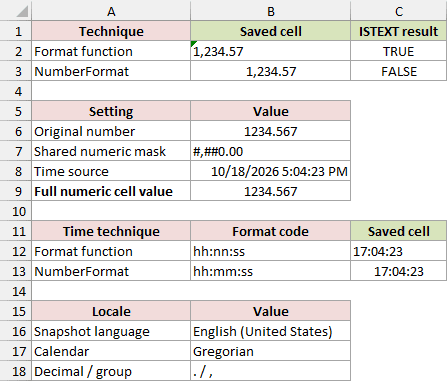
Both B2 and B3 display 1,234.57, but their stored values differ:
| Cell | Operation | Stored Value | ISTEXT |
|---|---|---|---|
| B2 | Format | Text: 1,234.57 | TRUE |
| B3 | NumberFormat | Number: 1234.567 | FALSE |
C2 uses =ISTEXT(B2), while C3 uses =ISTEXT(B3). These checks show that matching displays don’t guarantee matching data types.
B9 references B3 with =B3 and displays three decimal places. You can see the retained value, 1234.567, there.
Use Format when you need a text label. Use NumberFormat when your worksheet cell should keep its numeric value for calculations.
The time comparison returns 17:04:23 with VBA’s hh:nn:ss. The NumberFormat example displays the same time using hh:mm:ss.
Microsoft’s NumberFormat documentation confirms that its format codes differ from VBA Format codes. Don’t assume the same pattern works everywhere.
Formatting Numbers
The Numbers sheet contains report amounts, reference IDs, and variances. Inputs are in B2:B10, format codes are in C2:C10, and text results go into D2:D10.
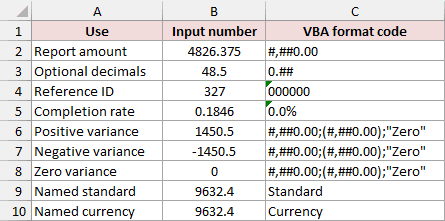
Run FormatNumbers to rebuild this group. Its loop passes each input and format code to VBA.Format, then writes the result with PutText.
The completed sheet shows all nine results:
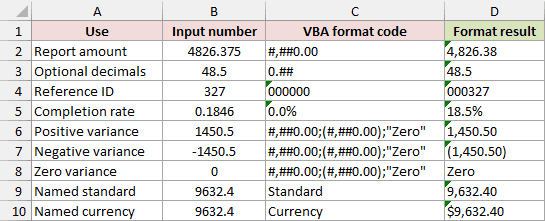
These are the saved inputs, codes, and outputs:
| Input | Format Code | Text Result |
|---|---|---|
| 4826.375 | #,##0.00 | 4,826.38 |
| 48.5 | 0.## | 48.5 |
| 327 | 000000 | 000327 |
| 0.1846 | 0.0% | 18.5% |
| 1450.5 | #,##0.00;(#,##0.00);"Zero" | 1,450.50 |
| -1450.5 | #,##0.00;(#,##0.00);"Zero" | (1,450.50) |
| 0 | #,##0.00;(#,##0.00);"Zero" | Zero |
| 9632.4 | Standard | 9,632.40 |
| 9632.4 | Currency | $9,632.40 |
In the report amount, .00 produces two decimal places. The result rounds 4826.375 to 4,826.38; it doesn’t change the source value in B2.
The 0.## pattern allows up to two decimal places. For 48.5, it returns 48.5 without adding another zero.
For the reference ID, six zeros produce 000327 from 327. The percentage pattern turns the fraction 0.1846 into 18.5%.
The variance pattern has three sections separated by semicolons. They apply to positive numbers, negative numbers, and zero, respectively.
That’s why the same code produces 1,450.50, (1,450.50), and Zero across three rows. The quoted word is literal text in the worksheet’s code cell.
The macro reads that code from the cell, so you don’t need to add VBA string-escaping quotes around it. If you type a code with quoted text inside VBA yourself, double each quote (""Zero"") or escape the characters with backslashes.
Note: These saved results use English (United States) settings and the Gregorian calendar. Currency symbols, decimal and grouping separators, date names, and AM/PM can differ with your system settings.
Standard and Currency are named formats. The saved Currency result uses $, but rerunning it on another locale can produce a different symbol.
Formatting Dates and Times
The Dates and Times sheet uses October 18, 2026. Its time examples use 17:04:23 on that date, with format codes in C2:C8.
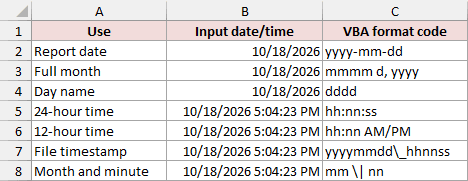
Run FormatDatesAndTimes to rebuild D2:D8. The code converts each saved input to a VBA Date before passing it to Format.
Here are the date and time labels it returns:
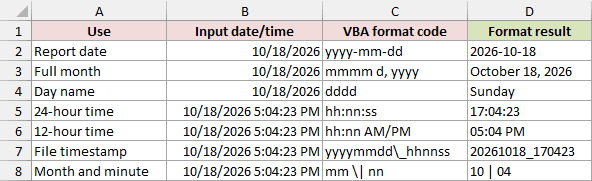
The first three examples use the date alone. The remaining examples use the complete date and time.
| Use | Format Code | Text Result |
|---|---|---|
| Report date | yyyy-mm-dd | 2026-10-18 |
| Full month | mmmm d, yyyy | October 18, 2026 |
| Day name | dddd | Sunday |
| 24-hour time | hh:nn:ss | 17:04:23 |
| 12-hour time | hh:nn AM/PM | 05:04 PM |
| File timestamp | yyyymmdd\_hhnnss | 20261018_170423 |
| Month and minute | mm \| nn | 10 | 04 |
The last row makes the month and minute difference visible. mm returns 10 for October, while nn returns 04 for the minute.
I use nn for minutes in VBA to make the intention clear. VBA also treats m or mm as minutes when they follow h or hh.
The backslash makes the next character literal. In the timestamp pattern, \_ inserts the underscore between the date and time.
In mm \| nn, the escaped vertical bar separates the month from the minute. It appears in the output as 10 | 04.
The 12-hour example includes AM/PM, so 17 hours becomes 05 with PM. These results are text labels; the source date/time cells remain available separately.
Formatting Strings
The Strings sheet contains branch names, export labels, and character IDs in B2:B7. The codes in C2:C7 control case, punctuation, and spaces.
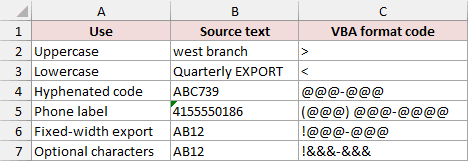
Run FormatStrings to rebuild D2:D7 and the LEN formulas in E2:E7. The code converts each source cell to a string before applying its format.
The length column helps you spot spaces that are hard to see in the result cells:
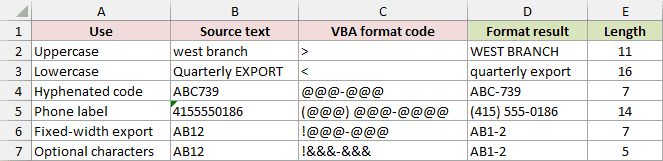
All six examples are shown below. In the fixed-width row, each · represents one trailing space for visibility; the workbook contains actual spaces.
| Source Text | Format Code | Text Result | LEN |
|---|---|---|---|
| west branch | > | WEST BRANCH | 11 |
| Quarterly EXPORT | < | quarterly export | 16 |
| ABC739 | @@@-@@@ | ABC-739 | 7 |
| 4155550186 | (@@@) @@@-@@@@ | (415) 555-0186 | 14 |
| AB12 | !@@@-@@@ | AB1-2·· | 7 |
| AB12 | !&&&-&&& | AB1-2 | 5 |
The > pattern converts the branch name to uppercase. The < pattern converts the export label to lowercase.
An @ placeholder uses a source character or a space. An & placeholder uses a source character or nothing when that position has no character.
Placeholders normally fill from right to left. The ! at the start of the last two patterns changes that to left to right.
With !@@@-@@@, the four source characters fill the pattern as AB1-2, followed by two spaces. The hyphen contributes one character too.
E6 contains =LEN(D6) and returns 7. E7 contains =LEN(D7) and returns 5, because the & version adds no padding spaces.
Neither of these two examples truncates AB12. Both retain its four source characters and add a hyphen; the difference is the two padding spaces.
Additional Notes About VBA Format in Excel
Keep these points in mind when adapting the examples:
- Keep the original inputs in separate cells if you need them for later calculations. The Format outputs in this workbook are saved text snapshots.
- Validate missing values,
Empty, andNulldeliberately before formatting. Decide what your report should display instead of relying on implicit conversion. - Use desktop Excel for Windows to run the code. You can read the saved results without running anything.
- The code and saved results were checked in Windows desktop Excel. Mac execution hasn’t been tested for this download.
Frequently Asked Questions
These questions cover a few details outside the worked examples.
Can I Use Format Without a Format Code?
Yes. The format argument is optional. Microsoft documents Format(23) returning the string 23; supply a pattern when you need a particular display.
Can I Type =Format Into a Worksheet Cell?
No. Format only works in VBA. Use it in a macro or VBA procedure; the code above writes its results into worksheet cells.
In a worksheet formula, use the TEXT function instead. It uses worksheet format codes, so some codes differ. For example, TEXT has no nn for minutes.
Does Format Limit My Number to the Number of Zeros in the Pattern?
No. Extra digits to the left of the decimal separator are retained. A zero pattern sets digit placeholders; it doesn’t impose a maximum number of integer digits.
Is There a Limit to the Format Pattern Length?
Yes. Microsoft documents that Format truncates the format argument to 257 characters. That limit concerns the pattern, rather than a fixed output length.
Conclusion
I’ve shown how Format creates text labels from numbers, dates, and strings. The NumberFormat comparison also shows why matching displays can hide different stored values.
I hope you found this article helpful.
Other Excel articles you may also like: