
Excel VBA doesn’t have a Try Catch block. If you want a macro to respond to a runtime error, use an On Error statement to send execution to a handler or check the error immediately.
The handler can report what failed, restore an Excel setting, or pass the error to the procedure that called it. Continuing after a failure is a separate decision. Skipping a line doesn’t make its result valid.
I’ll show you how to use a labeled handler, check a single optional operation, and add a shared cleanup path. The examples also cover different error numbers and errors that happen more than once.
Running the VBA Examples
These examples use local variables and an in-memory collection, so you can run them in a new blank workbook. You don’t need a sample download. Use desktop Excel; Excel for the web can’t create, edit, or run VBA macros.
Here are the setup steps for Excel on Windows:
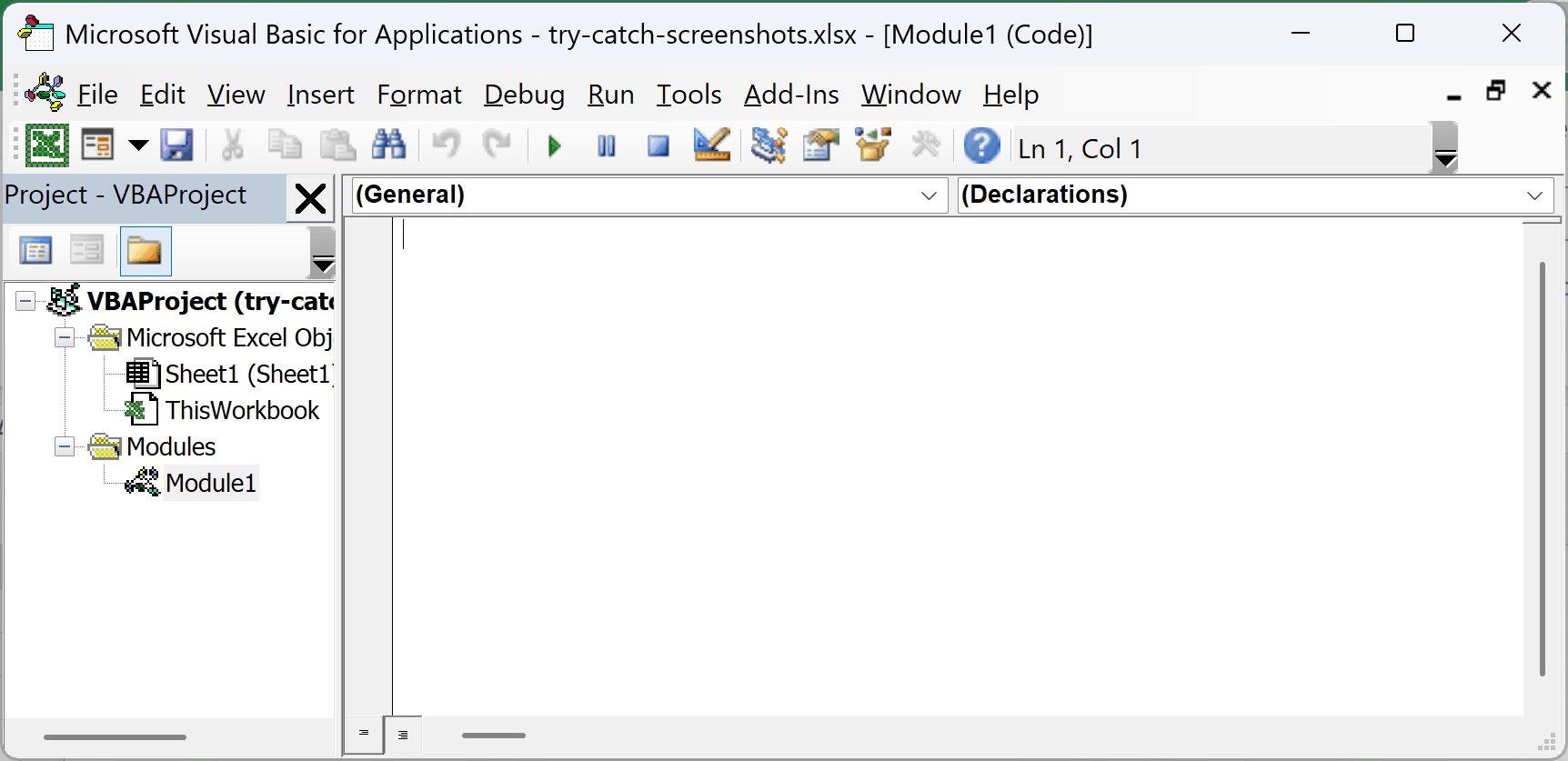
- Open the VBA editor with Alt + F11, then choose Insert > Module.
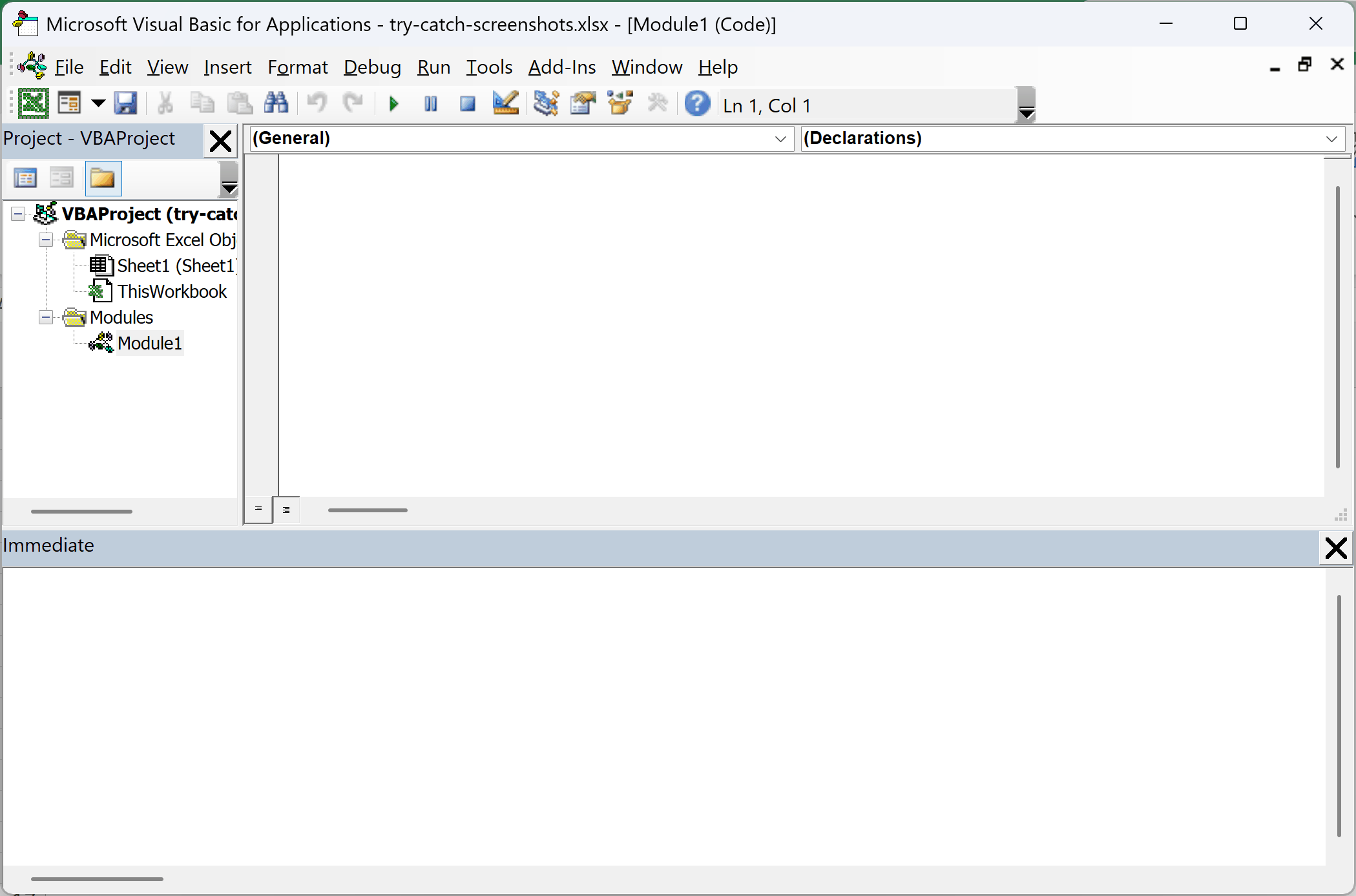
- Choose View > Immediate Window. This window displays the
Debug.Printoutput used below.
Paste each complete example into its own new standard module. Click inside its named public Sub and press F5 to run it. Keep both procedures in the cleanup example together in one module.
Each example starts with Option Explicit. If Excel already added that line to an empty module, keep only one copy at the top. Save your workbook as .xlsm if you want to retain the macros.
Method #1: Using On Error GoTo
I recommend a labeled handler when a failure should stop the normal work in a procedure. The following example deliberately raises an error, then prints its number and message in the Immediate Window.
The Err.Raise line is a demonstration failure. In your own procedure, the code doing the actual work goes between On Error GoTo CatchError and the normal Exit Sub.
Option Explicit

Public Sub SP_LabelHandlerDemo()
    Const DEMO_FAIL As Boolean = True

    On Error GoTo CatchError

    Debug.Print "Try: started"
    If DEMO_FAIL Then
        Err.Raise vbObjectError + 513, "SP_LabelHandlerDemo", _
                  "Demonstration failure."
    End If
    Debug.Print "Try: completed"
    Exit Sub

CatchError:
    Debug.Print "Catch: " & CStr(Err.Number)
    Debug.Print "Source: " & Err.Source
    Debug.Print "Message: " & Err.Description
End Sub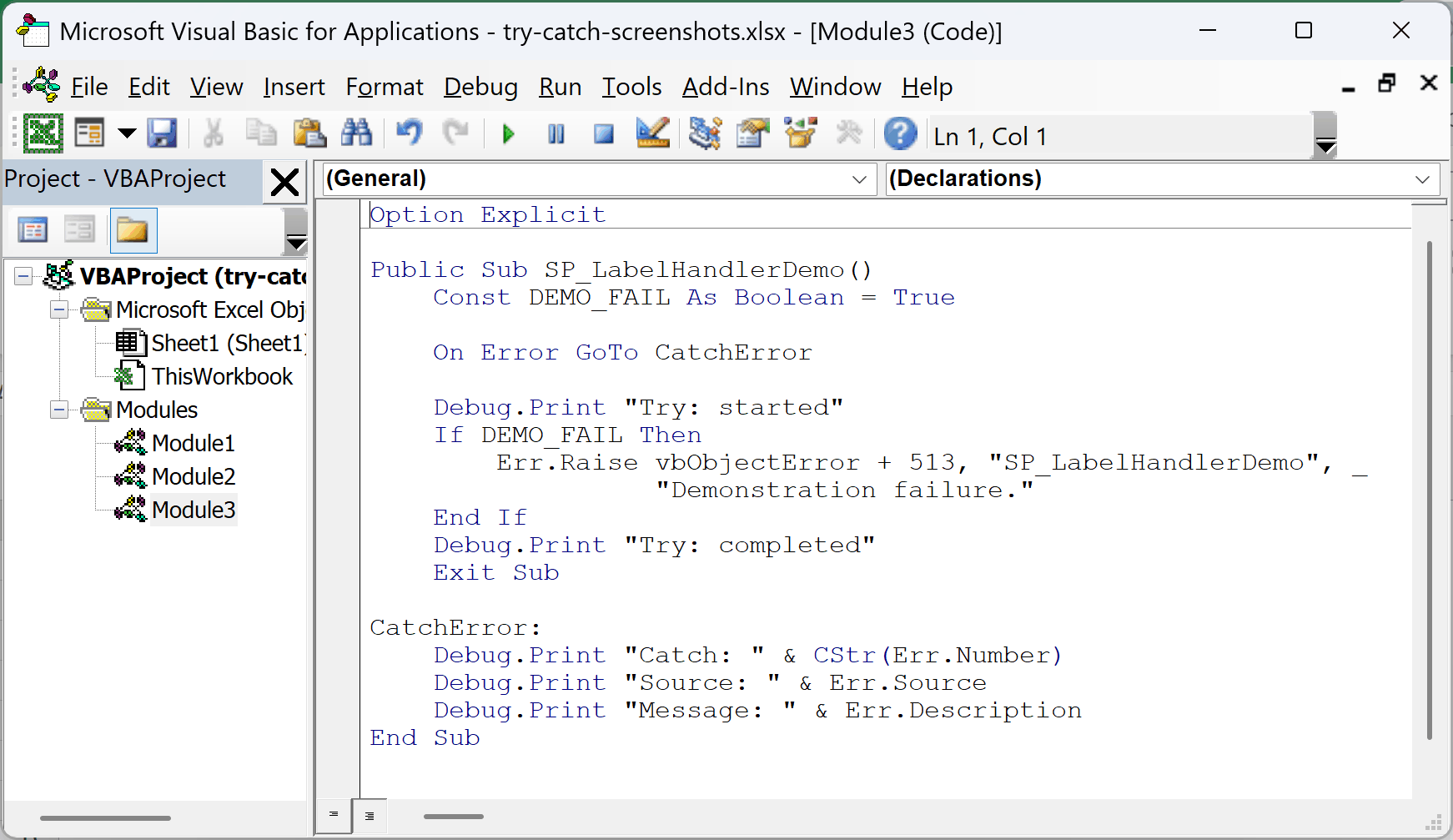
Run SP_LabelHandlerDemo with DEMO_FAIL set to True. The Immediate Window shows:
Try: started
Catch: -2147220991
Source: SP_LabelHandlerDemo
Message: Demonstration failure.
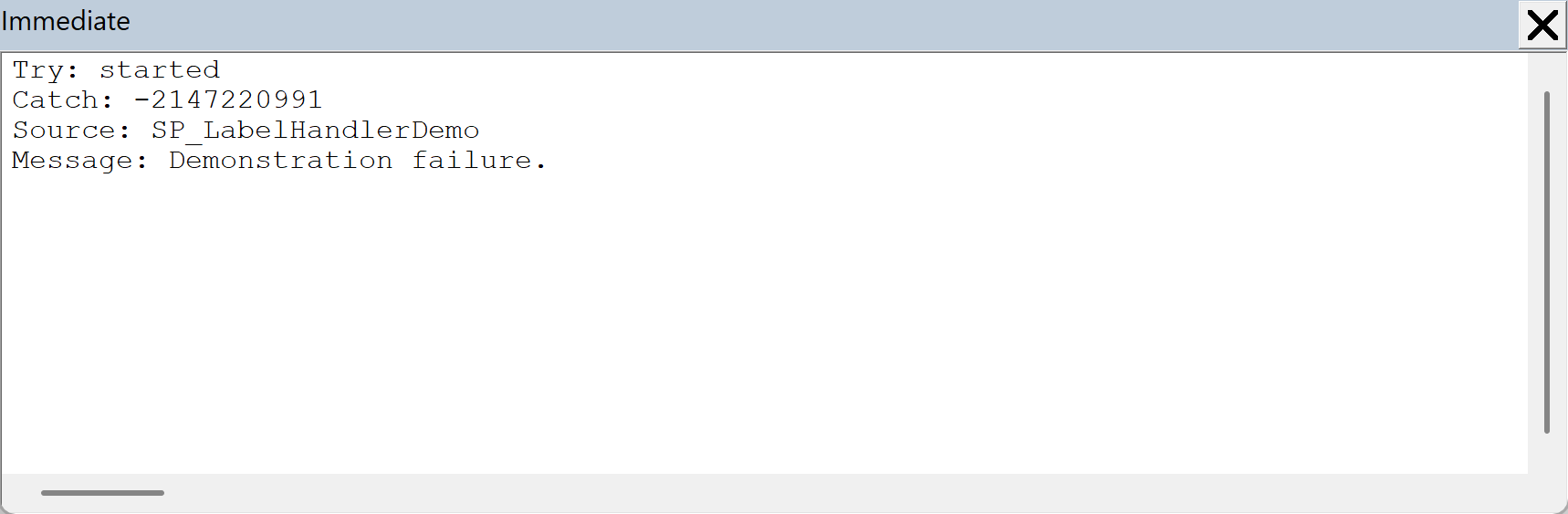
The line after Err.Raise doesn’t run. VBA transfers execution to CatchError:, where Err.Number, Err.Source, and Err.Description describe the failure. This example reports the error and finishes the procedure.
The number is negative because the example adds 513 to vbObjectError, whose value is -2147221504. This gives the demonstration its own error number, -2147220991.
To check the successful path, change Const DEMO_FAIL As Boolean = True to Const DEMO_FAIL As Boolean = False.
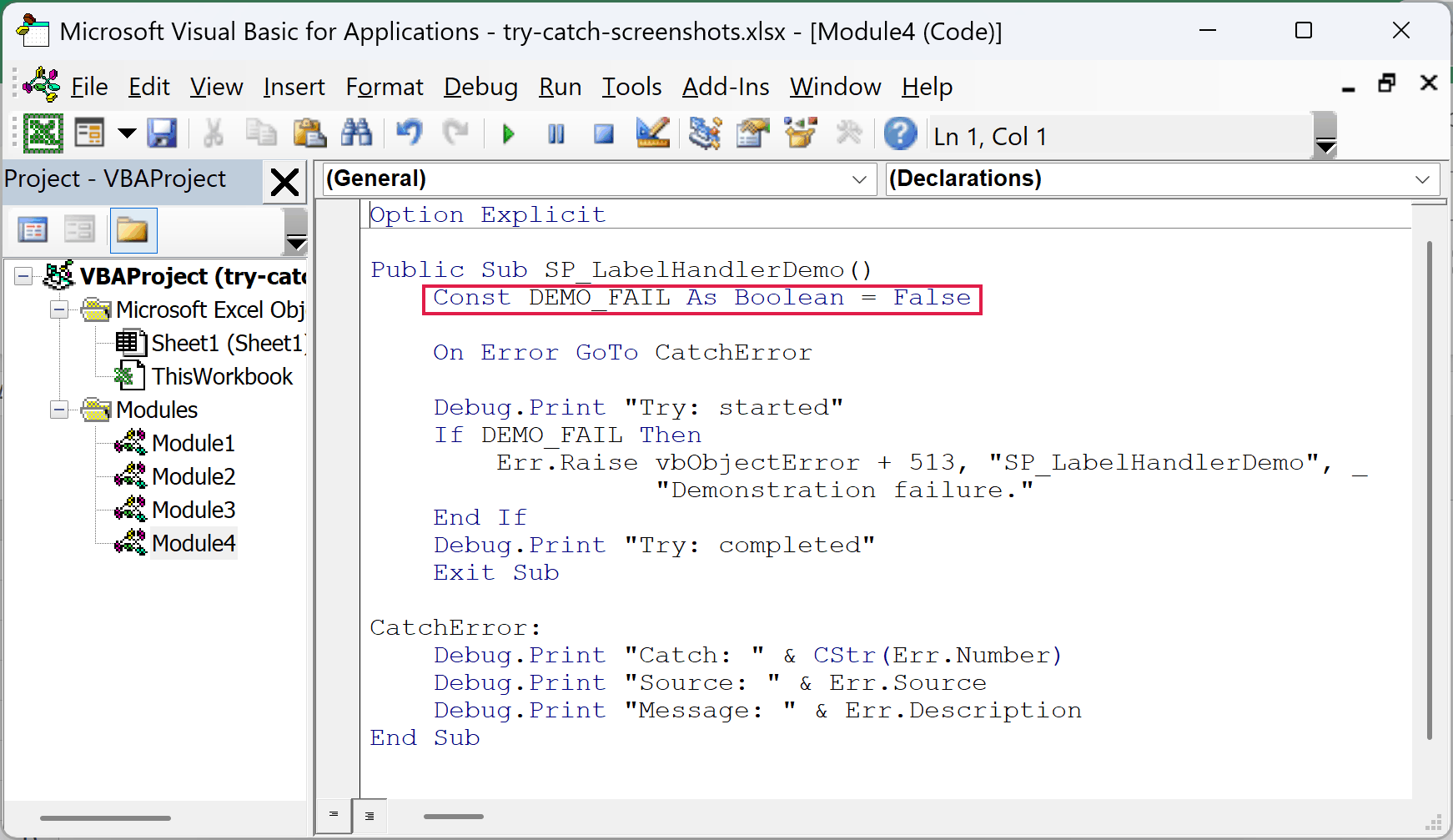
Run the same procedure again. It now prints:
Try: started
Try: completed
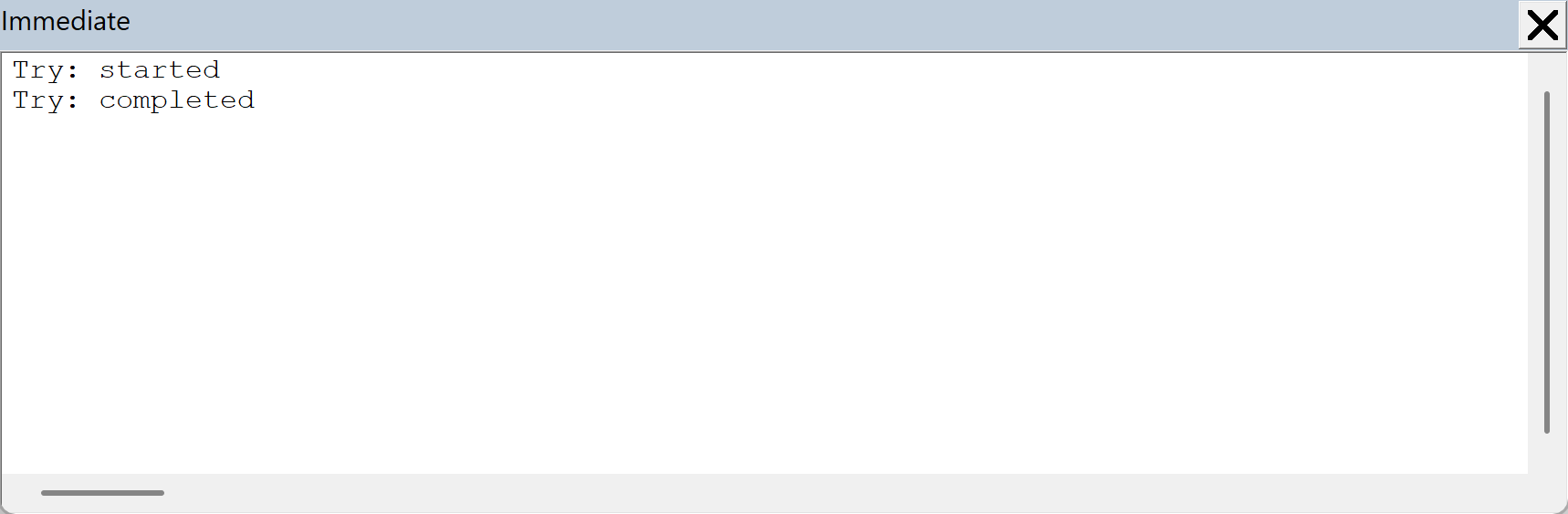
The normal Exit Sub stops execution before the handler label. Without an exit or another deliberate jump around the handler, VBA would reach that code even when no error occurred.
Note: The handler label must be in the same procedure as its On Error statement. A label in another Sub isn’t a valid destination.
Method #2: Checking Err After On Error Resume Next
For an optional lookup, you can check whether it worked before continuing. This example tries to read a report title from an in-memory Collection. If that optional key is missing, it uses a default title.
On Error Resume Next lets execution continue after the lookup fails. The code immediately saves the error details, turns off local suppression, and decides whether the failure is the one it expected.
Option Explicit

Public Sub SP_InlineCheckDemo()
    Const INCLUDE_TITLE As Boolean = False
    Dim reportOptions As Collection
    Dim titleValue As Variant
    Dim reportTitle As String
    Dim lookupNumber As Long
    Dim lookupSource As String
    Dim lookupDescription As String
    Dim lookupHelpFile As String
    Dim lookupHelpContext As Long

    Set reportOptions = New Collection
    If INCLUDE_TITLE Then
        reportOptions.Add "Weekly summary", "title"
    End If

    On Error Resume Next
    titleValue = reportOptions.Item("title")
    lookupNumber = Err.Number
    lookupSource = Err.Source
    lookupDescription = Err.Description
    lookupHelpFile = Err.HelpFile
    lookupHelpContext = Err.HelpContext
    On Error GoTo 0

    Select Case lookupNumber
        Case 0
            reportTitle = CStr(titleValue)
        Case 5
            reportTitle = "Untitled report"
            Debug.Print "Optional title not found; using the default."
        Case Else
            Err.Raise lookupNumber, lookupSource, lookupDescription, _
                      lookupHelpFile, lookupHelpContext
    End Select

    Debug.Print "Title: " & reportTitle
End Sub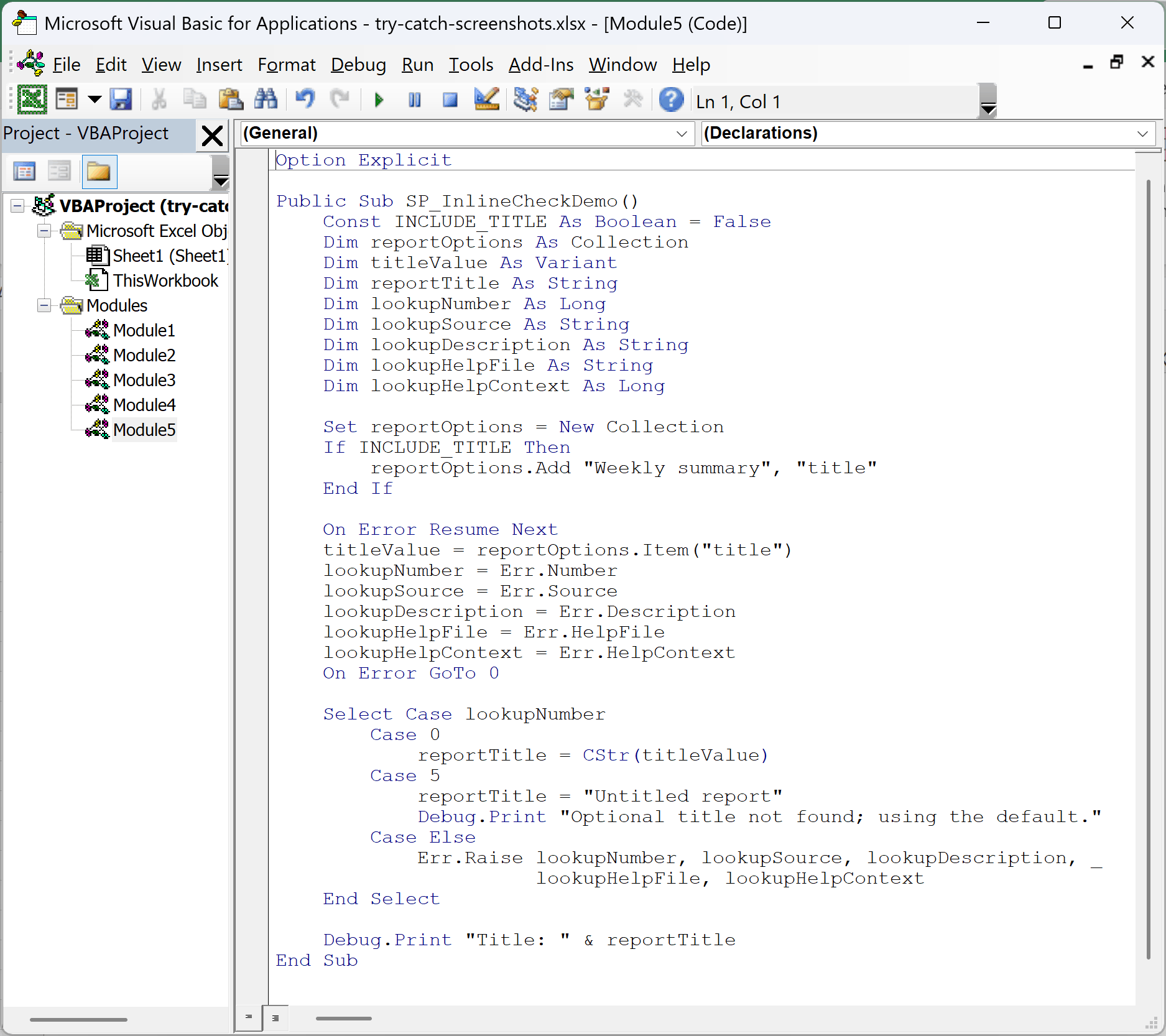
Run SP_InlineCheckDemo with INCLUDE_TITLE set to False. Because the collection has no title key, the lookup raises error 5 and the output is:
Optional title not found; using the default.
Title: Untitled report
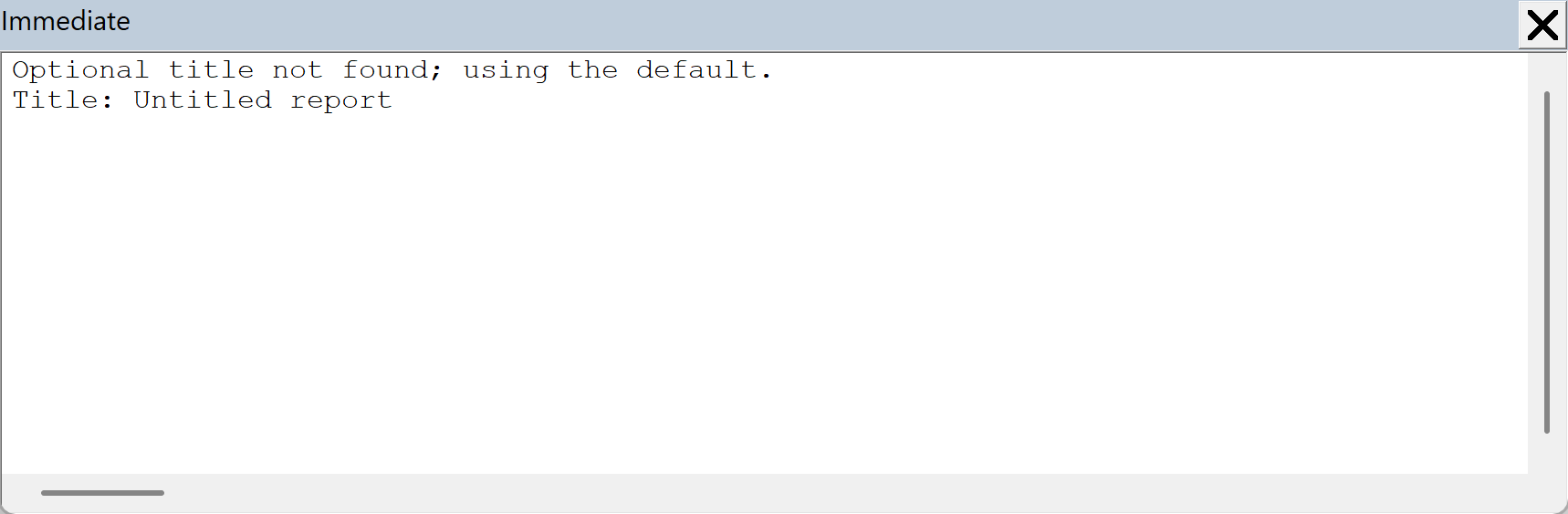
The Select Case block gives each outcome a specific response. Case 0 uses the retrieved title, Case 5 supplies the default, and Case Else raises the saved unexpected error again.
The conversion with CStr happens after suppression ends. A later conversion error therefore won’t be mistaken for the missing optional key.
Change Const INCLUDE_TITLE As Boolean = False to Const INCLUDE_TITLE As Boolean = True. This adds Weekly summary under the title key.
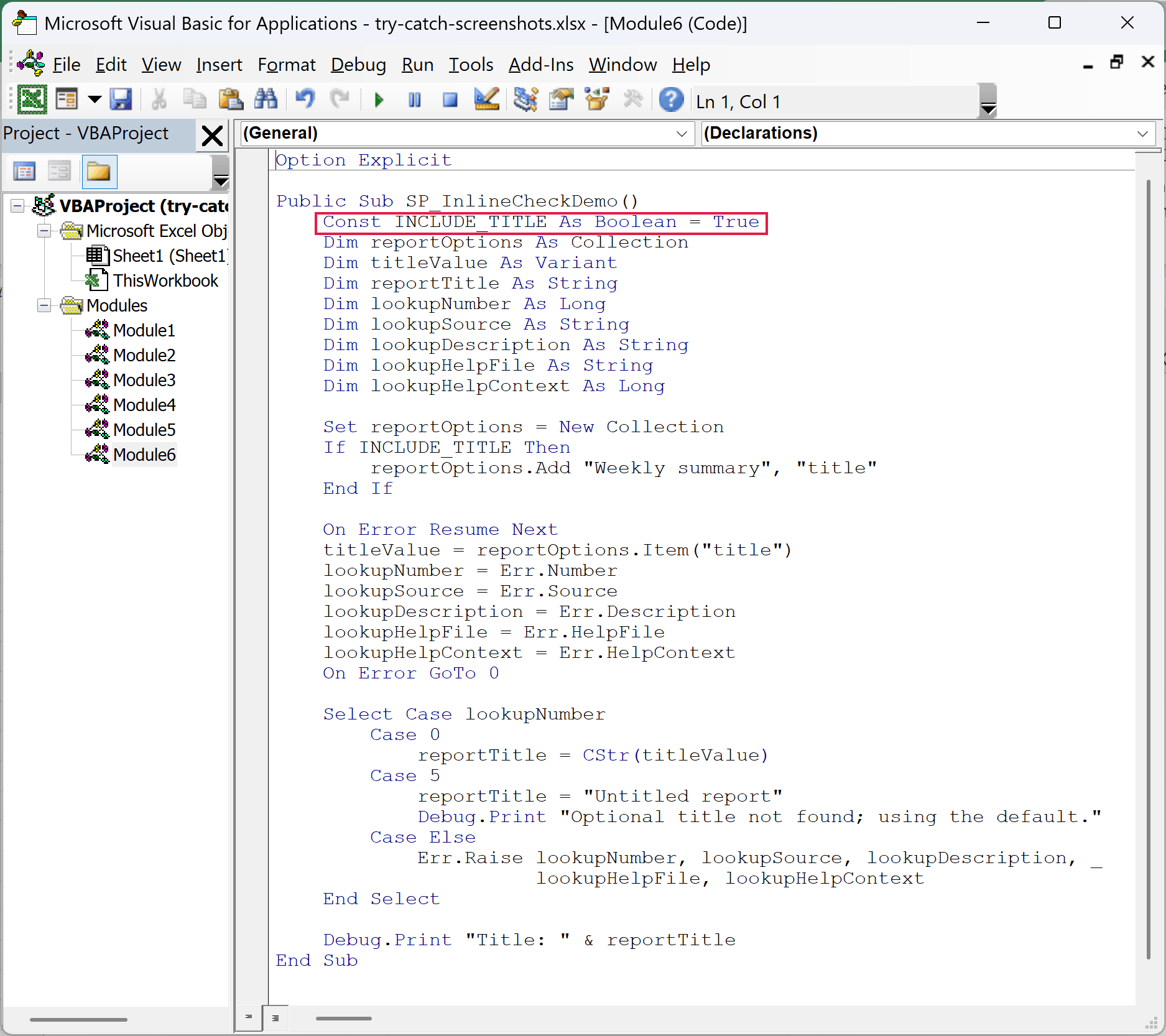
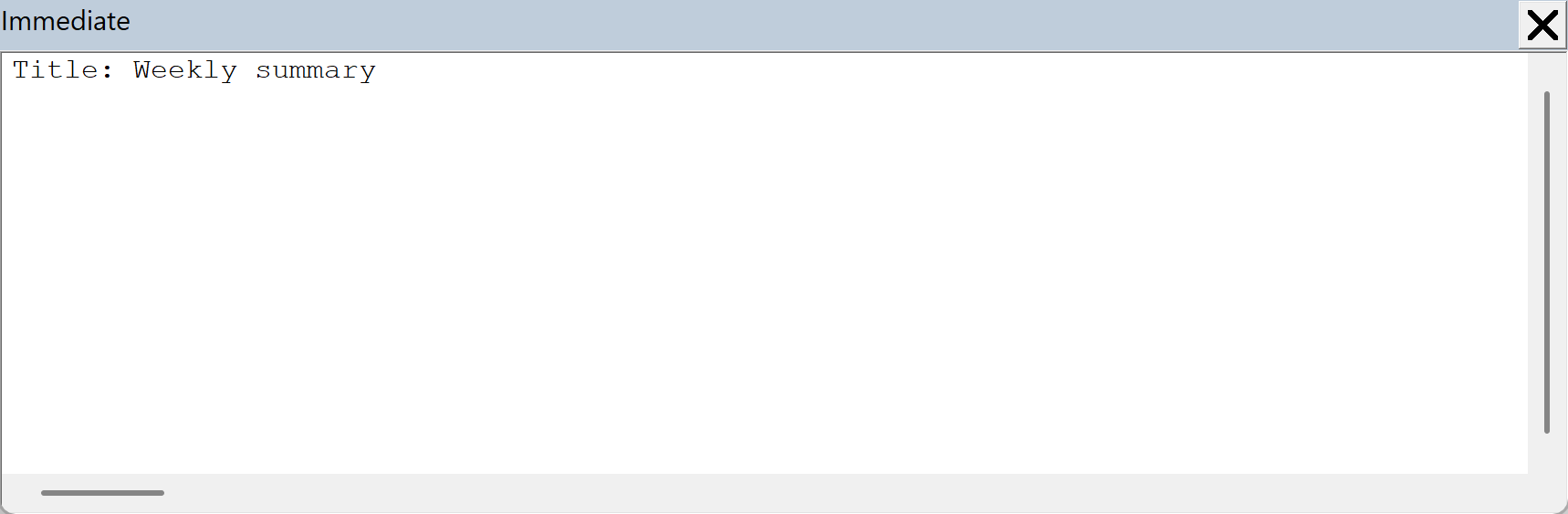
Run the procedure again. The lookup succeeds and prints:
Title: Weekly summary
Save the details before an instruction that resets the Err object. Here, the saved fields survive On Error GoTo 0, so Case Else can pass the original error information to a caller.
The five fields are the error number, source, description, help-file name, and help-context ID. The last two are metadata; saving a help-file name doesn’t open or create that file.
Note: On Error GoTo 0 disables handling in the current procedure. It doesn’t restore a previous named handler. If you use this pattern inside a procedure that needs On Error GoTo CatchError afterward, explicitly enable that handler again.
Adding a Shared Cleanup Path
VBA has no native Finally block. You can arrange a common exit section so both normal execution and a handled error restore a setting before the procedure finishes.
This example saves Application.ScreenUpdating, turns it off during the demonstration, and restores the saved value. The worker re-raises any failure after cleanup, and the caller reports it.
Paste this complete block into one new standard module:
Option Explicit

Public Sub SP_CleanupDemo()
    Const DEMO_FAIL As Boolean = True

    On Error GoTo CallerError
    SP_WorkWithCleanup DEMO_FAIL
    Debug.Print "Caller: finished"
    Debug.Print "Caller sees ScreenUpdating: " & _
                CStr(Application.ScreenUpdating)
    Exit Sub

CallerError:
    Debug.Print "Caller caught: " & CStr(Err.Number)
    Debug.Print "Source: " & Err.Source
    Debug.Print "Message: " & Err.Description
    Debug.Print "Caller sees ScreenUpdating: " & _
                CStr(Application.ScreenUpdating)
End Sub

Private Sub SP_WorkWithCleanup(ByVal forceFailure As Boolean)
    Dim previousUpdating As Boolean
    Dim savedNumber As Long
    Dim savedSource As String
    Dim savedDescription As String
    Dim savedHelpFile As String
    Dim savedHelpContext As Long

    previousUpdating = Application.ScreenUpdating
    On Error GoTo CatchError

    Application.ScreenUpdating = False
    Debug.Print "Work: started"
    If forceFailure Then
        Err.Raise vbObjectError + 513, "SP_WorkWithCleanup", _
                  "Demonstration failure.", "", 0
    End If
    Debug.Print "Work: completed"

CleanExit:
    On Error GoTo 0
    Application.ScreenUpdating = previousUpdating
    Debug.Print "Cleanup restored ScreenUpdating: " & _
                CStr(Application.ScreenUpdating)
    If savedNumber <> 0 Then
        Err.Raise savedNumber, savedSource, savedDescription, _
                  savedHelpFile, savedHelpContext
    End If
    Exit Sub

CatchError:
    savedNumber = Err.Number
    savedSource = Err.Source
    savedDescription = Err.Description
    savedHelpFile = Err.HelpFile
    savedHelpContext = Err.HelpContext
    Resume CleanExit
End Sub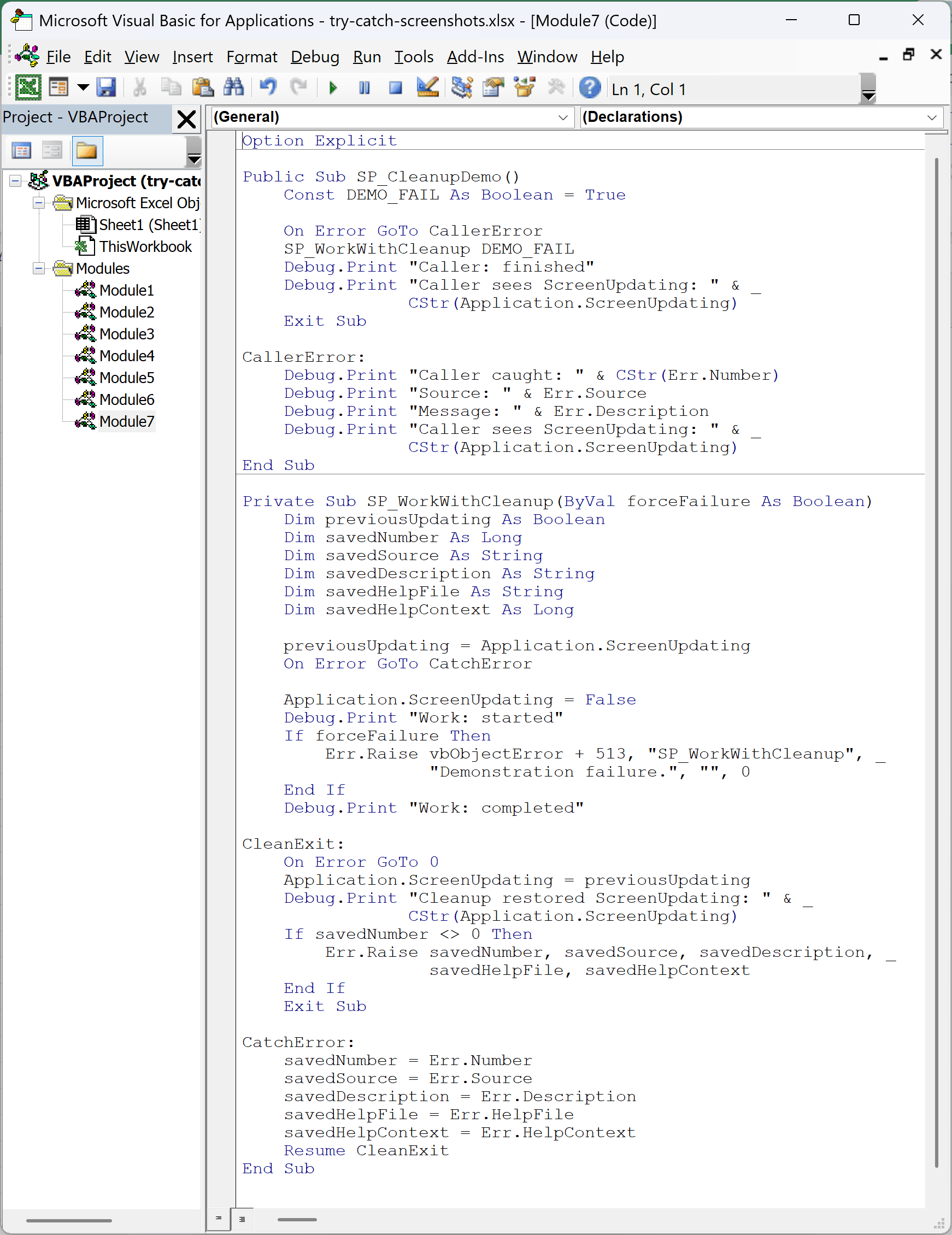
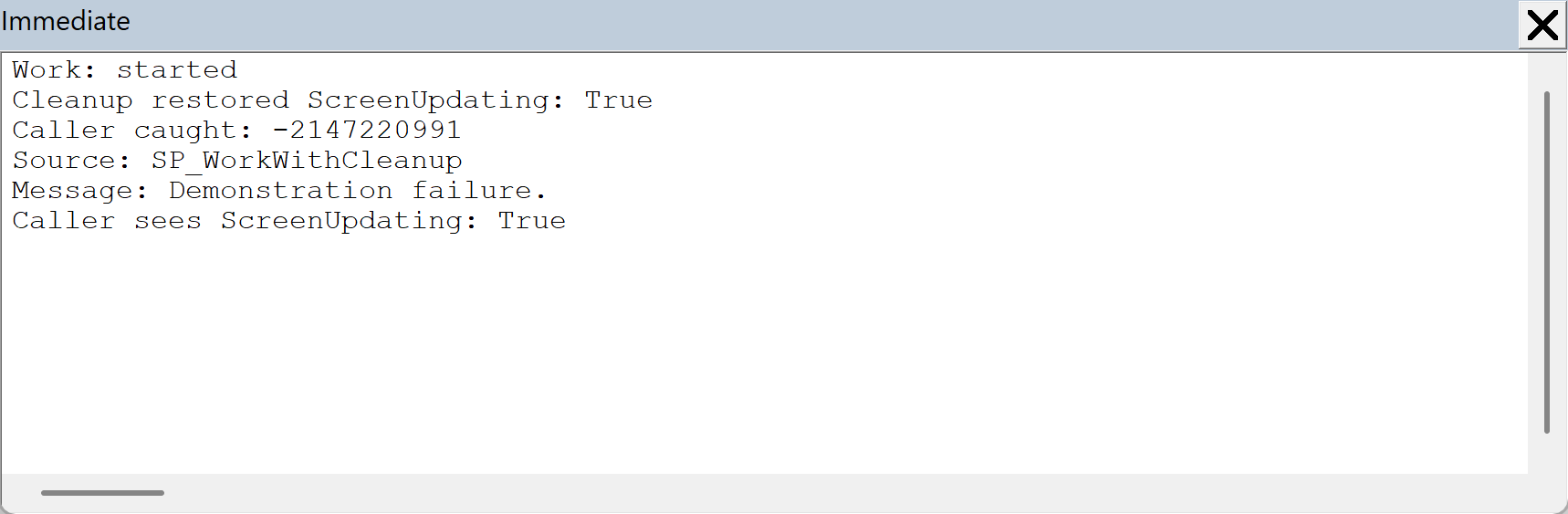
Run SP_CleanupDemo with DEMO_FAIL set to True. If screen updating starts as True, the output is:
Work: started
Cleanup restored ScreenUpdating: True
Caller caught: -2147220991
Source: SP_WorkWithCleanup
Message: Demonstration failure.
Caller sees ScreenUpdating: True
The worker first saves all five error fields. Resume CleanExit finishes active error handling and transfers execution to the cleanup label. A plain GoTo CleanExit wouldn’t finish that active handler.
At CleanExit, On Error GoTo 0 disables the worker’s local handler. The code restores the original setting, then re-raises the saved error. The caller receives it after cleanup rather than the worker catching its own re-raised error.
With DEMO_FAIL set to False, the successful path reaches the same cleanup section and prints:
Work: started
Work: completed
Cleanup restored ScreenUpdating: True
Caller: finished
Caller sees ScreenUpdating: True
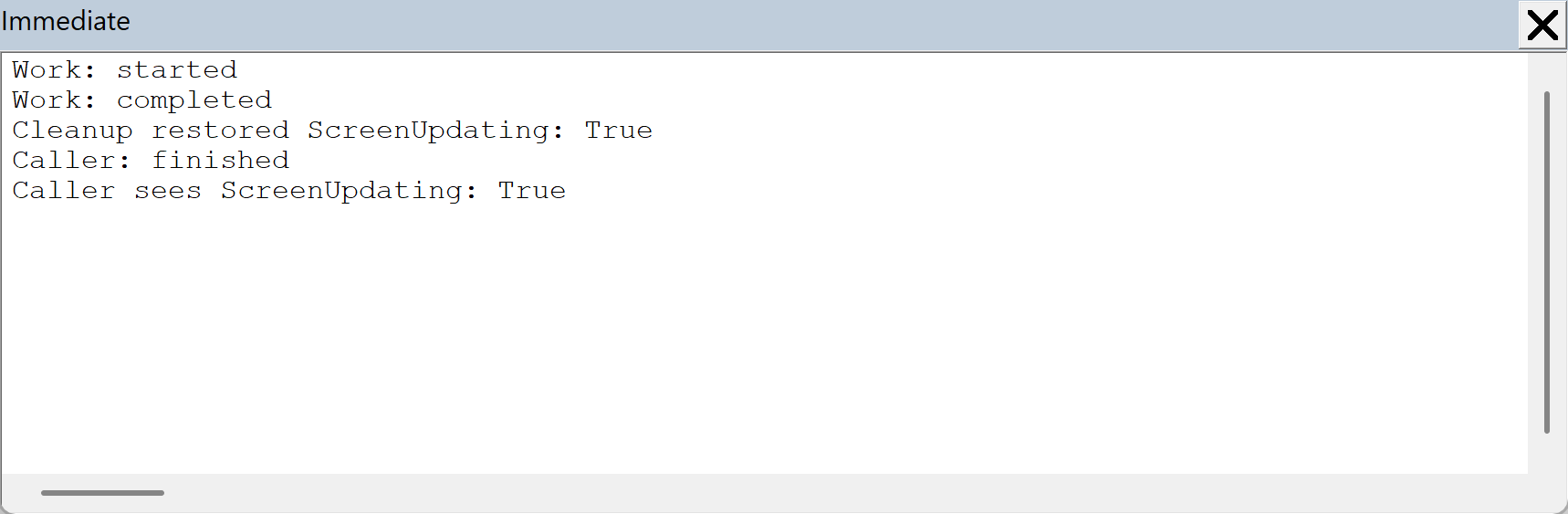
The code restores the saved value, rather than always forcing ScreenUpdating to True. If an enclosing procedure had already set it to False, the worker and its caller still observe False after cleanup.
This is a programmed cleanup path, not a guarantee that code runs after every possible interruption. Clicking the VBE Reset button or executing End bypasses the normal path. More complex cleanup also needs a decision about failures within the cleanup itself.
Handling Different Errors and Repeated Failures
One labeled handler can respond differently to different error numbers. The next example injects two known failures across three attempts and uses Select Case Err.Number to choose a response.
Each handled failure returns with Resume Next. That statement finishes the active handler and continues after the statement that failed, allowing a later error to reach the handler again.
Option Explicit

Public Sub SP_RepeatedErrorDemo()
    Dim itemIndex As Long
    Dim savedNumber As Long
    Dim savedSource As String
    Dim savedDescription As String
    Dim savedHelpFile As String
    Dim savedHelpContext As Long

    On Error GoTo CatchError

    For itemIndex = 1 To 3
        Debug.Print "Item: " & CStr(itemIndex)
        If itemIndex = 1 Then
            Err.Raise vbObjectError + 513, "SP_RepeatedErrorDemo", _
                      "Optional setting missing."
        End If
        If itemIndex = 3 Then
            Err.Raise vbObjectError + 514, "SP_RepeatedErrorDemo", _
                      "Optional setting unavailable."
        End If
        Debug.Print "After attempt: " & CStr(itemIndex)
    Next itemIndex
    Exit Sub

CatchError:
    Select Case Err.Number
        Case vbObjectError + 513
            Debug.Print "Handled missing setting: " & CStr(itemIndex)
            Resume Next
        Case vbObjectError + 514
            Debug.Print "Handled unavailable setting: " & CStr(itemIndex)
            Resume Next
        Case Else
            savedNumber = Err.Number
            savedSource = Err.Source
            savedDescription = Err.Description
            savedHelpFile = Err.HelpFile
            savedHelpContext = Err.HelpContext
            On Error GoTo 0
            Err.Raise savedNumber, savedSource, savedDescription, _
                      savedHelpFile, savedHelpContext
    End Select
End Sub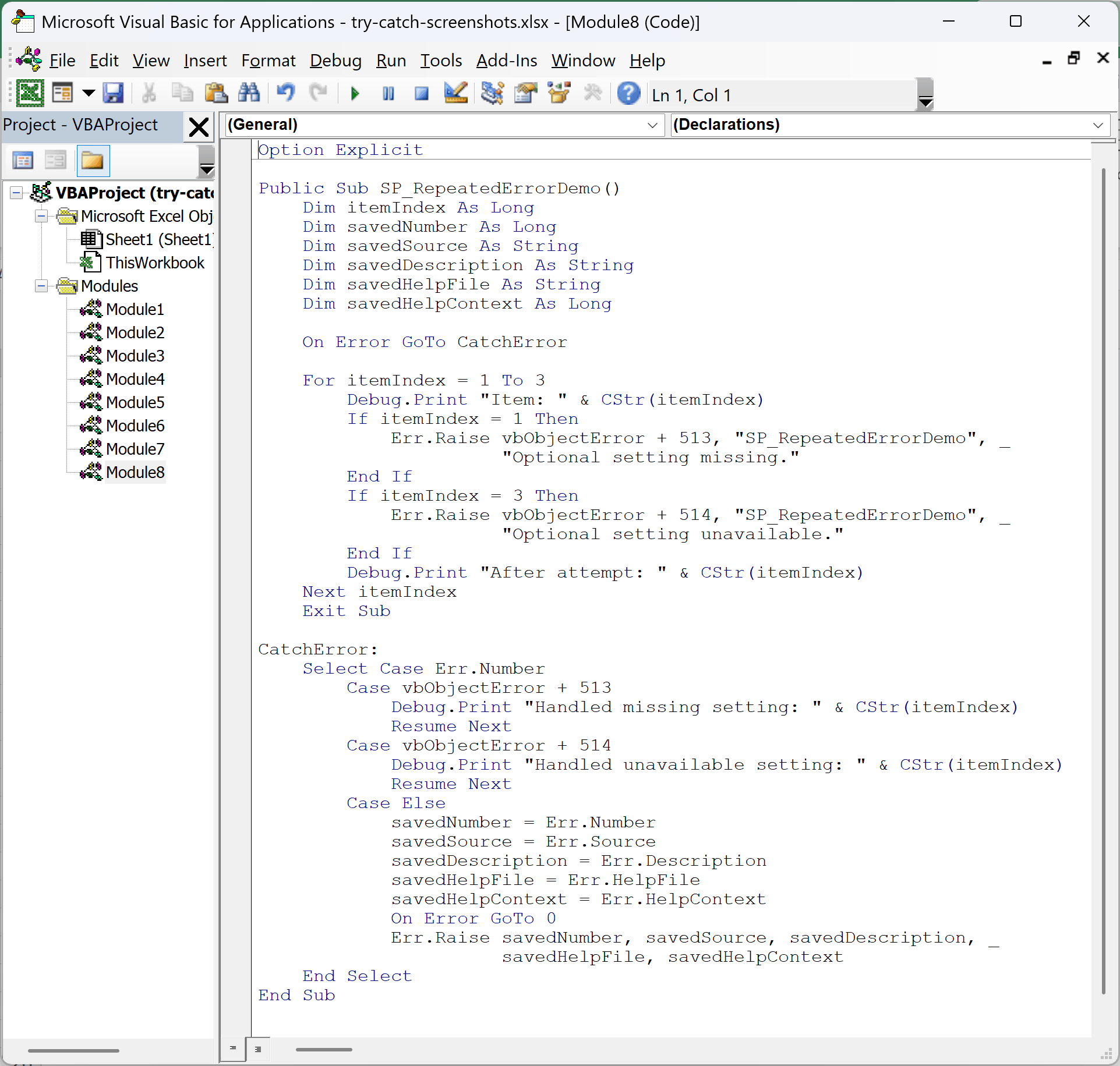
Run SP_RepeatedErrorDemo. The Immediate Window shows both handled failures, with an uninterrupted second attempt between them:
Item: 1
Handled missing setting: 1
After attempt: 1
Item: 2
After attempt: 2
Item: 3
Handled unavailable setting: 3
After attempt: 3
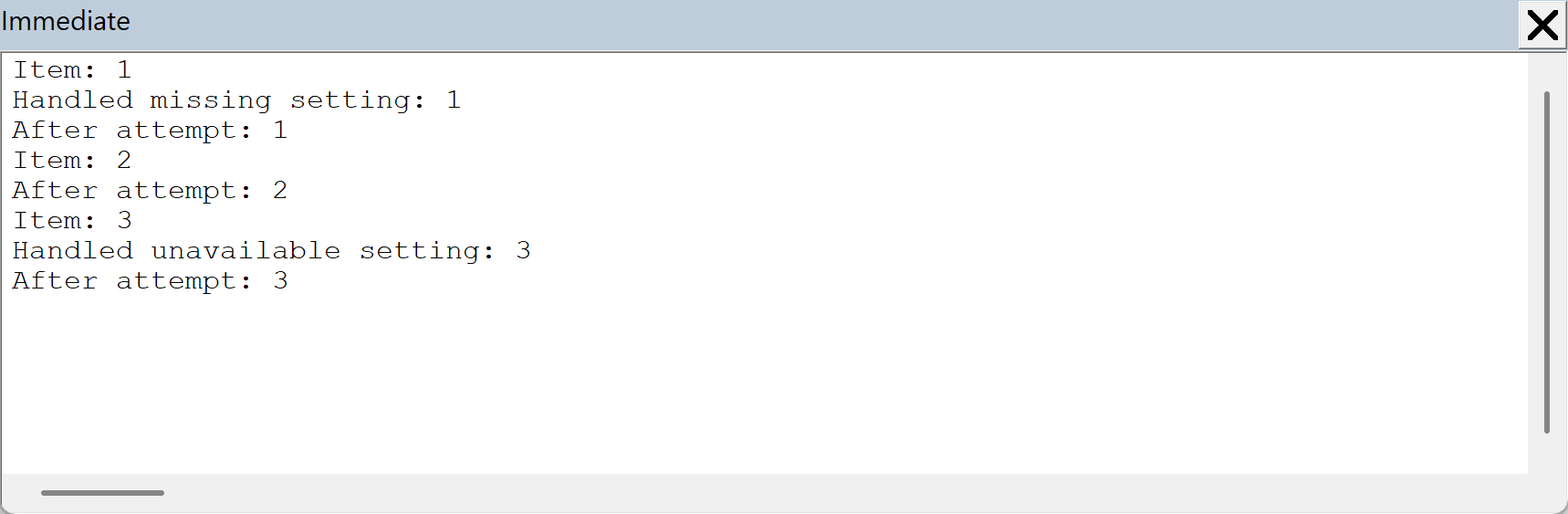
After attempt means execution reached the next statement. It doesn’t claim that the failed operation succeeded. In a real macro, continue only when the next operation can safely run without that result.
The Case Else branch preserves an unexpected error and passes it outward. It doesn’t apply either of the two known recovery actions to an unrelated failure.
Additional Notes About Handling Errors in Excel VBA
Keep these points in mind when you adapt the examples:
- Validate predictable invalid inputs before an operation when you can. A runtime handler still needs a useful response to failures you couldn’t prevent.
- Correct a broken reference or invalid value at its source. Hiding a Subscript Out of Range error doesn’t repair the reference. A Type Mismatch error also needs its underlying cause corrected.
Err.Clearclears the recorded error properties. It doesn’t turn offOn Error Resume Next, and it isn’t a substitute forResumewhen you need to leave an active labeled handler.- Avoid retrying with a bare
Resumeunless you’ve corrected the cause. Repeating the same failing operation can create a loop that never finishes.
Frequently Asked Questions
These questions cover the limits of runtime handlers and a common debugging setting.
Can On Error Catch Syntax or Compile Errors?
No. On Error deals with runtime failures. A compile error such as End If without block If must be corrected before the affected code can run. Pasting VB.NET’s Try...Catch syntax into VBA doesn’t add a new handler type.
Why Does the VBA Editor Stop Even Though I Have a Handler?
In the Windows VBA editor, check Tools > Options > General > Error Trapping. Break on All Errors enters break mode even for a handled error. Break on Unhandled Errors allows an eligible handler to process it.
A failure inside an already-active handler is another possibility. That same handler can’t handle a second error while it’s active; VBA looks for an eligible handler in a calling procedure.
Can an Error Handler Undo Changes a Macro Already Made?
An error handler doesn’t automatically roll back earlier cell edits or file operations. If the procedure needs rollback, design that separately, for example by retaining the original values before changing them. The cleanup example restores only the application setting it explicitly saved.
Can IFERROR Replace an On Error Handler?
Excel’s WorksheetFunction.IfError handles Excel formula error values. It doesn’t provide a general handler around a VBA operation such as accessing an unavailable object. Use On Error for runtime control flow and check formula error values separately when your code reads them.
Conclusion
I’ve shown how VBA’s error handlers can report a failure, recover from a known optional lookup, and restore an application setting before passing an error to a caller.
I recommend starting with the labeled-handler pattern when you adapt your own procedure. I hope you found this article helpful.
Other Excel articles you may also like: