
“Compile error: Sub or Function not defined” stops your Excel macro when VBA can’t find a Sub, Function, or array by the name your code uses.
Because it’s a compile error, nothing in the macro runs, even the lines above the problem. You’ll need to fix the name or how you’re calling it first.
In this article, I’ll show you how to find that name and fix misspelled calls, worksheet functions used directly in VBA, and procedures hidden in another module.
How to Find the Name VBA Can’t Find
Before you change anything, let me show you how to find the name causing the error. Press Alt + F11 to open the VB Editor.
Here’s a macro that should make the headers in A1:D1 bold, then show a message:
Sub RunMonthlyReport()
    FormatHeadres
    MsgBox "Report is ready"
End Sub

Sub FormatHeaders()
    Range("A1:D1").Font.Bold = True
End SubWhen you try to run RunMonthlyReport, VBA shows the compile error and highlights FormatHeadres, the name it can’t find.
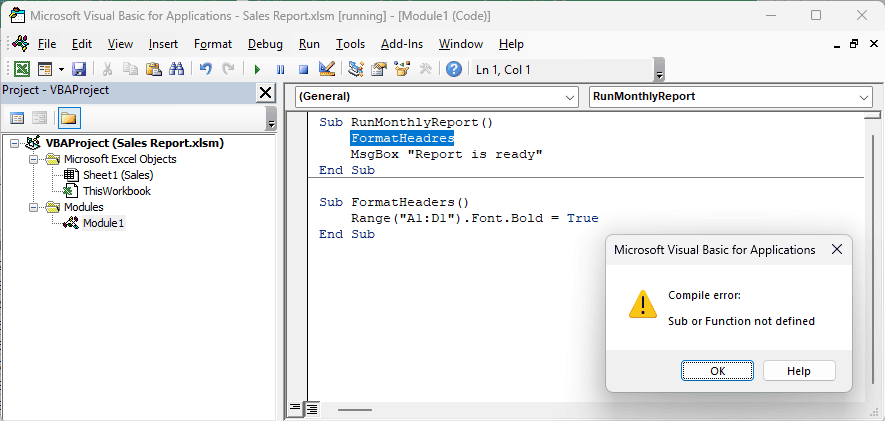
The procedure below it is named FormatHeaders. The call has the e and r swapped.
If your line uses Call FormatHeadres, VBA highlights the whole statement, including Call. Check the procedure name within that selection.
You can also check the project without running a macro. In the VB Editor, click Debug > Compile VBAProject.
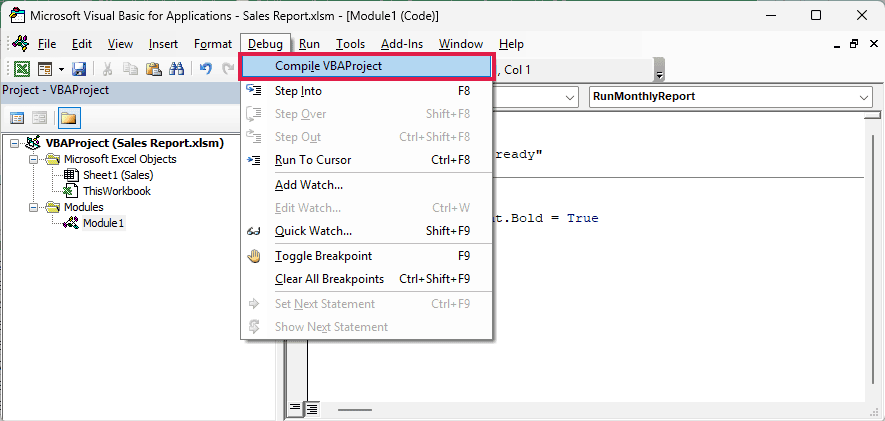
VBA shows the same error and selects the same name. So you can check your edits without running anything.
For a quick definition check, click OK, put the cursor on the highlighted name, and press Shift + F2.
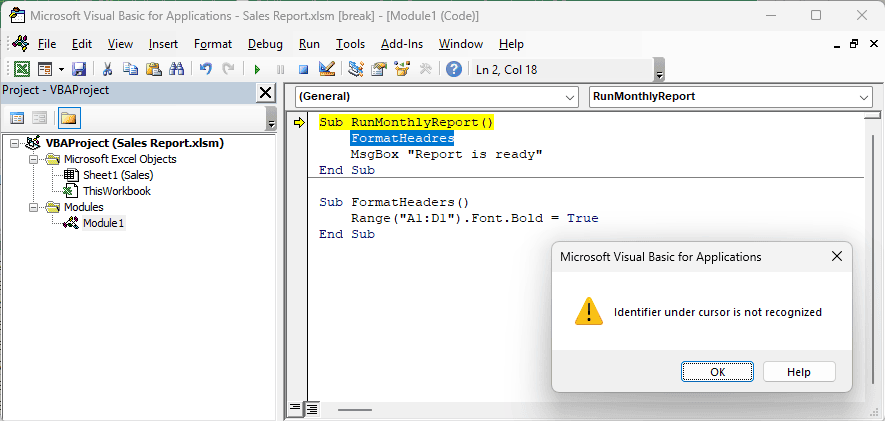
If VBA can’t find it, you’ll see “Identifier under cursor is not recognized”. If it can find the name, the shortcut jumps to that procedure.
Method #1: Checking the Spelling of the Procedure Name
I’d start with spelling. Compare the highlighted call with the actual procedure name, rather than trying to spot the typo from memory.
In this example, RunMonthlyReport should call FormatHeaders to make A1:D1 bold. Change FormatHeadres to FormatHeaders:
Sub RunMonthlyReport()
    FormatHeaders
    MsgBox "Report is ready"
End Sub

Sub FormatHeaders()
    Range("A1:D1").Font.Bold = True
End SubNow the call matches the Sub below it, so the macro can format the headers and show “Report is ready”.
You can get the same error by misspelling a built-in VBA function. Here’s a short macro with MsgBx instead of MsgBox:
Sub ShowStatus()
    MsgBx "Report is ready"
End SubVBA highlights MsgBx because it doesn’t recognize that name.
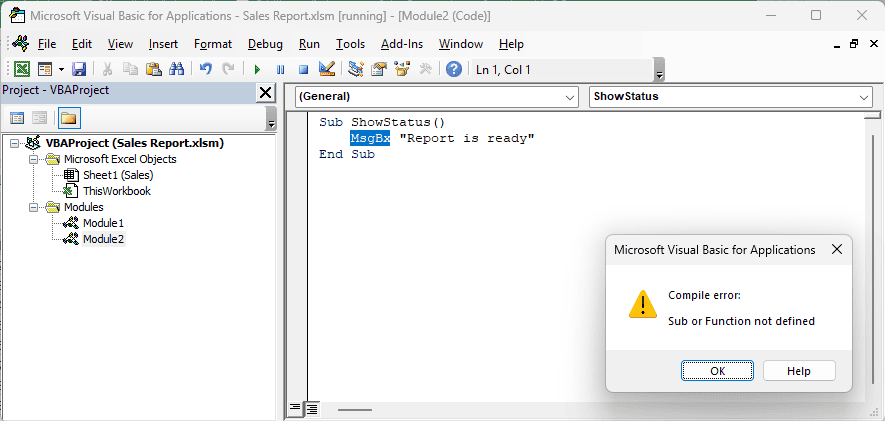
Add the missing o so you’re using MsgBox:
Sub ShowStatus()
    MsgBox "Report is ready"
End SubHere are the steps to check a spelling fix:
- Compare the highlighted name with the procedure you’re calling.
- Correct the call so the names match.
- Compile the project before running the macro again.
Note: I like typing names in lowercase. VBA usually applies the capitalization of names it recognizes when you leave the line, which can help you notice a typo.
Method #2: Using WorksheetFunction for Excel Functions
If the name is spelled correctly, check whether you’re calling an Excel worksheet function as though it were a VBA function.
Below I have a dataset of sales orders on the Sales sheet, with Order ID, Sales Rep, Region, and Amount. I want the total of Amount.
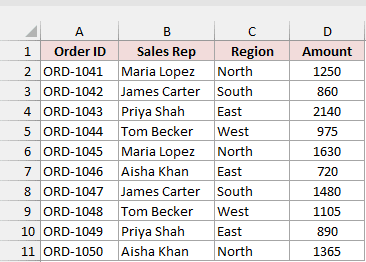
The amounts are in D2:D11. This code tries to add them with Sum:
Sub GetTotalSales()
    Dim total As Double
    total = Sum(Range("D2:D11"))
    MsgBox "Total sales: " & total
End SubVBA shows “Sub or Function not defined” and highlights Sum.
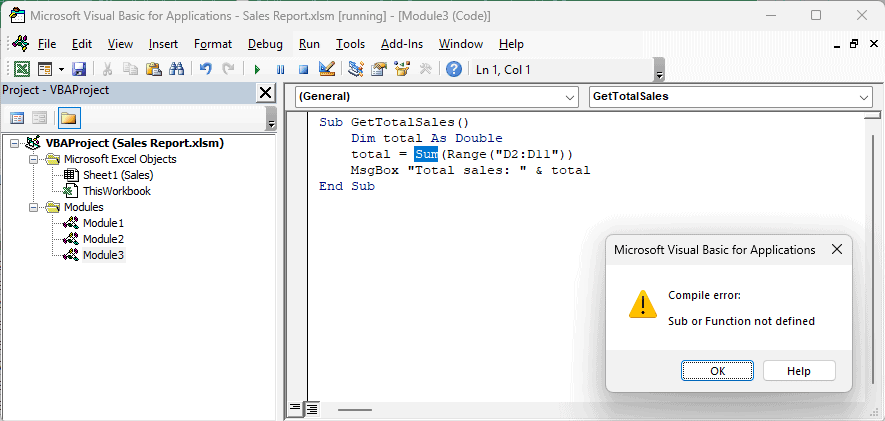
SUM is an Excel worksheet function, so VBA doesn’t recognize it as a function you can call directly. Use WorksheetFunction.Sum instead:
Sub GetTotalSales()
    Dim total As Double
    total = WorksheetFunction.Sum(Range("D2:D11"))
    MsgBox "Total sales: " & total
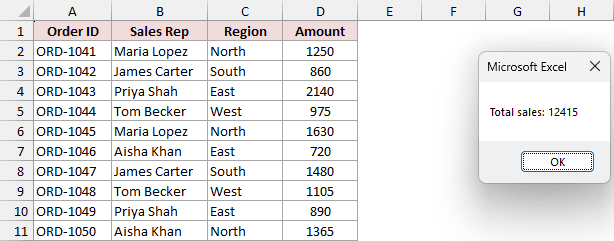
End SubWith the Sales sheet active, the macro adds D2:D11 and shows “Total sales: 12415”.
Here are the steps to make this change:
- Check whether the highlighted name is a worksheet function, such as SUM or COUNTIF.
- Add
WorksheetFunction.before the function name. - Compile the project, then run the macro with the Sales sheet active.
You can also write Application.WorksheetFunction.Sum. Both forms call Excel’s worksheet function from your VBA code.
Some Excel functions have VBA versions you can call directly, including Left, Mid, Len, and Round.
Most worksheet functions, including SUM, COUNTIF, and VLOOKUP, need WorksheetFunction. A direct CountIf(...) call produces this compile error too.
Method #3: Making the Procedure Public
Next, check whether the procedure is in another module and marked Private. The spelling can be right while VBA still can’t see it from your calling code.
Suppose you have this code in Module1 to clear F2:F11:
Private Sub ClearOldData()
    Range("F2:F11").ClearContents
End SubIn Module2, you call it while refreshing the report:
Sub RefreshReport()
    ClearOldData
    MsgBox "Report refreshed"
End SubWhen you try to run RefreshReport, VBA highlights ClearOldData in Module2.
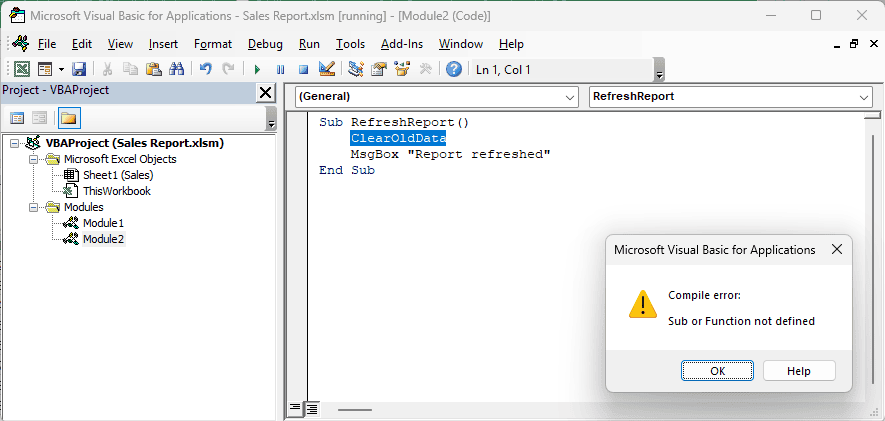
A Private procedure can only be called from inside its own module.
A Public procedure in a standard module can be called from other modules in that project.
Here are the steps to make ClearOldData available to Module2:
- Open Module1 in the Project Explorer.
- Remove
Privatefrom theClearOldDatadeclaration, or replace it withPublic. - Compile the project, then run
RefreshReportagain.
Here’s Module1 with Private removed:
Sub ClearOldData()
    Range("F2:F11").ClearContents
End SubA Sub without a visibility keyword is Public by default in a standard module. You don’t need to change the code in Module2.
The macro can now clear F2:F11 and show “Report refreshed”.
Method #4: Calling Sheet Module Procedures by Code Name
If your procedure lives in a sheet’s code module, you need to include the sheet’s code name when calling it from a standard module.
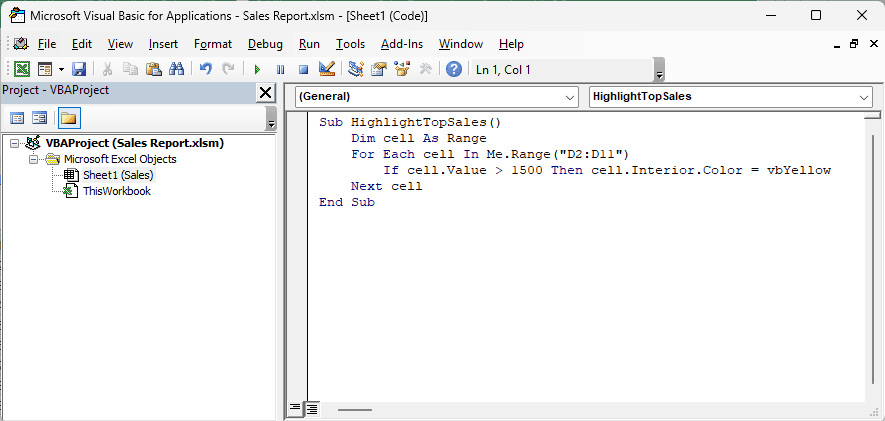
Here I want to highlight sales amounts above 1500 in D2:D11. This code is in the Sales sheet’s module, shown as Sheet1 (Sales):
Sub HighlightTopSales()
    Dim cell As Range
    For Each cell In Me.Range("D2:D11")
        If cell.Value > 1500 Then cell.Interior.Color = vbYellow
    Next cell
End SubThe Project Explorer shows you which sheet module contains the code.
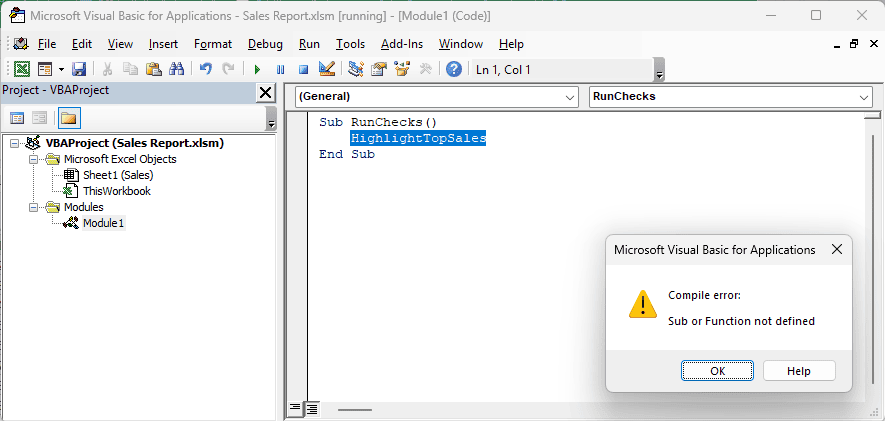
But this call from Module1 doesn’t identify the sheet:
Sub RunChecks()
    HighlightTopSales
End SubVBA highlights HighlightTopSales and shows the compile error.
Add Sheet1. before the procedure name in Module1:
Sub RunChecks()
    Sheet1.HighlightTopSales
End SubNow RunChecks calls the Sales sheet’s procedure, which highlights 2140 and 1630 in yellow.
Here are the steps to find the correct prefix:
- Find the sheet module in the Project Explorer.
- Read its code name, which is the name before the parentheses in Sheet1 (Sales).
- Add that code name and a period before the procedure call.
The code name and tab name can differ, so use the code name your project shows.
You can also move the procedure into a standard module. In this example, replace Me.Range("D2:D11") with Worksheets("Sales").Range("D2:D11") when you move it.
For a procedure in the ThisWorkbook module, use ThisWorkbook.ProcName as the call.
Method #5: Checking the Array Name
An array typo can produce this error too. The clue is a highlighted name followed by parentheses, even though you intended to read an array element.
Here I put the first sales amount from D2 into an array, then try to display it:
Sub ListAmounts()
    Dim amounts(1 To 3) As Double
    amounts(1) = Range("D2").Value
    MsgBox amount(1)
End SubVBA highlights amount, which is missing the s from the declared name amounts.
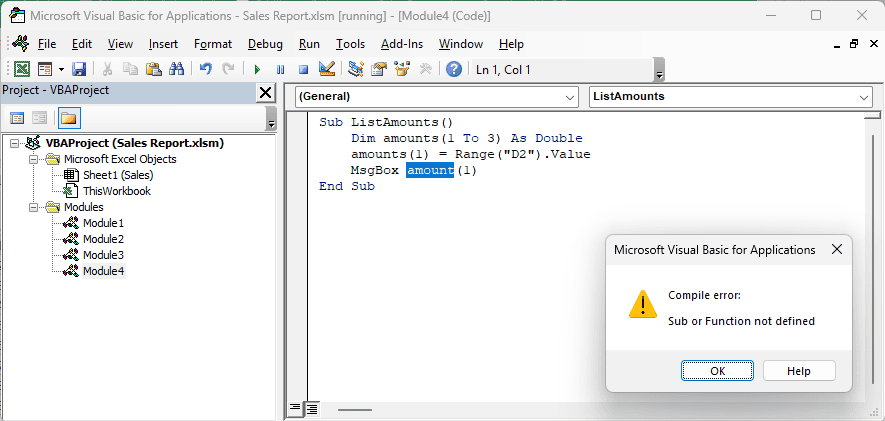
Because amount isn’t a declared array, VBA reads amount(1) as a function call. It then complains that it can’t find that function.
You get “Sub or Function not defined” here with or without Option Explicit, rather than “Variable not defined”.
Change the name in the message line to match the array declaration:
Sub ListAmounts()
    Dim amounts(1 To 3) As Double
    amounts(1) = Range("D2").Value
    MsgBox amounts(1)
End SubWith the Sales sheet active, the corrected macro shows 1250, the amount in D2.
Method #6: Using Application.Run for Macros in Another Workbook
If you’re running a macro from another workbook, a plain procedure call can’t find it.
Each open workbook is its own VBA project, and a plain call only looks inside the current project.
Suppose Macros.xlsm contains this macro:
Sub FormatReport()
    MsgBox "FormatReport ran from Macros.xlsm"
End SubIn Sales Report.xlsm, you try to call it from BuildReport:
Sub BuildReport()
    FormatReport
End SubEven with both workbooks open, VBA highlights FormatReport and shows the compile error in Sales Report.xlsm.
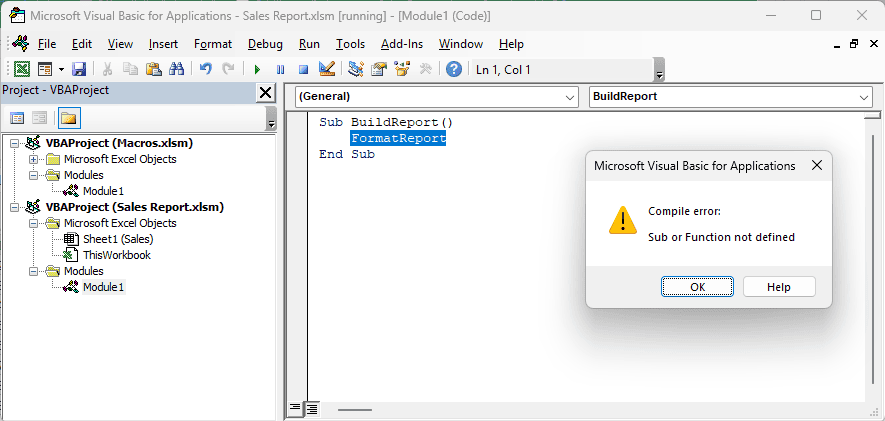
Use Application.Run to identify the workbook and macro together:
Sub BuildReport()
    Application.Run "Macros.xlsm!FormatReport"
End SubHere are the steps to run this example:
- Open Macros.xlsm and Sales Report.xlsm.
- Replace the plain call in
BuildReportwith theApplication.Runline above. - Run
BuildReportto show “FormatReport ran from Macros.xlsm”.
The other workbook must be open. In the string, the exclamation mark separates the workbook name from the macro name.
If the workbook name contains spaces, wrap that name in single quotes:
Application.Run "'My Macros.xlsm'!FormatReport"For a macro in your Personal Macro Workbook, use Application.Run "PERSONAL.XLSB!MacroName", replacing MacroName with your macro’s name.
Additional Notes About Fixing “Sub or Function Not Defined” in VBA
Keep these checks in mind as you work through the project:
- Compilation stops at the first problem it finds. After each fix, compile again until the project passes without an error.
- Copied code may call a helper procedure the author didn’t include. Press Ctrl + F, choose Current Project, and search for the highlighted name. If you find no definition, the procedure isn’t in your project, so copy it from the original source too.
- Save your workbook as .xlsm to keep the macros. Saving it as .xlsx drops the VBA code.
Frequently Asked Questions
Here are a few related questions you might have while fixing the error.
Is “Sub or Function not defined” the same as “Variable not defined”?
No. “Variable not defined” points to an undeclared variable when Option Explicit is enabled. “Sub or Function not defined” means VBA can’t resolve a procedure or array name.
Can a missing reference cause “Sub or Function not defined”?
In my Microsoft 365 test, a missing reference caused “Can’t find project or library,” with Left highlighted, rather than “Sub or Function not defined.”
The macro worked before the reference went missing. To fix it, go to Tools > References in the VB Editor and uncheck the item marked MISSING.
Can On Error Resume Next fix “Sub or Function not defined”?
No. On Error Resume Next handles errors while code is running. It can’t bypass a compile error, so you still need to correct the code.
Why did my macro stop working after I renamed a procedure?
Every call that still uses the old name now fails with this error. Use Ctrl + F with Current Project to update those calls, then compile.
Conclusion
I’d start with the highlighted name and compare it with the procedure or array declaration. If the spelling matches, check where the procedure lives and how you’re calling it.
I hope this helps you get your macro running again.
Other Excel articles you may also like:
