
A slope graph in Excel compares the same categories at two points in time. Each category gets a line between its earlier and later values, so you can see what increased, what decreased, and what stayed the same.
Excel doesn’t have a separate Slope Graph button. You can build one from a line chart, then put labels beside the endpoints so readers can follow each category without a legend.
In this article, I’ll show you the line-chart method and an XY scatter alternative, including how to arrange the data, label both ends, and highlight one category.
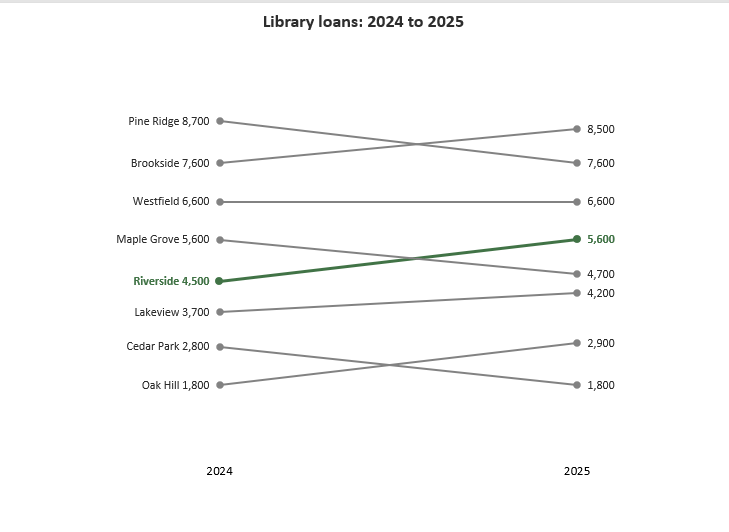
Here is the finished slope graph. Riverside is highlighted, while the gray lines provide the other branches for comparison.
Method #1: Using a Line Chart
This is the method I recommend for most readers. A line chart already has the structure we need: one line per category, with a starting value and an ending value.
Below I have an illustrative dataset of annual loans at eight library branches. On the Line Chart sheet, branch names are in A2:A9, with the 2024 and 2025 counts in B2:C9.
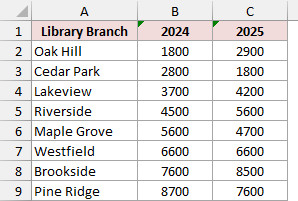
The download contains the completed chart. To build your own beside the same data, use the following steps:
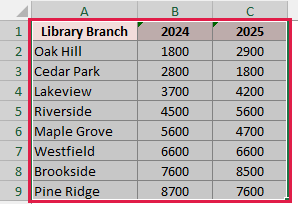
- Select A1:C9, including the column headers.
- On the Insert tab, open Insert Line or Area Chart and choose the standard Line with Markers option under 2-D Line. Avoid the stacked versions.
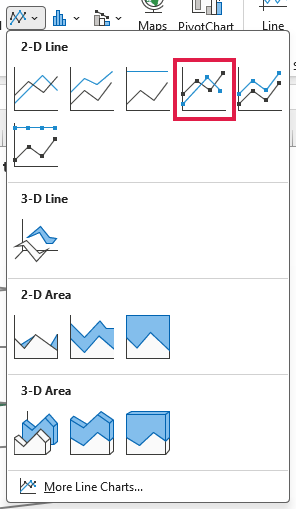
With this table layout, Excel may plot one line for each year, with the branch names along the bottom. We want the years along the bottom and a separate line for each branch.
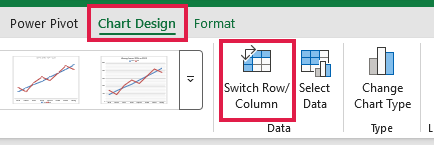
- Select the chart, then choose Chart Design > Switch Row/Column. Check that the legend lists the eight branches and the horizontal axis shows 2024 and 2025.
- Right-click the horizontal axis and choose Format Axis. Under Axis Options, set Axis position to On tick marks.
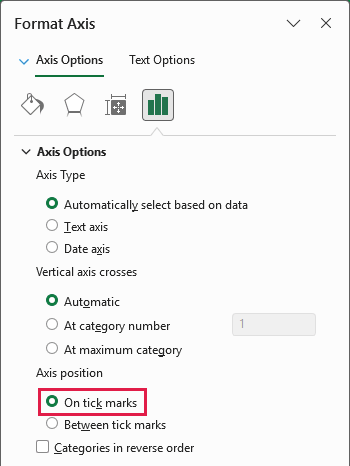
This places the two comparison points at the ends of the plot area instead of leaving a half-category gap on either side.
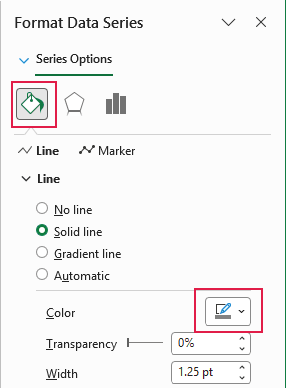
- Right-click a line and choose Format Data Series. Under Fill & Line > Line, use a solid gray line. Under Marker, use a gray fill and border. Repeat for the other branches.
- Select the legend and press Delete. Do the same for the horizontal gridlines and the vertical axis. Change the chart title to Library loans: 2024 to 2025.
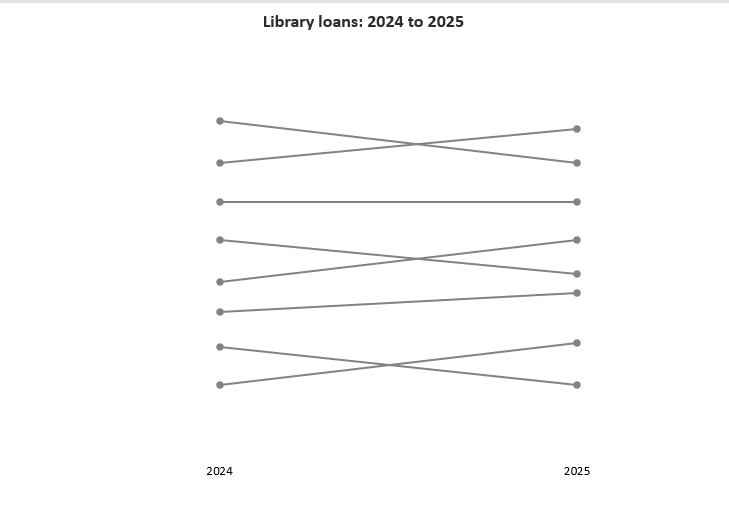
Keep the year labels along the bottom. If the chart feels cramped, enlarge its outer frame and make the plot area narrower so there is room for endpoint labels on both sides.
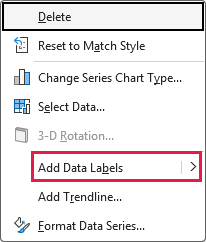
- Right-click one branch line and choose Add Data Labels. Repeat for each branch.
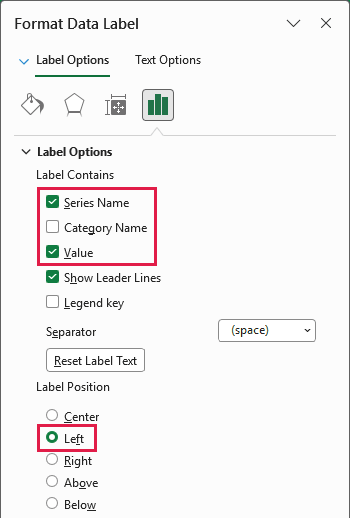
- Click a left-hand label once to select the series labels, then click that label again to select just the starting label. Right-click it and choose Format Data Label. Check Series Name and Value, choose Space as the separator, and set Label Position to Left.
- Select the right-hand label individually. In Format Data Label, keep Value checked, clear Series Name, and choose Right for its position. Repeat these left/right settings for every branch.
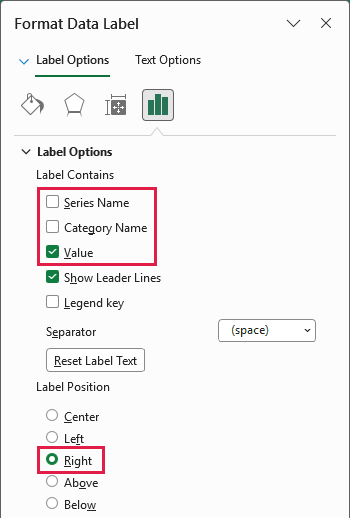
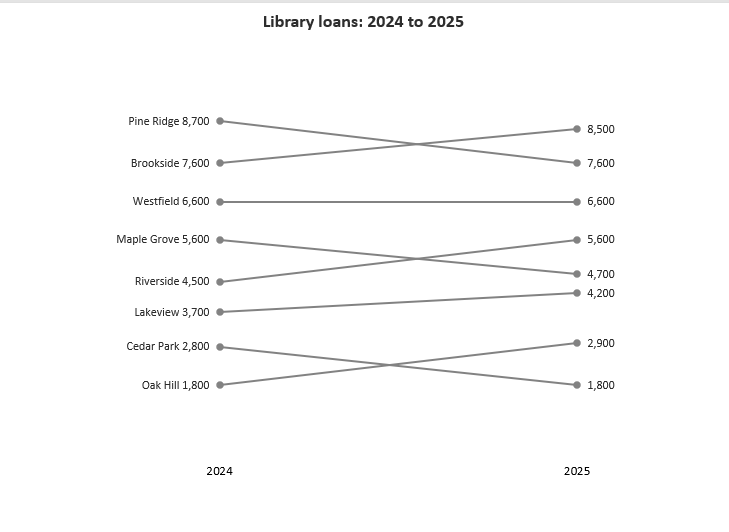
The labels now identify each branch on the left and show its ending count on the right. If labels overlap, enlarge the chart vertically or move the affected label slightly. Keep the actual data points at their correct values.
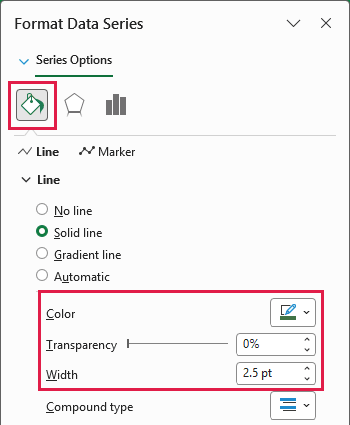
- Select the Riverside line and open Format Data Series. Change its line, marker fill, and marker border to green. Increase the line width slightly so it stands out from the gray branches.
- Select the Riverside endpoint labels individually and use Home > Font Color to match them to the green line. Apply bold if you want the highlighted values to be easier to spot.
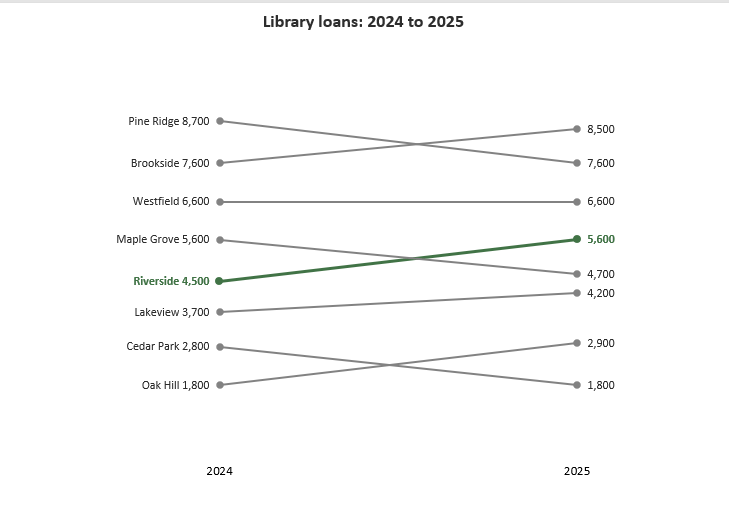
Riverside rises from 4,500 to 5,600 loans. Westfield’s horizontal line shows no change at 6,600, and Cedar Park falls from 2,800 to 1,800.
Note: Select a line once to format its whole series. Select a label twice, with a pause between clicks, when you want to change only one endpoint label.
Method #2: Using an XY Scatter Chart
Here’s another way to build the same comparison. An XY scatter chart gives you numeric horizontal positions and direct control over the x-axis bounds or spacing.
On the Scatter Chart sheet, I have the same eight branches and the same 2024 and 2025 loan counts in A1:C9. Each branch will still get its own two-point line.
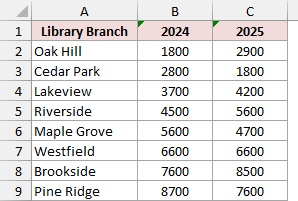
The download also contains the completed scatter chart. Follow these steps to build another one:
- Create a small helper table in A11:B13. Use the headers Year and X Position. Enter 2024 and 1 in row 12, then 2025 and 2 in row 13.
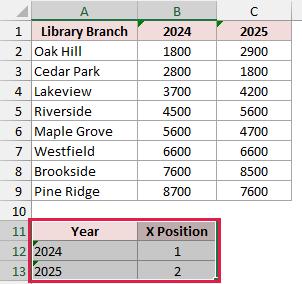
The positions 1 and 2 place the earlier values on the left and the later values on the right. They are horizontal coordinates, separate from the loan counts.
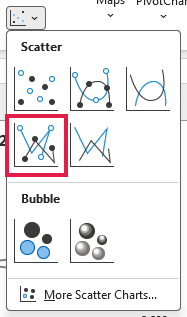
- Click an empty cell outside both tables. On the Insert tab, open Insert Scatter (X, Y) or Bubble Chart and choose Scatter with Straight Lines and Markers. Start with an empty chart; do not select the full branch table first.
- Right-click the chart and choose Select Data, then click Add. Set Series name to =’Scatter Chart’!$A$2, Series X values to =’Scatter Chart’!$B$12:$B$13, and Series Y values to =’Scatter Chart’!$B$2:$C$2. Click OK.
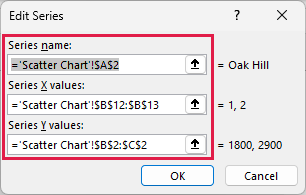
These references use the reader workbook’s Scatter Chart sheet. When working on a differently named sheet, select its cells in the dialog so Excel supplies the correct sheet name. Remove any default values from the X and Y boxes before selecting the ranges.
- Add the remaining seven branches. Keep the X range fixed at B12:B13. For each branch, use its name from column A and its two loan counts from that row in columns B:C. Click OK to close Select Data Source.
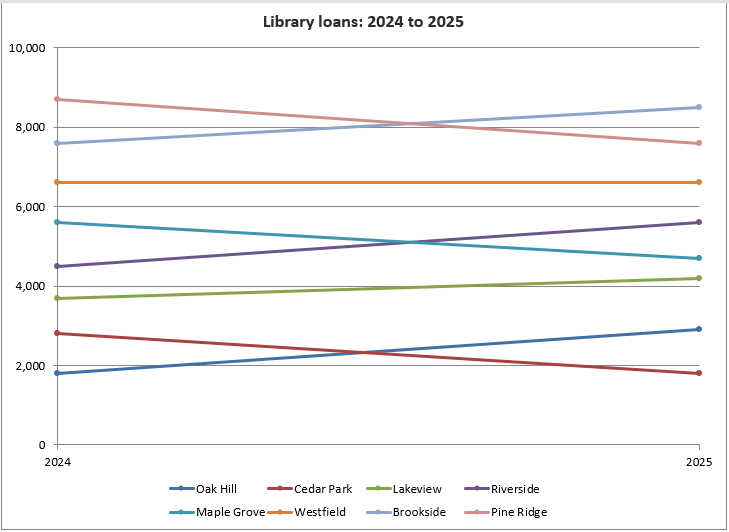
For example, Riverside uses A5 for its name and B5:C5 for its Y values. Do not plot all the branches as one long series, or Excel will connect unrelated branches together.
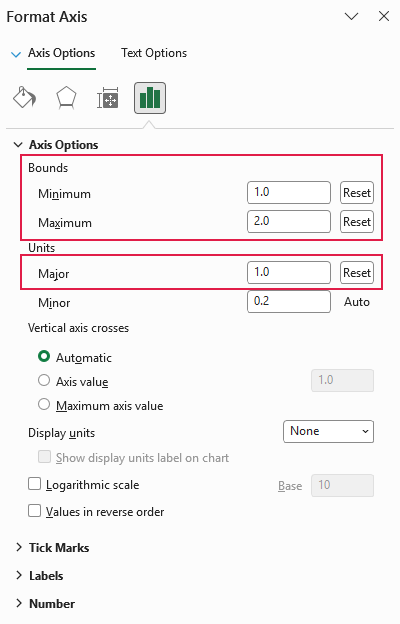
- Right-click the horizontal axis and choose Format Axis. Under Axis Options, set Minimum to 1, Maximum to 2, and the Major unit to 1.
- In the same pane, expand Number, clear Linked to source, enter [=1]"2024";[=2]"2025";"" in Format Code, and click Add.
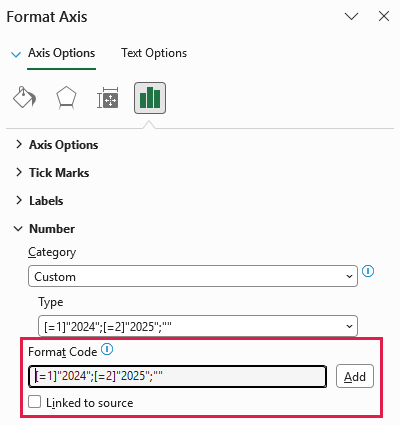
The custom format changes the displayed axis labels to 2024 and 2025. It does not change the numeric X values, which remain 1 and 2.
- Format the lines and markers gray, remove the legend, gridlines, and vertical axis, and change the title to Library loans: 2024 to 2025. Leave enough space around the plot area for the labels.
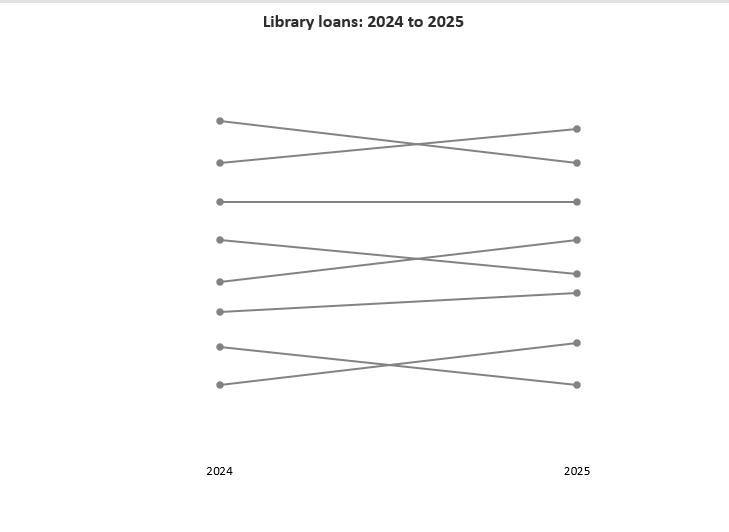
- Add data labels to each branch series. Use the endpoint-label settings from Method #1: Series Name + Value on the left, and Value on the right. Set their positions to Left and Right, respectively.
- Change the Riverside line, markers, and endpoint-label text to green, as in the first method.
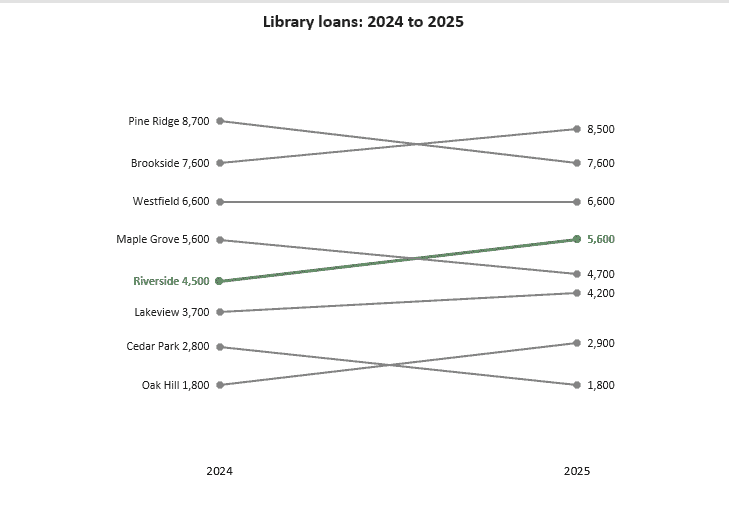
The result tells the same story as the line-chart version. The difference is the horizontal axis: this chart uses numeric coordinates that you control explicitly.
Note: These steps use Excel for Windows on the desktop. Ribbon wording can differ on Mac, and some chart-formatting controls are limited in Excel for the web.
Additional Notes About Slope Graphs in Excel
A few checks will help you keep the comparison accurate:
- Compare the same measure in the same units at both endpoints. Annual loan counts should be compared with annual loan counts.
- Keep a shared vertical scale. Changing the chart height or width changes the apparent angle, so compare slopes within the same chart.
- Equal slopes show equal absolute changes when horizontal spacing is the same. Oak Hill and Riverside each gain 1,100 loans, but their percentage increases differ because they start at different values.
- Leave genuinely missing values blank and check the chart’s Hidden and Empty Cells settings. A missing observation should not quietly become zero.
- Editing existing loan counts updates the linked chart. Adding another branch requires adding its chart series too.
Creating a slope graph is a different task from calculating slope in Excel. Here, the lines compare two observations for each category; they are not fitted regression trendlines.
Frequently Asked Questions
Here are a few other questions that come up when using a slope graph.
Can I Use Percentages in an Excel Slope Graph?
Yes. Use actual numeric percentage values at both endpoints and format the labels as percentages. Moving from 40% to 50% is a rise of 10 percentage points; it is not the same as a 10% relative increase.
Can a Slope Graph Show More Than Two Years?
You can add more periods, but a regular line chart is usually easier to follow when the intermediate values matter. A two-endpoint slope graph deliberately leaves out what happened between its starting and ending observations.
How Many Categories Should I Put in a Slope Graph?
Use as many as you can label clearly. If the lines or names become hard to trace, split related categories into smaller charts with the same vertical scale. A single highlighted branch can also help readers follow the comparison.
Can I Copy the Slope Graph Into PowerPoint?
Yes. Copy the completed chart and paste it into PowerPoint. Use a picture for a fixed snapshot, or a linked chart if the presentation needs updates from the Excel file. Keep the source workbook available when you use a link.
Conclusion
In this article, I showed you how to build an Excel slope graph using a line chart and an XY scatter chart, then add endpoint labels and highlight a branch. I hope you found this article helpful.
Other Excel articles you may also like:
