
A step chart in Excel shows a value staying constant until a particular date, then changing immediately, such as a hire fee or subscription price.
Joining the original dates and values draws sloping lines between changes. A step chart needs extra points to keep each horizontal section flat.
I’ll show you how to build those points manually and generate them with a formula, then plot both versions with an XY scatter chart.
Method #1: Plotting Helper Points in an XY Scatter Chart
I recommend this method for a small schedule. You can check every point, and it doesn’t need newer dynamic-array functions.
Below I have eight bike-hire rate changes on the Rate Changes sheet. Each fee applies from its effective date until the next change.
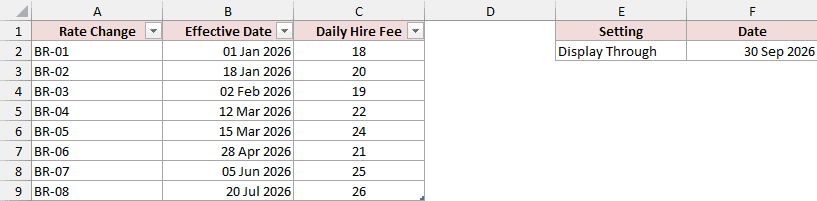
The source occupies A1:C9. Column A identifies each change, column B contains its effective date, and column C contains the daily fee in USD.
Cell F2 holds Display Through, currently 30 September 2026. This date lets the chart show how long the final fee continues.
The download already contains the helper points and finished chart. Follow the construction below to understand or recreate that setup.
Arrange the Helper Points
The fee changes from 18 to 20 on 18 January 2026. We need two points on that date: one at 18, followed by another at 20.
The first point finishes the old horizontal section. The second makes the vertical jump, ready for the next horizontal section.
Here is how to arrange the complete point sequence:
- Open Helper Points. To recreate its data, use Plot Date in A1 and Daily Hire Fee in B1, followed by these 16 points in A2:B17.
| Worksheet Row | Plot Date | Daily Hire Fee (USD) |
|---|---|---|
| 2 | 1 Jan 2026 | 18 |
| 3 | 18 Jan 2026 | 18 |
| 4 | 18 Jan 2026 | 20 |
| 5 | 2 Feb 2026 | 20 |
| 6 | 2 Feb 2026 | 19 |
| 7 | 12 Mar 2026 | 19 |
| 8 | 12 Mar 2026 | 22 |
| 9 | 15 Mar 2026 | 22 |
| 10 | 15 Mar 2026 | 24 |
| 11 | 28 Apr 2026 | 24 |
| 12 | 28 Apr 2026 | 21 |
| 13 | 5 Jun 2026 | 21 |
| 14 | 5 Jun 2026 | 25 |
| 15 | 20 Jul 2026 | 25 |
| 16 | 20 Jul 2026 | 26 |
| 17 | 30 Sep 2026 | 26 |
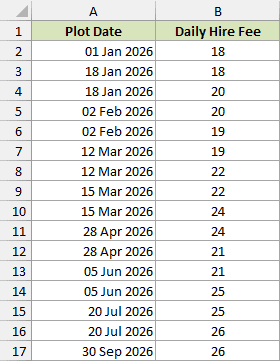
Start with the first date and fee. For every later change, enter its date twice, placing the previous fee before the new fee.
Finish with the Display Through date and the last fee. That final point extends the 26 USD section to 30 September.
Enter actual Excel dates, not text labels. The chart needs their numeric values to position the points correctly.
Insert and Format the Chart
An XY scatter chart uses a numeric horizontal axis. That preserves the three-day gap between 12 and 15 March alongside the longer gaps elsewhere.
These steps use Windows desktop Excel. Use them to create the chart:
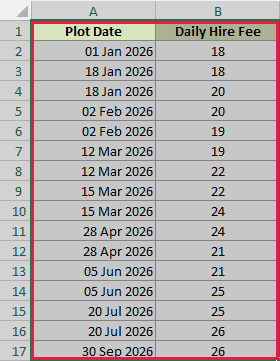
- Select A1:B17 on Helper Points, including the headers.
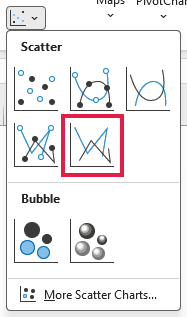
- On the Insert tab, open Insert Scatter (X, Y) or Bubble Chart. Choose Scatter with Straight Lines, the option without markers.
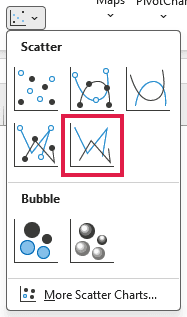
The chart connects the points in worksheet order. Repeated dates make vertical lines, while repeated fees make horizontal lines.
- Right-click the chart and choose Select Data. Select its fee series, then click Edit. Check that Series X values is
='Helper Points'!$A$2:$A$17and Series Y values is='Helper Points'!$B$2:$B$17. Click OK in both dialogs.
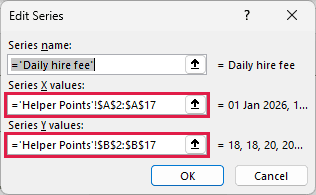
Use the date column for X values and the fee column for Y values. Neither range includes its header.
- Right-click the horizontal axis and select Format Axis. Under Axis Options, set the Minimum bound to 46023, the serial number for 1 January 2026 in this workbook. Leave Maximum automatic.
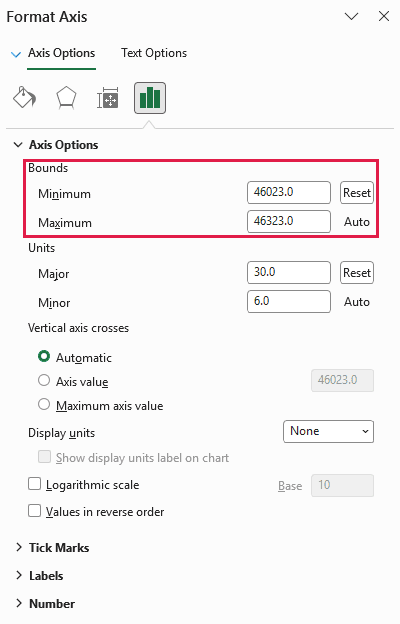
This starts the axis at the first effective date. If you’re using another workbook, use that workbook’s serial number for its first date.
Reset this fixed minimum whenever the first date changes.
- In the same pane, expand Number. Clear Linked to source if selected, enter
d-mmmin Format Code, and click Add.
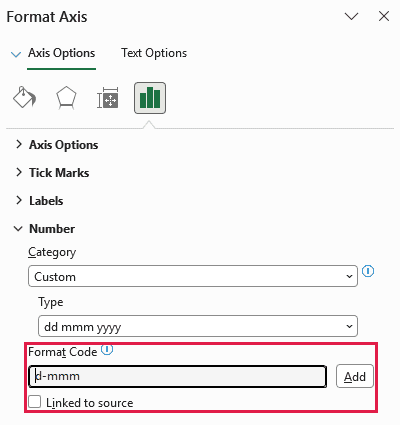
The labels now display dates such as 1-Jan instead of serial numbers.
- Right-click the vertical axis and choose Format Axis. Under Axis Options, set Minimum to 0 and leave Maximum automatic.
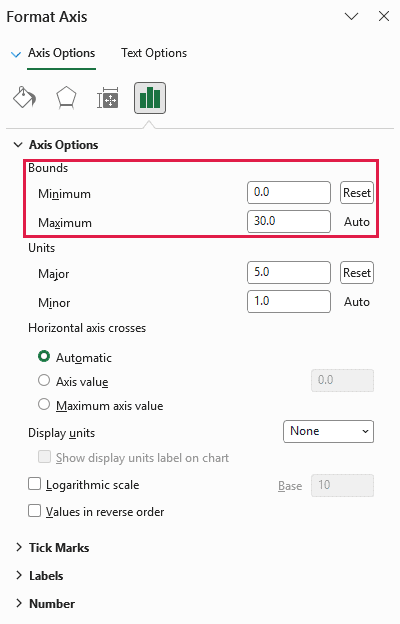
These hire fees are nonnegative. Starting at zero gives the chart a consistent baseline, while the automatic maximum leaves room for higher fees.
- Set the chart title to Bike hire daily fee (2026). Use Chart Design > Add Chart Element > Axis Titles to add Effective date horizontally and Daily hire fee (USD) vertically.
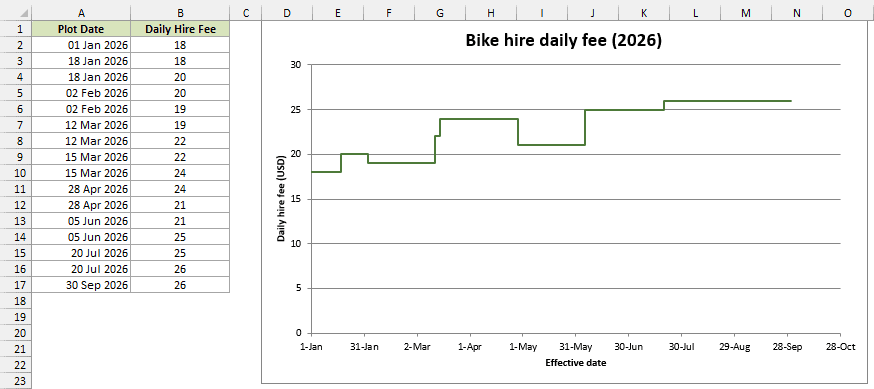
The chart now holds each fee flat until its next effective date. The short 22 USD section lasts from 12 March to 15 March.
Note: These helper points are entered values. Changing the source table or Display Through does not rebuild them. Update the points and the chart’s source ranges when the schedule changes.
Method #2: Generating Helper Points with a Dynamic Array Formula
If your rate schedule changes often, a formula can generate the points for you. The chart can then use named ranges that expand with the source.
This method needs Microsoft 365 or Excel 2024 because it uses the HSTACK function.
Below I have the same eight bike-hire changes in Rate Changes!A1:C9, with 30 September 2026 as Display Through in F2.
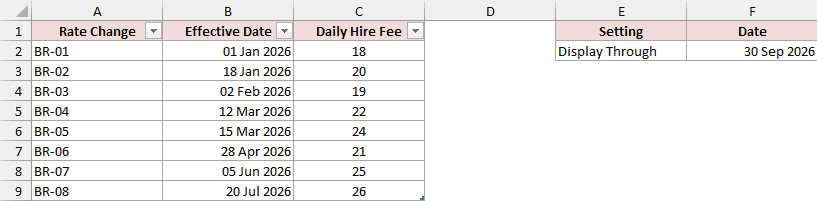
The source table is tblHireRates. Its columns are Rate Change, Effective Date, and Daily Hire Fee.
The download already includes this table, the formula, both names, and the finished chart on Dynamic Points. You can inspect them while following the setup.
Generate the Point Matrix
Keep the formula on a normal worksheet range outside the source table. It needs room to spill into two columns.
Here are the steps to check the source and generate the points:
- Click inside the existing table on Rate Changes. On Table Design, check that Table Name is tblHireRates. The downloaded file is already set up, so you don’t need to create another table.
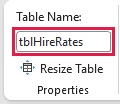
If you’re starting from plain cells in a fresh workbook, first create an Excel table with these exact headers and name it tblHireRates.
- Open Dynamic Points and select A2. The formula below is already there in the download. When recreating this setup, enter it in A2 beneath the headers Plot Date and Daily Hire Fee.
=LET(d,tblHireRates[Effective Date],v,tblHireRates[Daily Hire Fee],n,ROWS(d),k,SEQUENCE(2*n),HSTACK(IF(k=2*n,'Rate Changes'!$F$2,INDEX(d,IF(k=2*n,n,INT(k/2)+1))),INDEX(v,ROUNDUP(k/2,0))))
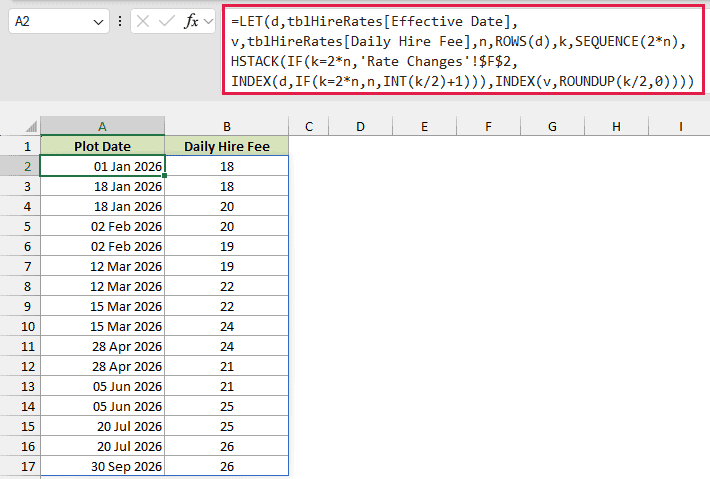
The formula spills into A2:B17, returning the same 16 points as the manual method. Enter it once. You don’t need to fill it down.
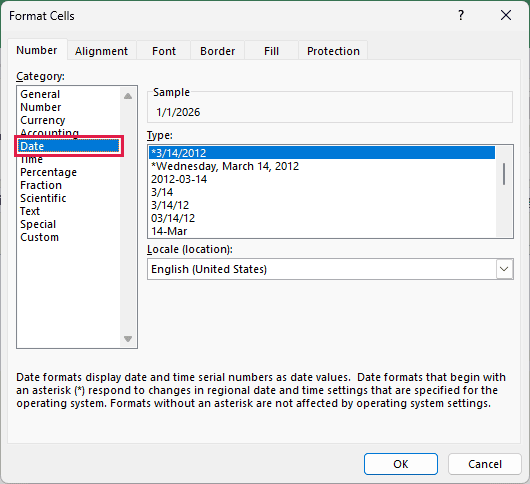
- If the dates appear as numbers, select A2:A17, press Ctrl+1, choose Date, select a date format, and click OK. The download already formats these cells as dates.
How does this formula work?
LET names the source dates d, the fees v, and the number of changes n. For this schedule, n is 8.
SEQUENCE(2*n) creates the point positions from 1 to 16. We need a starting point, two points for each later change, and an ending point.
For the date column, INT(k/2)+1 repeats each later effective date twice. The final position uses Rate Changes!F2 instead.
For the fee column, ROUNDUP(k/2,0) repeats every source fee twice. This puts the old fee before the new fee at each change date.
INDEX retrieves those dates and fees. HSTACK joins the two columns into the point matrix.
Note: Keep the spill area below A2 and across columns A:B clear. A value in the formula’s output area causes a #SPILL! error. Edit the source table or the formula’s anchor cell, rather than an individual spill result.
Define the Expanding Chart Ranges
A chart tied only to A2:A17 and B2:B17 would keep those fixed ranges. Two defined names let the series include additional points.
Both names already exist in the download with Dynamic Points as their worksheet scope. Inspect existing names with Edit. Use New only when recreating them.
Use these settings for the chart’s date and fee ranges:
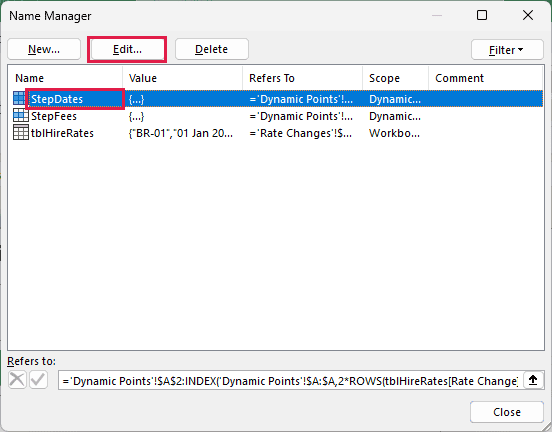
- Open Formulas > Name Manager. Select StepDates with scope Dynamic Points, then click Edit to inspect its reference. In a fresh setup, click New, enter StepDates, and choose Dynamic Points in Scope. Use the following Refers to formula, then click OK.
='Dynamic Points'!$A$2:INDEX('Dynamic Points'!$A:$A,2*ROWS(tblHireRates[Rate Change])+1)
- Inspect StepFees in the same way. When creating it, enter StepFees as the name and choose Dynamic Points as its scope. Use this Refers to formula, click OK, then close Name Manager.
='Dynamic Points'!$B$2:INDEX('Dynamic Points'!$B:$B,2*ROWS(tblHireRates[Rate Change])+1)
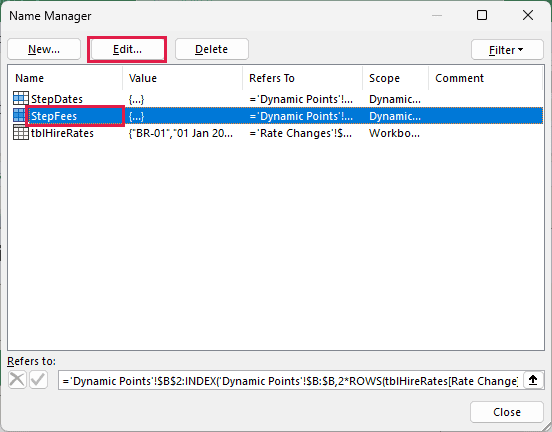
With eight source rows, 2*ROWS(tblHireRates[Rate Change])+1 returns 17. Each name runs from row 2 through row 17, covering 16 points.
Adding a ninth source row changes the endpoint to row 19. Both names then cover 18 points without editing the chart ranges.
Excel’s Name Manager shows each name’s scope. Check that column if you have similarly named ranges elsewhere in the workbook.
Connect the Chart to the Names
The chart still uses straight XY segments. Only its data references differ from the manual version.
Follow these steps to create a chart, or inspect the existing chart starting at step 8:
- Select A1:B17 on Dynamic Points.
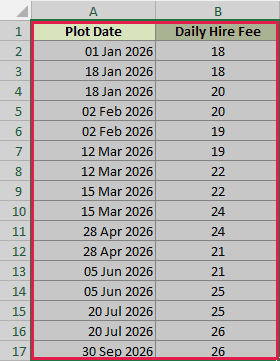
- Choose Insert > Insert Scatter (X, Y) or Bubble Chart > Scatter with Straight Lines, using the option without markers.
- Right-click the chart and choose Select Data. Select the fee series and click Edit. Set Series X values to
='Dynamic Points'!StepDatesand Series Y values to='Dynamic Points'!StepFees. Click OK in both dialogs.
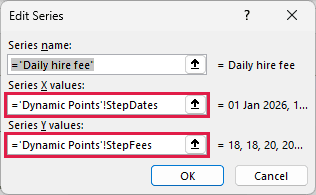
The worksheet qualifier matters because these names have worksheet scope. Excel may add workbook qualification when it displays the references.
- Right-click the horizontal axis and choose Format Axis. Set its Minimum bound to 46023 and leave Maximum automatic. Under Number, clear Linked to source if needed, enter
d-mmmin Format Code, and click Add.
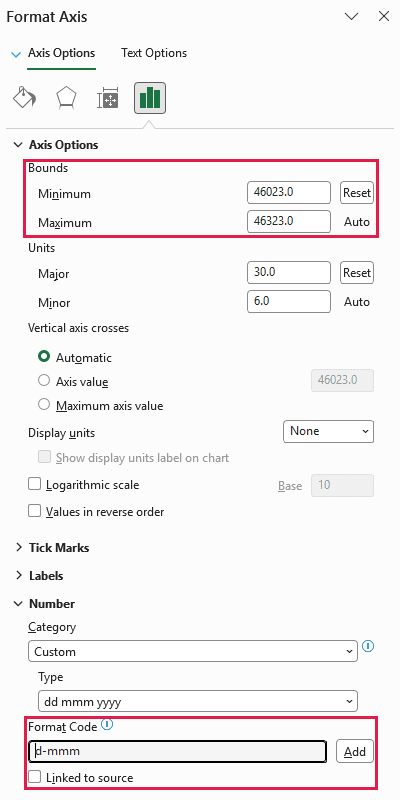
The horizontal minimum matches 1 January 2026 in the supplied workbook. Reset this fixed minimum if the first source date changes.
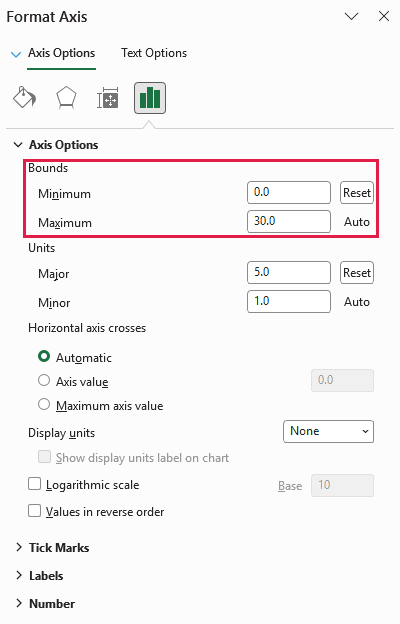
- Right-click the vertical axis and select Format Axis. Set Minimum to 0 and keep Maximum automatic.
- Set the chart title to Bike hire daily fee (2026). Through Chart Design > Add Chart Element > Axis Titles, add Effective date horizontally and Daily hire fee (USD) vertically.
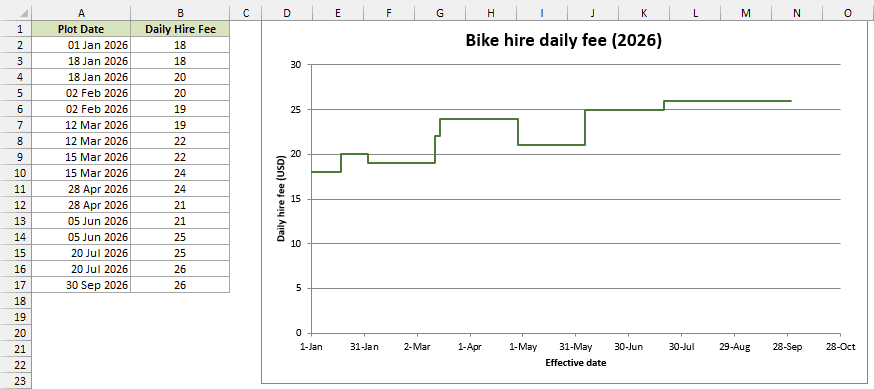
The result matches the manual chart. The final fee is 26 USD, and its horizontal section ends on 30 September 2026.
For later changes, add complete rows inside tblHireRates, keeping the effective dates in ascending order. The formula and named chart ranges expand together.
Changing Rate Changes!F2 moves the final endpoint. Keep it on or after the latest effective date so the last segment doesn’t run backward.
Additional Notes About Step Charts in Excel
These checks help keep either version accurate:
- Keep source effective dates strictly ascending, without blanks or duplicates. Repeated dates belong in the helper points, where they create the vertical changes.
- Leave axis maximum bounds automatic if you want them to accommodate later dates and higher fees. Excel may show empty space after Display Through; the plotted line still ends at that date.
- Use a suitable vertical minimum if you adapt the example for negative values. The zero minimum here fits the nonnegative bike-hire fees.
- The download contains completed examples on Helper Points and Dynamic Points. Changes to the source automatically feed only the dynamic version.
Frequently Asked Questions
These questions cover how to read a step chart and when to use one.
Can I Use a Step Chart for Cumulative Totals?
Yes, when the total stays fixed between events. Use the cumulative total at each event as its Y value in the same helper-point arrangement.
Can I Use Dates and Times Instead of Dates?
Yes. Excel stores time as a fraction of a day. Use real date-and-time values and labels that show the time for changes within a day.
Is a Step Chart Suitable for Values That Change Gradually?
Use a step chart when the value holds steady between changes. A regular line chart is usually a better fit when you want to show gradual movement.
Conclusion
I’ve shown how to build the helper points manually and generate them with a formula.
I hope you found this article helpful.
Other Excel articles you may also like:
