
If names or codes you imported into Excel won’t match, sort, or look up properly, stray spaces are usually to blame, and a short VBA macro can clean them out of a whole range in one go.
The tricky part is that VBA gives you two different trims. VBA’s own Trim function only removes spaces from the start and end of the text.
Excel’s TRIM worksheet function, which you can call from VBA, does that too and also squeezes repeated spaces between words down to one.
Neither of them touches the non-breaking spaces that come along when you copy data from a web page, so those need one extra step.
In this article, I’ll show you seven ways to trim spaces with VBA, including a simple loop over selected cells, WorksheetFunction.Trim, an Evaluate one-liner, a fast array version for big ranges, and a fix for non-breaking spaces.
How to Add and Run These Macros
Every macro in this article goes into a standard module, and the steps are the same for all of them.
Here are the steps to add a macro to your workbook:
- Open the example file. If you see a yellow Protected View bar, click Enable Editing.
- Save a copy as an Excel Macro-Enabled Workbook (.xlsm) so you can keep the code.
- Press Alt + F11 to open the VBA editor.
- Click Insert > Module.
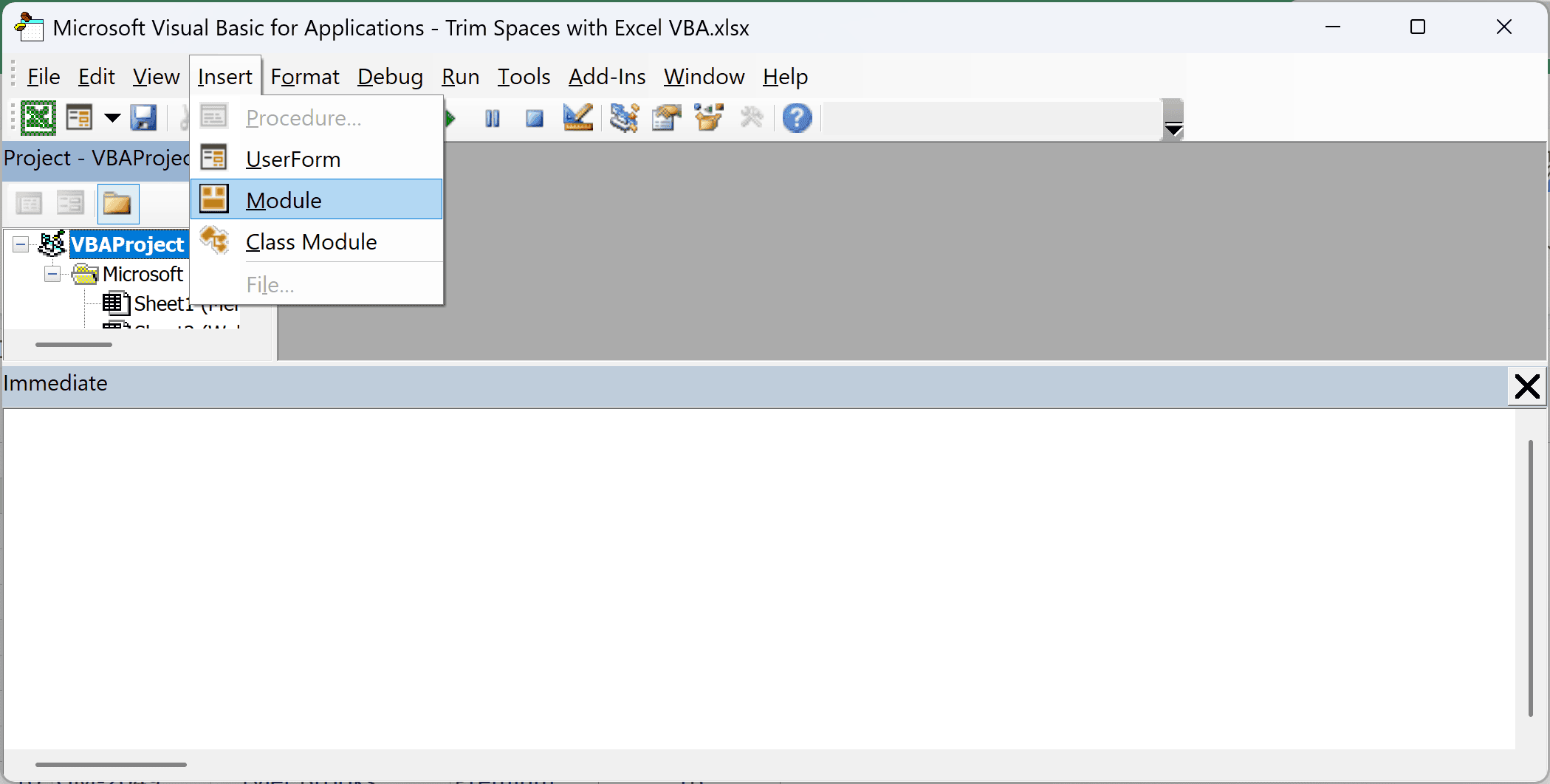
- Paste the macro into the new module.
Every macro here changes your cells directly, and Excel can’t undo a macro with Ctrl + Z. Keep a copy of your data before you run one.
The example file ships with the messy data, so you can run each macro on it. To try another method afterward, close the file without saving and open it again.
Method #1: Using the VBA Trim Function
The quickest way to clean up a column is a short macro that runs VBA’s Trim function on every cell you select. It removes leading and trailing spaces, but leaves the spaces between words as they are.
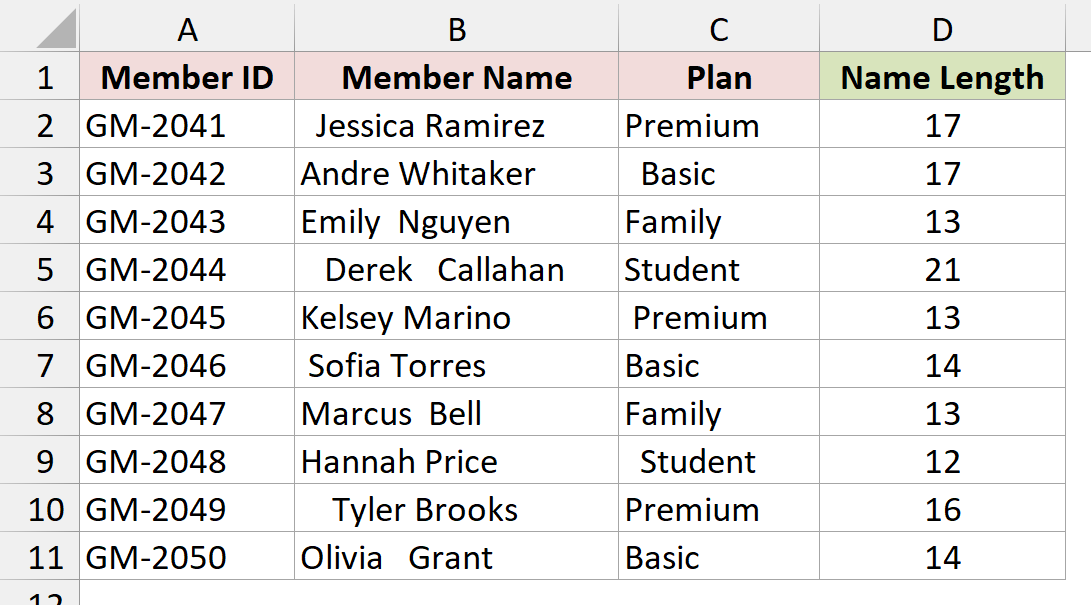
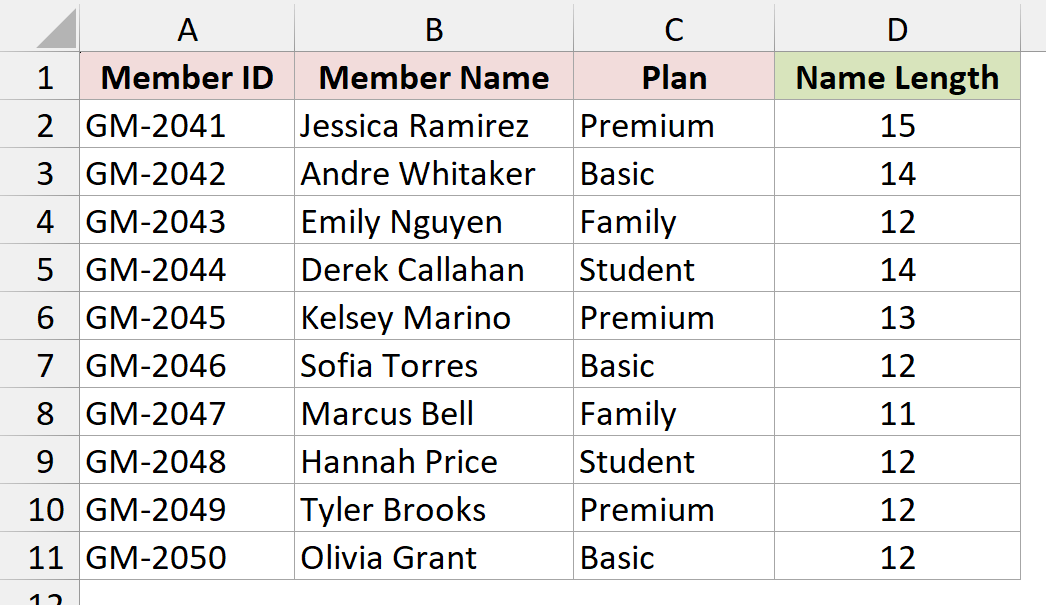
On the Member List sheet, I have a gym member list with Member ID in column A, Member Name in column B, and Plan in column C.
Column D (Name Length) uses the LEN function (=LEN(B2)) to count the characters in each name, so you can see the spaces you can’t spot by eye. Several names have extra spaces at the start, at the end, or between the first and last name.
Here is the VBA code:
Sub TrimSelectedCells()
    Dim cell As Range
    For Each cell In Selection
        If Not cell.HasFormula And VarType(cell.Value) = vbString Then
            cell.Value = Trim(cell.Value)
        End If
    Next cell
End Sub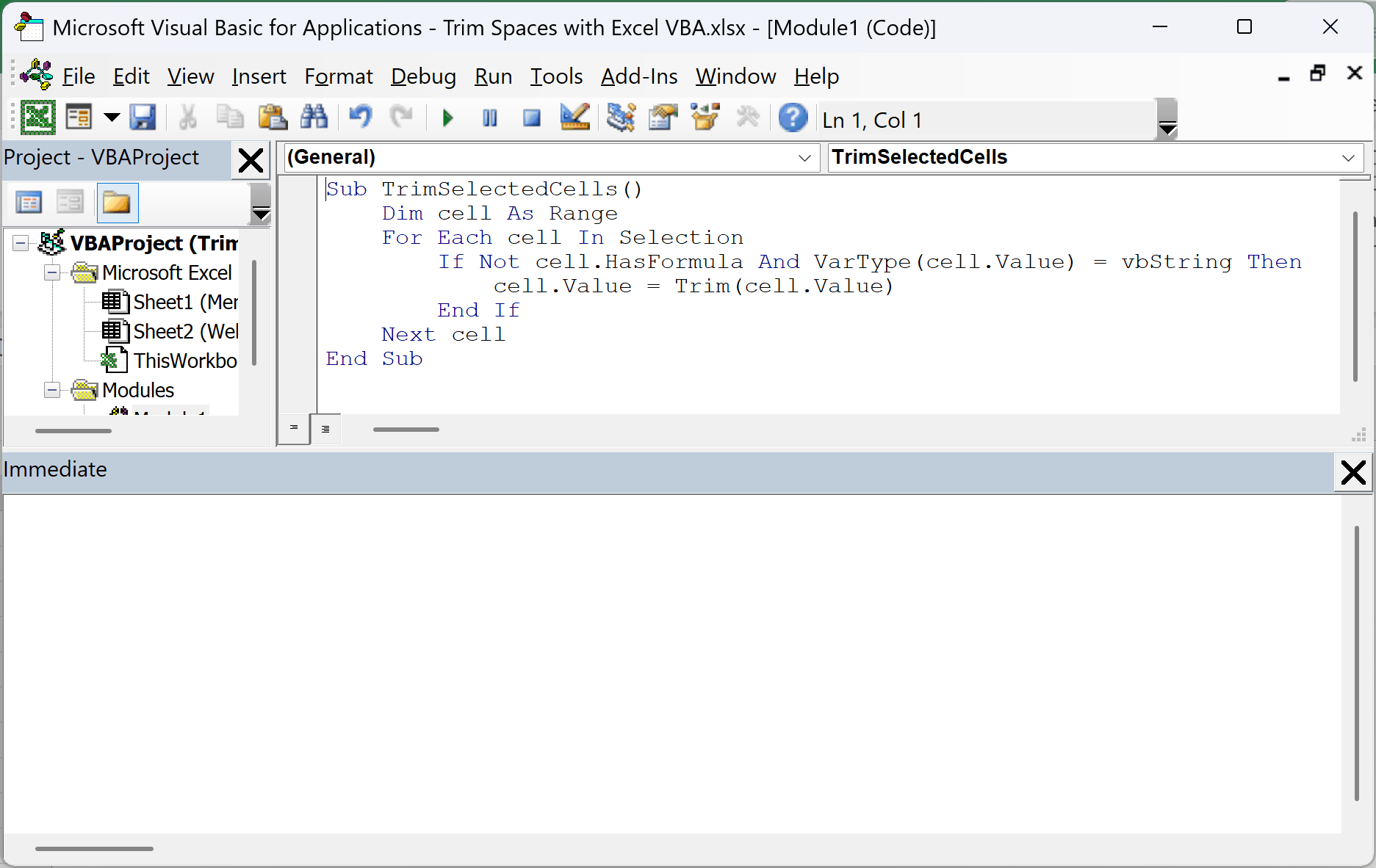
Here are the steps to run this macro:
- Paste the code into a new module (see the steps above).
- Go back to the Member List sheet and select the names in B2:B11.
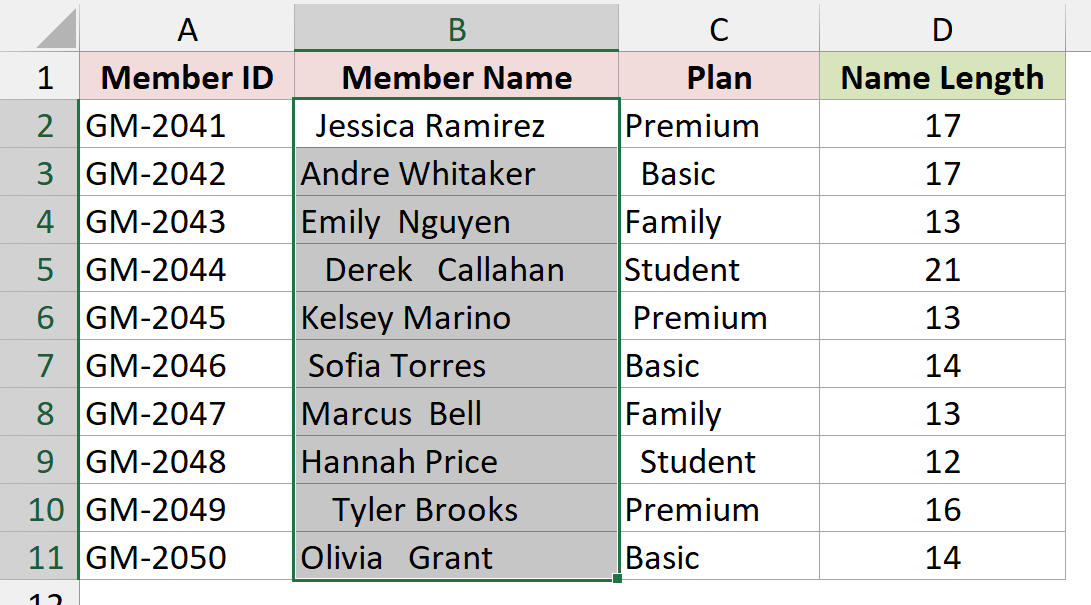
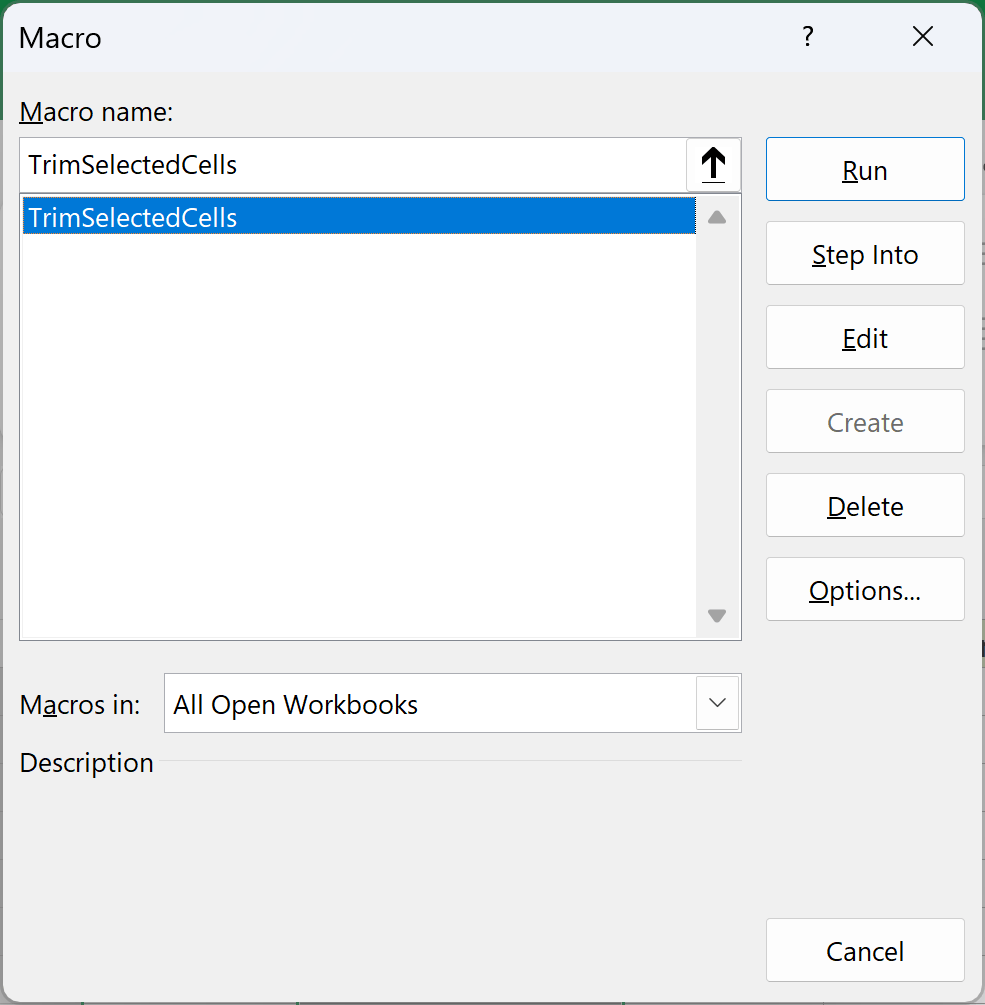
- Press Alt + F8, select TrimSelectedCells, and click Run.
The leading and trailing spaces are gone. Jessica Ramirez in B2 had two leading spaces and drops from 17 characters to 15. Andre Whitaker in B3 had three trailing spaces and drops from 17 to 14.
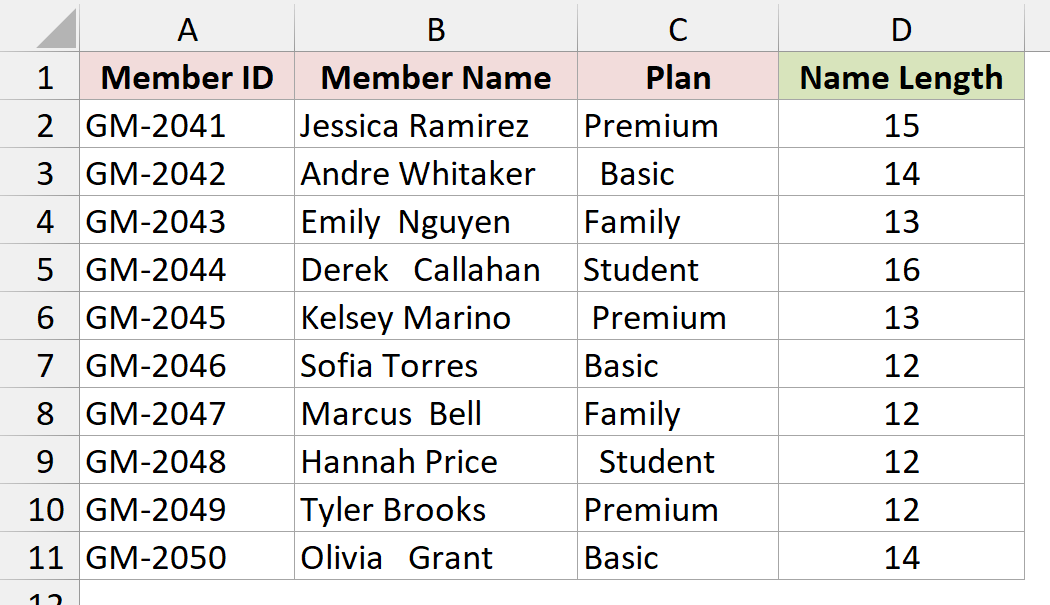
But look at Emily Nguyen in B4. It still has 13 characters because the double space between the first and last name is still there. Derek Callahan in B5 also keeps the three spaces in the middle.
How does this code work?
The macro loops through every cell in your selection. For each one, it checks two things before changing anything.
cell.HasFormula makes sure it skips formula cells, so your formulas don’t get replaced with plain text. VarType(cell.Value) = vbString makes sure the cell holds text, so numbers, dates, and blank cells are left alone.
If both checks pass, Trim strips the spaces from both ends and the macro writes the cleaned text back into the same cell.
Method #2: Using WorksheetFunction.Trim
If you also want to fix the extra spaces between words, use Excel’s own TRIM function from VBA instead. This is the one I recommend for most cleanup jobs.
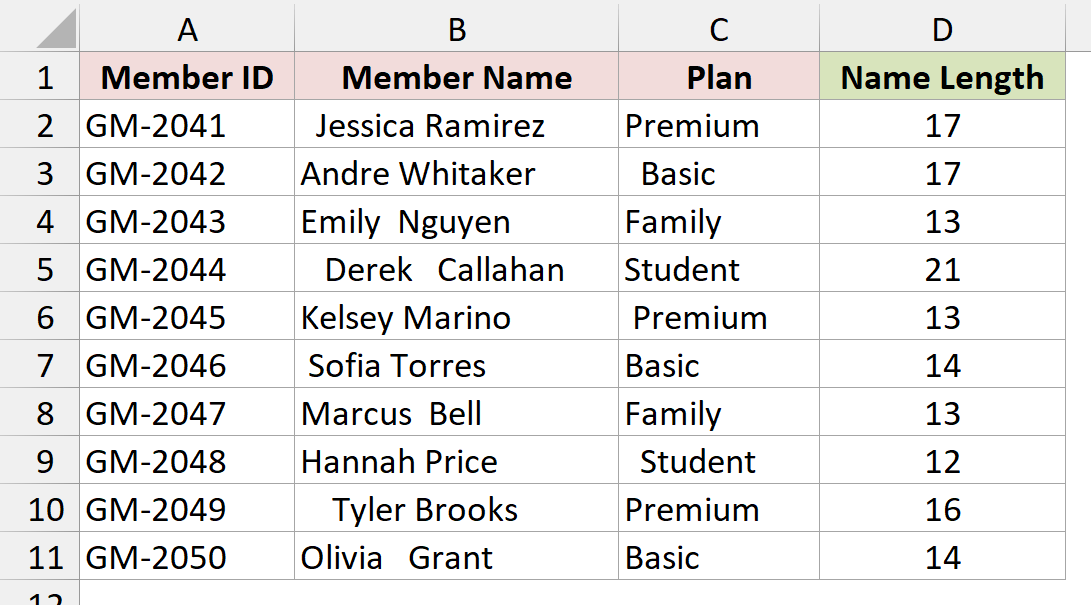
On the Member List sheet, the gym member names in B2:B11 have extra spaces at the start, at the end, and in the middle. Column D shows the character count of each name.
Here is the VBA code:
Sub TrimExtraSpaces()
    Dim cell As Range
    For Each cell In Selection
        If Not cell.HasFormula And VarType(cell.Value) = vbString Then
            cell.Value = Application.WorksheetFunction.Trim(cell.Value)
        End If
    Next cell
End Sub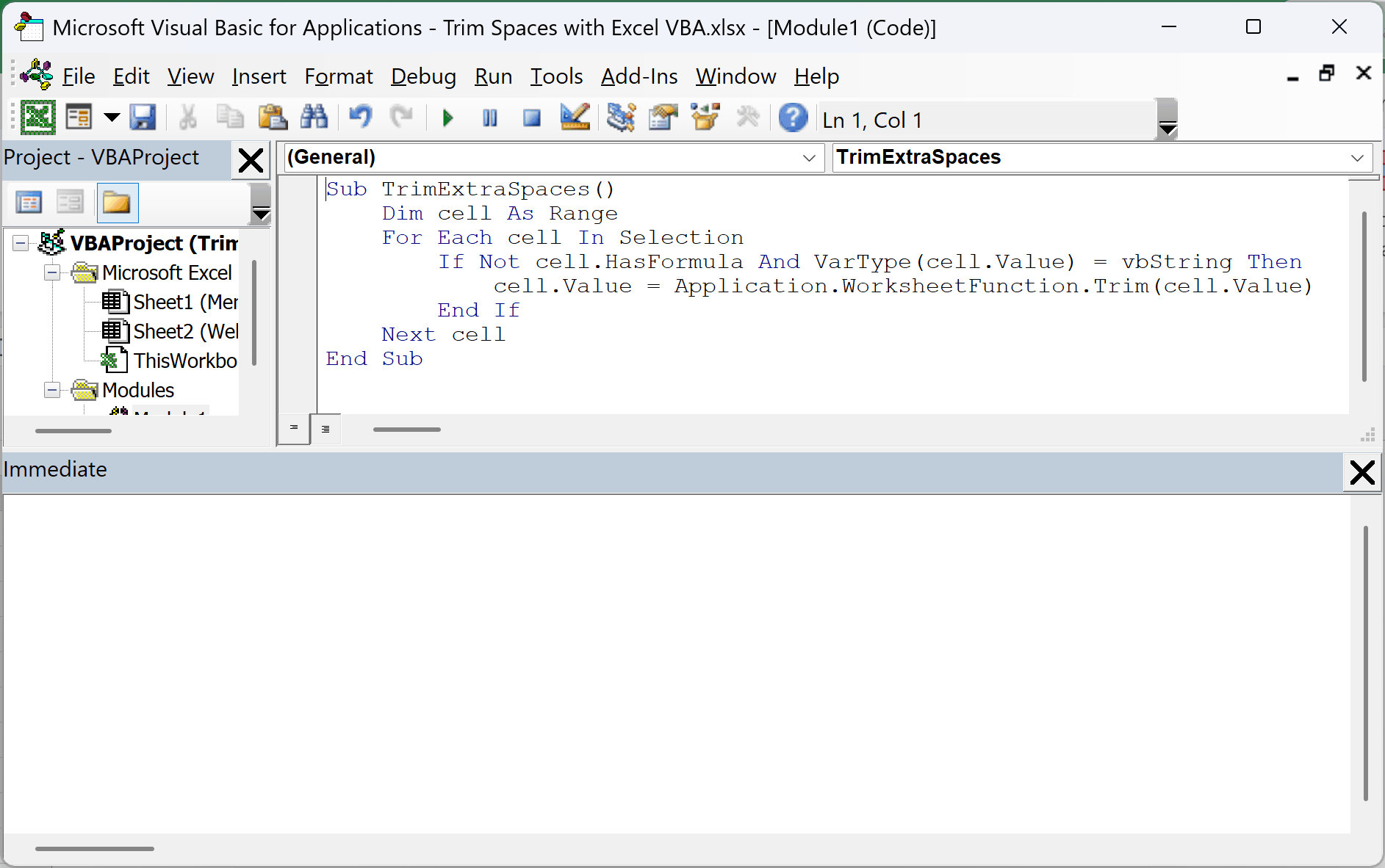
To run it, select B2:B11, press Alt + F8, choose TrimExtraSpaces, and click Run.
Now every name has exactly one space between the first and last name. Emily Nguyen in B4 drops from 13 characters to 12. Derek Callahan in B5, which had extra spaces at both ends and in the middle, goes from 21 characters down to 14.
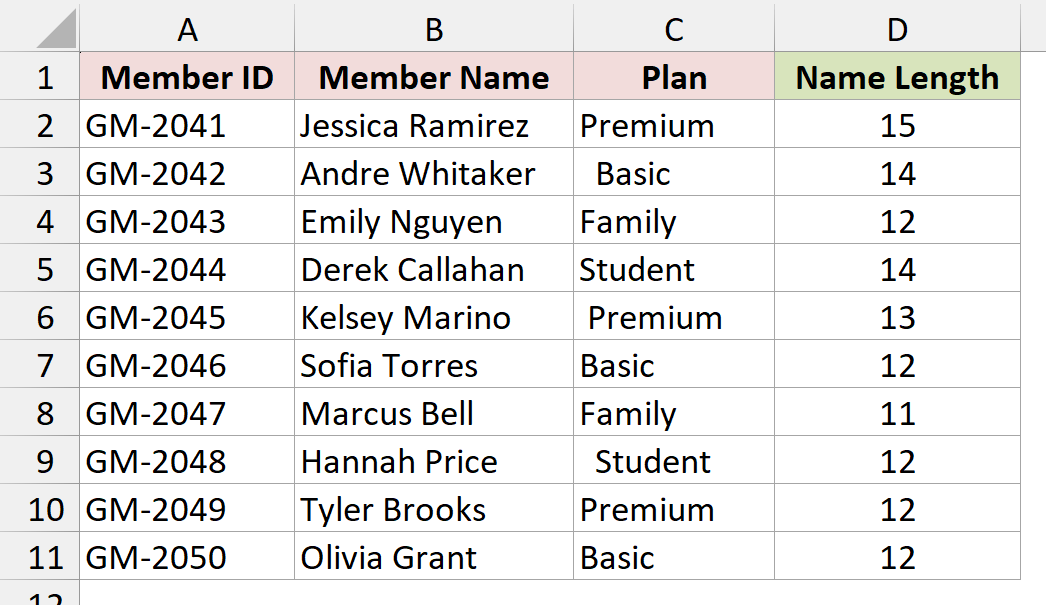
The code is the same as in Method #1. The only change is Application.WorksheetFunction.Trim in place of Trim.
That calls the same TRIM function you’d use in a worksheet formula. It removes spaces from both ends and also turns every run of spaces inside the text into a single space.
Note: You’ll also see this written as Application.Trim. It calls the same TRIM function, so it gives you the same result in this macro.
Method #3: Using LTrim or RTrim
Sometimes you only want to clean one side. VBA has LTrim for removing leading spaces and RTrim for removing trailing spaces.
On the Member List sheet, some names in B2:B11 start with extra spaces, some end with them, and a few have both. Column D shows the character count.
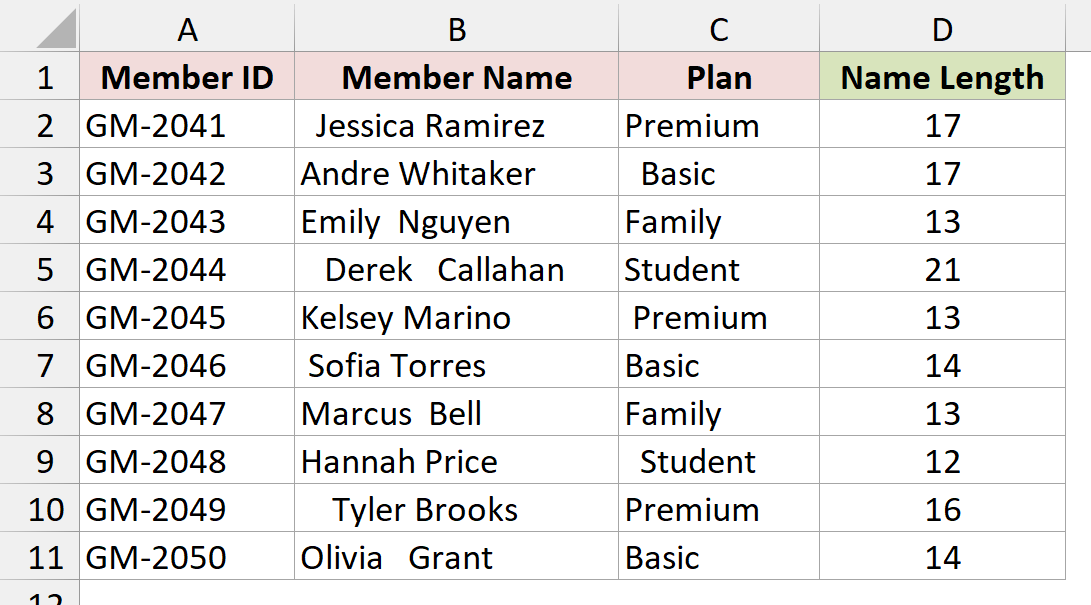
Here is the VBA code to remove only the leading spaces:
Sub RemoveLeadingSpaces()
    Dim cell As Range
    For Each cell In Selection
        If Not cell.HasFormula And VarType(cell.Value) = vbString Then
            cell.Value = LTrim(cell.Value)
        End If
    Next cell
End Sub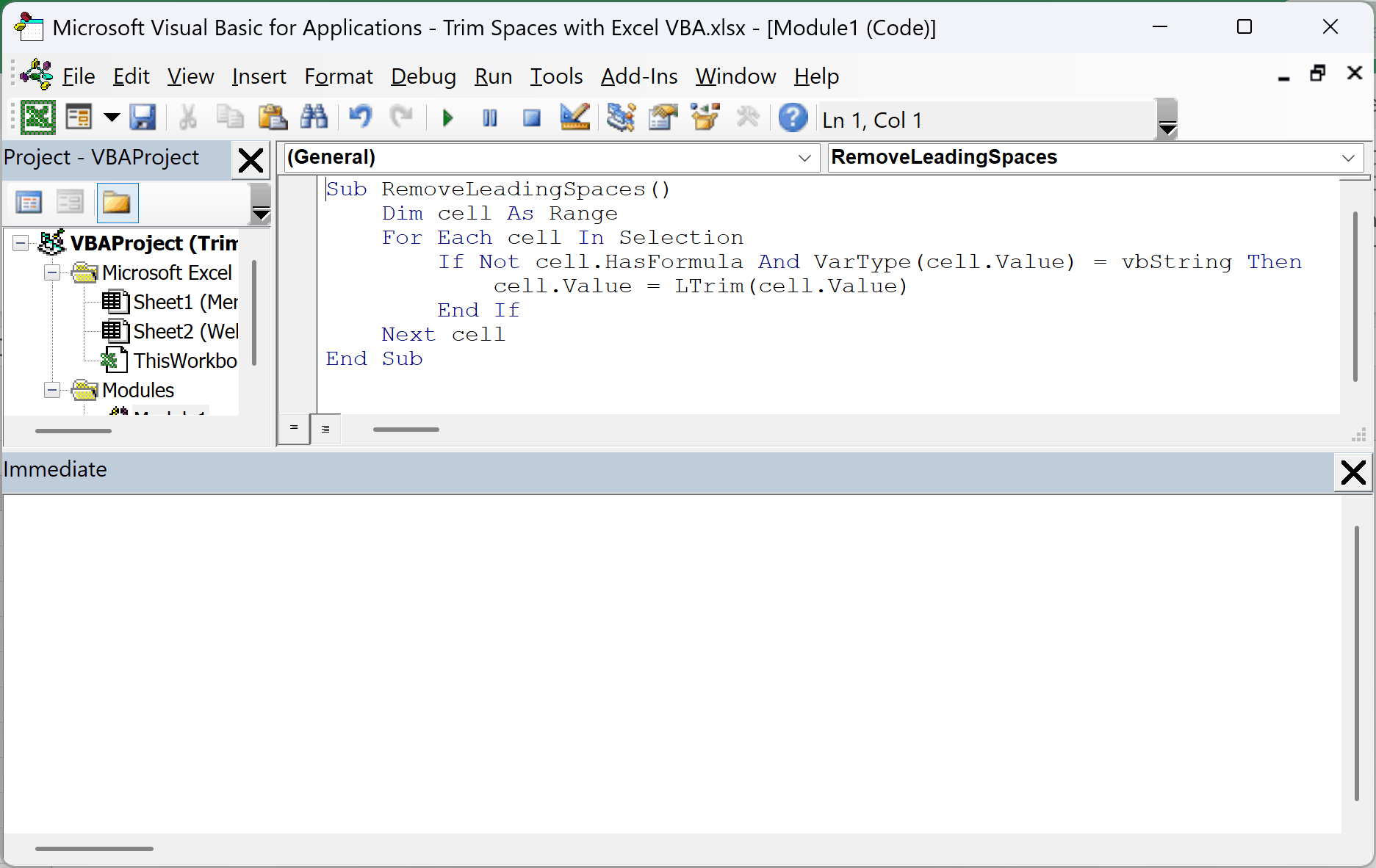
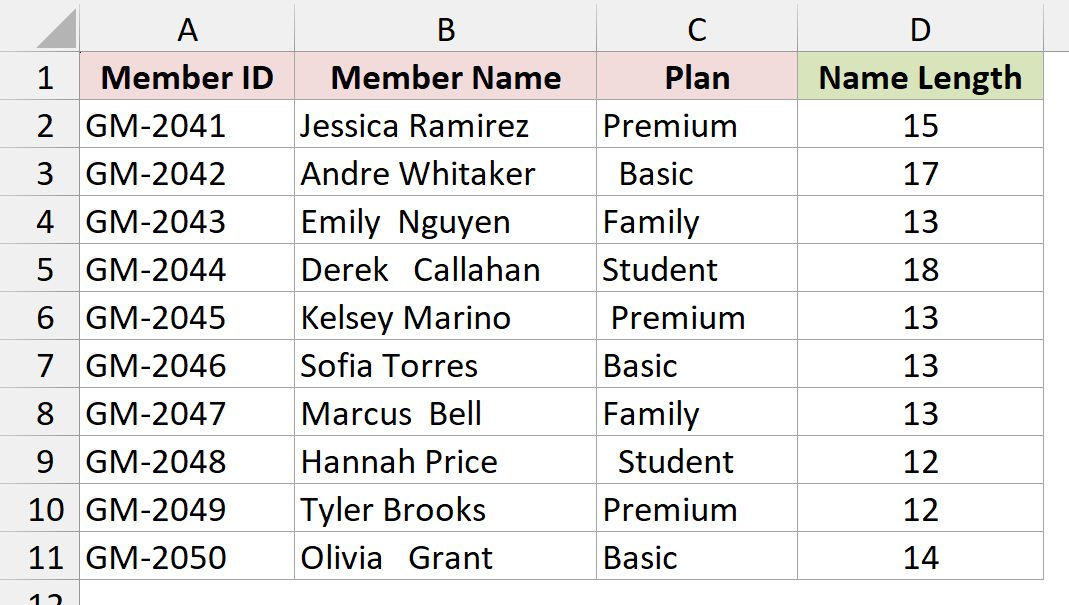
Select B2:B11 and run RemoveLeadingSpaces from the Macro dialog (Alt + F8).
The names now line up on the left. Tyler Brooks in B10 loses its four leading spaces and goes from 16 characters to 12. Andre Whitaker in B3 still has 17 characters, because its spaces are at the end.
To remove only the trailing spaces instead, use this version with RTrim:
Sub RemoveTrailingSpaces()
    Dim cell As Range
    For Each cell In Selection
        If Not cell.HasFormula And VarType(cell.Value) = vbString Then
            cell.Value = RTrim(cell.Value)
        End If
    Next cell
End SubTrailing spaces are invisible in the cell, so check the Name Length column. Andre Whitaker in B3 drops from 17 to 14, while Jessica Ramirez in B2 keeps the two leading spaces and stays at 17.
Like VBA’s Trim, neither LTrim nor RTrim touches the spaces between words.
Method #4: Using a Fixed Range or the Used Range
The macros so far work on whatever you select. If you clean the same range every time, you can write the range into the code and skip the selecting.
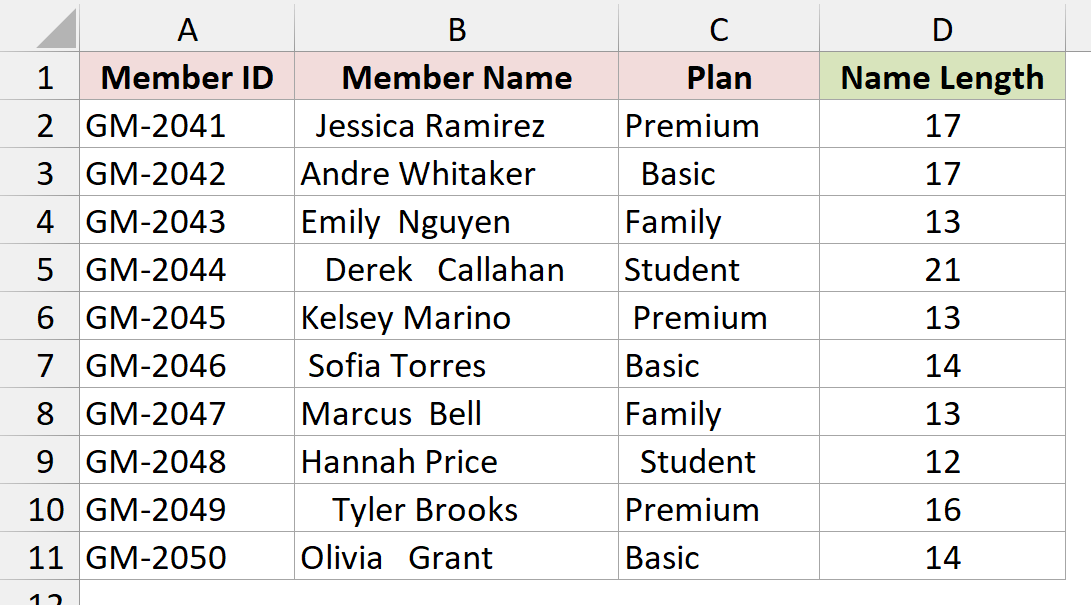
On the Member List sheet, both the names in column B and the plans in column C have extra spaces. Look at how Basic in C3 and Student in C9 sit a little to the right because of their leading spaces.
Here is the VBA code that trims B2:C11 on the Member List sheet:
Sub TrimFixedRange()
    Dim cell As Range
    For Each cell In Worksheets("Member List").Range("B2:C11")
        If Not cell.HasFormula And VarType(cell.Value) = vbString Then
            cell.Value = Application.WorksheetFunction.Trim(cell.Value)
        End If
    Next cell
End Sub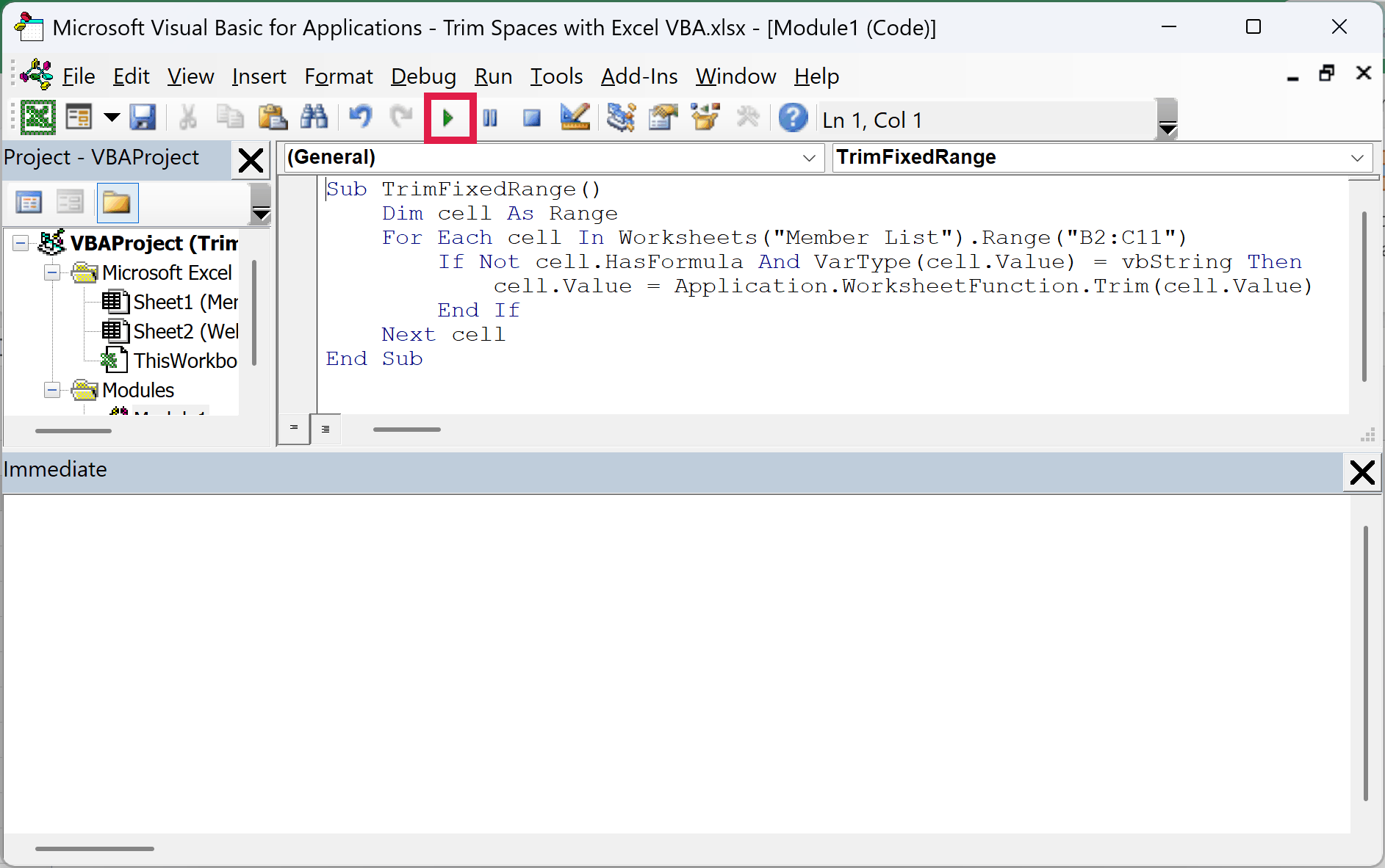
You can run this one from anywhere. Click inside the code in the VBA editor and press F5, or use Alt + F8.
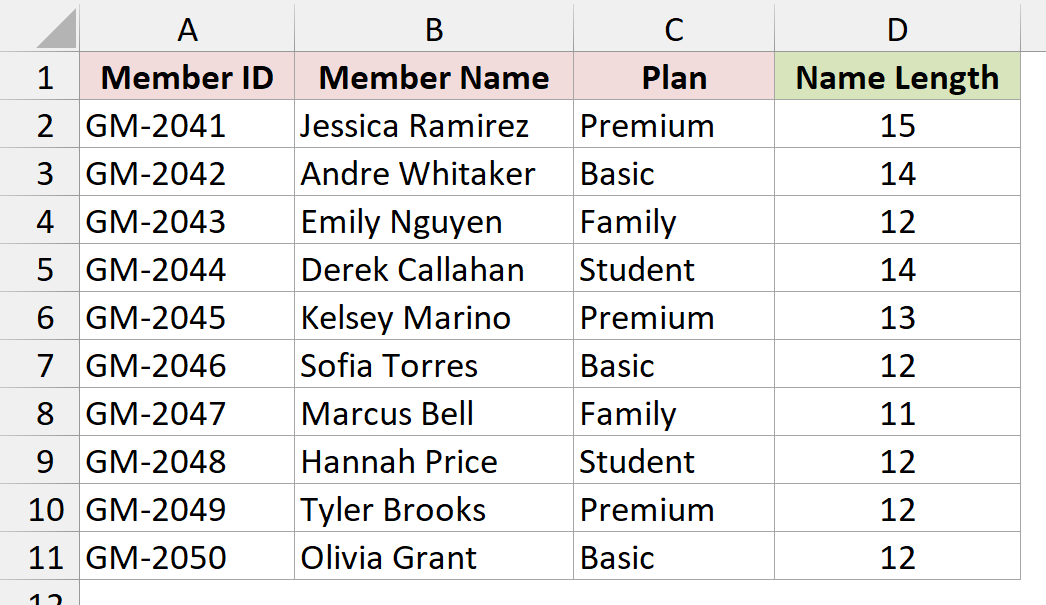
Both columns are cleaned in one go. The names lose their extra spaces, and the plans now read “Basic”, “Family”, “Student”, and “Premium” with nothing around them.
If you don’t know how far your data goes, use the sheet’s used range instead. It covers every cell from the first one you’ve used to the last one.
Sub TrimUsedRange()
    Dim cell As Range
    For Each cell In Worksheets("Member List").UsedRange
        If Not cell.HasFormula And VarType(cell.Value) = vbString Then
            cell.Value = Application.WorksheetFunction.Trim(cell.Value)
        End If
    Next cell
End SubOn the Member List sheet, that’s A1:D11, so it also checks the headers and the Member IDs. The HasFormula check matters here. Without it, the macro would overwrite the LEN formulas in column D with their results.
Change "Member List" to your own sheet name, and "B2:C11" to your own range.
Method #5: Using Evaluate With TRIM
If you like short code, Evaluate can trim a whole range in a single line, with no loop at all.
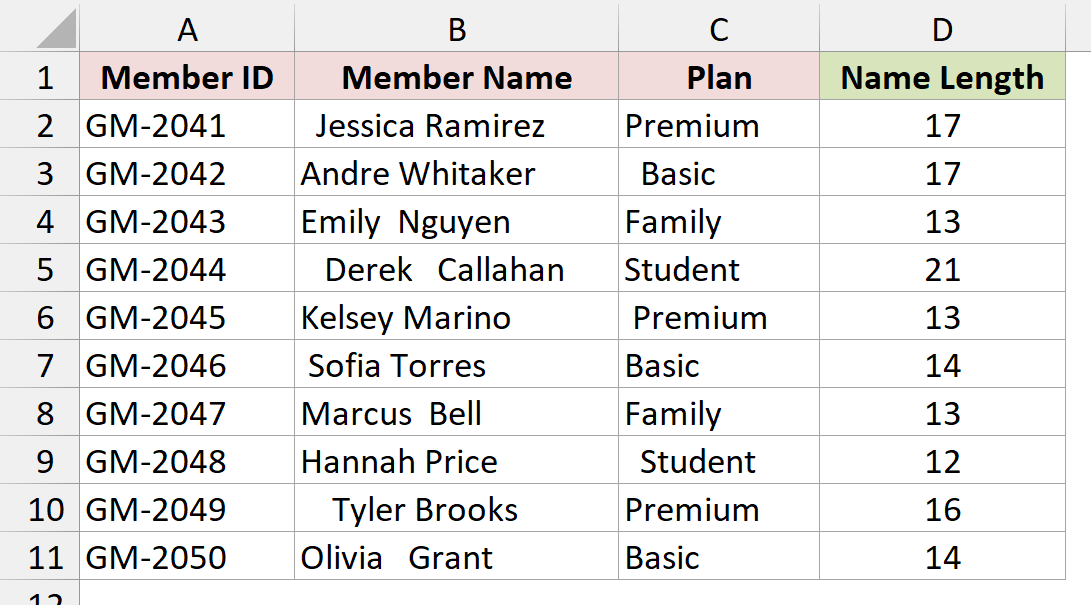
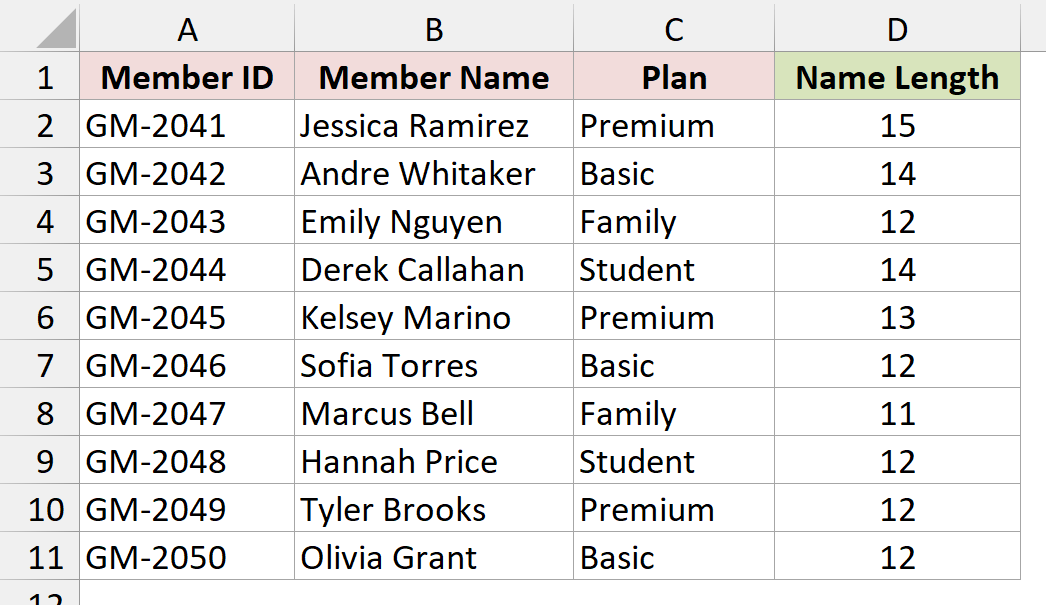
On the Member List sheet, the names in column B and the plans in column C both have extra spaces. Column D counts the characters in each name.
Here is the VBA code:
Sub TrimWithEvaluate()
    Dim rng As Range
    Set rng = Worksheets("Member List").Range("B2:C11")
    rng.Value = rng.Worksheet.Evaluate("TRIM(" & rng.Address & ")")
End Sub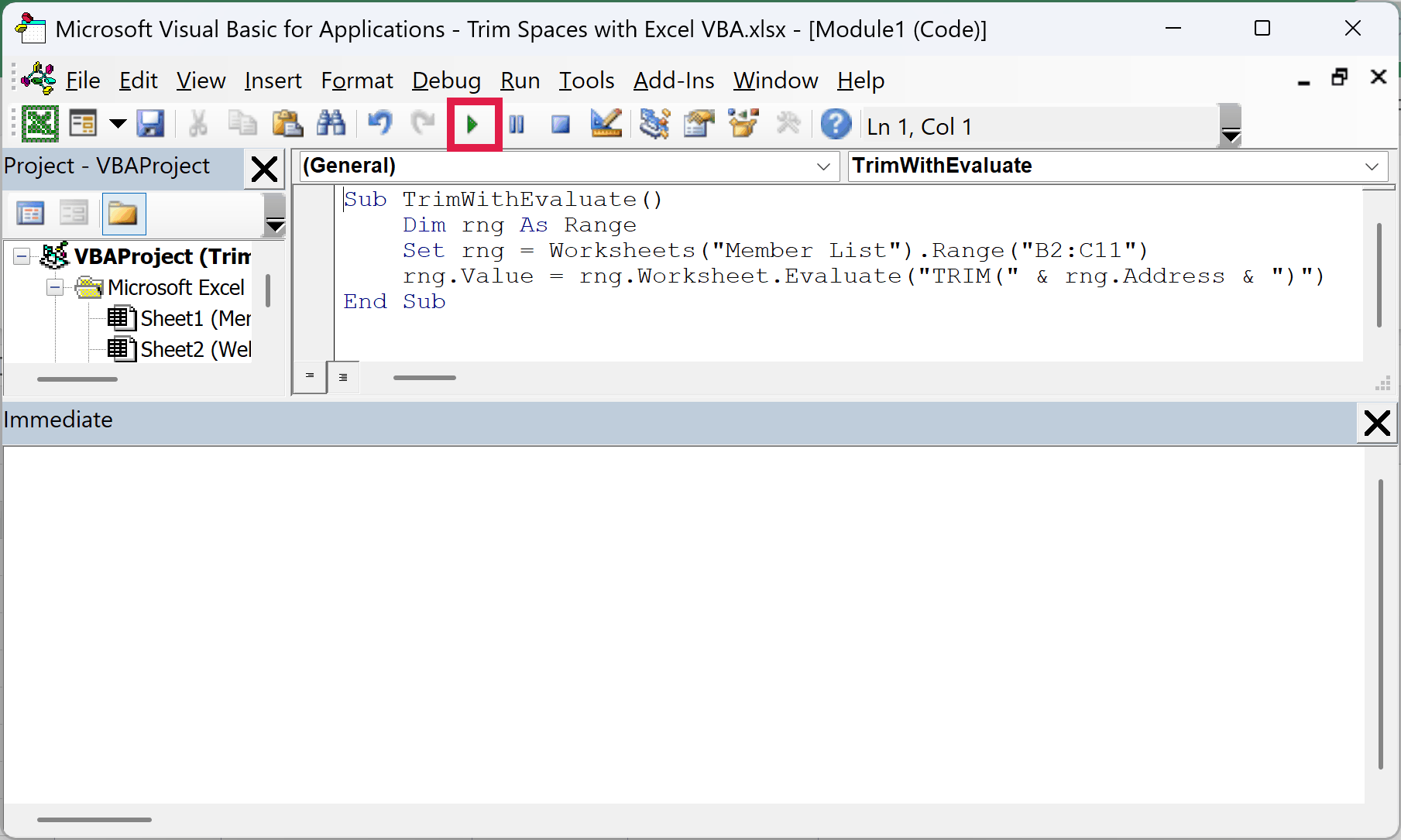
Run it with F5 in the VBA editor or from the Macro dialog.
You get the same result as Method #4. Every name and plan in B2:C11 is trimmed, with single spaces between words.
How does this code work?
rng.Address returns “$B$2:$C$11”, so the macro asks Excel to calculate TRIM($B$2:$C$11). Excel works it out for the whole range at once and hands back a block of trimmed values.
The macro then writes that block straight back over B2:C11. Using rng.Worksheet.Evaluate makes sure the formula is calculated on the Member List sheet, even if another sheet is active.
Unlike the loops, this version has no formula check. Every cell in the range gets replaced with a text value, so only point it at cells that hold plain text.
Method #6: Using an Array for Large Ranges
The loop macros read and write one cell at a time. That’s fine for a few hundred cells, but it gets slow on big sheets because every write goes back to the worksheet.
This version reads each block of text cells into memory, trims everything there, and writes each block back in one go.
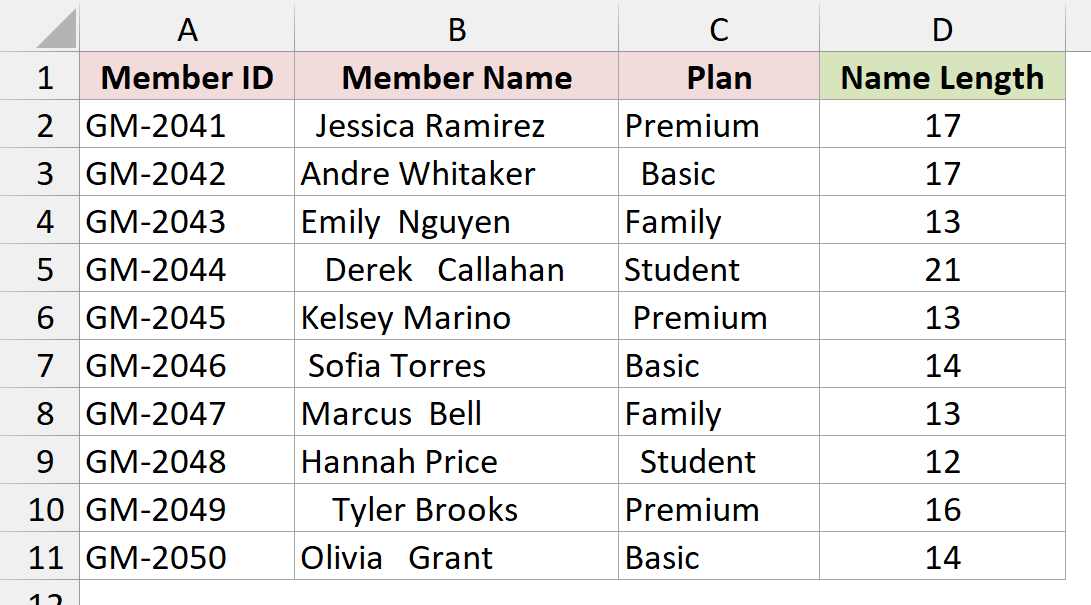
On the Member List sheet, the names and plans have extra spaces, and column D has LEN formulas that must stay as formulas.
Here is the VBA code:
Sub TrimLargeRangeFast()
    Dim textCells As Range, area As Range
    Dim arr As Variant
    Dim r As Long, c As Long

    On Error Resume Next
    Set textCells = Worksheets("Member List").UsedRange.SpecialCells(xlCellTypeConstants, xlTextValues)
    On Error GoTo 0
    If textCells Is Nothing Then Exit Sub

    For Each area In textCells.Areas
        If area.Cells.Count = 1 Then
            area.Value = Application.WorksheetFunction.Trim(area.Value)
        Else
            arr = area.Value
            For r = 1 To UBound(arr, 1)
                For c = 1 To UBound(arr, 2)
                    arr(r, c) = Application.WorksheetFunction.Trim(arr(r, c))
                Next c
            Next r
            area.Value = arr
        End If
    Next area
End Sub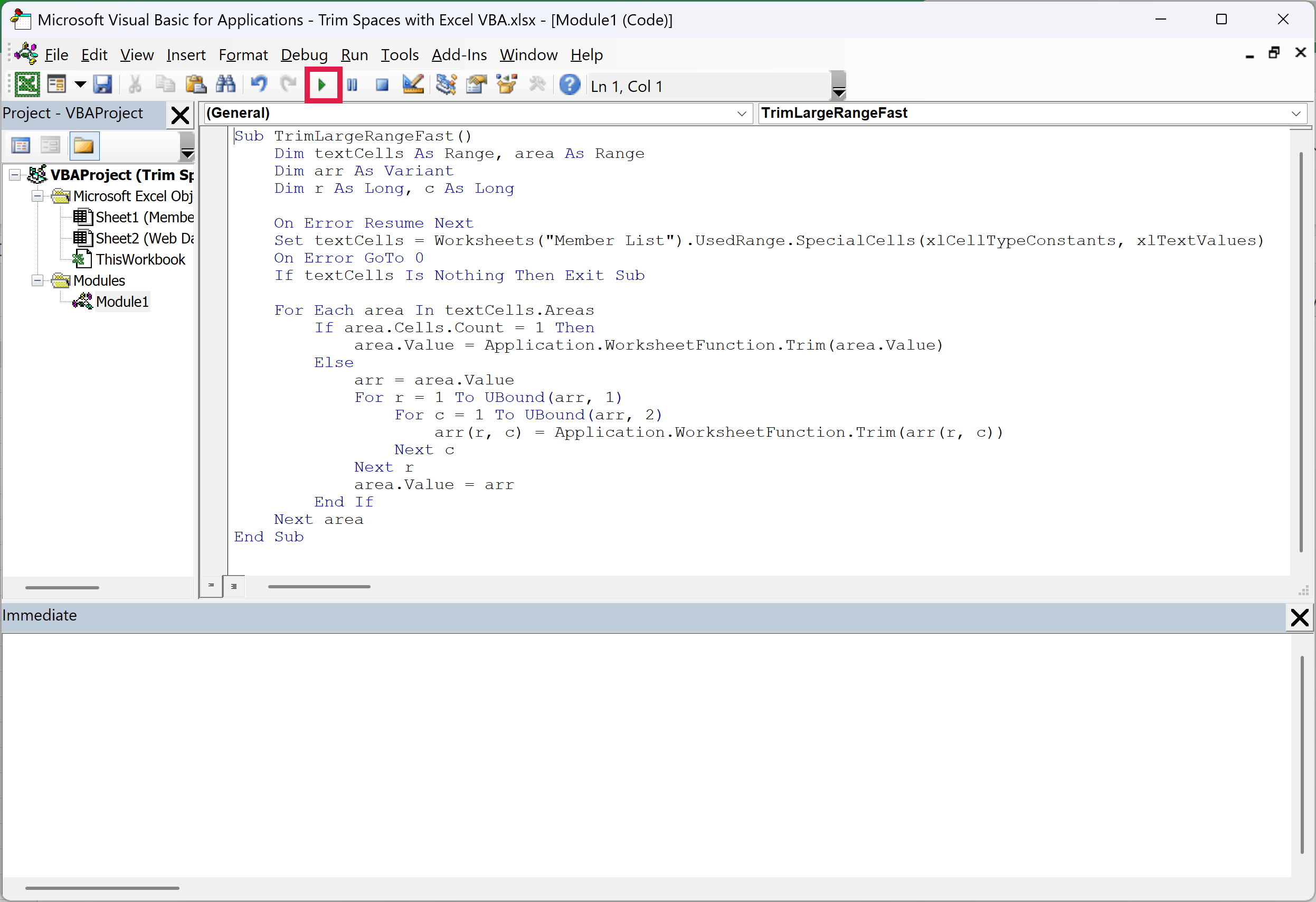
Run it with F5 in the VBA editor or from the Macro dialog.
The names and plans are trimmed, and the LEN formulas in column D are still formulas, now showing the shorter lengths.
How does this code work?
SpecialCells(xlCellTypeConstants, xlTextValues) picks out only the cells in the used range that hold typed text. Formulas, numbers, dates, and blanks are left out, so there’s nothing to check inside the loop.
That selection can be made up of several separate blocks, called areas. For each area, area.Value copies the whole block into an array in one step.
The two For loops trim every value in the array, and area.Value = arr writes the block back in one step. A single-cell area is handled on its own, because its value isn’t an array.
On Error Resume Next is there because SpecialCells raises an error when the sheet has no text at all. In that case textCells stays empty and the macro exits.
When I trimmed 5,000 rows across three columns, the cell-by-cell loop from Method #4 took about 6 seconds, while this array version finished in under half a second.
Method #7: Removing Non-Breaking Spaces
When you copy a table from a web page, the gaps are often non-breaking spaces (character 160) instead of regular spaces. None of the trim functions remove those, so you need to swap them for regular spaces first.
On the Web Data sheet, I have a list of gym products copied from a store’s website, with Product Name in column A and Category in column B. Column C (Name Length) uses =LEN(A2) to count the characters.
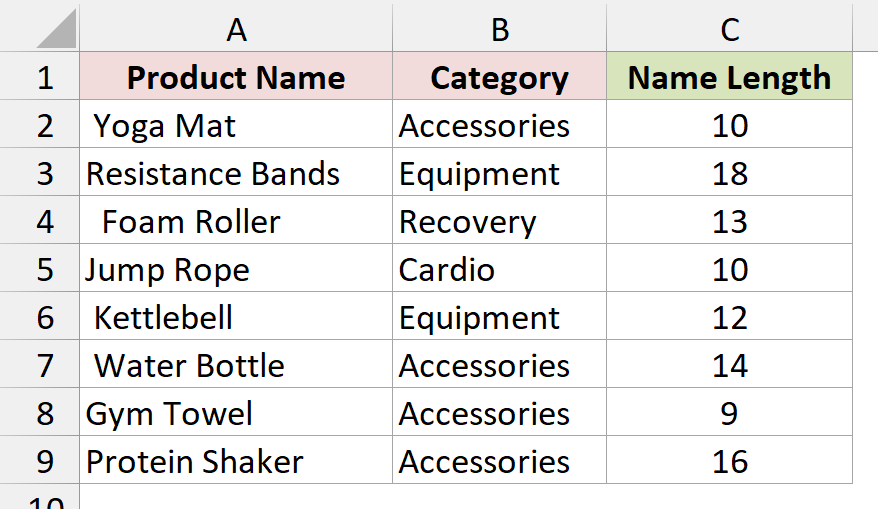
“Yoga Mat” shows 10 characters even though the text itself is only 8 characters long. The other two are non-breaking spaces at either end.
If you run TrimExtraSpaces from Method #2 on A2:A9, nothing changes. Every length in column C stays the same.
Here is the VBA code that handles them:
Sub RemoveNonBreakingSpaces()
    Dim cell As Range
    For Each cell In Selection
        If Not cell.HasFormula And VarType(cell.Value) = vbString Then
            cell.Value = Application.WorksheetFunction.Trim(Replace(cell.Value, Chr(160), " "))
        End If
    Next cell
End Sub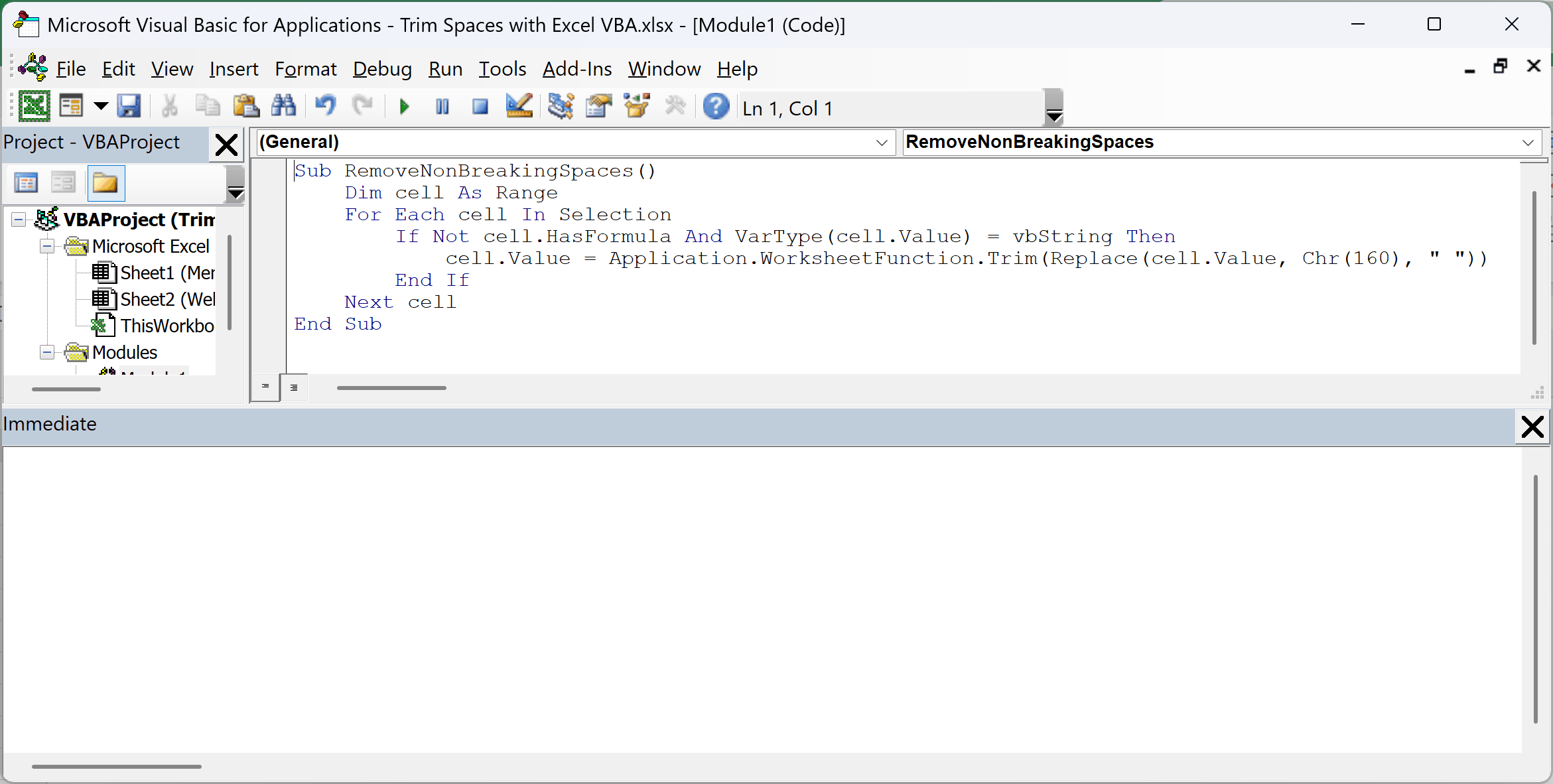
Select A2:A9, press Alt + F8, choose RemoveNonBreakingSpaces, and click Run.
Now the lengths match the visible text. “Yoga Mat” is 8 characters, and “Resistance Bands” drops from 18 to 16.
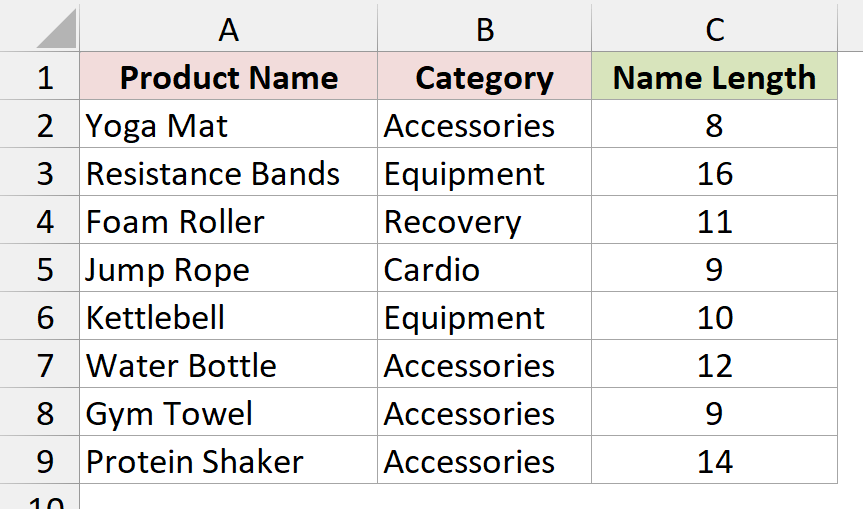
Replace(cell.Value, Chr(160), " ") turns every non-breaking space into a regular space. Chr(160) is the character code for the non-breaking space.
WorksheetFunction.Trim then removes the spaces at both ends and collapses any repeated spaces in the middle, just like in Method #2.
Additional Notes About Trimming Spaces With VBA
- You can’t undo a macro. Ctrl + Z does nothing after a macro changes cells, so save your file or copy the sheet before you run one.
- Text that looks like a number, date, or TRUE/FALSE can change type. Writing a value back works like typing it, so the text 45000 with spaces around it becomes the number 45000, and 5/6 becomes a date. Cells formatted as Text keep their text, so 00123 keeps its leading zeros.
- The trim functions only remove regular spaces. Tab characters and line breaks stay put. Use
ReplacewithvbTaborvbLffor those, the same way Method #7 handlesChr(160). - Don’t select whole columns for the loop macros. Selecting all of column B makes the loop visit over a million cells. Select just your data, or use the used range from Method #4.
Frequently Asked Questions
Here are some common questions about trimming spaces with VBA.
How do I trim a text value stored in a VBA variable?
Pass the variable to the function and store the result. For example, myText = Application.WorksheetFunction.Trim(myText) cleans a string before you write it anywhere. Use Trim(myText) if you only want the ends trimmed.
Can I trim a range with Application.Trim instead of a loop?
Yes. Application.Trim accepts a whole array of values, so rng.Value = Application.Trim(rng.Value) trims every cell in rng in one line. Like the Evaluate method, it has no formula check, so only use it on plain-text ranges.
How do I trim spaces on every sheet in the workbook?
Wrap the used-range loop from Method #4 in a loop over the worksheets:
Sub TrimAllSheets()
    Dim ws As Worksheet, cell As Range
    For Each ws In ActiveWorkbook.Worksheets
        For Each cell In ws.UsedRange
            If Not cell.HasFormula And VarType(cell.Value) = vbString Then
                cell.Value = Application.WorksheetFunction.Trim(cell.Value)
            End If
        Next cell
    Next ws
End SubWhy does my macro still leave spaces in some cells?
Those cells most likely hold non-breaking spaces, which look exactly like regular spaces. Use the Replace and Chr(160) version from Method #7. If that doesn’t fix it, check for tab characters with Replace(cell.Value, vbTab, " ").
Conclusion
In this article, I showed you seven ways to trim spaces with VBA, from a simple Trim loop to an array version for big ranges and a fix for non-breaking spaces.
For most cleanup jobs, I’d go with WorksheetFunction.Trim from Method #2, since it fixes the spaces between words as well as the ends.
I hope you found this article helpful.
Other Excel articles you may also like: