
The LEN function in Excel returns the number of characters in a text string, including spaces.
It helps validate code lengths, spot extra spaces, and calculate how much text another formula should extract. Cell formatting does not add characters to the underlying value.
In this article, I’ll show you how to validate fixed-length codes, find extra spaces, and count occurrences of a specific character.
LEN Function Syntax in Excel
Here is the syntax of the LEN function:
=LEN(text)
textis the value, cell reference, or text string whose characters you want to count. This argument is required.
LEN counts letters, numbers, punctuation marks, and spaces. It returns 0 when the referenced cell is empty.
When to Use LEN Function
Use LEN when you need to:
- Count the characters in text, codes, or file names.
- Check whether an entry has the required number of characters.
- Find leading, trailing, or repeated spaces in imported text.
- Count how many times a particular character appears.
- Distinguish a number’s stored digits from its displayed format.
- Calculate how much text another function should extract.
Example 1: Count Characters in File Names
Let’s start with a straightforward character count.
The dataset below contains seven file names in column A.
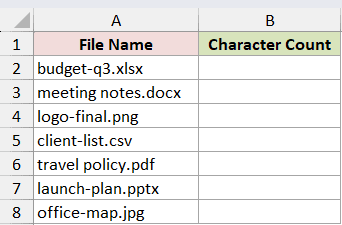
I want one character count for every file name.
Here is the formula:
=LEN(A2:A8)
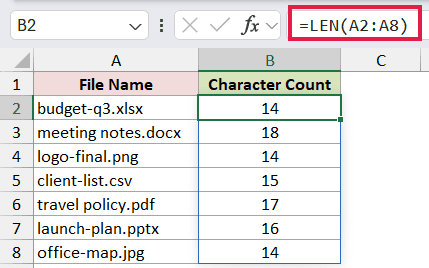
LEN reads the entire range A2:A8 and spills seven results into B2:B8. For example, budget-q3.xlsx contains 14 characters, while meeting notes.docx contains 18.
Each letter, space, hyphen, period, and file-extension character contributes to the total. If you need more variations, see my guide to counting characters in an Excel cell.
Pro Tip: Make sure the cells below the formula are empty. Otherwise, Excel cannot place the spilled results and returns a #SPILL! error.
Example 2: Validate Fixed-Length Codes
LEN is also handy when an identifier must have an exact length.
This permit list contains codes that should each have 10 characters.
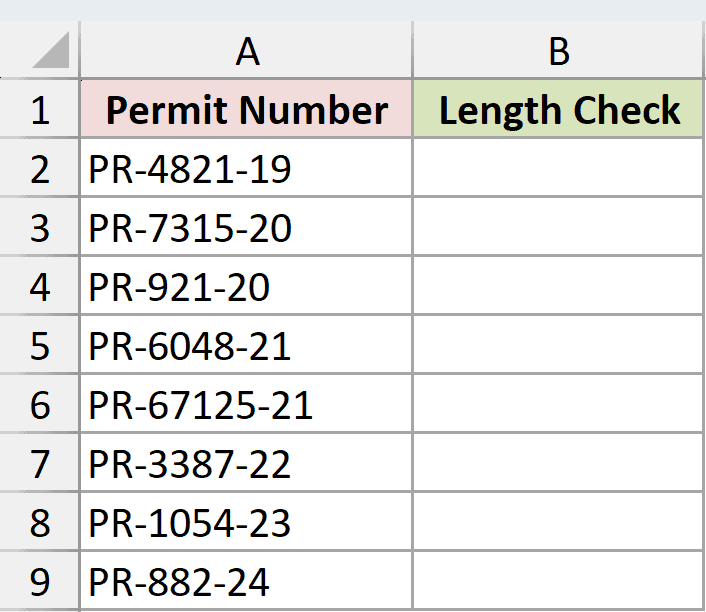
I want to label each code as Valid or Check length.
Here is the formula:
=IF(LEN(A2:A9)=10,"Valid","Check length")
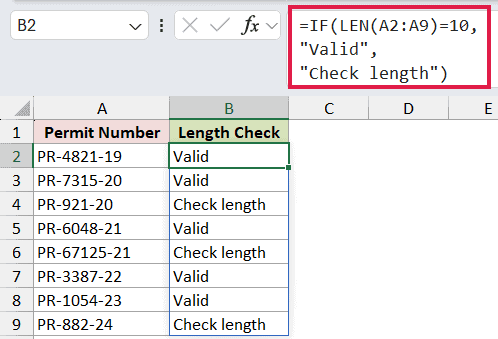
LEN returns the length of each permit code. The comparison =10 produces TRUE for a 10-character code and FALSE for every other length.
The IF function converts those results into useful labels. PR-4821-19 is Valid, while PR-921-20 is marked Check length because it has only 9 characters.
This formula audits codes that are already in the worksheet. If you want to stop incorrect codes at entry time, you can also create a custom Data Validation rule based on LEN.
Example 3: Find Extra Spaces in Imported Text
Extra spaces are difficult to spot just by looking at a cell.
The department names below include clean entries as well as leading, trailing, and repeated spaces.
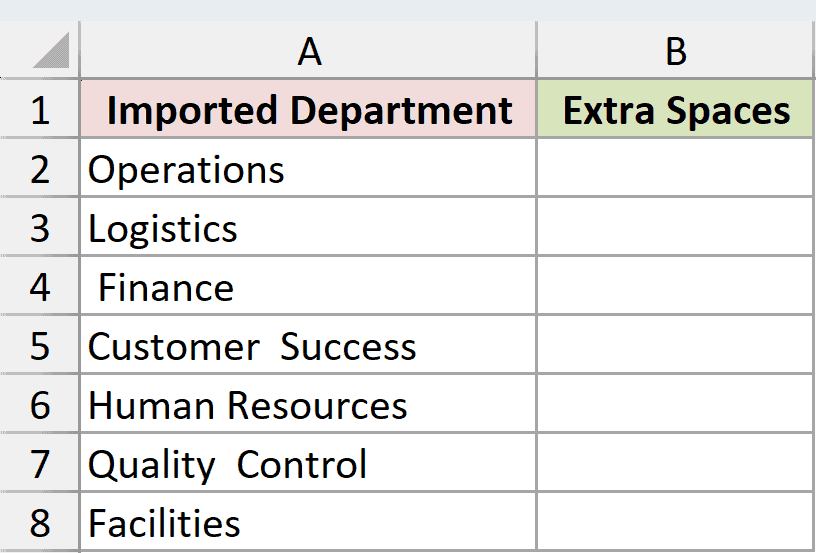
I want to count how many standard spaces TRIM would remove from each entry.
Here is the formula:
=LEN(A2:A8)-LEN(TRIM(A2:A8))
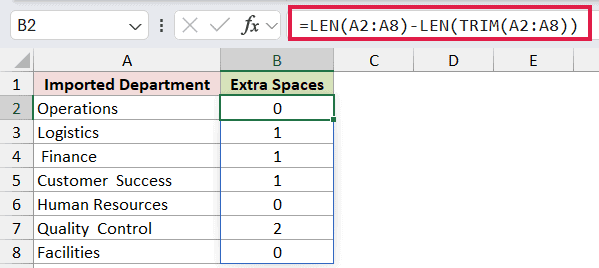
The first LEN calculates the original length. TRIM removes leading and trailing spaces and reduces repeated spaces between words to one, so the second LEN calculates the cleaned length.
Subtracting the two lengths reveals how many spaces were removed. Operations returns 0, Logistics returns 1, and Quality Control returns 2.
You can use this result as a quick audit before removing leading spaces or cleaning imported data.
Pro Tip: Excel’s TRIM function removes the standard ASCII space character, but it does not remove a nonbreaking space copied from some web pages. A zero result does not rule out that special character.
Example 4: Count a Specific Character
LEN can count occurrences when you pair it with SUBSTITUTE.
This list contains folder paths with forward slashes separating each level.
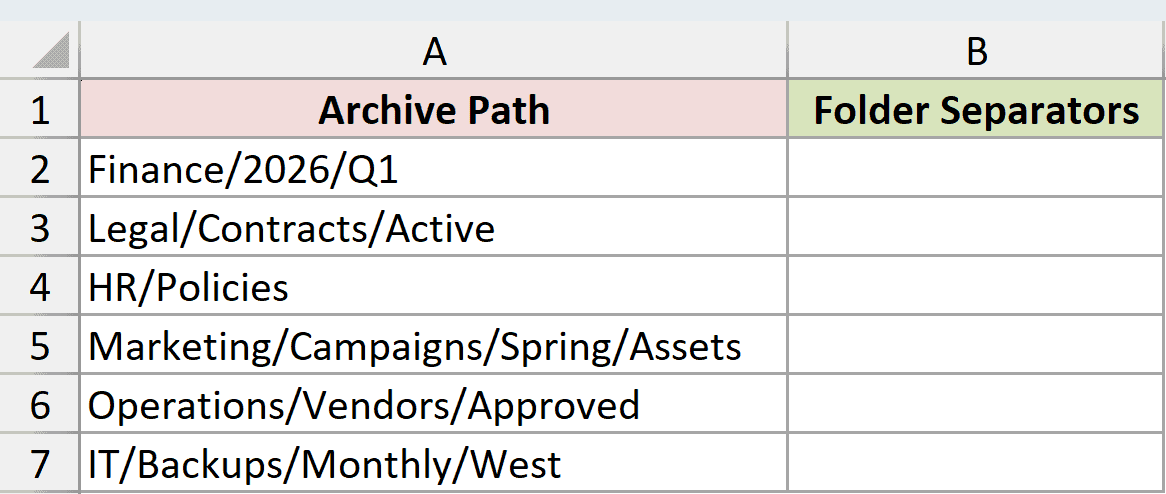
I want to count the slash characters in each path.
Here is the formula:
=LEN(A2:A7)-LEN(SUBSTITUTE(A2:A7,"/",""))
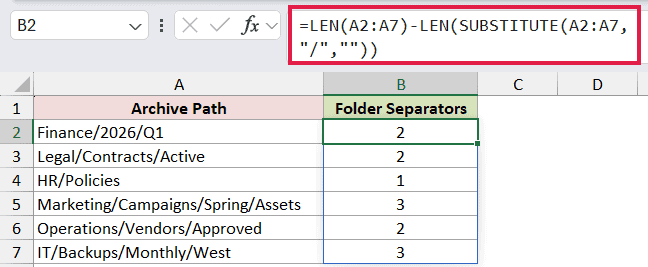
SUBSTITUTE removes every / from each path by replacing it with an empty string. LEN calculates the length before and after that removal.
The difference is the number of slashes. For example, Marketing/Campaigns/Spring/Assets contains three separators, so the formula returns 3.
This method works well when you need to count one literal character. Replace / in the formula with the character you want to count.
Example 5: Understand Number Formats and Stored Digits
Number formatting can make a value look longer without changing what Excel stores.
The account numbers below use the custom number format 000000, so every value appears with six digits.
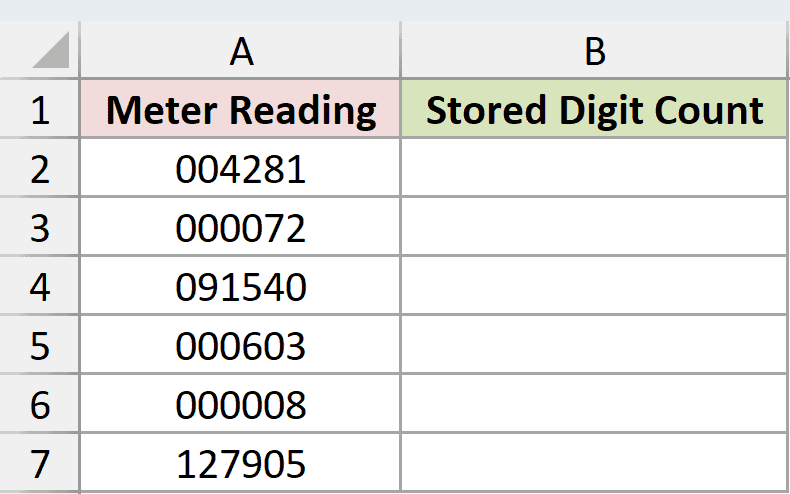
I want to count the digits in each stored number.
Here is the formula:
=LEN(A2:A7)
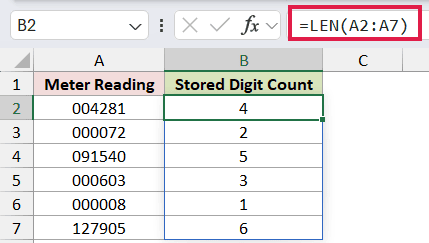
Although 4281 appears as 004281, LEN returns 4 because the stored value contains four digits. The leading zeros come from the cell’s display format and are not part of the value.
If you need to measure the six-character formatted representation, use =LEN(TEXT(A2:A7,"000000")). The TEXT function converts each number to six-character text first.
Pro Tip: If leading zeros are meaningful parts of an identifier, store the identifier as text. A number format changes only how a numeric value appears.
Example 6: Extract a Variable-Length Suffix
LEN can supply the number of characters another text function should return.
This dataset contains case references that all begin with the fixed prefix CASE-, followed by a suffix of varying length.
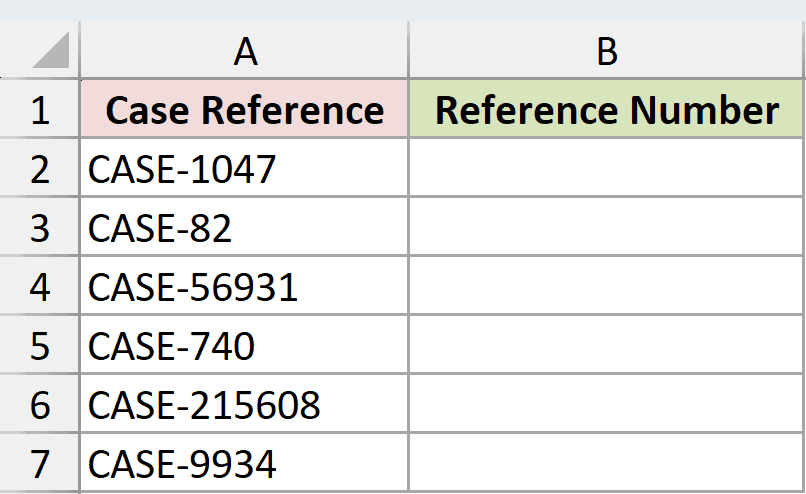
I want to extract everything after the five-character prefix.
Here is the formula:
=RIGHT(A2:A7,LEN(A2:A7)-5)
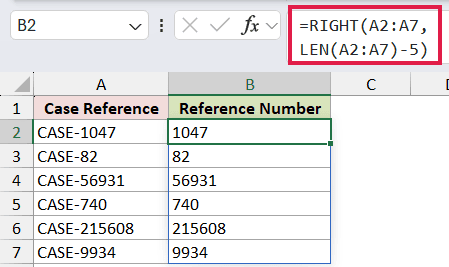
LEN finds the total length of each case reference. Subtracting 5 removes the length of CASE-, and RIGHT returns that many characters from the end.
The results spill down the column. CASE-1047 returns 1047, while CASE-215608 returns 215608. The same pattern is useful when you need to extract part of a text value.
In Excel 365 and Excel 2024, =TEXTAFTER(A2:A7,"CASE-") is a clearer alternative when the suffix always follows a dependable delimiter.
Tips & Common Mistakes
- LEN counts spaces and punctuation. A result that looks too large often points to an unnoticed leading or trailing space.
- An empty cell has a length of 0. A cell containing one space has a length of 1, even though it can look blank.
- LEN counts the stored value, not the characters created by a number format. Convert a formatted number to text when those displayed characters matter.
- LEN returns a number. It does not remove, extract, or change the original text unless you combine it with another function.
- In Excel 365, Excel 2024, and Excel 2021, a range argument can spill multiple LEN results. In older versions, enter a single-cell formula and copy it down.
- In workbooks using Compatibility Version 2, LEN counts a Unicode surrogate pair as one character. Variation selectors used with some emoji still count separately.
I covered basic character counts, fixed-length checks, extra-space audits, separator counts, formatted numbers, and variable-length suffixes. I hope you found this article helpful.
Related Excel Functions / Articles:
