
Excel’s BESSELY function returns the Bessel function of the second kind, also called the Weber or Neumann function, for a positive x value and a specified order.
Bessel functions such as BESSELY and BESSELJ appear in wave and vibration models with circular or cylindrical boundaries.
BESSELY complements BESSELJ when the modeled region has a hole through its center.
In this article, I’ll show you how to compare Y and J near zero, fit ring boundaries, and troubleshoot common errors.
BESSELY Function Syntax in Excel
The BESSELY function needs a positive x value and a nonnegative order.
=BESSELY(X, N)
- X (required) is the positive numeric value at which you want to evaluate the function.
- N (required) is the function’s order. Excel truncates a decimal value to an integer, and a negative value returns #NUM!.
When to Use BESSELY Function
- Build a table of second-kind Bessel values across several x values or orders.
- Model waves or vibrations in rings, pipes, and other circular regions that exclude the center.
- Combine BESSELY with BESSELJ to satisfy two boundary conditions.
- Scan a ring frequency equation for a sign change near a possible resonance.
Example 1: Build an Order 0 and Order 1 Table
Let’s start by calculating two common orders across the same x values.
Below is the dataset. Column A lists x values from 0.5 to 10, while the green headers and empty cells in columns B and C mark the two result columns.
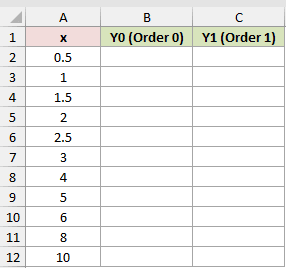
For each x value, column B returns the order 0 result.
Here is the formula entered in B2 and copied down:
=BESSELY(A2,0)
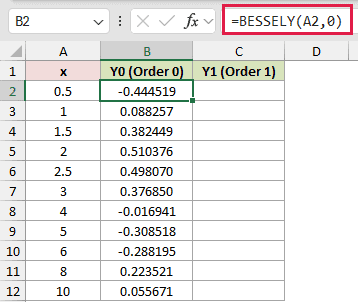
The next calculation puts the order 1 result in column C for each x value.
Here is the formula entered in C2 and copied down:
=BESSELY(A2,1)
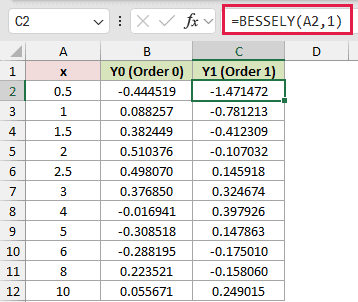
At x = 2.5, the order 0 result is 0.498070 and the order 1 result is 0.145918. Changing the order produces a different curve.
The signs also change as x increases. Column B turns negative at x = 4 and positive again at x = 8, showing that BESSELY oscillates as x grows.
Pro Tip: A plain cell range returns one #VALUE! instead of spilling. In Excel 2021, Excel 2024, or Microsoft 365, =BESSELY(A2:A12+0,0) makes the input a calculated array and spills the results.
Example 2: Compare BESSELY and BESSELJ Near Zero
Now let’s compare the two order 0 functions close to the center.
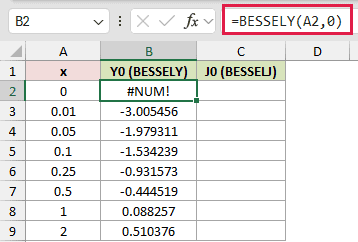
Below is the dataset. Column A starts at zero and moves outward. The green headers and empty cells in columns B and C reserve results for BESSELY and BESSELJ.
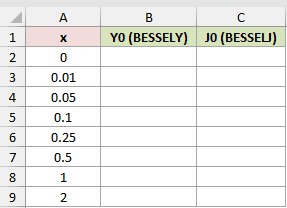
We first calculate the second-kind order 0 value in column B.
Here is the formula entered in B2 and copied down:
=BESSELY(A2,0)
For comparison, column C calculates the first-kind order 0 value.
Here is the formula entered in C2 and copied down:
=BESSELJ(A2,0)
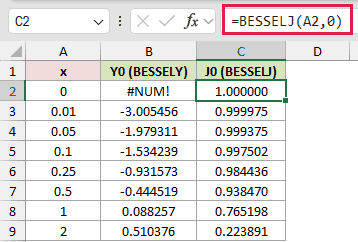
BESSELY returns #NUM! at x = 0 because the second-kind function is singular there. At x = 0.01, its displayed value is already -3.005456.
BESSELJ remains finite at the center and displays 1.000000 at x = 0. That difference explains why solid-disk models use J terms but ring models may need Y terms.
If a source list can include zero, an inline guard such as =IF(A2>0,BESSELY(A2,0),"") avoids the expected domain error without hiding unrelated text-input mistakes.
Example 3: Spill BESSELY Results Across Orders
This example holds x constant and changes the order instead.
Below is the dataset. Column A lists orders 0 through 7. Column B has the green BESSELY Result header and empty cells, while the x Value card shows 2.5.
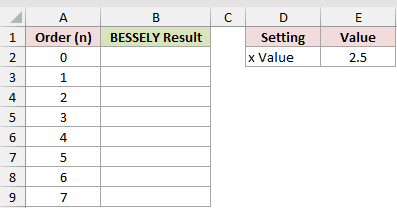
One formula in B2 should return all eight order results.
Here is the spilling formula:
=BESSELY(E2,SEQUENCE(8,1,0))
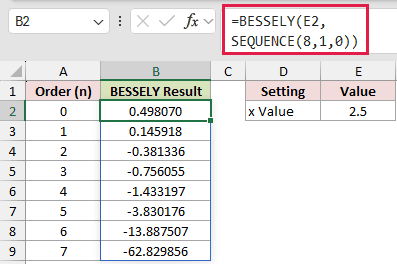
SEQUENCE creates the orders 0 through 7 as a calculated array. BESSELY evaluates each order and spills the results from B2 through B9.
The first two results are 0.498070 and 0.145918. By order 7, the displayed result has grown in magnitude to -62.829856.
This spill needs Excel 2021, Excel 2024, or Microsoft 365. In Excel 2019 or earlier, enter =BESSELY($E$2,A2) in B2 and copy it down.
Example 4: Fit a Ring Displacement Profile
Here’s a boundary-value calculation for a ring-shaped region.
Below is the dataset. Column A lists x positions, and column B has the green Displacement header with empty cells.
The card shows both edge positions and their displacements, plus empty cells for Constant A and Constant B.
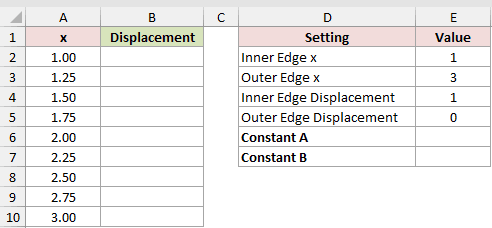
The first calculation should solve Constant A from the two edge conditions.
Here is the formula in E6:
=(E4*BESSELY(E3,0)-E5*BESSELY(E2,0))/(BESSELJ(E2,0)*BESSELY(E3,0)-BESSELJ(E3,0)*BESSELY(E2,0))
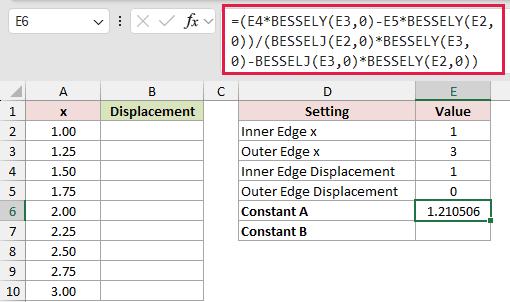
Constant A returns 1.210506. We also need the coefficient for the BESSELY part of the solution.
Here is the formula for Constant B in E7:
=(E5*BESSELJ(E2,0)-E4*BESSELJ(E3,0))/(BESSELJ(E2,0)*BESSELY(E3,0)-BESSELJ(E3,0)*BESSELY(E2,0))
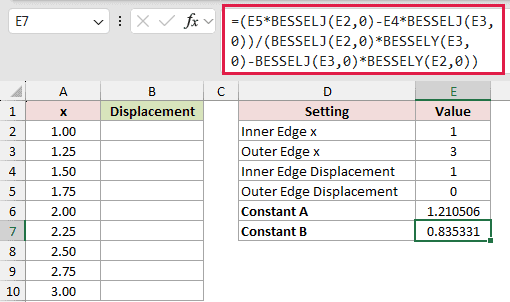
Constant B returns 0.835331. Together, the two constants weight the J and Y parts so the result satisfies both specified edges.
Column B can now calculate the displacement at each x position.
Here is the formula entered in B2 and copied down:
=$E$6*BESSELJ(A2,0)+$E$7*BESSELY(A2,0)
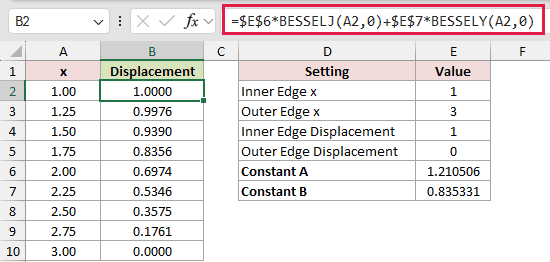
The profile displays 1.0000 at the inner edge and 0.0000 at the outer edge. Between them, the displayed displacement falls to 0.3575 at x = 2.50.
This J and Y combination is useful for an annular membrane or pipe because the physical region has an inner edge instead of including the center.
Example 5: Scan a Ring Frequency Equation
The same pair of Bessel functions can help locate a possible ring resonance.
Below is the dataset. Column A lists wavenumbers from 52 to 68. Column B has the green Frequency Equation header with empty cells.
The card shows Inner Radius (m) and Outer Radius (m).
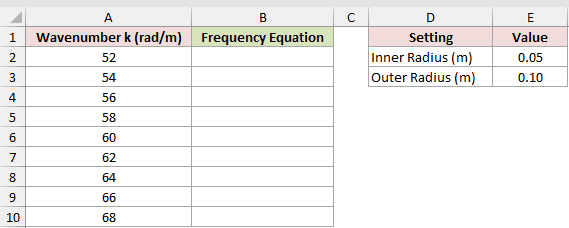
At each candidate wavenumber, the formula evaluates the boundary equation in column B.
Here is the formula entered in B2 and copied down:
=BESSELJ(A2*$E$2,0)*BESSELY(A2*$E$3,0)-BESSELJ(A2*$E$3,0)*BESSELY(A2*$E$2,0)
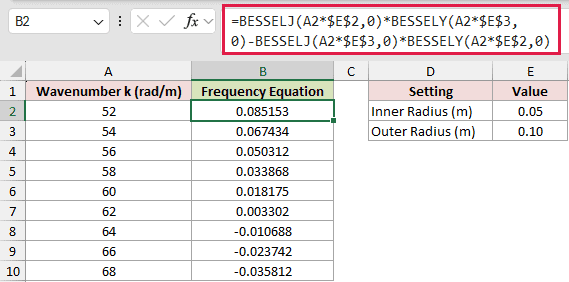
The result is 0.003302 at k = 62 and -0.010688 at k = 64. The sign change shows that a zero lies between those two tested values.
Example 5 evaluates the same expression form as the Example 4 denominator, using k times the inner and outer radii as its x values.
At a zero, the constants cannot be solved and the corresponding ring mode can resonate.
Goal Seek can refine the wavenumber by setting a frequency-equation cell to zero while changing its matching cell in column A.
Example 6: Test BESSELY Arguments and Errors
The last example puts the main argument rules into one table.
Below is the dataset. It lists six scenarios with x and order inputs, while the green Result header and empty cells in column D reserve the outputs.
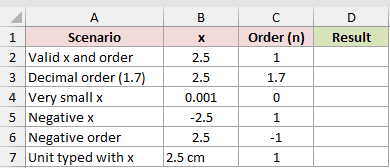
For each scenario, column D returns the valid result or expected Excel error.
Here is the formula entered in D2 and copied down:
=BESSELY(B2,C2)
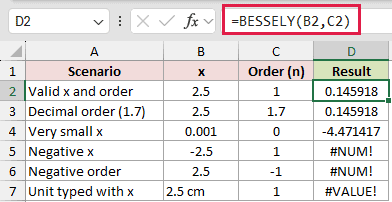
The valid x value 2.5 with order 1 returns 0.145918. An order of 1.7 returns the same value because Excel truncates it to 1.
A very small positive x value is valid, so 0.001 returns -4.471417 for order 0. The magnitude grows as x approaches zero.
Negative x and negative order inputs return #NUM!. Text containing a unit, such as 2.5 cm, is not numeric input and returns #VALUE!.
Tips & Common Mistakes
- BESSELY requires x to be greater than zero. Zero and negative x values return #NUM!.
- Excel truncates a decimal order instead of rounding it. An order of 1.7 is evaluated as order 1.
- A negative order returns #NUM!, while nonnumeric text in either argument returns #VALUE!.
- A direct cell range returns one #VALUE! instead of spilling. Use fill-down by default, a range plus zero as in Example 1, or SEQUENCE as in Example 3.
- Excel’s Bessel results are accurate to about 8 to 9 significant digits. Round both sides before testing whether two Bessel results are equal.
BESSELY handles the second solution needed for circular boundary problems that leave out the center.
Use it beside BESSELJ when the model needs both J and Y terms.
Keep x above zero, and remember that Excel’s results are good to about 8 to 9 significant digits.
Other Excel articles you may also like:
