
Excel’s BESSELK function returns the modified Bessel function of the second kind, K_n(x), for a positive value and a nonnegative order.
Its results describe effects that decay away from a source. Engineers use this behavior in models for leaky-aquifer drawdown and cooling-fin heat transfer.
In this article, I’ll show you how to build K0 and K1 tables, calculate leaky-aquifer drawdown, and find where drawdown drops to a set limit.
BESSELK Function Syntax in Excel
The BESSELK function takes a value and the order of the modified Bessel function you need.
=BESSELK(x, n)
- x (required) is the positive numeric value at which Excel evaluates the function. Zero and negative values return
#NUM!. - n (required) is the function’s order. It must be zero or positive, and Excel truncates a noninteger value to an integer.
When to Use BESSELK Function
- Calculate K0, K1, or a higher integer order for positive x values.
- Model a quantity that decreases as distance from a source increases.
- Estimate drawdown around a pumping well in a leaky aquifer.
- Find the distance where a decaying effect reaches a chosen limit.
- Combine BESSELK with BESSELI in an annular cooling-fin model.
Example 1: Calculate K0 and K1 Values
Let’s start by evaluating two common orders across the same x values.
Below is the dataset. Column A contains values from 0.1 to 5, while the green K0 and K1 headers sit above empty bordered result cells.
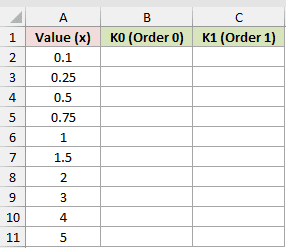
Column B should return the order-zero result for each value in column A.
Here is the formula entered in B2 and copied down:
=BESSELK(A2,0)
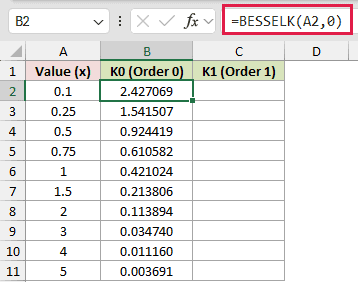
Column C should return the order-one result for the same values.
Here is the formula entered in C2 and copied down:
=BESSELK(A2,1)
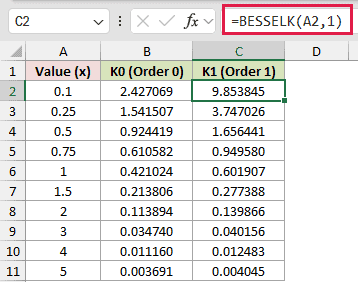
At x = 0.1, the K0 and K1 results are 2.427069 and 9.853845. At x = 5, they fall to 0.003691 and 0.004045.
Both columns decrease quickly as x increases. The order still matters, especially near zero.
Pro Tip: A plain range in =BESSELK(A2:A11,0) returns one #VALUE!. In Excel 2021, Excel 2024, and Microsoft 365, =BESSELK(A2:A11+0,0) creates a calculated array that spills.
Example 2: Calculate Leaky Aquifer Drawdown
Here’s a practical model for drawdown around a pumping well.
Below is the dataset. It lists seven observation wells and their distances.
The aquifer-settings card contains Pumping Rate (cu ft/day), Transmissivity (sq ft/day), and Leakage Factor B (ft).
The green “Drawdown (ft)” header in C1 sits above empty bordered cells.
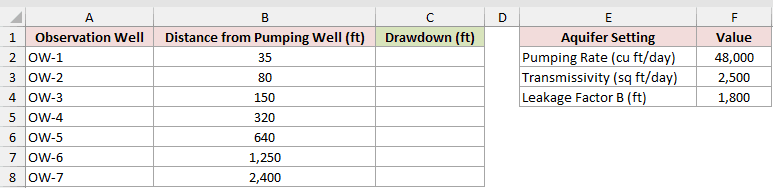
Column C should calculate the predicted drawdown at each observation well.
Here is the formula entered in C2 and copied down:
=$F$2/(2*PI()*$F$3)*BESSELK(B2/$F$4,0)
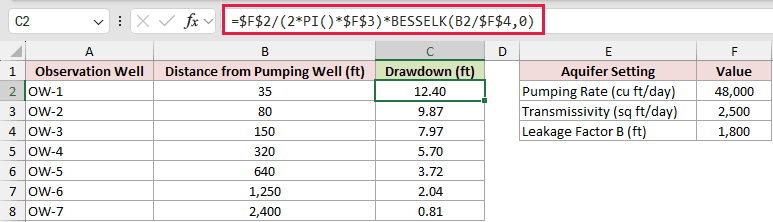
The fraction before BESSELK scales the result using pumping rate and transmissivity. BESSELK evaluates K0 at distance divided by the leakage factor.
Pumping lowers the water level most near the well.
Water leaking in from a neighboring layer makes drawdown fade faster with distance and settle into a stable cone of depression.
That behavior is why this model uses K0 instead of a plain LN.
The calculated drawdown drops from 12.40 feet at 35 feet to 0.81 feet at 2,400 feet.
Example 3: Find Distance to a Drawdown Limit
Now let’s find where drawdown first falls to each chosen limit.
Below is the dataset. Column A lists five drawdown limits.
Column B has a green “Distance Where Drawdown Drops to Limit (ft)” header above empty bordered cells.
The aquifer-settings card contains Pumping Rate, Transmissivity, and Leakage Factor B, using 65,000, 3,200, and 1,500.

Column B should return the first whole-foot distance where drawdown is at or below each limit.
Here is the formula entered in B2 and copied down:
=XMATCH(TRUE,$E$2/(2*PI()*$E$3)*BESSELK(SEQUENCE(10000)/$E$4,0)<=A2)
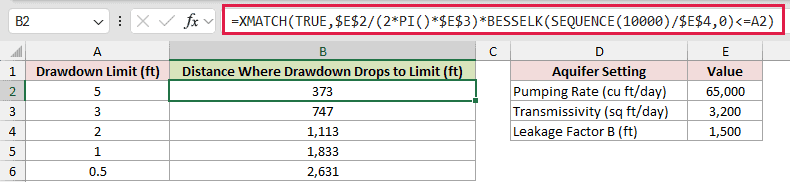
SEQUENCE(10000) creates distances from 1 to 10,000 feet. BESSELK calculates the drawdown at each distance, and the comparison produces TRUE when the limit is reached.
XMATCH returns the position of the first TRUE. That position is also the distance because the sequence starts at 1 and advances by one foot.
The 5-foot limit is reached at 373 feet. The 0.5-foot limit is reached at 2,631 feet.
If no tested distance reaches the limit, XMATCH returns #N/A. Increase the SEQUENCE size to search farther.
This formula needs Excel 2021, Excel 2024, or Microsoft 365. Goal Seek is another option when you need to solve one limit at a time.
Example 4: Estimate Annular Fin Efficiency
Let’s use BESSELK and BESSELI together in a heat-transfer calculation.
Below is the dataset. Column A lists fin outer radii.
Column B has a green “Fin Efficiency” header above empty bordered cells.
The fin-settings card contains heat transfer coefficient h, thermal conductivity k, fin thickness t, and tube outer radius.
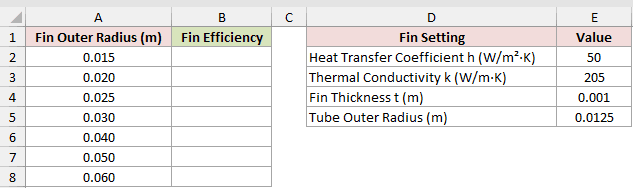
Column B should calculate the efficiency for each fin radius.
Here is the formula entered in B2 and copied down:
=LET(m,SQRT(2*$E$2/($E$3*$E$4)),r_in,$E$5,r_out,A2+$E$4/2,x_in,m*r_in,x_out,m*r_out,2*r_in/(m*(r_out^2-r_in^2))*(BESSELK(x_in,1)*BESSELI(x_out,1)-BESSELI(x_in,1)*BESSELK(x_out,1))/(BESSELI(x_in,0)*BESSELK(x_out,1)+BESSELK(x_in,0)*BESSELI(x_out,1)))
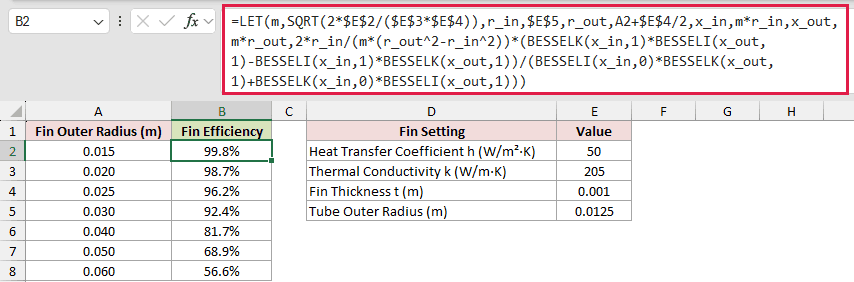
An annular fin has inner and outer edges, so its efficiency model combines the growing BESSELI solution with the decaying BESSELK solution.
LET names the fin parameter m, the inner radius from the tube’s outer radius in E5, the corrected outer radius, and scaled values x_in and x_out.
The formula adds half the fin thickness in E4 to the outer radius.
This lets a fin with an insulated tip stand in for the real fin, which loses heat at its tip.
Efficiency falls from 99.8% at a 0.015-meter outer radius to 56.6% at 0.060 meters.
As fins grow longer, their outer portions run cooler and closer to the air temperature, so each added bit of area transfers less heat.
LET requires Excel 2021, Excel 2024, or Microsoft 365. Earlier versions can use the expanded expression without LET.
Example 5: Test BESSELK Errors and Limits
The last example collects the input cases most likely to cause confusion.
Below is the dataset. It lists eight scenarios with x and order inputs, plus empty bordered cells under the green BESSELK Result header.
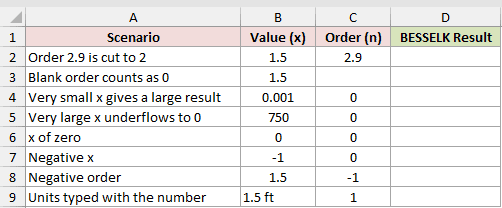
Column D should return the BESSELK result or the corresponding Excel error for each row.
Here is the formula entered in D2 and copied down:
=BESSELK(B2,C2)
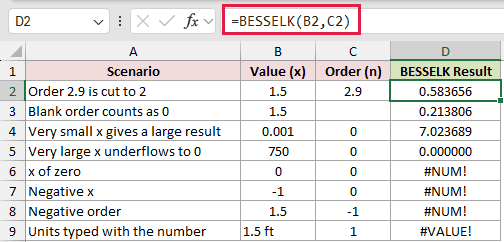
Excel truncates order 2.9 to 2, returning 0.583656. A referenced blank order cell acts as zero, so the next row returns 0.213806.
The very small x value returns 7.023689. At x = 750, the result underflows to zero and displays as 0.000000.
An x value of zero or less returns #NUM!. A negative order also returns #NUM!.
Text such as 1.5 ft is not numeric, so Excel returns #VALUE!. Keep units in a separate cell or column.
Tips & Common Mistakes
- Keep x greater than zero. BESSELK returns
#NUM!when x is zero or negative. - Supply a nonnegative order. Excel truncates decimals, so an order of 2.9 is evaluated as 2 rather than 2.9.
- A blank cell referenced as n acts as zero, but the n argument is still required in the formula.
- Round Bessel results before testing equality. Excel’s Bessel calculations are accurate to about eight or nine significant digits.
- Use a scientific number format for tiny results.
BESSELK(100,0)is about 4.66E-45, which a six-decimal format displays as zero.
You’ve seen how BESSELK builds K0 and K1 tables, models drawdown around a well in a leaky aquifer, and finds the distance to a chosen limit.
You also used it with BESSELI for fin efficiency and checked the inputs that return errors or misleadingly small displayed values.
Other Excel articles you may also like:
