
Excel’s BIN2DEC function converts a binary number to decimal and returns a numeric result.
It handles positive binary values and 10-bit two’s complement negatives. Shorter binary strings remain positive, even when their first digit is 1.
In this article, I’ll show you how to convert switch settings, decode signed readings, and clean binary data before conversion.
BIN2DEC Function Syntax in Excel
The BIN2DEC function has one required argument.
=BIN2DEC(number)
- number (required) is the binary value you want to convert. It can contain up to 10 binary digits, using only 0 and 1.
For a 10-digit input, Excel treats the leftmost digit as the sign bit and reads negative values using two’s complement notation.
When to Use BIN2DEC Function
- Convert binary switch settings into usable decimal addresses.
- Turn binary network octets into a dotted decimal address.
- Build a decimal permission code from separate on and off flags.
- Decode signed 10-bit readings from equipment or sensors.
- Convert longer binary values by splitting them into smaller sections.
Example 1: Convert DIP Switches to Addresses
Let’s start with a lighting control setup.
Below is the dataset. Column A names each fixture, column B lists DIP switches 9 to 1, and the green DMX Start Address column has empty result cells.
Each switch is one bit. Switch 9 is worth 256, and switch 1 is worth 1.
The pattern reads from switch 9 on the left to switch 1 on the right.
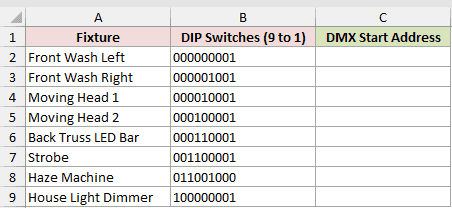
Column C should return the DMX start address for each fixture.
Here is the formula entered in C2 and copied down:
=BIN2DEC(B2)
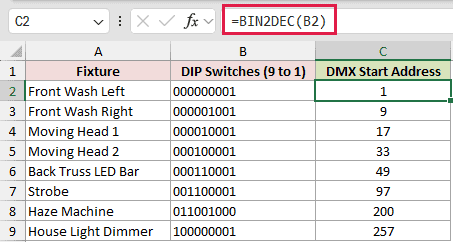
The first three settings return addresses 1, 9, and 17. The result is a number, so you can use it in later calculations or comparisons.
The House Light Dimmer setting 100000001 returns 257. A 9-digit value remains positive because BIN2DEC uses a sign bit only when the input has 10 digits.
Pro Tip: In Excel 2021, Excel 2024, and Microsoft 365, =BIN2DEC(B2:B9&"") spills all eight results. A plain =BIN2DEC(B2:B9) returns one #VALUE! error.
Example 2: Convert Binary IP Octets to Decimal
Here’s a practical network example.
Below is the dataset. Column A names each network setting, columns B through E hold four binary octets, and the green Dotted Decimal column contains empty result cells.
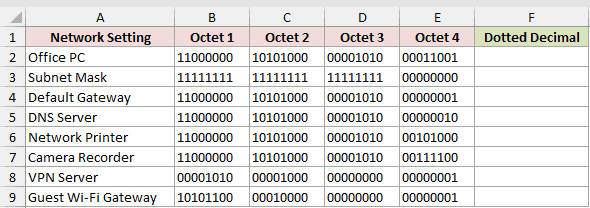
Column F should combine the four converted octets into a dotted decimal address.
Here is the formula entered in F2 and copied down:
=TEXTJOIN(".",TRUE,BIN2DEC(B2),BIN2DEC(C2),BIN2DEC(D2),BIN2DEC(E2))
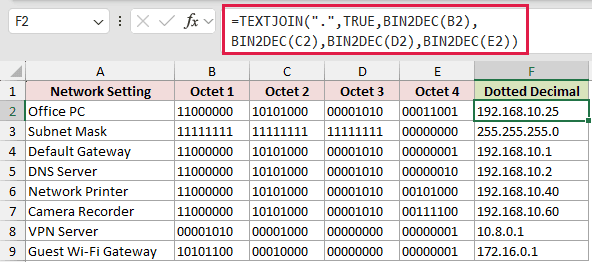
Each BIN2DEC call converts one octet. TEXTJOIN then places periods between the four results and returns the completed address as text.
The Office PC becomes 192.168.10.25, while the Subnet Mask becomes 255.255.255.0. The 8-digit value 11111111 returns 255 because it’s shorter than 10 digits.
TEXTJOIN requires Excel 2019 or later. In Excel 2016, join the converted octets with &"."& instead.
Example 3: Build a Permission Code
Now let’s turn several permission flags into one stored code.
Below is the dataset. Column A lists users, columns B through F hold weighted permission flags, and empty bordered cells under the green header in column G are for each permission code.
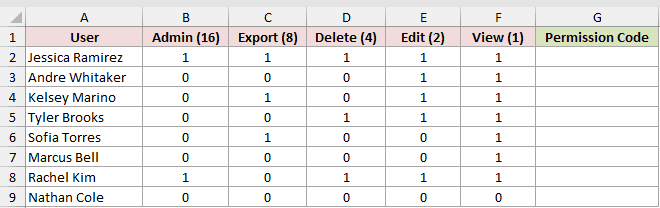
Column G should combine each row’s flags and return its decimal permission code.
Here is the formula entered in G2 and copied down:
=BIN2DEC(CONCAT(B2:F2))
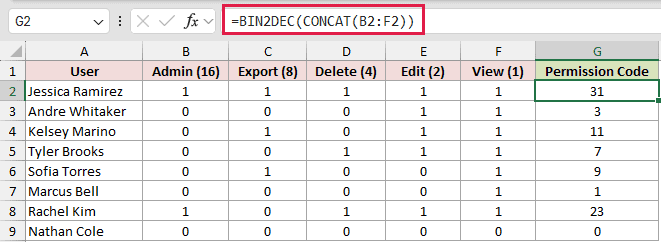
CONCAT joins the five flags in their existing order. BIN2DEC then converts that combined binary string into the number a database could store.
Jessica Ramirez returns 31 because every permission is enabled. Kelsey Marino returns 11 for Export, Edit, and View, while Nathan Cole returns 0.
Column order matters because each position carries a different weight. You can later use BITAND to test whether a stored code includes a particular permission.
CONCAT requires Excel 2019 or later. In Excel 2016, the inline alternative is =BIN2DEC(B2&C2&D2&E2&F2).
Example 4: Decode Signed 10-Bit Readings
Here’s where BIN2DEC’s signed-number behavior becomes useful.
Below is the dataset. Column A names refrigeration units, column B holds raw 10-bit readings, and empty bordered cells under the green header in column C are for the temperatures.
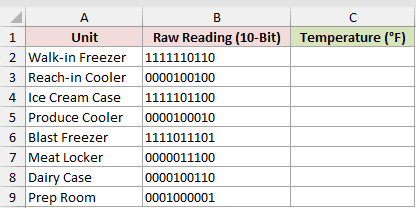
Column C should decode each reading as a signed temperature.
Here is the formula entered in C2 and copied down:
=BIN2DEC(B2)
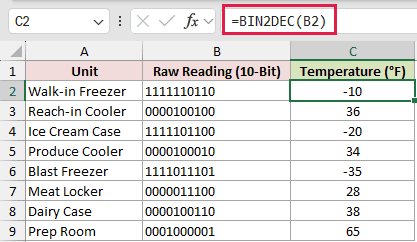
A 10-bit value beginning with 1 represents a negative number. BIN2DEC reads the Walk-in Freezer as -10°F and the Blast Freezer as -35°F.
Values beginning with 0 remain positive. The Meat Locker returns 28°F, while the Prep Room returns 65°F.
With 10-bit input, BIN2DEC supports values from -512 through 511.
Example 5: Correct Signed 8-Bit Bytes
An 8-bit signed byte needs one extra adjustment.
Below is the dataset. It lists beacons and 8-bit TX power bytes. The green BIN2DEC Result and TX Power (dBm) columns contain empty result cells.
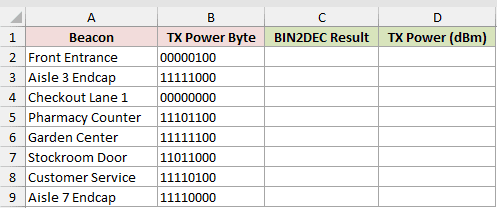
First, column C should show how BIN2DEC reads each byte without a signed-byte adjustment.
Here is the formula entered in C2 and copied down:
=BIN2DEC(B2)
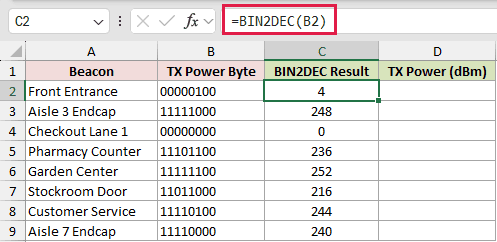
The raw conversion treats every 8-digit input as positive. For example, 11111100 returns 252 instead of -4.
Column D should subtract 256 whenever the byte starts with 1.
Here is the corrected formula entered in D2 and copied down:
=BIN2DEC(B2)-IF(LEFT(B2)="1",256,0)
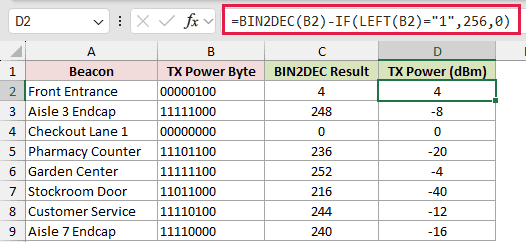
The IF test leaves positive bytes unchanged and adjusts negative ones. Front Entrance remains 4 dBm, while Garden Center changes from 252 to -4 dBm.
This approach depends on every byte being stored as exactly eight characters. Missing leading zeros would move the sign bit and produce the wrong result.
Example 6: Convert Binary Longer Than 10 Bits
Let’s handle a value that exceeds BIN2DEC’s input limit.
Below is the dataset. It lists VLANs and 16-bit port masks. The green Port Mask (BIN2DEC) and Port Mask (DECIMAL) columns contain empty result cells.
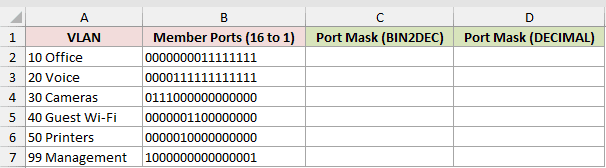
Column C should return each decimal port mask without passing all 16 bits to one BIN2DEC call.
Here is the formula entered in C2 and copied down:
=BIN2DEC(LEFT(B2,8))*256+BIN2DEC(RIGHT(B2,8))
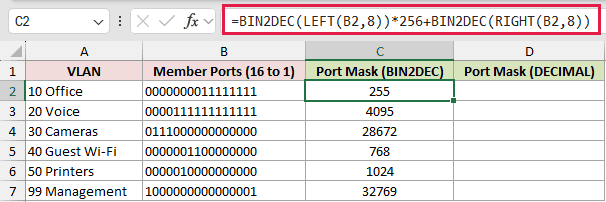
LEFT and RIGHT split the mask into two 8-bit sections. The high section is multiplied by 256 before Excel adds the low section.
The Office mask returns 255. Each half is only 8 digits, so BIN2DEC reads both halves as positive.
The Management mask’s high half is 128, and 128 times 256 plus 1 gives 32769 without triggering BIN2DEC’s 10-character limit.
Column D can make the same unsigned conversion in one step with DECIMAL.
Here is the comparison formula entered in D2 and copied down:
=DECIMAL(B2,2)
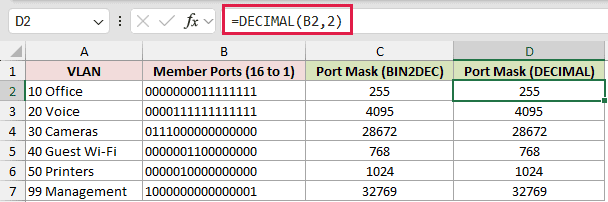
DECIMAL is available in Excel 2013 and later, and it matches every result in column C. It’s the cleaner choice for long unsigned binary values.
DECIMAL doesn’t apply BIN2DEC’s 10-bit two’s complement behavior, so it isn’t a substitute for the signed temperatures in Example 4.
Example 7: Clean Binary Values Before Conversion
The final example deals with values typed during a site survey.
Below is the dataset. It lists VAV boxes and typed DIP settings, with empty cells under the green BIN2DEC Result and Clean Address headers.
VAV-102 has leading spaces, VAV-103 and VAV-106 each have a space inside, and VAV-104’s setting is blank.
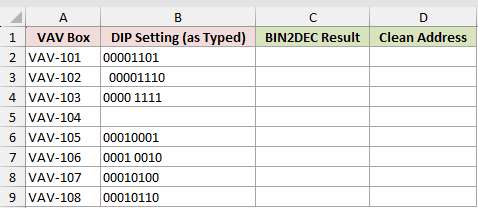
First, column C should reveal how BIN2DEC handles the values exactly as typed.
Here is the formula entered in C2 and copied down:
=BIN2DEC(B2)
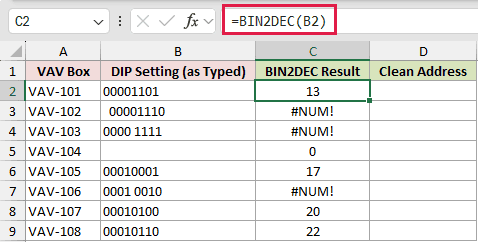
Leading or embedded spaces return #NUM!. The blank setting returns 0, which can look like a valid address and hide the missing entry.
Column D should flag blanks and remove spaces before conversion.
Here is the cleaned formula entered in D2 and copied down:
=IF(B2="","Missing",BIN2DEC(SUBSTITUTE(B2," ","")))
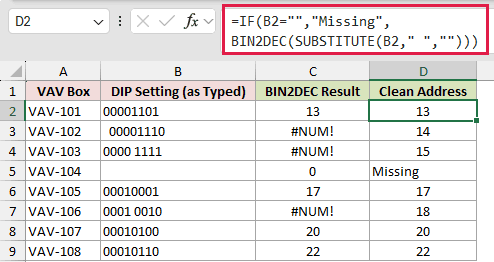
The blank VAV-104 now returns Missing. The spaced settings for VAV-102, VAV-103, and VAV-106 return 14, 15, and 18.
SUBSTITUTE removes every space. TRIM would remove leading spaces and reduce repeated inner spaces, but it wouldn’t remove the single inner spaces from these binary strings.
Tips & Common Mistakes
- Store binary inputs as text when leading zeros must remain visible.
- BIN2DEC accepts no more than 10 characters, including leading zeros. The padded 12-character input
000000001111returns #NUM!. Other #NUM! causes include longer inputs, non-binary digits, negative numbers, and decimals. - BIN2DEC returns #VALUE! for TRUE, whether TRUE is typed as the argument or stored in the referenced cell. It returns 0 for empty text
""and a blank cell. - Only a 10-digit input uses the leftmost digit as a sign bit. A shorter input beginning with 1 is still positive.
- BIN2DEC returns a number. Apply an explicit number format if the result cell previously used currency, dates, or another unsuitable format.
BIN2DEC converts binary text into numbers you can use elsewhere in the worksheet.
Only a 10-character input starting with 1 is negative. BIN2DEC won’t accept inputs longer than 10 characters.
Related Excel Functions / Articles:
