
Excel’s TEXTSPLIT function splits text into separate cells using column or row delimiters you specify.
It is useful for separating structured text, such as comma-separated entries. The result spills into adjacent cells and remains linked to the source text through the formula.
In this article, I’ll show you how to split names and lists, use multiple delimiters, and arrange key-value text into a grid.
TEXTSPLIT Function Syntax in Excel
The TEXTSPLIT function splits text into separate cells using delimiters you choose.
=TEXTSPLIT(text, col_delimiter, [row_delimiter], [ignore_empty], [match_mode], [pad_with])
- text – The text you want to split.
- col_delimiter – The character or characters that split the text across columns.
- [row_delimiter] – Optional. The character that splits the text down into rows.
- [ignore_empty] – Optional. TRUE skips empty values. FALSE (the default) keeps them.
- [match_mode] – Optional. 0 (the default) is case-sensitive. 1 ignores case.
- [pad_with] – Optional. The value used to fill gaps when the result is uneven. Defaults to #N/A.
When to Use TEXTSPLIT Function
- Split full names into first and last name columns.
- Break comma or semicolon lists into separate cells.
- Turn a delimited string into rows or a full grid.
- Parse codes and entries that use more than one separator.
Example 1: Split a Full Name into First and Last
Let’s start with the classic case, splitting a name on the space between the two parts.
Below is the dataset with a full name in cell A2.
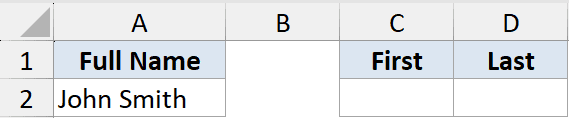
I want the first name and last name in two separate cells.
Here is the formula:
=TEXTSPLIT(A2," ")
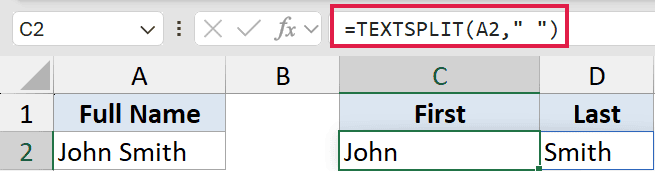
The space in quotes is the delimiter. TEXTSPLIT cuts the text wherever it finds a space and drops each piece into its own column.
The result spills to the right, so “John Smith” becomes John in one cell and Smith in the next.
Example 2: Split a Comma-Separated List into Columns
Delimiters can be more than one character, which is handy for lists.
Below is the dataset with a comma-separated list of fruits in cell A2.

I want each fruit in its own column, without the commas or extra spaces.
Here is the formula:
=TEXTSPLIT(A2,", ")

Here the delimiter is a comma followed by a space. TEXTSPLIT treats that two-character combination as the split point, so each fruit comes out clean with no leading space.
Pro Tip: Using “, ” instead of just “,” as the delimiter strips the space along with the comma, so you don’t end up with a space stuck to the front of each value.
Example 3: Split Text into Rows Instead of Columns
Up to now the pieces spilled across columns. You can spill them down into rows instead.
Below is the dataset with a semicolon-separated list of colors in cell A2.

I want each color stacked vertically down a column.
Here is the formula:
=TEXTSPLIT(A2,,";")
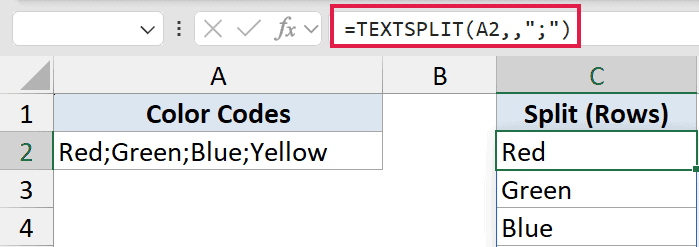
The two commas in a row mean I left the column delimiter empty and went straight to the row delimiter, which is the semicolon.
Because there’s no column delimiter, every piece goes into its own row instead of its own column.
Example 4: Split Using More Than One Delimiter
Real data often mixes separators. TEXTSPLIT can handle several at once.
Below is the dataset with an entry in cell A2 that uses both a hyphen and a space.

I want the entry split wherever there’s either a hyphen or a space.
Here is the formula:
=TEXTSPLIT(A2,{"-"," "})

The curly braces hold an array of delimiters. By passing both “-” and ” “, I tell TEXTSPLIT to break the text at either one.
So “John-Smith Sales” splits into three separate pieces in one go.
Example 5: Split a Key-Value String into a Grid
The real power shows up when you use a column and a row delimiter together.
Below is the dataset with a record in cell A2 that pairs fields and values using colons and semicolons.

I want this turned into a two-column grid, with field names on the left and their values on the right.
Here is the formula:
=TEXTSPLIT(A2,":",";")
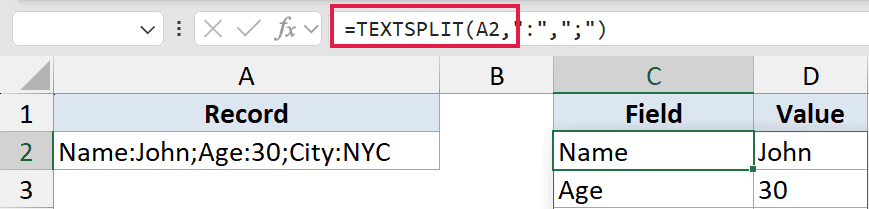
The colon splits each pair into two columns, and the semicolon splits the record into rows. The result is a tidy grid of fields and values.
This is a quick way to unpack structured text that would otherwise need several formulas.
Tips & Common Mistakes
- TEXTSPLIT is the modern replacement. It does in one step what used to need nested LEFT, MID, FIND, and SEARCH formulas. Reach for it first when you’re parsing text.
- Order of the arguments matters. The column delimiter comes before the row delimiter. To split into rows only, leave the column delimiter empty with two commas.
- #SPILL! means no room. The pieces need empty cells to spill into. Clear anything blocking the result range.
- Use pad_with for uneven data. When rows have different numbers of pieces, the gaps show #N/A by default. Set pad_with to a blank or a dash to clean that up.
TEXTSPLIT takes the pain out of pulling text apart. From simple name splits to full key-value grids, it does the work in a single formula that updates itself when your data changes.
Give it a go on your own messy text and see how much hand-built parsing it saves you.
Related Excel Functions / Articles:
- How to Split One Column into Multiple Columns in Excel
- How to Extract First Name in Excel
- SEARCH Function in Excel
- TRIM Function in Excel
- CONCATENATE Function in Excel
- FIND Function in Excel
- CONCAT Function in Excel
- ISTEXT Function in Excel
- TEXTJOIN Function in Excel
- Text.Split Function (Power Query M)
