
The HEX2OCT function in Excel converts a hexadecimal value to octal and returns the result as text.
It’s useful when an export stores codes in hexadecimal but you need to read them in octal. The optional places argument preserves leading zeros in fixed-width codes.
Negative values need extra care: Excel uses two’s complement, a signed representation that doesn’t display a minus sign in the converted text.
I’ll show you how to convert a column of hex values, pad codes with leading zeros, and recognize negative values and input errors.
HEX2OCT Function Syntax in Excel
HEX2OCT takes the hexadecimal input and an optional output width:
=HEX2OCT(number, [places])
- number (required): The hexadecimal value to convert, usually supplied through a cell reference. Inputs can contain up to 10 characters, but they must also fit the supported signed range.
- places (optional): The output width, padded with leading zeros when needed. Omit it for an unpadded result. Excel ignores this argument for negative values.
The largest supported positive input is 1FFFFFFF. The lowest supported negative input is FFE0000000. Example 4 shows both boundaries and the errors beyond them.
When to Use HEX2OCT Function
- Read hexadecimal instruction words in an octal representation.
- Convert exported codes into fixed-width octal text with leading zeros.
- Convert signed hexadecimal values while preserving their negative meaning.
- Check imported hex values for invalid characters and range errors.
Example 1: Convert Hexadecimal Words to Octal
Let’s start with a list of instruction words from a hex dump.
Below is the dataset. Column A names each instruction, column B contains its hex word, and column C has the header and empty cells for octal results.
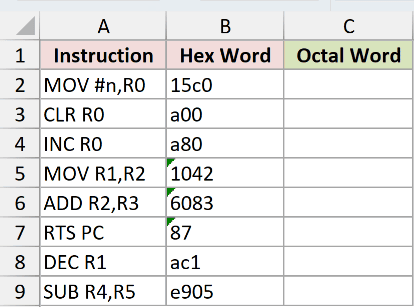
We want to convert each hex word into octal without adding leading zeros.
Enter this formula in C2, then copy it down through C9:
=HEX2OCT(B2)
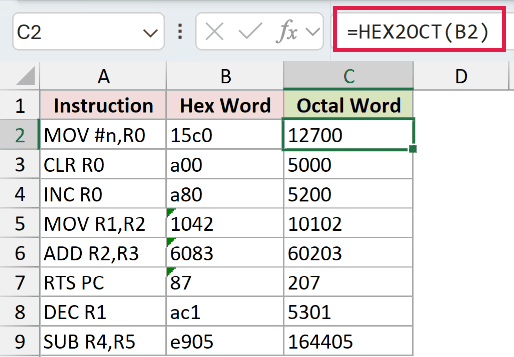
The hex word 15c0 returns 12700, while a00 returns 5000. HEX2OCT accepts lowercase letters, so you don’t need to change the input to uppercase.
Each row has its own formula. This is the default approach here because supplying a bare range to HEX2OCT returns a single #VALUE! error.
The results are text even though they look numeric. They left-align, ignore number formats, and cannot be summed directly.
Pro Tip: A coerced text array can spill in Excel 2021, Excel 2024 and Microsoft 365. Use =HEX2OCT(B2:B9&""). Appending &"" creates the text array; passing the bare range fails. In Excel 2019 and earlier, use the per-row formula shown above and copy it down.
Example 2: Add Leading Zeros to Codes
Now let’s convert an export that needs a consistent code width.
Below is the dataset. Columns A and B hold flights and Mode A hex inputs. Columns C and D provide spaces for the unpadded comparison and squawk code.
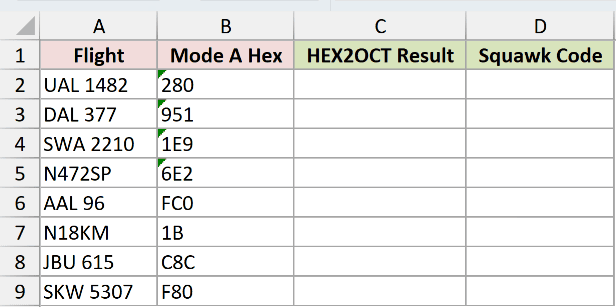
We want the Squawk Code column to retain leading zeros by requesting four places.
Enter the padded formula in D2, then copy it down through D9:
=HEX2OCT(B2,4)
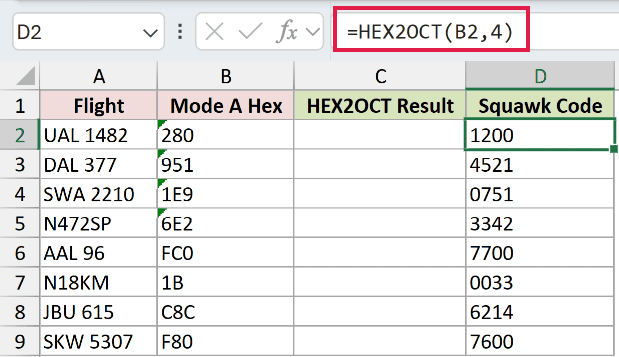
For 1E9, the result is 0751. For 1B, it’s 0033. The places argument adds the leading zeros needed for the requested width.
For the unpadded comparison in column C, enter this in C2 and copy it down through C9:
=HEX2OCT(B2)
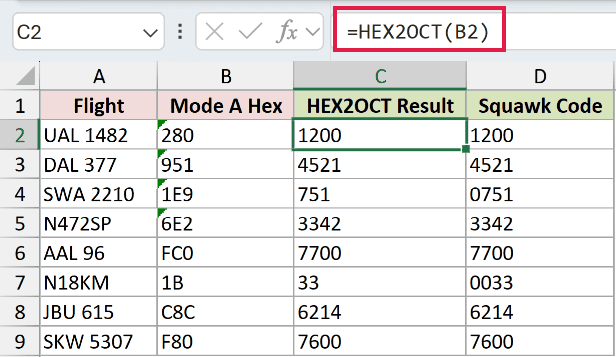
The comparison returns 751 and 33 for those same inputs. It converts them correctly, but omitting places doesn’t preserve the width required by the Squawk Code column.
Where the output already fills the requested width, padding changes nothing. For 280, both the padded result and the unpadded comparison display 1200.
Pro Tip: Format the input column as Text before entering or importing hex codes. Entries such as 1E9 can otherwise be interpreted as scientific notation. The reader workbook already stores these inputs as text.
Example 3: Convert Negative Hex Values
Signed hex exports can produce octal results that look surprisingly long.
Below is the dataset. Columns A to C list servers, drift in milliseconds, and hex values. Column D provides the result header and empty conversion cells.
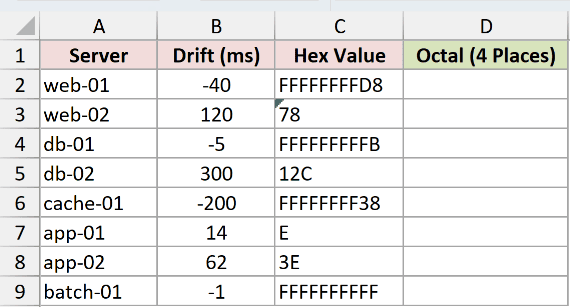
We want to convert the signed hex values and see how the places argument behaves for positive and negative inputs.
Enter this formula in D2, then copy it down through D9:
=HEX2OCT(C2,4)
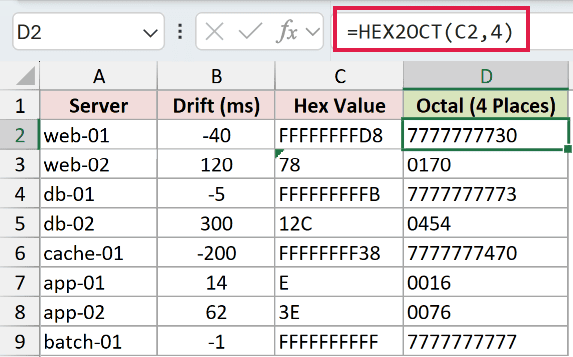
For web-01, the hex value FFFFFFFFD8 represents the listed drift of -40. HEX2OCT returns 7777777730, even though the formula requests four places.
That’s expected. For a negative input, HEX2OCT ignores places and returns a 10-digit octal two’s-complement representation. The negative sign is encoded in the digits.
The positive web-02 value, 78, returns 0170. Here, places does apply, so Excel pads the octal text with a leading zero.
Likewise, app-01 returns 0016, while the negative batch-01 value returns 7777777777. The same formula handles both, but only the positive values use the requested padding.
Don’t assume every negative output begins with 7. The lowest supported negative value returns 4000000000, as the next example shows.
Example 4: Diagnose HEX2OCT Errors and Limits
Let’s finish by separating invalid inputs from the blank-cell trap.
Below is the dataset. Column A describes each test case, column B holds the hex inputs, and column C provides empty result cells under its header.
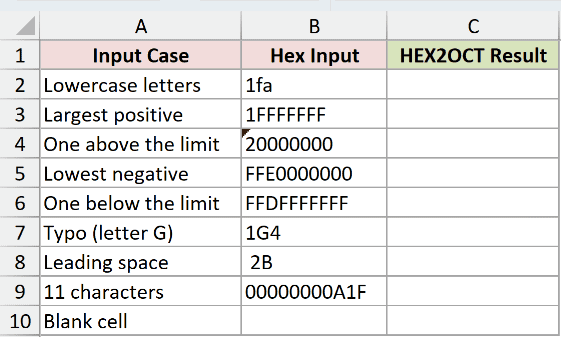
We want to identify which inputs convert, which deliberately return errors, and which silently look like a valid result.
Enter this formula in C2, then copy it down through C10:
=HEX2OCT(B2)
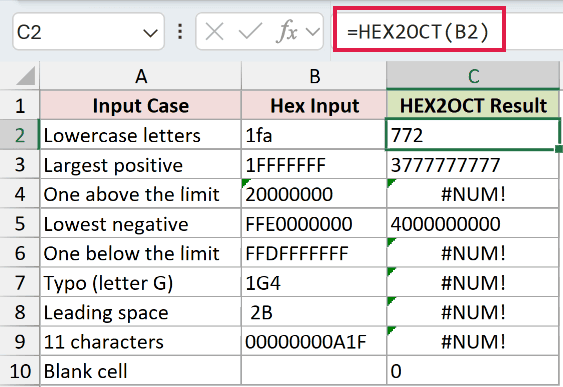
The error cells are deliberate demonstrations.
- C2, lowercase letters:
1fareturns772. Letter case doesn’t prevent conversion. - C3, largest positive:
1FFFFFFFreturns3777777777. This input is still within the supported range. - C4, above the positive limit:
20000000returns#NUM!. The input is too large for HEX2OCT. - C5, lowest negative:
FFE0000000returns4000000000. This is the supported negative boundary. - C6, below the negative limit:
FFDFFFFFFFreturns#NUM!. Its signed value falls below the supported range. - C7, invalid letter:
1G4returns#NUM!because G isn’t a hexadecimal character. Correct the source typo. - C8, leading space: The input
2Breturns#NUM!. Remove the leading space before converting it. - C9, excessive length:
00000000A1Freturns#NUM!. Its leading zeros still count toward the 10-character input limit. - C10, blank input: The truly empty
B10returns the text0. Missing data now looks like a converted value without triggering an error.
The blank row needs a separate completeness check. An error-only check won’t flag it because HEX2OCT hasn’t returned an error.
Tips & Common Mistakes
- Use places for padding. HEX2OCT returns text, so changing the result cell’s number format won’t add the leading zeros you need.
- Allow enough places. A width smaller than the required output returns
#NUM!. Negative places and a width above 10 also return#NUM!for positive inputs. - Use a whole-number width. Excel truncates a fractional places argument. In testing, 2.9 behaved as 2; it didn’t round up.
- Keep the input’s meaning clear. A number entered as
10is read as hex digits, not as a decimal value to convert. Store exported hex inputs as text. - Check missing inputs before conversion. Both a blank cell and an empty string become octal text representing zero. Neither triggers an error.
- Choose the right direction. OCT2HEX converts octal back to hexadecimal. HEX2DEC returns decimal, while HEX2BIN converts hex to binary. DEC2HEX goes from decimal to hexadecimal.
- Know the two-step alternative. BASE can handle the octal step after HEX2DEC. In testing,
BASE(HEX2DEC("1F"),8)returned37, matching HEX2OCT for that input.
Before using a converted code, check that the source was present and that the output width matches its destination.
Related Excel Functions / Articles:
