
The OCT2HEX function in Excel converts an octal value to hexadecimal text. It lets you match codes from an octal export against a system that displays them in hex.
Leading zeros keep codes at a consistent width. Signed octal inputs produce hexadecimal codes that preserve the negative value without displaying a minus sign.
I’ll show you how to convert a job log, pad file-signature bytes, and spot when OCT2HEX misreads a large positive counter.
OCT2HEX Function Syntax in Excel
OCT2HEX takes the octal input and an optional output width:
=OCT2HEX(number, [places])
- number (required): The octal value to convert, supplied as text, a number, or a cell reference. OCT2HEX reads its digits as octal regardless of how the cell stores them.
- places (optional): The desired number of hexadecimal characters. Excel adds leading zeros when needed. If omitted, the result uses the minimum width. Negative inputs ignore this argument.
OCT2HEX accepts up to 10 octal characters.
A 10-character code beginning with 4 through 7 represents a negative value using two’s complement, an encoding that stores the sign within the digits.
The output is text, including results that contain only digits.
When to Use OCT2HEX Function
- Match octal error codes from a legacy job log to a hexadecimal code list.
- Convert file bytes to padded hexadecimal text before joining them into a signature.
- Translate signed octal exports while preserving their negative-value meaning.
- Check imported octal inputs for invalid characters or unexpected conversions.
Example 1: Convert Job Log Error Codes
Let’s start with a job log whose error codes need to match a monitoring tool’s hexadecimal list.
Below is the dataset. Column A names each job, column B holds its octal error code, and column C will hold the hexadecimal result.
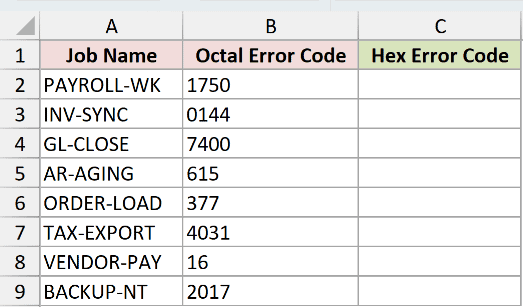
We want to convert each job’s code without changing which value it represents.
Enter this formula in C2, then copy it down through C9:
=OCT2HEX(B2)
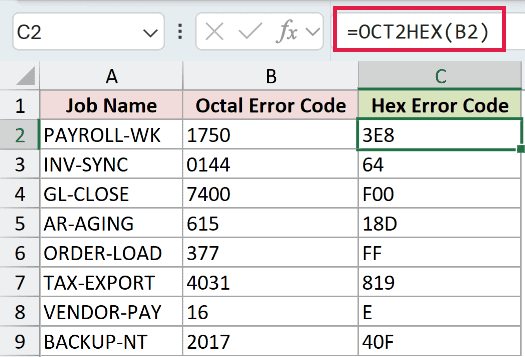
PAYROLL-WK’s 1750 returns 3E8, while GL-CLOSE’s 7400 returns F00. Each result represents the original error code in hexadecimal.
INV-SYNC’s 0144 returns 64. The leading zero in the input doesn’t change the conversion, and the result is still text even though it contains no letters.
Each row uses its own copied-down formula. This approach works in every version of Excel.
Pro Tip: A bare range passed to OCT2HEX returns one #VALUE!. Prefixing it with + passes its values as an array.
Pro Tip: The array results spill in Excel 2021, Excel 2024, and Microsoft 365. In Excel 2019 and earlier, copy the formula down as shown here.
Example 2: Pad Bytes Before Joining Them
Padding matters when each converted byte needs to keep its place in a longer string.
Below is the dataset. Column A lists byte positions, and column B contains octal bytes from a PNG file signature. Columns C and D will compare output widths.
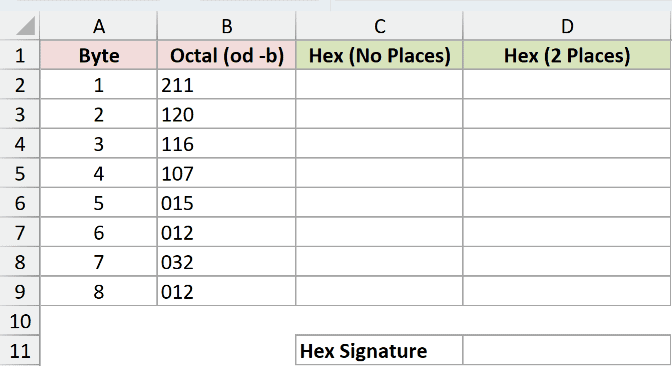
We want to convert the bytes, keep each hex result two characters wide, and join them into a complete signature.
First, enter the unpadded comparison in C2 and copy it down through C9:
=OCT2HEX(B2)
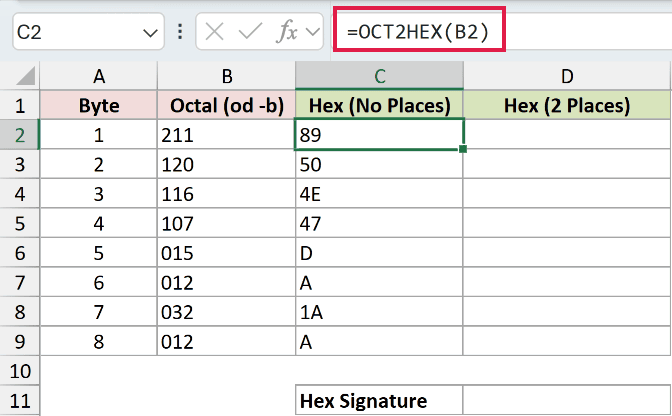
The first byte, 211, returns 89. But 015 returns D, and 012 returns A. Those shorter results lose the fixed width needed for joining bytes.
Enter the padded version in D2 and copy it down through D9:
=OCT2HEX(B2,2)
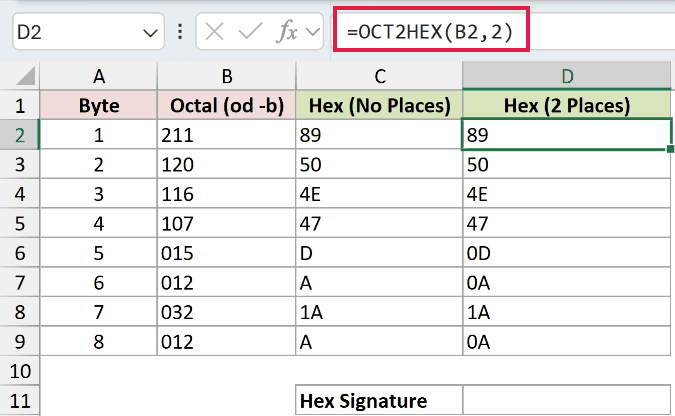
The places argument adds a leading zero where needed. Now 015 returns 0D and 012 returns 0A, while 211 still returns 89.
To combine the padded OCT2HEX results, use CONCAT, available in Excel 2019 and later. It joins text from cells without adding separators.
Enter this formula in D11 beside the Hex Signature label:
=CONCAT(D2:D9)
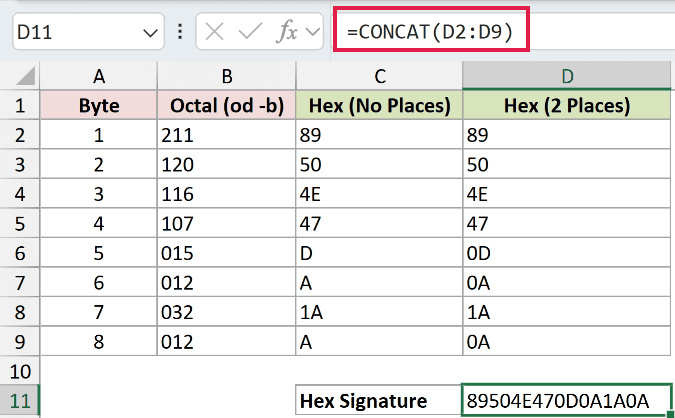
D11 returns 89504E470D0A1A0A. Joining the padded column preserves each byte’s width, so the signature can be compared as a complete string.
Example 3: Convert Signed Cash-Drawer Amounts
A negative amount in a legacy export may arrive as a long octal code instead of a number with a minus sign.
Below is the dataset. Column A identifies each register, column B shows the over/short amount in cents, and column C holds the corresponding signed octal code.
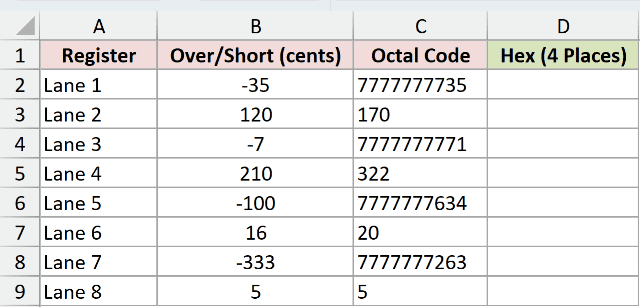
We want hexadecimal codes for the drawer amounts, with padding for positive values and the correct encoding for negative ones.
Enter this formula in D2 and copy it down through D9:
=OCT2HEX(C2,4)
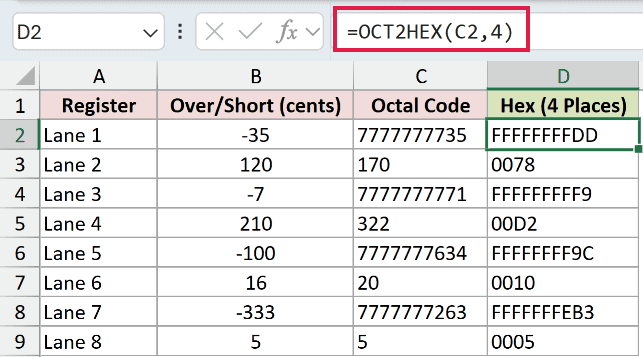
Lane 2 is over by 120 cents. Its octal code 170 returns 0078, padded to four hexadecimal characters.
Lane 1 is short by 35 cents, shown as -35 in column B. Its code 7777777735 returns FFFFFFFFDD despite the same padding argument.
For negative values, OCT2HEX ignores places and returns a 10-character hexadecimal code. It preserves the encoded negative value rather than adding a visible minus sign.
Lane 7’s 7777777263, representing -333 cents, similarly returns FFFFFFFEB3. Column B provides the human-readable amounts; the formula converts the codes in column C.
Example 4: Spot Large Unsigned Counter Problems
The signed interpretation becomes a problem when an octal export contains counters that can only be positive.
Below is the dataset. Column A lists packaging machines, and column B holds their octal cycle counters. Columns C and D will compare conversion results.
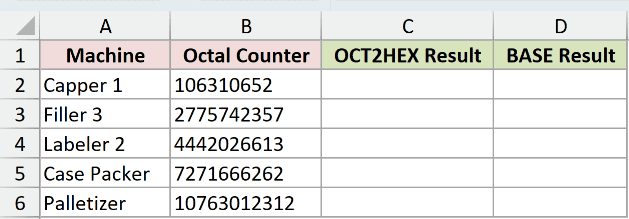
We want hexadecimal counter values without interpreting a large positive count as a negative number.
First, demonstrate the OCT2HEX limitation in C2 and copy the formula down through C6:
=OCT2HEX(B2)
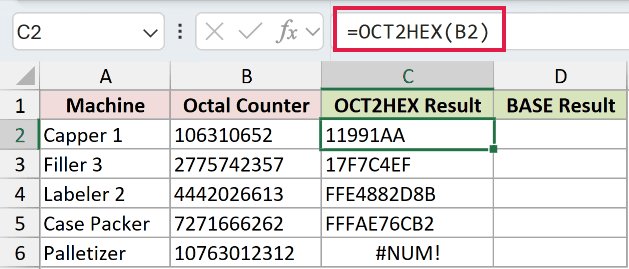
Capper 1 returns 11991AA. But Labeler 2’s 4442026613 returns FFE4882D8B, an encoded negative result that is wrong for this unsigned counter.
The Palletizer’s 10763012312 returns the deliberate #NUM! in C6 because its input has 11 characters. This exceeds OCT2HEX’s input length limit.
For these unsigned counters, DECIMAL reads the octal text as a positive decimal number. BASE then writes that number as hexadecimal text, avoiding OCT2HEX’s signed interpretation.
Enter the alternative in D2 and copy it down through D6:
=BASE(DECIMAL(B2,8),16)
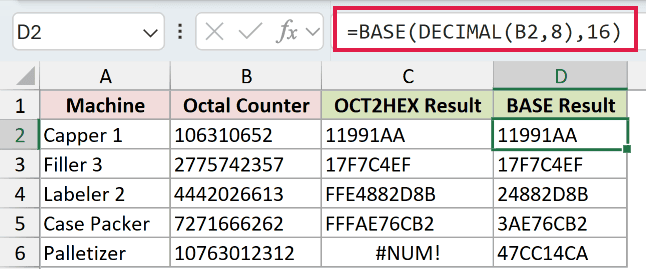
The 8 tells DECIMAL to read octal digits; the 16 tells BASE to return hexadecimal text.
Labeler 2 now returns 24882D8B, and the Case Packer returns 3AE76CB2. These are the positive cycle counts written in hexadecimal.
The Palletizer also converts successfully, returning 47CC14CA. Capper 1 still returns 11991AA, matching the original conversion.
Pro Tip: Check whether your source stores signed values or unsigned counts. This alternative suits positive counters; OCT2HEX preserves negative amounts in the cash-drawer example.
Example 5: Diagnose Imported Octal Inputs
Some input mistakes return an error, while others quietly produce a valid-looking code.
Below is the dataset. Column A describes each input case, column B contains the test input, and column C will show OCT2HEX’s response. B9 is genuinely empty.
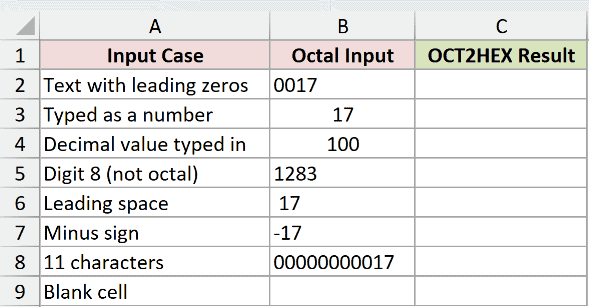
We want to separate accepted inputs, deliberate errors, and silent conversions that need checking.
Enter this formula in C2 and copy it down through C9:
=OCT2HEX(B2)
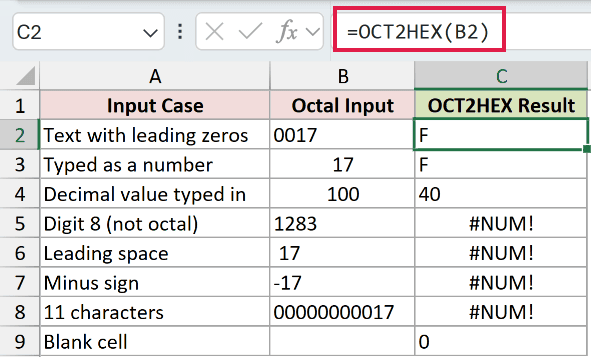
Text 0017 and the number 17 both return F. Storing an octal value as text is valid, and leading zeros don’t change its value.
The number 100 returns 40 because OCT2HEX reads the input as octal. If you intended a decimal value, Excel silently converts the wrong value.
The deliberately invalid cases each return #NUM!:
- C5:
1283contains the digit8, which isn’t an octal digit. - C6: The input has a leading space before
17. Remove the unwanted space from the source. - C7:
-17uses a minus sign instead of the signed octal encoding OCT2HEX expects. - C8:
00000000017contains 11 characters. Leading zeros still count toward the input length limit.
The empty B9 returns 0 in C9. That is text representing zero, so a missing code can look like a real conversion unless you check the inputs.
Tips & Common Mistakes
- Choose
placesfor the hexadecimal output. It controls output width, not input length. A width that’s too small for the converted value returns#NUM!. - Keep padding widths valid. For nonnegative inputs,
placesof0,-1, or11returns#NUM!. Nonnumeric text in that argument returns#VALUE!. - Use whole-number padding widths. Excel truncates a fractional
placesargument instead of rounding it. Enter the intended width explicitly. - Don’t treat every numeric-looking input as valid octal. Decimal fractions return
#NUM!, and TRUE returns#VALUE!. - Keep the result as code text. Outputs such as
0078carry meaningful padding. Treating them as ordinary decimal numbers changes what the code represents.
Check the export’s meaning before converting it. A valid-looking hexadecimal result doesn’t prove that the source was octal or that its sign was interpreted correctly.
Other Excel articles you may also like:
