
The MAXA function in Excel returns the largest value while treating TRUE as 1 and FALSE or text in a reference as 0.
For values in cell references, MAXA and MAX disagree only when the largest real number is below 1 or below 0.
TRUE can win below 1. Text or FALSE can win below 0.
In this article, I’ll show you when text changes the answer, how stored entry types behave, and how to create numeric flags from logical checks.
MAXA Function Syntax in Excel
The MAXA function accepts individual values, cell references, or ranges.
=MAXA(value1, [value2], ...)
- value1 (required) is the first value, reference, or range to evaluate.
- value2, and later values, are optional additional values, references, or ranges. MAXA accepts up to 255 arguments in total.
When to Use MAXA Function
- Find the largest value when TRUE and FALSE are meaningful entries.
- Treat text in a referenced range as 0 when that matches the data’s meaning.
- Turn row-based logical checks into numeric 1 and 0 results.
- Compare MAXA with MAX when mixed data may change the answer.
Example 1: Count E as Even Par
Start with a golf scorecard where E represents 0.
Below is the dataset. It lists players and scores to par. Separate answer rows are ready for MAXA and the white MAX comparison.
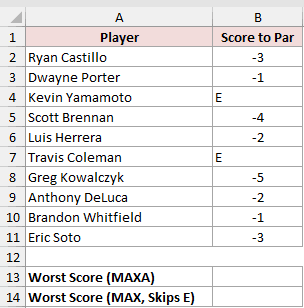
We want the worst score while treating E as even par.
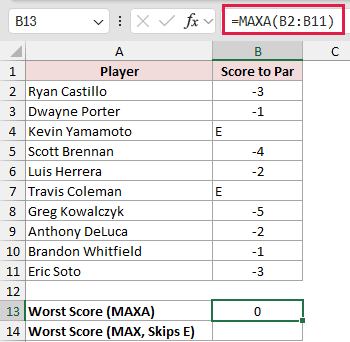
Here is the MAXA formula:
=MAXA(B2:B11)
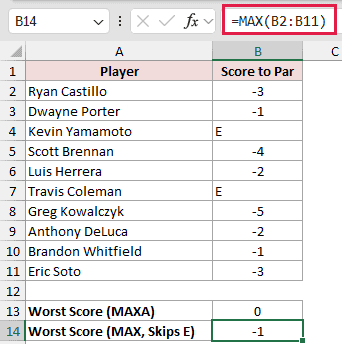
And here is the white MAX cell used only for comparison:
=MAX(B2:B11)
MAXA treats each E as 0 and returns 0, correctly identifying even par as the worst score in this list.
The white MAX comparison returns -1 because MAX skips the E entries. Here, that makes MAX the wrong choice.
Pro Tip: Other text, such as WD, would also count as 0. A cleaner setup stores 0 and displays E with the custom format +0;-0;"E".
Example 2: Avoid a Fake Best Month
The same behavior can create a misleading business result.
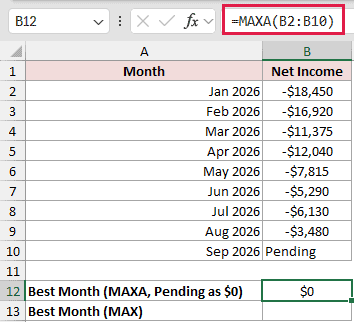
Below is the dataset. It lists monthly net income and a Pending entry. Separate result cells hold the MAXA mistake and the MAX answer.
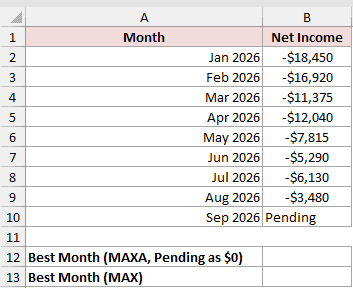
We want the highest recorded monthly net income without letting Pending create a false answer.
Here is the MAXA formula that creates the mistake:
=MAXA(B2:B10)
And here is the MAX formula that returns the correct answer:
=MAX(B2:B10)
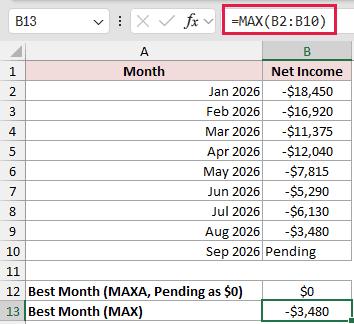
The white MAXA result is the deliberate mistake. It returns $0 because Pending is treated as 0, creating a best month that never happened.
MAX ignores Pending and returns -$3,480, the actual highest recorded net income from Aug 2026.
Pro Tip: Use MAX when text is a status or placeholder. Use MAXA only when that text is meant to contribute 0.
Example 3: Compare How MAXA Reads Entries
Here’s a controlled comparison of the entry types that usually cause confusion.
Below is the dataset. Each row combines a fixed negative baseline with one test entry, followed by columns for MAXA and MAX results.
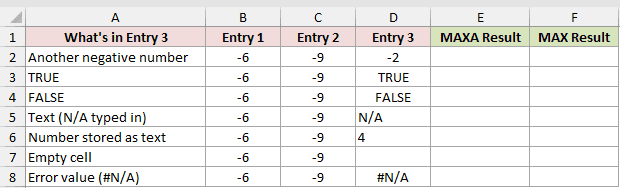
We want to compare how both functions evaluate the same mixed entries.
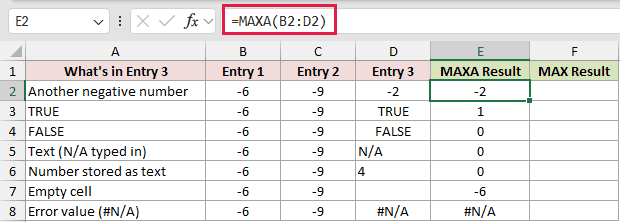
Enter this MAXA formula in E2 and copy it down through E8:
=MAXA(B2:D2)
For comparison, enter this MAX formula in F2 and copy it down through F8:
=MAX(B2:D2)
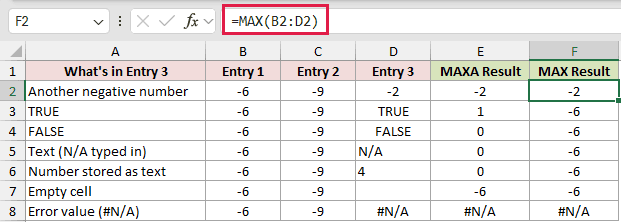
The ordinary negative-number row returns -2 from both formulas.
With TRUE, MAXA returns 1 while MAX returns -6. FALSE, typed N/A, and the number 4 stored as text make MAXA return 0, while MAX stays at -6.
An empty cell is ignored, so both formulas return -6. A real #N/A error passes through both formulas.
In a cell reference, the text “4” counts as 0.
Example 4: Flag TRUE Values by Row
A weekly safety checklist shows how MAXA handles logical values by row.
Below is the dataset. It records weekly TRUE/FALSE hazard checks by area, with result columns for MAXA and an intentionally unsuitable MAX method.
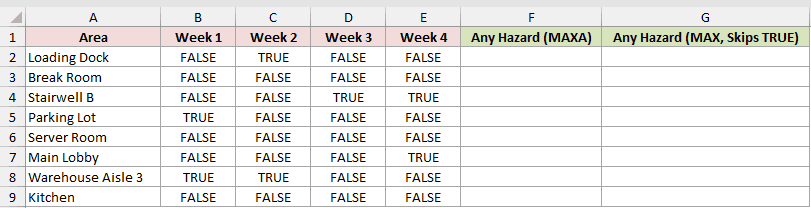
We want a numeric flag showing whether any weekly check is TRUE for each area.
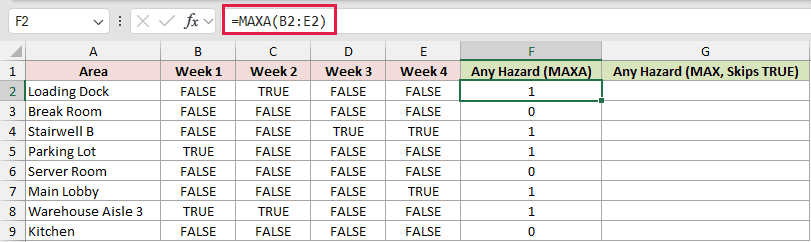
Enter this formula in F2 and copy it down through F9:
=MAXA(B2:E2)
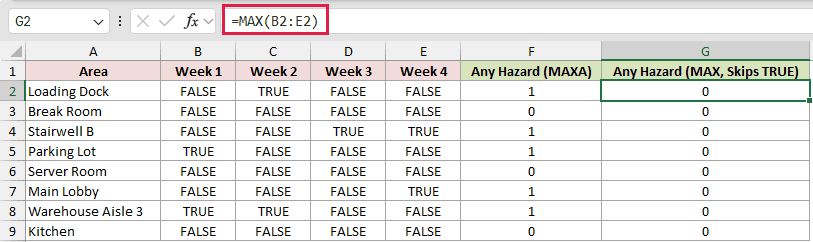
For contrast, enter the MAX formula that fails for this setup in G2, then copy it down through G9:
=MAX(B2:E2)
MAXA returns 1 whenever any weekly entry is TRUE and 0 when all entries are FALSE.
The MAX column is the wrong method here. It returns 0 on every row because MAX skips logical values stored in references.
OR is clearer when you want TRUE/FALSE output. MAXA is useful when you need numeric 1 and 0 flags that can be totaled later.
Pro Tip: In Microsoft 365 and Excel 2024, =BYROW(B2:E9,LAMBDA(r,MAXA(r))) spills the same per-area test while preserving MAXA’s handling of logical values.
Tips & Common Mistakes
- MAXA returns one value from a range, so it does not spill a list.
- MAXA and MAX differ only when TRUE can beat real numbers below 1, or text and FALSE can beat real numbers below 0.
- FILTER output and array constants lose MAXA’s special handling. With -5, -3, TRUE, and the text “note”,
=MAXA(L1:L4)returned 1 while=MAXA(FILTER(L1:L4,TRUE))returned -3. The MINA function page covers the same FILTER trap for minimum values. - A typed text argument that looks like a number is converted. Other typed text returns #VALUE!.
- Empty cells are ignored, but an all-empty range returns 0. Errors such as #N/A pass through the function.
- There is no MAXAIFS function. MAXIFS can apply conditions, but it ignores text and logical values.
MAXA can turn a mixed range into a valid numeric maximum, but its answer depends on how Excel reads each referenced cell.
Check the stored value behind every text or logical entry before relying on the result.
Related Excel Functions / Articles:
