
The ODD function in Excel rounds a number away from zero to an odd integer. If the number is already an odd integer, it stays unchanged.
That makes ODD useful when a count must be odd, such as a voting panel. For positive counts, it increases the number only when needed to meet that rule.
I’ll show you how to size judging panels, advance odd house numbers, and use ODD to check whether an entry is a whole odd number.
ODD Function Syntax in Excel
The ODD function takes a single required argument:
=ODD(number)
- number (required): The value to round. You can supply a number, a cell reference, or a calculation. A range can return multiple results in versions that support spilling.
An integer is a whole number. ODD returns an odd integer, with negative values rounded farther into the negative direction.
When to Use ODD Function
- Set an odd voting-panel size from a proposed headcount.
- Calculate an odd number of judges from entry counts and workload limits.
- Advance positive odd house numbers without reusing the current number.
- Check whether numeric entries are already whole odd numbers.
Example 1: Set Odd Voting Panel Sizes
Let’s start with departments planning their voting panels.
Below is the dataset. Column A lists departments, column B contains volunteer counts, and column C will hold each voting panel size.
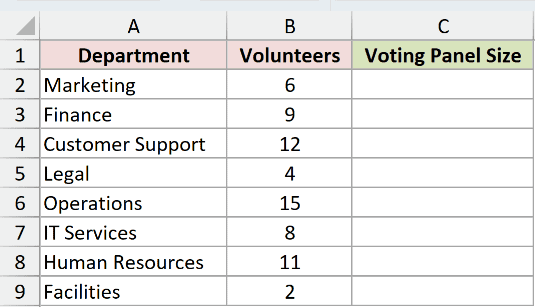
We want an odd panel size that’s at least as large as each department’s volunteer count.
Enter this formula in C2:
=ODD(B2:B9)
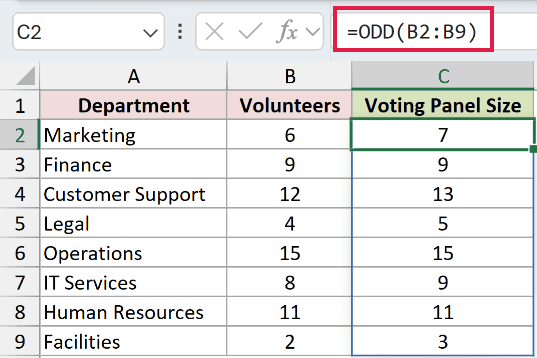
Marketing’s 6 volunteers produce a panel size of 7, while Finance’s 9 stays 9. Customer Support’s 12 becomes 13.
For departments with even counts, ODD sets a recruitment target that requires one more volunteer.
The formula spills into C2:C9, meaning Excel fills the results below C2 automatically. Range formulas spill in Excel 2021, Excel 2024, and Microsoft 365.
In Excel 2019 and earlier, use a reference to the individual volunteer cell and copy the formula down instead.
Pro Tip: An odd panel prevents a tied vote only when everyone casts a yes-or-no vote. Abstentions or additional choices can still produce a tie.
Example 2: Calculate an Odd Judge Count
Now let’s calculate the headcount before rounding it.
Below is the dataset. Each science-fair category has an entry count in column B and an entries-per-judge limit in column C. Column D will show judges needed.
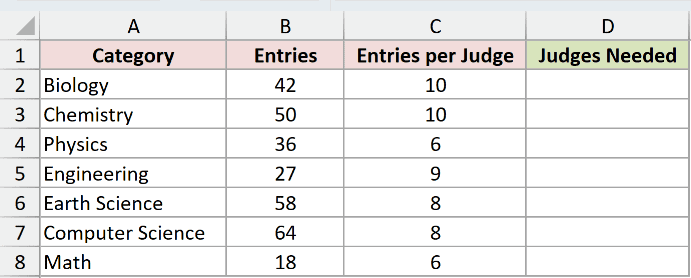
We want enough judges to cover the workload while keeping each category’s panel odd.
Enter this formula in D2:
=ODD(B2:B8/C2:C8)
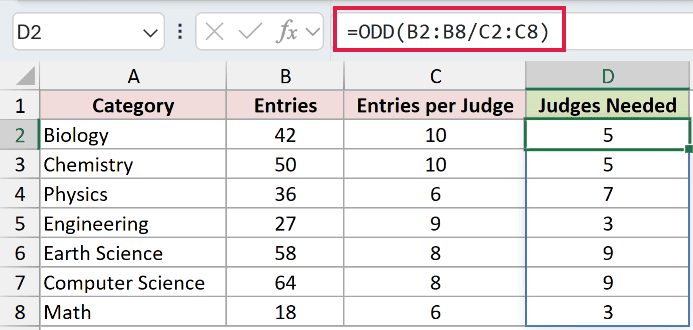
The division calculates the workload-based headcount for each category. ODD then rounds each calculated value to an odd integer, spilling the results into D2:D8.
Biology has 42 entries and a limit of 10 per judge. The formula returns 5 judges. Chemistry also returns 5, from 50 entries at the same limit.
Physics has 36 entries with a limit of 6 per judge, but ODD returns 7. Even an exact whole-number headcount increases when it isn’t odd.
Engineering returns 3, so ODD doesn’t always add capacity. It keeps a calculated headcount that’s already a whole odd number.
Example 3: Find the Next Odd House Number
Let’s assign the next unused odd house number on each street.
Below is the dataset. Column B lists each street’s last odd house number. Columns C and D will compare ODD alone with the next-number calculation.
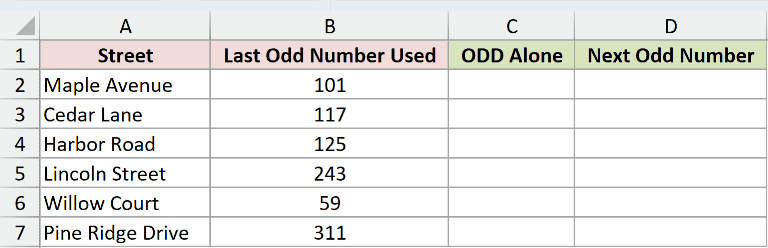
We want the next odd house number after the number already used on each street.
First, enter this comparison in C2 to see why ODD alone doesn’t advance the number:
=ODD(B2:B7)
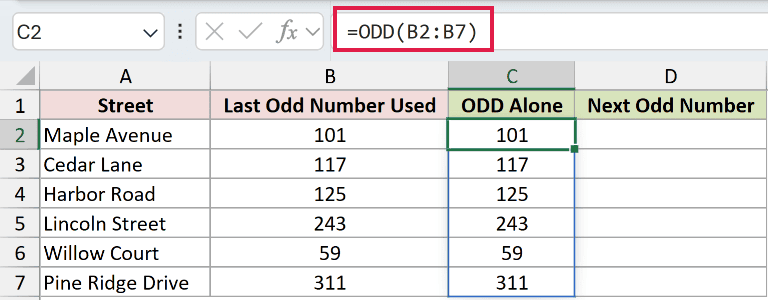
The comparison returns 101 for Maple Avenue and 117 for Cedar Lane. Those numbers are already odd, so this approach would reuse existing house numbers.
To advance past each current number, enter this formula in D2:
=ODD(B2:B7+1)
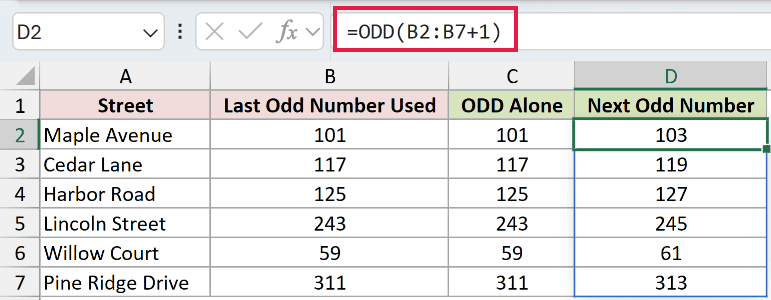
Adding 1 moves each input past its current odd value before ODD rounds. The results spill into D2:D7.
Maple Avenue now returns 103, Cedar Lane returns 119, and Harbor Road returns 127. Willow Court advances from 59 to 61.
This approach fits the positive whole house numbers here. Don’t treat it as a general next-number rule for decimals or negative values.
Example 4: Round Negative Numbers and Zero
The phrase “round up” can be misleading when your inputs include negatives.
Below is the dataset. Column A contains positive values, zero, and negative values. Column B will show how ODD handles each input.
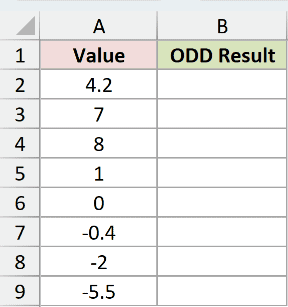
We want to see which direction ODD rounds for each sign.
Enter this formula in B2:
=ODD(A2:A9)
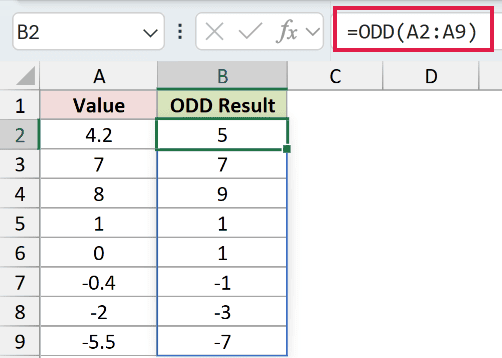
The results spill into B2:B9. For positive inputs, 4.2 becomes 5 and 8 becomes 9. The existing odd integers 7 and 1 stay unchanged.
For negative inputs, -0.4 becomes -1, -2 becomes -3, and -5.5 becomes -7. These results move farther from zero, so they are numerically smaller.
Zero returns 1. Keep that behavior in mind when zero means there is no quantity to allocate.
Example 5: Check for Whole Odd Seat Numbers
You can also compare a number with its ODD result to check whether rounding would change it.
Below is the dataset. Column A holds entered seat numbers, including decimals. Columns B and C will compare an oddness check with a whole-odd-number check.
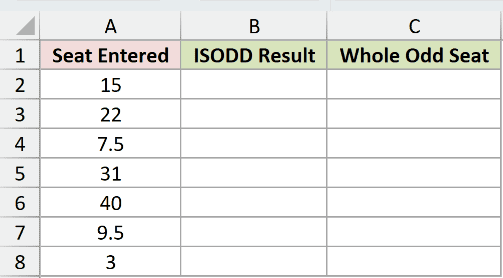
We want to accept whole odd seat numbers and reject even numbers or decimal entries.
ISODD checks whether a number’s integer portion is odd, ignoring its decimal part. That makes it an incomplete check for this task.
Enter this comparison formula in B2:
=ISODD(+A2:A8)
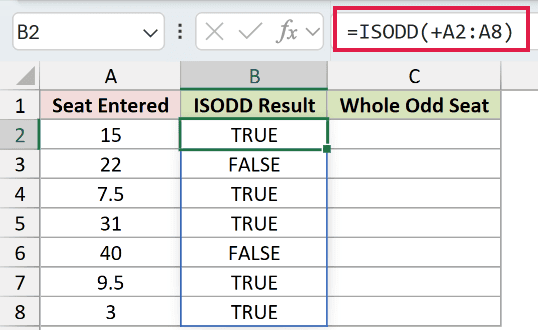
ISODD returns a single #VALUE! with a bare range. The + turns the range into an array of values so the results spill into B2:B8.
The comparison returns TRUE for 7.5 and 9.5 because it ignores the decimal parts. Those entries still aren’t whole seat numbers.
To check the original number without dropping its decimal part, enter this formula in C2:
=A2:A8=ODD(A2:A8)
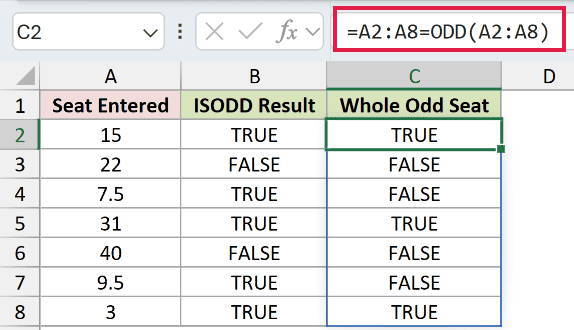
ODD rounds each entry, then the equals sign checks whether the result matches the original. Only an already-whole odd number passes this test.
The results spill into C2:C8. Entries 15, 31, and 3 return TRUE. Entries 22 and 40 return FALSE, as do 7.5 and 9.5.
ODD accepts the range directly here, so it doesn’t need the + used by the ISODD comparison.
Tips & Common Mistakes
- Check blank inputs. ODD treats an empty referenced cell as zero and returns 1. A missing quantity can therefore look like a valid result.
- Distinguish numeric text from other text. In testing, a cell containing the text “6” returned 7. Nonnumeric text such as “apple” returned
#VALUE!. - Remember the rounding direction. ODD rounds away from zero, not necessarily toward a larger number. This matters whenever inputs can be negative.
- Keep spill destinations empty. Enter each range formula in its starting cell and leave room below for its results.
- Don’t confuse testing with rounding. The ISODD comparison in Example 5 ignores decimals. Comparing an entry with its ODD result checks whether it’s already a whole odd number.
Choose ODD when the odd-integer requirement is part of your calculation. Check missing inputs first so a blank doesn’t quietly become a planned quantity.
Related Excel Functions / Articles:
