
Excel’s REGEXTEST function checks whether any part of supplied text matches a regular expression and returns TRUE or FALSE.
It uses PCRE2 patterns, so one formula can test digits, text shapes, file endings, prohibited characters, and other structured rules.
REGEXTEST is currently available in Excel for Microsoft 365 on Windows and Mac. Microsoft does not list Excel 2024 or earlier versions.
In this article, I’ll show you how to validate import codes, flag unwanted characters, and filter notes by whole words using REGEXTEST.
REGEXTEST Function Syntax in Excel
The REGEXTEST function has two required arguments and one optional argument.
=REGEXTEST(text,pattern,[case_sensitivity])
textis the text or cell reference to test.patternis the PCRE2 regular expression that describes the match.case_sensitivitycontrols letter case. Omit it or use0for case-sensitive matching. Use1for case-insensitive matching.
When to Use REGEXTEST Function
- Check whether imported text contains a digit, word, or character pattern.
- Validate structured entries such as import codes or phone formats.
- Check file extensions without building several text comparisons.
- Flag prohibited characters in reference numbers.
- Filter rows whose notes contain one of several whole words.
Example 1: Check Text for Any Digit
Let’s start with a simple character class.
Below is a list of reference notes and an empty column for the Boolean results.
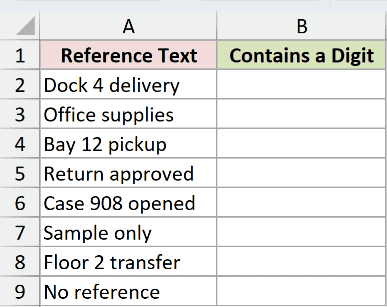
I want to check which notes contain at least one digit.
Here is the formula:
=REGEXTEST(A2:A9,"[0-9]")
![=REGEXTEST(A2:A9,"[0-9]") in B2](https://spreadsheetplanet.com/wp-content/uploads/2026/09/regextest-example-1-digits.png)
[0-9] matches any single digit. REGEXTEST returns TRUE when it finds one anywhere in the text and FALSE when it does not.
The formula spills from B2 through B9. Four notes contain digits: Dock 4 delivery, Bay 12 pickup, Case 908 opened, and Floor 2 transfer.
Pro Tip: Keep the cells below B2 empty. A value in the intended spill range causes a #SPILL! error.
Example 2: Match an Entire Import Code
Anchors decide whether extra text is allowed.
Below are eight import codes with result columns for an unanchored pattern and a whole-code pattern.
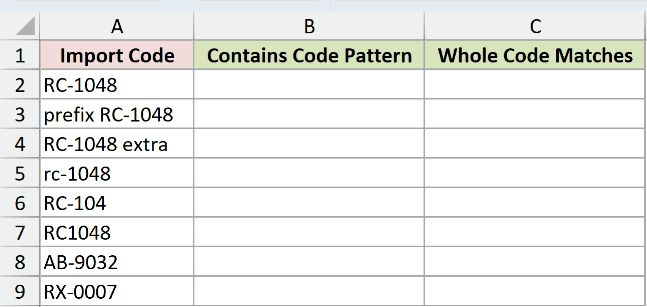
I first want to find the code shape anywhere inside each cell.
Here is the unanchored formula:
=REGEXTEST(A2:A9,"[A-Z]{2}-[0-9]{4}")
![=REGEXTEST(A2:A9,"[A-Z]{2}-[0-9]{4}") in B2](https://spreadsheetplanet.com/wp-content/uploads/2026/09/regextest-example-2-contains.png)
[A-Z]{2} requires two uppercase letters, the hyphen is literal, and [0-9]{4} requires four digits.
Because the pattern is unanchored, it also returns TRUE for prefix RC-1048 and RC-1048 extra.
I now want the entire cell to match that code shape.
Here is the anchored formula:
=REGEXTEST(A2:A9,"^[A-Z]{2}-[0-9]{4}$")
![=REGEXTEST(A2:A9,"^[A-Z]{2}-[0-9]{4}$") in C2](https://spreadsheetplanet.com/wp-content/uploads/2026/09/regextest-example-2-whole.png)
The caret ^ anchors the start, and the dollar sign $ anchors the end. Only RC-1048, AB-9032, and RX-0007 match the entire pattern.
Pro Tip: REGEXTEST searches anywhere in the text unless you add anchors. Use ^ and $ when extra prefixes or suffixes should fail.
Example 3: Test File Extensions Without Case
The optional third argument controls case sensitivity.
Below is a file-name list with separate result columns for default and case-insensitive matching.
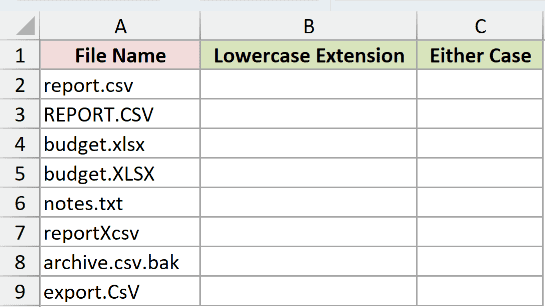
I first want to match lowercase .csv or .xlsx extensions at the end of each file name.
Here is the default case-sensitive formula:
=REGEXTEST(A2:A9,"\.(csv|xlsx)$")
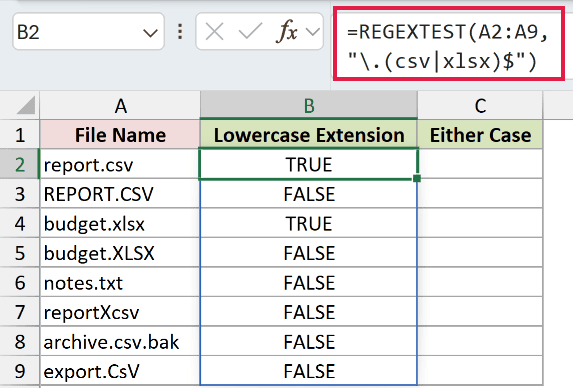
The backslash makes the dot literal, (csv|xlsx) allows either extension, and $ requires the extension at the end.
This formula returns TRUE only for report.csv and budget.xlsx because matching is case sensitive by default.
I also want uppercase and mixed-case extensions to match.
Here is the case-insensitive formula:
=REGEXTEST(A2:A9,"\.(csv|xlsx)$",1)
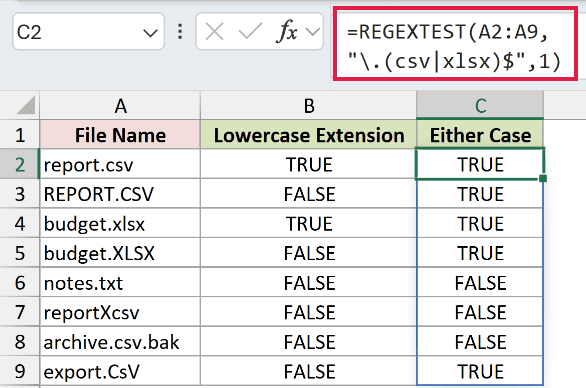
The final 1 turns off case sensitivity. The formula also matches REPORT.CSV, budget.XLSX, and export.CsV.
It still rejects reportXcsv because the dot is required. It rejects archive.csv.bak because .csv is not at the end.
Pro Tip: Use 0 or omit the third argument for case-sensitive matching. Use 1 when letter case should not matter.
Example 4: Flag Disallowed Characters
A negated character class finds characters you do not permit.
Below is a list of import references that should contain only uppercase letters, digits, and hyphens.
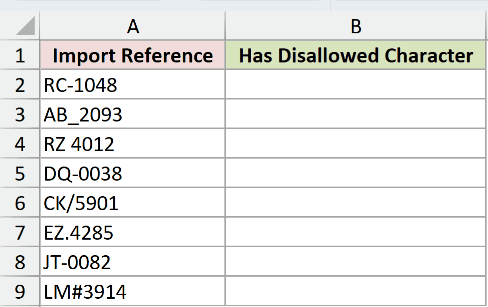
I want TRUE to identify references containing any disallowed character.
Here is the formula:
=REGEXTEST(A2:A9,"[^A-Z0-9-]")
![=REGEXTEST(A2:A9,"[^A-Z0-9-]") in B2](https://spreadsheetplanet.com/wp-content/uploads/2026/09/regextest-example-4-disallowed.png)
Inside the brackets, the leading caret negates the class. The pattern matches any character other than an uppercase letter, digit, or hyphen.
AB_2093, RZ 4012, CK/5901, EZ.4285, and LM#3914 return TRUE because each contains a prohibited character.
Pro Tip: This formula is a problem test, so TRUE means review the value. Name the result column clearly to prevent readers from treating TRUE as valid.
Example 5: Label Phone Format Problems
REGEXTEST can sit inside IF to return useful labels.
Below is a phone-number list with a Format Review column.
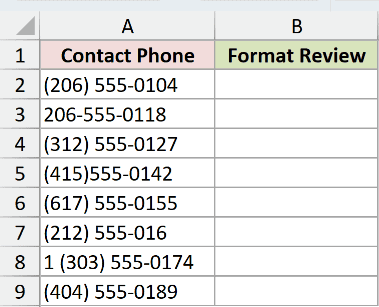
I want to label numbers that use the exact (###) ###-#### shape.
Here is the formula:
=IF(REGEXTEST(A2:A9,"^\([0-9]{3}\) [0-9]{3}-[0-9]{4}$"),"Format OK","Review")
![=IF(REGEXTEST(A2:A9,"^\([0-9]{3}\) [0-9]{3}-[0-9]{4}$"),"Format OK","Review") in B2](https://spreadsheetplanet.com/wp-content/uploads/2026/09/regextest-example-5-labels.png)
The backslashes escape the parentheses, so the pattern requires literal brackets around the area code. The spaces and hyphen must also appear in the stated positions.
IF returns Format OK for four entries and Review for the other four. This checks text shape only. It does not prove that a phone number is active.
Pro Tip: Keep phone values as text. Excel may remove leading zeros or reinterpret long numbers when they are stored as numeric values.
Example 6: Filter Notes by Whole Words
Word boundaries prevent partial-word matches.
Below is a request table and an empty output area for matching rows.
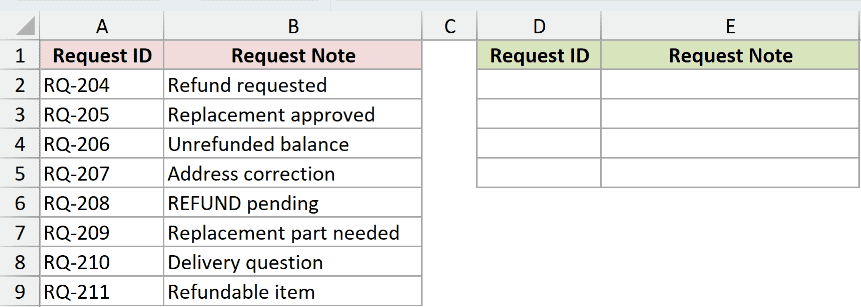
I want to return requests containing the whole word refund or replacement, regardless of case.
Here is the formula:
=FILTER(A2:B9,REGEXTEST(B2:B9,"\b(refund|replacement)\b",1),"No matching requests")
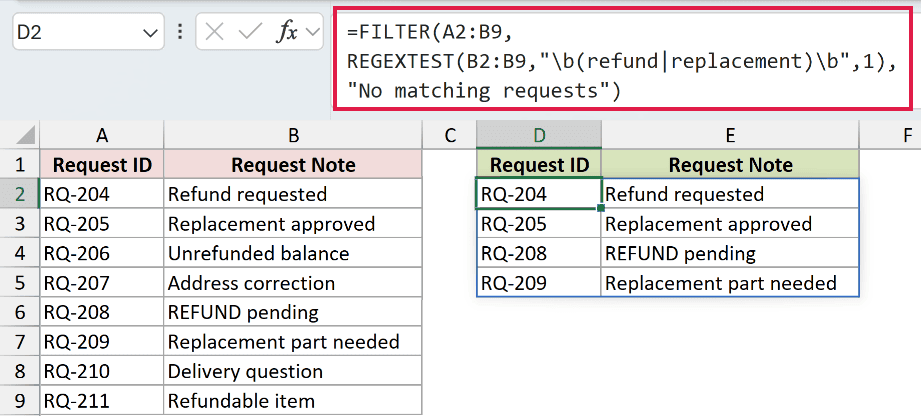
The vertical bar means OR, and each \b marks a word boundary. The final 1 makes the test case insensitive.
REGEXTEST supplies TRUE and FALSE values to FILTER. Four rows spill into D2:E5, including REFUND pending and both replacement notes.
Unrefunded balance and Refundable item are excluded because refund is only part of a longer word in those notes.
Pro Tip: Keep the output area clear for all matching columns and rows. FILTER returns #SPILL! when another value blocks that range.
Tips & Common Mistakes
- REGEXTEST uses PCRE2 syntax. A pattern copied from another regex engine may need changes before it works in Excel.
- Matching is case sensitive by default. Use
1as the third argument when uppercase and lowercase letters should be treated alike. - REGEXTEST searches for a match anywhere unless the pattern uses
^and$anchors. - REGEXTEST only returns TRUE or FALSE. Use
REGEXEXTRACTwhen you need to return the matching text. - Use
REGEXREPLACEwhen you need to change text that matches a pattern. - A pattern can confirm that text follows a stated shape, but it cannot prove an email address, phone number, or account actually exists.
- Test complicated patterns on a small sample first. An invalid PCRE2 expression returns an Excel error instead of a Boolean result.
I covered contains tests, whole-cell formats, case handling, prohibited characters, IF labels, and whole-word filtering with REGEXTEST.
I hope you found this article helpful.
Related Excel Functions / Articles:
