
The SUMX2MY2 function in Excel returns the sum of the differences between squared values in matching pairs.
It squares each value separately, subtracts the second square from the first, and adds those differences. For square garden beds, that can measure the total area gained during resizing.
The order matters: putting the new dimensions first measures the change from old to new. An item that shrinks contributes a negative amount to the total.
I’ll show you how to calculate area changes, handle incomplete pairs, and restrict the calculation to a selected location.
SUMX2MY2 Function Syntax in Excel
SUMX2MY2 takes these required arguments:
=SUMX2MY2(array_x, array_y)
- array_x is the first set of values. Excel squares these values and adds their contributions.
- array_y is the second set of values. Excel squares these values and subtracts their contributions from the matching first values.
You can supply ranges, array constants, or individual numbers. Both arguments must contain the same number of positions, or Excel returns #N/A.
Excel matches values by position. If either member of a pair is text, a logical value, or blank, it skips that entire pair.
When to Use SUMX2MY2 Function
- Calculate the net area added when square beds, rooms, or tabletops change size.
- Find the total area of circular rings from their outer and inner radii.
- Compare squared measurements while excluding pairs with missing or text entries.
- Calculate a difference-of-squares total for a selected group of records.
Example 1: Calculate Total Garden Bed Area Change
Let’s start with square garden beds that are being resized.
Below is the dataset with current and planned sides in columns B and C, an area-change column D, and a total area cell under F1.
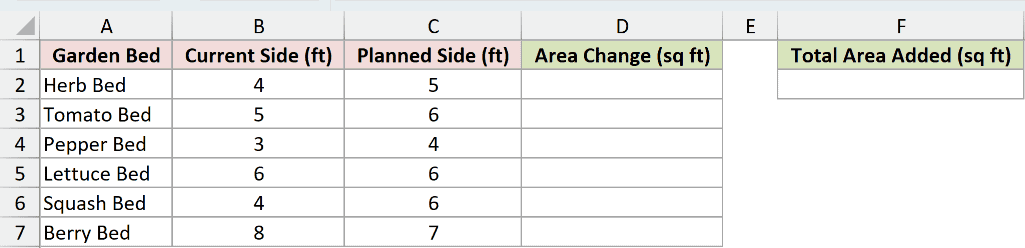
We want the total area added by the planned changes, including any area lost where a bed becomes smaller.
Enter this formula in F2:
=SUMX2MY2(C2:C7,B2:B7)
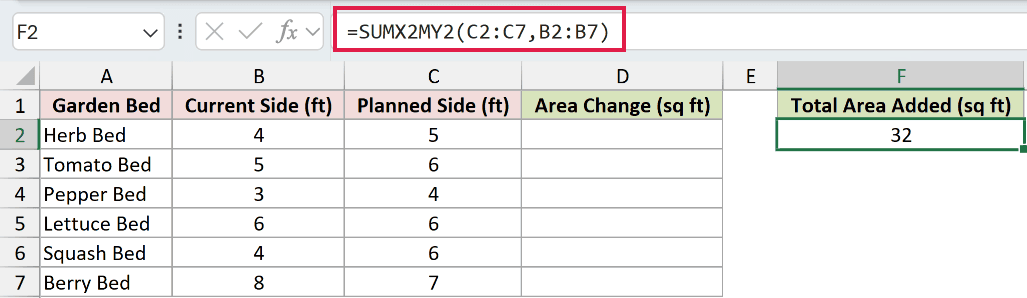
The formula returns 32 square feet. Planned sides come first, so Excel subtracts each current bed’s area from its planned area before adding the changes.
SUMX2MY2 returns a single total from these ranges.
To see the individual contributions, enter this helper formula in D2:
=C2:C7^2-B2:B7^2
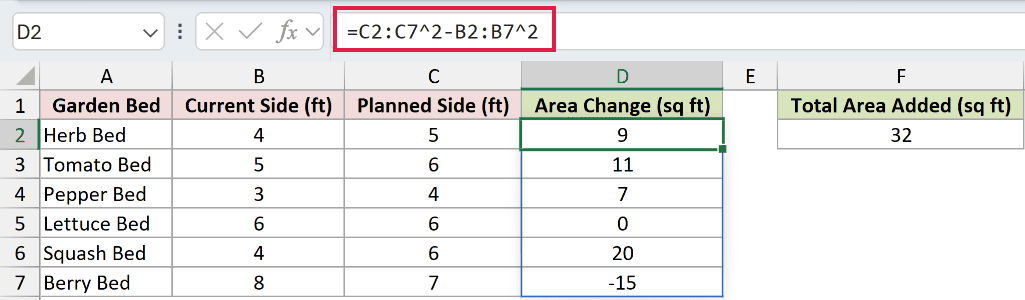
The helper squares the planned and current sides separately, then subtracts. It spills 9, 11, 7, 0, 20, and -15 into D2:D7.
The Lettuce Bed contributes 0 because its size stays the same. The Berry Bed contributes -15 because it shrinks, reducing the overall area gained.
This helper spills in Excel 2021, Excel 2024, and Microsoft 365. In Excel 2019 and earlier, calculate each row’s squared-side difference and copy it down.
Pro Tip: Put the new measurements first when you want new area minus old area. Reversing the arguments reverses the sign of the total.
Example 2: Find the Total Washer Ring Area
For circular washers, we can apply the same idea to the outer circle and its central hole.
Below is the dataset with outer and inner radii in columns B and C, a total in column E, and a factorized comparison in column F.
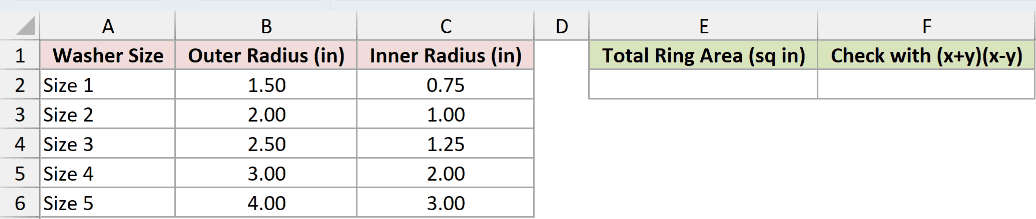
We want the combined ring area for one washer of each listed size, excluding the holes.
The PI function returns the circle constant pi. Multiplying SUMX2MY2’s squared-radius difference by that constant converts it into ring area.
Enter this formula in E2:
=PI()*SUMX2MY2(B2:B6,C2:C6)
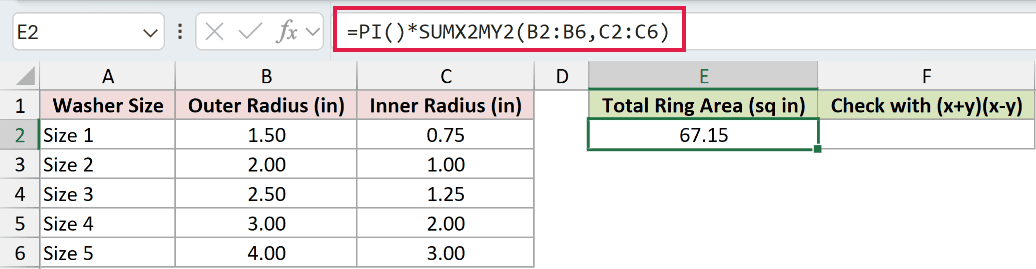
The result displays as 67.15 square inches. Outer radii come first, so the formula subtracts the holes’ areas from the outer circles’ areas.
The comparison uses SUMPRODUCT, which multiplies corresponding array values and adds the products. Here, it checks the squared-radius differences using each pair’s sum multiplied by its difference.
Enter the comparison formula in F2:
=PI()*SUMPRODUCT((B2:B6+C2:C6)*(B2:B6-C2:C6))
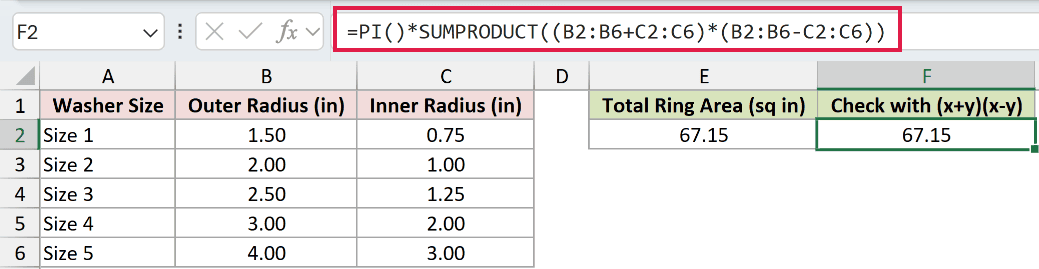
The comparison also displays 67.15 square inches. Multiplying a pair’s sum by its difference gives the same difference of squares for these numeric inputs.
Example 3: Handle a Missing Room Measurement
Let’s calculate the area change for square rooms while the Den’s new measurement is still missing.
Below is the dataset for square rooms, with current and new sides, a TBD entry for the Den, and spaces for the total and a deliberate comparison.
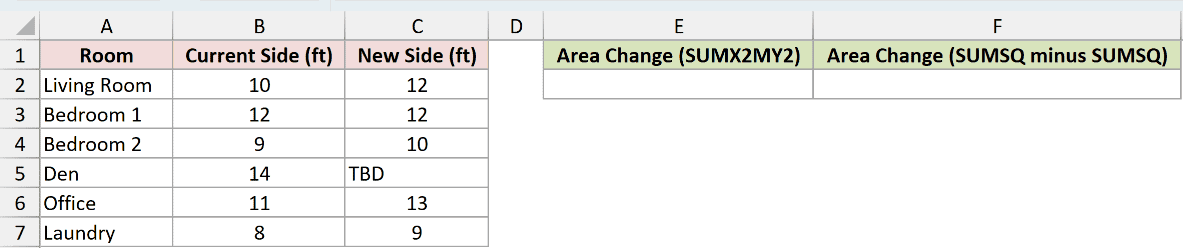
We want the area change for rooms whose current and new measurements are both available.
Enter this formula in E2:
=SUMX2MY2(C2:C7,B2:B7)
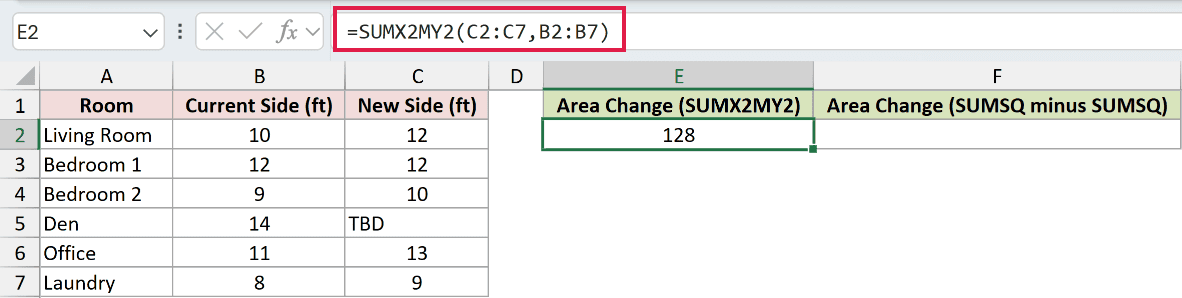
SUMX2MY2 returns 128 square feet. The Den’s new side in C5 contains text, so Excel excludes both C5 and its matching current side in B5.
That total covers the rooms with complete measurements. It doesn’t estimate the Den’s eventual change.
SUMSQ adds the squares of numbers in a range. Subtracting separate SUMSQ totals is the deliberate mistake here because each range drops text independently.
Enter this comparison in F2 to see the wrong approach:
=SUMSQ(C2:C7)-SUMSQ(B2:B7)
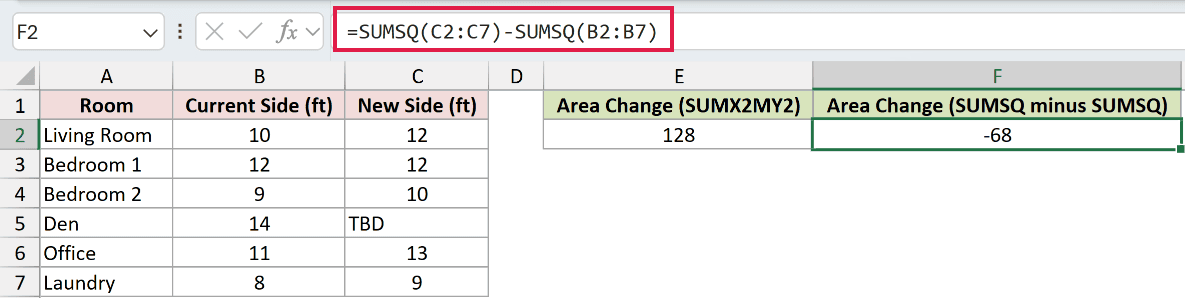
The wrong comparison returns -68. It skips the Den’s TBD entry but still subtracts the square of its current side, making the incomplete room look like lost area.
Separate square totals agree with SUMX2MY2 on complete numeric data.
Pro Tip: Check numbers stored as text before using SUMX2MY2. Excel skips their entire pairs too, so a numeric-looking entry can silently disappear from the calculation.
Example 4: Calculate Area Added at One Location
Now let’s limit the calculation to one restaurant location’s square tabletops.
Below is the dataset with locations and old and new tabletop sides in A:C. E2 holds the location to analyze, and F2 will hold the area added.
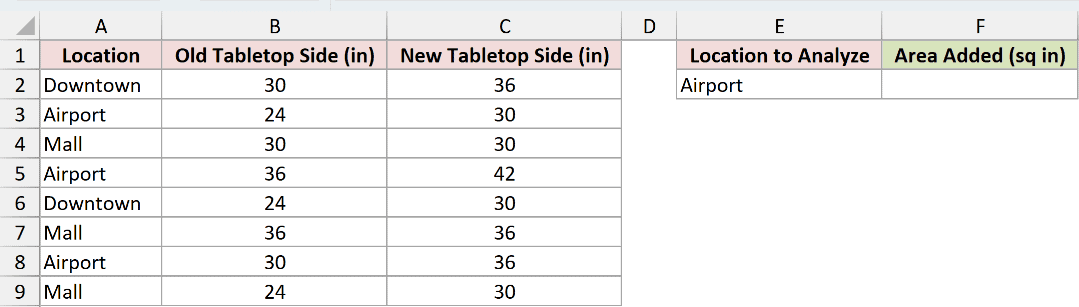
We want the total area added at Airport, the location typed in E2.
FILTER returns values from rows that meet a condition. Here, it passes only the selected location’s new and old sides to SUMX2MY2.
Enter this formula in F2:
=SUMX2MY2(FILTER(C2:C9,A2:A9=E2),FILTER(B2:B9,A2:A9=E2))
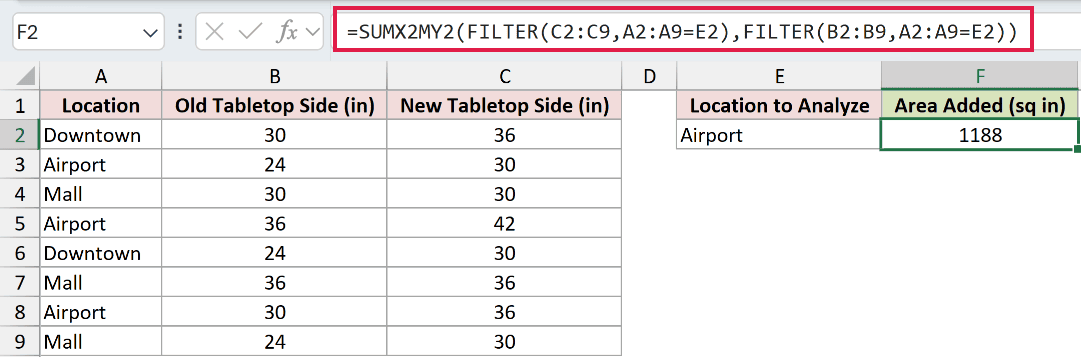
The formula returns 1188 square inches for Airport.
How this formula works:
- The first FILTER keeps new sides from column C where the location in column A matches E2.
- The second FILTER keeps the matching old sides from column B using the same condition.
- SUMX2MY2 subtracts each old squared side from its matching new squared side and adds the differences.
Using the same condition preserves the pairs. E2 is a typed input you can change to another location already listed in column A.
This formula requires Excel 2021 or later because it uses FILTER. The final result remains a single total in F2.
Tips & Common Mistakes
- Square before subtracting. SUMX2MY2 subtracts the individual squares. Squaring the difference between the original values is a different calculation.
- Match the range sizes and positions. Different sizes return
#N/A. Equal lengths alone don’t guarantee a meaningful answer if the rows describe different items. - Check skipped pairs. Text, TRUE, FALSE, and blanks on either side exclude the whole pair. A missing measurement isn’t treated as a measured zero.
- Investigate
#DIV/0!. In testing, SUMX2MY2 returned this error when there were no complete numeric pairs to calculate. - Keep the units consistent. Side lengths measured in feet produce square feet; radii measured in inches produce square inches after the circle-area multiplier.
Other Excel articles you may also like:
