
Excel’s TRUE function returns the logical value TRUE and takes no arguments.
You can use it where a formula needs a fixed logical result. Typing TRUE directly also works; neither form performs a comparison by itself.
In this article, I’ll show you how to compare TRUE with a logical test, return it from IF, and total budgets for approved campaigns.
TRUE Function Syntax in Excel
The syntax is:
=TRUE()
- Arguments: None. Leave the parentheses empty.
- Result: The logical value TRUE.
You can also use the constant TRUE directly in a formula. Microsoft primarily provides the function form for compatibility with other spreadsheet programs.
The distinction matters when you read an existing formula. TRUE() supplies a fixed value; a comparison determines whether a condition is met.
When to Use TRUE Function
- Supply a logical TRUE value as an argument inside another function.
- Read or maintain formulas that already use the function form.
- Match genuine TRUE values in an approval or status column.
You usually don’t need TRUE() when you only want to test a condition. The comparison itself already returns TRUE or FALSE.
Example 1: Compare TRUE() With a Logical Test
Let’s start with three expressions that return the same result.
Below is the dataset with the expressions in A2:A4 and an empty Logical Result column for their answers.
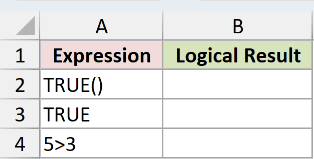
We want to see how the function, a logical constant, and a comparison behave.
Enter this formula in B2:
=TRUE()
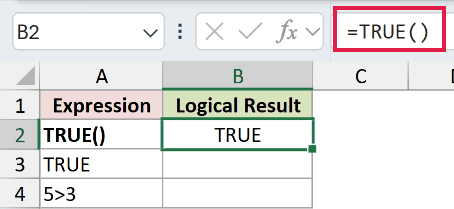
The result is TRUE. There is no condition to evaluate, and the function does not read the expression label in A2.
Now enter the logical constant in B3:
=TRUE
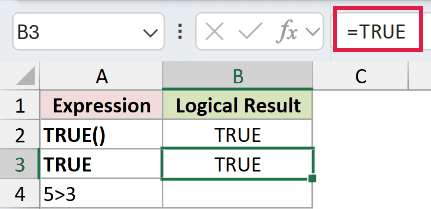
This also returns TRUE. The parentheses are needed for the function form, but the constant works without them.
Finally, enter this comparison in B4:
=5>3
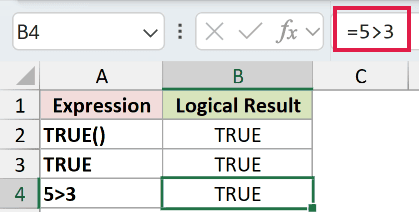
The comparison returns TRUE because 5 is greater than 3. Unlike the first two formulas, its answer depends on the values being compared.
That is the difference to remember: TRUE() always supplies TRUE, while a logical test can return either TRUE or FALSE.
Pro Tip: The logical value TRUE and the text "TRUE" are different cell types. Avoid adding quotation marks when a formula needs a logical value.
Example 2: Return TRUE From an IF Formula
Now let’s test an order status.
Below is the dataset with Late in B1 and two labelled result cells underneath it. Both formulas will check that same status.
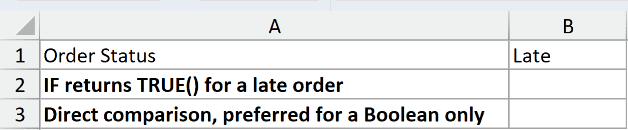
We want TRUE when the status is Late and FALSE otherwise.
Enter this formula in B2:
=IF(B1="Late",TRUE(),FALSE)
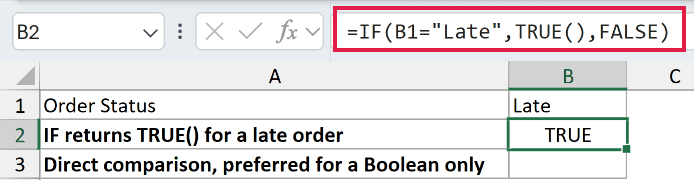
The result is TRUE because B1 contains Late.
Here is how the formula works:
B1="Late"tests the order status.TRUE()supplies the result when that test is true.FALSEsupplies the result when the test is false.
But we can get the same answer with less typing. Enter this formula in B3:
=B1="Late"
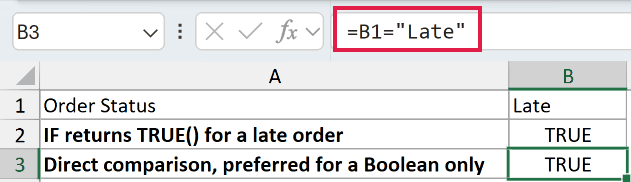
It also returns TRUE. Changing B1 to On Time makes both formulas return FALSE.
I would use the direct comparison here. The IF function becomes useful when you want to return other outputs, such as a message or a calculation.
For a condition that needs several tests, you can combine the comparisons with the AND function or OR before choosing the output.
Example 3: Sum Budgets for Approved Campaigns
A logical value can also act as a condition in a SUMIFS formula.
Below is the dataset with six campaigns, their TRUE or FALSE approval values, and budgets in A1:C7. The answer will go in F2.
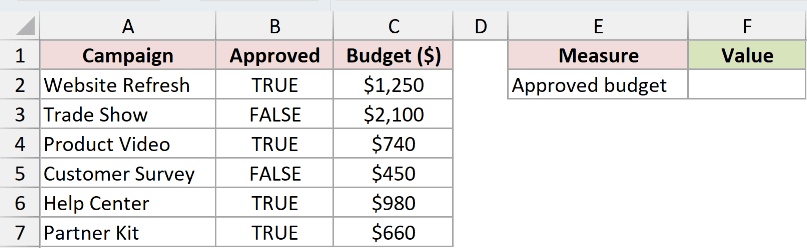
We want the total budget for campaigns marked TRUE in the Approved column.
Enter this formula in F2:
=SUMIFS(C2:C7,B2:B7,TRUE())
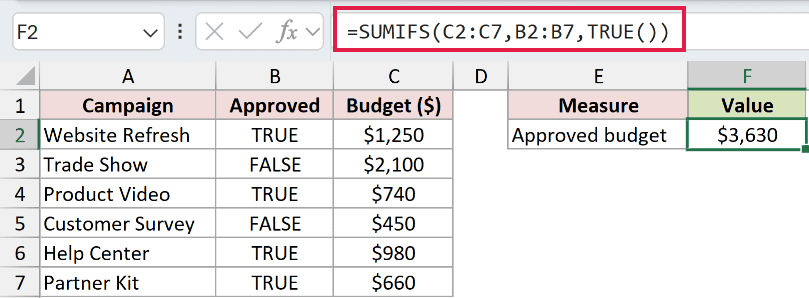
The result is $3,630.
How this formula works:
C2:C7contains the amounts to add.B2:B7contains the approval values to check.TRUE()supplies the criterion for approved campaigns.
The included budgets are $1,250, $740, $980, and $660. The Trade Show and Customer Survey rows are marked FALSE, so their budgets are excluded.
The Approved cells contain actual logical values. Keep that column consistent when you add more campaigns, especially if you import the values from another system.
Pro Tip: You can replace TRUE() with TRUE in this formula. Use the form that makes the workbook easiest to read.
Tips & Common Mistakes
- Leave the parentheses empty. TRUE() does not accept a condition as an argument. Put the condition in a comparison or in IF.
- Use a direct test for a yes-or-no result. Wrapping an existing logical test in IF just to return TRUE or FALSE usually adds unnecessary work.
- Watch the cell type. A displayed TRUE may be a logical value or imported text. Quotation marks inside a formula create text.
- Do not expect TRUE() to spill. It returns one constant. A range comparison can produce several results in Excel 2021 and later, but TRUE() itself has no range input.
In this article, I showed you how TRUE() compares with a logical constant and a condition, and how it works inside IF and SUMIFS.
I hope you found this article helpful.
Other Excel articles you may also like:
