
Once your data is an Excel Table, your VBA macro can find it by name and keep working as you add or remove rows.
You don’t have to hard-code a range like A1:E11. You ask for the table’s data rows or a column by its header name instead.
An Excel Table, the kind you create with Ctrl + T, is called a ListObject in VBA. That’s the object you use to work with it.
I’ll show you how to create and refer to tables, add rows and columns, and sort or filter your data with VBA.
What Is a ListObject in Excel VBA?
In VBA, each Excel Table on a sheet is a ListObject.
Each worksheet has a ListObjects collection. You use it to find the tables on that sheet.
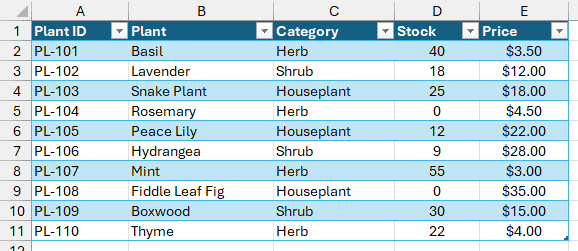
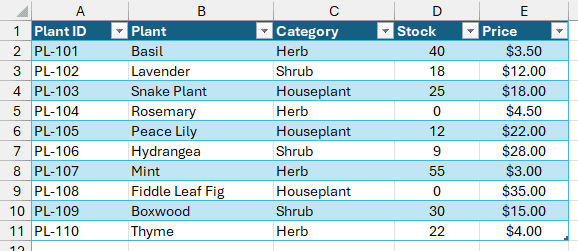
Below, I have the finished tblPlants table on the Plants sheet, with plant IDs, names, categories, stock quantities, and prices.
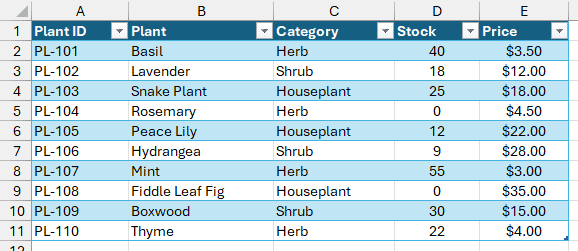
Here are the main properties you can use to reach each part of tblPlants:
| Property | What It Refers To | In tblPlants |
|---|---|---|
Range | The whole table, header row included | A1:E11 |
HeaderRowRange | Just the header row | A1:E1 |
DataBodyRange | Every data row, without the header | A2:E11 |
TotalsRowRange | The Total row, only when it is turned on | Nothing until you turn on the Total row |
ListRows | The data rows, one ListRow per row | 10 rows |
ListColumns | The columns, one ListColumn per column | 5 columns |
Note: Your practice file is an .xlsx containing the data only. Press Alt + F11, choose Insert > Module, and paste the code into that standard module. Save as .xlsm (Excel Macro-Enabled Workbook) to keep your macros.
Creating an Excel Table With VBA
You can turn your existing data into a table with ListObjects.Add.
On the Plants sheet, you have plain data in A1:E11. The first row contains the five headers, and there isn’t a table yet.
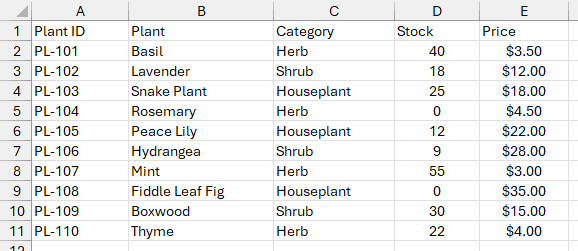
Use this macro to create the table and name it tblPlants:
Sub CreatePlantsTable()
    Dim ws As Worksheet
    Dim lo As ListObject
    Set ws = ThisWorkbook.Worksheets("Plants")
    Set lo = ws.ListObjects.Add(SourceType:=xlSrcRange, _
        Source:=ws.Range("A1").CurrentRegion, XlListObjectHasHeaders:=xlYes)
    lo.Name = "tblPlants"
End SubHere’s what you’re telling Excel with those arguments:
SourceType:=xlSrcRangemeans you’re creating the table from a worksheet range.Sourcesupplies the cells to convert.CurrentRegiongrabs the whole data block around A1, so it adapts when that block grows.XlListObjectHasHeaders:=xlYestells Excel that your first row contains column headers.
ListObjects.Add returns the new table. The Set lo line gives you a reference to it, and the last line names it tblPlants.
Here are the steps to run the macro:
- Press Alt + F11 to open the VBA editor.
- Choose Insert > Module.
- Paste the code into the module.
- Click inside
CreatePlantsTableand press F5.
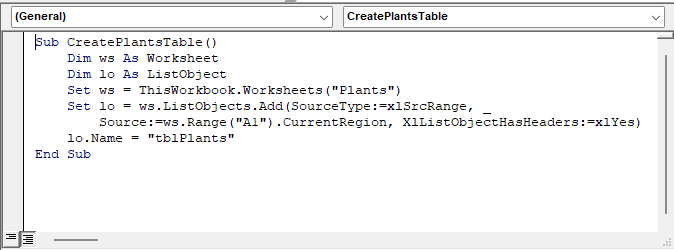
Your range becomes a table with a dark blue header, filter buttons, and light blue banded rows.
It uses the workbook’s default style. That’s TableStyleMedium2 in the practice file and in any new workbook in Excel 2013 or later.
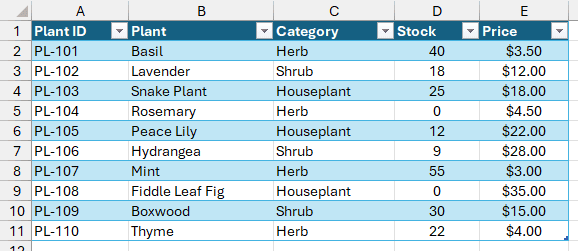
To check the name, click any cell in your table.
On the Table Design tab (or Design in older versions), you’ll see tblPlants in the Table Name box.

When you name your own tables, keep these rules in mind:
- Start with a letter, an underscore, or a backslash.
- Don’t use spaces. Use an underscore between words instead.
- Keep the name within 255 characters and unique in the workbook.
- Don’t use a name that looks like a cell address, such as A1 or Tax2024.
I use a tbl prefix because it makes table names easy to spot in code and formulas.
If you set lo.Name = "my table", VBA raises no error. Name stays “my table”, so ListObjects("my table") still works.
Excel sets DisplayName to “my_table”, the name you see in the Table Name box and use in formulas.
ListObjects("my_table") fails with run-time error 9. Stick to valid names so your code, Table Name box, and formulas all use the same name.
Run this creation macro only once on your data. Running it again gives run-time error 1004: “A table can’t overlap another table.”
You can also pass a TableStyleName argument to ListObjects.Add when you want a particular style from the start.
Referring to an Existing Table
Before you can change a table, you need a reference to it. I’d use its name through the ListObjects collection on the sheet that holds it.
This example and every later example start from the original 10-row tblPlants table. Each section shows only that macro’s change.
If you’re following along in the practice file, work on a copy. Save it as .xlsm right after you create the table.
Then close without saving after each example and reopen it. You can’t undo a macro’s changes with Ctrl + Z, so this keeps your original table safe.
You have five columns on the Plants sheet: Plant ID, Plant, Category, Stock, and Price.
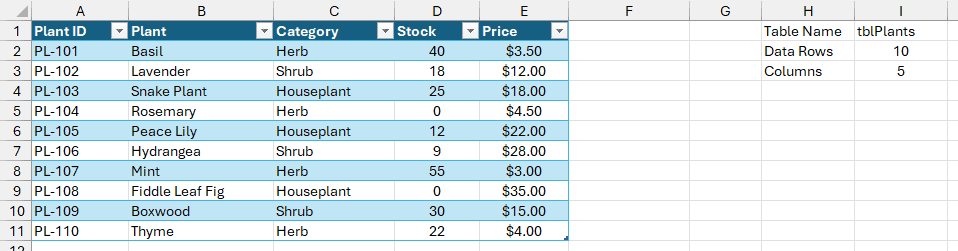
Here’s the code that finds tblPlants and writes its name, row count, and column count beside your data:
Sub DescribePlantsTable()
    Dim ws As Worksheet
    Dim lo As ListObject
    Set ws = ThisWorkbook.Worksheets("Plants")
    Set lo = ws.ListObjects("tblPlants")
    ws.Range("H1").Value = "Table Name"
    ws.Range("I1").Value = lo.Name
    ws.Range("H2").Value = "Data Rows"
    ws.Range("I2").Value = lo.ListRows.Count
    ws.Range("H3").Value = "Columns"
    ws.Range("I3").Value = lo.ListColumns.Count
End Subws.ListObjects("tblPlants") returns your table. With that reference in lo, you can read its properties without looking up the range again.
ListRows.Count counts your data rows, leaving out the header. ListColumns.Count counts your columns.
You’ll see Table Name tblPlants, Data Rows 10, and Columns 5 in H1:I3:
You can use either of these lines in place of Set lo = ws.ListObjects("tblPlants"):
Set lo = ws.ListObjects(1)
Set lo = ws.Range("B5").ListObjectListObjects(1) gives you the first table in the sheet’s ListObjects collection. It’s handy when the sheet has only one table.
With more than one, you can’t be sure which table is number 1.
Range("B5").ListObject gives you the table containing B5. If you use a cell outside any table, it returns Nothing.
A misspelled table name gives run-time error 9: “Subscript out of range.” You’ll also get it if you ask the wrong sheet’s ListObjects collection.
Each sheet’s collection contains only its own tables, so check both your sheet name and your table name.
Working With the Parts of a Table
Once you’ve found the table, you can use the properties near the top of this tutorial to reach its data, headers, rows, or columns.
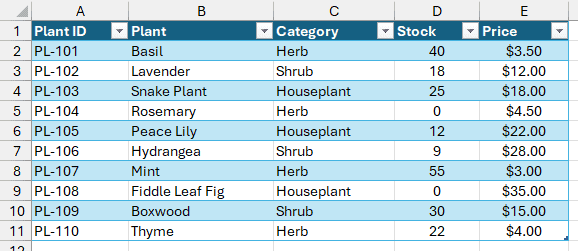
Here, you have tblPlants in A1:E11 on the Plants sheet. I’ll first select its 10 data rows without selecting the header.
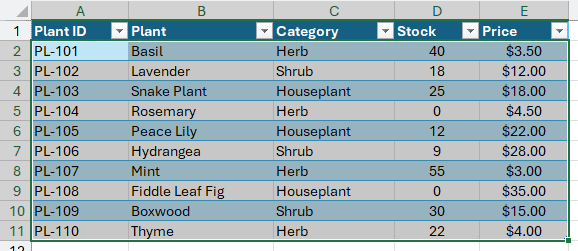
Use DataBodyRange to select the data cells:
Sub SelectTableData()
    Dim lo As ListObject
    Set lo = ThisWorkbook.Worksheets("Plants").ListObjects("tblPlants")
    lo.DataBodyRange.Select
End SubRun it with the Plants sheet active. You’ll have A2:E11 selected, with every data cell included and the header left out.
You can narrow that down to one column with ListColumns("Stock").DataBodyRange. I’ll use it to total your stock quantities:
Sub TotalStock()
    Dim ws As Worksheet
    Dim lo As ListObject
    Set ws = ThisWorkbook.Worksheets("Plants")
    Set lo = ws.ListObjects("tblPlants")
    ws.Range("H1").Value = "Total Stock"
    ws.Range("H2").Value = Application.WorksheetFunction.Sum(lo.ListColumns("Stock").DataBodyRange)
End SubYou’re asking for the column named Stock, so the sum still works if someone moves that column or adds more table rows.
After you run the macro, H1 shows Total Stock and H2 shows 211.
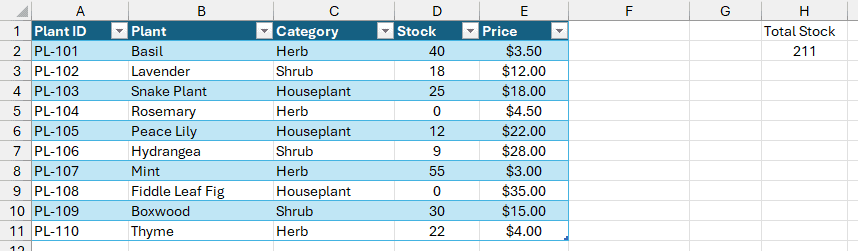
You can reach a single row with lo.ListRows(3).Range. That’s your third data row, Snake Plant. For the header, use lo.HeaderRowRange.
Looping Through Table Rows
To check or change each plant record, you can loop through the table’s ListRows collection.
On the Plants sheet, tblPlants contains 10 plants. I’ll highlight Rosemary and Fiddle Leaf Fig because their Stock values are 0.
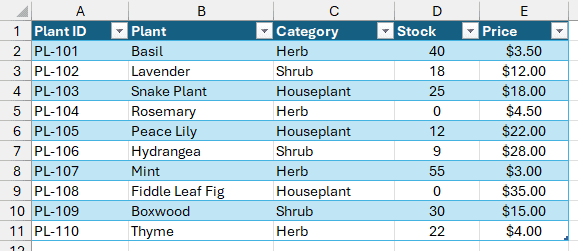
The loop checks each row’s Stock cell and colors any row with a zero:
Sub HighlightOutOfStock()
    Dim lo As ListObject
    Dim lr As ListRow
    Dim stockCol As Long
    Set lo = ThisWorkbook.Worksheets("Plants").ListObjects("tblPlants")
    stockCol = lo.ListColumns("Stock").Index
    For Each lr In lo.ListRows
        If lr.Range.Cells(1, stockCol).Value = 0 Then
            lr.Range.Interior.Color = RGB(255, 199, 206)
        End If
    Next lr
End SubListColumns("Stock").Index gives you Stock’s position inside the table, 4 here. It isn’t the worksheet column number.
For each pass through the loop, lr.Range is one table row. Its .Cells(1, stockCol) is that row’s Stock cell.
When you find a zero, RGB(255, 199, 206) gives the whole row a light red fill.
Rosemary and Fiddle Leaf Fig now have the light red fill:
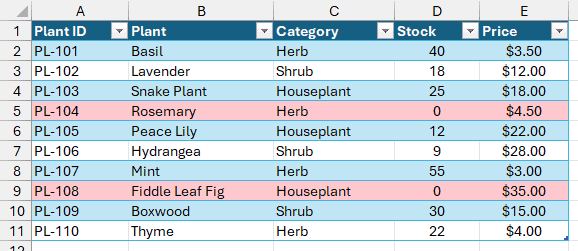
You’re applying the fill directly to the cells, so it sits on top of the table style’s banding.
Adding a New Row to a Table
ListRows.Add gives you a new row, and your table grows to include it.
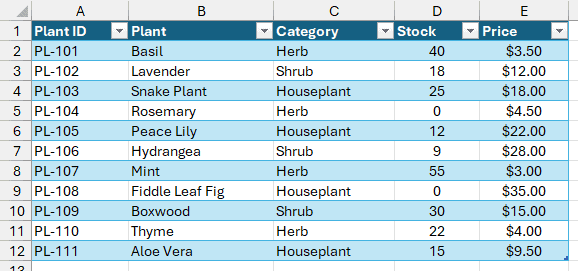
Here, your Plants sheet has the original 10-row tblPlants table. I’ll add Aloe Vera with ID PL-111, category Houseplant, stock 15, and price $9.50.
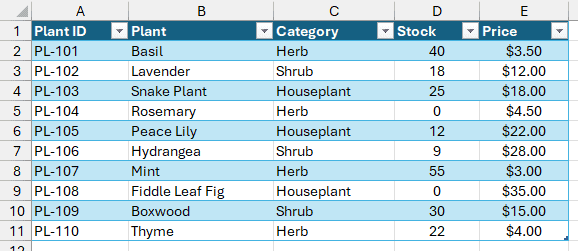
Use this macro to add and fill the new row:
Sub AddPlantRow()
    Dim lo As ListObject
    Dim newRow As ListRow
    Set lo = ThisWorkbook.Worksheets("Plants").ListObjects("tblPlants")
    Set newRow = lo.ListRows.Add
    newRow.Range.Value = Array("PL-111", "Aloe Vera", "Houseplant", 15, 9.5)
End SubWith no arguments, ListRows.Add adds a blank bottom row and returns it as a ListRow. You can then write to newRow.Range.
The Array fills the five cells from left to right. Put your values in the same order as the table’s columns.
Aloe Vera appears at the bottom, formatted like your other plants. The table now extends to row 12:
To insert at a particular spot, pass a position. lo.ListRows.Add(Position:=1) inserts your new row directly under the header, as the first data row.
If your table has a formula column, writing a whole-row Array overwrites that row’s formula. Write only your input cells in that case.
Adding a New Column to a Table
To add a column on the right of your table, use ListColumns.Add.
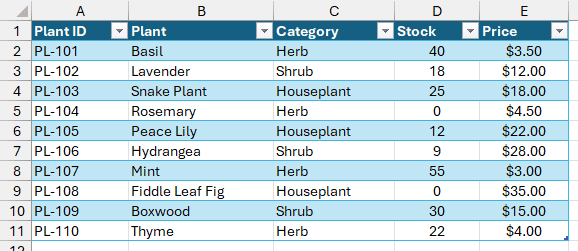
On the Plants sheet, your five-column tblPlants table has Stock and Price. I’ll multiply them in a new Stock Value column.
Here’s the code for the new Stock Value column, including its formula and dollar format:
Sub AddStockValueColumn()
    Dim lo As ListObject
    Dim newCol As ListColumn
    Set lo = ThisWorkbook.Worksheets("Plants").ListObjects("tblPlants")
    Set newCol = lo.ListColumns.Add
    newCol.Name = "Stock Value"
    newCol.DataBodyRange.Formula = "=[@Stock]*[@Price]"
    newCol.DataBodyRange.NumberFormat = "$#,##0.00"
End SubYour new column initially gets a generic header, Column1. The .Name line changes it to Stock Value.
In =[@Stock]*[@Price], you’re multiplying Stock and Price from the same row. Those column-based formula references are called structured references.
The same formula works in every row, and NumberFormat displays your results as dollars.
You’ll see Stock Value in column F, including $140.00 for Basil and $450.00 for Snake Plant. Select F2 to see =[@Stock]*[@Price] in the formula bar.
![Stock Value column F with =[@Stock]*[@Price] visible in the formula bar](https://spreadsheetplanet.com/wp-content/uploads/2026/10/16-add-col-result.png)
For a different position, use lo.ListColumns.Add(Position:=2). That inserts your new column as the table’s second column.
Deleting Rows From a Table
ListRow.Delete removes a row from your table. The rows below it move up to fill the gap.
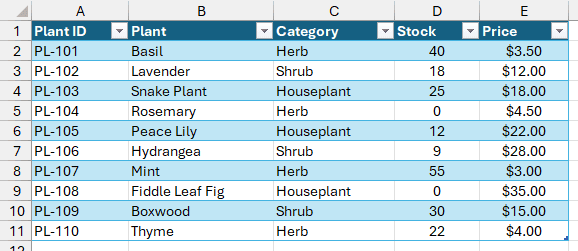
Your original tblPlants table on the Plants sheet includes Rosemary and Fiddle Leaf Fig with 0 stock. I’ll remove those two plant records.
Use this macro to check the Stock column and delete matching rows, starting at the bottom:
Sub DeleteOutOfStockRows()
    Dim lo As ListObject
    Dim stockCol As Long
    Dim i As Long
    Set lo = ThisWorkbook.Worksheets("Plants").ListObjects("tblPlants")
    stockCol = lo.ListColumns("Stock").Index
    For i = lo.ListRows.Count To 1 Step -1
        If lo.ListRows(i).Range.Cells(1, stockCol).Value = 0 Then
            lo.ListRows(i).Delete
        End If
    Next i
End SubThe Step -1 makes your loop work upward from the last row. That matters because deleting a row changes the positions of the rows below it.
If you loop downward, you skip the row that slides into the deleted row’s place.
You can then request a row that no longer exists, causing run-time error 9: “Subscript out of range.”
Blank Stock cells count as 0 here, so DeleteOutOfStockRows deletes those rows and HighlightOutOfStock colors them. Fill in every Stock value before running either macro.
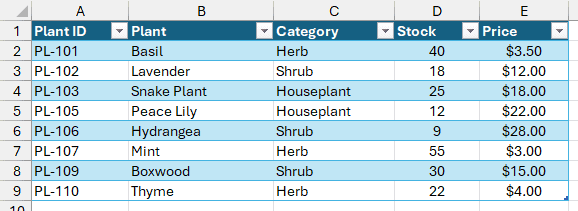
After you run the macro, Rosemary and Fiddle Leaf Fig are gone, leaving eight plants through row 9.
To delete one row by position, you can use lo.ListRows(3).Delete.
Sorting a Table With VBA
Your table’s Sort object lets you choose a column and a sorting direction.
In tblPlants on the Plants sheet, your 10 plants are in ID order. I want the priciest ones on top, so I’ll sort by Price.
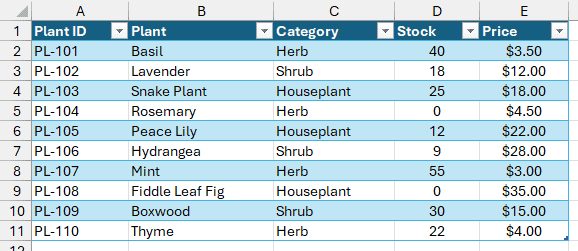
Here’s the code for sorting your plants from most to least expensive:
Sub SortByPrice()
    Dim lo As ListObject
    Set lo = ThisWorkbook.Worksheets("Plants").ListObjects("tblPlants")
    With lo.Sort
        .SortFields.Clear
        .SortFields.Add Key:=lo.ListColumns("Price").Range, Order:=xlDescending
        .Header = xlYes
        .Apply
    End With
End SubSortFields.Clear removes keys left over from earlier sorts. Then SortFields.Add sets your sort column and direction.
Use xlDescending for high to low, as I have here. Use xlAscending for low to high.
.Header = xlYes keeps your header row in place, and .Apply runs the sort.
You’ll see Fiddle Leaf Fig at $35.00 on top and Mint at $3.00 on the bottom.
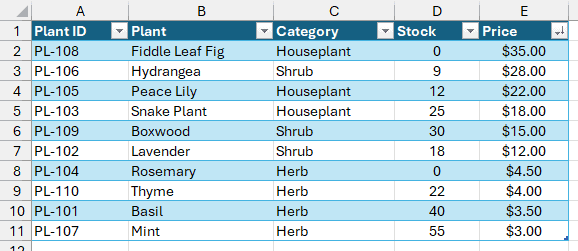
For a second sort column, add another SortFields.Add line before .Apply. Your first key controls the main sort, and your second breaks ties.
Filtering a Table With VBA
You can filter your table with AutoFilter on its range. The field number is the column’s position inside the table.
You have herbs, shrubs, and houseplants in tblPlants on the Plants sheet. I’ll filter Category so you see only herbs.
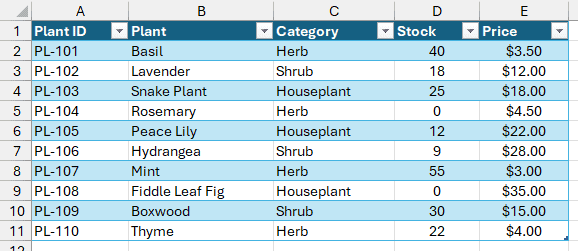
Here’s the code that keeps only the herbs:
Sub FilterHerbs()
    Dim lo As ListObject
    Set lo = ThisWorkbook.Worksheets("Plants").ListObjects("tblPlants")
    lo.Range.AutoFilter Field:=lo.ListColumns("Category").Index, Criteria1:="Herb"
End SubCategory is your third table column. Using ListColumns("Category").Index supplies that position for Field, so you don’t have to count columns yourself.
Criteria1 sets the value you want to keep. Run the macro, and only Basil, Rosemary, Mint, and Thyme remain visible:
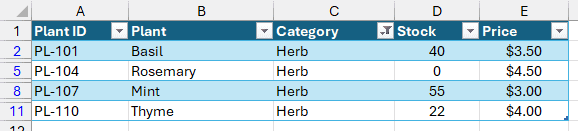
Your other plant rows are hidden, not deleted. To bring them back, run this macro:
Sub ClearTableFilters()
    Dim lo As ListObject
    Set lo = ThisWorkbook.Worksheets("Plants").ListObjects("tblPlants")
    lo.AutoFilter.ShowAllData
End SubShowAllData displays every row again. On your table’s AutoFilter object, it does nothing and raises no error if you haven’t applied a filter.
If you turn off the table’s filter buttons, lo.AutoFilter returns Nothing, and the line fails with run-time error 91.
If that can happen in your workbook, check first: If Not lo.AutoFilter Is Nothing Then lo.AutoFilter.ShowAllData.
Adding a Totals Row
You can turn on your table’s Total row with ShowTotals, then choose each column’s calculation with TotalsCalculation.
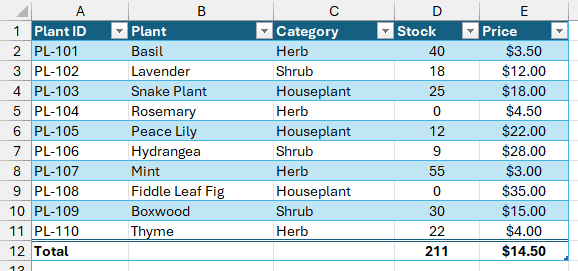
Your original tblPlants table on the Plants sheet has no Total row yet. I’ll add total Stock and average Price beneath the 10 plants.
Use this macro to show the Total row and set those two calculations:
Sub AddTotalsRow()
    Dim lo As ListObject
    Set lo = ThisWorkbook.Worksheets("Plants").ListObjects("tblPlants")
    lo.ShowTotals = True
    lo.ListColumns("Stock").TotalsCalculation = xlTotalsCalculationSum
    lo.ListColumns("Price").TotalsCalculation = xlTotalsCalculationAverage
End SubWhen you turn on the Total row here, Excel writes Total in the first column and automatically sums the last column, Price.
That would add up your prices to $145.00. I want the average price instead, so the macro changes Price to xlTotalsCalculationAverage.
Your Total row uses SUBTOTAL formulas, which leave out rows hidden by a filter.
You’ll find the Total row in row 12, showing Total, 211 under Stock, and $14.50 under Price:
You can also choose these calculations:
xlTotalsCalculationCountcounts nonempty cells.xlTotalsCalculationMaxshows the highest value.xlTotalsCalculationMinshows the lowest value.xlTotalsCalculationNoneclears the column’s total.
To hide your Total row again, use lo.ShowTotals = False.
Resizing a Table
With Resize, you choose which cells belong to your table.
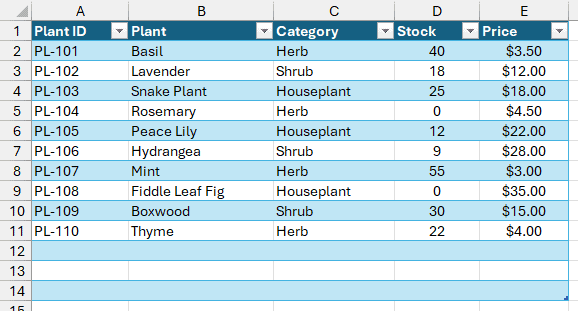
Here, tblPlants on the Plants sheet still has its original 10 plants, but three empty rows remain after old entries were cleared.
To set this up in the practice file, first run lo.Resize ws.Range("A1:E14"), with lo referring to tblPlants and ws to the Plants sheet.
Your table extends through row 14. Rows 12 to 14 are blank but still have the table’s banding.
Use this macro to fit your table to the remaining data:
Sub ResizePlantsTable()
    Dim lo As ListObject
    Set lo = ThisWorkbook.Worksheets("Plants").ListObjects("tblPlants")
    lo.Resize lo.Range.CurrentRegion
End SubCurrentRegion stops at the first completely blank row, so here it returns A1:E11. Resize changes your table to cover that range.
If your data has a fully blank row in the middle, CurrentRegion stops early and the resize would cut off the rows below it.
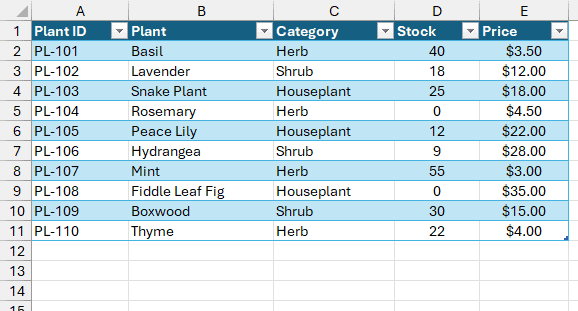
After you run the macro, your table ends at row 11 again.
You can supply an exact range instead. With ws set to your Plants sheet, lo.Resize ws.Range("A1:E20") makes room for more rows.
Keep your header in the same worksheet row and make sure the new range overlaps the existing table. Otherwise, Excel raises an error.
Changing the Table Style
Assign a style name to TableStyle to change your table’s appearance.
On the Plants sheet, your original tblPlants table uses the default blue style. I’ll switch it to a green style without changing your data.
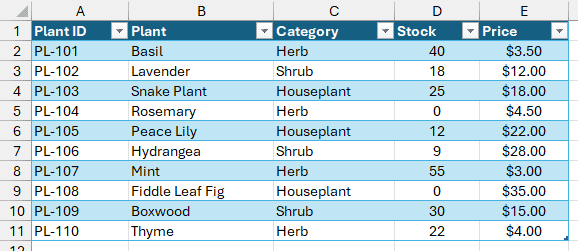
Assign TableStyleMedium7 to your table with this macro:
Sub ChangeTableStyle()
    Dim lo As ListObject
    Set lo = ThisWorkbook.Worksheets("Plants").ListObjects("tblPlants")
    lo.TableStyle = "TableStyleMedium7"
End SubYour table now has the green header and light green bands of TableStyleMedium7:
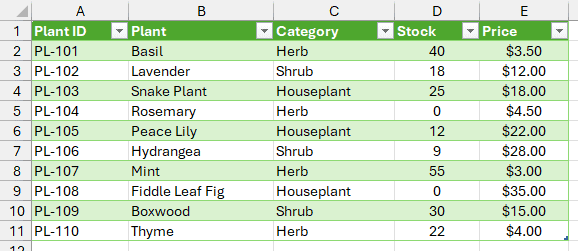
You can choose names starting with TableStyleLight, TableStyleMedium, or TableStyleDark, followed by a number.
To find a style’s name, hover over it in Table Design > Table Styles.
The tooltip shows a name such as Table Style Medium 7, sometimes after a color name.
Drop any color name and remove the spaces to get the VBA name, TableStyleMedium7.
To remove the table style altogether, use lo.TableStyle = "".
Converting a Table to a Normal Range
Unlist turns your table back into a normal range while keeping your data.
Your original tblPlants table on the Plants sheet has blue banding and header filter buttons. I’ll remove its table features and keep the plant records.
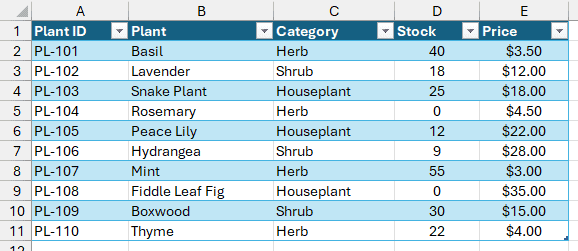
Use this macro to convert your table to a range:
Sub ConvertTableToRange()
    Dim lo As ListObject
    Set lo = ThisWorkbook.Worksheets("Plants").ListObjects("tblPlants")
    lo.Unlist
End SubYour data and colors stay, but the filter buttons disappear. When you select these cells, you no longer get a Table Design tab.
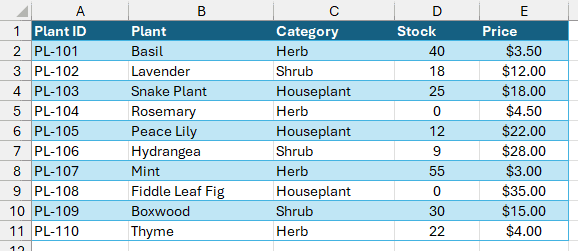
Your formulas that referred to the table switch to ordinary cell references. For example, a formula like =SUM(tblPlants[Stock]) becomes =SUM(Plants!$D$2:$D$11).
To remove the remaining colors, select your range and choose Home > Clear > Clear Formats.
That also clears number formats, so reapply the currency format to Price afterward.
Deleting the table is a different action.
This macro deletes tblPlants and clears its data:
Sub DeletePlantsTable()
    ThisWorkbook.Worksheets("Plants").ListObjects("tblPlants").Delete
End SubNote: If you only want a normal range, use Unlist instead, because Delete also removes the data.
Additional Notes About Working With Tables in VBA
A few more things will help when you adapt these macros to your own tables:
- Check for an empty table before using
DataBodyRange. With no data rows, it returnsNothing, solo.DataBodyRange.Rows.Countfails with run-time error 91. UseIf Not lo.DataBodyRange Is Nothing Thenfirst, or uselo.ListRows.Count, which returns 0. - You can use a table name with unqualified
Rangein a standard module, whichever sheet is active.Range("tblPlants")returns its data rows,Range("tblPlants[Stock]")returns Stock’s data cells, andRange("tblPlants[#All]")returns the whole table with its header. Don’t put a different sheet in front, though.Worksheets("Sheet2").Range("tblPlants[Stock]")fails with run-time error 1004. - Referring to columns by header name survives inserted or moved columns, but not a renamed header. If someone renames Stock,
ListColumns("Stock")fails with run-time error 9: “Subscript out of range.” - When you set a formula on a table column, you create a calculated column. Excel fills it down, and new table rows pick up the formula automatically.
- Everything here works in Excel 2007 and later. Excel 2003 called tables “lists,” and VBA kept that old name, which is why the object is
ListObject.
Frequently Asked Questions
Here are three more things you might want to do once you’ve started using tables in your macros.
How Do I Check If a Table Exists in VBA?
You can check each worksheet’s ListObjects collection for the name you need. This function returns True when it finds a match:
Function TableExists(tableName As String) As Boolean
    Dim ws As Worksheet
    Dim lo As ListObject
    For Each ws In ThisWorkbook.Worksheets
        For Each lo In ws.ListObjects
            If StrComp(lo.Name, tableName, vbTextCompare) = 0 Then
                TableExists = True
                Exit Function
            End If
        Next lo
    Next ws
End FunctionWith your plant table in place, TableExists("tblPlants") returns True, and TableExists("tblOrders") returns False. It checks every sheet and ignores upper and lower case.
How Do I Loop Through All Tables in a Workbook?
Loop through your worksheets first, then through each sheet’s tables. I’ll print each sheet and table name:
Sub ListAllTables()
    Dim ws As Worksheet
    Dim lo As ListObject
    For Each ws In ThisWorkbook.Worksheets
        For Each lo In ws.ListObjects
            Debug.Print ws.Name & ": " & lo.Name
        Next lo
    Next ws
End SubPress Ctrl + G in the VBA editor to open the Immediate window. You’ll see the names there, such as Plants: tblPlants.
How Do I Clear Table Data but Keep the Table?
You can delete the table’s data rows while leaving its header in place. Check that DataBodyRange exists before deleting it:
Sub ClearTableData()
    Dim lo As ListObject
    Set lo = ThisWorkbook.Worksheets("Plants").ListObjects("tblPlants")
    If Not lo.DataBodyRange Is Nothing Then lo.DataBodyRange.Delete
End SubYou keep the header and one blank row ready for new data. The If check prevents an error when your table is already empty.
You can still use ListRows.Add to add fresh records afterward.
Conclusion
I showed you how to create and refer to tables with VBA, then add, delete, sort, filter, total, resize, and restyle them.
For your own tables, start with ListObjects("YourTable") to get a reference before making changes.
I hope you found this article helpful.
Other Excel articles you may also like:
