
If you have inherited a worksheet loaded with random fills, bold fonts, and mismatched borders, you probably just want it to look clean again. The tricky part is stripping all that styling without wiping the numbers and names underneath.
Good news: Excel keeps formatting and content separate, so you can remove one and keep the other. In this guide I’ll show you four ways to clear formatting in Excel, from a one-click ribbon command to a VBA macro for bigger jobs.
Method #1: Using the Clear Formats Command
The quickest way to clear formatting in Excel is the built-in Clear Formats command. It removes applied cell formats such as fonts, fills, borders, alignment, number formats, and conditional formats from your selection while leaving values and formulas in place.
Below I have a gym member check-in dataset that someone styled with a bright header, colored rows, and thick borders. I want to reset it to plain cells without losing any names or visit counts.
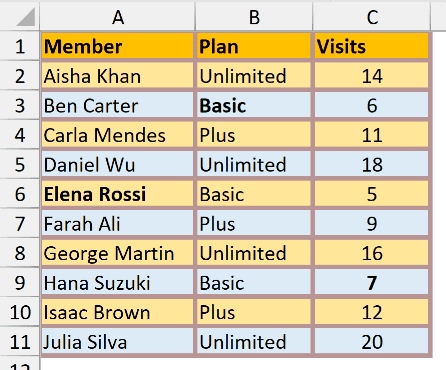
Here are the steps to clear formatting using the Clear Formats command:
- Select the range that has the formatting you want to remove (here, A1:C11).

- On the Home tab, in the Editing group, click the Clear icon (the eraser), then click Clear Formats.
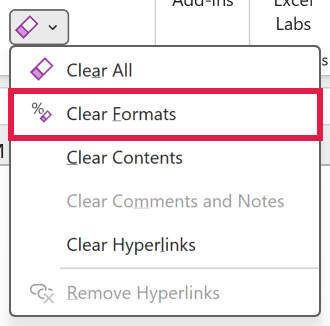
The moment you click Clear Formats, Excel removes those cell formats from the selection. The header text, visit numbers, plan names, and any formulas stay in place.

Note: Clear Formats also removes conditional formatting and custom number formats from the selected cells. If a column was showing dates or currency, those cells will revert to General, so you may need to reapply a number format afterward.
This is the method I reach for first because it clears direct cell formatting and conditional formatting together in one click.
Method #2: Applying the Normal Cell Style
Here’s another route that can give you a similar result. Applying the Normal cell style makes the selection use the Normal style stored in that workbook, which is based on its document theme.
Normal is not a universal fixed format. Someone can modify the built-in style, so its font, fill, borders, alignment, or number format may differ from another workbook.
I’m using the same gym check-in table, still covered in fills, bold text, and borders. I want the selected cells to snap back to the standard font and a plain white background.
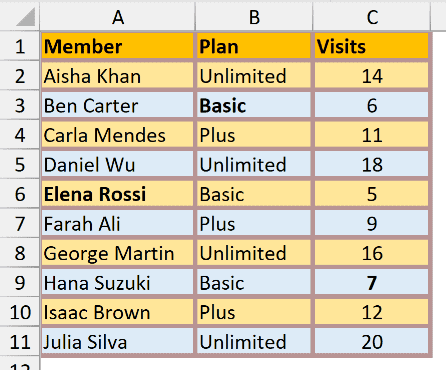
Here are the steps to clear formatting with the Normal cell style:
- Select the range you want to reset.

- On the Home tab, in the Styles group, click Cell Styles, then click Normal under Good, Bad and Neutral.
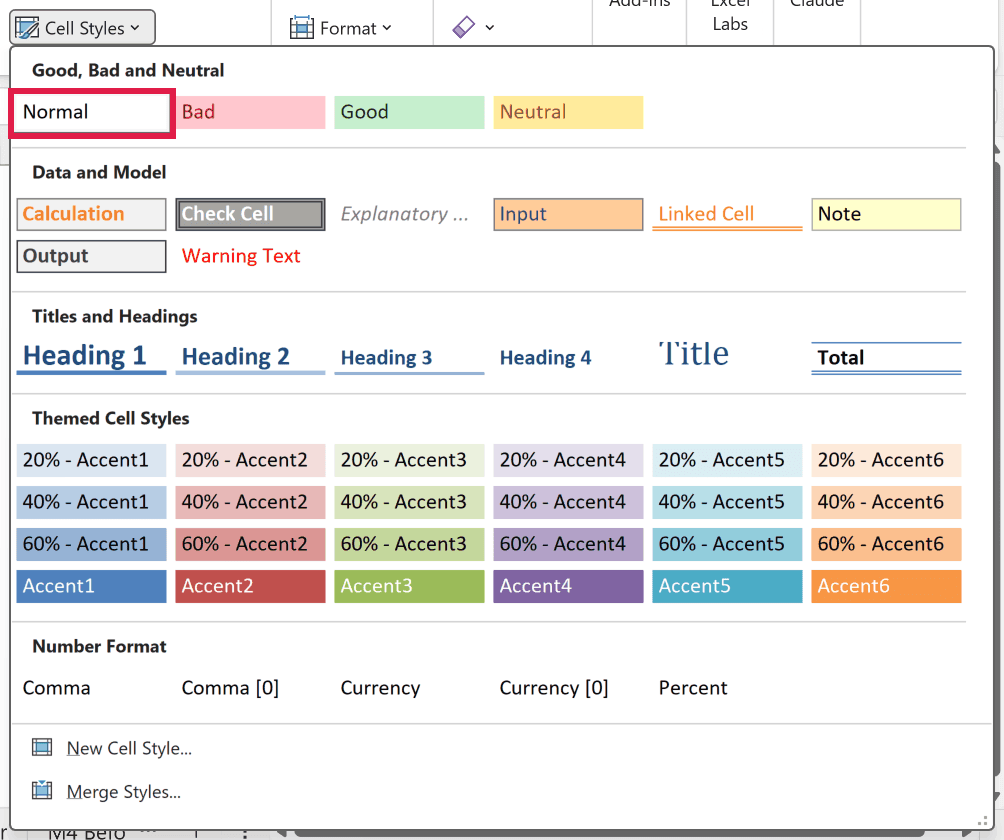
The selection now uses the workbook’s Normal style while its data stays intact. If that style was customized, the result may not look like Excel’s usual default.
Note: Normal applies the formatting components saved in that style. It may not delete conditional-formatting rules, so if colors remain, go to Home > Conditional Formatting > Clear Rules > Clear Rules from Selected Cells.
Method #3: Using the Format Painter
If you’d rather copy a clean look onto messy cells, Format Painter is a handy trick. It replaces the target’s direct cell formatting with the source cell’s formatting, so a truly plain source can make the target look clean.
For this one I have a spare blank cell (E1) that has no formatting at all, sitting next to my formatted gym check-in table. I’ll use that blank cell as the source.
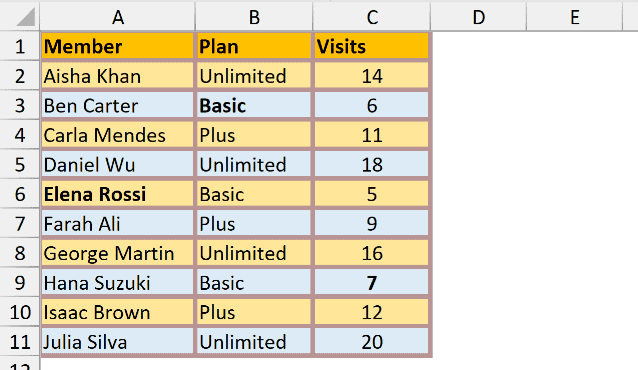
Here are the steps to clear formatting with Format Painter:
- Click a truly blank, default-formatted cell to use as your source (E1 here).
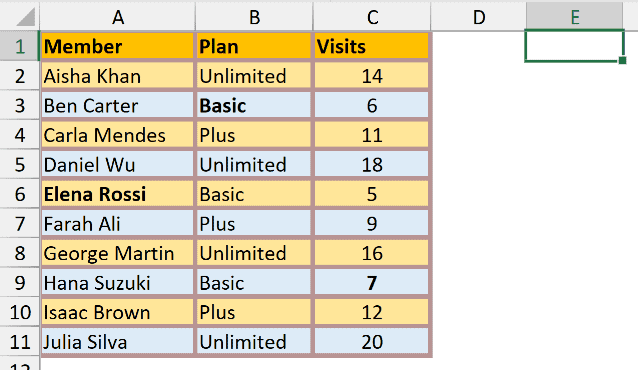
- On the Home tab, in the Clipboard group, double-click Format Painter (double-clicking keeps it active for multiple selections).

- Drag across the formatted range to paint the blank formatting over it, then press Esc to turn Format Painter off.
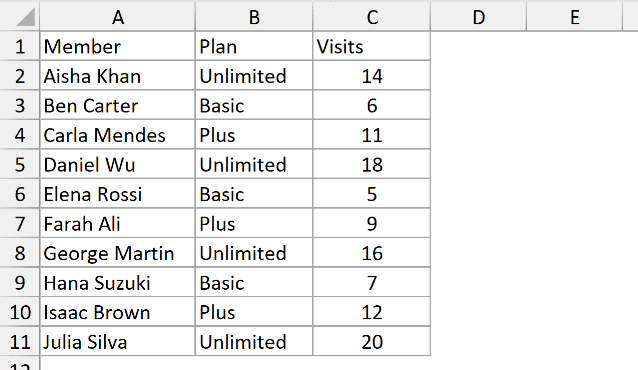
The target cells now match the plain source cell, so its direct fills, fonts, borders, alignment, and number format replace the target’s direct formatting. The member names and visit counts stay in place.
Note: Format Painter copies whatever formatting the source cell has, including conditional formatting. It may not delete existing conditional-formatting rules in every case. If colors remain, use Home > Conditional Formatting > Clear Rules > Clear Rules from Selected Cells.
Method #4: Using VBA
If you regularly clean up formatting across several ranges or sheets, a short VBA macro saves you a lot of clicking. The ClearFormats method clears applied cell formats from a Range object, so this macro can target any selected range.
I’m working with the same gym check-in table, and I want a macro that clears the formatting from whatever range I have selected.
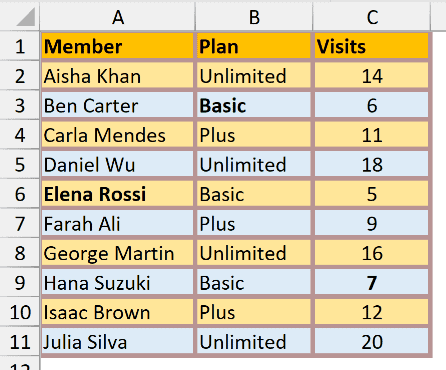
Here is the VBA code:
Sub ClearMyFormatting()
    Selection.ClearFormats
End SubHere are the steps to run this VBA code:
- Select the range you want to clear. In Windows, press Alt + F11 to open the VBA editor. On a Mac, choose Developer > Visual Basic.

- Click Insert > Module, then paste the code into the module window.
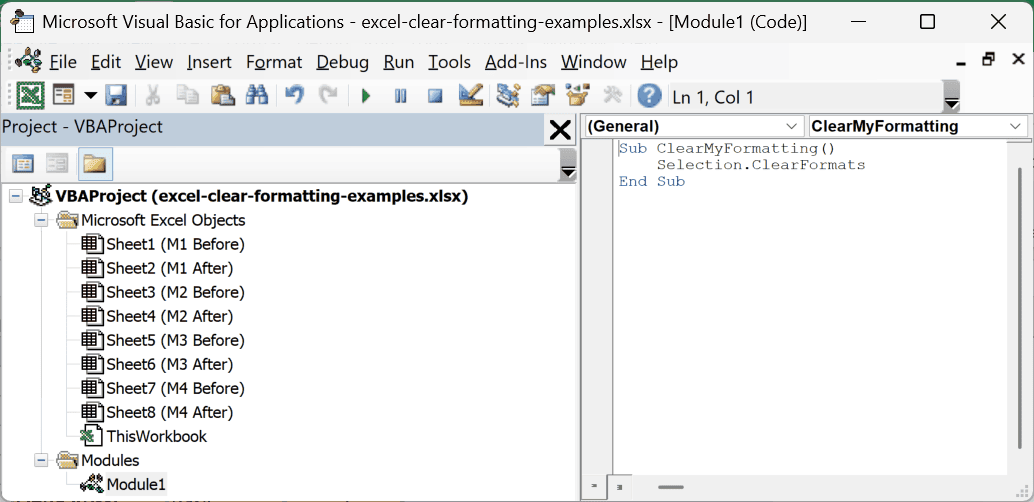
- Return to the VBA editor and press F5, or go back to the worksheet, press Alt + F8 on Windows, select ClearMyFormatting, and click Run.
The macro calls ClearFormats on your selection. It clears cell formats such as fonts, fills, borders, alignment, number formats, and conditional formats while leaving values and formulas untouched.
To clear a whole sheet, you could swap Selection for Cells before running it.
Note: A file that contains macros has to be saved in the .xlsm (macro-enabled workbook) format. If you save it as a regular .xlsx, Excel will drop the macro when it closes.
Additional Notes About Clearing Formatting in Excel
- The methods in this guide leave text, numbers, and formulas in place. They change cell formatting, although the Normal style and Format Painter can produce different results from Clear Formats.
- To reset an entire sheet, click the Select All button (the triangle above row 1). If the active cell is inside data, you may need to press Ctrl + A twice to select the whole sheet.
- Clear Formats resets custom number formats. The Normal style applies the number format stored in that workbook’s Normal style, which is often General but may have been customized.
- Clear Formats removes conditional formats from the selection. Normal or Format Painter may leave conditional-formatting rules in place, so use Home > Conditional Formatting > Clear Rules if conditional colors remain.
- If the range is an Excel Table, its table style or banded rows may remain visible. Use Table Design > Table Styles in Windows, or the Table tab on Mac, to change or clear it. Our Remove Table Formatting guide shows the options.
- If you want to remove the data too, that is a different job. Use Clear Contents or Clear All from the same Clear menu instead of Clear Formats.
Frequently Asked Questions
How do I clear formatting without deleting the cell contents?
Use Clear Formats from Home > Editing > Clear. It removes direct fonts, fills, borders, alignment, number formats, and conditional formats while leaving text, numbers, and formulas in place. Normal and Format Painter change formatting without deleting cell contents, but their results can differ.
What is the keyboard shortcut to clear formatting in Excel?
There is no single default hotkey. In Excel for Windows, press Alt, then H, then E, then F in sequence to run Home > Clear > Clear Formats without touching the mouse.
Why did my colored cells stay colored after clearing formatting?
If you used Normal or Format Painter, conditional-formatting rules may still apply colors. Select the range and go to Home > Conditional Formatting > Clear Rules > Clear Rules from Selected Cells. Clear Formats itself removes conditional formats from the selection.
Conclusion
I covered four ways to clear or replace cell formatting while keeping your data in place, including a VBA option for repeated cleanup.
I hope you found this article helpful!
Other Excel articles you may also like:
