
You can put Excel numbers on a PowerPoint slide as a separate copy or keep the slide connected to the workbook so it follows your changes.
A normal paste puts a copy on the slide. Paste link connects the slide to your Excel workbook so your numbers can update.
I’ll show you Paste Special with Paste link and Insert Object for copies or links. You’ll also link a chart and fix connections in the Links dialog.
A pasted or inserted copy lives inside your presentation. An inserted workbook stored this way is called an embedded workbook, and changes in Excel never reach it.
A connected object points back to your workbook. This is called a linked object, and it can update the slide when your Excel numbers change.
Insert Excel Data in PowerPoint (No Link)
These two methods put a copy of your Excel data on the slide. Your slide won’t change when the original workbook does.
Method #1: Using Copy and Paste
I use copy and paste when I only need a few cells on a slide. You can edit the pasted table directly in PowerPoint.
Below I have a dataset showing quarterly sales by product in cells A1:F7 on the Quarterly Sales sheet.
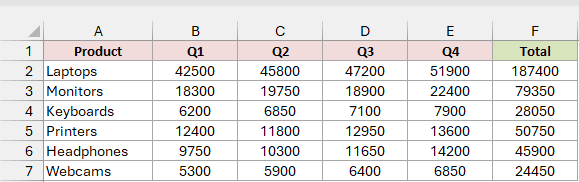
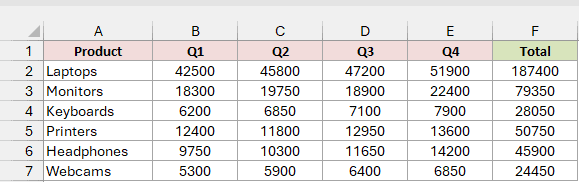
The columns are Product, Q1, Q2, Q3, Q4, and Total. The Total column uses =SUM(B2:E2), filled down for each product.
For these examples, the workbook is saved as C:\Reports\Quarterly Sales.xlsx. I’m inserting its data into Sales Review.pptx.
Here are the steps to paste the sales data into your slide:
- In Excel, select A1:F7 and press Ctrl + C.
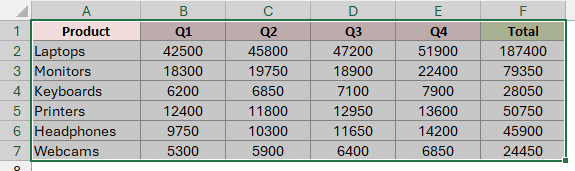
- Go to your slide in PowerPoint. On the Home tab, click the arrow under Paste to see the Paste Options.
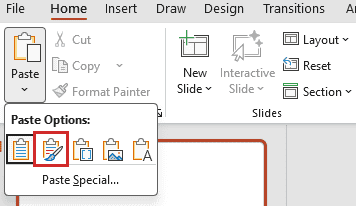
You have five options for a copied cell range:
- Use Destination Styles creates a PowerPoint table that matches your slide theme.
- Keep Source Formatting creates a PowerPoint table with the Excel formatting.
- Embed creates an Excel object you can double-click to edit.
- Picture pastes an image. You can’t edit its numbers.
- Keep Text Only pastes plain text.
- Click Keep Source Formatting.
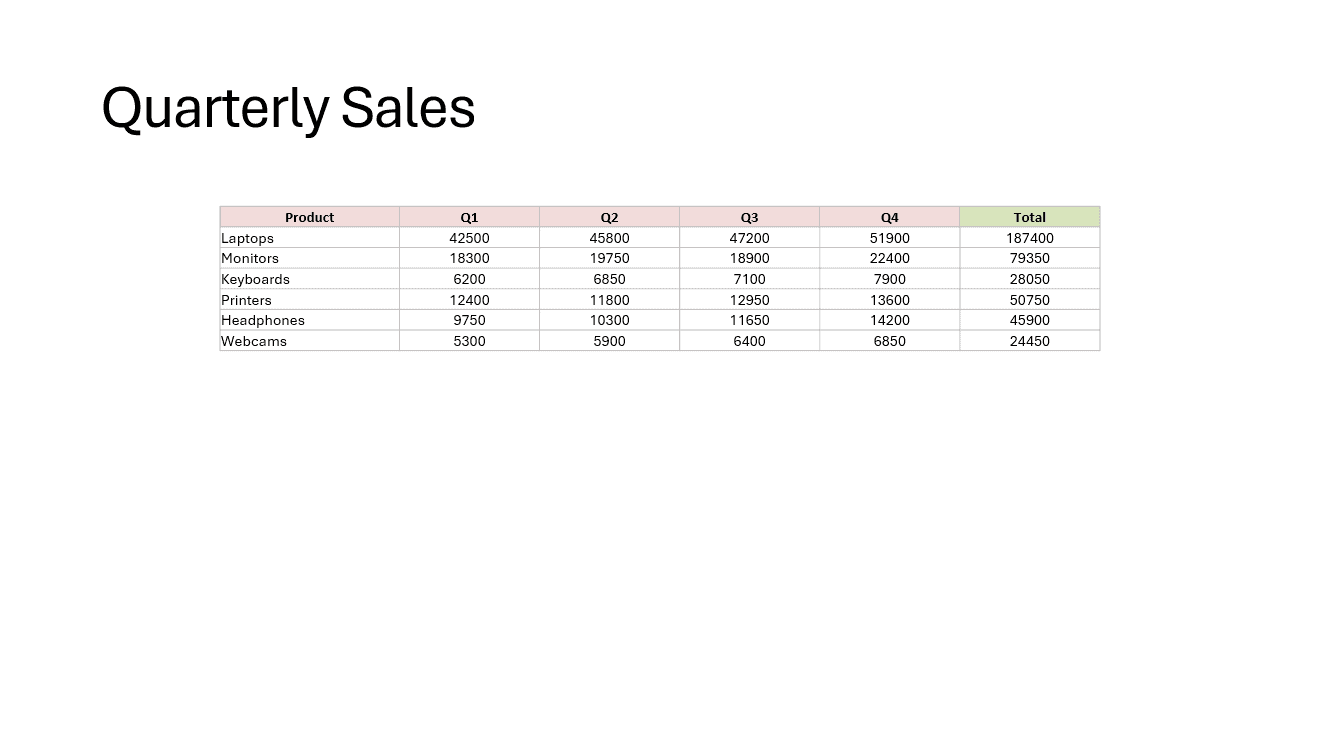
You now have a regular PowerPoint table with the Excel formatting. You can edit the numbers right on the slide.
Note: The pasted table holds values, not formulas. If you edit a quarterly sales number on the slide, its Total won’t recalculate.
Method #2: Using Insert Object to Embed the Whole File
If you want the actual workbook inside your presentation, insert it as an object instead of pasting a table.
You or anyone receiving the presentation can double-click it and work with the Excel data without needing the original file.
I’ll use the quarterly sales table in A1:F7 on the Quarterly Sales sheet of Quarterly Sales.xlsx. I save it with that sheet active.
Here are the steps to embed the Excel file in PowerPoint:
- In PowerPoint, go to the Insert tab and click Object in the Text group.

- In the Insert Object dialog box, select Create from file. Click Browse…, pick Quarterly Sales.xlsx in the Reports folder, and leave Link unchecked.
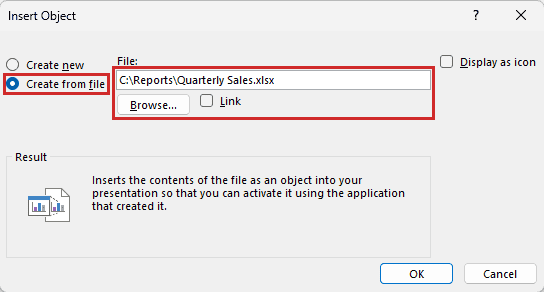
- Click OK.
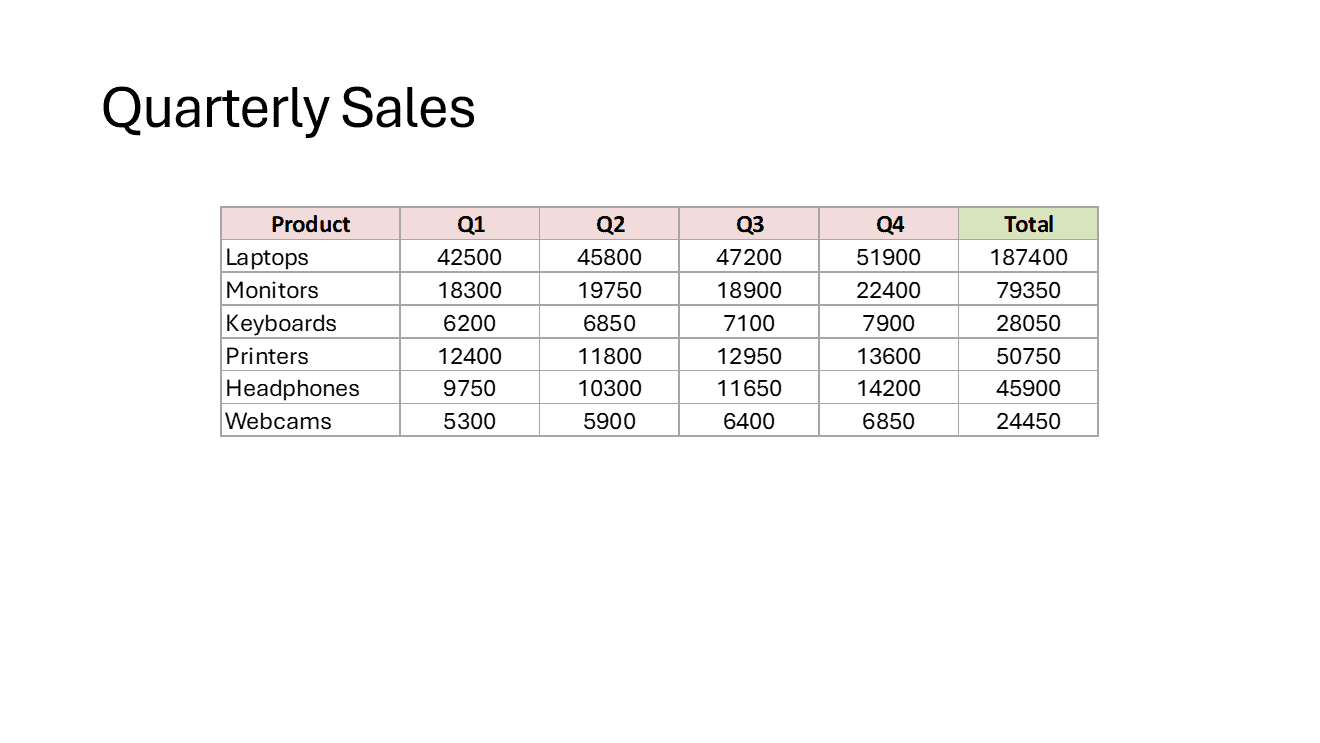
Double-click the object to open the embedded copy in a separate Excel window titled Worksheet in Sales Review.pptx.
You’ll see both sheet tabs, Quarterly Sales and Sales Chart. Every sheet in the embedded workbook travels with your presentation.
Make your edits in this window and close the window when you’re done.
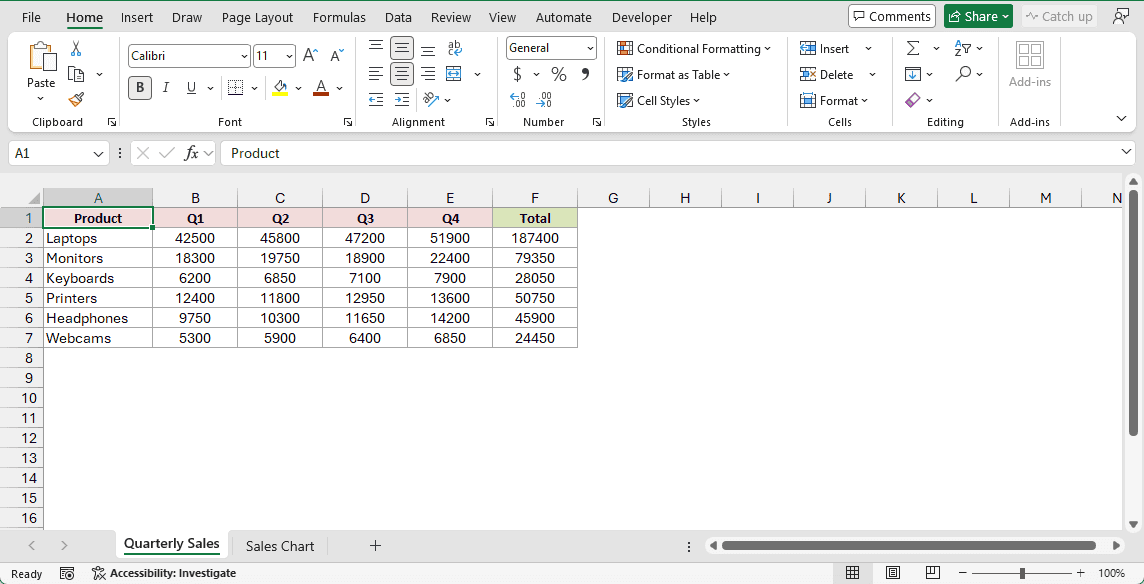
The presentation contains a full copy of the workbook. Changes you make to the original Quarterly Sales.xlsx won’t reach this copy.
Note: The slide shows the sheet that was active when you last saved the workbook. Save it with the sheet you want selected before inserting it.
Link Excel Data to PowerPoint (Stays Up to Date)
These three methods keep your slide connected to the workbook. Worksheet links update by themselves with both files open; a linked chart updates when you refresh it.
Method #3: Using Paste Special With Paste Link
For a range that needs to stay current, I recommend Paste Special with Paste link. It connects only the cells you copy to your slide.
Below I have a dataset showing quarterly sales by product in A1:F7 on the Quarterly Sales sheet in Quarterly Sales.xlsx.
Here are the steps to link this Excel range to PowerPoint:
- In Excel, save the workbook, then select A1:F7 and press Ctrl + C.
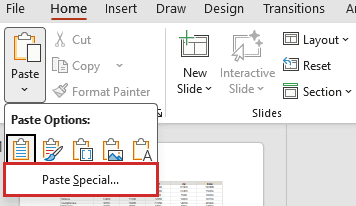
- In PowerPoint, on the Home tab, click the arrow under Paste and click Paste Special…
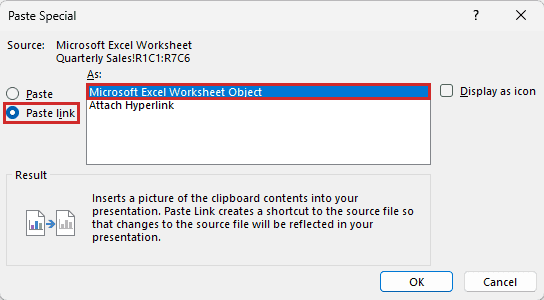
- Select Paste link in the Paste Special dialog box. In the As list, select Microsoft Excel Worksheet Object, then click OK.
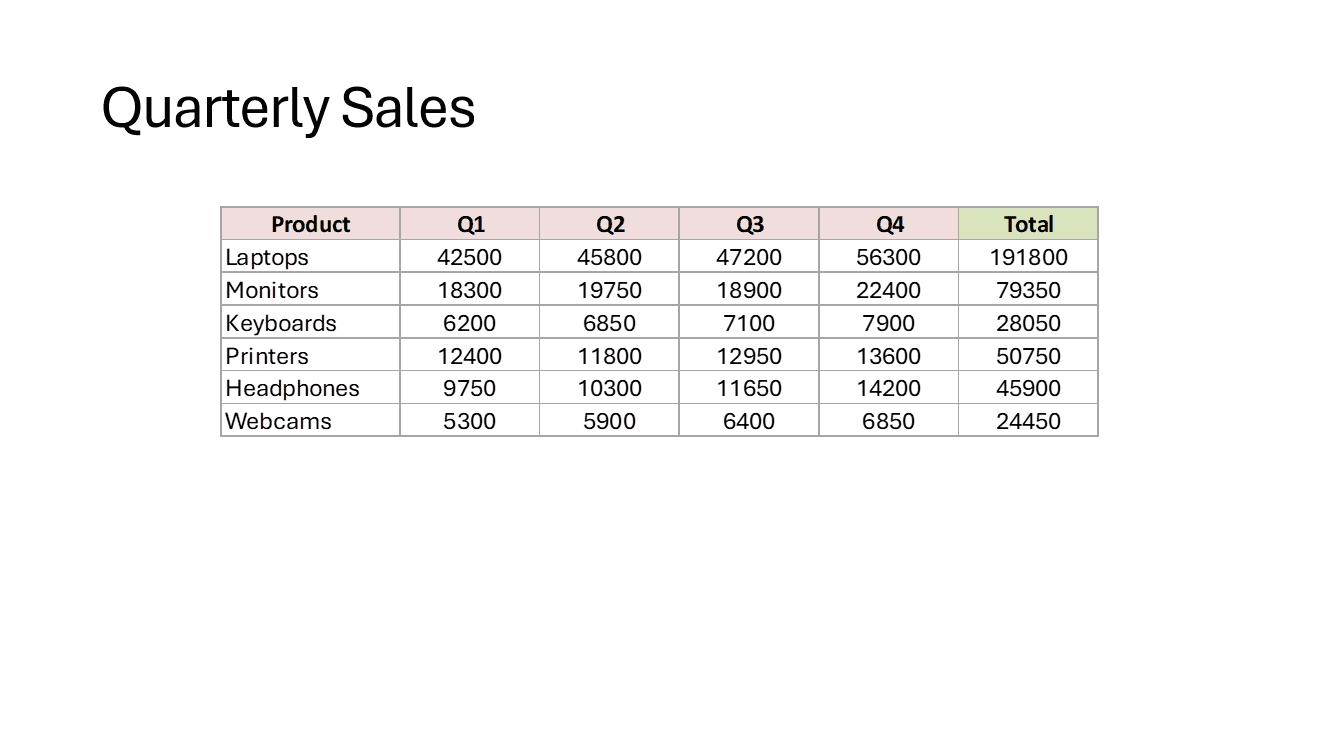
Your sales range appears on the slide, linked to the workbook.
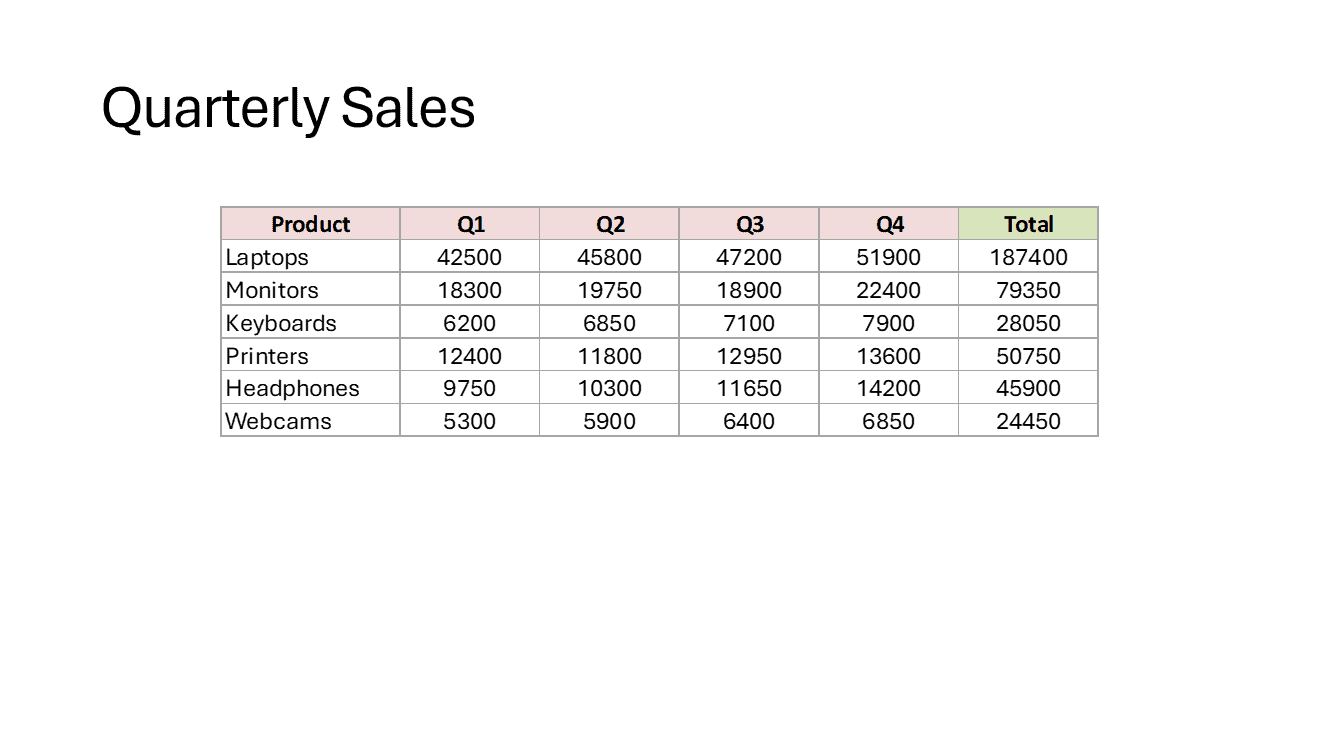
I’ll show the update with both Quarterly Sales.xlsx and Sales Review.pptx open. Linked worksheet objects use Automatic updates by default.
In Excel, change Laptops Q4 in E2 from 51900 to 56300. The Total in F2 changes from 187400 to 191800.
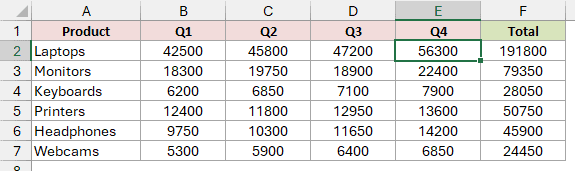
Switch to PowerPoint. Within a second or two, the slide shows Q4 as 56300 and Total as 191800, without clicking an update command.
Method #4: Using Insert Object With a Link to the File
Use Insert Object with Link checked to link the whole workbook file instead of a selected range.
I’ll link the quarterly sales table in A1:F7 on the Quarterly Sales sheet of Quarterly Sales.xlsx.
Save the workbook with Quarterly Sales active before linking it. Your slide will show that sheet.
Here are the steps to insert the linked file:
- On PowerPoint’s Insert tab, click Object. It’s the same button in the Text group used in Method #2.
- Select Create from file, click Browse…, and pick Quarterly Sales.xlsx in the Reports folder. Check Link and click OK.
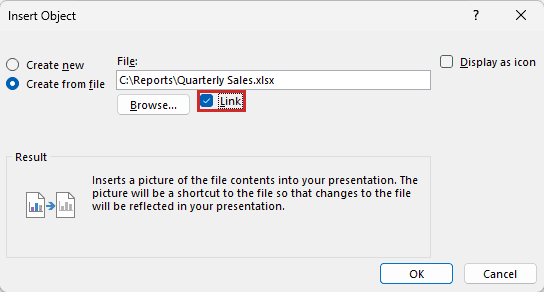
The sheet looks like the embedded version. PowerPoint stores a link to your workbook, keeping the presentation smaller while letting it pick up changes from Excel.
Check Display as icon in the dialog to show an Excel icon on the slide. Double-click it to open the workbook.
Method #5: Using Paste Options to Link an Excel Chart
If you want your slide to show a chart that updates, copy the Excel chart and use a Link Data paste option.
I’ll use the quarterly sales table in A1:F7 on the Quarterly Sales sheet of Quarterly Sales.xlsx.
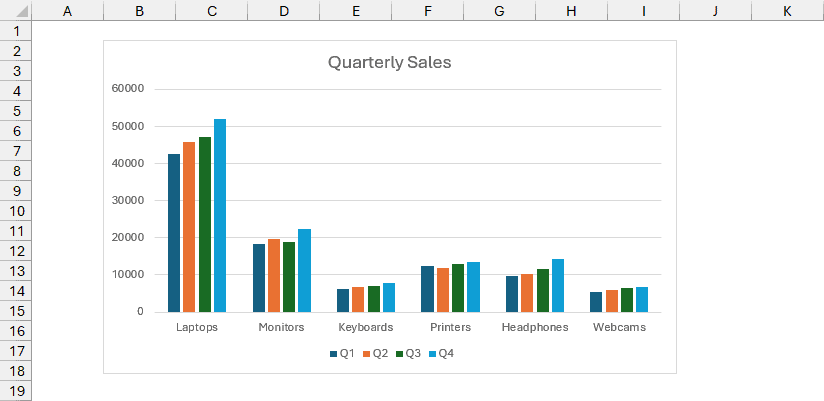
Below I have a clustered column chart titled Quarterly Sales on its own sheet, Sales Chart. It uses A1:E7 from the Quarterly Sales sheet.
It shows products along the bottom with one column per quarter.
I’ve changed E2 back to its original 51900 after the Method #3 test, so the chart’s Laptops Q4 bar matches the table.
Here are the steps to link the chart to your slide:
- Click the chart in Excel and press Ctrl + C.
- In PowerPoint, right-click the slide. Under Paste Options, click Keep Source Formatting & Link Data.

The chart’s Paste Options work differently from the cell-range options in Method #1:
- Link Data options connect the chart to Excel. Keep Source Formatting preserves its Excel colors; Use Destination Theme matches your slide theme.
- Embed Workbook options put a copy of the chart’s workbook inside the presentation.
- Picture pastes an image of the chart.
You now have a real PowerPoint chart linked to the Excel workbook. Its default update setting is Manual, so changing the source values won’t update it by itself.
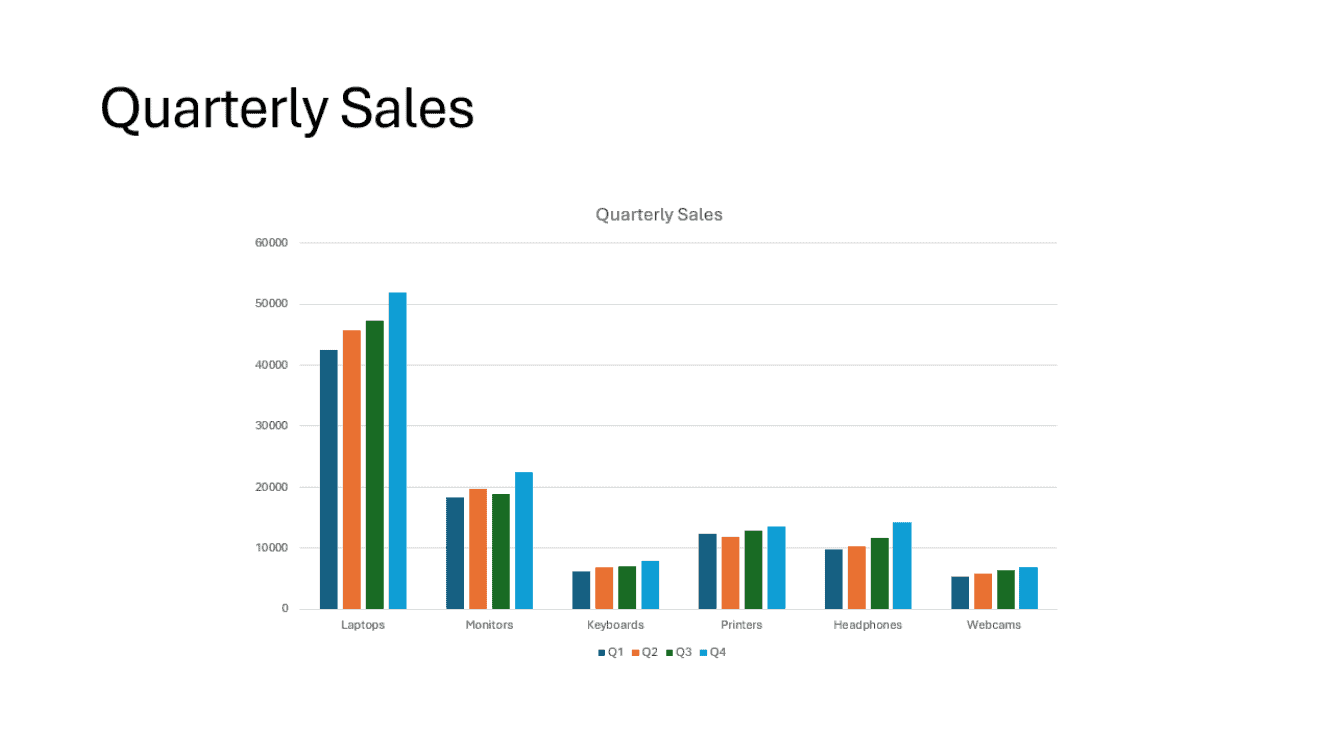
After changing the Excel data, click the chart, go to Chart Design, and click Refresh Data in the Data group. This pulls in the new numbers.

How to Update and Manage Linked Excel Data in PowerPoint
You can refresh one linked object or manage all the presentation’s links together. I use the Links dialog when a workbook’s location changes.
Update a Single Linked Object
Right-click the linked worksheet object on your slide and click Update Link.
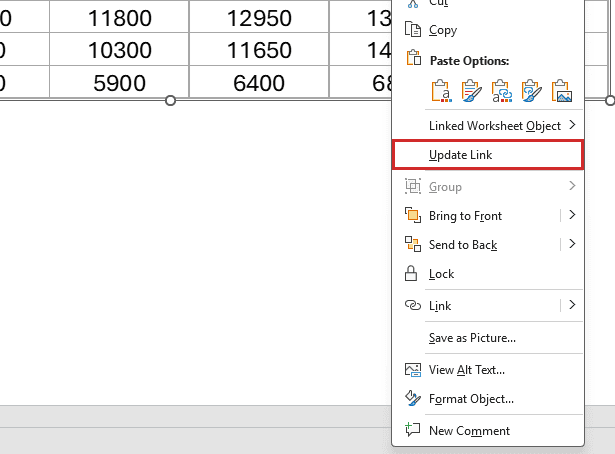
Use this when you’ve turned off automatic updates for the link or your slide still shows old numbers.
Update Links When You Open the Presentation
When you reopen Sales Review.pptx, PowerPoint shows a yellow UPDATE LINKS bar under the ribbon. Click Update to pull in the latest saved numbers.

If you skip Update, the slide keeps the last values it stored. Only click Update for linked files you trust, as the message bar warns.
Change, Fix, or Break Links
When you move or rename your workbook, PowerPoint needs its new location. You can also control updates or remove the connection in the Links dialog.
Here are the steps to open and check your links:
- Edit Links to Files only appears after you save a presentation that has links. Go to File > Info. Under Related Documents in the lower right, click Edit Links to Files.

- The Links dialog box opens and lists each link with its source under Links, its Type, and its Update setting.
The chart link shows Chart and Manual. The pasted range and whole-file links show Worksheet and Automatic.
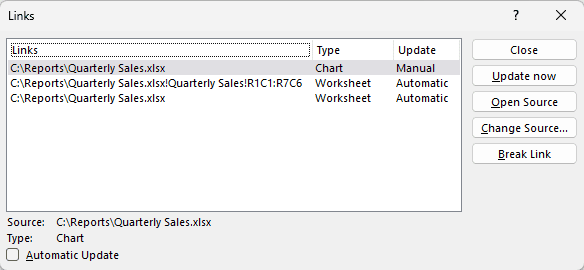
Select the link you want to manage, then use these controls:
- Update now refreshes the selected link.
- Open Source opens its Excel workbook.
- Change Source… points the link to the workbook’s new location after you move or rename it.
- Break Link removes the connection and leaves a static copy on the slide.
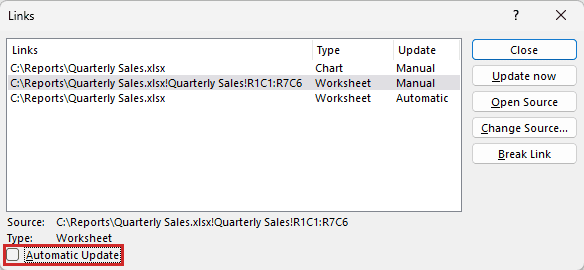
- Automatic Update switches the selected link between Manual and Automatic.
Here, I’ve selected the pasted-range link and unchecked Automatic Update. Its Update column now reads Manual.
Note: Break Link can’t be undone in this dialog. The data stays on the slide as a static copy and will no longer update.
Additional Notes About Linking Excel to PowerPoint
- Links store the workbook’s full file path. Keep it in a stable folder, since moving or renaming it breaks the connection.
- Sending the presentation without its workbook breaks the link. The recipient sees the last stored values. Use Break Link before sharing a deliberately static version.
- Embedding adds the whole workbook to the presentation, so the file grows by at least the workbook’s size. Linking stores the file path and a preview image instead.
- Anyone receiving an embedded workbook can open every sheet it contains. Paste a picture when you only want to share the displayed range.
Frequently Asked Questions
These answers cover opening the workbook, the update prompt, and editing data through a linked object.
Does the linked Excel file need to be open for PowerPoint to update the data?
No. When you reopen the presentation, the UPDATE LINKS bar’s Update button pulls the latest saved numbers from the workbook.
With both files open, worksheet links also follow unsaved changes as you type.
Why does PowerPoint ask me to update links every time I open the presentation?
PowerPoint shows the UPDATE LINKS bar when you open a presentation that has links.
Click Update to refresh the data, or ignore it to keep the stored values.
Break Link in Edit Links to Files stops the prompt for good, but the data stops updating.
Can I edit the linked Excel data from PowerPoint?
Double-click a linked worksheet object to open its source workbook in Excel with the linked range selected. Edit the workbook there.
For a linked chart, you’ll find Refresh Data in the Chart Design tab’s Data group.
Conclusion
Use copy and paste or embed the workbook when Excel changes shouldn’t alter your slide.
When your numbers need to stay current, I recommend Paste Special with Paste link to display your range.
Other Excel articles you may also like:
