
When Excel doesn’t highlight selected cells, it’s hard to tell where your next entry or formatting change will go. First, check whether the selection is missing or simply looks different.
A single active cell normally has an outline without the shading you see across a selected range. The active cell can also stay unshaded inside a larger selection.
In this article, I’ll show you how to restore worksheet selection, check protection permissions, and test whether an add-in is involved.
Method #1: Restoring Worksheet Selection
I recommend starting here. Returning focus to the worksheet and making a small test selection helps separate normal behavior from a selection problem.
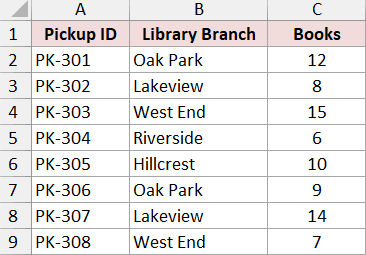
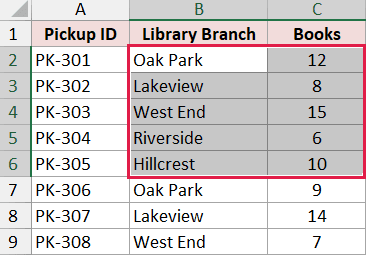
Below I have library pickups in A1:C9. I’ll use the branch names and book counts in B2:C6 to check the selection outline and shading.
An Edit or Enter label on the status bar means a cell entry is in progress. Finish the entry with Enter before continuing.
Pressing Esc cancels an unfinished edit, so use it only if you want to discard that edit.
Here are the checks I use:
- Click inside the Excel window, dismiss any open menu, and click cell B2 once. Look for the outline around that cell.
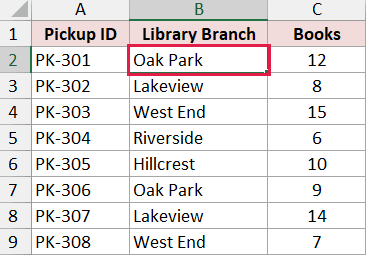
B2 doesn’t need a colored fill to be selected. The outline identifies the active cell, which receives what you type.
- Hold Shift and click C6. This selects the rectangular range B2:C6.
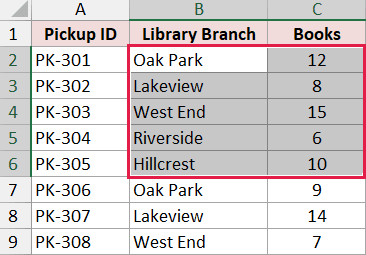
The range should have an outline and selection shading.
Note: B2 remains the active cell and may look lighter than the other selected cells. That doesn’t mean B2 was left out of the selection.
If dragging or Shift-clicking is difficult, the Name Box gives you another way to test the same range.
- Click the Name Box to the left of the formula bar and type B2:C6.
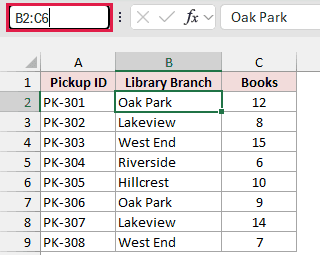
- Press Enter to select the range.
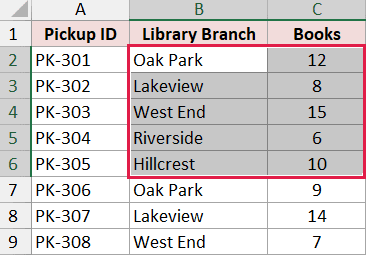
If the border and shading now appear, Excel is selecting cells normally. You can use the same approach to select multiple cells in your own worksheet.
If the mouse selects cells but the arrow keys won’t move between cells, troubleshoot that keyboard behavior separately.
If the outline is still missing, save your work, close Excel normally, and reopen it. Compare the affected file with a new blank workbook.
If selection works in the new workbook, investigate the affected sheet first. If the problem affects every workbook, move to the Safe Mode test in Method #3.
Method #2: Changing Sheet Selection Permissions
If only one sheet refuses to select cells, check its protection settings. A protected sheet can allow editing restrictions while still letting you select cells.
I’ll use the same library pickup list in A1:C9. The goal is to select B2:C6 while keeping the worksheet protected against unwanted edits.
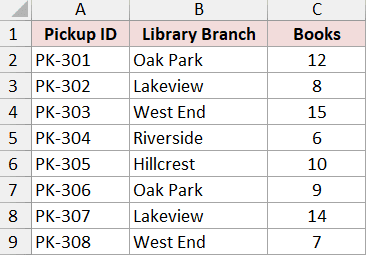
This method applies when protection prevents the selection itself. It won’t repair a display fault where the selected cell changes but its outline isn’t drawn.
Here are the steps to check and change the permissions:
- Open the Review tab. If the command says Unprotect Sheet, the sheet is currently protected. Click it if you’re authorized to change the sheet’s protection.
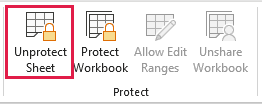
If the command says Protect Sheet, protection isn’t currently blocking selection. Continue with the other checks instead.
- If Excel requests a password, enter the password supplied by the workbook owner and click OK.

No password prompt appears for a sheet protected without a password. If you don’t know the password, ask the owner to adjust the selection permissions.
- Choose Review > Protect Sheet. Check Select locked cells and Select unlocked cells. Keep the other permissions appropriate for the sheet, then click OK and confirm a password if you set one.
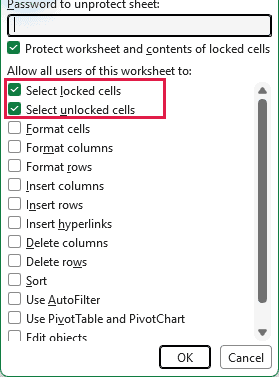
Allowing selection doesn’t allow editing of locked cells. You don’t need to remove the Locked setting from every cell to make the selection visible.
- Click B2, hold Shift, and click C6 to test selection again.
If you want users to select only input cells, allow Select unlocked cells and leave Select locked cells cleared. Locked cells then remain unavailable for selection by design.
Method #3: Testing Safe Mode and Add-ins
If selection fails across workbooks, try Excel’s Safe Mode on Windows. It bypasses several startup settings and add-ins, which helps narrow down the cause.
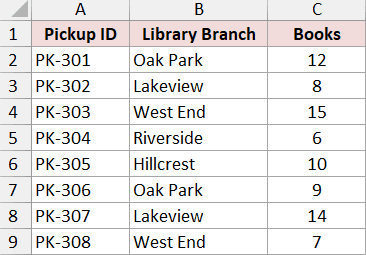
The library pickup list below gives me a simple test range, B2:C6. You can use a small range in the affected workbook instead.
Save and close your Excel workbooks before the test. These steps use the Windows desktop app; the Run command doesn’t apply to Excel for Mac or the web.
Here are the steps for the Safe Mode test:
- Press Windows + R, type excel.exe /safe, and click OK.
Open the affected workbook in that Excel session and test a small selection. If it works, an add-in or another startup setting may be involved.
Safe Mode working doesn’t prove which add-in caused the problem. Close the Safe Mode session and reopen Excel normally before testing add-ins.
Use the following checks to isolate an add-in:
- Choose File > Options > Add-ins. Review the listed add-ins.
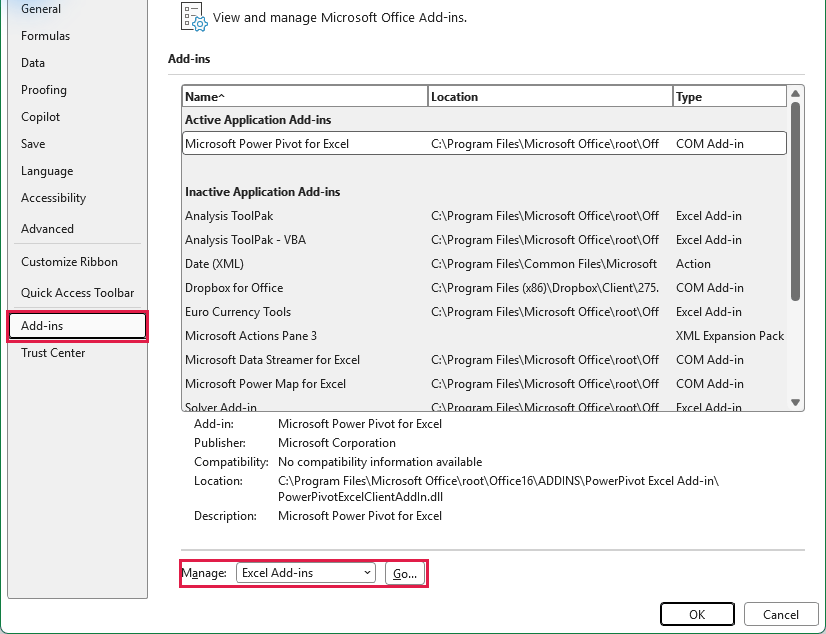
- In Manage, choose COM Add-ins and click Go. Record which boxes are checked, clear them temporarily, and click OK.
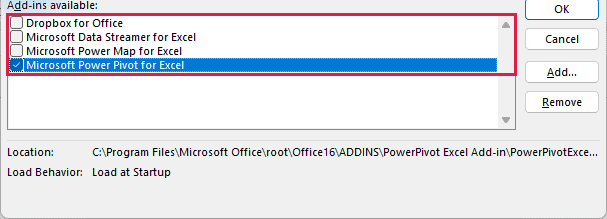
Restart Excel normally and test selection. If it works, restore one previously enabled add-in at a time, restarting and testing after each change.
The add-in associated with the returning problem is the one to investigate. Update it or contact its provider. Restore unrelated add-ins to their previous states.
- If COM add-ins weren’t responsible, return to File > Options > Add-ins. Choose Excel Add-ins in Manage and click Go to review that list separately.
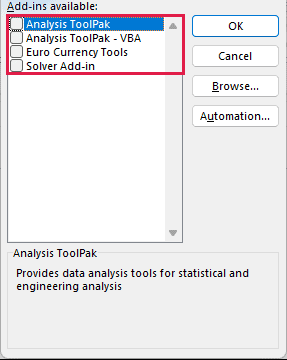
Record the checked boxes, test with those add-ins temporarily disabled, and restore them one at a time if selection improves. Your add-in names will differ from the screenshot.
Restore the original COM add-in settings before testing the Excel add-in list. This keeps the two tests separate.
If disabling add-ins doesn’t help, Safe Mode may be bypassing another startup customization. Microsoft’s Excel troubleshooting guidance also covers startup-folder and toolbar issues.
Don’t empty Excel’s application-data folders as a general cleanup step. They can contain files and customizations you still need.
If the Selection Outline Is Still Missing
If the issue continues in a blank workbook and in Safe Mode, check for Office and display-driver updates. On a managed computer, your IT team may handle those updates.
For a persistent Office installation problem, Microsoft’s repair procedure explains Quick Repair and Online Repair. Save and close Office files before starting.
Repair can affect the whole Office suite. Treat it as a later troubleshooting step, especially if only one worksheet has the problem.
When reporting the issue, note your Excel version, whether it affects one or all workbooks, and whether Safe Mode changes the behavior.
Additional Notes About Selected Cells in Excel
- Selection shading is temporary. It follows your selection and isn’t a saved fill color on the cells.
- Changing a cell’s fill or border isn’t a selection repair. That changes worksheet formatting and can make the original problem harder to diagnose.
- Protection and display problems need different fixes. A cell you can’t select is different from a selected cell whose border you can’t see.
Frequently Asked Questions
These questions cover a few related display behaviors that can look like the same problem.
Can I Make the Active Cell Easier to See?
If your version includes it, View > Focus Cell emphasizes the active cell’s row and column and makes its border thicker.
Microsoft’s Focus Cell announcement covers availability. It’s a visibility aid, so it won’t override sheet protection or fix an add-in fault.
Will Turning on Gridlines Restore the Selection Border?
Gridlines and the selection outline are separate. Gridlines help you see cell boundaries; they don’t control which cell or range is selected.
Should I Disable Hardware Graphics Acceleration?
Don’t assume that checkbox exists in your Excel build. Start with the repeatable selection and Safe Mode tests, then use current Office and device-specific display troubleshooting.
Conclusion
I’d start with a small selection test before changing settings. If selection is blocked, check sheet protection; if its outline disappears across workbooks, use Safe Mode to narrow the problem.
Other Excel articles you may also like: